How to fix
The security log is now full (Event ID 1104)
on Windows
Resolve the "security log is now full" error (Event ID 1104) on Windows 10/11 easily. Expert-tested solutions ensure your system runs smoothly again.


What causes How to fix The security log is now full (Event ID 1104) in Windows?
- Upper limit of the Security Event Log file size is reached
- Log overwriting is not allowed
- Even with overwriting enabled, errors may still occur
- System may have excessive logging activity
- Configuration settings may prevent proper log management
Repairs Windows system files, removes malware, and restores a clean OS state — without reinstalling.
Hello, I have a problem I hope you can help me with. I am using Windows 11, and I received The security log is now full of errors marked as Event ID 1104 in the Event Log. Is there a way to resolve this? Thanks in advance.
Windows Event Viewer is an invaluable tool that runs each time you turn on your computer, keeping track of important system information such as application and system logs. It allows you to easily keep tabs on the current status of both hardware and software components in real time.
Event Viewer provides system administrators with a wealth of data to troubleshoot any machine malfunctions and keep track of activity for better management. By taking advantage of the logs, IT pros can easily recognize what is going on within their networks. Even regular users can make use of the Log whenever needed and see what is going on with Windows in detail.
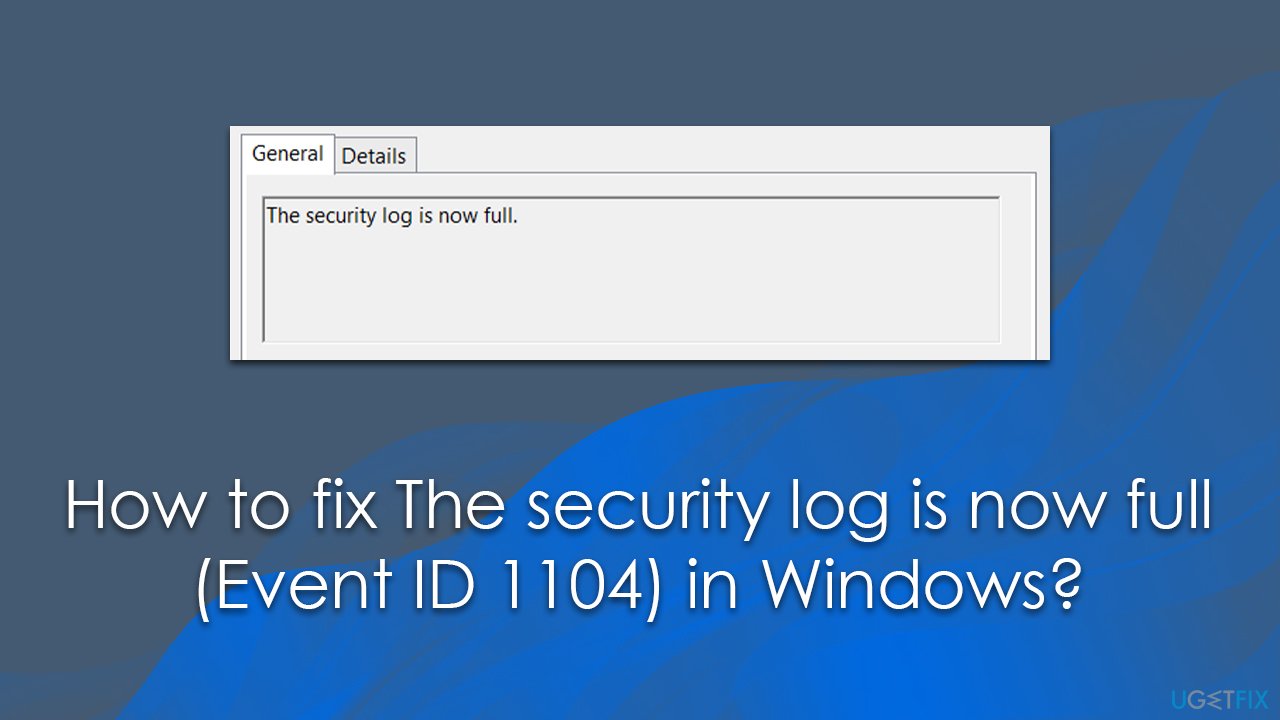
Errors in the Event Log are not uncommon, and it is rather normal - there's no need to look them up or try fixing them if there are no malfunctions with your device. However, some events might be troublesome, and Event ID 1104 - The security log is now full - is one of them.
Event ID 1104 represents an issue where the upper limit of the Security Event Log file size is reached, and no more events can be logged. This usually happens whenever log overwriting is not allowed, so allowing it would fix the problem for most users. However, some Windows 11 users claimed that even with overwriting enabled, they still received The security log is now full Event ID 1104 errors in the Event Log.
Below we show how to enable log overwriting, as well as other solutions that could help you solve this issue. For optimization and remediation purposes, we recommend scanning the system with [d1] PC repair tool.
Solution 1. Enable Event overwriting
Overwriting older logs should prevent them from getting full. Proceed with the following:
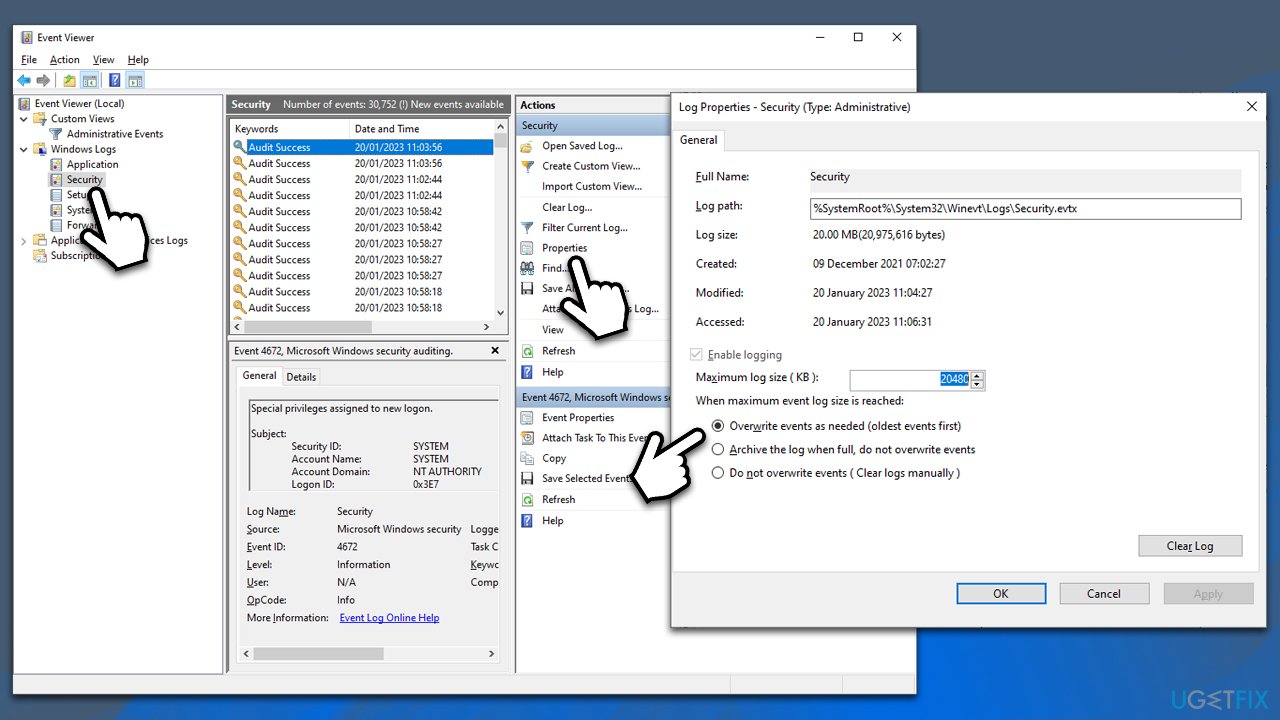
- Open Event Viewer.
- Go to Windows Logs and select Security.
- Check the very right side of the window and click Properties.
- At the bottom, you should see the When maximum event log size is reached section and a few choices there - pick the Overwrite events as needed (oldest events first) option.
- Click Apply and then OK.
Solution 2. Try restarting the relevant service
If the previous solution did not work for you, try this one instead - restarting the Event Viewer service as follows:
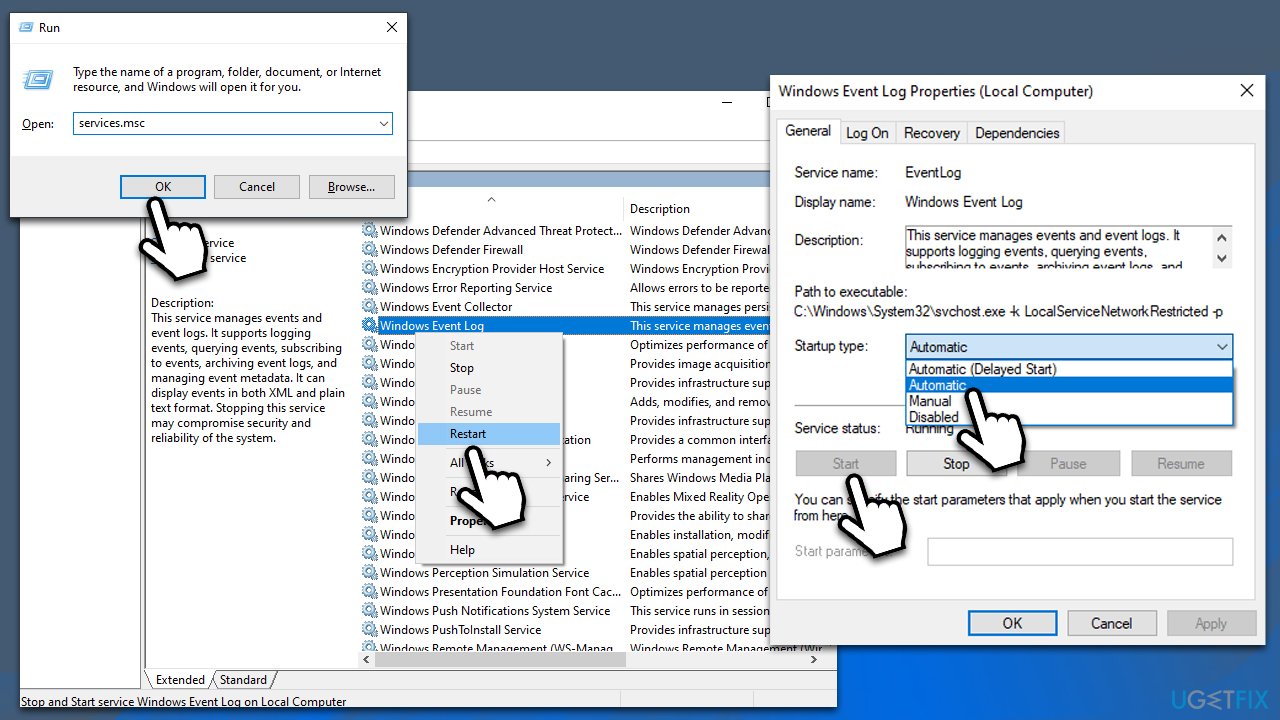
- Press Win + R on your keyboard.
- Type in services.msc and press Enter or click OK.
- In the Services window, scroll down to find Windows Update Log.
- Right-click the service and select Restart.
- Alternatively, if this service is not running, follow these steps:
- Double-click the Windows Update Log entry.
- Under Startup type, select Automatic from the drop-down menu.
- Click Start, Apply, and OK.
After this, open Event Viewer again and make sure that log overwriting is still enabled.
Solution 3. Uninstall the most recent Windows update [workaround]
Many users reported that they started to get The security log is now full (Event ID 1104) errors after updating Windows to the latest version. If this happened recently, you could uninstall the faulty update and wait till Microsoft fixes this issue.
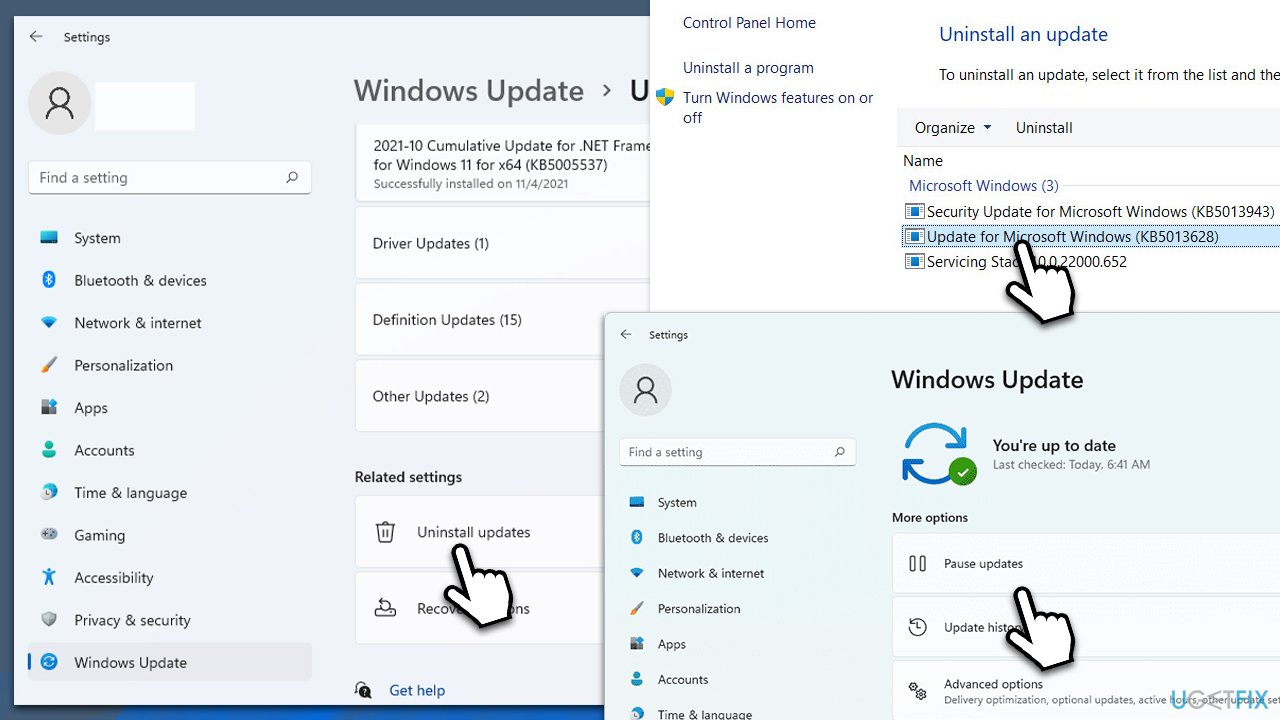
- Type Updates in Windows search and press Enter.
- Open Settings and go to Windows Update.
- Select Update history and pick Uninstall updates.
- When Control Panel opens, sort it by the date.
- Select the most recent update and click Uninstall at the top.
- Proceed with on-screen instructions to finish the process.
- Go to the Windows update page once again and click Pause updates - pick the time you want.
- Reboot your PC.
Bottom line
To resolve the 'The security log is now full' error, you can enable event overwriting to allow older logs to be replaced. Additionally, consider scanning your system with a PC repair tool for optimization. If these solutions do not work, further investigation into system settings may be necessary.
Frequently asked questions
This error typically occurs when the security event log reaches its maximum size, preventing new events from being recorded. It can also be triggered by a misconfigured log size setting in the Event Viewer.
To increase the size limit, open the Event Viewer, navigate to Windows Logs, right-click on Security, select Properties, and adjust the Maximum log size setting. Ensure to set a size that accommodates your logging needs without overwhelming your system.
If the error persists, consider enabling the 'Overwrite events as needed' option in the Security log properties, or regularly archive and clear old logs to maintain sufficient space.




Report an issue
What's wrong with this guide? We review every report and update or remove content.
Report received — thank you. We'll review and fix it.
You need a free account to submit a report.
Be the first to comment