How to fix
“This build of Vanguard is out of compliance” error
on Windows
Resolve the "This build of Vanguard is out of compliance" error on Windows 10 or 11 quickly and efficiently with expert-tested solutions.


What causes How to fix “This build of Vanguard is out of compliance” error?
- Vanguard is not up to date
- Vanguard is not compatible with the current version of Valorant
- Secure Boot is not functioning properly
- Underlying system issues
- Corrupted files or registry issues
Repairs Windows system files, removes malware, and restores a clean OS state — without reinstalling.
Hello. A little while ago I tried to launch Valorant but a message popped up saying This build of Vanguard is out of compliance." It does not let me play the game. How do I fix this?
"This build of Vanguard is out of compliance" is an error message that appears when attempting to launch the game Valorant, which is a popular first-person shooter game developed by Riot Games. The message indicates that the version of Vanguard, which is an anti-cheat software required to play the game, is not up to date or is not compatible with the current version of the game.
The purpose of Vanguard is to detect and prevent cheating in the game by monitoring the player's system and ensuring that no third-party software or hacks are being used during gameplay. The error can impact players by preventing them from launching the game and playing. This can be frustrating for players who are looking to enjoy the game.
There are several possible solutions to this issue, such as reinstalling the software, updating Windows, or enabling Secure Boot in BIOS[ref en-1] settings. It is also recommended to check for any updates or troubleshooting tips from the official Valorant website or the Vanguard website.
In this guide, you will find 3 steps that should help you fix "This build of Vanguard is out of compliance" error when trying to play Valorant. Keep in mind, that the error may also appear because of underlying system issues. You can run a maintenance tool like [d1] that can fix most system errors, BSODs,[ref en-2] corrupted files, and registry[ref en-3] issues. Otherwise, follow the step-by-step instructions below.

Solution 1. Update Windows
- Click Start and select Settings
- Go to the Windows Update section
- Click Check for updates and wait
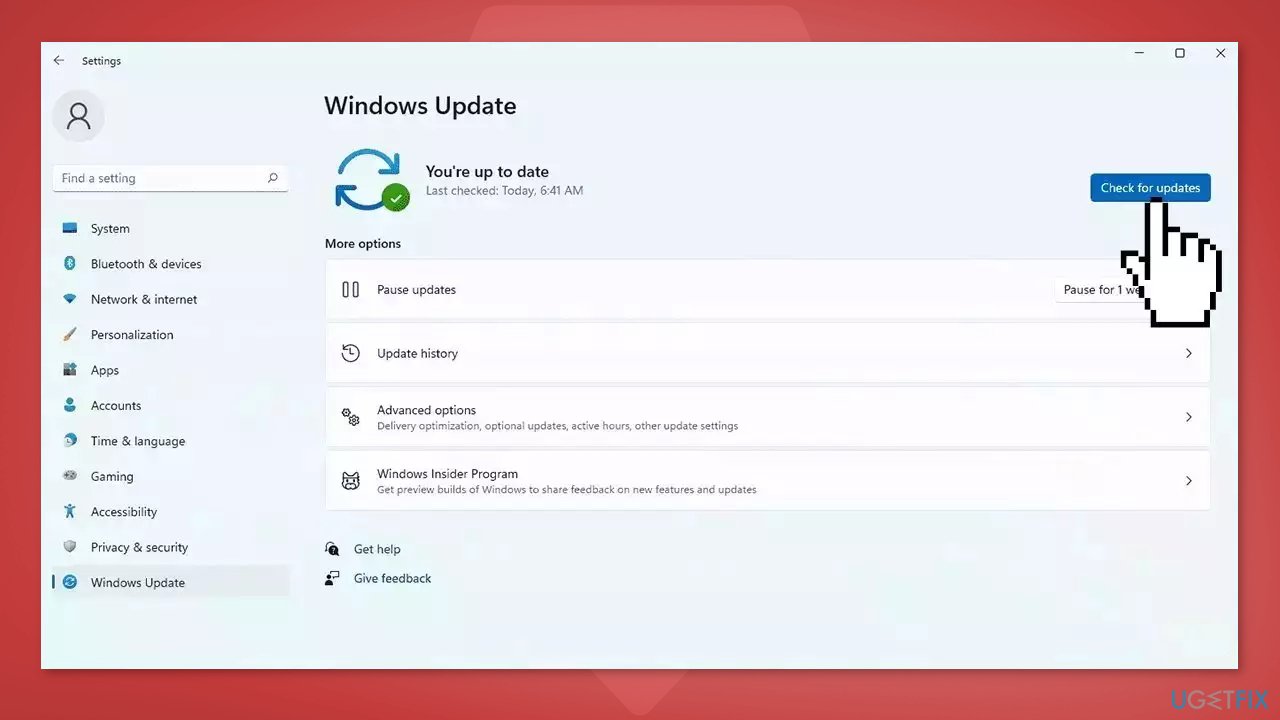
- Go to the Advanced options and install optional updates
- Reboot your system.
Solution 2. Enable Secure Boot
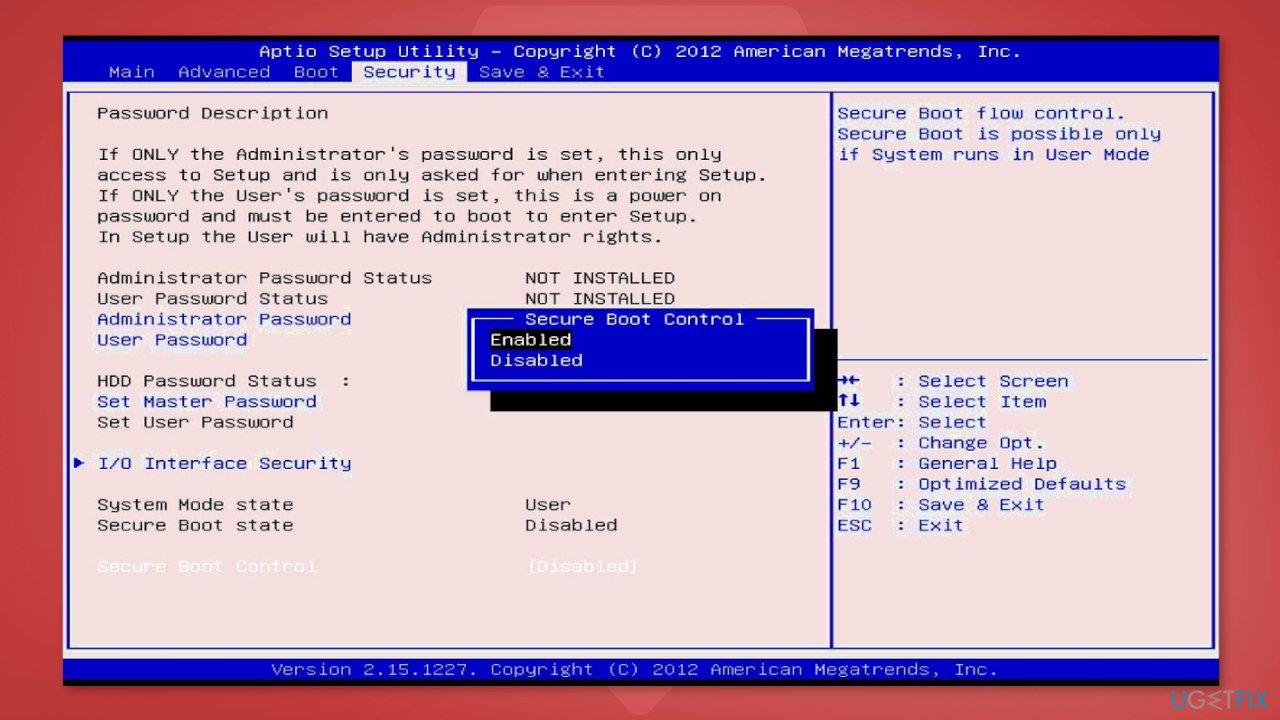
According to multiple reports, Secure Boot may be enabled on your system but is not functioning properly due to a BIOS glitch. To resolve this issue, you can try a workaround by accessing the BIOS settings on your system. However, it's important to note that the process for entering the BIOS settings can vary depending on the motherboard manufacturer or computer type.
Additionally, these settings are delicate, so it's crucial to consult the official manual from your system's motherboard manufacturer before making any changes. To avoid risking breaking your computer's normal functionality. First, you will see general instructions on how to do this. Below, you will find specific steps for ASUS, GIGABYTE, and MSI motherboards.
- Go to the BIOS settings on your system
- If you don't see Secure Boot, set CSM (Compatibility Support Module) to Off to make it visible
- Change Secure Boot Mode from Standard to Custom, and then switch back to Standard immediately
- Confirm the change by choosing Yes
- The above step may cause you to exit the BIOS. If so, re-enter the BIOS settings to ensure that Secure Boot is now enabled.
ASUS and GIGABYTE motherboards:
- Enter the BIOS settings
- If the Boot mode is CSM or Legacy, change it to UEFI
- Go to the top menu, navigate to the Secure option, and disable it
- Change the Secure Boot mode to custom
- Change the mode back to standard
- Set the BIOS to factory defaults or restore defaults and confirm the changes
- Re-enter the BIOS settings and enable Secure Boot again
- Confirm any message that appears, save changes and exit the BIOS
- Now Secure Boot should be activated successfully.
MSI motherboards:
- Access the BIOS settings
- If the Boot mode is set to CSM or Legacy, change it to UEFI
- Navigate to the Security option, then go to Secure Boot and disable it
- Change the mode back to standard
- Go to Settings, then Advanced, and finally enable Secure Boot
- Save the modifications and exit the BIOS
Solution 3. Reinstall Vanguard
- Click on the Search menu
- Type appwiz.cpl and press Enter
- In the Program and Features window, locate Riot Vanguard and select it
- Click on Uninstall
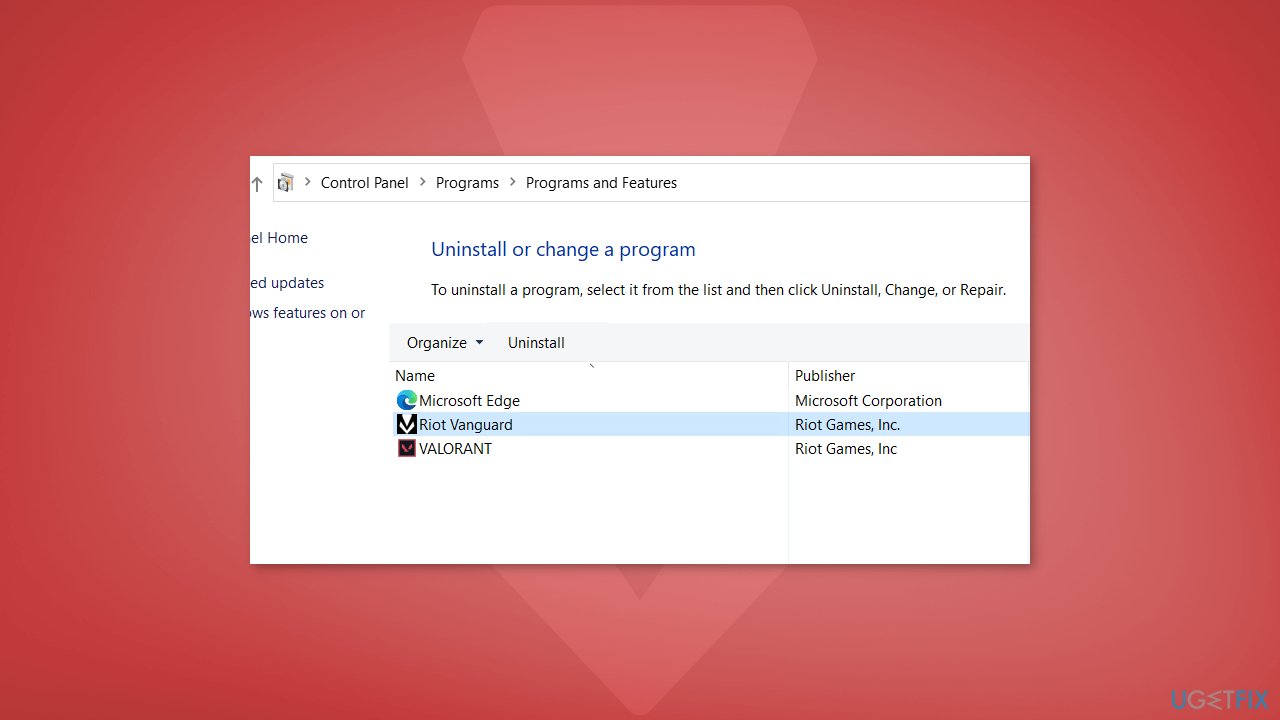
- Follow the on-screen instructions on the Uninstallation wizard until the removal is complete
- Reboot the system
- Go to the game's official website and download the latest version of the game
Bottom line
To fix the 'This build of Vanguard is out of compliance' error, you can update Windows, enable Secure Boot, or run a maintenance tool to address system issues. If these solutions do not resolve the problem, check for updates or troubleshooting tips from the official Valorant or Vanguard websites.
Frequently asked questions
First, ensure that both your Windows 10 OS and the Vanguard anti-cheat software are updated to the latest versions. If the issue persists, try reinstalling Vanguard and then restarting your PC.
Yes, certain security settings on Windows 11, such as virtualization-based security, can conflict with Vanguard. Check your security settings and consider disabling them temporarily to see if it resolves the error.
You can verify Vanguard's installation by navigating to the Riot Games folder in your Program Files and checking for the Vanguard executable files. If they are missing or corrupted, reinstalling Vanguard should fix the compliance issue.




Report an issue
What's wrong with this guide? We review every report and update or remove content.
Report received — thank you. We'll review and fix it.
You need a free account to submit a report.
Be the first to comment