How to fix
Bluetooth paired but not connected
on Windows
Resolve Bluetooth issues on Windows 10 and 11 effortlessly with expert-tested solutions. Get your devices connected quickly and efficiently!

What causes How to fix Bluetooth paired but not connected in Windows?
- Bluetooth drivers are outdated or incompatible
- Missing Bluetooth adapter on the desktop
- Interference from other wireless devices
- Specific applications causing connection issues
- Incorrect Bluetooth settings on Windows
Repairs Windows system files, removes malware, and restores a clean OS state — without reinstalling.
Hi, I have a problem with Bluetooth pairing on Windows. I have several devices that are Bluetooth-based and work perfectly fine with my phone, for example. However, whenever I try to connect them on Windows, it simply says "paired but not connected." Is there something I'm doing wrong, and what can be done about this?
Bluetooth technology is a wireless communication standard that allows devices to connect and exchange data over short distances. It operates in the 2.4 GHz frequency band and uses a technique called frequency hopping to avoid interference from other devices.
Bluetooth devices can be paired together to establish a connection, and once connected, they can share information such as audio, video, and files. Bluetooth technology is commonly used in devices such as smartphones, laptops, speakers, and headphones.
Considering its wireless nature, it can be extremely handy for those who choose to use wireless headphones, mice, keyboards, or other devices, allowing them to avoid annoying cable connections. Bluetooth devices can be paired together, which is the process of establishing a connection between two devices, and once paired, they can easily connect and disconnect as needed.
Unfortunately, a large amount number of people reported that they were unable to use such devices - they were paired but not connected for some reason. For some users, the problem only occurred with certain devices or when using certain applications, while others said that the problem is universal and none of the devices work.
To ensure that a Bluetooth device will function effectively on your Windows PC or laptop, it should be equipped with an adapter. Most laptops come pre-installed with the necessary adapters; however, not all desktops include them (but they can be easily and affordably added). Although having the proper hardware is essential for success, compatible drivers must also be installed to enable its full functionality.
Bluetooth drivers are one of the main reasons for the Bluetooth paired but not connected problem you might be facing - we provide all the steps you can do to fix this issue. Also, running a troubleshooter, uninstalling the most recent Windows updates, and other solutions could be useful for some people.
Before proceeding, please make sure that there are no other inconsistencies that could be causing this issue - [d1] automatic repair software is a good place to start. Alternatively, proceed with the instructions below.
1. Re-enable Bluetooth
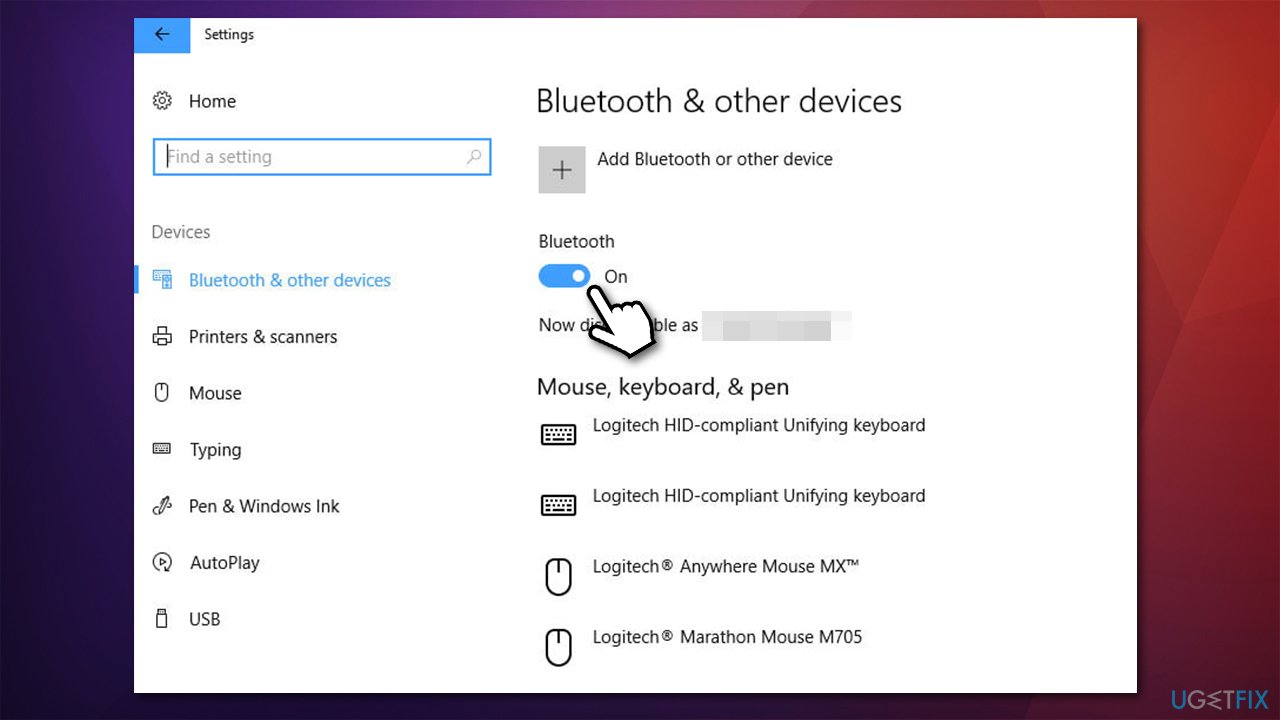
First, let's disable and enable the functionality via Windows to see if that helps:
- Right-click on Start and pick Settings.
- Select Devices and pick Bluetooth & other devices.
- Here, toggle the switch to the Off position, wait a few seconds, and turn it back on.
- Try pairing your Bluetooth devices once more.
2. Run the troubleshooter
Troubleshooters are among the most useful tools provided by Microsoft, and the most commonly-used ones are built-in.
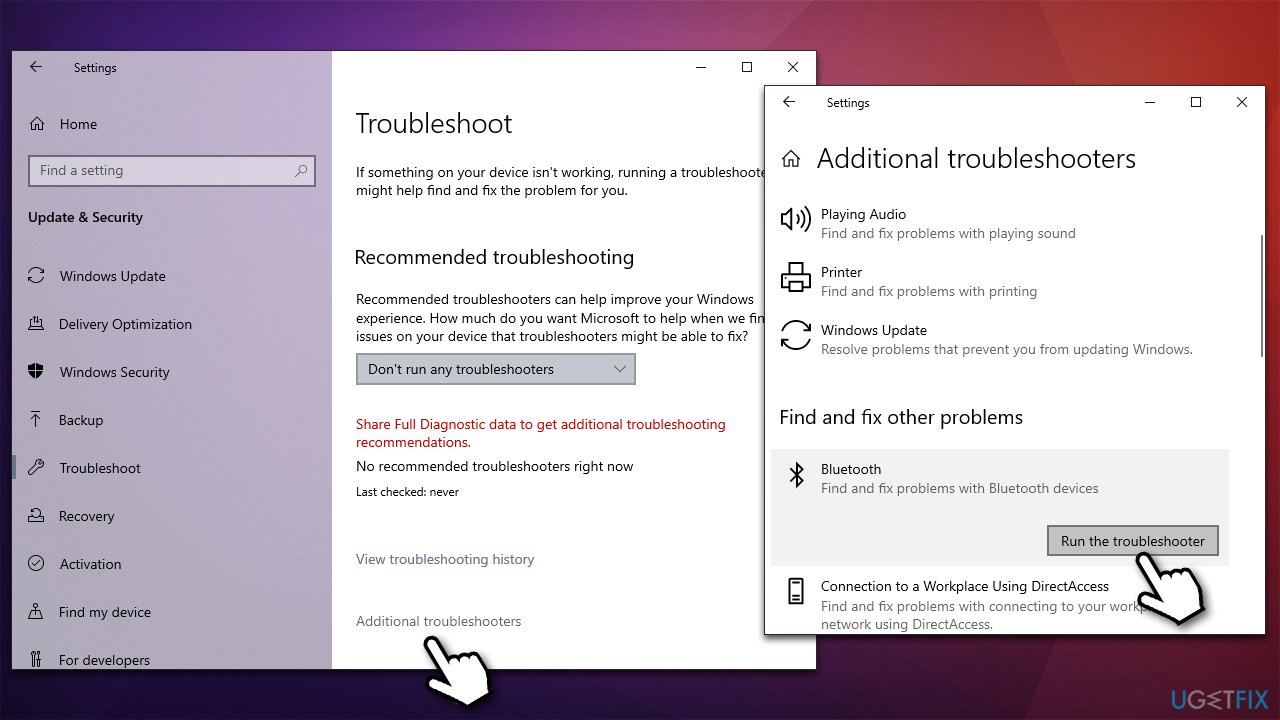
- Type Troubleshoot in Windows search and press Enter.
- At the bottom of the window, click Additional troubleshooter/Other troubleshooters.
- Locate Bluetooth, click it, and press Run the troubleshooter/Run.
- Apply the suggested changes and see if that resolves the issue for you.
3. Update drivers
If you're looking to update your drivers, there is no better way than using [rev id="DriverFix"], an automatic updater that makes the process effortless. Another method is manually downloading the newest driver from your device manufacturer's website; however, this may be perplexing for some users. Lastly, Windows updates can also provide new driver versions - though it isn't always successful in locating them all.
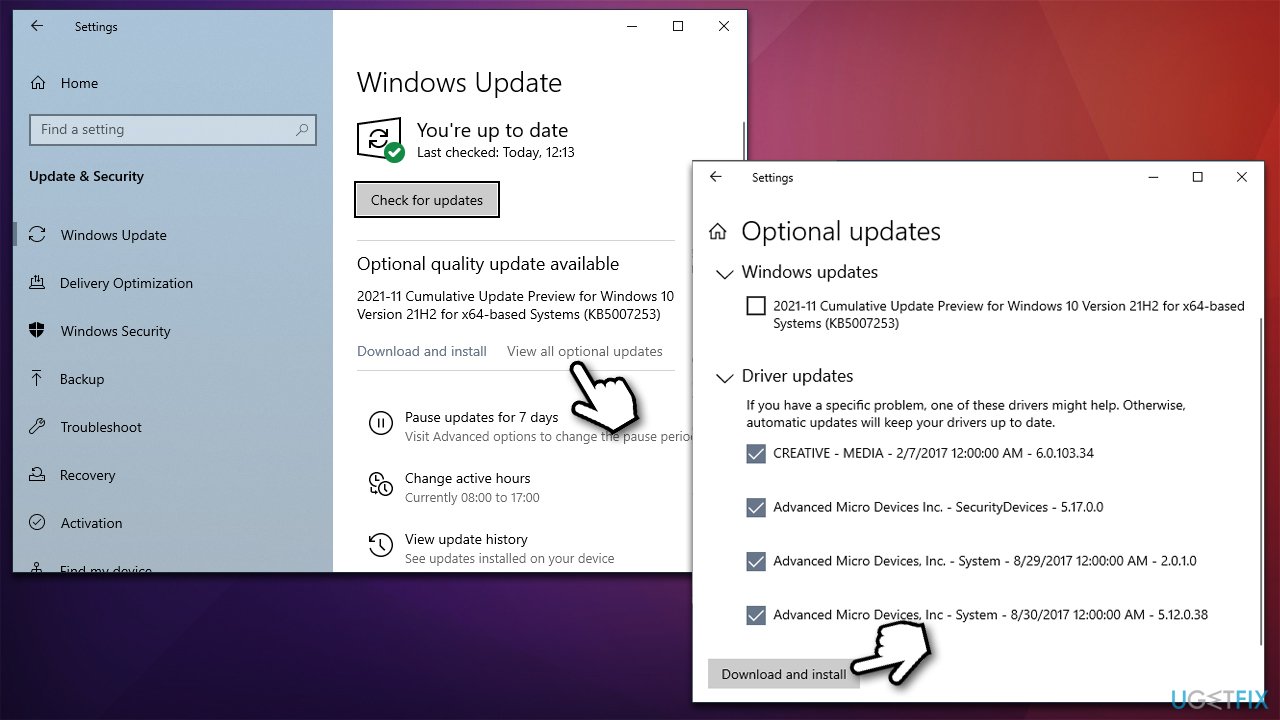
- Type Update in Windows search and hit Enter.
- Click Check for updates.
- Click View optional updates.
- Find the Driver Updates section, tick the checkboxes, and click Download and Install.
- Once Windows finishes installing the necessary files, restart it.
4. Reinstall drivers
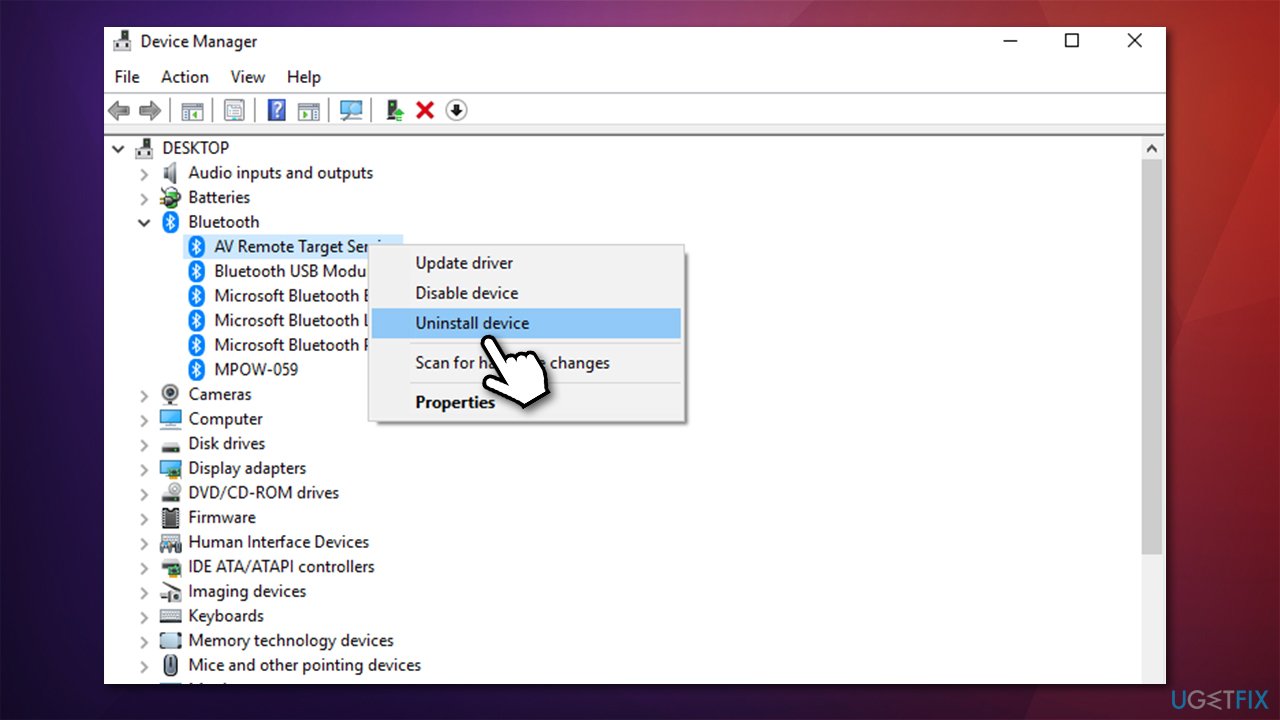
- Right-click on Start and pick Device Manager.
- Select Bluetooth section.
- Right-click on your adapter name and select Uninstall device.
- Restart your computer.
- Windows should automatically install the basic driver for Bluetooth, although it may not happen. In such a case, use one of the options we discussed above.
5. Uninstall the most recent Windows update
If Bluetooth stopped working after updating Windows, the problem could be caused by a faulty Windows update, thus, uninstalling it could get rid of the problem. Note that this is not available to everyone.
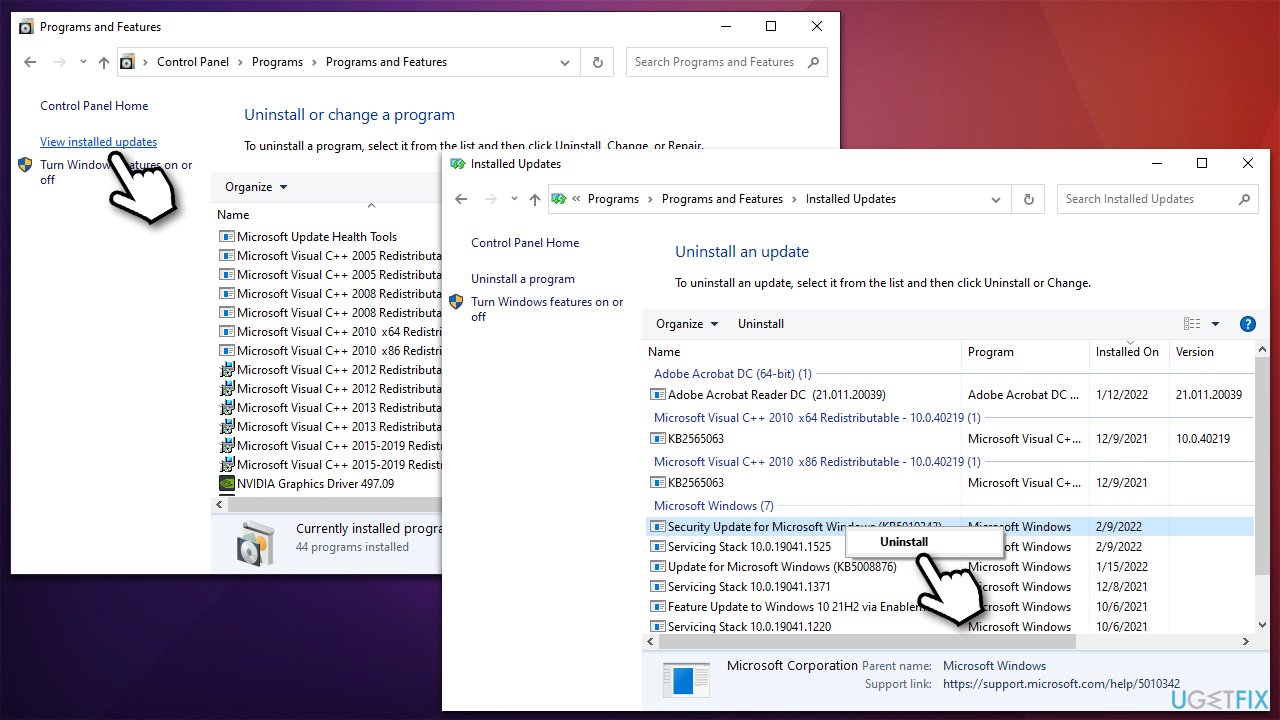
- Type Control Panel in Windows search and hit Enter.
- Select Programs > Uninstall a program.
- Pick View installed updates on the left.
- Sort all the installed updates by date.
- Right-click on the newest installment and select Uninstall.
- Restart your PC.
After you uninstall the update, make sure you pause it until Microsoft fixes the buggy update.
6. Restart Bluetooth Support Service
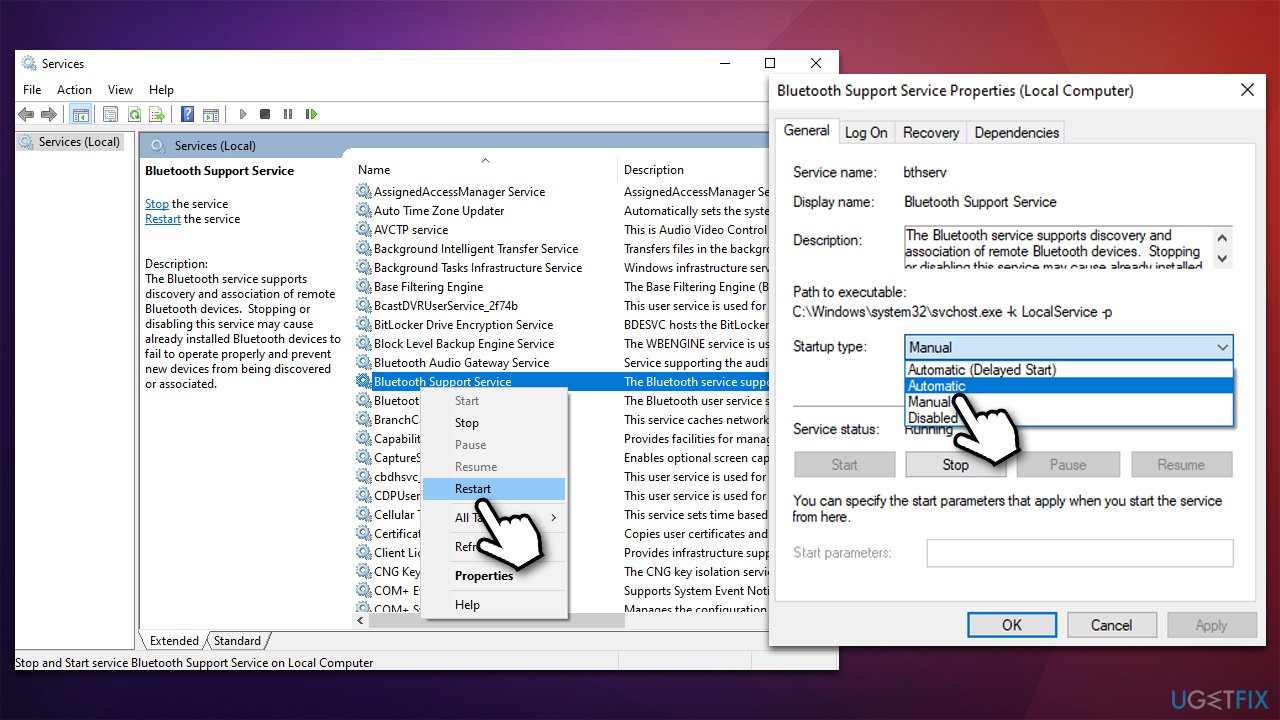
- Type in Services in Windows search and hit Enter.
- Scroll down to locate Bluetooth Support service.
- Right-click on it and select Restart.
- After that, double-click the service and set the startup type to Automatic.
- Click Apply and OK.
Bottom line
To fix the 'paired but not connected' issue, ensure your Bluetooth drivers are updated, check for a compatible Bluetooth adapter, and adjust your Bluetooth settings. If these steps do not resolve the problem, consider troubleshooting specific applications or checking for interference.
Frequently asked questions
First, try removing the Bluetooth device from the paired list and re-pairing it. If that doesn't work, update your Bluetooth drivers through Device Manager.
You can run the Bluetooth troubleshooter by going to Settings > Update & Security > Troubleshoot > Additional troubleshooters and selecting Bluetooth. Ensure that Bluetooth is enabled and check for Windows updates that might improve compatibility.
This can happen due to outdated drivers or interference from other devices; ensure your drivers are up to date and try disconnecting other Bluetooth devices. Additionally, resetting your Bluetooth settings in Windows 10 or 11 may help resolve the issue.




Report an issue
What's wrong with this guide? We review every report and update or remove content.
Report received — thank you. We'll review and fix it.
You need a free account to submit a report.
Be the first to comment