How to fix
WhatsApp error “Your microphone is unavailable or in-use on another app”
on Windows
Resolve the WhatsApp microphone error on Windows 10 and 11 easily with our expert-tested solutions. Get back to chatting in minutes!

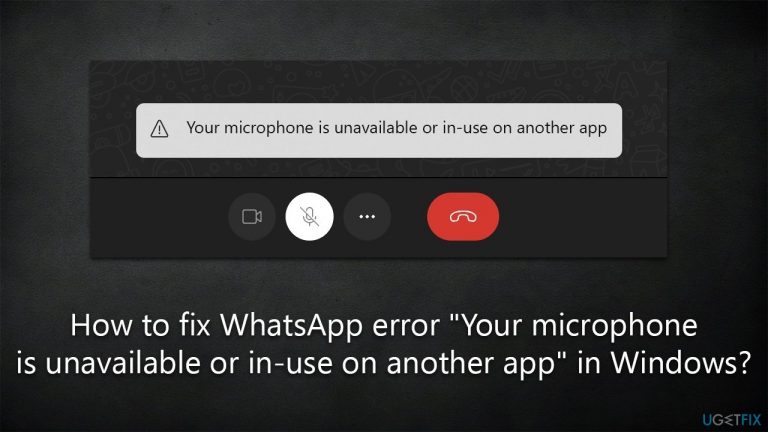
What causes How to fix WhatsApp error “Your microphone is unavailable or in-use on another app” in Windows?
- Microphone not accessible to WhatsApp
- Microphone in use by another application
- Privacy settings not allowing WhatsApp access to the microphone
- Missing WhatsApp entry in Microphone settings
- Automatic PC repair tool not run
Repairs Windows system files, removes malware, and restores a clean OS state — without reinstalling.
Hello, I have noticed that for a few weeks now, my mic is not working on WhatsApp, and instead, I receive an error message "Your microphone is unavailable or in-use on another app." This is weird because I am not using it for anything else at the time when I attempt to use it on WhatsApp. Any advice, please? I'm running Windows Windows 10 version 22H2.
WhatsApp is a cross-platform instant messaging app that allows users to communicate with their contacts across a variety of devices and platforms. It was released in 2009 by a former Yahoo! employee, Jan Koum, and today it boasts over 2 billion active monthly users worldwide. This makes it the most popular messaging app in the world, surpassing even Facebook Messenger.
WhatsApp provides a wide array of features and tools to its users, including the ability to send text messages and multimedia files, make voice and video calls, create group chats and broadcast messages, share their locations with others, set up status updates and stories, use end-to-end encryption for added security, and more.
Voice chat is among the most popular features of the app, but unfortunately, it does not work for everyone. Some users have been reporting an issue whether their mics simply don't work when using the app and they receive the "Your microphone is unavailable or in-use on another app" error when trying to use it.
In most cases, the issue lies with the microphone not being able to access WhatsApp, resulting in the "Your microphone is unavailable or in-use on another app" error. In such cases, accessing privacy settings and allowing WhatsApp to use a camera can easily solve the situation.
However, this did not help many users, and they also said that WhatsApp entry in the Microphone settings was simply missing. If you are facing similar issues, do not worry, as we provide several solutions that might help you fix the error.
Before proceeding with the steps below, we highly advise running an automatic PC repair tool [d1], which can quickly and easily fix various common Windows issues, such as system file corruption, BSODs, and more.
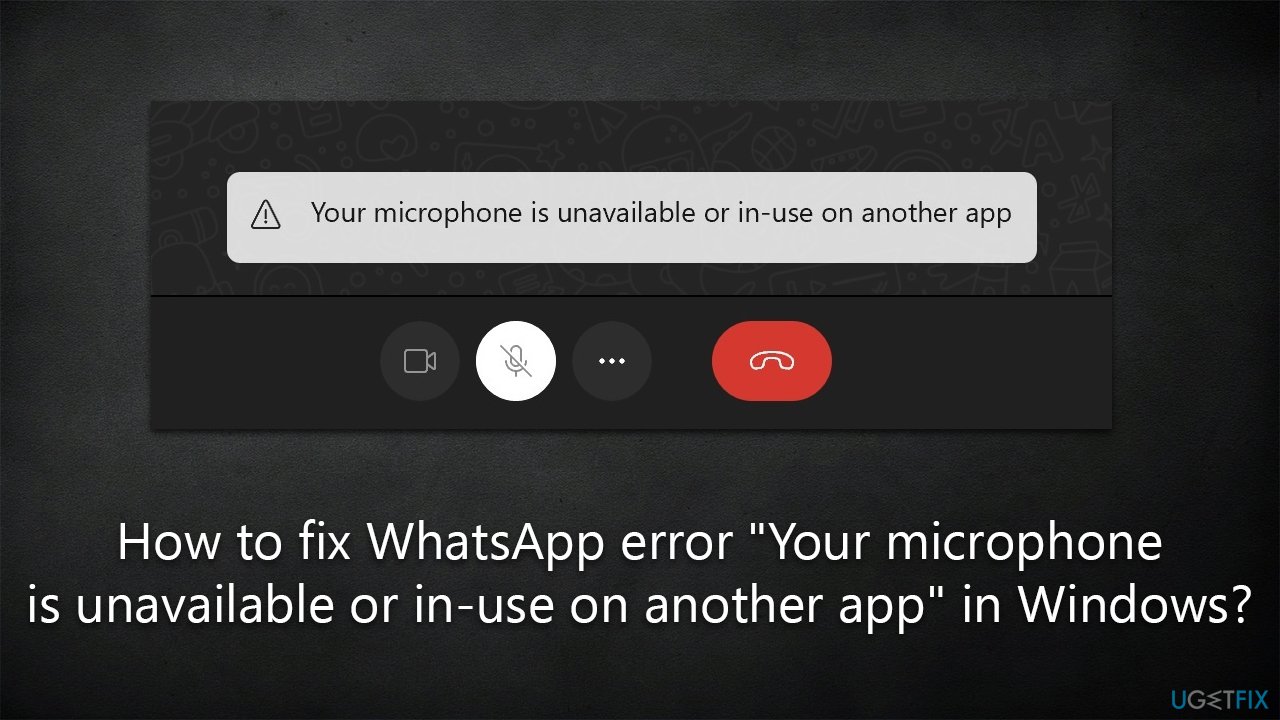
Fix 1. Enable Camera in Privacy settings
This solution might not be useful for everyone, but some people managed to fix the "Your microphone is unavailable or in-use on another app" by following these steps:
- Click on the Windows Start button and pick Settings.
- Go to Privacy & Security section.
- Make sure Allow apps to access your microphone option is enabled.
- Select Microphone.
- Scroll down to find WhatsApp and toggle the switch next to it to the right - On position.
- Try using your mic in WhatsApp again.
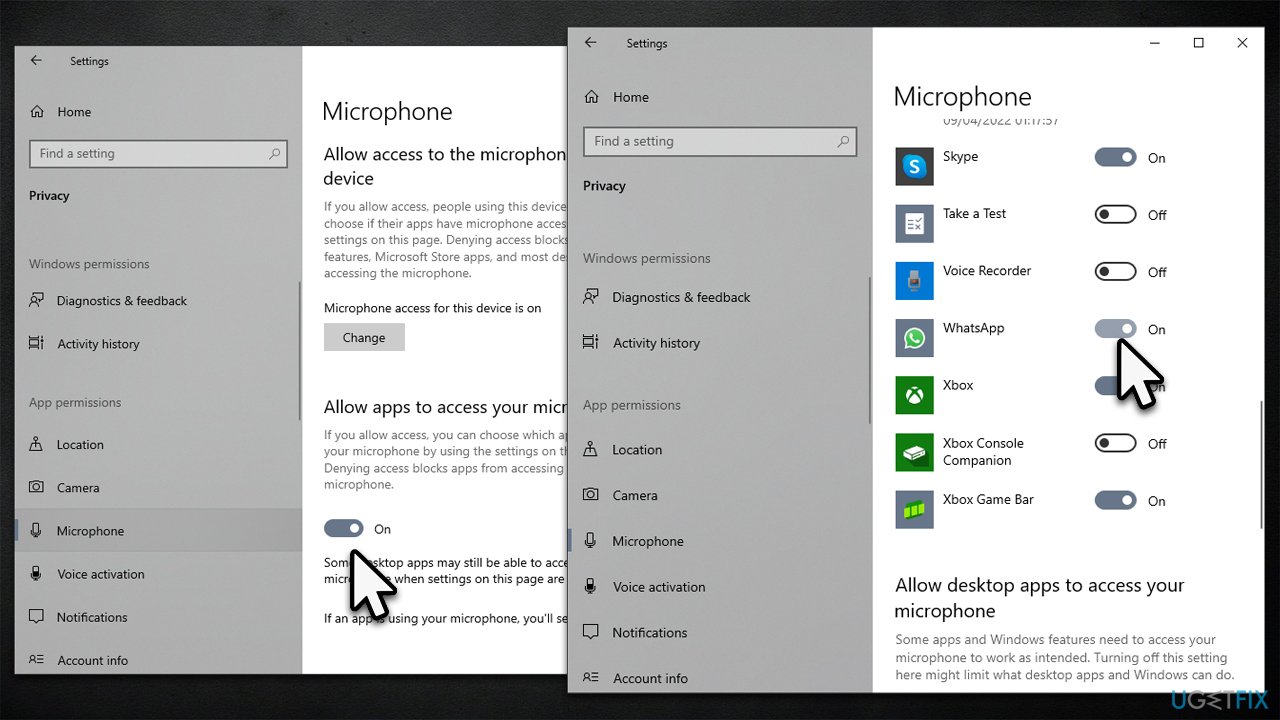
Fix 2. Update Windows
General bugs could affect the way Windows operates when it comes to apps, so make sure it is up to date.
- Type Update in Windows search and press Enter or go to Start > Settings > Update & Security.
- Click Check for updates and wait.
- If optional updates are available, install them too.
- Once done, restart your system.
Fix 3. Run troubleshooters
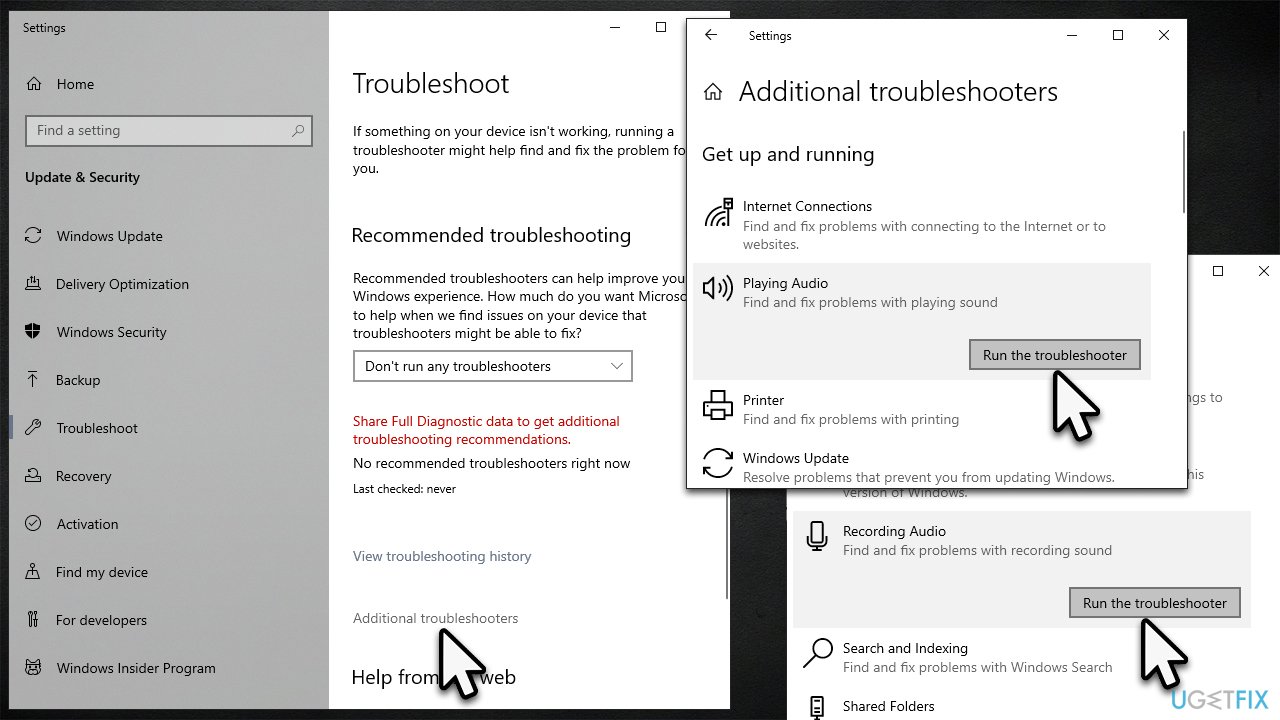
There are several troubleshooters that could help you deal with the "Your microphone is unavailable or in-use on another app" error in WhatsApp. Try these:
- Type troubleshoot in Windows search and press Enter.
- Go to Additional troubleshooters/Other troubleshooters.
- Scroll down and run the following troubleshooters:
Audio troubleshooter
Program Compatibility troubleshooter (select WhatsApp)
Speech
Windows Store Apps - Follow on-screen instructions and apply the suggested changes, then check if the problem was fixed.
Fix 4. Repair or reset the app
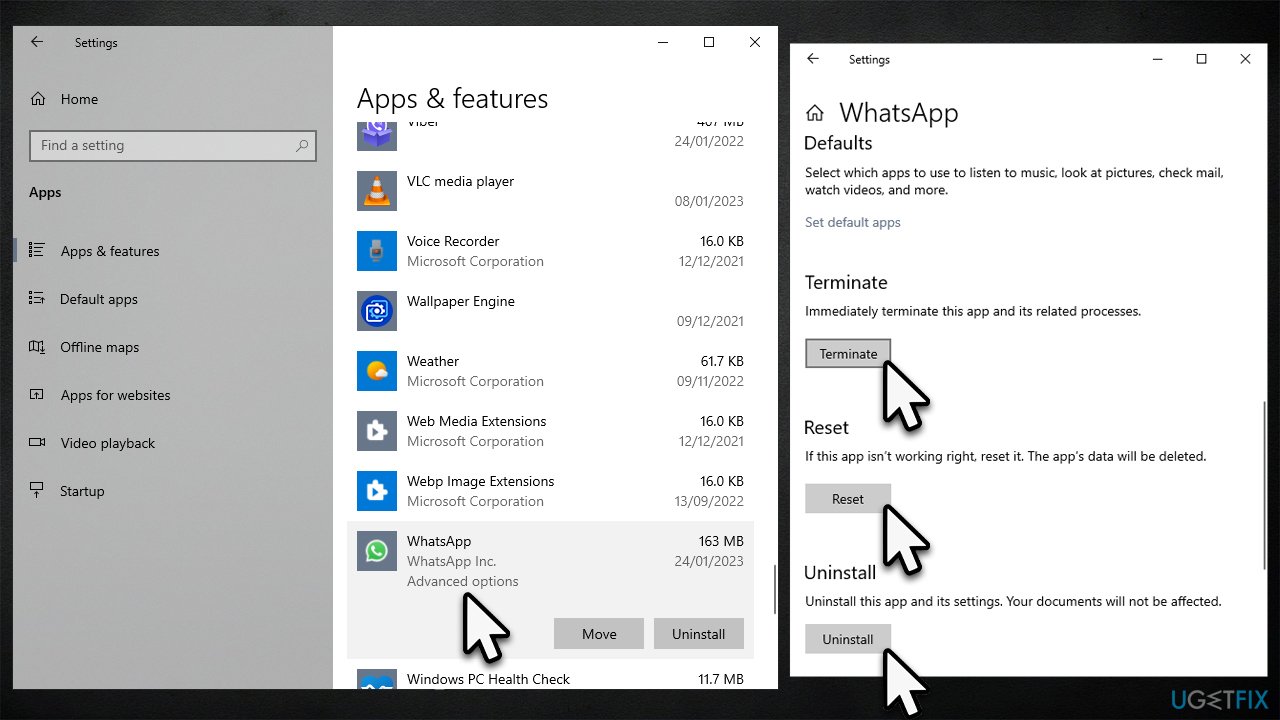
- Open Settings and go to Apps > Apps and features.
- Scroll down to locate WhatsApp.
- Click Advanced options.
- Here, click Terminate, then Repair.
- If the Repair option was of no help, try using Reset instead.
Fix 5. Reinstall audio drivers
Those who are using laptops especially found that reinstalling audio drivers helped them fix the issue. If you are using Nvidia sound drivers, you would have to reinstall GPU drivers since it comes in a package. Otherwise, you could employ an automatic updater such as [rev id="DriverFix"] or get the latest version from your laptop's manufacturer's website. But before that, uninstall the current driver:
- Right-click on Start and pick Device Manager.
- Expand the Sound, video, and game controllers section.
- Right-click on your audio driver and select Uninstall device.
- Mark the Delete the driver software for this device option.
- Click Uninstall and follow the on-screen instructions.
- Restart your PC.
Fix 6. Install WhatsApp Beta
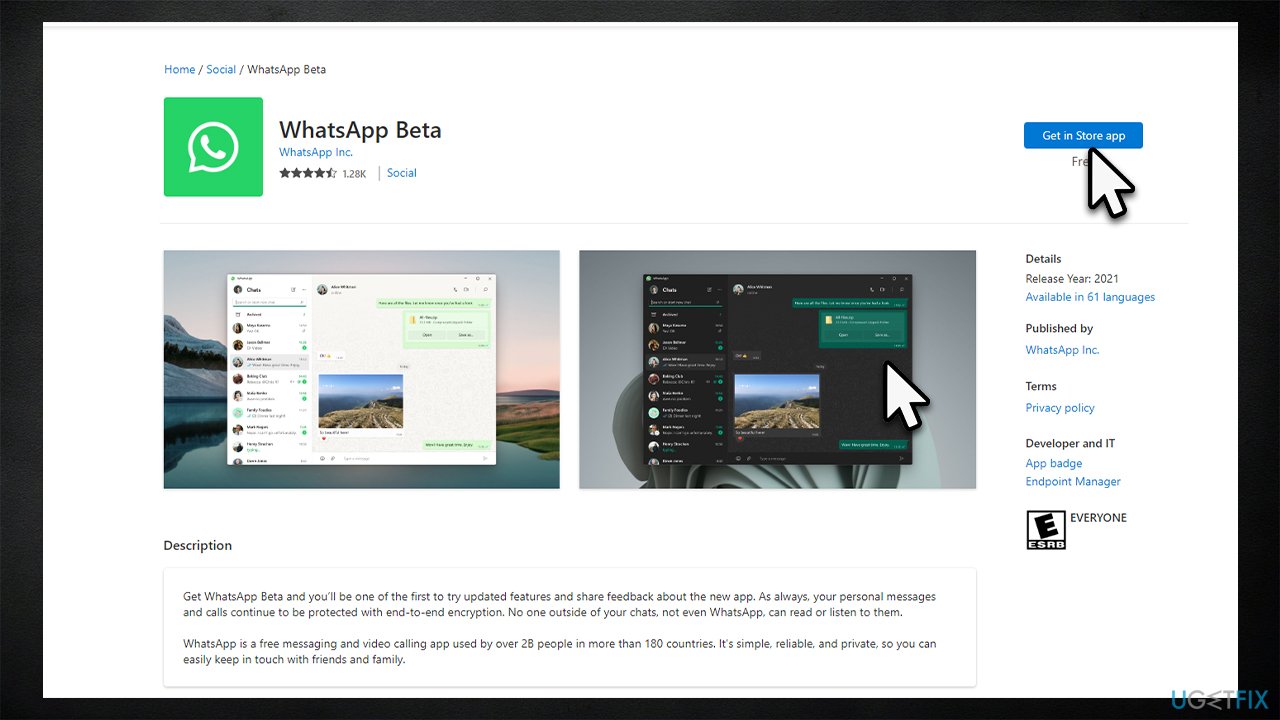
Some users said that they managed to get the mic working on WhatsApp after using the WhatsApp Beta app instead. You can download it from the official Microsoft Store or via the browser.
Fix 7. Reinstall the app
Finally, you can try reinstalling WhatsApp to see if that helps you to resolve the "Your microphone is unavailable or in-use on another app" error.
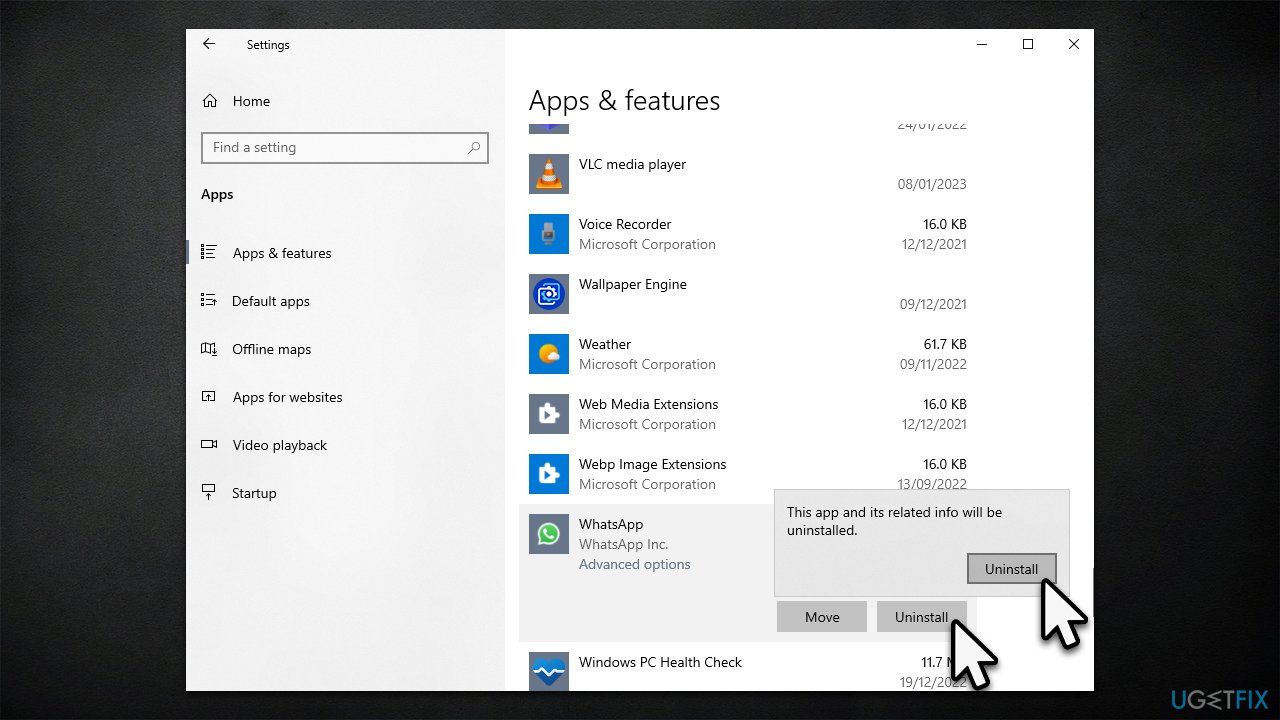
- Right-click on Start and pick Apps and Features.
- Scroll down to find WhatsApp.
- Click Uninstall and then select Uninstall again.
- Follow on-screen instructions to remove the app.
- Restart your system.
- Go to the official WhatsApp page or Microsoft Store and re-download/install the app.
Bottom line
To fix the error, check your privacy settings to ensure WhatsApp has permission to access the microphone, and verify that no other applications are using the microphone simultaneously. If the issue persists, consider running an automatic PC repair tool to address potential system problems. If none of these solutions work, further troubleshooting may be necessary.
Frequently asked questions
First, check if any other applications are currently using the microphone and close them. You can also restart your computer to reset the microphone access.
Go to Settings > Privacy > Microphone in Windows 10 or Windows 11, and make sure that WhatsApp is allowed to access the microphone.
Try updating your audio drivers through Device Manager, or reinstall WhatsApp to resolve any potential conflicts.




Report an issue
What's wrong with this guide? We review every report and update or remove content.
Report received — thank you. We'll review and fix it.
You need a free account to submit a report.
Be the first to comment