How to fix
Can’t turn off airplane mode
on Windows
Struggling to disable airplane mode in Windows 10 or 11? Discover quick solutions and regain control of your connectivity. Expert-tested tips included!

![[Fix] Can’t turn off airplane mode in Windows](https://ugetfix.com/wp-content/uploads/articles/askit/fix-cant-turn-off-airplane-mode-in-windows_en-768x432.jpg)
What causes [Fix] Can’t turn off airplane mode in Windows?
- Incorrect power control settings
- Relevant services not running
- System file corruption
- User inability to switch off airplane mode
- Device-specific issues
Repairs Windows system files, removes malware, and restores a clean OS state — without reinstalling.
I noticed that suddenly I couldn't connect to the internet on my laptop, and then I noticed that airplane mode was on. I soon realized that I can't run off airplane mode at all. And my internet doesn't work, making my PC kind of useless. Please help me with this - I appreciate it.
Airplane mode is a feature in Windows that allows you to quickly turn off all wireless communication on your device. When airplane mode is enabled, your device will no longer be able to connect to Wi-Fi networks, Bluetooth devices, or cellular networks. This is useful when you are on an airplane, as it allows you to comply with regulations that prohibit the use of wireless devices during flight.
It is important to note that when airplane mode is enabled, you will not be able to make phone calls, send text messages, or use the internet. Additionally, some apps and services that rely on an internet connection may not work properly.
While airplane mode can be extremely useful to shut down all network-related features when traveling by air or in other situations, users tend to get out of it as soon as they can, as their devices are extremely handicapped otherwise.
Some users reported that they can't switch off airplane mode, however. This resulted in them being stuck in a device mode which prevented them from being used properly. Additionally, some people mentioned that they couldn't perform other actions, such as using System Restore.
If you can't turn off airplane mode, you shouldn't worry, as there are several solutions to this problem. Usually, the issue lies with incorrect power control settings, relevant services not running, or even system file corruption. It is noteworthy that each of the machines is different, and it might take you several different approaches listed below before you find the one that works for you.
Before proceeding, make sure you try the following:
- Restart your device.
- Press Win + A and try to run off airplane mode there.
- Try turning off the mode via Settings > Network and Internet > Airplane mode > Off.
- Scan your system for malware.
1. Run SFC and DISM
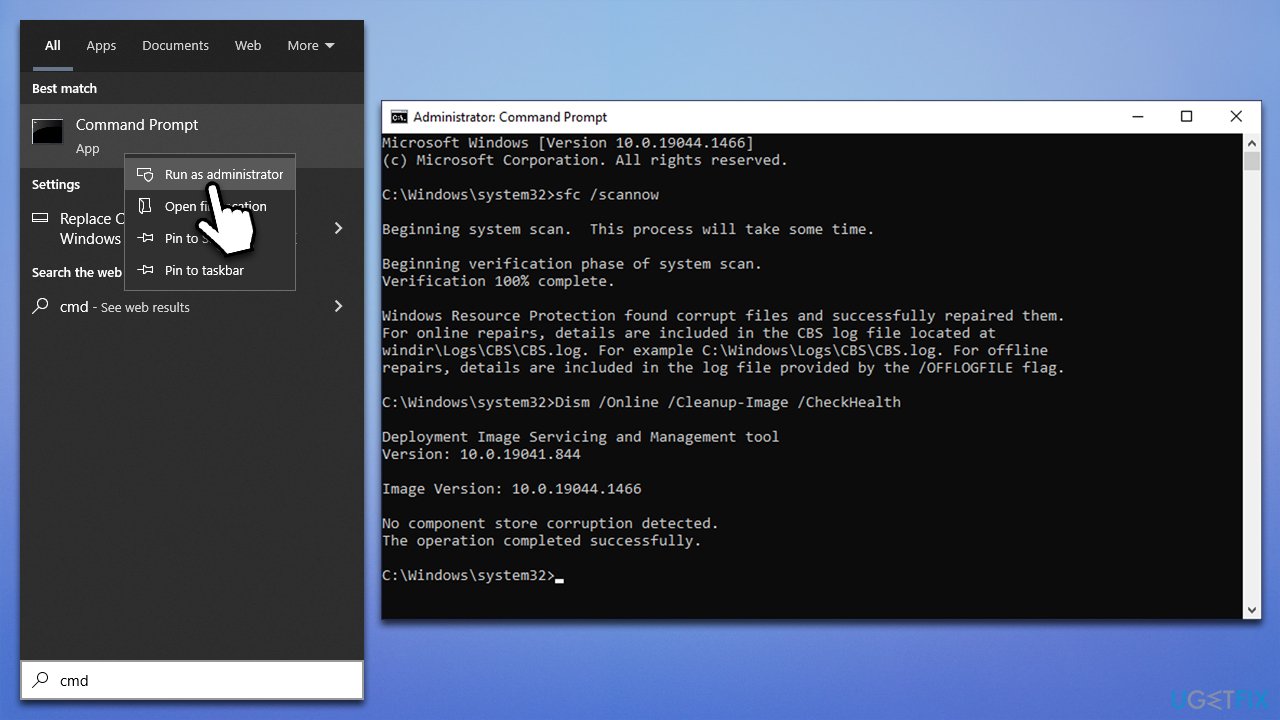
System file corruption can cause all sorts of malfunctions on Windows, and not being able to turn off airplane mode is one of them. To repair these damaged files, either employ a PC repair tool [d1] or use an elevated Command Prompt:
- Type cmd in Windows search.
- Right-click on the Command Prompt result and pick Run as administrator.
- UAC (User Account Control) will ask whether it can make changes, click Yes.
- Next, copy and paste the following command pressing Enter after:
sfc /scannow - Once done, run the following commands as well:
dism /online /cleanup-image /scanhealth
dism /online /cleanup-image /checkhealth
dism /online /cleanup-image /restorehealth - Restart your system.
2. Check power management settings
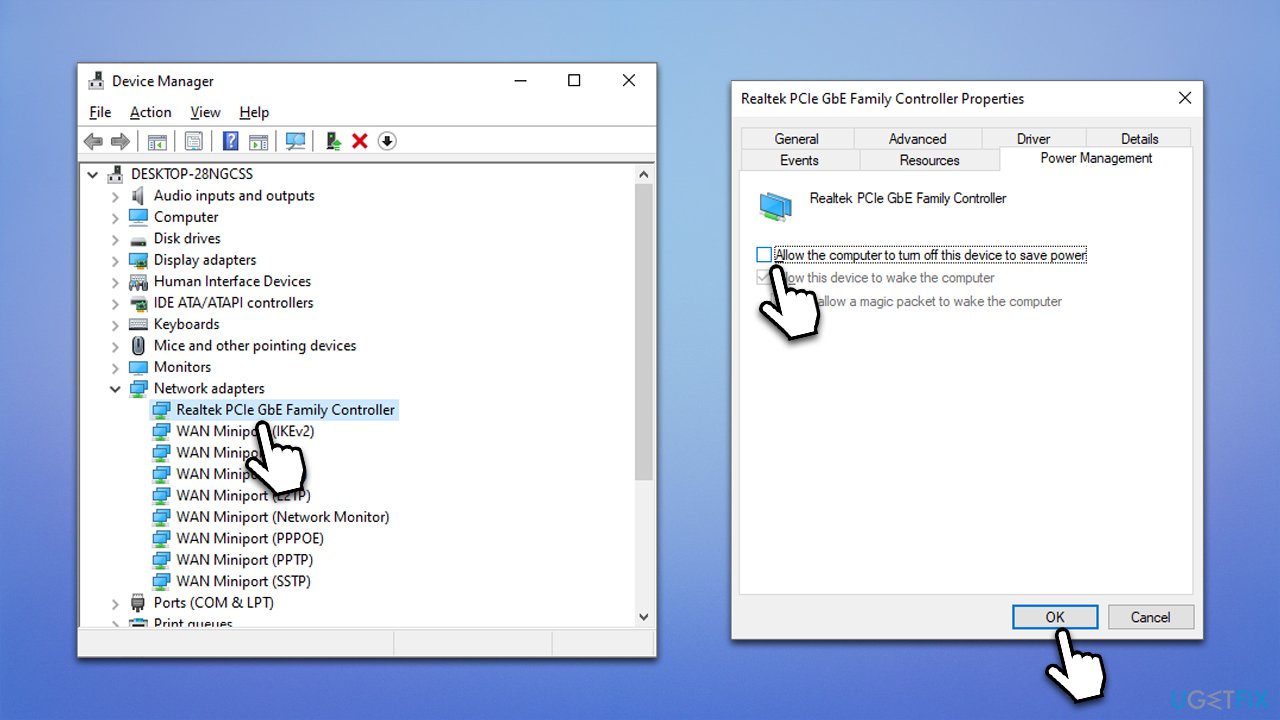
Laptops and other devices rely on batteries to run, and they have a limited amount of charge they can hold. To make the battery last longer, Windows provides several settings that could reduce power consumption. If these settings are set to the highest power saver mode, you might be stuck in airplane mode. Thus, do the following:
- Right-click on Start and pick Device Manager.
- Expand the Network adapters section.
- Right-click your network adapter and pick Properties.
- Go to the Power Management tab.
- Untick the Allow the computer to turn off this device to save power option.
- Click OK.
3. Enable Radio Management Service
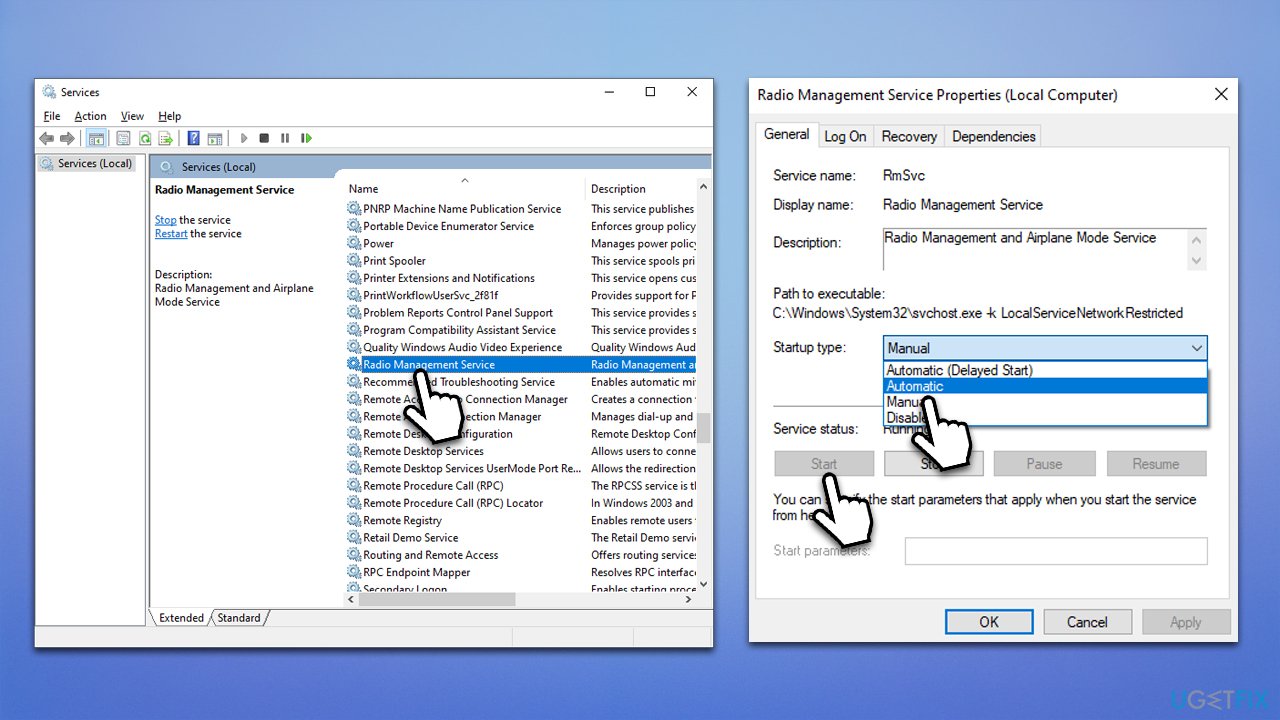
Users reported that they were stuck in airplane mode because Radio Management Service was turned off. Proceed with the following steps to enable it:
- Type Services in Windows search and press Enter.
- Scroll down to locate Radio Management Service and double-click it.
- Under Startup type, select Automatic from the drop-down menu.
- Click Start, Apply, and OK.
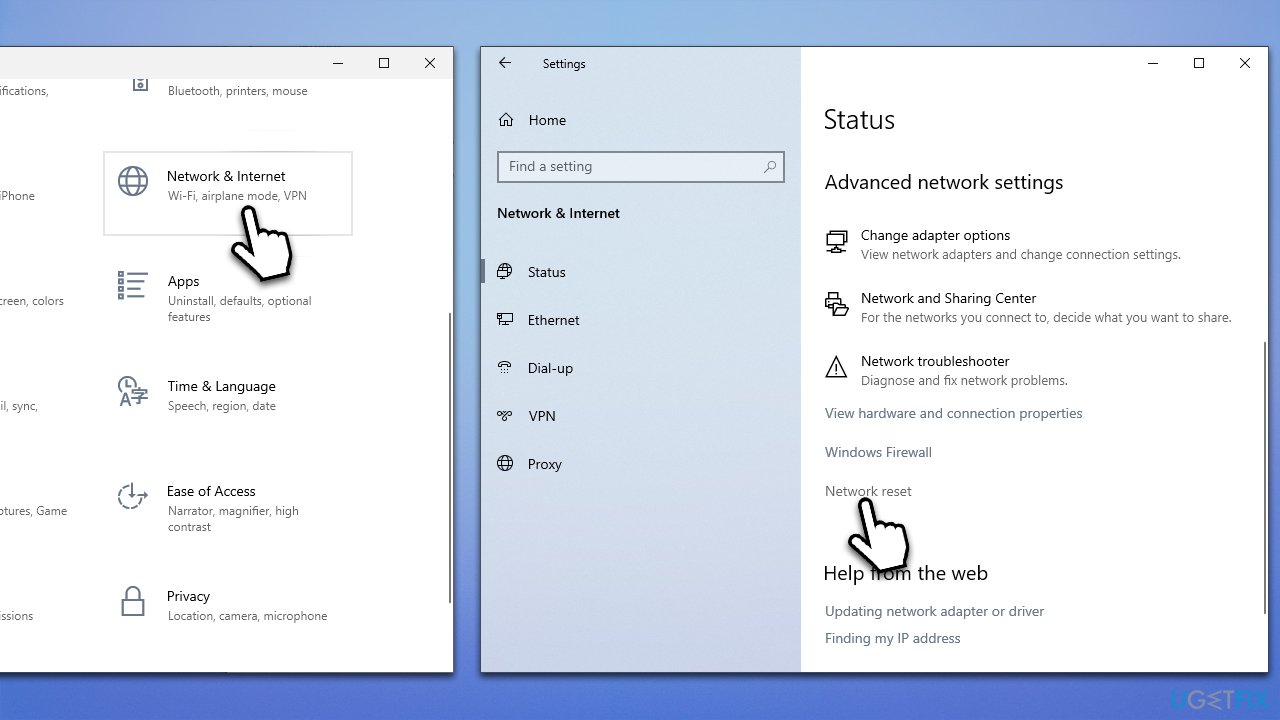
4. Reset your network
Sometimes the issue lies within the bugged network. You can reset it as follows:
- Click Start and pick Settings.
- Go to Network and internet.
- Under Advanced Network settings, click Network reset.
- Click Reset now and restart your PC.
5. Use the Registry
You could try forcing the airplane mode off by using the Registry. Note that you should back it up before proceeding.
- Type regedit in Windows search and hit Enter.
- When UAC comes up, click Yes.
- Now, click Edit > Find.
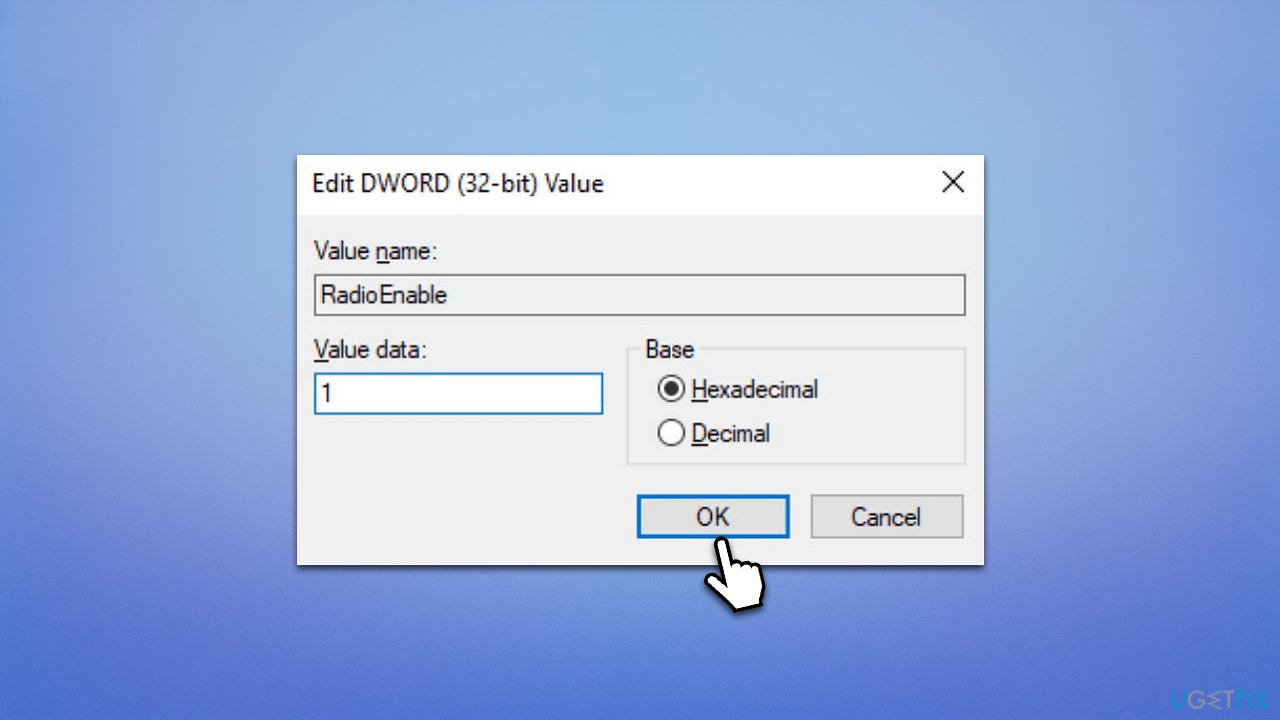
- Type RadioEnable in the search box and click Find Next.
- It should be located in the following path:
HKEY_LOCAL_MACHINE\System\CurrentControlSet\Control\Class - Double-click RadioEable and set its value to 1.
- Click OK.
Bottom line
If you can't turn off airplane mode, try restarting your device, using the shortcut Win + A, or turning off the mode via Settings. If these solutions do not work, you may need to explore additional troubleshooting methods.
Frequently asked questions
You can try resetting the network settings by going to Settings > Network & Internet > Status and clicking on 'Network reset'. This often resolves issues with a grayed-out airplane mode toggle.
Check for any faulty hardware, such as a malfunctioning keyboard or a stuck key, and ensure all drivers are up to date. Additionally, you can run the Network Troubleshooter under Settings > Update & Security > Troubleshoot.
Yes, ensure that your Wi-Fi and Bluetooth drivers are up to date, as outdated drivers can lead to problems with airplane mode. You can check for updates in Device Manager or through Windows Update in Windows 10 or Windows 11.




Report an issue
What's wrong with this guide? We review every report and update or remove content.
Report received — thank you. We'll review and fix it.
You need a free account to submit a report.
Be the first to comment