How to fix
Windows login error 0x80090011
on Windows
Resolve the Windows login error 0x80090011 effortlessly. Follow our expert-tested guide for Windows 10 and 11 fixes, ensuring a smooth experience.

What causes How to fix Windows login error 0x80090011?
- Insufficient permissions due to changes
- Third-party apps altering settings
- Issues during first-time PIN setup
- Switching between Microsoft and local accounts
- Rejoining Azure AD
Repairs Windows system files, removes malware, and restores a clean OS state — without reinstalling.
Hi, I have a big problem - I can't log in to my Windows because I receive an error 0x80090011 every time. I have been using the same PIN for over a year now with no problems, and now I suddenly can't log in. Please help.
A Personal Identification Number is an important security measure employed in Windows to protect user data and increase the security of computing. This number is a series of digits that uniquely identifies authorized users when attempting to access their devices or accounts. It serves as a supplementary layer of security and protection beyond what passwords can provide.
Because a PIN is much shorter and easier to remember than a password, users often choose the extra layer of protection by using this precise measure. Unfortunately, some people found that they were locked out of their PCs because they received the 0x80090011 error when trying to log in using their PIN. It may also be encountered whenever the PIN is being set up for the first time.
In most cases, the root cause of the 0x80090011 error lies within insufficient permissions that might have changed due to one reason or another. Third-party apps, for example, are known to change settings in Windows without users' consent.
Being locked out of your machine because of login errors can be extremely frustrating, and many users begin troubleshooting immediately. Finding the solution might not be easy, but below, we provide several tips on how to fix the 0x80090011 error when not able to log into Windows.
Solutions for those who encounter 0x80090011 error during new PIN creation
If you can log into your device, you can simply remove the PIN and recreate a new one. Alternatively, you can simply leave the PIN area in the creation window blank, which would remove the authentication method completely if you desire so. If your Windows is logged with a Microsoft account, try switching to a local account instead, and vice versa. Finally, you should rejoin Azure AD if you are using it as follows:
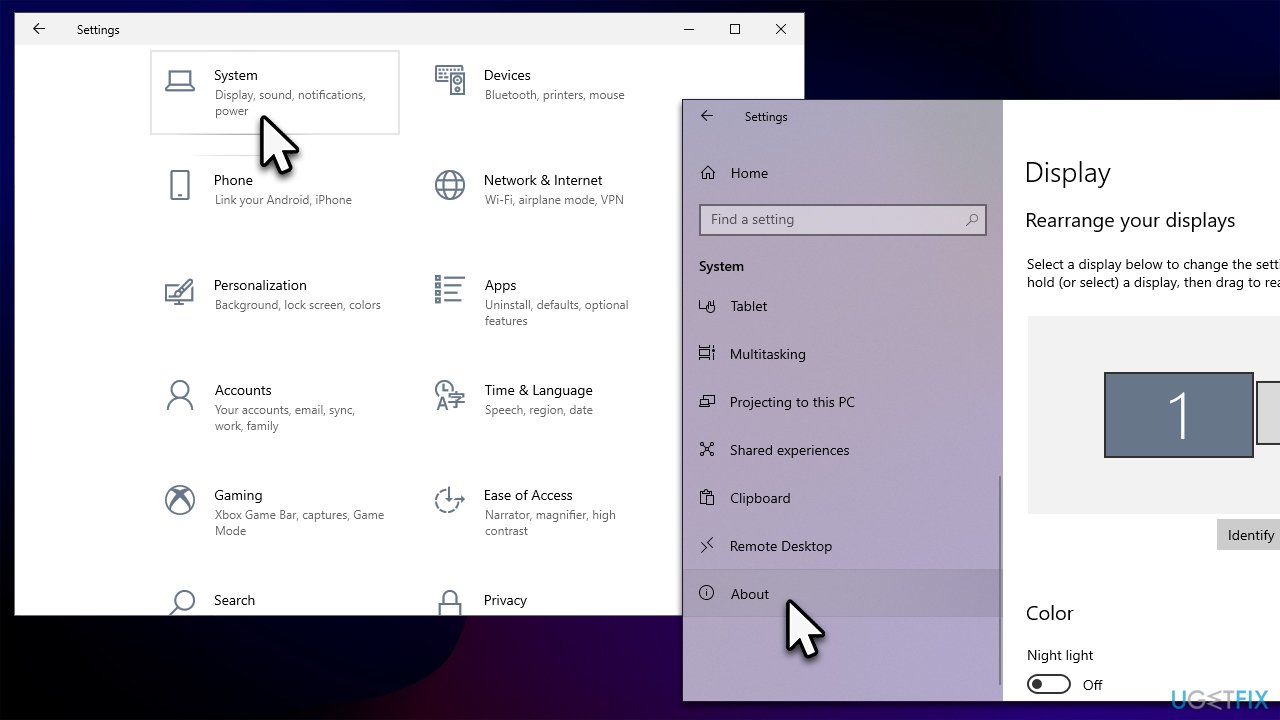
- Click Start and pick Settings.
- Go to System and select About.
- Now, pick Disconnect from the organization option.
- Select Continue to confirm.
- Use an alternative account to log back in.
Solution 1. Try accessing the PC as administrator
The first step for troubleshooting is making sure that you are trying to access your device with the correct level of privileges. To do that, you should enable administrator. Since you can't log in, you should access the recovery environment as follows:
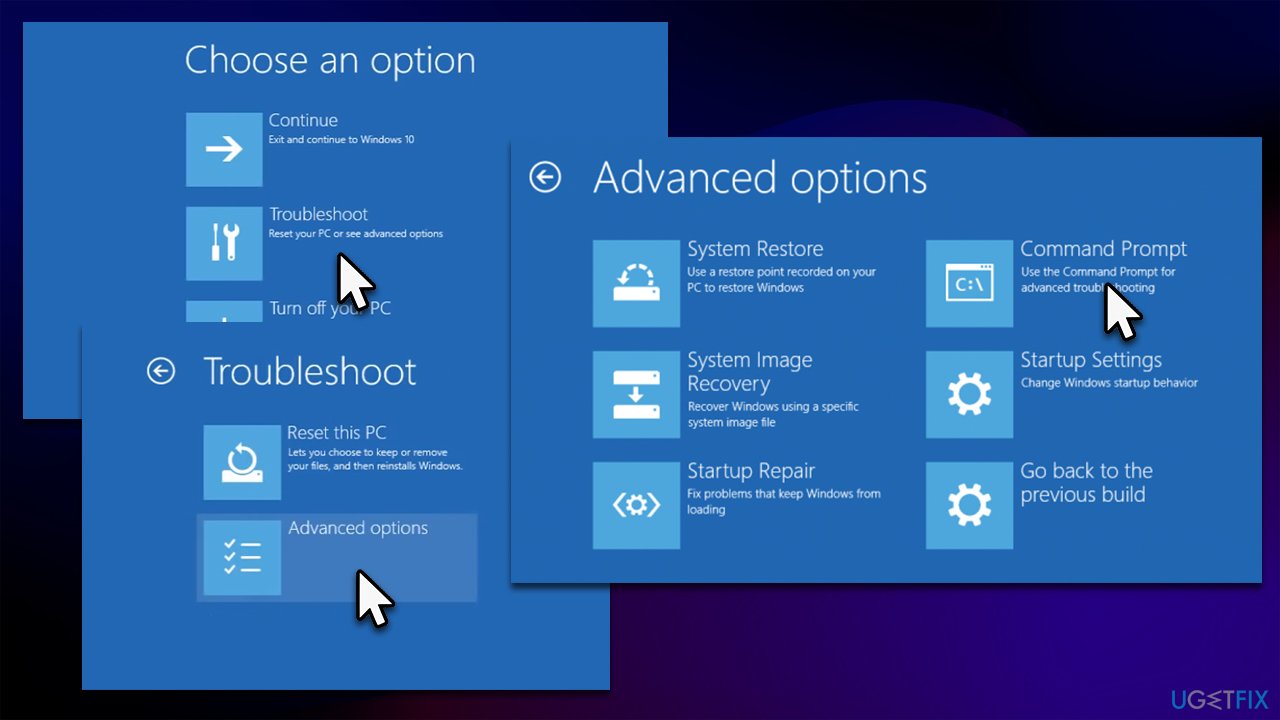
- In the Windows sign-in screen, press and hold the Shift key, then click Power > Restart.
- After a reboot, select Troubleshoot option.
- Pick Advanced options and click Command Prompt.
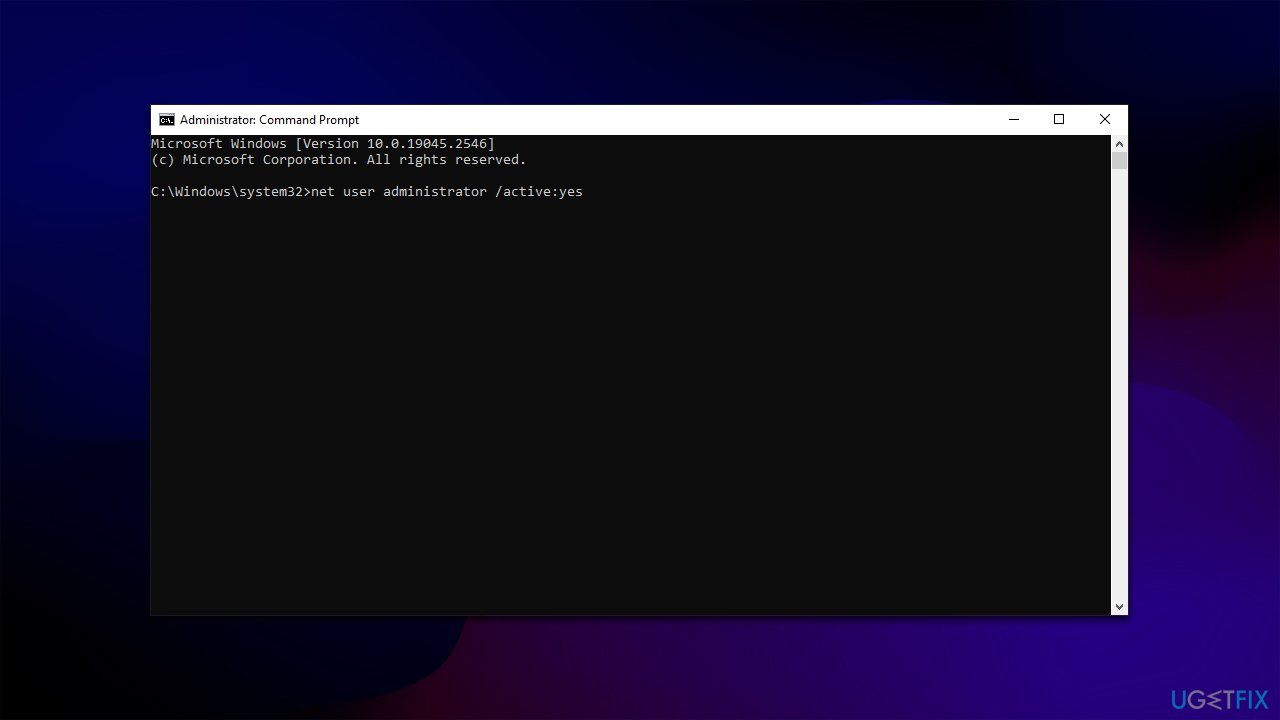
- In the new window, type in the following command and press Enter:
net user administrator /active:yes - Close down Command Prompt.
- Go to the initial screen and click Continue to log in.
Solution 2. Repair system files
Corrupted system files could cause login errors, such as 0x80090011. You can use Command Prompt to restore them:
- Access the Command Prompt as explained above.
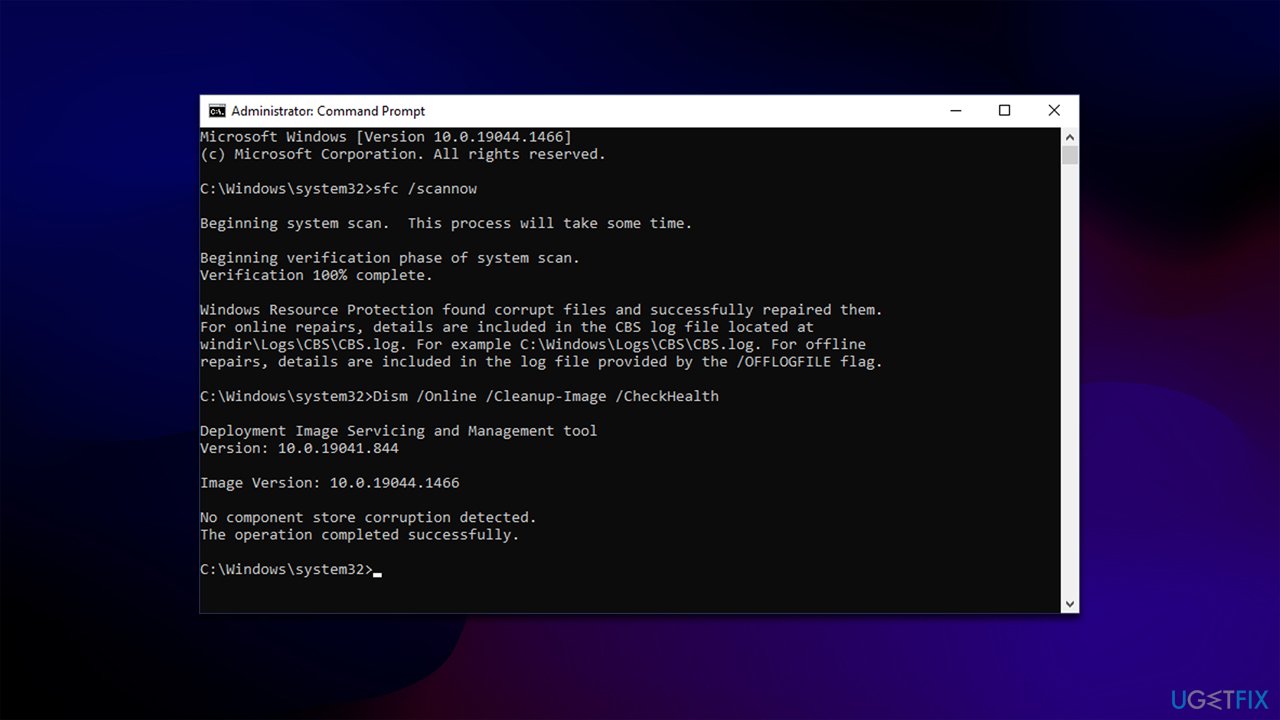
- Here, type in the following commands, pressing Enter after each:
sfc /scannow
DISM.exe /Online /Cleanup-image /Restorehealth - Restart your system once done.
Solution 3. Try Startup Repair or other recovery options
Windows provides plenty of recovery options; we recommend trying the following:
- Access the recovery environment once again.
- Go to Troubleshoot > Advanced options.
- From here, there are a few options available, you should try them all:
Startup Repair
System Restore
Go back to the previous build (this one might not be available for everyone).
4. Repair install Windows
For this method, you will have to create a bootable USB stick, so you will have to get access to a working computer first to do so. Make sure your USB is at least 8GB large.
- Download Windows 10 installation media (Windows 11 version) from the official Microsoft website.
- Double-click the installer to launch it.
- Agree to Terms and select Next.
- Select Create installation media (USB flash drive, DVD or ISO file) for another PC and click Next.
- Pick a USB flash drive (make sure you have USB connected to your PC).
- Mark the Use Recommended options for this PC checkbox and click Next
- Pick ISO file and click Next to finish the process.
Once you have the USB ready, proceed with the following:
- Connect the USB to the PC that you are having trouble with.
- Boot into BIOS (typically by pressing F2, F8, F12, Del, or another key several times) and go to Boot menu.
- Here, select the Boot priority option and set it to USB.
- Restart the system.
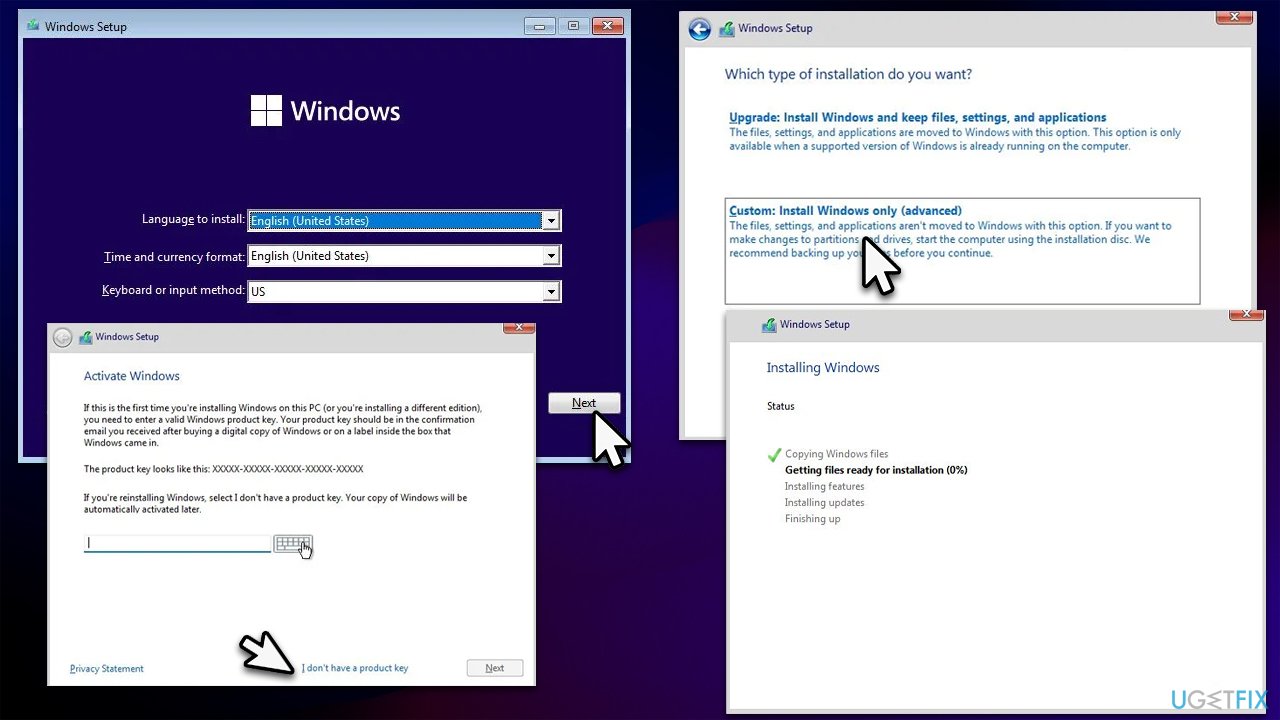
- When the system boots, you will be presented with the Install now option - click it.
- Select all the preferences and click Next.
- Skip Windows activation for now - select I don't have a product key.
- Select the correct version of the operating system (if you were using Windows 11 Home before, use the same option).
- In the next step, select Upgrade: Install Windows and keep files, settings, and applications.
- Select the correct partition and click Next.
- Wait till the process - you will be presented with several other fields you should fill in.
Bottom line
To fix the 0x80090011 error, you can remove and recreate your PIN, leave the PIN area blank, switch between Microsoft and local accounts, or rejoin Azure AD. If these solutions do not resolve the issue, further troubleshooting may be necessary.
Frequently asked questions
The error code 0x80090011 indicates a problem with the Windows Credential Manager, often related to corrupted credentials or a failed login attempt. This can prevent users from accessing their accounts successfully.
To resolve the 0x80090011 error, try resetting your password using the reset option on the login screen or boot into Safe Mode to access the system and troubleshoot. Additionally, you can run the System File Checker tool to repair any corrupted system files.
Yes, ensure that the Windows Credential Manager service is running by checking its status in the Services app and verify that your user account has the correct permissions set. You may also want to delete any corrupted credentials stored in the Credential Manager.




Report an issue
What's wrong with this guide? We review every report and update or remove content.
Report received — thank you. We'll review and fix it.
You need a free account to submit a report.
Be the first to comment