How to fix
PuTTy Fatal Error: Network Connection timed out
on Windows
Resolve PuTTY's Fatal Error: Network Connection timed out on Windows 10/11 effortlessly with our expert-tested solutions. Fixed in minutes!


What causes How to fix PuTTy Fatal Error: Network Connection timed out?
- Firewall block
- Incorrect server configuration
- Network connectivity issues
- Corrupted Windows files
- Local network issues
Repairs Windows system files, removes malware, and restores a clean OS state — without reinstalling.
Hello. I tried to use PuTTy to access a remote server but I received a Fatal Error: Network Connection timed out. I have never encountered issues like this before. How do I fix it?
PuTTy is a free and open-source terminal emulator program that allows users to connect to remote computers through various protocols such as SSH, Telnet, and SCP. It is commonly used by system administrators and developers to remotely access and manage servers, network devices, and other types of computer systems.
The "Fatal Error: Network connection timed out" is an error message that can occur when using PuTTy to connect to a remote server. This error message indicates that PuTTy was unable to establish a connection with the remote server within the specified time limit. This can happen due to various reasons such as a firewall block, incorrect server configuration, or network connectivity issues.
This error can affect users in different ways, depending on what they are trying to do. For example, if a system administrator is trying to remotely access and manage a server, this error can prevent them from being able to perform important tasks. Similarly, if a developer is trying to remotely access a server to test and deploy code, this error can impede their ability to complete their work.
Possible solutions for this issue can include checking the firewall settings, checking the server's configuration, and troubleshooting the network connectivity. Additionally, users can also check their local network, such as their router or modem, to ensure that there are no issues there. In some cases, it may be necessary to contact the server administrator or hosting provider for further assistance.

In this guide, you will find 6 steps that should help you fix PuTTy Fatal Error: Network Connection timed out. It is also possible that the error in PuTTy can be caused by underlying issues with the Windows operating system, such as corrupted files.
They can cause various issues with network connections, including preventing PuTTy from being able to establish a connection with the remote server. If you want to check for this, you can use a maintenance tool like [d1] that can fix most system errors, BSODs,[ref en-1] registry[ref en-2] issues, or clear cookies and cache.[ref en-3] Otherwise, follow the step-by-step instructions below.
Method 1. Contact the Network Administrator
It is recommended to reach out to your system administrator before attempting to troubleshoot any issues with your router, as they may have recently made changes to permissions for security reasons. This can be easily resolved by contacting the system administrator.
Method 2. Make sure SSH Connection is Enabled
The "Network Connection timed out" error may occur if the device you're trying to connect to has SSH disabled. To resolve this issue, ensure that SSH is enabled on the device's settings. For example, on a Raspberry Pi, you can enable SSH by going to Configuration > Interfaces > ssh. The process may vary depending on the device you're using, but the goal is to enable SSH and establish a working network connection through PuTTy.
Method 3. Disable Windows Defender Firewall
- Click on Start and select Settings
- Open Update and Security
- Open Windows Security
- Open Firewall and network protection
- Select the preferred network type (Public, Private, or Domain Network)
- Disable Windows Defender Firewall
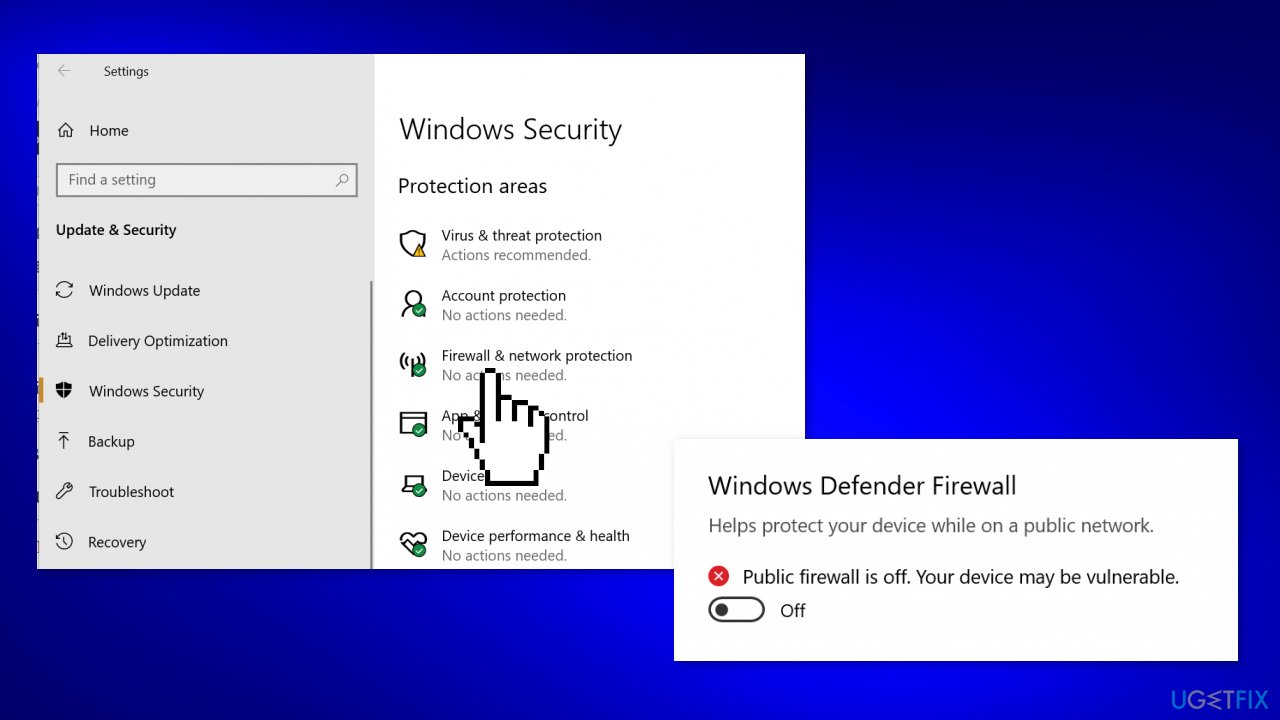
Note: You may need to disable the firewall from a third-party anti-virus program if it is running on your computer. This can be done by accessing the program's settings or preferences and looking for the option to turn off the firewall.
Method 4. Check Domain Records
When working with a new server and a fresh domain, the "network error: connection refused" error can occur due to an incorrect DNS server address in the domain settings. Most domain registrars allow you to point your domain to a third-party hosting provider using the name server. If you have only installed a server and did not change the name server, you may experience this error.
To resolve this, log in to your domain name provider and check the name server settings to ensure they are pointing to your hosting provider.
Method 5. Check for Blacklisted and Whitelisted IP Addresses
The "network error: connection refused" error may occur if the system administrator has restricted connections to only computers with known IP addresses that are whitelisted in the configuration file. If your IP address has changed or you are new to the job, you may need to ask the network administrator to make an exception.
Additionally, this issue may occur if your IP address has been accidentally blacklisted by the network administrator. Therefore, it is important to check with your network administrator to see if this is the cause of the problem and if an exception can be made.
Method 6. Try other Solutions
- Restart the SSH server or reboot the servers
- Contact the person who set up the server to inquire about any changes made to the default port
- If you are using a fully managed server, contact the hosting provider's support team
- Consider using alternative SH terminals instead of PuTTY.
Bottom line
To fix the PuTTy Fatal Error: Network Connection timed out, check your firewall settings, verify the server's configuration, and troubleshoot your network connectivity. Additionally, inspect your local network devices like your router or modem. If these solutions do not resolve the issue, consider contacting the server administrator or hosting provider for further assistance.
Frequently asked questions
First, verify that the target server is online and accessible from your Windows 10 machine by using the ping command in the Command Prompt.
Go to Windows Security, navigate to Firewall & network protection, and ensure that PuTTY is allowed through the firewall for your active network.
Yes, check your network adapter settings to ensure that your DNS settings are correctly configured, and consider resetting your network settings if issues persist.




Report an issue
What's wrong with this guide? We review every report and update or remove content.
Report received — thank you. We'll review and fix it.
You need a free account to submit a report.
Be the first to comment