How to fix
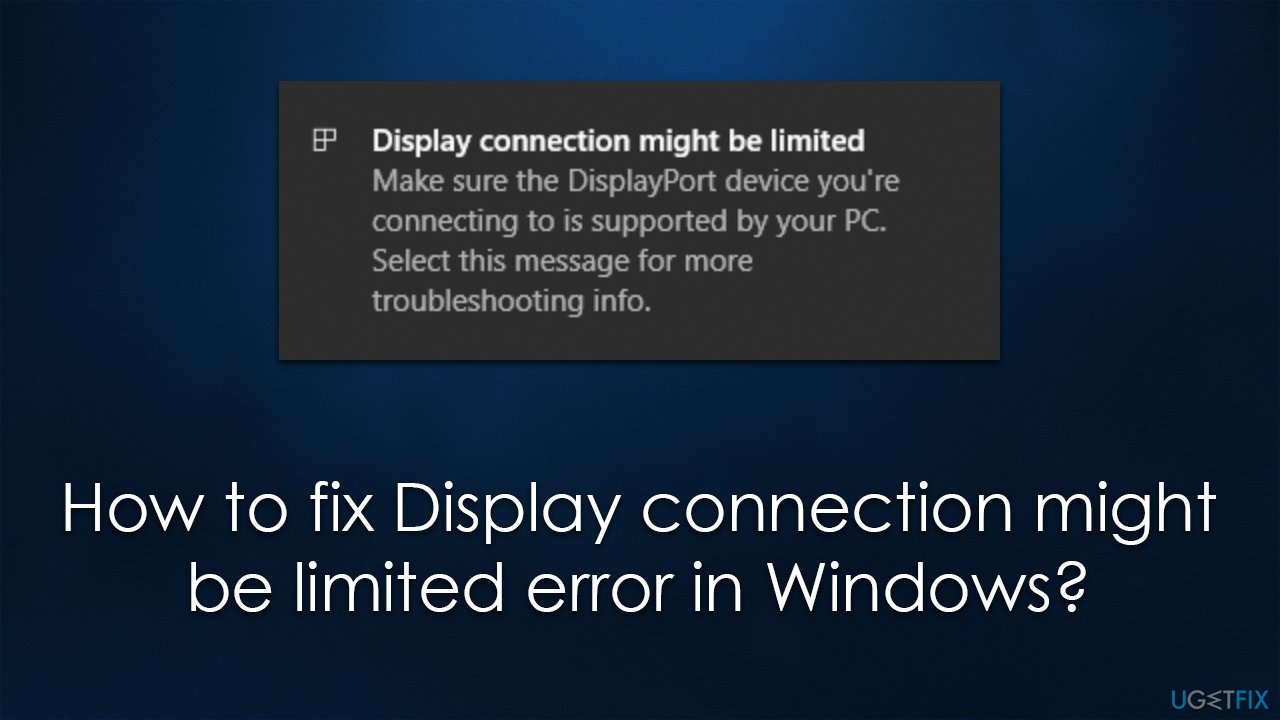
Display connection might be limited error
on Windows
Resolve the "Display connection might be limited" error in Windows 10 or 11 effortlessly. Get proven solutions that ensure a smooth display experience. …


What causes How to fix Display connection might be limited error in Windows?
- Outdated graphics driver
- Corrupt graphics driver
- Incompatible graphics driver
- Improperly connected monitor
- Damaged cable or port
- Problem with monitor settings
Repairs Windows system files, removes malware, and restores a clean OS state — without reinstalling.
About two months ago, I bought a laptop and connected it to two external monitors via USB-C. Everything has been working perfectly ever since - until last night when I shut down my computer like usual. This morning, when I turned it on again, there was no signal from the monitors, and this message came up: "Display connection might be limited". Any ideas on what to do?
The Display connection might be limited error message typically appears on Windows computers when there is an issue with the graphics driver or the connection between the computer and the monitor. This issue can occur due to numerous reasons, but especially when the graphics driver is outdated, corrupt, or incompatible with the computer's hardware or operating system.
Display connection might be limited error can also occur if the monitor is not properly connected to the computer or if the cable or port used for the connection is damaged. Some other possible causes could be a problem with the computer's graphics card, a hardware malfunction, or a problem with the monitor's settings.
In all the cases when users encountered the Display connection might be limited error, they were dealing with devices using the USB-C type connection. This is one of the newer types of connections that is becoming increasingly common on devices such as smartphones, laptops, tablets, and other electronic devices. It is smaller and more versatile than previous types of USB connections and supports faster data transfer speeds and greater power delivery.
For some users, the error results in them not being able to use the USB-C type monitors or other devices, as no signal is being detected. For others, it is more of a nuisance than a problem because the connected devices work fine, it's just that they have to deal with the annoying pop-up all the time.
To troubleshoot the Display connection might be limited error, you can try updating the graphics driver, checking the connections and cables, and making sure that the monitor's settings are correct. In addition, you can also try to use a different monitor or different cable to eliminate the possibility of hardware malfunction.
Fix 1. Install the latest Windows updates
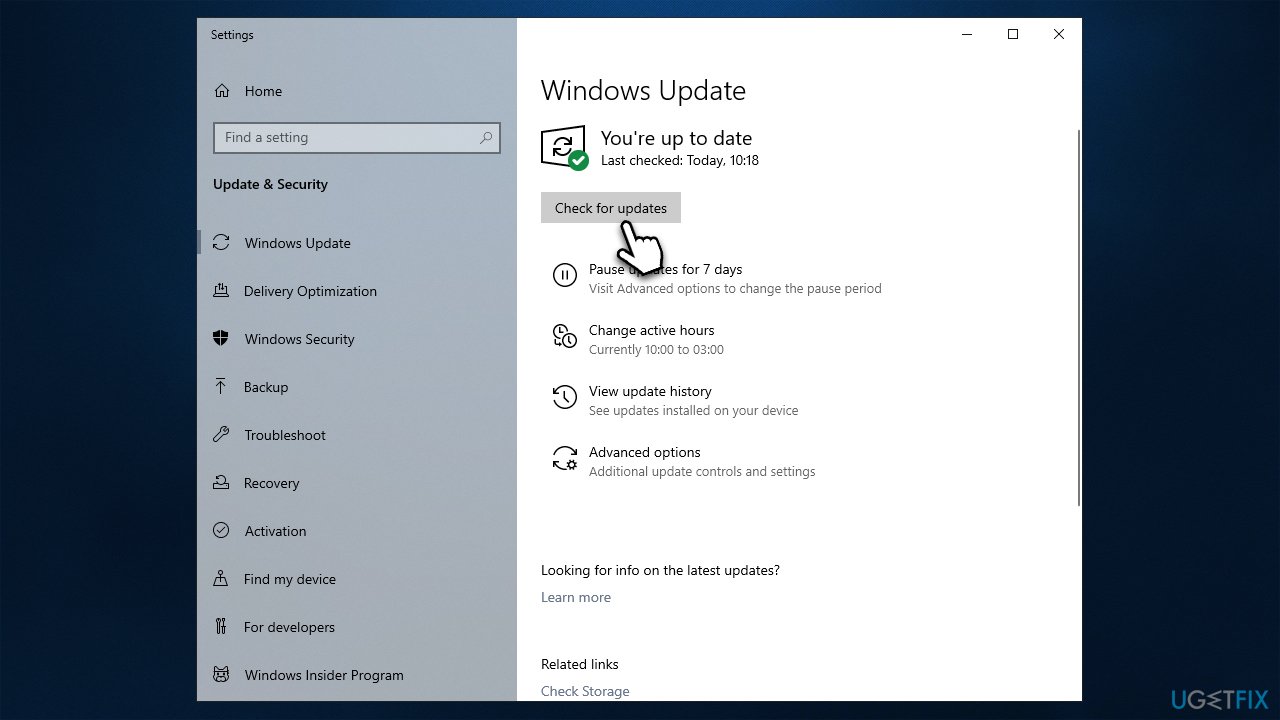
Some users reported that the Display connection might be limited error simply solved by itself. This is likely doing of the Windows update patch being installed automatically and correcting the issue at hand. If your Windows update is not set up to be installed automatically, follow these steps:
- Type Updates in Windows Search and press Enter.
- Here, click Check for Updates.
- Install all the optional updates as well.
- Wait till all the necessary files are downloaded and installed.
- Reboot your computer.
Fix 2. Update your drivers
As mentioned, one of the most common reasons for the error to show up is due to driver issues - especially the USB-C port drivers. The easiest way to sort out your drivers and make sure that all of them are up to date is by employing an automatic driver updater such as [rev id="DriverFix"].
In some cases, Windows update (process explained in the previous solution) can also install the newest drivers for you, as long as you install optional updates too, although this method is not always reliable. Alternatively, you can download the related driver from the manufacturer's website.
If you are using a docking station (such as Lenovo Thinkpad Thunderbolt Dock or Asus Docking Station), you need to download and install the latest drivers for it as well, as many users said that it resolved their issue immediately.
Fix 3. Run SFC and DISM
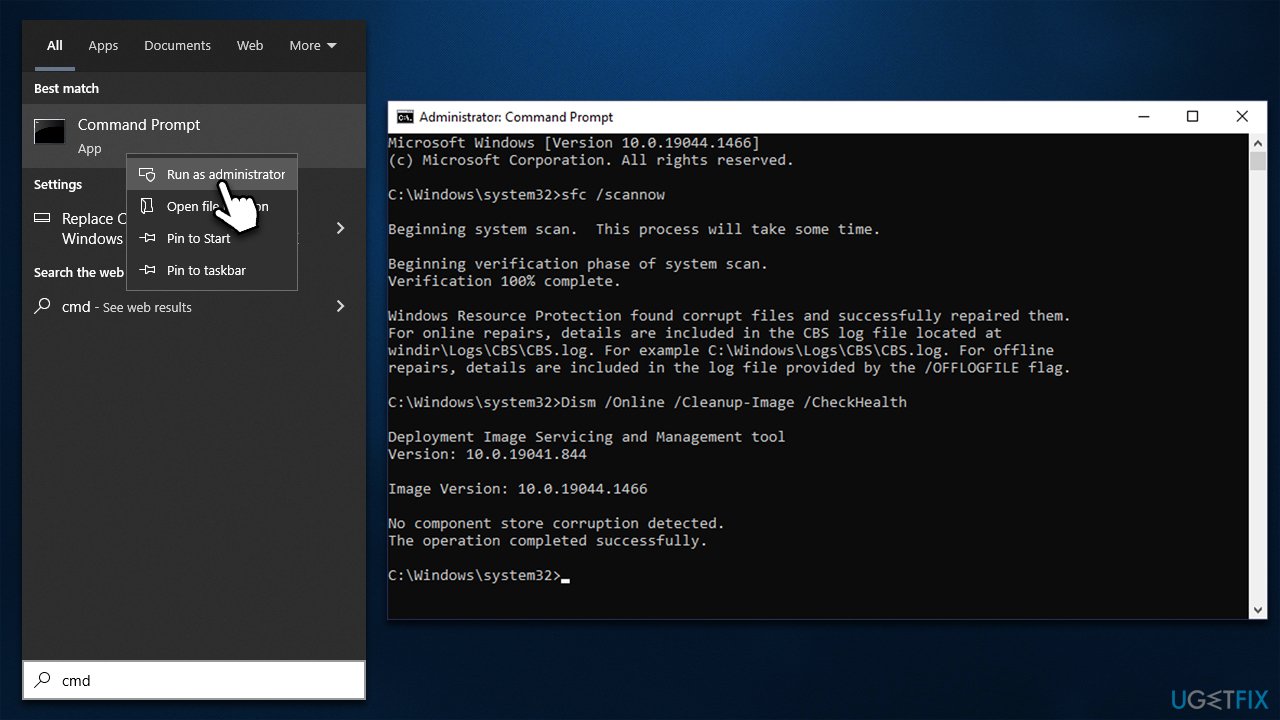
Corrupted system files might cause system malfunctions, so we recommend either running an automatic scan with [d1] or performing scans via elevated Command Prompt to resolve this issue:
- Type in cmd in Windows search.
- Right-click on Command Prompt and pick Run as administrator.
- User Account Control will ask if you want to make changes - click Yes.
- In the new window, type in sfc /scannow and press Enter.
- Wait till the scan is finished and follow up with these commands, pressing Enter after each:
Dism /Online /Cleanup-Image /CheckHealth
Dism /Online /Cleanup-Image /ScanHealth
Dism /Online /Cleanup-Image /RestoreHealth - Restart your system.
General tips
Here are a few tips that could help you fix the Display connection might be limited error in Windows:
- Check the USB-C connector for physical damage.
- Unplug and plug the device back in and see if it resolves the issue.
- If you are using a docking station, ensure it is compatible with your device.
- Enable USB-C connection via BIOS, if applicable.
Bottom line
To troubleshoot the Display connection might be limited error, you can try updating the graphics driver, checking the connections and cables, and ensuring that the monitor's settings are correct. Additionally, consider using a different monitor or cable. If none of these solutions work, further investigation into hardware issues may be necessary.
Frequently asked questions
This error can be caused by outdated or corrupted graphics drivers, incorrect display settings, or issues with the monitor connection. Checking your hardware connections and updating your drivers can often resolve the issue.
To fix this error on Windows 11, try resetting your display settings or running the Network Troubleshooter. Additionally, ensure that your graphics drivers are up to date through Windows Update.
Yes, adjusting the display resolution to match the recommended settings for your monitor can help alleviate this error. You can find these settings in the Display section of Windows 10 or Windows 11 settings.




Report an issue
What's wrong with this guide? We review every report and update or remove content.
Report received — thank you. We'll review and fix it.
You need a free account to submit a report.
Be the first to comment