How to fix
“The Recycle Bin is corrupted” error
on Windows
Resolve the "Recycle Bin is corrupted" error on Windows 10 and 11 with our expert tips. Follow these proven methods for a quick fix. Updated 2025!

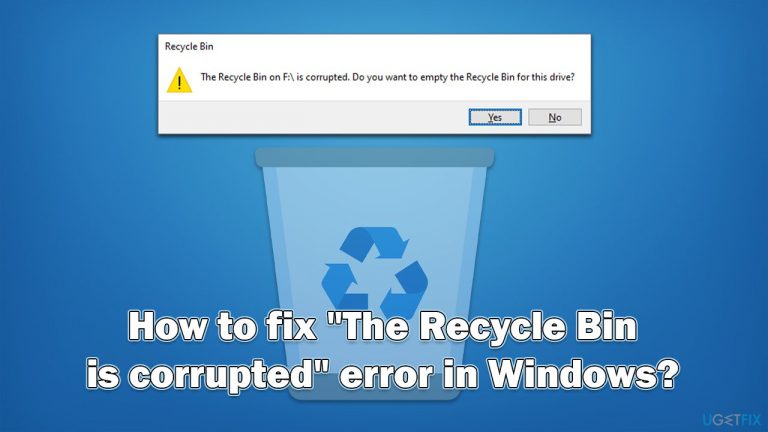
What causes How to fix “The Recycle Bin is corrupted” error in Windows?
- Corrupted Recycle Bin files
- Issues with the file system
- Malware or virus infection
- Improper shutdowns or power failures
Repairs Windows system files, removes malware, and restores a clean OS state — without reinstalling.
Hello. Yesterday I booted my PC, and I received an error "The Recycle Bin on E:\ is corrupted. Do you want to empty the Recycle Bin for this drive?." I then clicked "Yes," and everything was working fine. When I rebooted the PC, I received the error again. Now I am wondering if something is wrong because it seems to come up every time I restart.
The Recycle Bin is a feature in Microsoft Windows that acts as a temporary holding area for deleted files and folders. When a user deletes a file or folder, it is moved to the Recycle Bin rather than being permanently deleted from the computer. This allows the user to restore the file or folder if they realize they need it later. It stores the deleted files and folders until the user empties them or until the files reach a certain size, and the oldest files are automatically deleted to make room for new ones.
Recycle bin is especially useful whenever users accidentally delete files because it can be accessed via the desktop or File Explorer, and all of the data can be restored in an instant. In most cases, however, people usually ignore its existence entirely, as it does not play too big of a part in the day-to-day operation of a Windows machine.
It is a different situation when problems arise - "The Recycle Bin is corrupted" error is one of them. This error might show up every time the computer is rebooted, a new drive is connected, and it asks every time whether the Recycle Bin should be emptied. It does not matter which answer users pick - the pop-up message always comes back.
In other cases, people reported that they also got a black screen, and they are locked out of performing any actions, which can be a much more significant problem than the one represented in a previous example. Accessing Safe Mode to perform "The Recycle Bin is corrupted" error troubleshooting steps can help in this situation.
Regardless of which situation you are in, below we provide methods that should help you get rid of the error once and for all. If you would like to try an automatic solution, we greatly recommend using [d1] - a PC repair tool capable of locating corrupted files and fixing them for you.
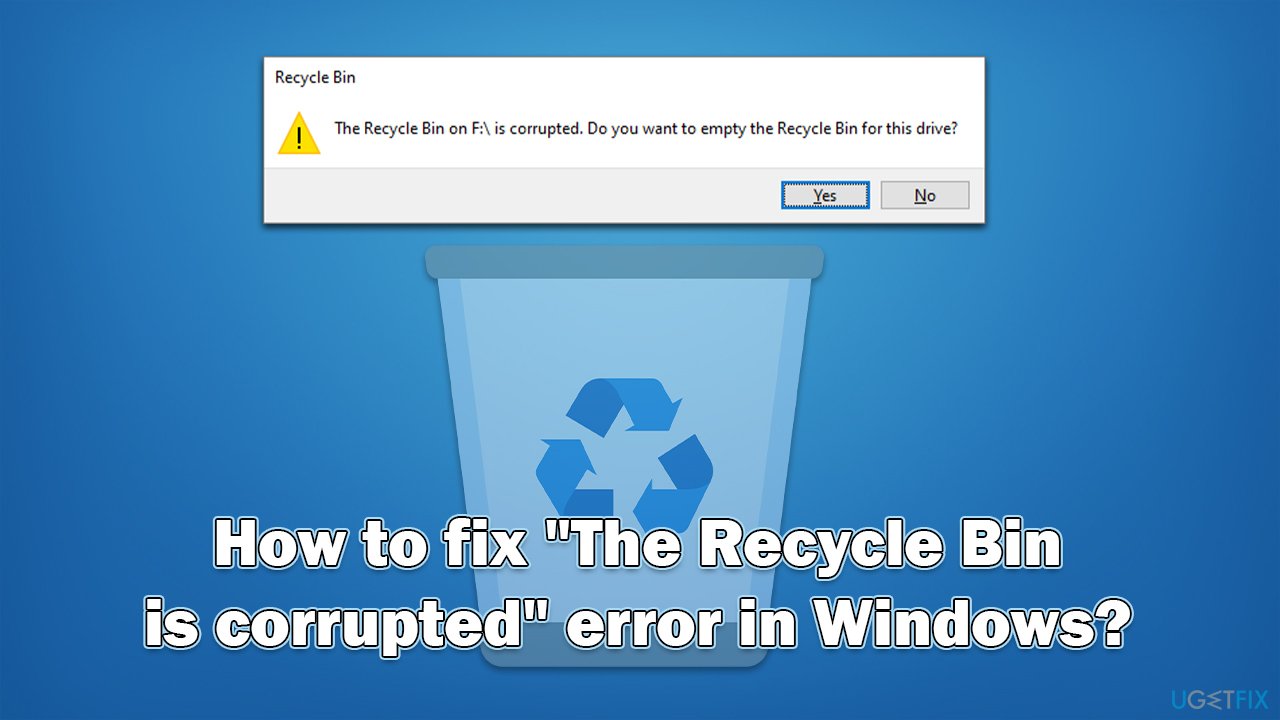
Solution 1. Erase all data via Command Prompt
If you are seeing the "The Recycle Bin is corrupted" error periodically (for example, each time you restart your device), you should erase the data from Recycle Bin via Command Prompt, as clicking "Yes" within the prompt won't remove everything.
- Type cmd in Windows search.
- Right-click on Command Prompt and select Run as administrator.
- When User Account Control shows up, click Yes.
- In the new window, copy and paste the following command and press Enter:
rd /s /q E:\$Recycle.bin
NOTE: replace "E:" with the drive letter shown in your error code message - Close down Command Prompt - the error should no longer bother you.
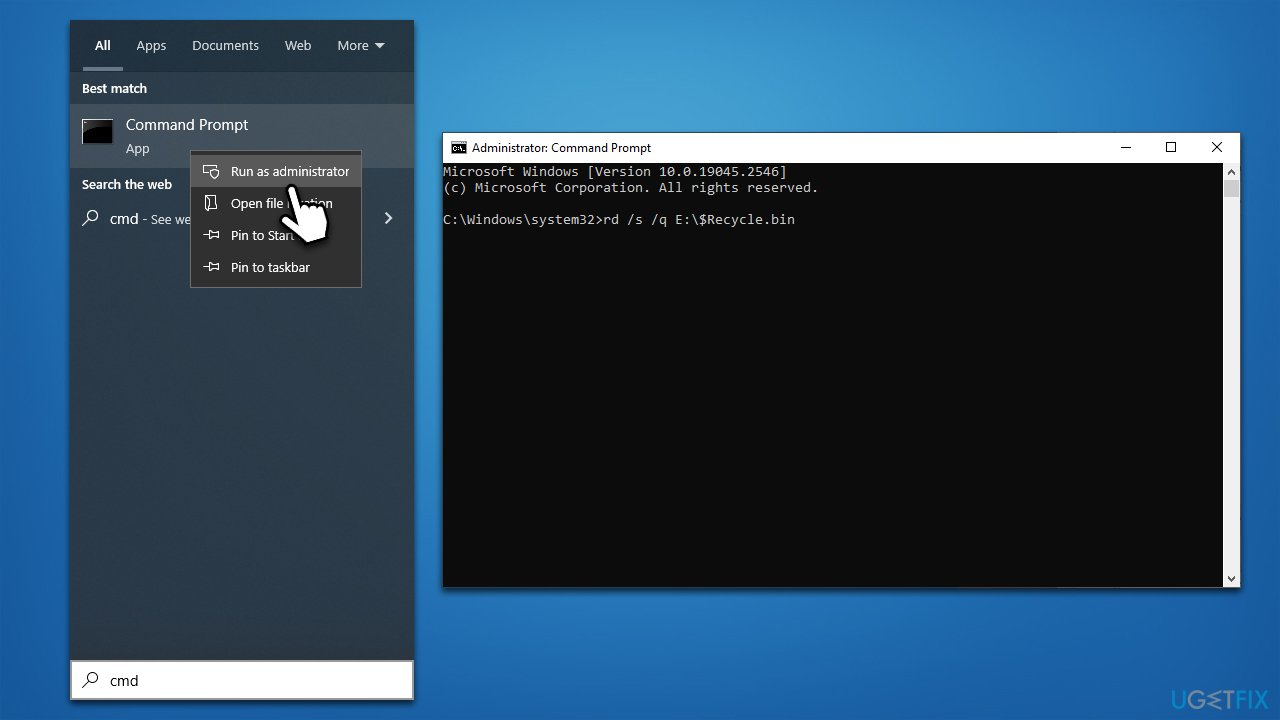
Solution 2. Access Safe Mode and run commands via Command Prompt
If you can't perform any other actions and all you see is a black screen with "The Recycle Bin is corrupted" error, you should access Safe Mode and use Command Prompt to resolve the situation. Follow these steps:
- Restart your computer.
- Once Windows starts booting, press the Power button, interrupting the loading process - do this two more times.
- After that, Windows will automatically enter Advanced Startup mode.
- From there, go to Troubleshoot > Advanced options.
- Pick Command Prompt.
- Type in the following commands, pressing Enter after each (Note: replace the drive letter with the one your Windows is installed on - C: is the default):
CHKDSK /f C:
DISM /image:C:\ /cleanup-image /restorehealth
SFC /scannow /offbootdir=C:\ /offwindir=C:\windows
C:
bootrec /fixmbr
bootrec /fixboot
bootrec /scanos
bootrec /rebuildbcd - Go to the Advanced options scene and select Startup Repair.
- Proceed with on-screen instructions to finish the process.
Solution 3. Run a security scan
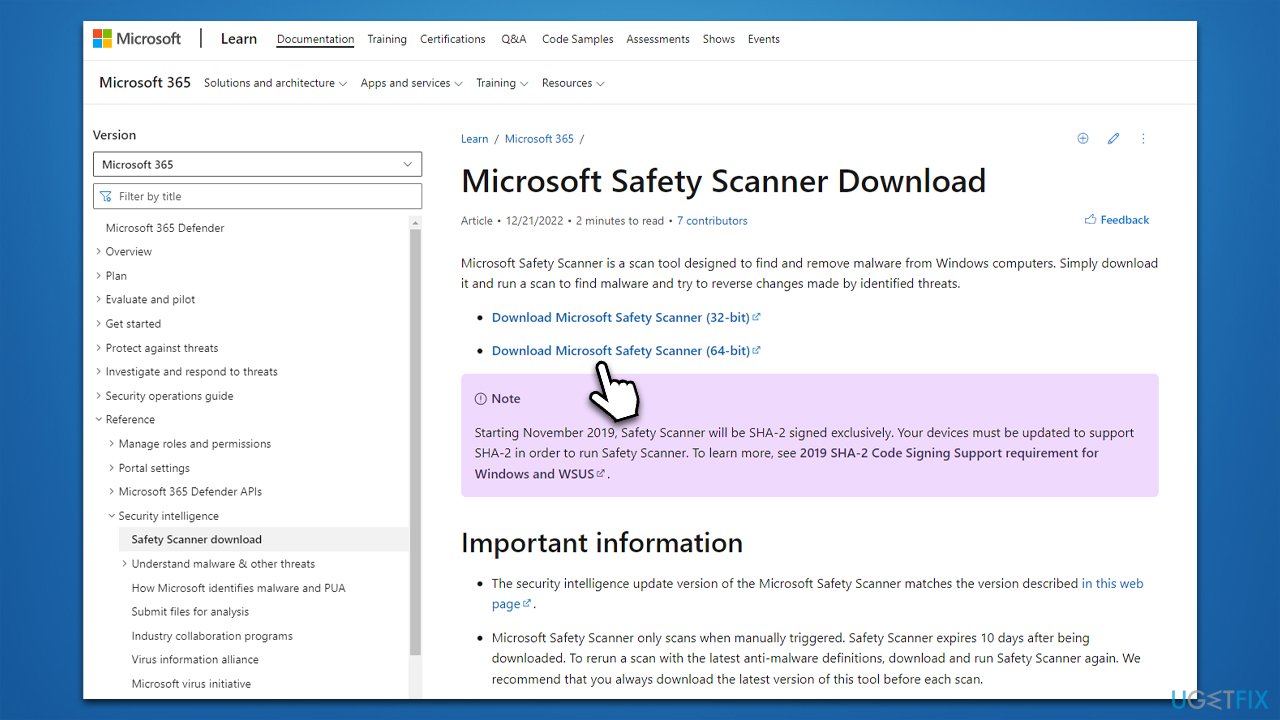
Malware could also be the reason for a corrupted Recycle Bin in Windows. Thus, performing a full system scan is recommended. If you have third-party security software installed, you can use it, although we recommend running Microsoft Safety Scanner, which can thoroughly check the system for infections.
Solution 4. Repair damaged system files
- Open Command Prompt as administrator.
- When User Account Control shows up, click Yes.
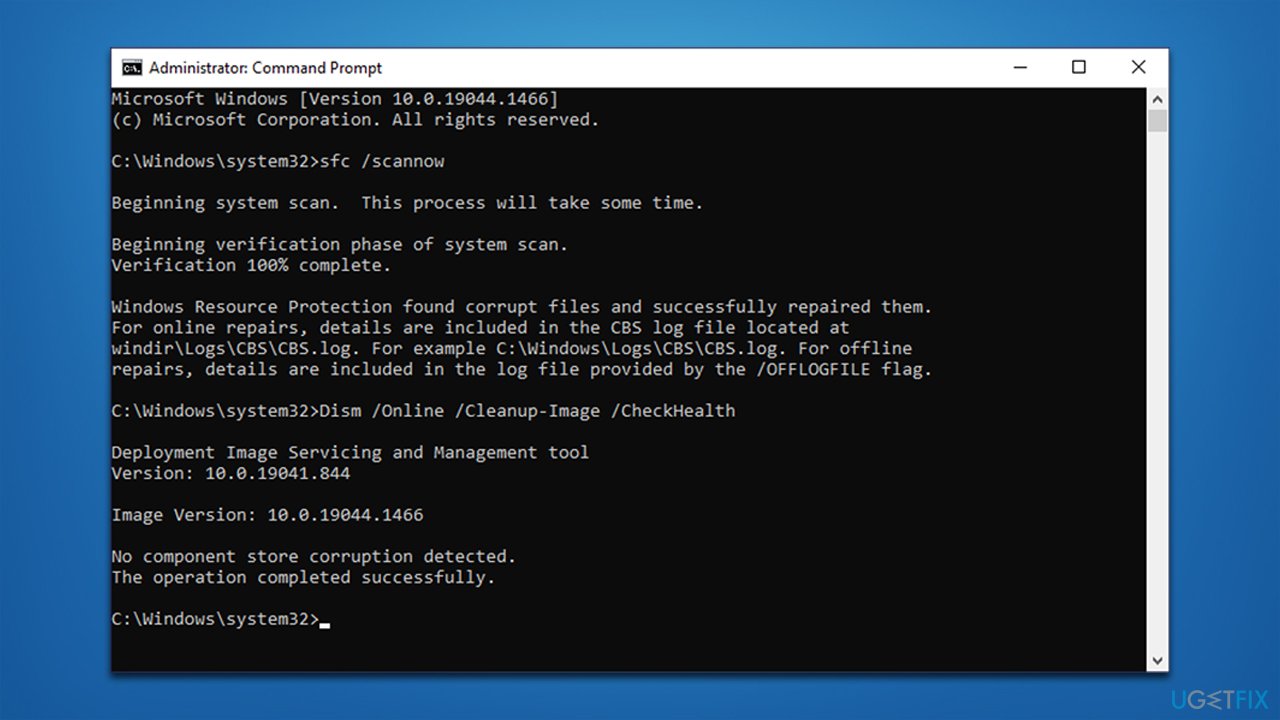
- Use the following command lines, pressing Enter after each:
sfc /scannow
DISM /Online /Cleanup-Image /CheckHealth
DISM /Online /Cleanup-Image /ScanHealth
DISM /Online /Cleanup-Image /RestoreHealth - Restart your computer.
Bottom line
To fix the 'The Recycle Bin is corrupted' error, you can try emptying the Recycle Bin, running a disk check, or restoring the Recycle Bin using command prompts. If none of these methods work, consider accessing Safe Mode for further troubleshooting.
Frequently asked questions
You can fix this error by running the Command Prompt as an administrator and executing the command 'rd /s /q C:\$Recycle.Bin'. This will delete the corrupted Recycle Bin and create a new one.
After the corruption fix, your Recycle Bin will be automatically recreated; simply restart your computer to ensure it functions properly again.
To minimize the risk, regularly run system checks using the 'sfc /scannow' command in Command Prompt and keep your Windows 10 or Windows 11 updated.




Report an issue
What's wrong with this guide? We review every report and update or remove content.
Report received — thank you. We'll review and fix it.
You need a free account to submit a report.
Be the first to comment