How to fix
Prototype 2 crashing at startup
on Windows
Resolve Prototype 2 startup crashes on Windows 10 and 11 with expert tips. Get your game running smoothly again. Fixed in minutes!


What causes How to fix Prototype 2 crashing at startup on Windows?
- Outdated graphics card drivers
- Compatibility issues with the operating system
- Conflicts with other programs running on the computer
- Corrupted game files
- HID-compliant control devices causing issues
Repairs Windows system files, removes malware, and restores a clean OS state — without reinstalling.
Hello. I wanted to play Prototype 2 but it keeps crashing when I start the game. What do I do?
Prototype 2 is an action-adventure game that has gained popularity among gamers for its fast-paced gameplay, open-world environment, and engaging storyline. The game is set in a post-apocalyptic version of New York City where players take on the role of the protagonist, James Heller, who has the ability to shape-shift and absorb other beings' powers.
However, some players have reported that the game crashes at startup on Windows. This issue can be frustrating for gamers as it prevents them from being able to play the game at all. The crash at startup can also impact the player's progress and save files, requiring them to start the game over again.
There are several potential causes of the crash at startup, such as outdated graphics card drivers,[ref en-1] compatibility issues with the operating system, or conflicts with other programs running on the computer. Some possible solutions include updating the graphics card drivers, running the game in compatibility mode, and disabling conflicting programs.
In addition, players can also try verifying the game files, allocating more CPU cores,[ref en-2] disabling HID-compliant control devices, and disabling hyperthreading and multithreading on processors. In this guide, you will find 5 steps that should help you fix Prototype 2 crashing at startup on Windows.
Keep in mind that the manual troubleshooting process can be lengthy. You can use a maintenance tool like [d1] that can fix most system errors, BSODs,[ref en-3] corrupted files, and registry issues automatically. Otherwise, follow the step-by-step instructions below.
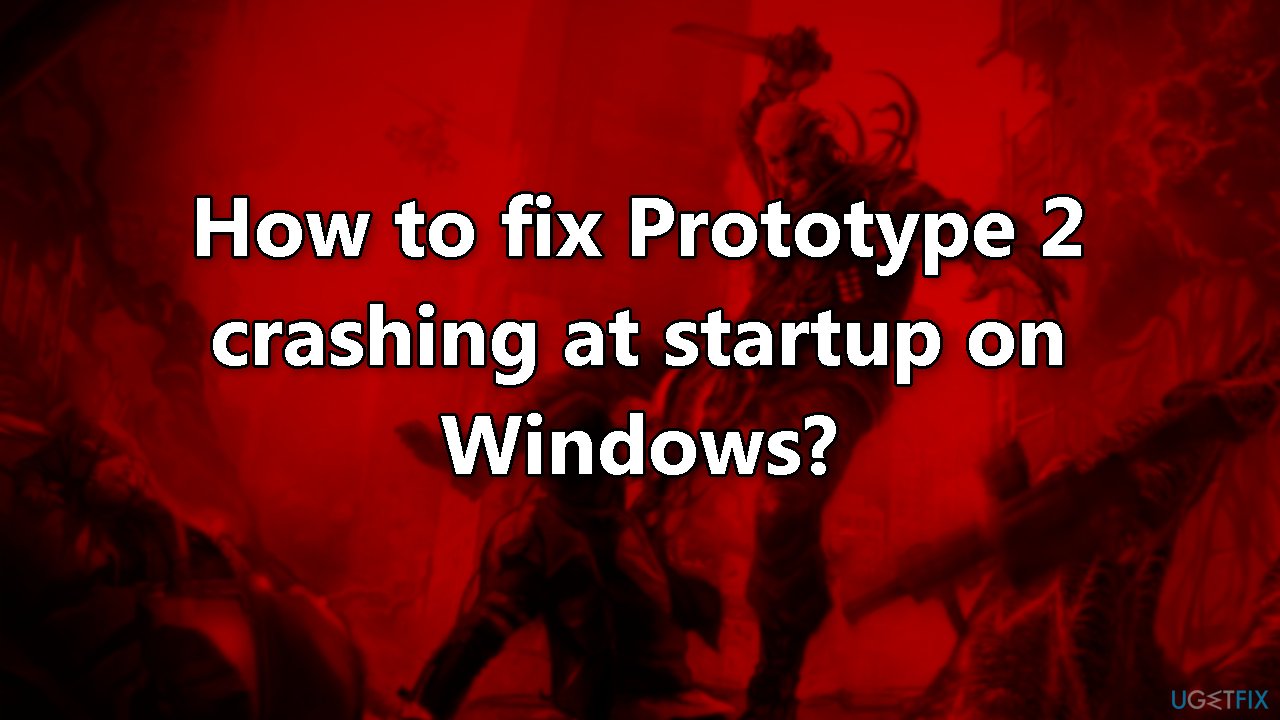
Method 1. Run the Game in Compatibility Mode
- Right-click on the Prototype2.exe or the launcher shortcut file
- Click on Properties
- Navigate to the Compatibility tab
- Click on the option Run this program in compatibility mode for
- Select Windows 7 in the drop-down
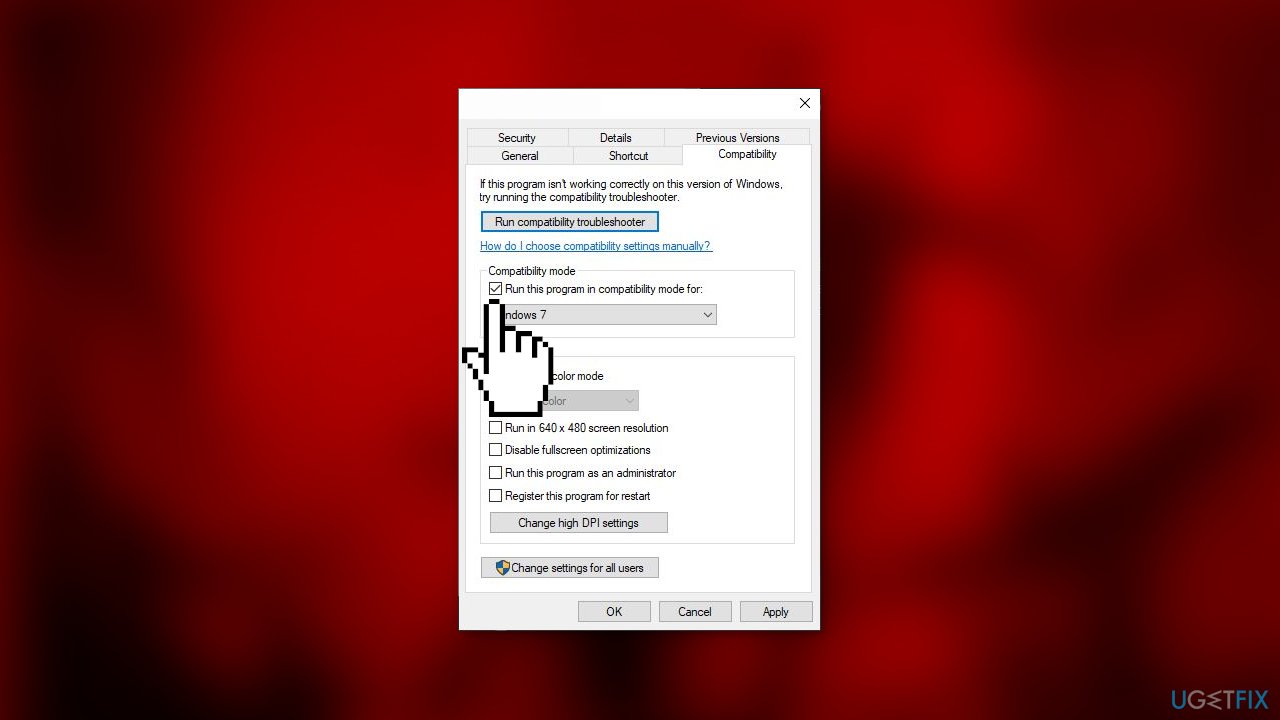
- Check the option Run this program as an administrator
- Click on Apply and OK buttons to save changes
Method 2. Verify Integrity of Game Files
- Open Steam and go to the Library
- Locate and right-click on Prototype 2
- From the context menu, click on Properties
- Go to the Local Files tab
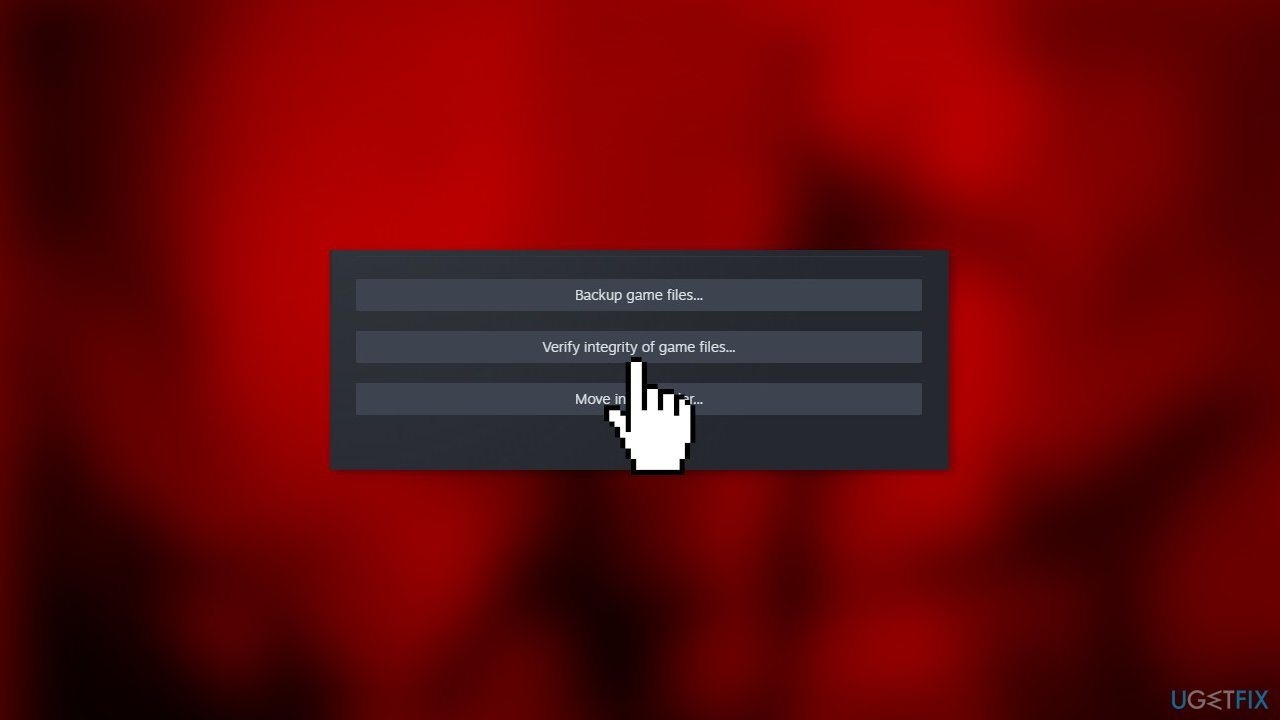
- Select the Verify integrity of game files option
Method 3. Disable Hyperthreading or Multithreading
Many players have reported that their game crashes when they enable hyperthreading and multithreading on their processors.
- Restart your computer and click on the setup key to enter the BIOS/UEFI
- Search for the Hyperthreading option (for Intel processors) or Multithreading (for AMD processors)
- This option is often found under Advanced setting or Tweaker config
- Save the changes
- Reboot your device
Method 4. Increase Processors
If your game crashes due to a lack of processing power, you can resolve the issue by allocating more CPU cores to it. This will ensure that the game has enough resources to run and execute all its files.
- Press the Windows key + R to open the Run dialog box
- Type msconfig and hit OK
- Go to the Boot tab
- Click on the Advanced options
- In the Number of processors option, select 4
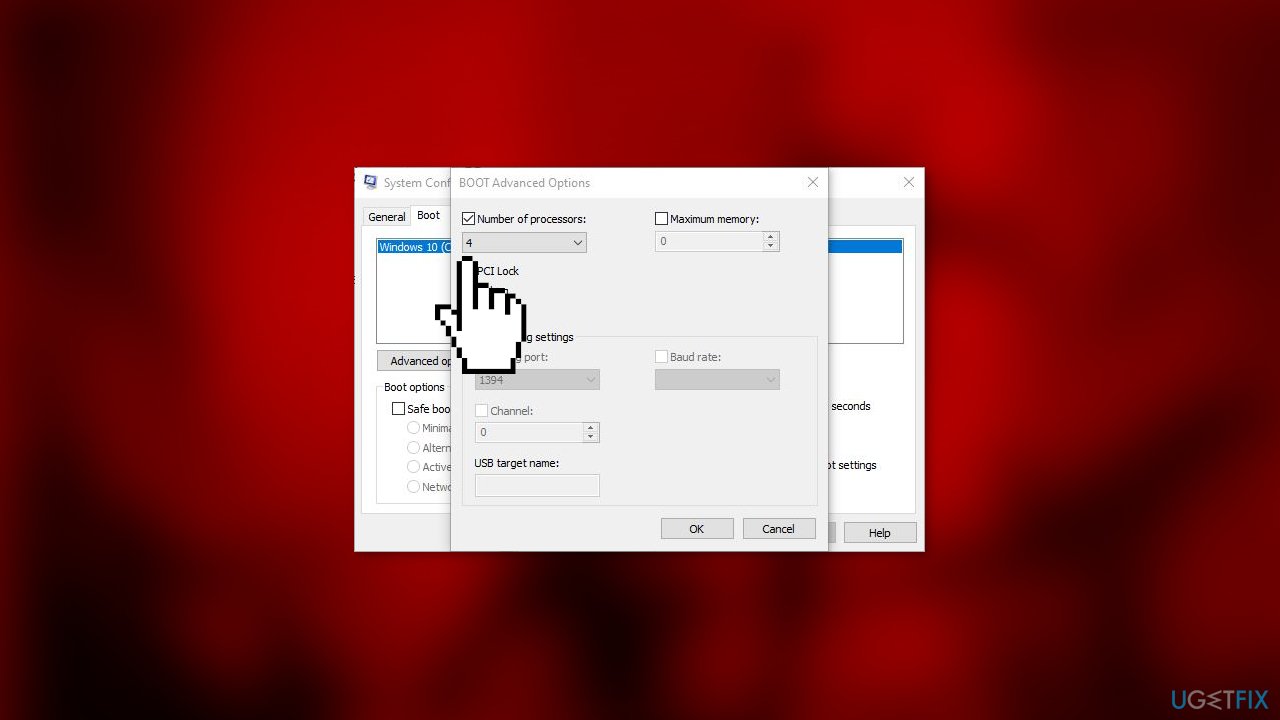
- Select OK to save changes
Method 5. Disable HID-compliant Control Devices
HID-compliant control devices, such as mouse and keyboard drivers, can cause compatibility issues with Prototype 2, as the game is not designed to work with these features. To resolve this issue, we can try disabling these protocols to see if the problem persists. It's important to note that this process does not disable the mouse and keyboard, it only turns off certain protocols that may be conflicting with the game.
- Press the Windows key + R to open the Run dialog box
- Type devmgmt.msc and click OK
- Locate Human interface devices and expand it
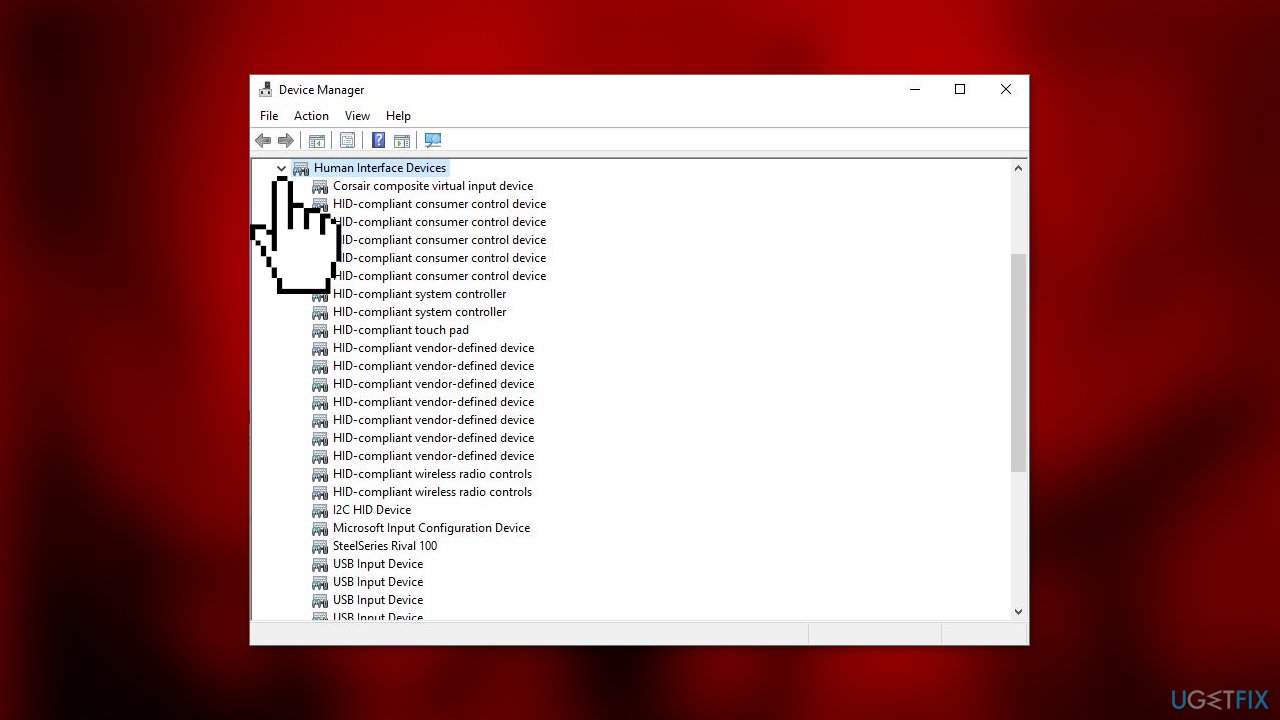
- Disable every HID-compliant consumer device
Bottom line
To fix Prototype 2 crashing at startup on Windows, you can try running the game in compatibility mode, verifying the integrity of game files, and disabling conflicting programs. If these solutions do not resolve the issue, consider using a maintenance tool to fix system errors or seek further assistance.
Frequently asked questions
Common causes include compatibility issues, outdated graphics drivers, and corrupted game files. Ensuring that your system meets the game's requirements can also help.
You can verify the integrity of game files through the Steam client by right-clicking on Prototype 2 in your library, selecting 'Properties,' navigating to the 'Local Files' tab, and clicking 'Verify Integrity of Game Files.' This process checks for and replaces any corrupted files.
If the game continues to crash, try running it in compatibility mode by right-clicking the game executable, selecting 'Properties,' then 'Compatibility,' and choosing a previous version of Windows. Additionally, disabling any overclocking settings and background applications may improve stability.




Report an issue
What's wrong with this guide? We review every report and update or remove content.
Report received — thank you. We'll review and fix it.
You need a free account to submit a report.
Be the first to comment