How to fix
Phone Link app always asks to “Unlock on your phone”
on Windows
Resolve the "Unlock on your phone" issue with the Phone Link app in Windows 10 or 11. Expert-tested solutions for seamless connectivity, fixed in minutes.

![[Fix] Phone Link app always asks to “Unlock on your phone” in Windows](https://ugetfix.com/wp-content/uploads/articles/askit/fix-phone-link-app-always-asks-to-unlock-on-your-phone-in-windows_en-768x432.jpg)
What causes [Fix] Phone Link app always asks to “Unlock on your phone” in Windows?
- Insufficient permissions for the app
- The app needs to be updated due to a bug
- User settings may require phone unlocking for security
- Possible connectivity issues between devices
- App configuration may not be optimized
Repairs Windows system files, removes malware, and restores a clean OS state — without reinstalling.
I have been utilizing the "Phone Link" app on both my computer and mobile device, allowing me to display my phone's screen on my computer and unlock it from there. Now, I'm unable to unlock it from my PC, and a message appears saying, "Unlock on your phone. To protect your credentials, you need to unlock the phone first." Any ideas on why this is happening?
Phone Link is a cross-platform app that enables users to mirror their mobile device screen on their computer and control it from there. The app allows for easy access to phone apps and content on a larger display, making it convenient for tasks such as browsing, typing, or multimedia consumption. Once connected, users can see the phone's screen on the computer and use it as if they were on their phones, which can make it pretty convenient for them.
Phone Link also offers the ability to unlock the phone screen from the computer, adding another layer of accessibility. However, to maintain security, the app may prompt the user to unlock the phone itself to keep credentials private.
Under normal circumstances, users wouldn't need to unlock their phones every time they want to use them via Phone Link. However, some people complained that they need to enter their credentials every time they want to use the app, which can be pretty frustrating - the whole point of having Phone Link installed is to make the accessibility more convenient.
When the Phone Link app always asks to "Unlock on your phone" in Windows, there are a few things you could try to fix it. For example, the app might not be giving sufficient permissions, or it simply needs to be updated due to a general bug.
Below you will find these and a few other solutions that should stop Windows from asking to "Unlock your phone" every time you use the app. Before proceeding with manual steps, we recommend you check your system with a powerful PC repair tool [d1] - it can fix various issues related to system instability and clean from junk files, making it faster.
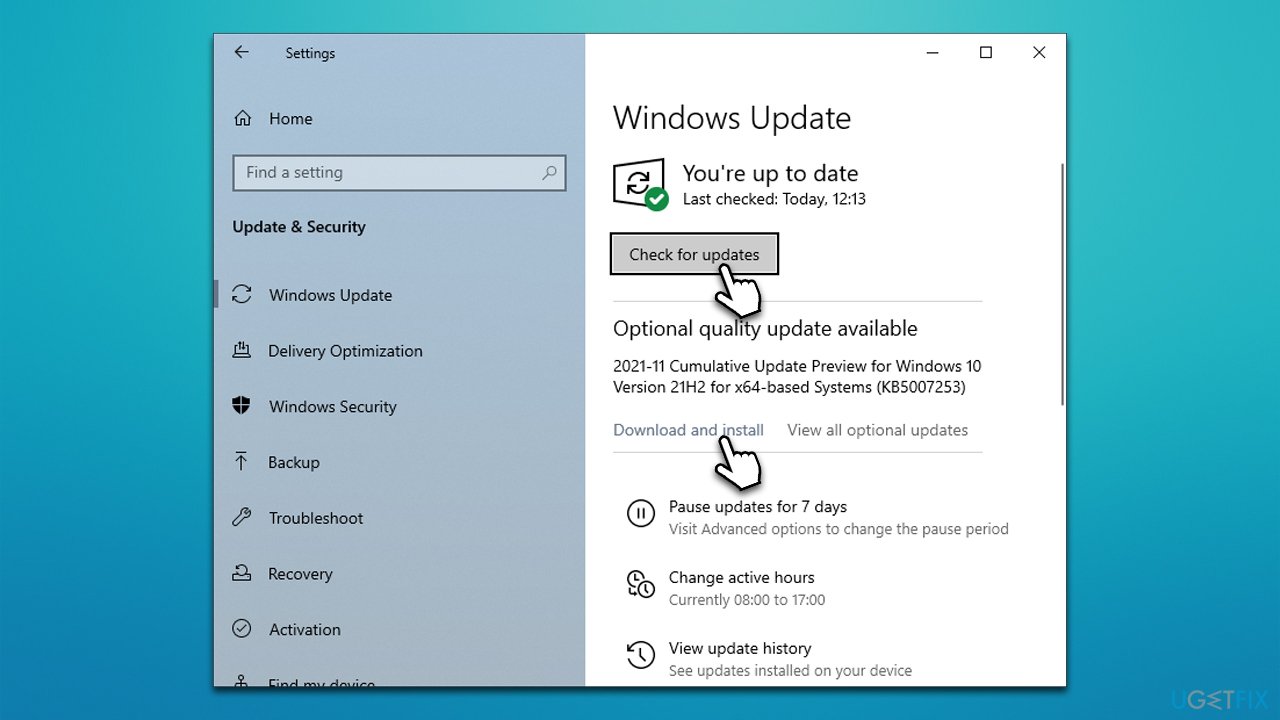
Solution 1. Install all Windows updates
First, let's make sure that all the updates for Windows are installed.
- Type Update in Windows search and hit Enter.
- Click Check for updates.
- Wait till Windows downloads and installs all the files.
- If optional updates are available, install them as well.
- Restart your system.
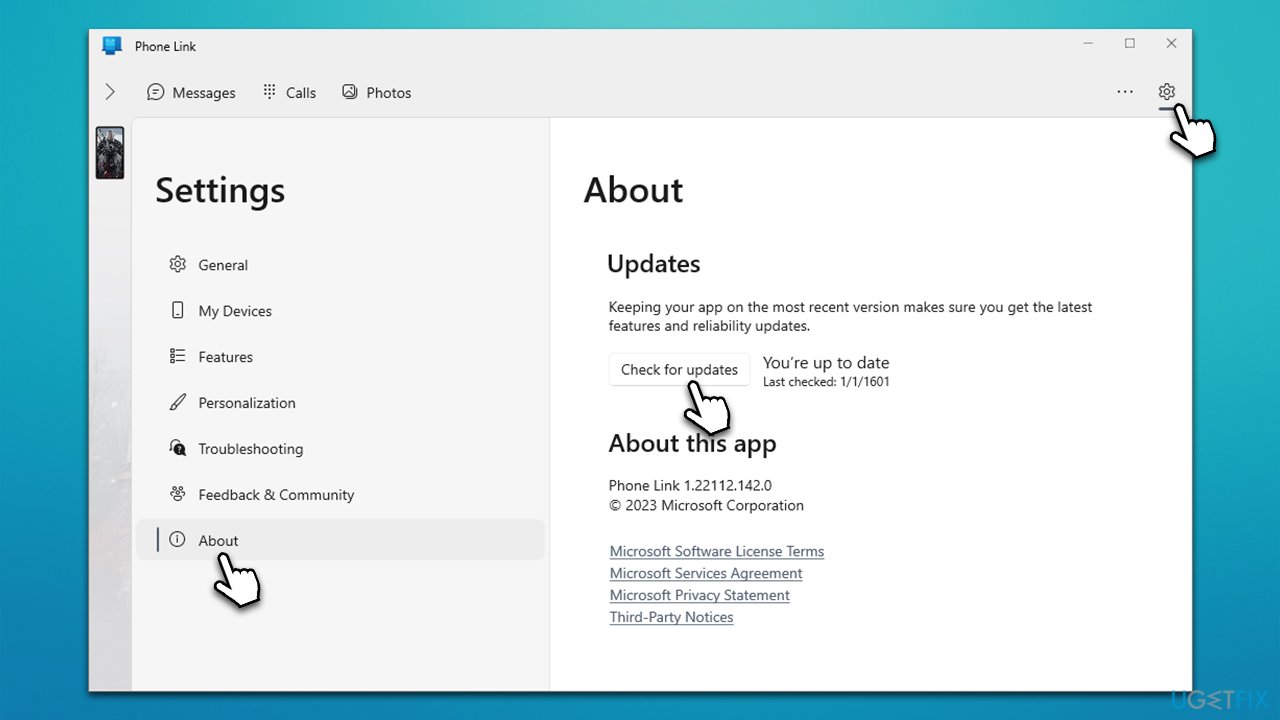
Solution 2. Update the Phone Link app
- Open the Phone Link app on Windows.
- At the top-right corner, click the cogwheel (Settings).
- On the left side, click About.
- Then, select Check for updates.
- Wait till updates are installed and see if the issue persists.
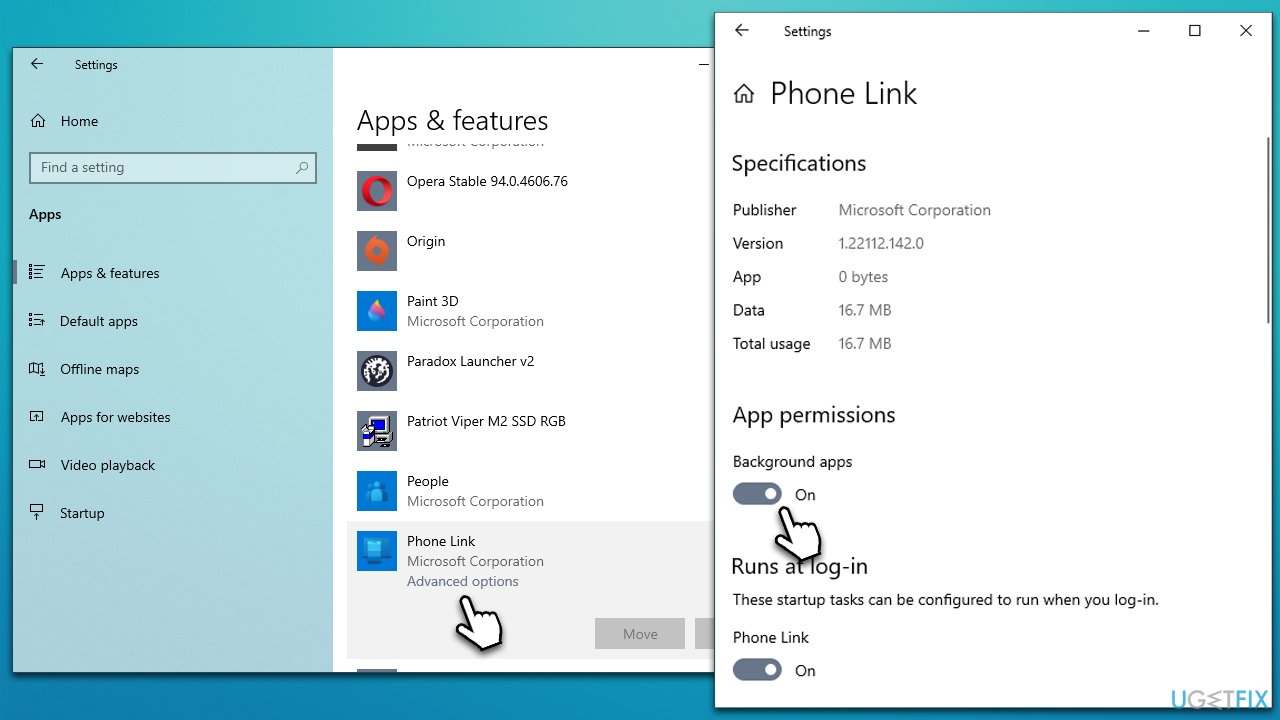
Solution 3. All the app to run in the background
If the app is unable to run in the background, it may keep asking you to "Unlock your Phone" every time.
- Right-click on Start and pick Settings.
- Go to the Apps section.
- Scroll down to find the Phone Link app.
- Click Advanced options.
- Ensure that the Background apps option is toggled to the On position.
Solution 4. Check permissions on your Android phone
- Tap and hold the Phone Link app on your Phone.
- Select the App info icon from the menu.
- Select Permissions.
- Go to each of the permissions and set the Allowed setting.
- If Battery option is available, pick Unrestricted.
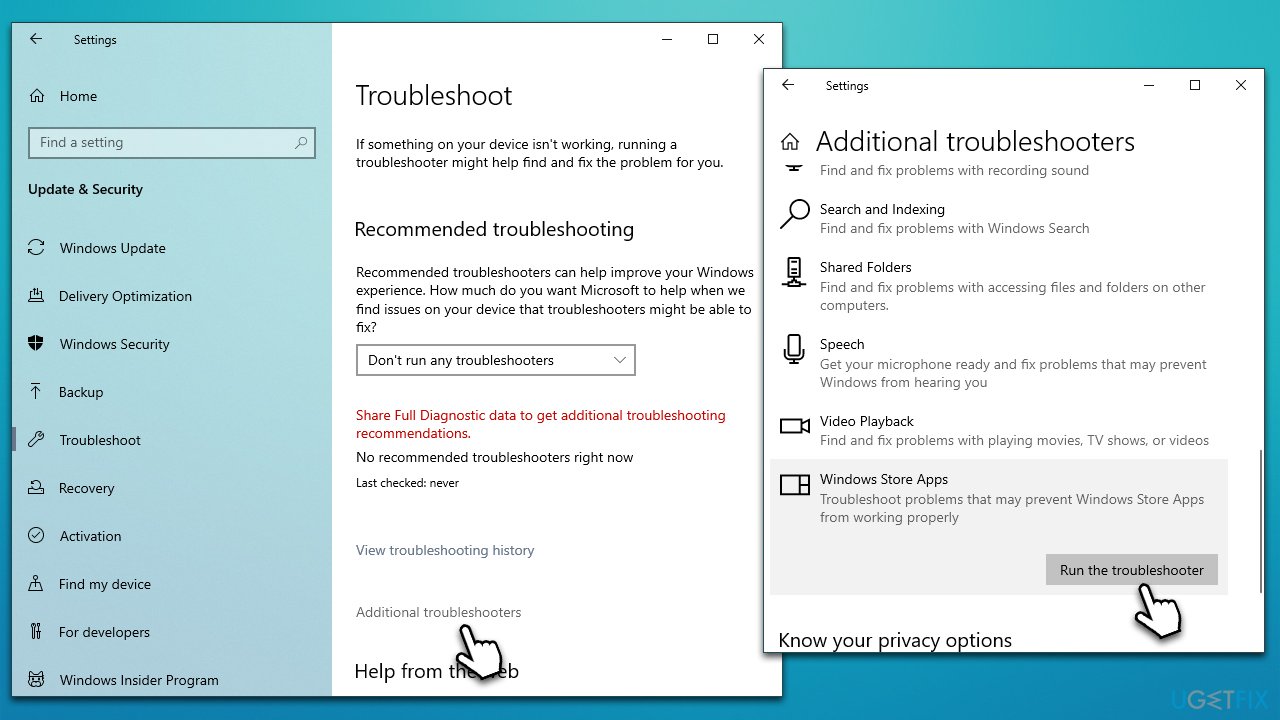
Solution 5. Run Windows Store Apps troubleshooter
If there's something wrong with the app, the built-in troubleshooter might help.
- Type Troubleshoot in Windows search and press Enter.
- Click Additional troubleshooters/Other troubleshooters.
- Scroll down to find Windows Store Apps and click Run the troubleshooter/Run.
- Wait till the scan is complete.
- Apply the suggested fixes.
Solution 6. Repair or reset Phone Link
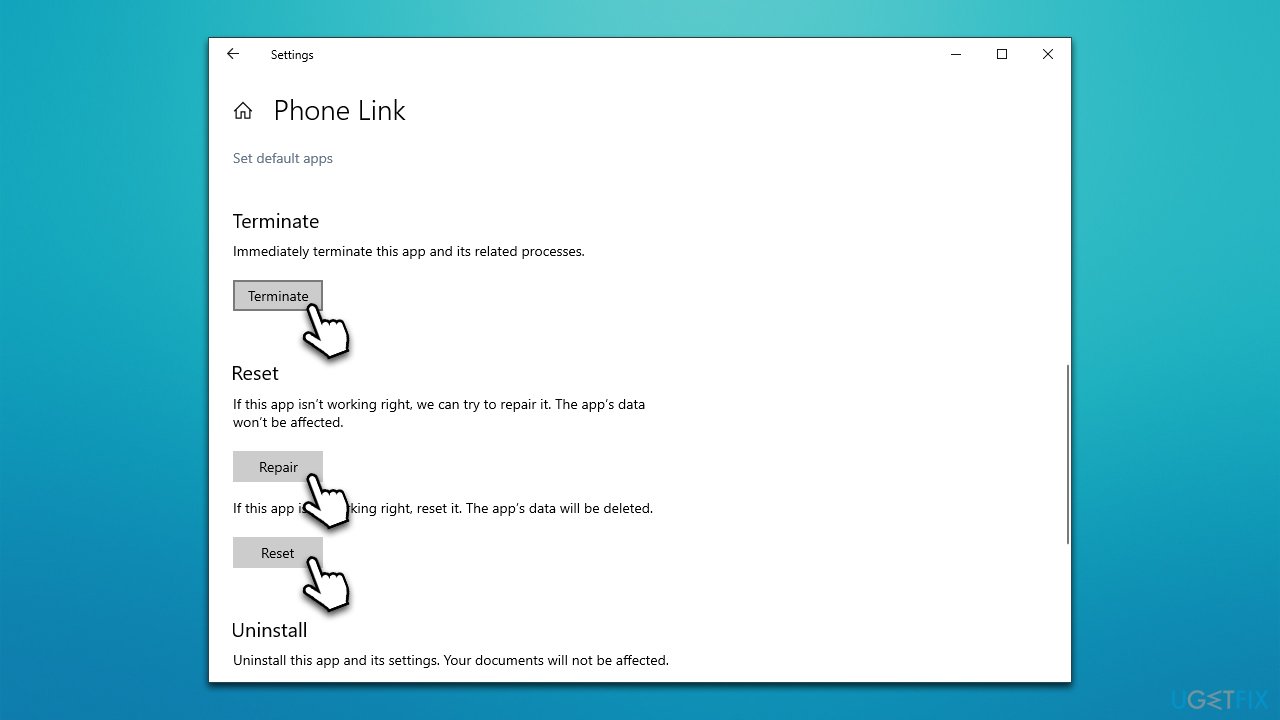
If the troubleshooter didn't provide any solutions, try repairing or resetting the app.
- Right-click on Start and pick Settings.
- Go to the Apps.
- Scroll down to locate the Phone Link app and click Advanced options.
- Click Terminate.
- Select Repair and wait.
- If it doesn't help, use the Reset option instead.
Bottom line
To resolve the issue of the Phone Link app asking to unlock your phone, consider checking app permissions, updating the app, and ensuring proper connectivity between your devices. If these steps do not resolve the problem, further investigation into app settings or using a PC repair tool may be necessary.
Frequently asked questions
This issue often arises if the connection between your PC and phone is not properly established. Ensure that both devices are connected to the same Wi-Fi network and that the Phone Link app is updated on Windows 10.
You can try restarting both your phone and PC, then re-establish the connection via the Phone Link app. If the problem persists, consider reinstalling the app or checking for updates on both devices.
Yes, you can reset the app settings by going to Settings > Apps > Apps & features, selecting Phone Link, and clicking on 'Advanced options' to reset it. This can resolve persistent connectivity issues without a full reinstall.




Report an issue
What's wrong with this guide? We review every report and update or remove content.
Report received — thank you. We'll review and fix it.
You need a free account to submit a report.
Be the first to comment