How to fix
KB5022478 fails to install
on Windows
Resolve the KB5022478 installation issue in Windows 10 effortlessly. Our expert-tested guide ensures your updates run smoothly and fixed in minutes.

What causes How to fix KB5022478 fails to install in Windows 10?
- Corrupted caches
- Inactive services
- Corrupted system files
- Occasional bugs
- Weak internet connections
Repairs Windows system files, removes malware, and restores a clean OS state — without reinstalling.
Today I launched my PC just as I usually do in the morning, and there was a new update. I waited a bit and then noticed that KB5022478 is not installing. I tried several times - restarted the computer too, but to no avail. Any tips would be appreciated.
By default, Windows will automatically obtain and install updates as soon as the operating system is activated. Microsoft commonly publishes them on Patch Tuesday - which is typically the second Tuesday of each month. After distributing KB5022478 to millions of Windows 10 users, reports surfaced that this routine update did not always complete successfully.
Numerous users reported that they encountered a multitude of errors when attempting to download and install the latest updates. Rather than gaining access, all they received was an unhelpful message indicating failure, followed by a Retry button which yielded no results after multiple attempts - rendering the update permanently inaccessible for many.
KB5022478 is a preview build released by Microsoft on January 19, 2023. It is a routine cumulative update for .NET Framework 3.5, 4.8, and 4.8.1, which includes several security, quality, and reliability improvements. The update is available to all users running Windows 10 versions 20H2, 21H2, and 22H2.
When KB5022478 fails to install, the issue is usually resolved automatically in a few moments or hours - these failures can be attributed to weak internet connections or Microsoft server issues at the time. However, some installation failures can be rather persistent, with users not being able to apply the latest security and other improvements.
Users may encounter problems when attempting to update either manually or automatically. The cause of the issue could be due to a variety of factors, such as corrupted caches, inactive services, corrupted system files, or even occasional bugs. To resolve these problems, we provide a comprehensive guide with step-by-step instructions to address a number of these scenarios.
Before proceeding, we suggest using [d1], a powerful repair tool, to scan for corrupted files and other issues. It can effectively fix common Windows problems, such as Blue Screen of Death (BSOD), update failures, registry errors, etc.
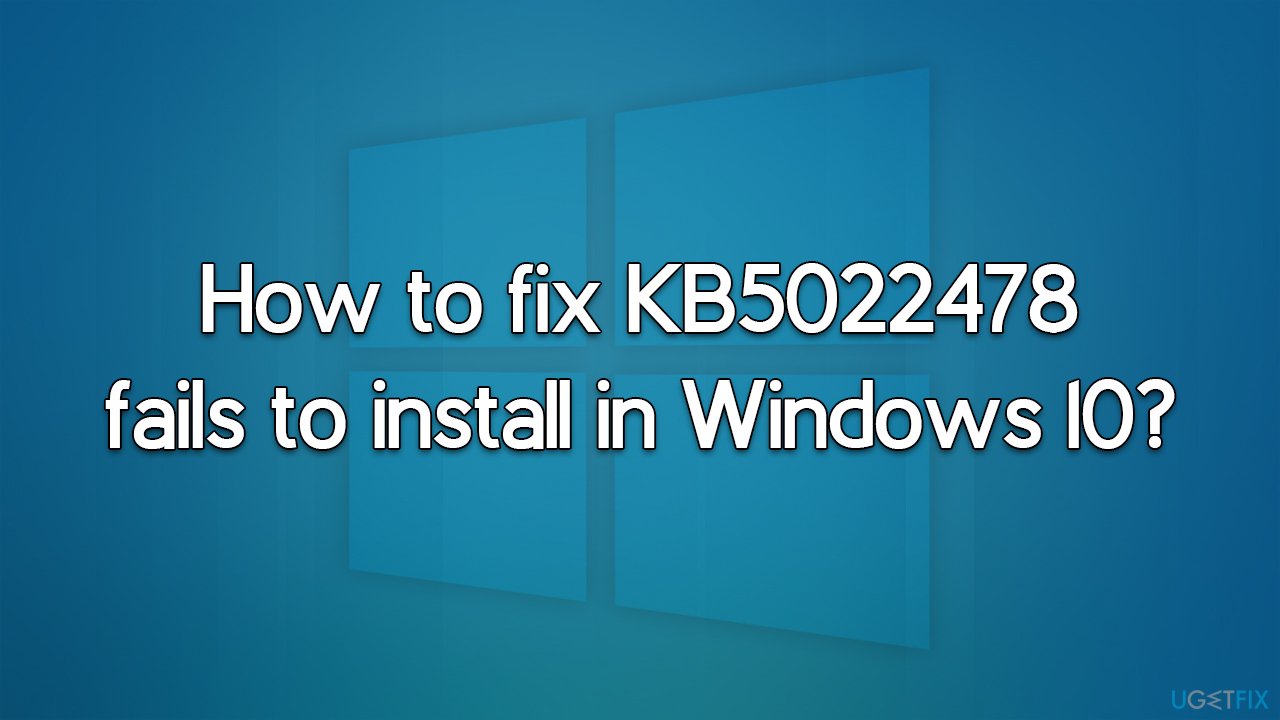
Fix 1. Start with troubleshooter
- Type Troubleshoot in Windows search.
- Select Additional troubleshooters.
- Find Windows Update from the list.
- Click it and select Run the troubleshooter.
- Wait till the update is installed and restart your PC.
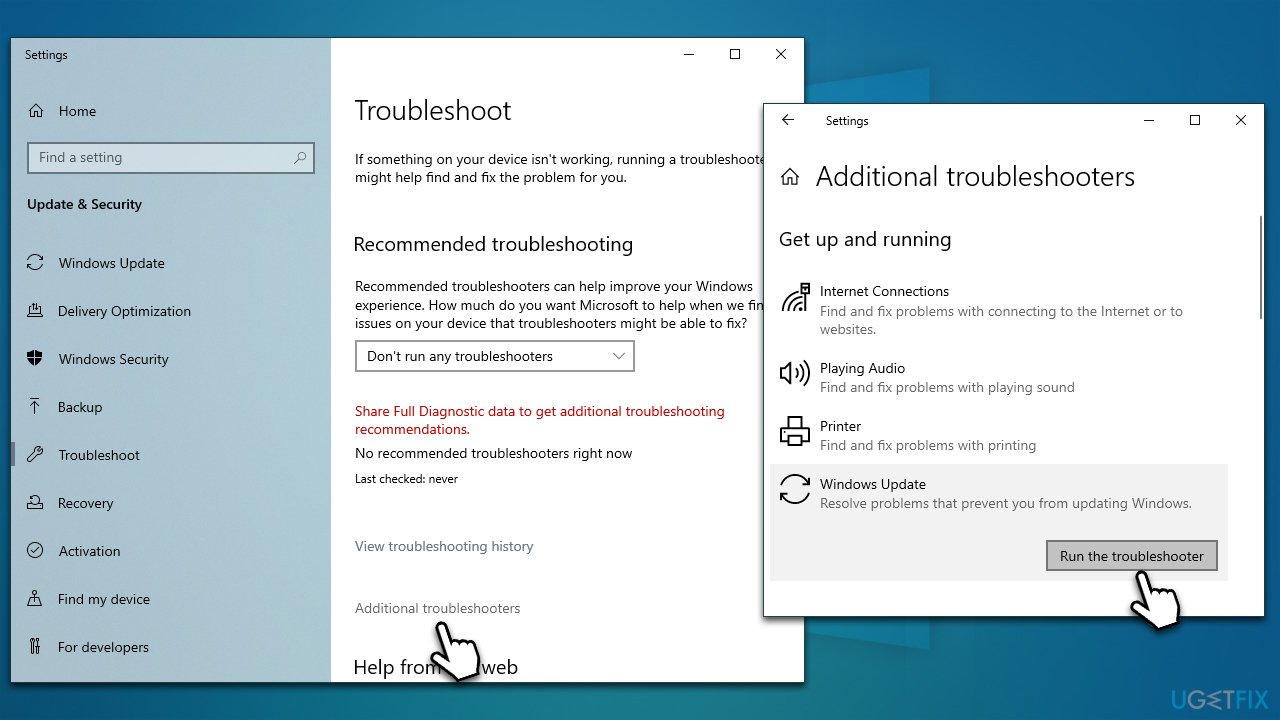
Fix 2. Check for corrupted system files
Corrupted system files might also cause a Windows update to fail. You can repair them by running commands via elevated Command Prompt:
- Type cmd in Windows search, then right-click and select Run as administrator.
- When User Account Control asks you if you want to make changes, click Yes.
- In the Command Prompt window, paste the following command and press Enter:
sfc /scannow - Once the scan is complete, use the following commands and press Enter after each:
Dism /Online /Cleanup-Image /CheckHealth
Dism /Online /Cleanup-Image /ScanHealth
Dism /Online /Cleanup-Image /RestoreHealth - Restart your system.
Fix 3. Install the update manually
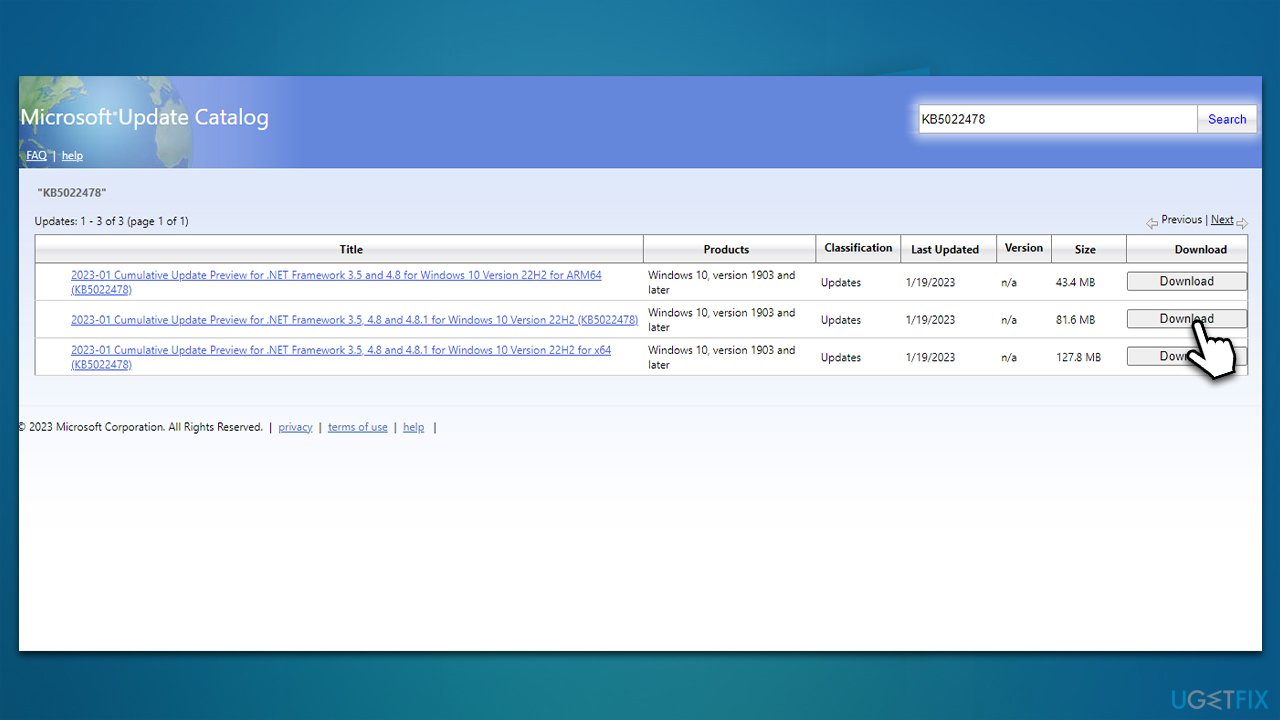
- Open your browser and go to the official Microsoft Update Catalog website.
- Type the KB5022478 into the search and press Enter or click Search.
- You will find many different versions on the update – you need to find the one that matches your PC specs and Windows version (as a home user, ignore Windows server versions).
- Right-click on Start and pick System.
- Under Device specifications, check the System type section: it should either be 64-bit or 32-bit.
- Scroll down to Windows specifications and check the Version section.
- Now pick the correct version for your computer.
- Go to the Microsoft Update catalog, download the appropriate version, and install it.
Fix 4. Repair .NET Framework
If the installed .NET Framework is corrupted, the update might not be able to go through. Therefore try repairing it as follows:
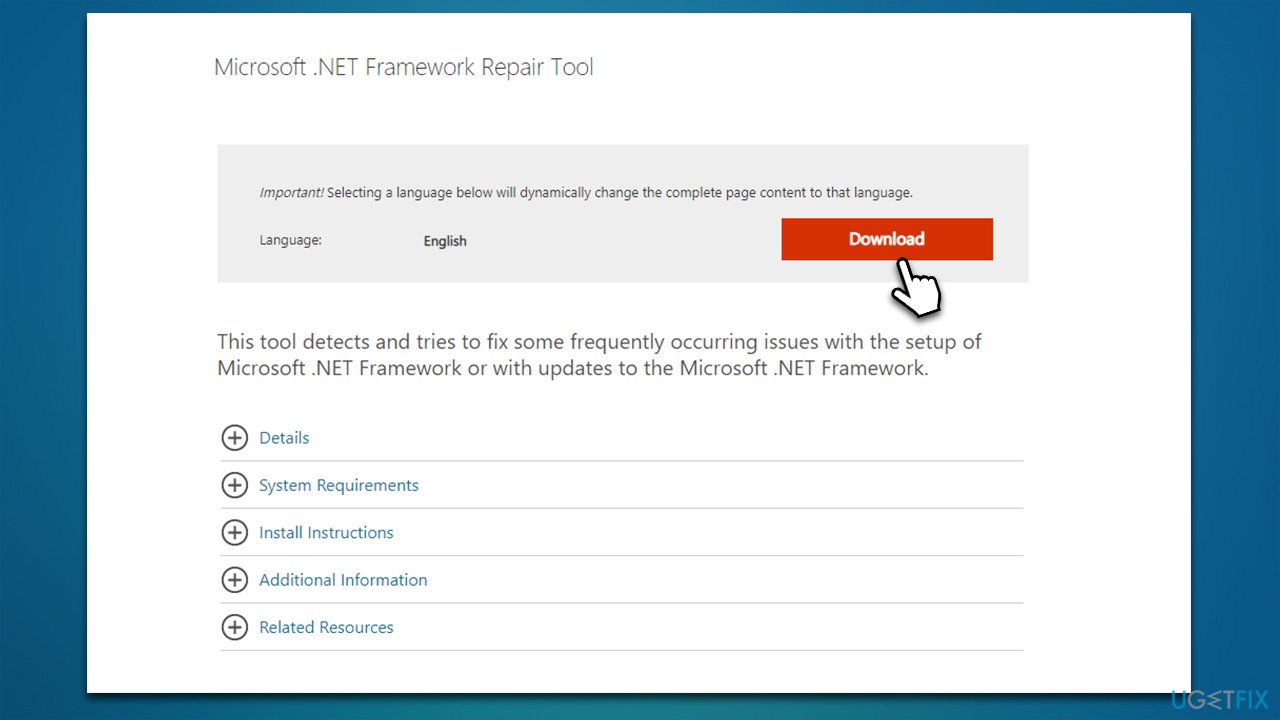
- Download Microsoft .NET Framework Repair Tool from the official Microsoft website
- Start the launcher and select NetFxRepairTool.exe, pressing Next after.
- Double-click the file to begin the repair process.
- When prompted, mark the I have read and accept the license terms and click Next.
- Windows will diagnose all the issues and repair them automatically for you.
- Restart your PC if the utility doesn't do it for you.
Fix 5. Reset Windows update components
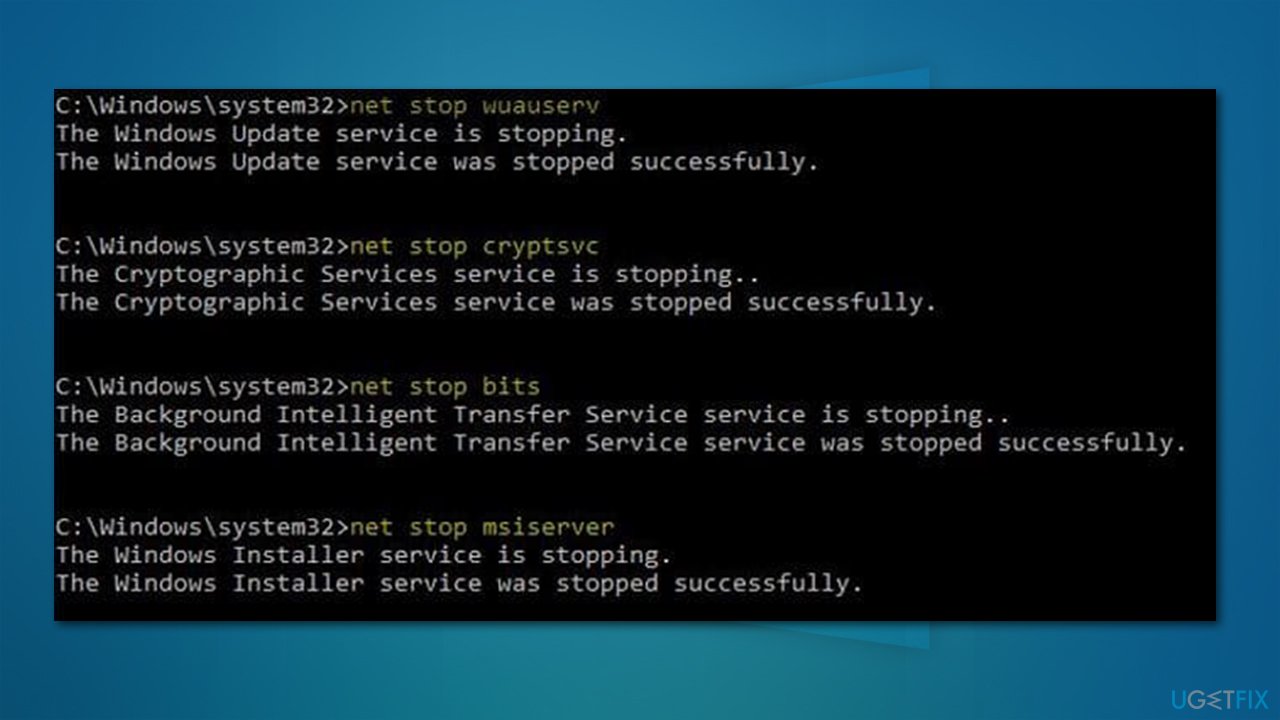
- Open Command Prompt as administrator
- When the User Account Control shows up, click Yes
- Copy and paste each of the command lines, pressing Enter every time (wait till each of them is executed properly):
net stop bits
net stop wuauserv
net stop appidsvc
net stop cryptsvc
Del “%ALLUSERSPROFILE%\Application Data\Microsoft\Network\Downloader\*.*”
rmdir %systemroot%\SoftwareDistribution /S /Q
rmdir %systemroot%\system32\catroot2 /S /Q
regsvr32.exe /s atl.dll
regsvr32.exe /s urlmon.dll
regsvr32.exe /s mshtml.dll
netsh winsock reset
netsh winsock reset proxy
net start bits
net start wuauserv
net start appidsvc
net start cryptsvc - Restart your system.
6. Disable third-party security software
Bottom line
To resolve the installation failure of KB5022478, users can scan for corrupted files using a repair tool, check for inactive services, and clear the cache. If these steps do not resolve the issue, it may be necessary to consult additional resources or seek professional assistance.
Frequently asked questions
First, try running the Windows Update Troubleshooter by going to Settings > Update & Security > Troubleshoot. If that doesn't work, consider manually downloading the update from the Microsoft Update Catalog.
Yes, common error codes include 0x800f0922 and 0x8007000d, which indicate issues with the update process or corrupted files. You can look these up for more targeted troubleshooting steps.
Yes, uninstalling recent updates that may conflict with KB5022478 can help; navigate to Settings > Update & Security > Windows Update > View update history > Uninstall updates. After that, try reinstalling the problematic update.




Report an issue
What's wrong with this guide? We review every report and update or remove content.
Report received — thank you. We'll review and fix it.
You need a free account to submit a report.
Be the first to comment