How to fix
Microsoft Edge Tabs Going Black Screen
on Windows
Resolve black screen issues with Microsoft Edge tabs on Windows 10 and 11 effortlessly. Expert-tested solutions guarantee quick fixes!

What causes How to Fix Microsoft Edge Tabs Going Black Screen?
- Black screen occurs when closing a tab
- Black screen happens when using favorites or hub
- Edge resets itself automatically after a black screen
- Tabs freeze after experiencing a black screen
- Issue may be related to bugs in Edge
Repairs Windows system files, removes malware, and restores a clean OS state — without reinstalling.
Hello, everyone. I’m encountering a quite odd problem on Edge and could not find any solution for it. I was using Edge counting from the day I started using Windows 10, which is about two years or something. I worked fine, but for the past two weeks, Edge goes black screen randomly. This usually happens when I close a tab or try using favorites, hub, share or other features. The screen simply goes black and Edge resets itself automatically. After that, those black screen tabs freeze, while the new ones work as long as I do not close the broken ones. Isn’t it strange? Could you please guys help me?
Microsoft Edge is a web browser owned by Microsoft and in-built into the Windows 10 operating system by default.[ref en-1] However, people who disapprove of using Edge can easily set another default web browser. Nevertheless, Windows experts agree upon the fact that using Edge on Windows 10 is a good idea because this particular web browser concert with Windows 10 perfectly and are, usually, supplemented with updates simultaneously.[ref en-2]
Consequently, people may expect Edge to work more smoothly and speedy if compared to other web browsers. Unfortunately, users complain about this Black Screen and many other issues with Microsoft edge web browser.[ref en-3]
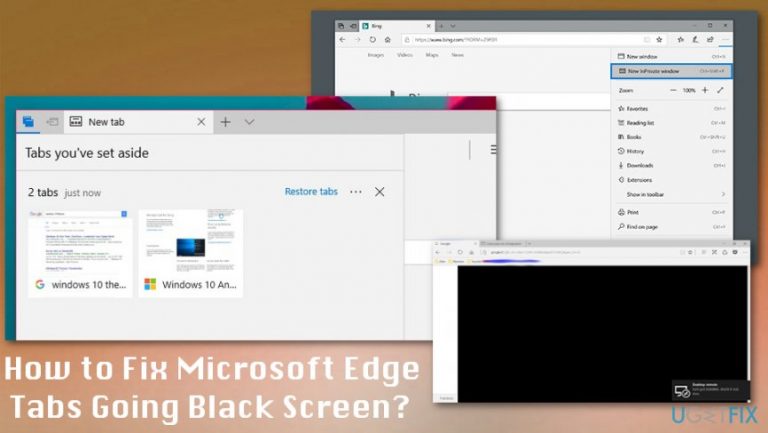
Just like any other application, Edge sometimes stumbles at some bugs and starts malfunctioning. More specifically, when an Edge user attempts to open a new tab or use some of the features provided on the right-pane (Hub, Web Notes, or options on More menu), the current tab goes black screen forcing Edge to restart.
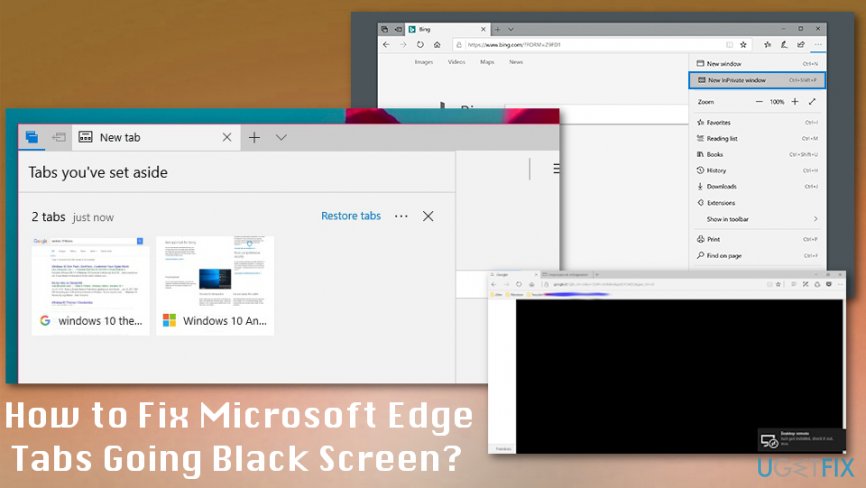
Afterward, the black screened tabs get stuck, but the user can keep browsing on new tabs. The problem is that the same problem reoccurs when the user tries to close broken tabs. It’s not a common issue, but there are quite many people who are facing it. Microsoft has been informed about this Edge black screen tabs but did not respond yet. Nevertheless, there is something you can try to fix Edge tabs going black screen.
Methods to Fix Microsoft Edge Tabs Going Black Screen
Web browser’s malfunctions, in general, are most frequently triggered by potentially unwanted programs or virus. Therefore, if the tabs on Edge started going black out of nowhere or after the installation of third-party software, we would strongly recommend you to either remove extensions manually or perform a full system scan with a professional anti-malware. We would recommend using [d1], but you are free to use any program you prefer. Nevertheless, make sure that it’s powerful enough and that it’s up-to-date with the latest definitions. If the tool detects unwanted or dangerous programs, remove them ASAP.
Check the browser for unwanted content
In case your antivirus did not detect any threats, you should check the plug-ins that are running on Edge. For this purpose, you should:
- Open Edge and click More (three dots at the top right corner of the screen).
- Then scroll down to find Extensions.
- Carefully analyze the list of extensions and check if all of them were added on your behalf.
- If you are not using or don’t remember adding some of the extensions, we would strongly recommend disabling them.
Reset Microsoft Edge using PowerShell
NOTE: Before performing Edge restore via PowerShell, we would strongly recommend you to create a System Restore Point in case something would go wrong.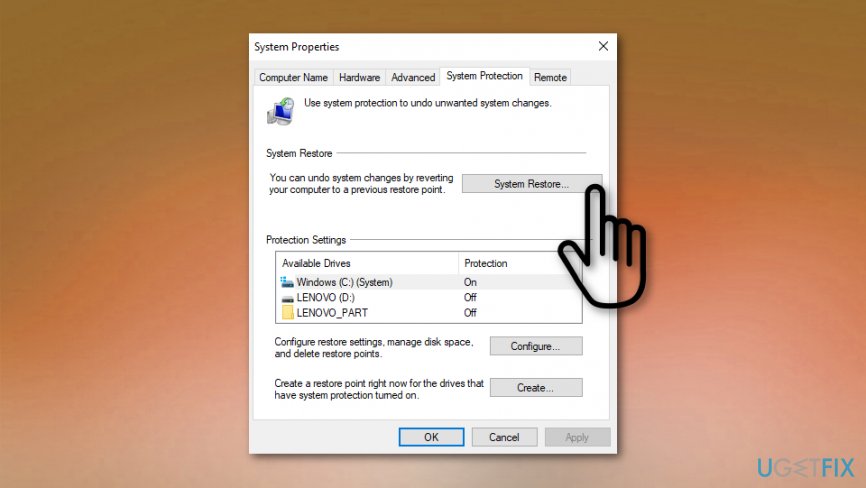
- Navigate to the C:\\Users\\%username\\AppData\\Local\\Packages\\Microsoft.MicrosoftEdge_8wekyb3d8bbwe and clear its content (NOTE: replace \\%username\\ with your own username).
- Then open search and type PowerShell.
- Right-click on the search results and select Run as Administrator.
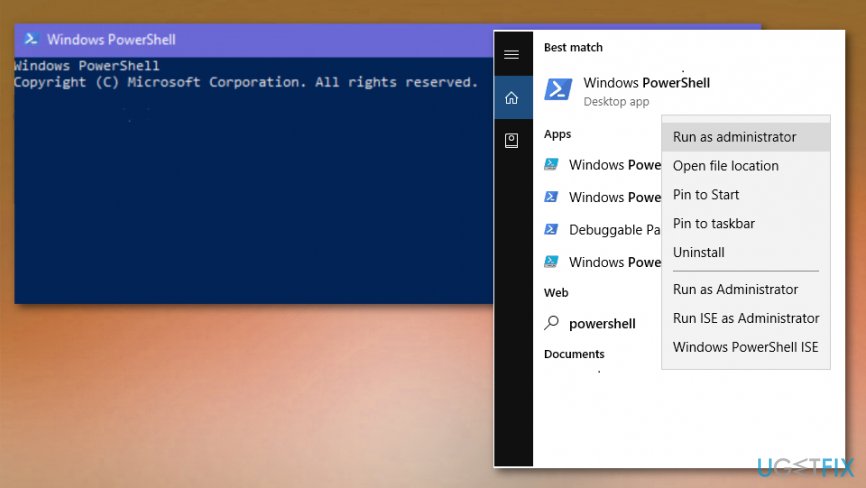
How to fix microsoft edge tabs going black screen power shell - Copy and paste Get-AppXPackage -AllUsers -Name Microsoft.MicrosoftEdge | Foreach {Add-AppxPackage -DisableDevelopmentMode -Register “$($_.InstallLocation)\\AppXManifest.xml” -Verbose} command into the PowerShell and press Enter.
- If the process was successfully executed, you should see a report in yellow, which ends with the PSC: \\Windows\\System32> (this may vary according to the type of your OS).
- In case of a failure, copy and paste Get-Appxlog | Out-GridView command and then repeat the steps provided above.
- Once done, Edge will be reset to default.
Perform a Clean Boot
It might be that Edge goes black screen due to some incompatible software. In this case, you should try to perform Clean Boot to isolate the problematic software. For this purpose, you should:
- Press Windows key + R, type msconfig, and press Enter.
- Open Services tab and check the Hide All Microsoft Services box.
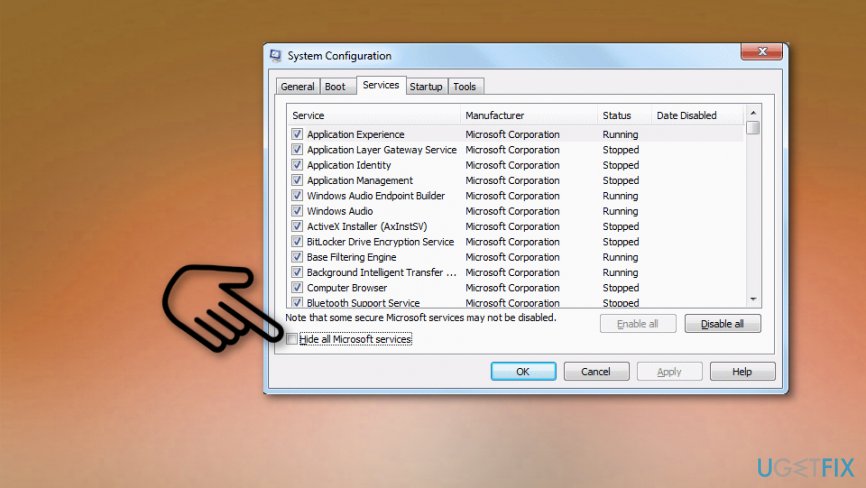
How to fix microsoft edge tabs going black screen hide microsoft processes - Select Disable all and then open Startup tab.
- Select Task Manager and disable all processes on it. For this purpose, right-click on each of them and select Disable.
- Then press OK and reboot your PC.
If Edge stopped from delivering black screen tabs, you should enable applications one by one and check if the problem reappears. When you detect the problematic software, you should either reinstall it or delete completely.
Update display drivers
If none of the steps helped, it might be that stuck tabs on Edge might be triggered by outdated graphics or display drivers. For this purpose, you should:
- Right-click on Windows key and select Device Manager.
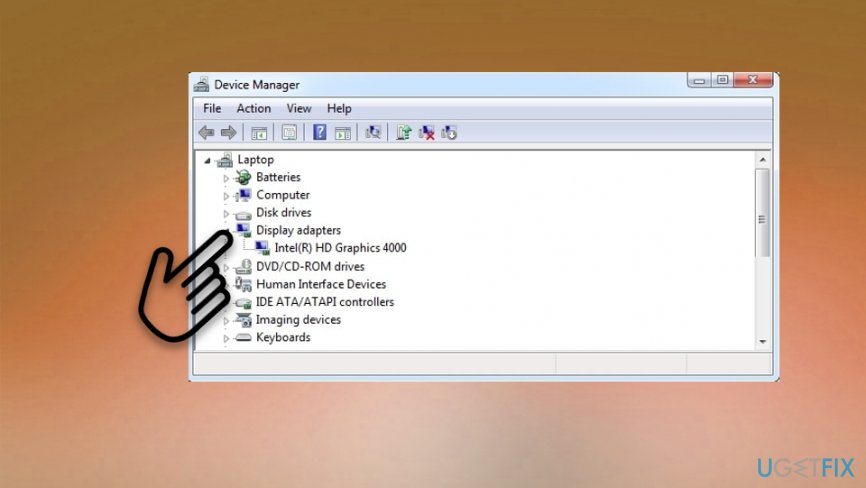
How to fix microsoft edge tabs going black screen display drivers - Expand Display adapters, right-click on your display driver(-s), and select Update Driver Software.
- Follow the on-screen instructions and wait for the update to be executed.
- Then reboot the system.
Bottom line
To fix the black screen issue in Microsoft Edge, users can try updating the browser, clearing the cache, disabling extensions, or resetting Edge settings. If none of these methods work, consider reaching out to Microsoft support for further assistance.
Frequently asked questions
Black screen tabs in Microsoft Edge on Windows 10 can be caused by hardware acceleration issues or outdated graphics drivers. Disabling hardware acceleration or updating your drivers may resolve the problem.
To fix black screen tabs in Microsoft Edge on Windows 11, try clearing the browser cache and cookies, as corrupted data can lead to display issues. Additionally, resetting the Edge browser settings may help restore normal functionality.
If the black screen issue in Microsoft Edge continues, consider reinstalling the browser or running the Windows Troubleshooter for apps to detect and fix underlying problems.




Report an issue
What's wrong with this guide? We review every report and update or remove content.
Report received — thank you. We'll review and fix it.
You need a free account to submit a report.
Be the first to comment