How to fix
Provisioning package fails with error 0x800700b7
on Windows
Resolve the 0x800700b7 error when using provisioning packages on Windows 11 22h2 effortlessly. Expert-tested solutions for quick fixes!


What causes How to fix Provisioning package fails with error 0x800700b7 on Windows 11 22h2?
- Provisioning packages used during initial setup are affected
- Windows 11 2022 Update may cause errors with provisioning packages
- Partial configuration of Windows leading to unexpected restarts
- Error occurs primarily in enterprise or school networks
- Home or small office networks are not affected
Repairs Windows system files, removes malware, and restores a clean OS state — without reinstalling.
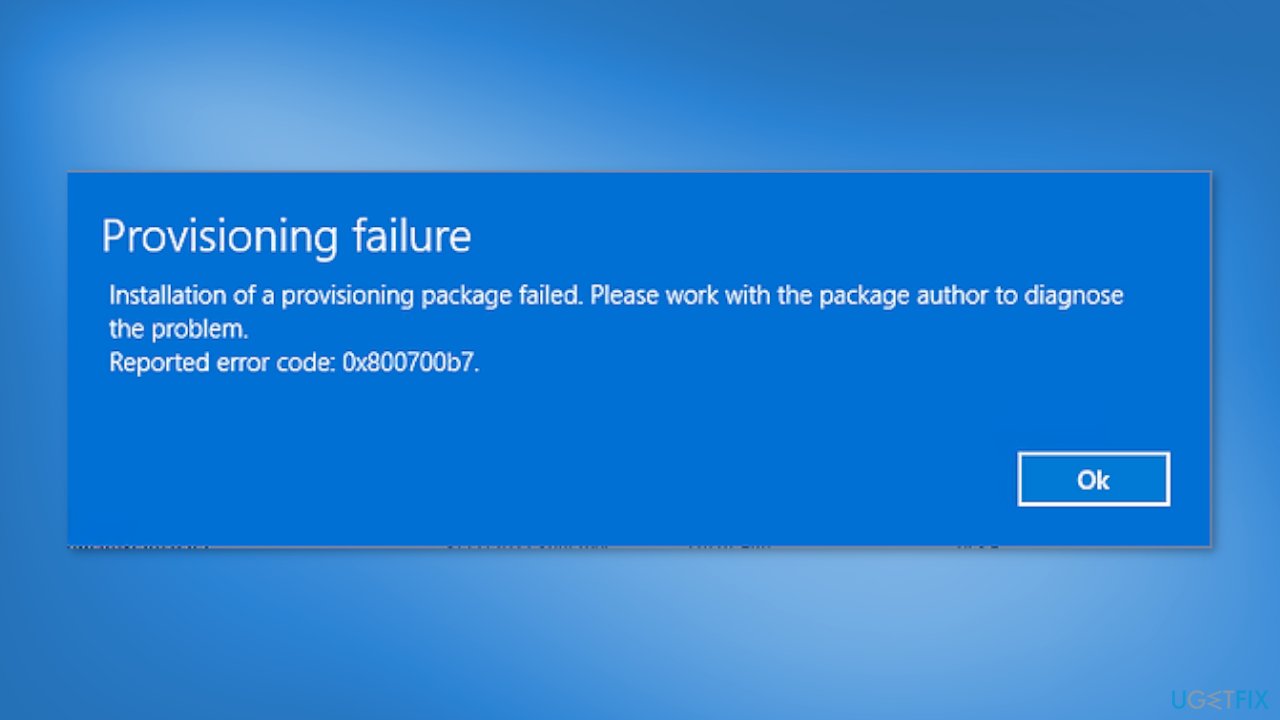
Hello. I tried to reinstall Windows 11 22h2 but when I reached the "Setting up your PC" stage, the Provisioning package failed with error 0x800700b7. What should I do?
A provisioning package is a configuration package used to automate the setup and configuration of a Windows device, including settings, policies, and applications. It can be used to quickly deploy a pre-configured Windows environment, either on a single device or across multiple devices in an organization, without the need to manually configure each device. This can be useful for large-scale deployments, particularly in an enterprise setting, to ensure device consistency and standardization.
Many users, however, report that the Provisioning package fails with error 0x800700b7 on Windows 11 22h2. The problem was first identified in October 2022, when it was reported that using provisioning packages (.PPKG files that enable endpoint configuration in enterprise or school networks without the need for imaging) after installing the Windows 11 2022 Update could cause 0x800700b7 errors.
According to Microsoft, this issue may cause Windows to only partially configure itself, resulting in an unexpected restart or failure to complete the Out Of Box Experience.[ref en-1] The company also stated that provisioning packages used during the initial setup process would most likely be affected.
However, the problem does not affect Windows systems used in home or small office networks or devices that are provisioned using Windows Autopilot. Recently, Microsoft updated the known issue entry on the Windows release health dashboard, confirming that it was addressed with the November 2022 KB5020044 preview update.[ref en-2]
In this guide, you will find 2 steps that should help you fix Provisioning package fails with error 0x800700b7 on Windows 11 22h2. However, you can also try using an automatic maintenance tool, like [d1] that can fix most system errors, BSODs,[ref en-3] corrupted files, and registry issues. Otherwise, follow the step-by-step instructions below.
Solution 1. Install the KB5020044 Update
The KB5020044 update not only resolves the 0x800700b7 error but also adds several new features to Windows 11 22H2. One such feature is the integration of Windows Spotlight with Themes on the Personalization page, providing users with a more personalized experience.
Additionally, the update provides helpful information for OneDrive users. Furthermore, the update addresses game performance issues, which previously caused Microsoft to block upgrades to the Windows 11 2022 Update for some users. You can easily install the KB5020044 update either automatically through Windows Settings or manually.
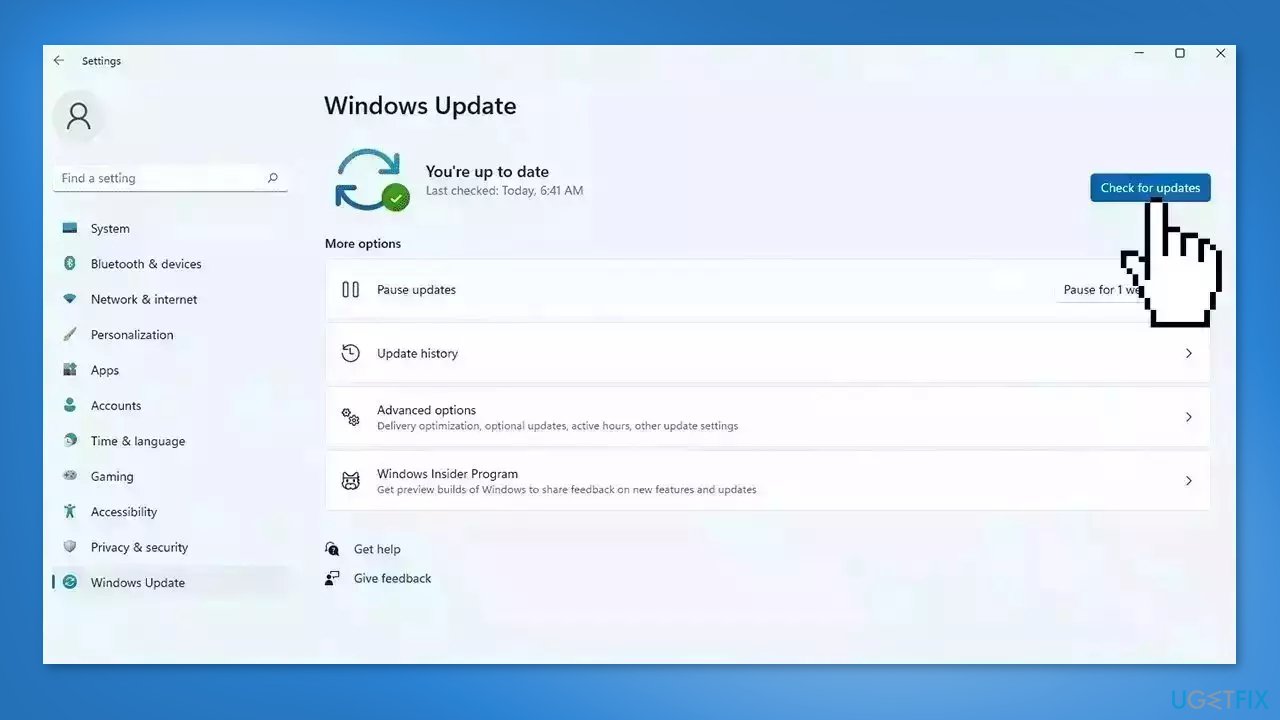
Update through Windows Settings:
- Click Start and select Settings
- Go to the Windows Update section
- Click Check for updates and wait
- Go to the Advanced options and install optional updates
- Reboot your system
Install the update manually:
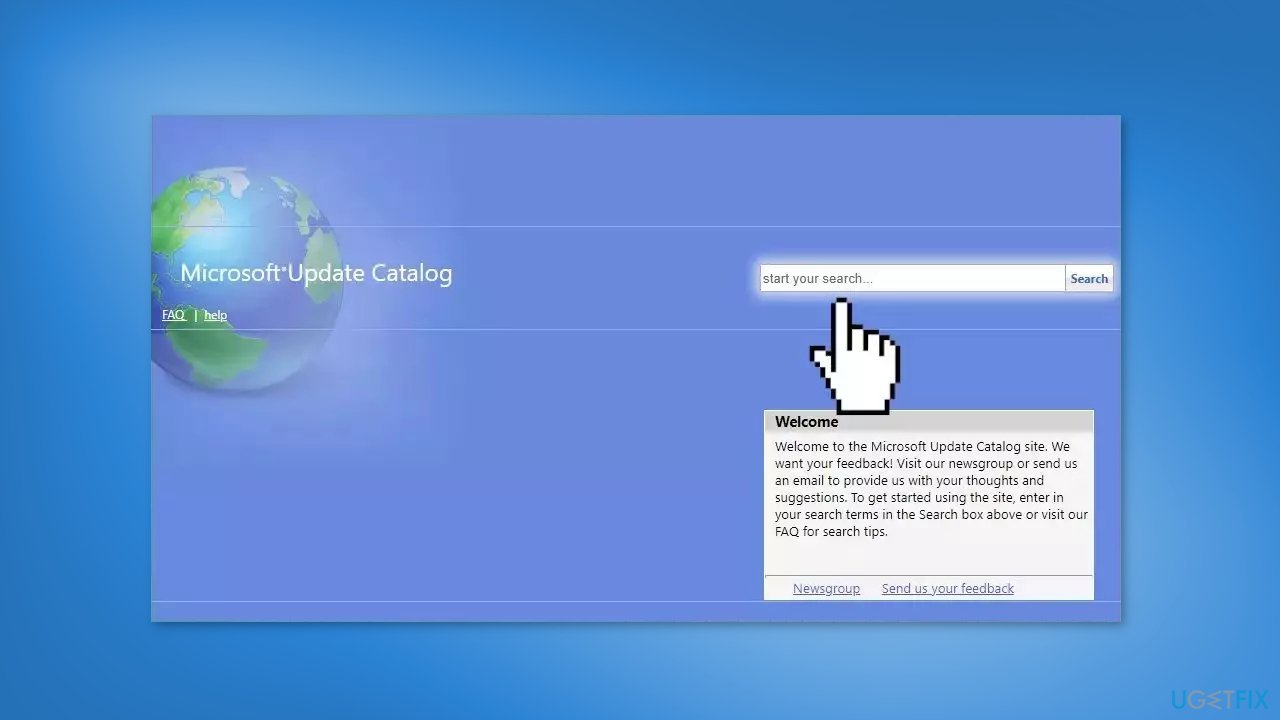
- Go to Microsoft Update Catalog page, type in the KB number, and press Search
- Download the update and install it manually
Solution 2. Remove the Provisioning Package
If you prefer not to install the KB5020044 update, which includes a fix for the 0x800700b7 error, you can try an alternative method that has been known to help some users.
- On your Windows 11 computer, go to Settings
- Click on Accounts, and then press Access work or school
- Click on Add or Remove a provisioning package
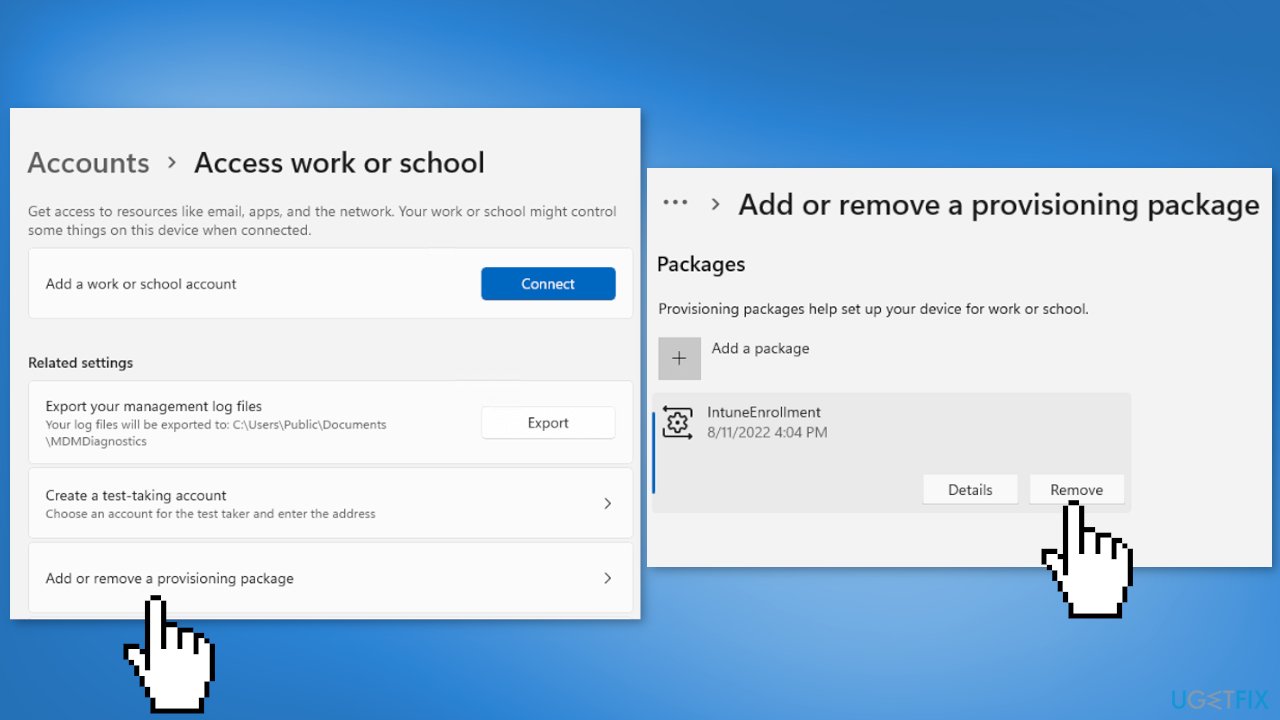
- Select the provisioning package you want to remove
- Click on Remove
- Run the provisioning package again and check if the issue is fixed
Bottom line
To fix the Provisioning package failure with error 0x800700b7 on Windows 11 22h2, you can install the KB5020044 update, which resolves the error and adds new features. If the issue persists, consider using an automatic maintenance tool to address system errors.
Frequently asked questions
Error 0x800700b7 typically indicates that there is a conflict with existing settings or configurations on your Windows 11 system that prevents the provisioning package from being applied.
To resolve this error, you can try removing any conflicting settings or applications, or perform a clean boot to identify if third-party software is causing the issue.
Yes, you can check for existing provisioning packages by navigating to Settings > Accounts > Access work or school, and reviewing any connected accounts that may conflict with the new package.




Report an issue
What's wrong with this guide? We review every report and update or remove content.
Report received — thank you. We'll review and fix it.
You need a free account to submit a report.
Be the first to comment