How to fix
Xbox app not detecting Gaming Services correctly
on Windows
Resolve Xbox app issues with Gaming Services on Windows 10 or 11 effortlessly. Get expert-tested solutions to start gaming in minutes!


What causes How to fix Xbox app not detecting Gaming Services correctly in Windows?
- Xbox app not detecting Gaming Services correctly
- Installed games not listed in the sidebar
- Users redirected to Microsoft Store instead of launching games
- Possible system file corruption
- Outdated Windows or Xbox app
Repairs Windows system files, removes malware, and restores a clean OS state — without reinstalling.
Hi, I have an issue with Xbox app/Windows not detecting my installed games correctly. Instead, when I try to install new games, for example, it tells me to download Gaming Services. Which is strange because I do have Gaming Services installed - I checked under my Apps and Features.
Xbox app for Windows is the successor of the rather unsuccessful Xbox Console Companion. It is yet another gaming platform, albeit built-in Windows, that allows gamers to access their games quickly. It also includes various services, such as Xbox Live Marketplace, where new games can be purchased with ease. Users can also integrate their Microsoft account, which gives access to their friend list and exclusive content.
While the app has numerous benefits, gamers around the world reported that they have issues with it. This time, it is no error, but the way the app behaves in conjunction with Gaming Services. To be more precise, users report that the Xbox app is not detecting Gaming Services correctly.
Numerous users said that the app is not listing the installed games in the sidebar, while they are still accessible via the EXE files or via the desktop shortcuts. Even more problems arise when people are unable to download new games, as they are then told to download Gaming Services instead. This behavior is consistent with users on Windows 10 and 11.
People experiencing this issue said that they indeed have Gaming Services installed already, so there is no reason to install them again. Despite this, instead of a game launching, they are redirected to Microsoft Store every single time.
If you are having this problem, we compiled a list of solutions that should help you fix it. To ensure that no system file corruption is causing this issue, we first recommend running a PC repair tool [d1].
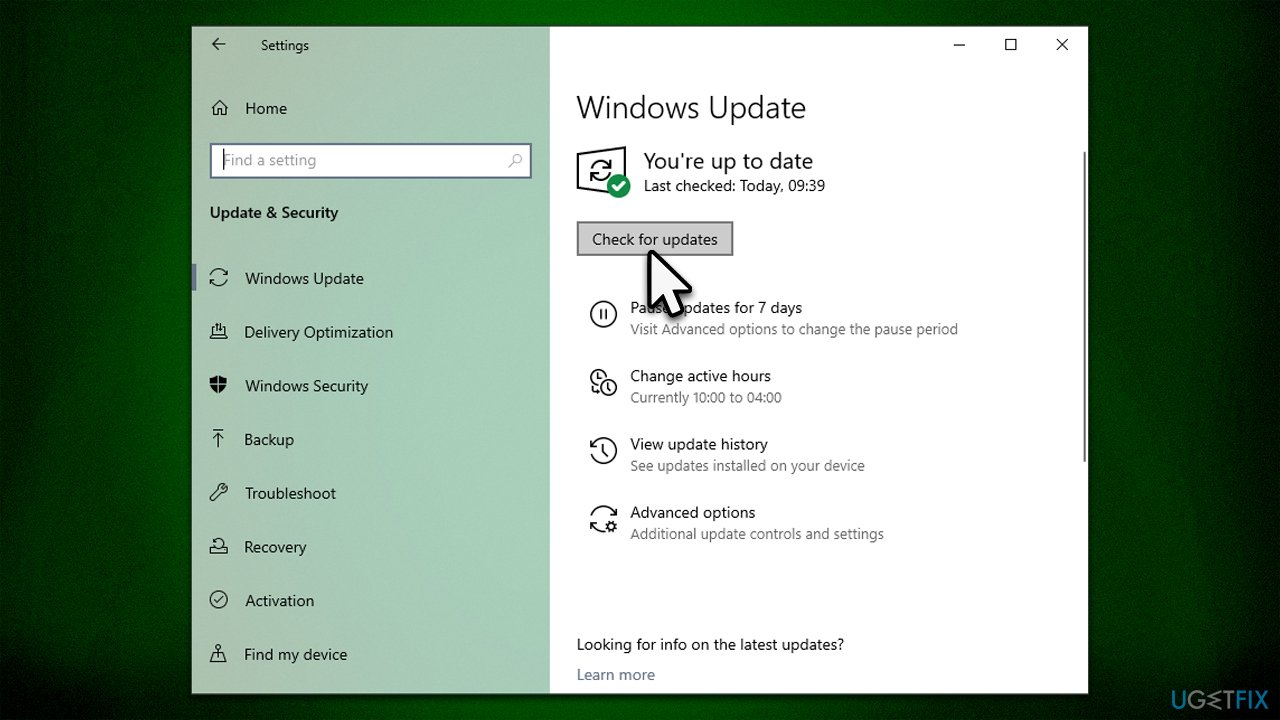
Fix 1. Install all the updates from Windows
Xbox app, just like any other app, may be prone to bugs. Microsoft shops update to fix these bugs on a regular basis, so if you haven't updated your system in a while, it could be causing the Xbox app on Windows to stop downloads and updates.
- Type Updates in Windows search and hit Enter.
- In the new window, click Check for updates.
- If optional updates are available, install them as well (very important!).
- Restart your system and check if the problem is gone.
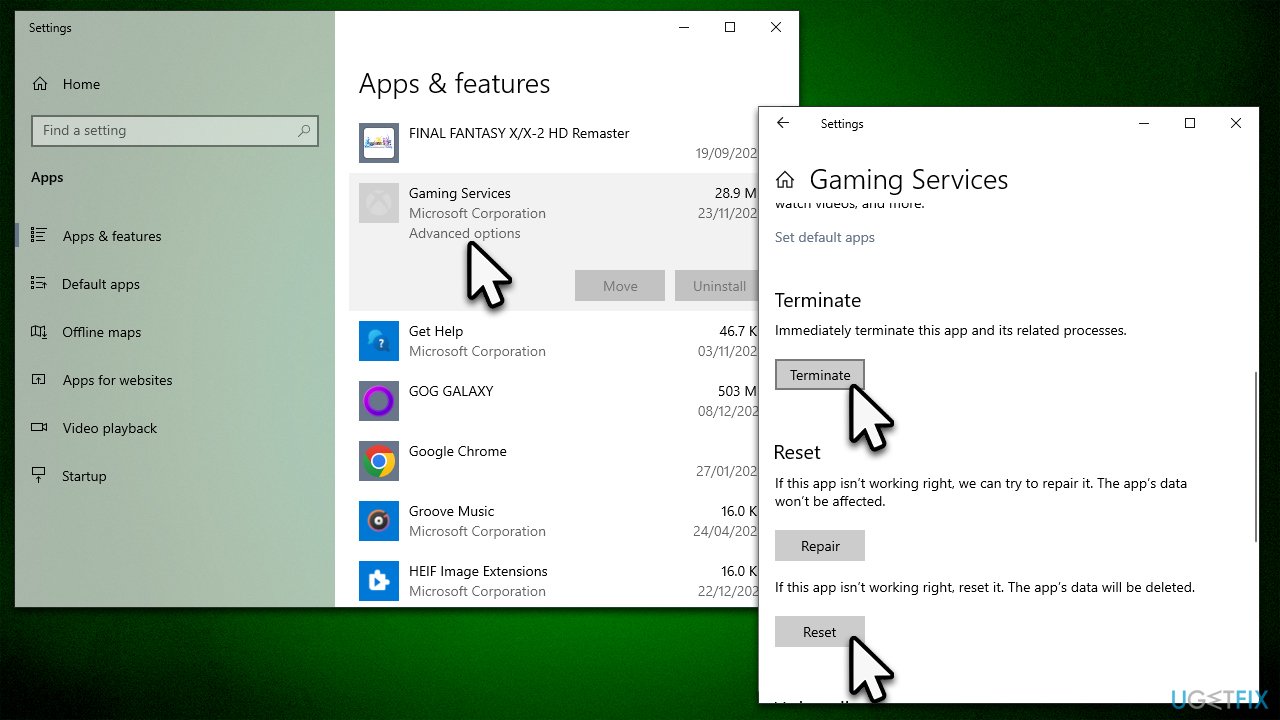
Fix 2. Reset Xbox app/Microsoft Store app/Gaming Services
While you can't uninstall some of Window's built-in components easily, you can reset them without no issues. To reset Xbox app, Microsoft Store, and Gaming Services, follow these steps:
- Right-click on Start and pick Apps and Features.
- Scroll down until you find Gaming Services and click it.
- Pick Advanced options.
- Scroll down and click Terminate and then Reset.
- Once done, do the same with the Xbox app and Microsoft Store.
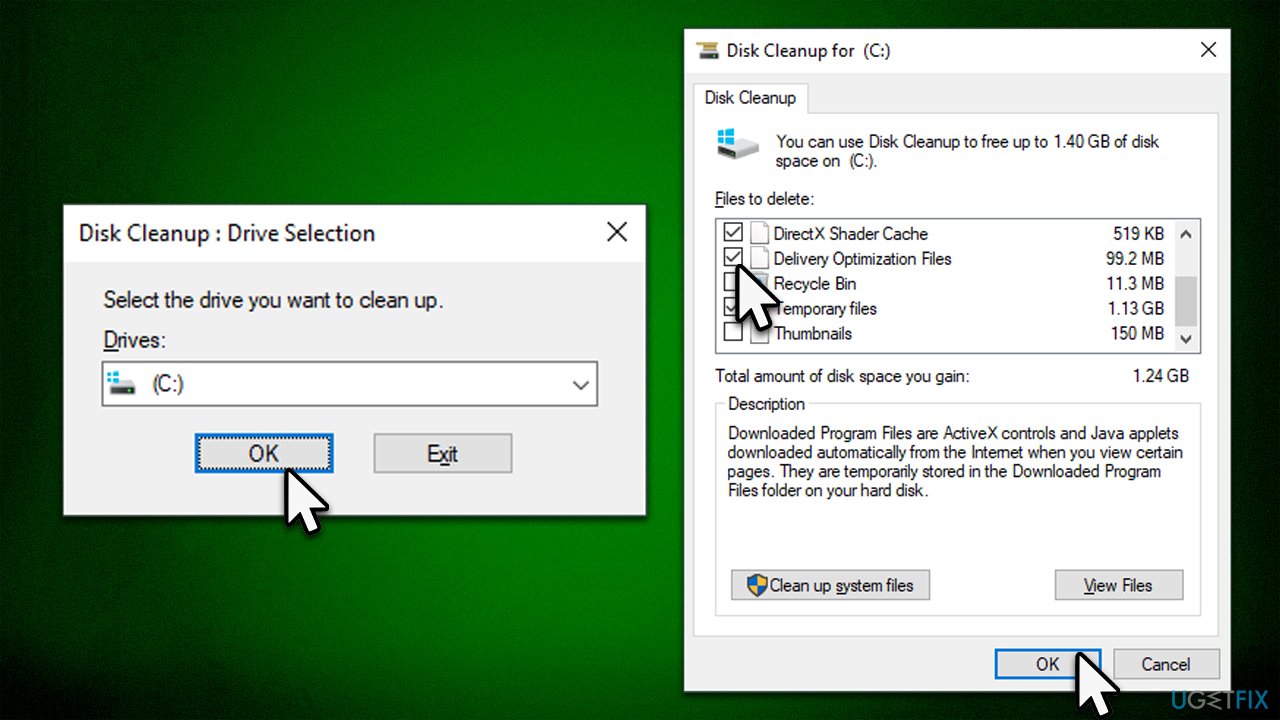
Fix 3. Clear Delivery Optimization files
Disk Cleanup can get rid of leftover files that could cause Gaming Services to open instead of games on the Xbox app.
- Type Disk Cleanup in Windows search and hit Enter.
- Select your main drive (C: by default) from the dropdown menu and click OK.
- From the list, locate Delivery Optimization Files and tick the box next to it.
- We also recommend clearing temporary and other unneeded files.
- Click OK.
- Restart your system.
Fix 4. Reset Microsoft Store cache
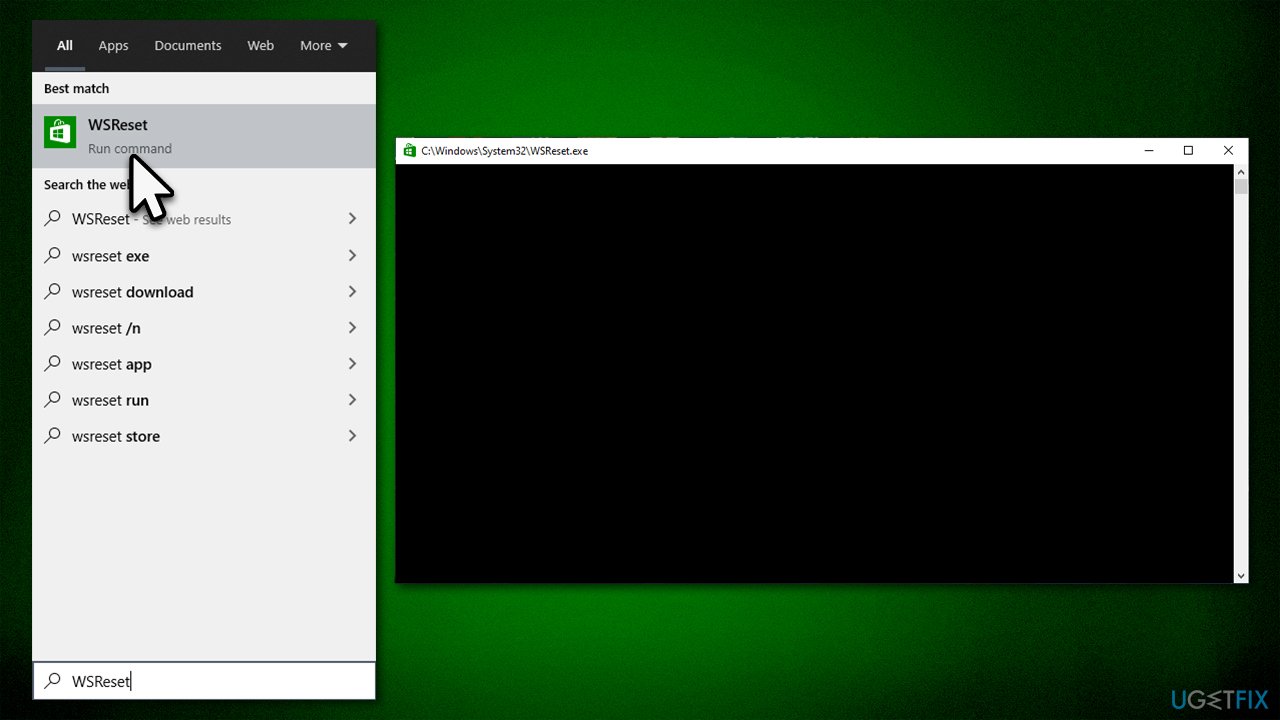
- Type wsreset in Windows search bar and hit Enter.
- A black window will show up - do not interact with it/do not close it.
- After a short while, Windows Store should open, and its cache should be removed.
Fix 5. Reinstall Gaming Services
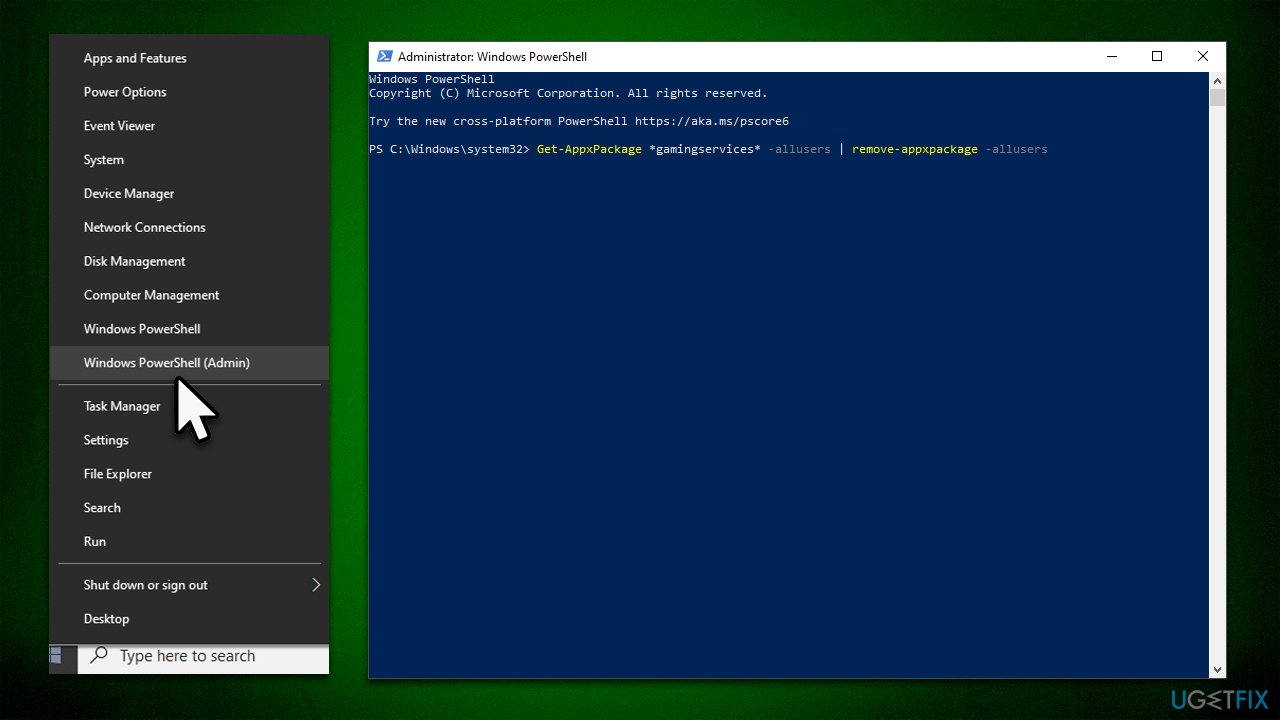
As mentioned, you can't reinstall Gaming Services in a regular way, although elevated PowerShell can do the trick.
- Right-click on Windows Start button and select PowerShell (Admin).
- User Account Control will ask whether you want to make changes to your computer - click Yes.
- In the PowerShell window, copy and paste the following command, pressing Enter after:
Get-AppxPackage *gamingservices* -allusers | remove-appxpackage -allusers - Once done, follow up with these commands:
Remove-Item -Path "HKLM:\System\CurrentControlSet\Services\GamingServices" -recurse
Remove-Item -Path "HKLM:\System\CurrentControlSet\Services\GamingServicesNet" -recurse - Restart your system.
- You should get a prompt to install Gaming Services after a reboot - do it and see if the problem is gone.
Bottom line
To fix the issue with the Xbox app not detecting Gaming Services, you should install all available updates for Windows and the Xbox app. Additionally, running a PC repair tool may help resolve any underlying system file corruption. If these solutions do not work, further troubleshooting may be necessary.
Frequently asked questions
First, ensure that you have the latest updates for both Windows 10 and the Xbox app. If the issue persists, try resetting the Xbox app through the Settings menu under Apps.
You can reinstall Gaming Services by opening PowerShell as an administrator and executing the command 'Get-AppxPackage Microsoft.GamingServices | Remove-AppxPackage -all'. After that, restart your PC and reinstall it from the Microsoft Store.
Yes, compatibility issues can arise if either the Xbox app or Gaming Services is outdated; make sure both are updated to the latest version available for Windows 10.




Report an issue
What's wrong with this guide? We review every report and update or remove content.
Report received — thank you. We'll review and fix it.
You need a free account to submit a report.
Be the first to comment