How to fix
Google Classroom stuck at loading screen
on Windows
Resolve Google Classroom's loading screen issue on Windows 10 or 11 efficiently. Get expert-tested solutions to fix it in minutes.


What causes How to fix Google Classroom stuck at loading screen?
- Browser compatibility issues
- Slow internet connection
- Cache and cookies not cleared
- Interfering extensions
- Outdated software
Repairs Windows system files, removes malware, and restores a clean OS state — without reinstalling.
Hello. I tried to access Google Classroom but it only keeps loading. I tried to open it multiple times. What should I do?
Google Classroom is a collaborative online platform for teachers and students to share information, assignments, and materials. It provides students with a virtual learning environment in which they can attend online classes, complete assignments, and interact with their peers and instructors.
For students and teachers who rely on Google Classroom for their daily academic activities, the issue of Google Classroom stuck at the loading screen can be aggravating. When this happens, the user is unable to access the Classroom and the platform fails to fully load.
Google Classroom may become stuck at the loading screen for a variety of reasons, including browser compatibility issues, a slow internet connection, cache and cookies[ref en-1] that have not been cleared, extensions that are interfering with the platform, and outdated software.
This problem can have serious consequences for students and teachers who rely on Google Classroom to communicate and complete their work. Important class updates and assignments may be missed, and teachers may be unable to grade and provide feedback on completed work.
This problem can be solved by clearing the browser cache and cookies, disabling extensions, disabling hardware acceleration, using a different browser, or reinstalling the browser. Some users may also find that restarting the device or resetting the internet connection is beneficial.
In this guide, you will find 7 steps that should help you fix Google Classroom stuck at loading screen. Keep in mind that the troubleshooting process may be lengthy. You can use an automatic maintenance tool like [d1] instead. It can fix most system errors, BSODs,[ref en-2] corrupted files, registry[ref en-3] issues, or clear cookies and cache. Otherwise, follow the step-by-step instructions below.
Method 1. Restart your PC
Relaunching the browser and restarting the PC is a simple solution that can resolve the issue. This creates a new connection and clears any blockages that may have been preventing the app from loading. Restarting the PC also gives you a fresh start for running apps.
Method 2. Check Network Connection
Fast Internet is necessary for apps like Google Classroom and Teams to function effectively. To resolve the issue of Google Classroom not loading, it is important to ensure that the Internet connection is fast enough:
- Check the bandwidth
- Ensure that the Internet speed is sufficient
- If the bandwidth is low on all devices connected to the network, contact the ISP for resolution
Method 3. Clear Cache
Cache is a collection of temporary data that is stored on your computer or device by your browser or other applications. The purpose of caching is to reduce the time it takes to load frequently accessed data by keeping a copy of it locally, so it doesn't need to be re-downloaded every time you access it.
However, over time, cache can accumulate and become outdated, leading to issues with the performance and functionality of your browser and applications, including Google Classroom. In particular, if the cache data stored by Google Classroom is corrupted or outdated, it can cause the app to become stuck at the loading screen.
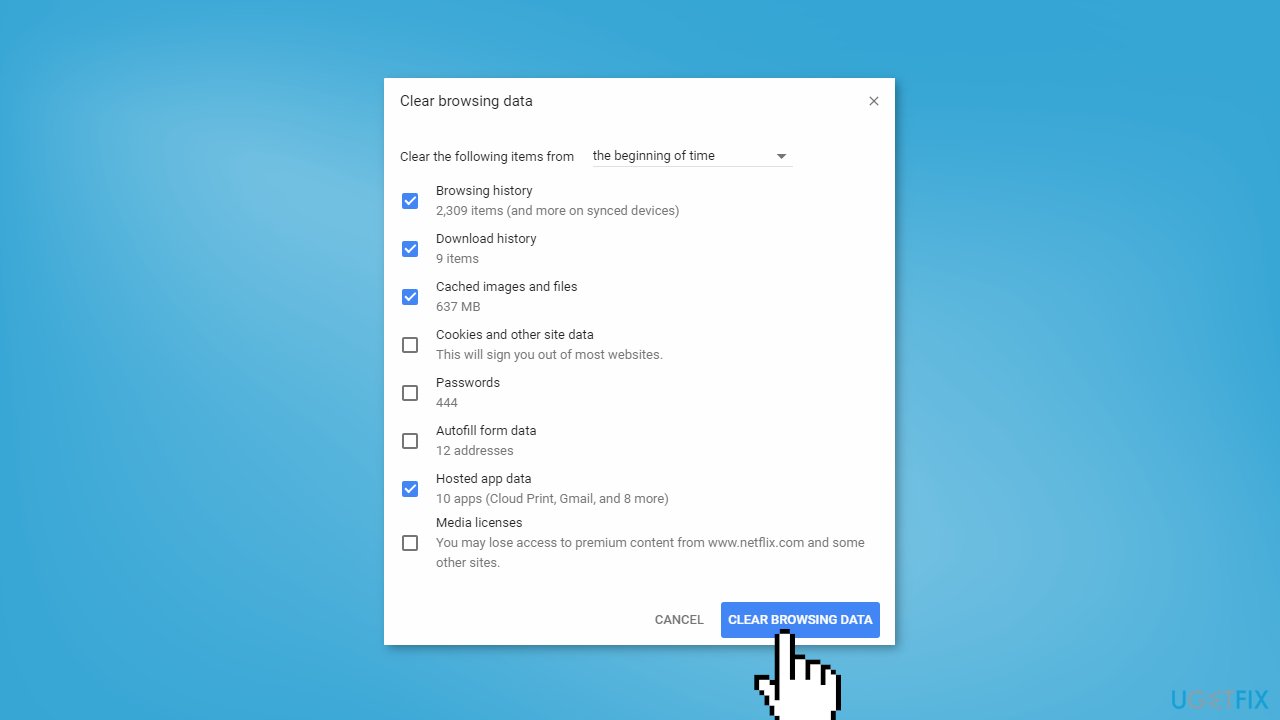
Chrome:
- Open Chrome
- Click on More settings
- Select More tools
- Click on Clear browsing data
- Select the items to delete
- Click the Clear data button
- Restart Chrome
Firefox:
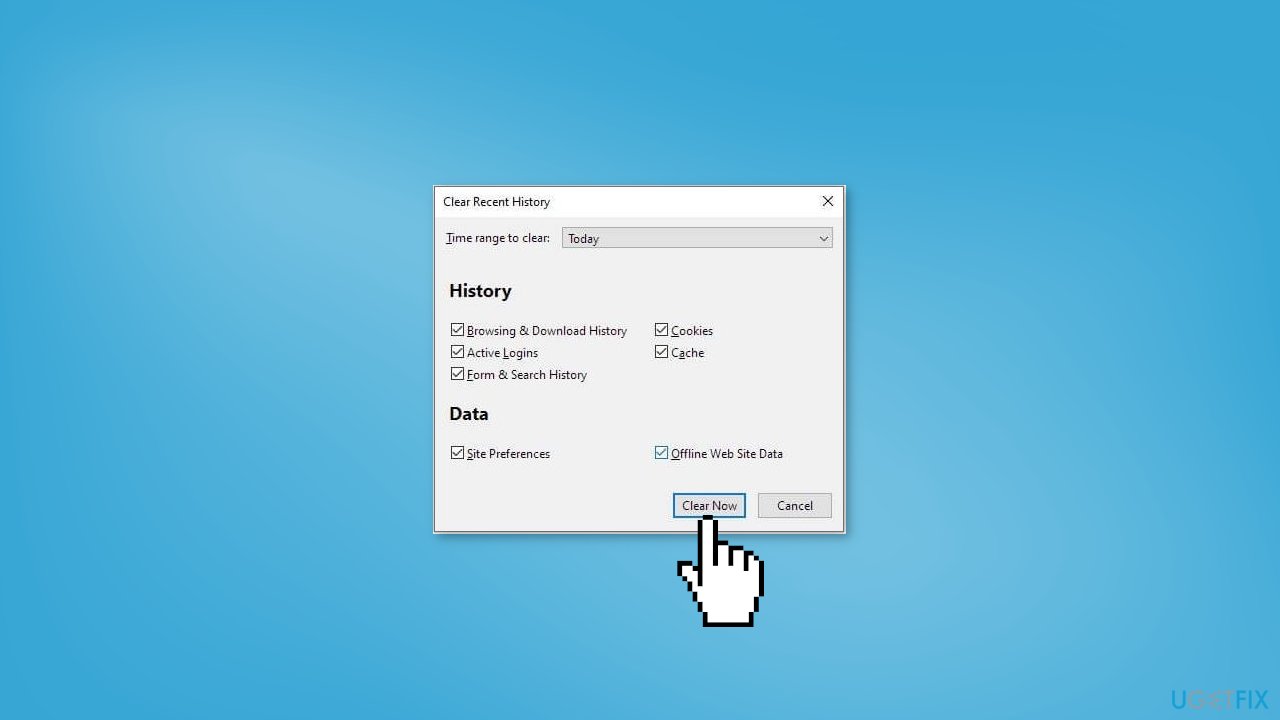
- Launch Firefox
- Click on the three lines
- Select Library
- Navigate to History > Clear Recent History
- Tick all the required options
- Click Clear Now
Edge:
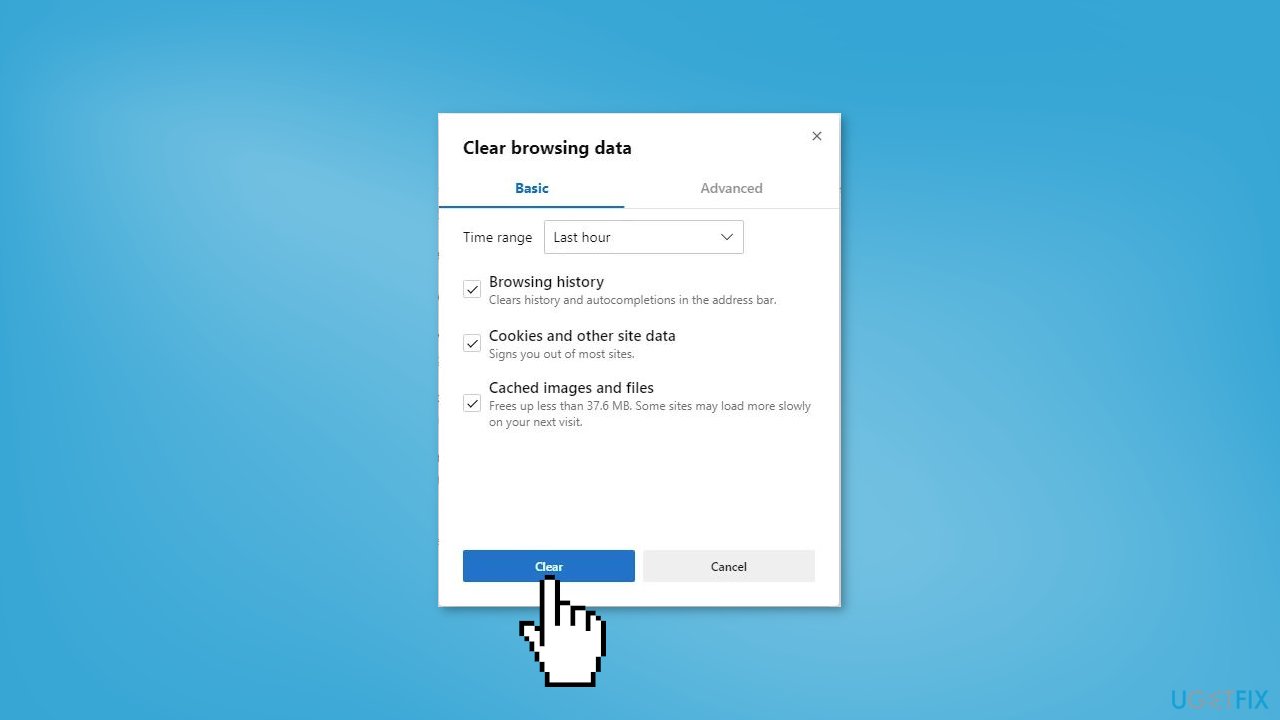
- Open Edge
- Go to the three horizontal dots
- Select Settings
- Click on Privacy, search, and services
- Select Choose what to clear from the Clear browsing data section
- Set the Time range to All time
- Tick all the required boxes
- Click Clear now
- Restart Google Classroom and check if it is working
Method 4. Disable Hardware Acceleration
Disabling hardware acceleration in your browser can resolve this issue by forcing the browser to perform all tasks using the computer's central processing unit (CPU) rather than relying on hardware components. This can help resolve compatibility issues between hardware acceleration and the Google Classroom app.
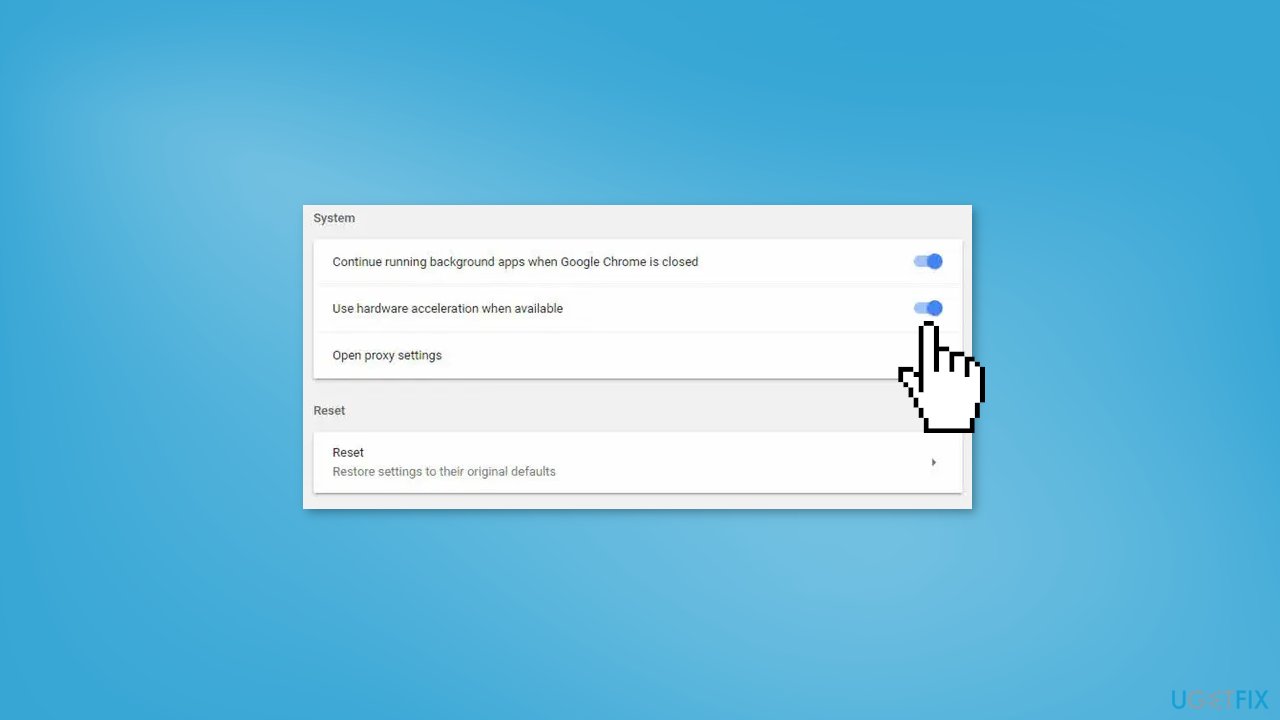
Chrome:
- Launch Chrome
- Open Settings
- Scroll down and click on Advanced (if available)
- Under System, clear Use hardware acceleration when available
Firefox:
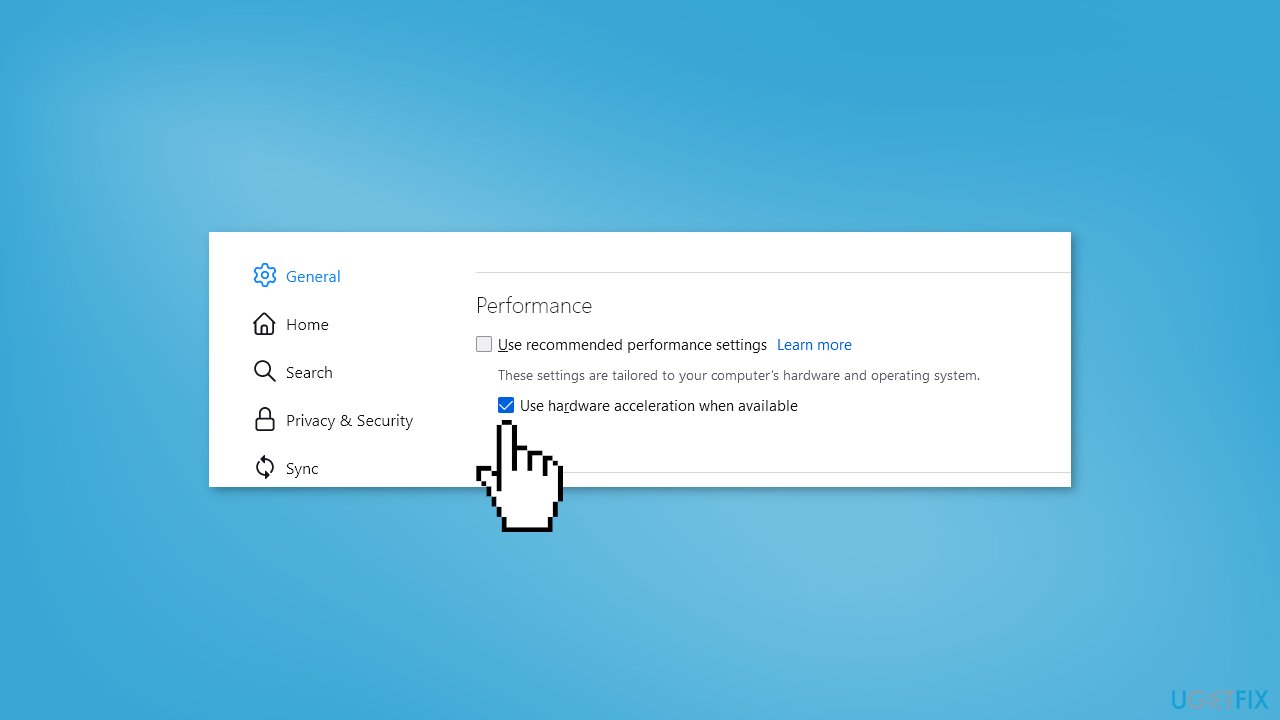
- Open Firefox
- Click on Options
- Go to the General section
- Select Performance
- Uncheck the Use hardware acceleration when available option
- Restart Firefox
- Launch Google Classroom and check if it is working properly
Edge:
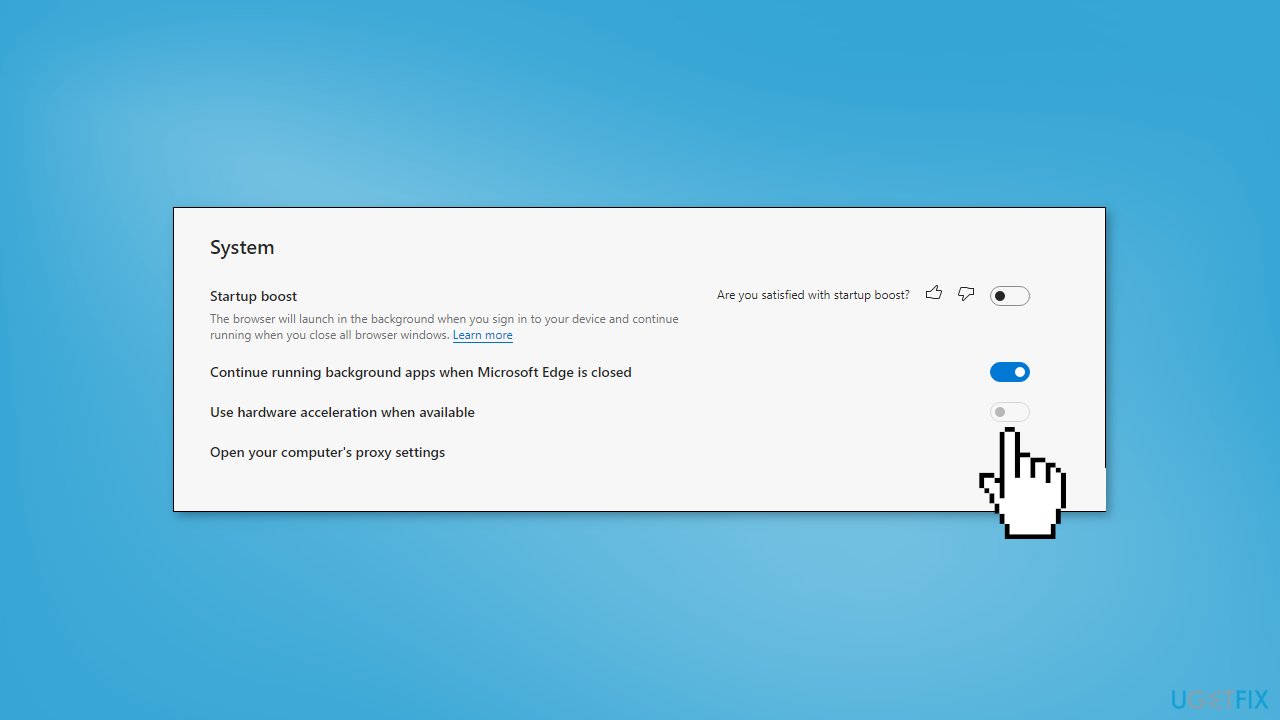
- Launch Microsoft Edge
- Go to Settings
- Click on System and Performance from the left side
- Locate Use hardware acceleration when available
- Deactivate hardware acceleration
After completing these steps, launch Google Classroom and check if it is still stuck or working fine.
Method 5. Disable Browser Extensions
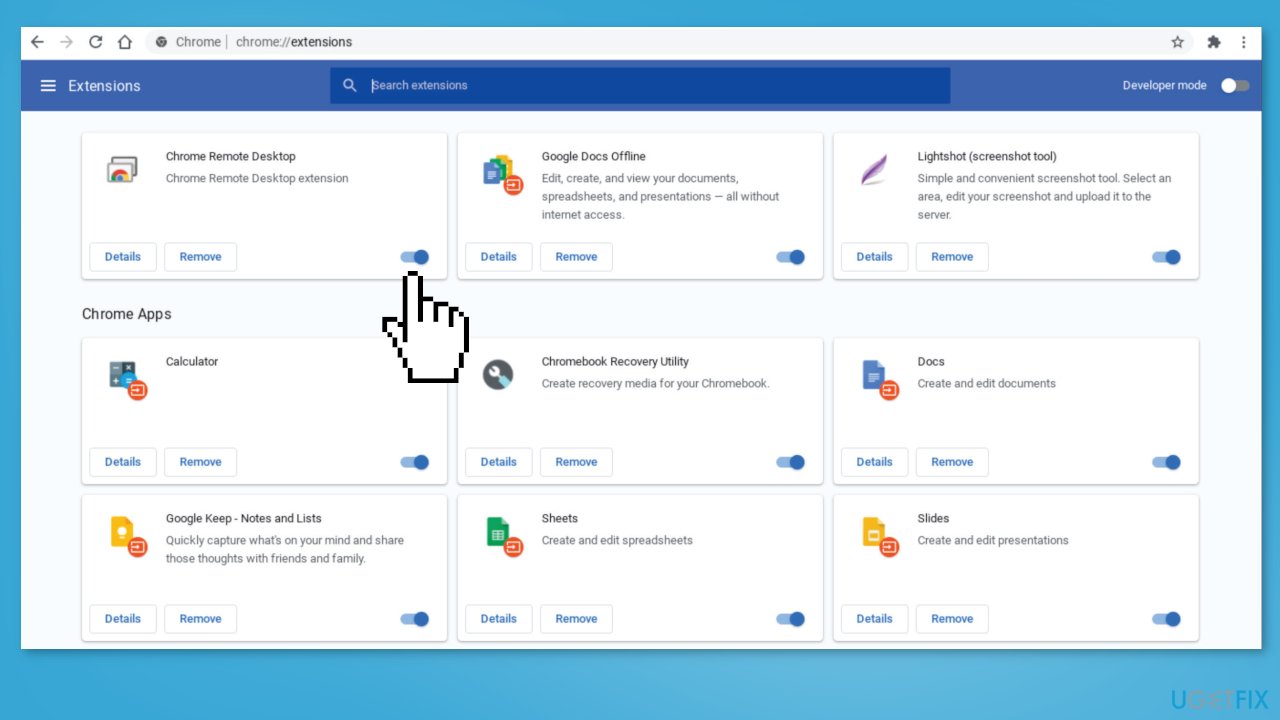
Conflicts with extensions can prevent the app or website from loading. By disabling and re-enabling extensions one by one, it is possible to identify which extension is causing the conflict. If the issue is resolved after disabling a specific extension, that extension needs to be removed.
- Disable all extensions in the browser
- Launch the app
- Enable each extension one by one
- Check if the issue arises after enabling each extension
- If the issue is present after enabling a specific extension, remove that extension as it is causing the issue
Method 6. Disable Secure DNS
Disabling the Secure DNS feature in the browser's settings can help resolve the issue as it allows the browser to use the traditional unencrypted DNS request. This can resolve any conflicts between the Secure DNS function and the website, allowing it to load properly. However, keep in mind that disabling Secure DNS may reduce the security of the connection, so it should only be used as a temporary solution.
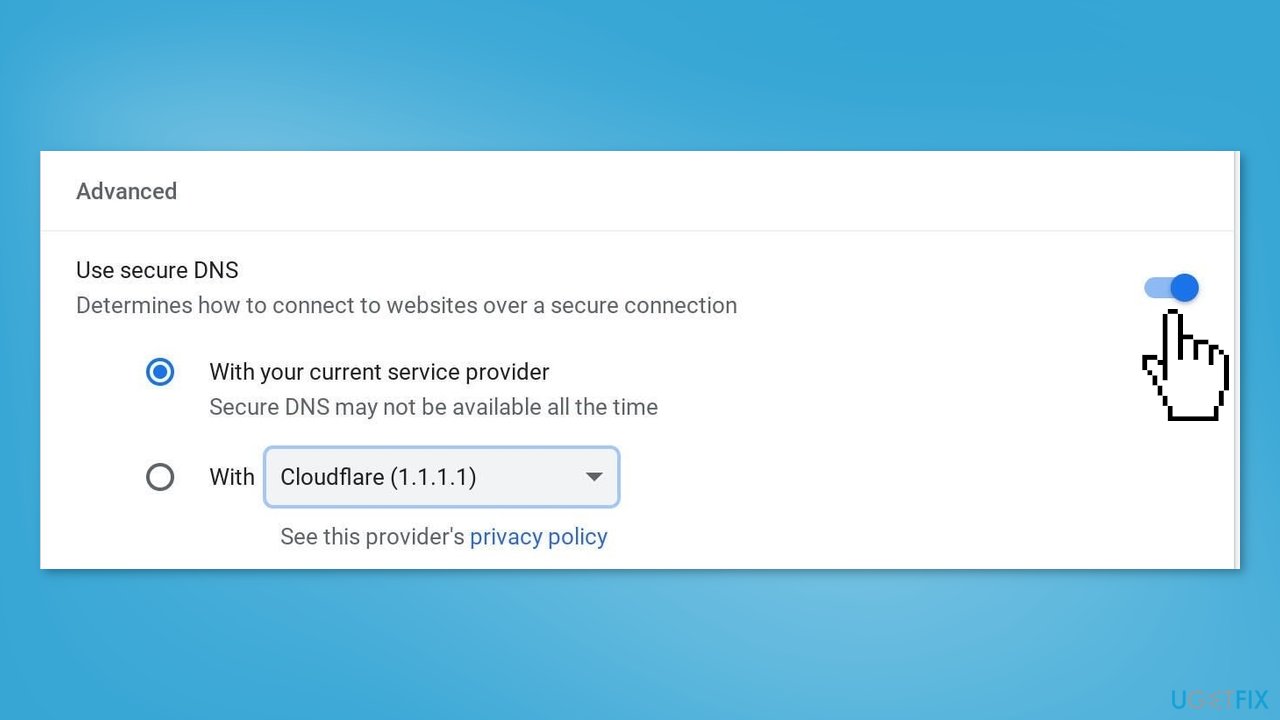
Chrome:
- Launch Chrome
- Click on the three dots
- Select Settings
- Click on Privacy and Security
- Under Security, go to Advanced
- Turn off the Use secure DNS option
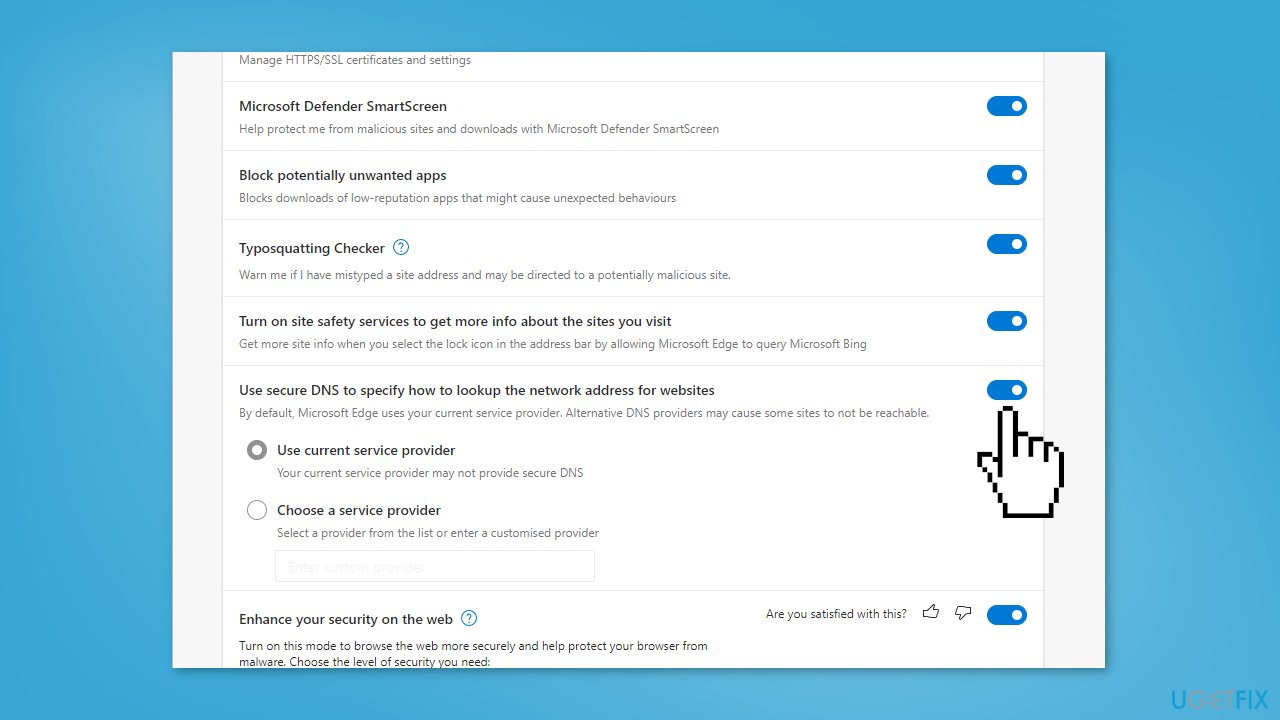
Edge:
- Open Edge
- Click on the three vertical dots
- Select Settings
- Go to Privacy, search, and services
- Untick Use secure DNS to specify how to look up the network address for websites
Method 7. Reinstall your Browser
A fresh installation of the browser will replace all related components, renewing all configurations and settings. This can help resolve any issues with the browser.
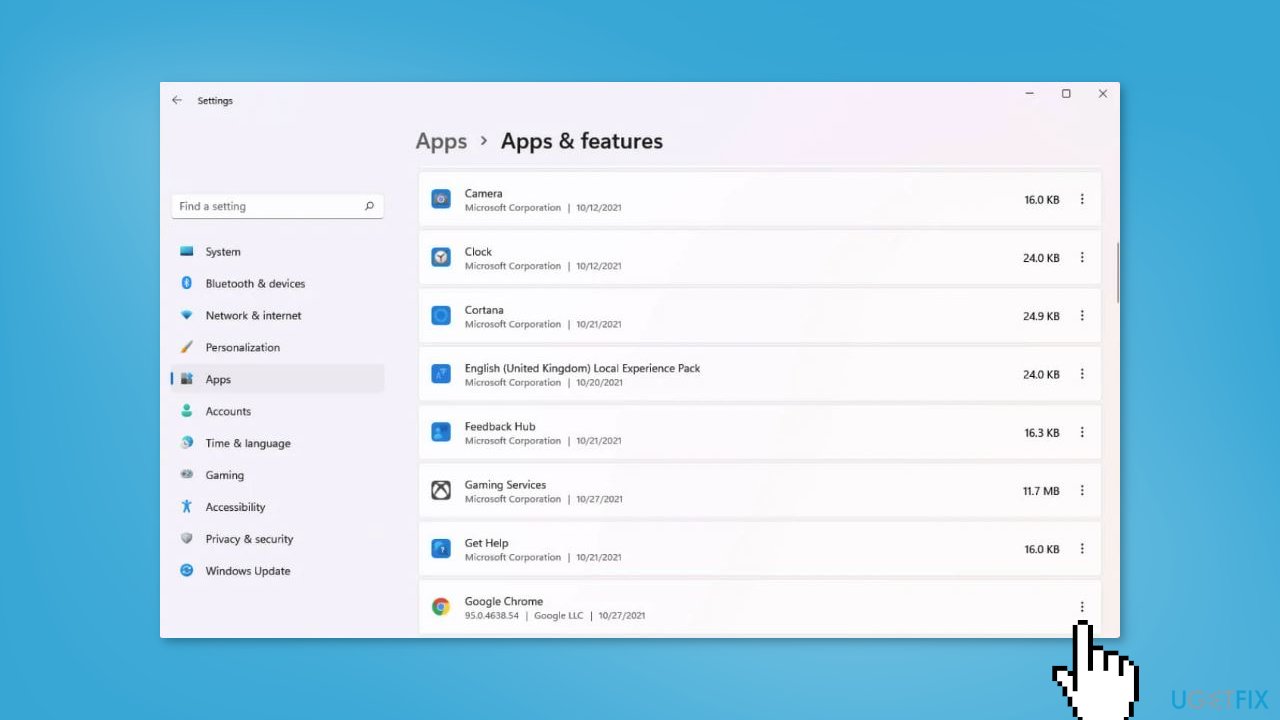
- Go to Apps & features
- Find your browser in the list
- Click on it and choose Uninstall
- Reboot the computer
- Reinstall the browser
Bottom line
To fix Google Classroom stuck at the loading screen, you can try clearing the browser cache and cookies, disabling extensions, or using a different browser. If these steps do not resolve the issue, consider restarting your device or resetting your internet connection. If none of these solutions work, using an automatic maintenance tool may help.
Frequently asked questions
Try clearing your browser cache and cookies, then restart the browser. If the issue persists, consider using a different browser or updating your current one.
Ensure that your Windows 11 is up to date and check your internet connection. Additionally, disabling any browser extensions that might interfere with Google Classroom can help.
Google Chrome is often recommended for Google Classroom, but you can also use Microsoft Edge on Windows 10 or Windows 11 for better compatibility.




Report an issue
What's wrong with this guide? We review every report and update or remove content.
Report received — thank you. We'll review and fix it.
You need a free account to submit a report.
Be the first to comment