How to fix
Windows Hello Facial Recognition not working
on Windows
Resolve Windows Hello Facial Recognition issues swiftly with expert tips and proven fixes. Get access to clear solutions that work—updated 2025!

What causes How to fix Windows Hello Facial Recognition not working?
- Outdated driver software
- Interference from other programs
- Issues with the camera
- Recent Windows 11 update causing compatibility issues
Repairs Windows system files, removes malware, and restores a clean OS state — without reinstalling.
Hello. The Facial Recognition feature of Windows Hello has stopped working today and I cannot access my PC using this method. Is there a way to fix this?
Windows Hello Facial Recognition is a feature in Windows 11 that allows users to use facial recognition to log into their devices. To authenticate access, the feature scans the user's face with a camera and compares it to a stored image. When the feature fails, the user's ability to quickly and easily log into their device suffers.
The failure of Windows Hello Facial Recognition can be caused by a variety of factors, including outdated driver[ref en-1] software, interference from other programs, or issues with the camera itself. In some cases, the problem could be related to a recent Windows 11 update that caused compatibility issues with the facial recognition software.
Possible solutions to the issue of Windows Hello Facial Recognition not working include rolling back driver updates, reinstalling the facial recognition software, or updating the camera drivers. In some cases, disabling or uninstalling other programs that may be interfering with the facial recognition software can also resolve the issue.
In this guide, you will find 5 steps that should help you fix Windows Hello Facial Recognition not working. Keep in mind that the manual troubleshooting process can be lengthy. You can use a maintenance tool like [d1] that can fix most system errors, BSODs,[ref en-2] corrupted files, and registry[ref en-3] issues.
Enable Facial Recognition
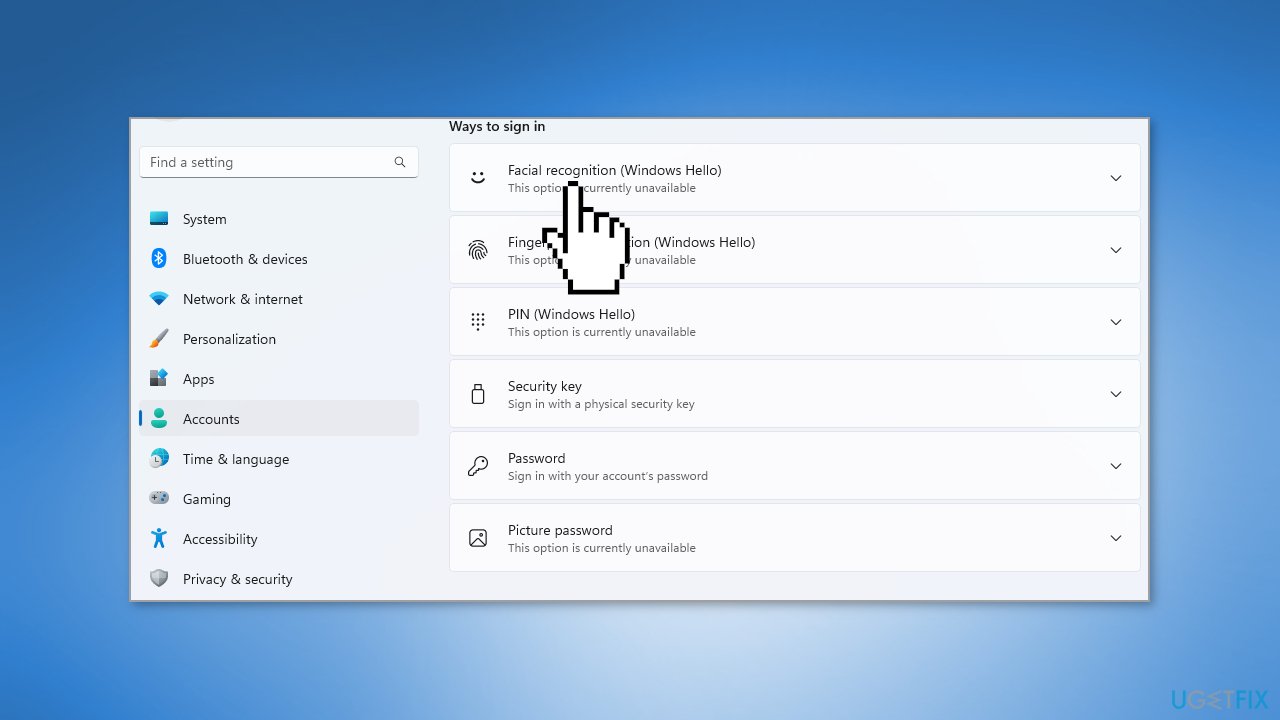
- Press the Windows key + I to open the Settings menu
- Select the Accounts tab
- Click on Sign-in options
- Select Facial recognition (Windows Hello)
- Click the Set up button
Solution 1. Reinstall the Biometric Driver
A biometric driver is a piece of software that allows biometric authentication hardware on a device, such as a facial recognition camera, to communicate with the operating system. The driver is in charge of interpreting the hardware's data and processing it so that the operating system can understand and use it for authentication.
- Press the Windows key + X and select Device Manager
- Expand the Biometric devices section
- Right-click the device driver and choose Uninstall device
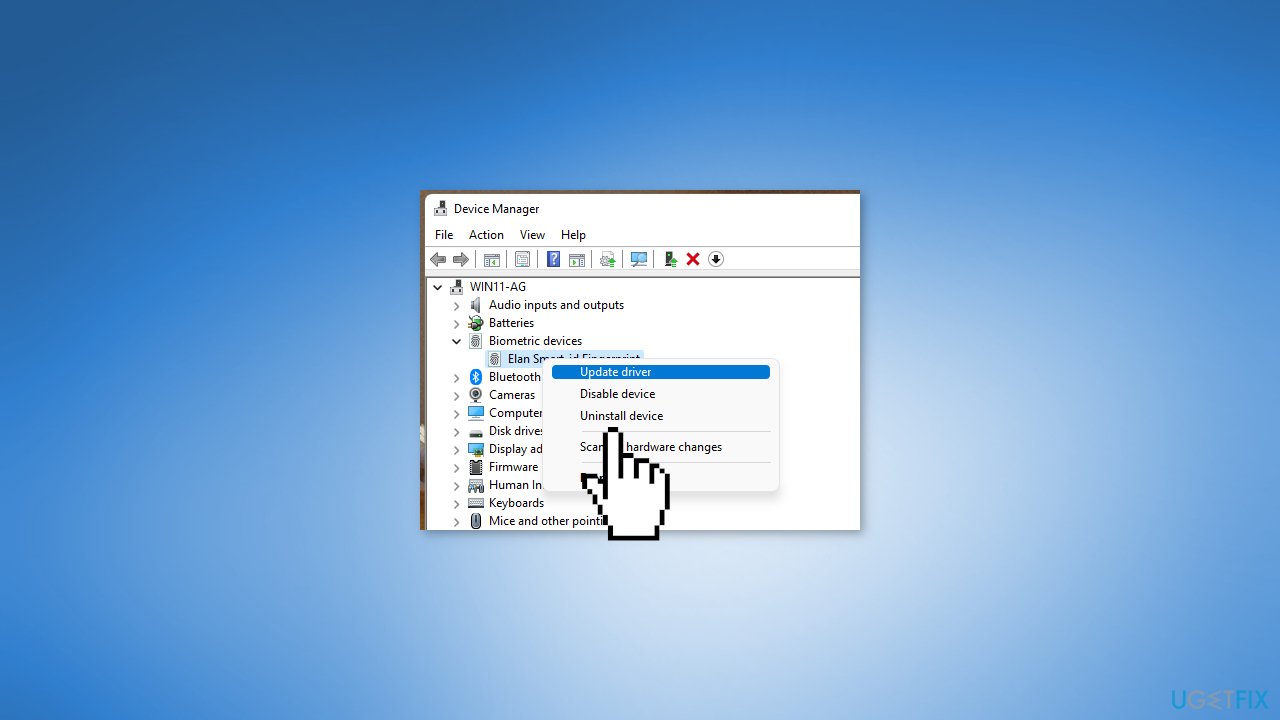
- Click on Uninstall to confirm
- Restart your PC to reinstall the device driver
Note: You can also use a dedicated utility like [rev id="DriverFix"] that can find the best drivers for your device and install them automatically.
Solution 2. Reset Facial Recognition Settings
- Press the Windows key + I to open the Settings app
- Go to Accounts
- Select Sign-in options
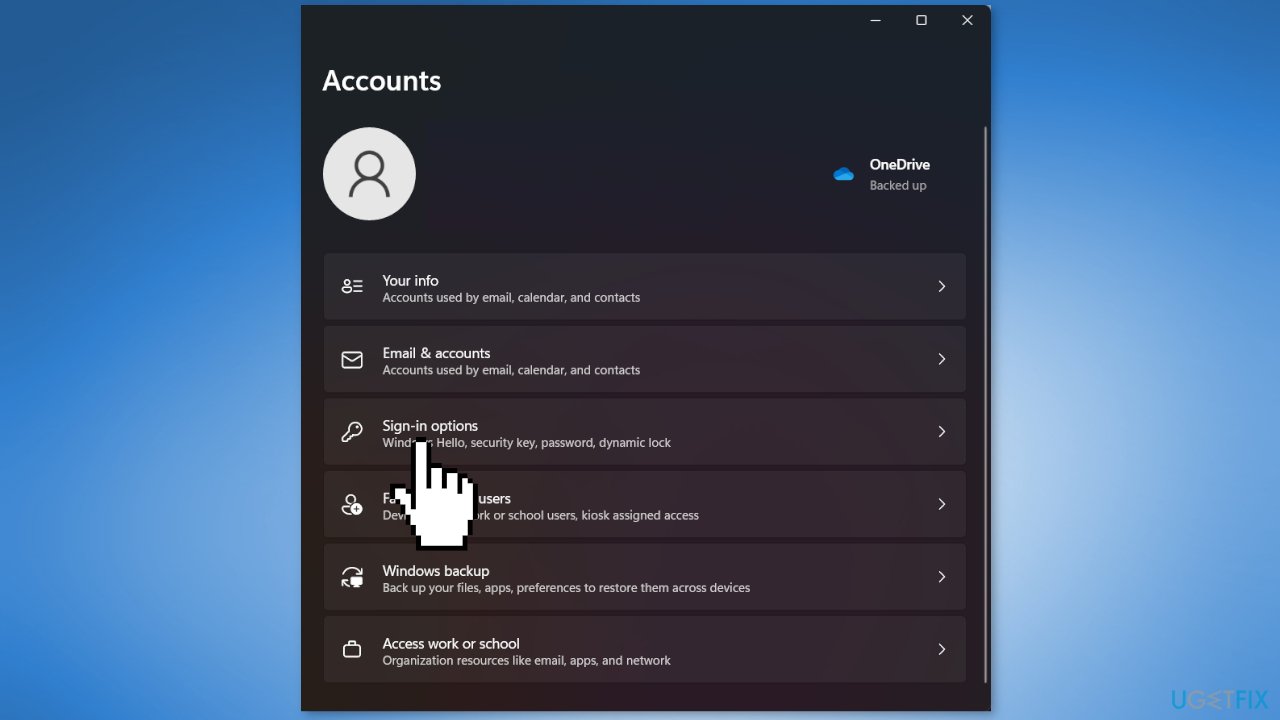
- Select Facial recognition
- Click on Remove
- Click on Get Started to set it up again
Solution 3. Roll Back the Camera Driver
- Press the Windows key + X and select Device Manager
- Locate your camera on the list and double-click it
- Go to the Driver tab
- Click on Roll Back Driver
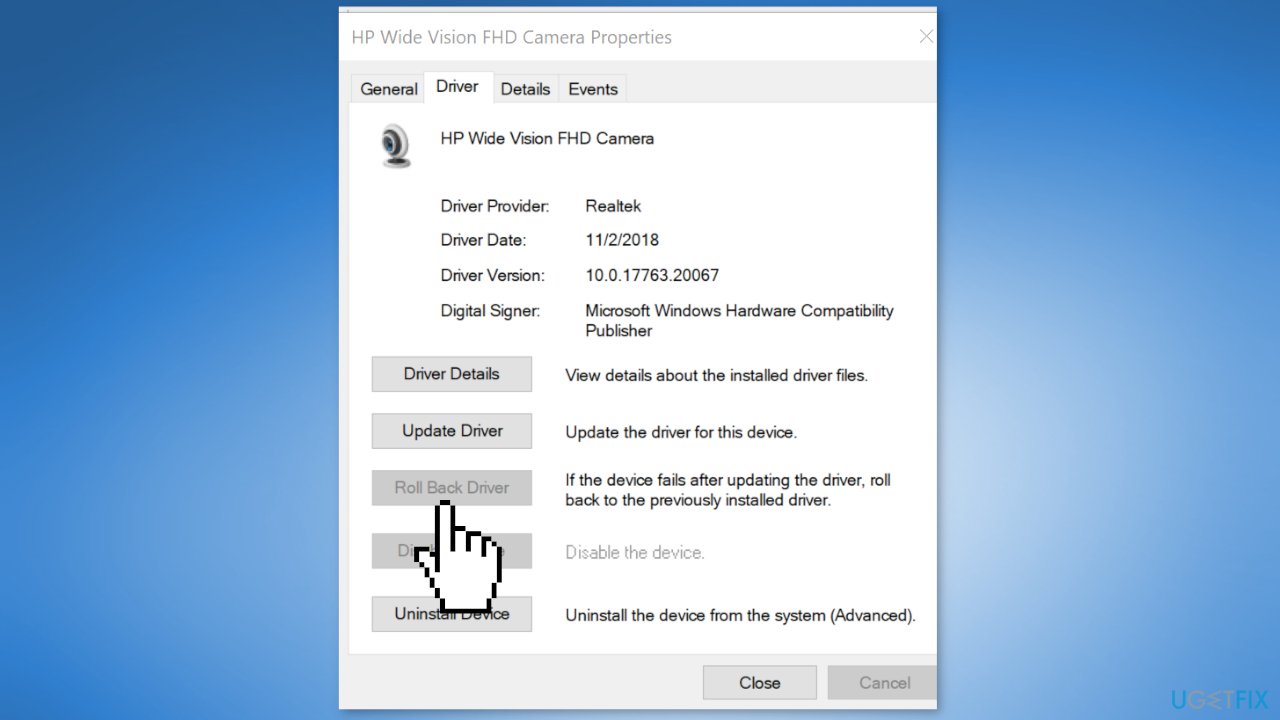
- Follow the instructions on the screen to complete the process
Solution 4. Uninstall the most recent Windows Update
- Open the Settings app by pressing Windows key + I
- Go to Windows Update
- Select Update history and press Uninstall updates
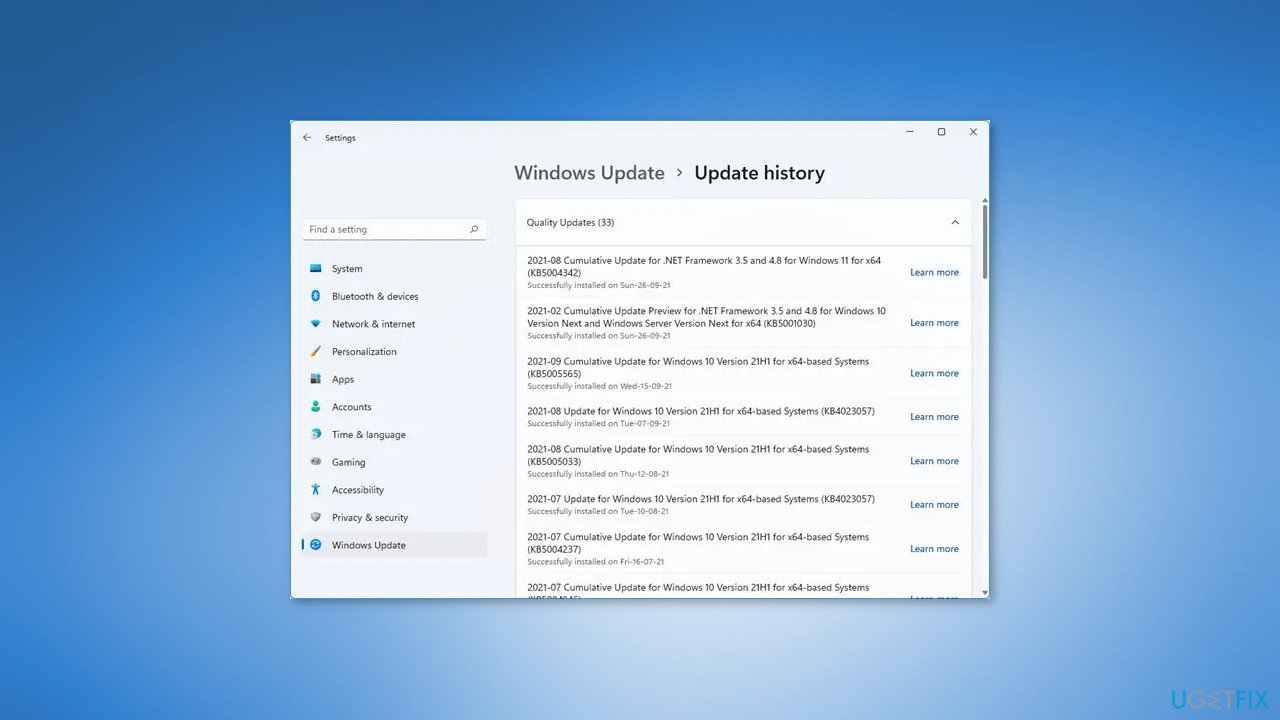
- Locate the latest update
- Click on Uninstall
- Follow the instructions on the screen to complete the process.
Solution 5. Edit the Group Policy
A biometric driver is a piece of software that allows biometric authentication hardware on a device, such as a facial recognition camera, to communicate with the operating system. The driver is in charge of interpreting the hardware's data and processing it so that the operating system can understand and use it for authentication. Windows Professional, Enterprise, and Server editions include the Group Policy feature.
- Press Windows key + R to open the Run dialog box
- Type in gpedit.msc and press Enter
- Expand Computer Configuration
- Go to Administrative Templates
- Go to Windows Components
- Select Biometrics
- Double-click on Allow the use of biometrics
- Select Enabled and save the changes
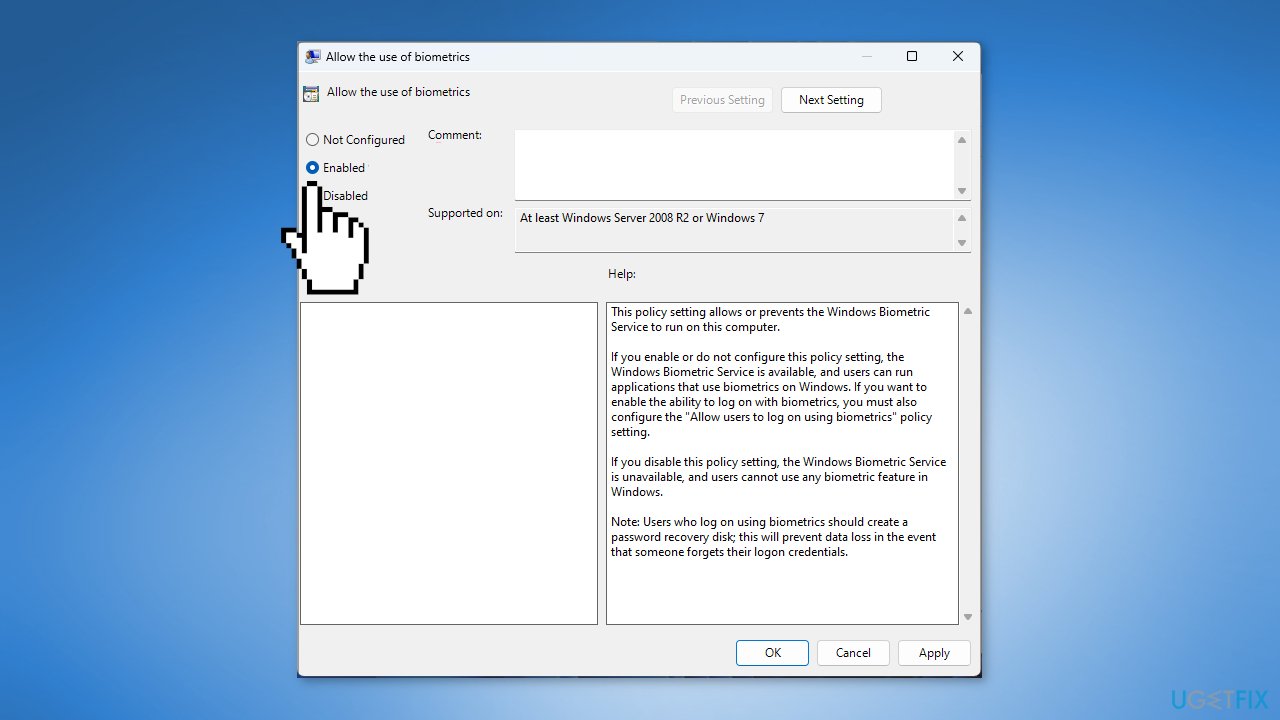
- Restart your PC
Bottom line
To fix Windows Hello Facial Recognition not working, you can try rolling back driver updates, reinstalling the facial recognition software, or updating the camera drivers. Additionally, disabling or uninstalling interfering programs may help. If none of these solutions work, consider using a maintenance tool to address system errors.
Frequently asked questions
Ensure that your camera is not obstructed and that you are in a well-lit environment. You can also try re-enrolling your face in Windows 10 or Windows 11 settings under 'Sign-in options.'
Check if your camera drivers are up to date through Device Manager in Windows 10 or Windows 11. If the drivers are outdated, update them and restart your device.
Recent updates may cause compatibility issues, so check for any additional updates or known issues in Windows 10 or Windows 11. You can also try resetting the Windows Hello feature in the settings.




Report an issue
What's wrong with this guide? We review every report and update or remove content.
Report received — thank you. We'll review and fix it.
You need a free account to submit a report.
Be the first to comment