How to fix
“incorrect psk provided for network ssid” error
on Windows
Resolve the "incorrect PSK provided for network SSID" error in Windows 10 and 11 effortlessly. Get expert-tested solutions for seamless connectivity.

What causes How to fix “incorrect psk provided for network ssid” error in Windows?
- Incorrect PSK entered
- Typos in the PSK
- Outdated router settings
- Network adapter issues
- Router cache causing glitches
Repairs Windows system files, removes malware, and restores a clean OS state — without reinstalling.
Hello. I tried connecting to my Wi-Fi on Windows but I keep getting the "incorrect psk provided for network ssid" error/ What does it mean and how do I get rid of it?
When a user attempts to connect to a Wi-Fi network and the security key (PSK) they have entered is incorrect, Windows displays the "incorrect PSK provided for network SSID" error. PSK is an abbreviation for "Pre-Shared Key," which is a password used to authenticate and encrypt a Wi-Fi connection. To prevent unauthorized access to the Wi-Fi network, it is critical to have a unique and secure PSK.
Network SSID is the "Service Set Identifier" and it is the name of the Wi-Fi network that is broadcasted to the devices within its range. This error can impact users by preventing them from accessing the internet via the Wi-Fi network. This can be extremely inconvenient, especially if the user requires internet access for work or other critical tasks.
Possible solutions for this issue include checking the PSK for typos, verifying the PSK with the network administrator, or resetting the Wi-Fi router to its default settings. If the issue persists, restarting the device or resetting the network adapter may also help.
In this guide, you will find 5 steps that should help you fix "incorrect psk provided for network ssid" error in Windows. Keep in mind that the manual troubleshooting process can be lengthy. You can use a maintenance tool like [d1] that can fix most system errors, BSODs,[ref en-1] corrupted files, registry[ref en-2] issues, or clear cookies and cache.[ref en-3] Otherwise, follow the step-by-step instructions below.
Method 1. Restart your Router
- Turn off your modem/router
- Disconnect all cables
- Wait for a minute or two
- Turn on the device
- Wait for it to connect
- Internet connection is refreshed
Note: Restarting the network devices flushes out the cache and resolves network glitches.
Method 2. Re-connect to the Network
- Press the Windows key + I to open the Settings app
- Click on Network and internet option
- Click on the Wi-Fi option and select Manage known networks
- Locate the troublesome network
- Click on it and then click on Forget
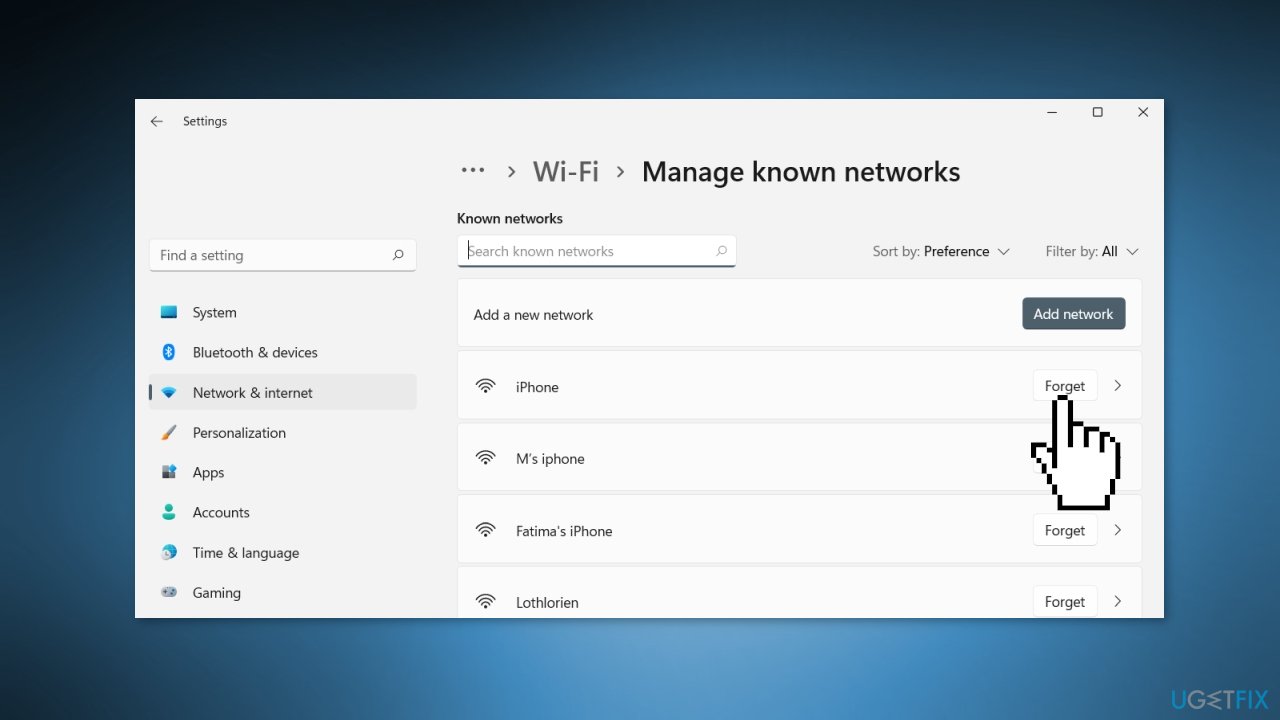
- Reconnect to the network again
- Check if the connection problem has been solved
Method 3. Connect to the Network Manually
- Open the Search using the Windows key + S
- Type Control Panel and press Enter
- Click on Network and Sharing Center
- Inside the Network and Sharing Center window, click on Set up a new connection or network
- Click on Manually connect to a wireless network and press the Next button
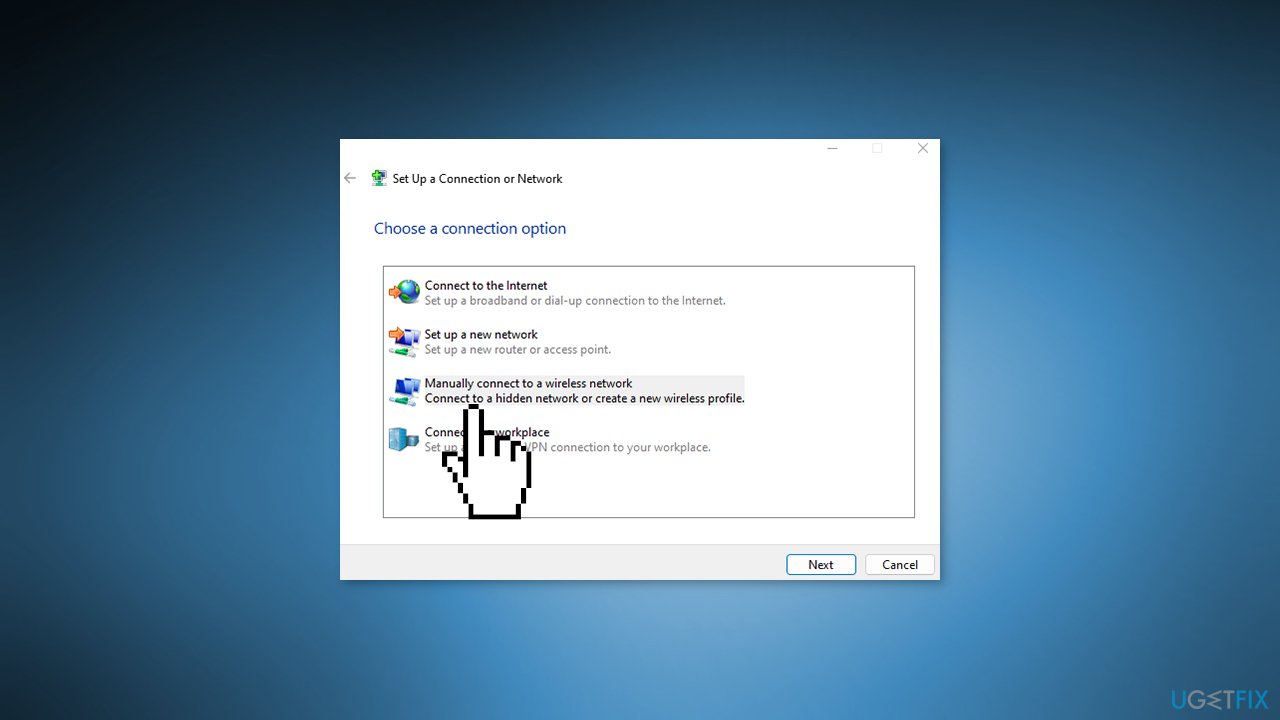
- Enter the correct network name and click on the Next button
- Set the Security type as WPA2-Personal and the Encryption type as AES protocol
- Enter the appropriate Security Key
- Click the Next button and select Use the existing network
Method 4. Update Network Driver
Outdated drivers could be the cause of this issue. In this case, you can fix it automatically by using [rev id="DriverFix"], which will scan your PC for missing and out-of-date device drivers. Or you can update them manually:
- Open Settings
- Click on Update & Security
- Click on Windows Update
- Click the Check for updates button
- Click the View optional updates option
- Click the Driver updates tab
- Select the driver you want to update
- Click the Download and install button
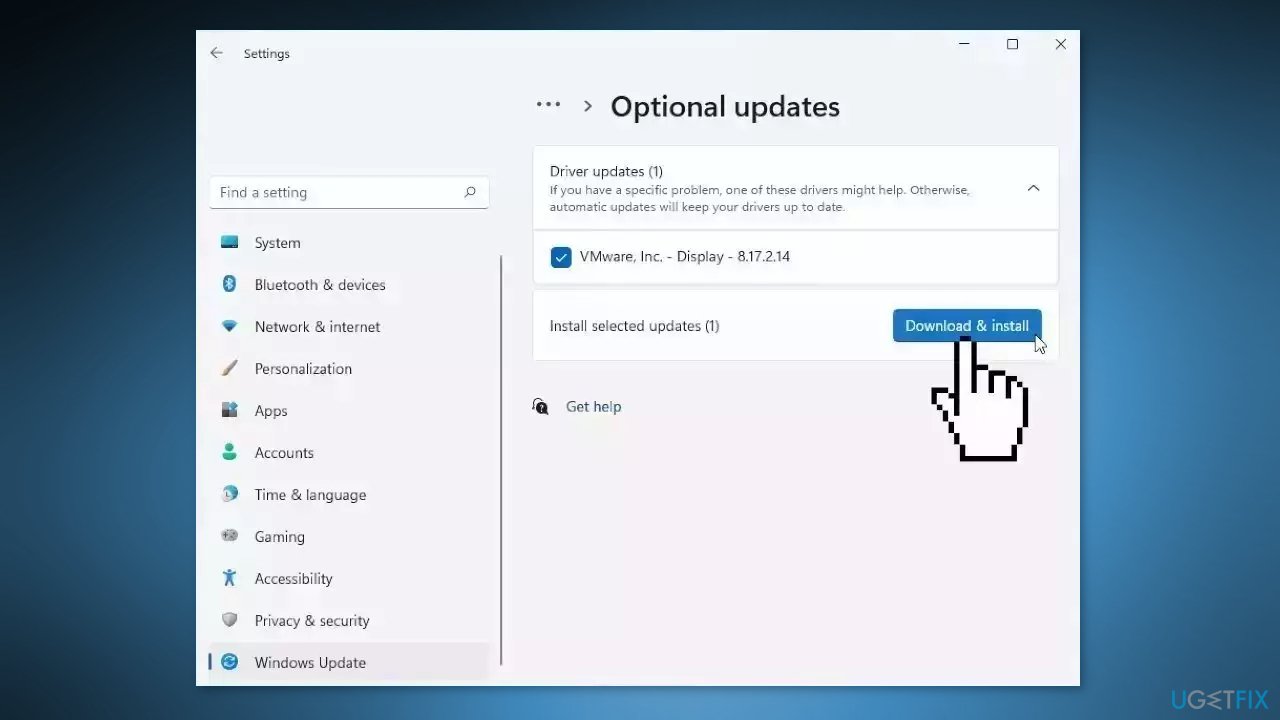
If the View optional updates link is not available after checking for updates, then Windows Update does not have any new drivers or any updates for other products at that particular time.
Method 5. Use the Command Prompt
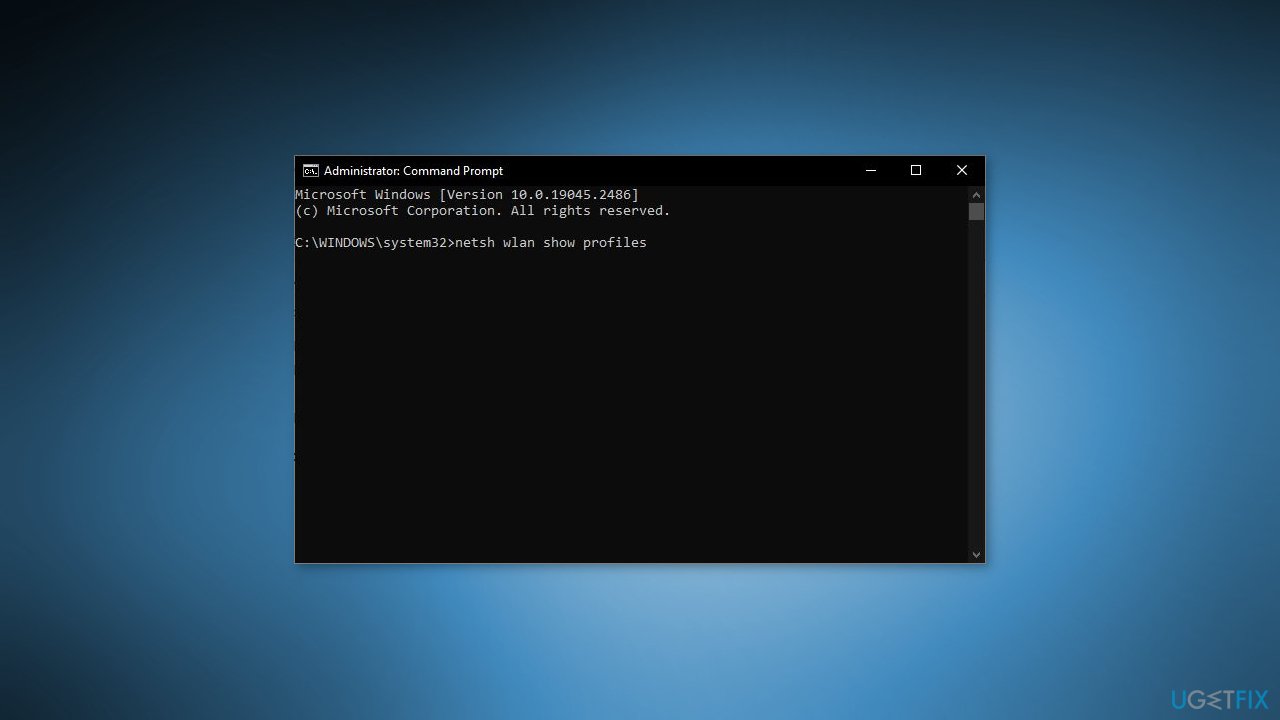
- Open Command Prompt as an administrator
- Execute the following command to see all available network names:
netsh wlan show profiles
- Execute the following command to connect to a network:
netsh wlan connect name=<Network-Profile-Name>
- Replace <Network-Profile-Name> with the name of the network you want to connect to
Bottom line
To fix the 'incorrect PSK provided for network SSID' error, you can restart your router, re-connect to the network, check for typos in the PSK, or verify the PSK with the network administrator. If these steps do not resolve the issue, consider resetting the Wi-Fi router to its default settings or using a maintenance tool to address potential system errors.
Frequently asked questions
This error indicates that the pre-shared key (PSK) used to connect to a Wi-Fi network is incorrect, preventing access to the network. It's essential to verify that you are using the correct Wi-Fi password.
To fix this error, go to Settings > Network & Internet > Wi-Fi, forget the network, and then reconnect by entering the correct password. You can also reset your network settings if the issue persists.
In Windows 10, you can troubleshoot this error by ensuring your Wi-Fi drivers are up to date and by running the Network Troubleshooter found in Settings > Update & Security > Troubleshoot.




Report an issue
What's wrong with this guide? We review every report and update or remove content.
Report received — thank you. We'll review and fix it.
You need a free account to submit a report.
Be the first to comment