How to fix
Error # FXX07
on Windows
Resolve Error # FXX07 on Windows 10 and 11 quickly with our expert-tested guide. Troubleshooting made easy for a smooth experience – fixed in minutes!

What causes How to fix Error # FXX07?
- Malicious adware program infection
- Deceptive techniques imitating legitimate system notifications
- Scammers using advanced persuasion tactics
- Potential victims revealing sensitive information
- Access to computer system granted by users
Repairs Windows system files, removes malware, and restores a clean OS state — without reinstalling.
Hi. I’m currently trying to solve an issue on my Windows 10 related to Error # FXX07 pop-ups. These messages appear only when browsing online (Chrome browser) and warn about some technical issues that have led to my PC getting blocked. Of course, I’m not that naive to believe it. I’ve closed the browser via Task Manager and haven’t seen any warnings until I launched the browser again. I known it’s a virus but I can’t seem to figure out where is it coming from. I hope you can help me to sort this out.
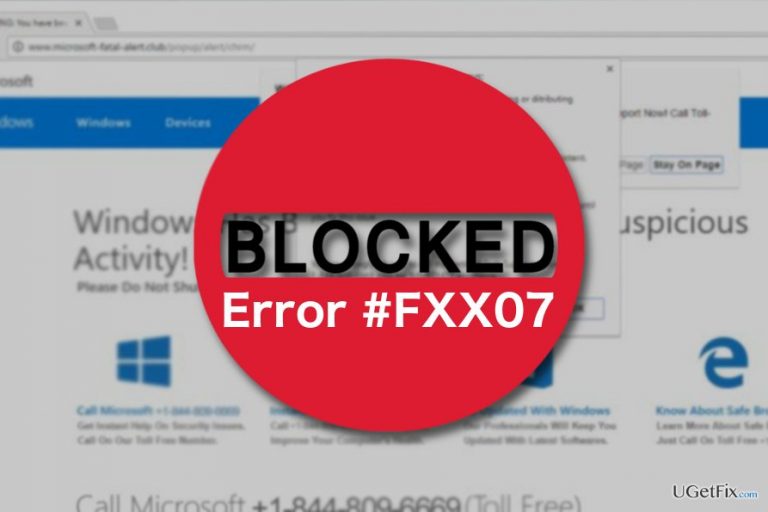
Error # FXX07 are pop-ups that appear on the browser when the computer is infected with a malicious adware program. These creators of these ads use deceptive techniques to imitate legitimate-looking system notifications that inform the potential victims about a supposedly blocked browser and urge them to contact technical support staff immediately to fix this Error # FXX07 before the logins, credit card credentials and document on the computer are corrupted or stolen. The message reads:
** YOUR COMPUTER HAS BEEN BLOCKED **
Error #FXX07
Please call us immediately at: +44-800-090-3848
Do not ignore this critical alert.
If you close this page, your computer access will be disabled to prevent further damage to our network.
Your computer has alerted us that it has been infected with a virus and spyware. The following information is being stolen…
> Facebook Login
> Credit Card Details
> Email Account Login
> Photos stored on this computer
You must contact us immediately so that our engineers can walk you through the removal process over the phone. Please call us within the next 5 minutes to prevent your computer from being disabled.
Toll Free: +44-800-090-3848
Of course, all this information is fake and can be simply ignored. Nevertheless, in case the users decide to dial the number, then they put themselves at true risk. The scammers are only waiting for the potential victims to call so they can apply advanced persuasion tactics to make the users reveal their sensitive information or grant access to their computer system. If you find yourself caught in the Technical Support Scam, do not contact anyone and scan your device for malware immediately. Sophisticated anti-malware tools such as [rev id=Reimage] will help remove Error # FXX07 adware automatically, but you may also fix your PC manually. Here is how you do it:
Remove Error # FXX07 from Windows 10:
- Close all running programs and applications. In case adware is preventing your browser from closing, you can terminate the application via Task Manager. Press Alt+Ctrl+Del to open Task Manager. Then in the running programs’ list locate and select Google Chrome or any other browser that is blocked and click End Task button below.
- Then, click the Windows home button and select Control Panel from the menu.
- When in Control Panel, select Uninstall a Program and filter the list of showed up programs to display recently installed programs.
- Look for suspicious entries (toolbars, extensions, add-ons) and uninstall them.
- Click OK to save the changes.
- Exit the Control Panel and reset all the affected browsers to their original settings.
Bottom line
To fix Error # FXX07, users should remove the adware program, avoid contacting the provided phone number, and run a full antivirus scan. If these steps do not resolve the issue, consider seeking professional technical support.
Frequently asked questions
Error # FXX07 typically indicates a system file corruption or an issue with software compatibility on your Windows operating system.
To troubleshoot Error # FXX07 on Windows 11, you can run the System File Checker tool by opening Command Prompt as an administrator and typing 'sfc /scannow'.
To prevent Error # FXX07 from recurring on Windows 10, ensure that your system is updated regularly and avoid installing incompatible software.




Report an issue
What's wrong with this guide? We review every report and update or remove content.
Report received — thank you. We'll review and fix it.
You need a free account to submit a report.
Be the first to comment