How to fix
WhatsApp not playing audio messages
on Windows
Resolve WhatsApp audio issues on Windows 10 and 11 effortlessly. Follow our expert-tested guide for quick fixes and enjoy seamless messaging again!

What causes How to fix WhatsApp not playing audio messages in Windows?
- Insufficient app permissions
- Registry corruption
- Damaged system files
- Audio settings misconfiguration
- Outdated WhatsApp version
Repairs Windows system files, removes malware, and restores a clean OS state — without reinstalling.
About a week ago, audio messages on WhatsApp desktop for Windows 10 stopped playing. The play button functions, and the timeline progresses, but no audio is heard. However, the audio messages can still be played on a phone, and no notifications are received, including the selected notification tone. Any tips on this would be appreciated.
WhatsApp is a popular messaging application owned by Facebook, used by millions of people worldwide to communicate with friends, family, and colleagues. It allows users to send text messages, make voice and video calls, share photos, videos, and documents, and more. The app has become an essential tool for staying connected in today's digital age, providing a fast and secure way to communicate with others.
One of the key features of WhatsApp is the ability to send and receive voice messages. This feature allows users to record and send short voice messages to each other instead of typing out a message. Voice messages are a convenient way to communicate quickly, without the need to type, and are particularly useful for sending longer messages.
Unfortunately, some users said that audio messages don't play whenever they try to engage with them. While WhatsApp is available on many platforms, and this problem can be encountered on all of them, we will concentrate on the issue on Windows systems.
When it comes to WhatsApp not playing audio messages in Windows, the prime reason is usually insufficient app permissions on the device, which can easily be addressed via Settings. However, providing permissions did not help everyone to deal with this issue, that's why we provide several solutions that might work for you.
Before proceeding, to out any issues related to registry corruption, damaged system files, and similar, we recommend running a scan with a powerful PC repair tool [d1], which can effectively find damaged system components and fix them automatically for you.
Method 1. Provide sufficient permissions
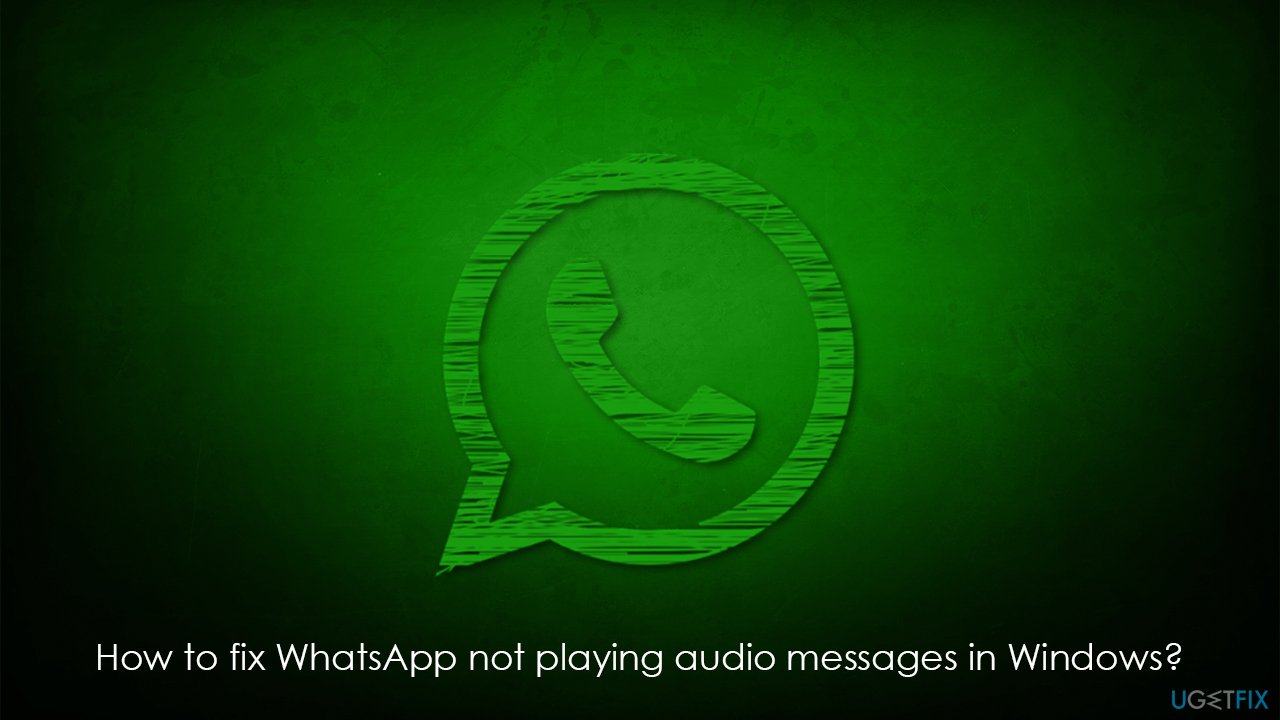
The first thing you should do is make sure that WhatsApp is allowed to play audio.
- Click on the Windows Start button and pick Settings.
- Go to Privacy & Security section.
- Make sure Allow apps to access your microphone option is enabled.
- Select Microphone.
- Scroll down to find WhatsApp and toggle the switch next to it to the right - On position.
Method 2. Repair and reset WhatsApp
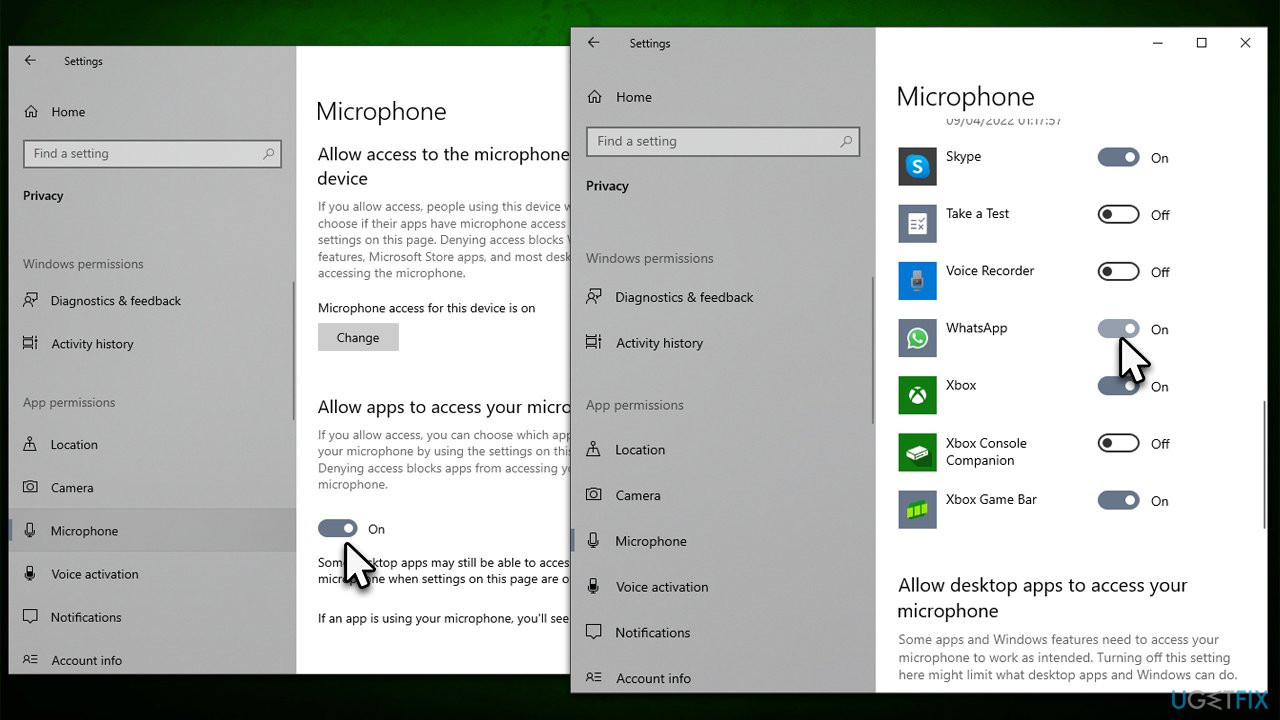
Resetting the app might help if it was bugged for some reason.
- Open Settings and go to Apps > Apps and features.
- Scroll down to locate WhatsApp.
- Click Advanced options.
- Here, click Terminate, then Repair.
- If the Repair option was of no help, use Reset and see if that solved the issue.
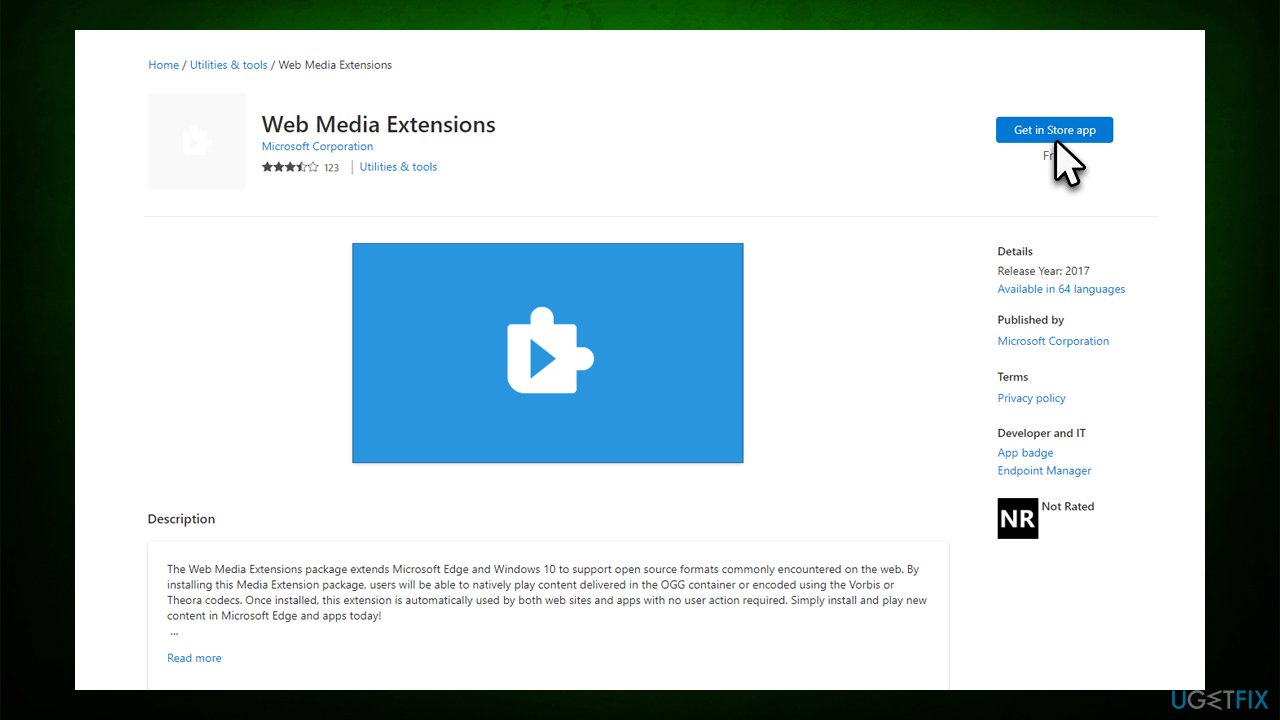
Method 3. Install Web Media Extensions
Some users said that they managed to fix WhatsApp not playing audio messages by installing Web Media Extensions. Note that the app is from Microsoft and is official.
- Open your browser and navigate to the Web Media Extensions download page.
- Click Get Store app.
- Install it and check if the audio in WhatsApp messages works again.
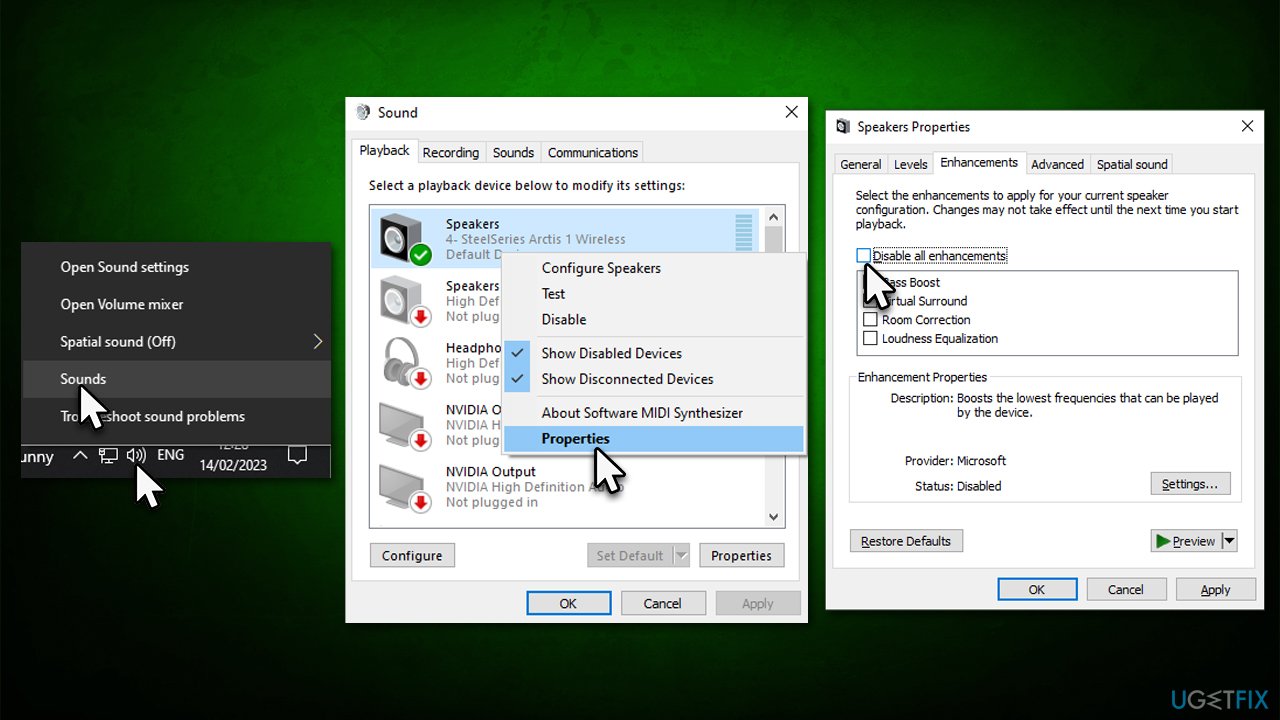
Method 4. Disable audio enchantments
It appears that some people managed to fix the issue by disabling audio enhancements. Here's how:
- Right-click on the speaker icon on your taskbar and select Sounds.
- Go to the General tab.
- Right-click on your speakers/headphones and select Properties.
- Go to the Enhancements tab.
- Here, click on Disable all enhancements.
- Click Apply and OK.
- Close down everything and check if WhatsApp audio messages work again.
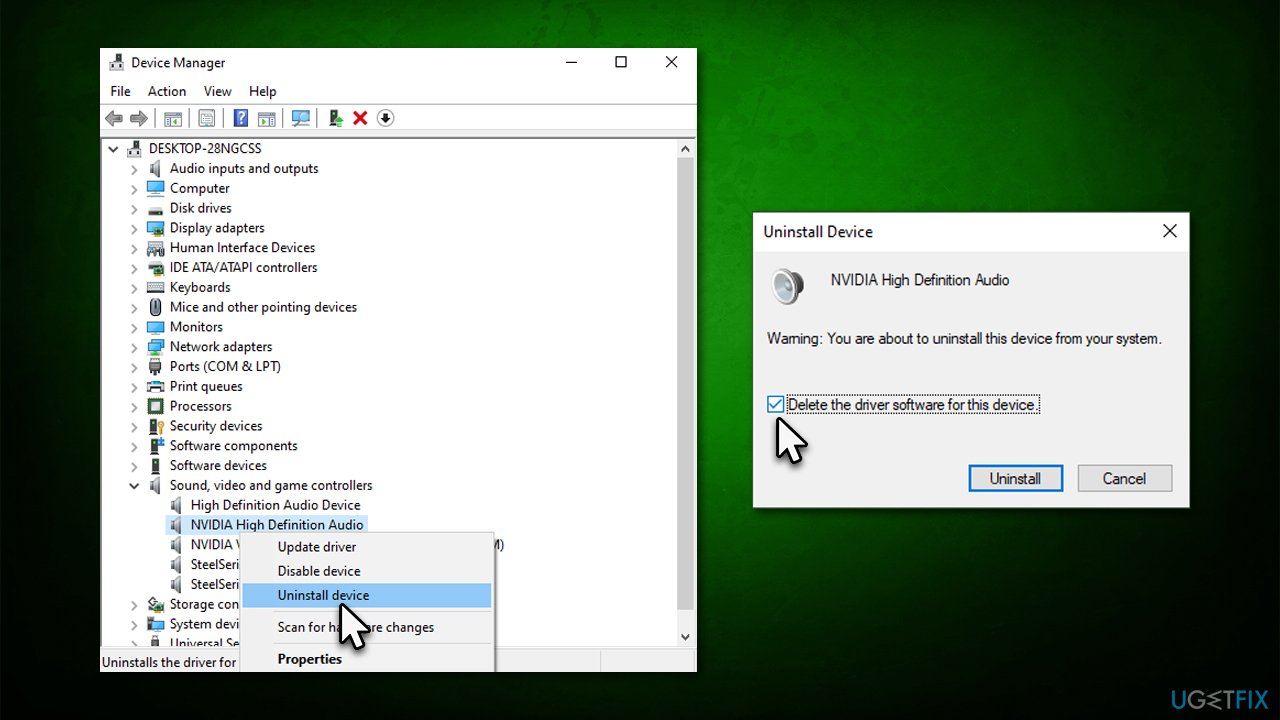
Method 5. Reinstall audio drivers
Try reinstalling audio drivers as follows:
- Right-click on Start and pick Device Manager.
- Expand the Sound, video, and game controllers section.
- Right-click on your audio driver and select Uninstall device.
- Mark the Delete the driver software for this device option.
- Click Uninstall and follow the on-screen instructions.
- Restart your computer.
You can download the latest driver from your device manufacturer's website. If you are using Nvidia audio drivers, you have to reinstall the Nvidia video driver package because they are shipped together. If you want a quick solution, we recommend employing an automatic updater [rev id="DriverFix"].
Bottom line
To fix the issue of WhatsApp not playing audio messages on Windows, ensure that the app has sufficient permissions, run a scan for registry corruption and damaged system files, and check your audio settings. If these solutions do not resolve the problem, consider updating the WhatsApp application or seeking further assistance.
Frequently asked questions
This issue might be caused by incorrect audio settings or outdated app versions. Ensure your audio output device is correctly set and that WhatsApp is updated to the latest version.
Check if the audio is muted within the WhatsApp app and on your system's volume mixer. You can access the volume mixer by right-clicking the speaker icon in the taskbar.
Try reinstalling WhatsApp or running the Windows Troubleshooter for audio issues, which can be found in the Settings under Update & Security > Troubleshoot.




Report an issue
What's wrong with this guide? We review every report and update or remove content.
Report received — thank you. We'll review and fix it.
You need a free account to submit a report.
Be the first to comment