How to fix
Windows 10 Game Bar Error “Can’t Record Right Now, Try Again Later?”
on Windows
Resolve the Windows 10 Game Bar error "Can't Record Right Now" quickly with expert-tested solutions. Get back to gaming seamlessly, fixed in minutes!

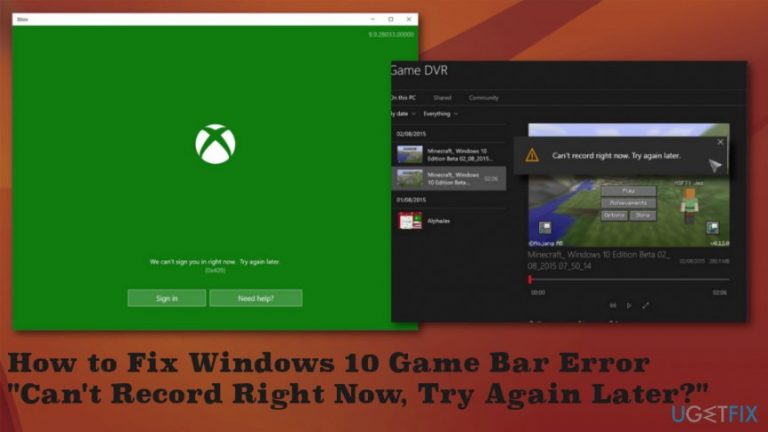
What causes How to Fix Windows 10 Game Bar Error “Can’t Record Right Now, Try Again Later?”?
- Cached Windows Store issues
- Temporary Xbox bugs
- Damaged recording shortcut
- Clogged system with duplicate files
- Damaged registry entries
Repairs Windows system files, removes malware, and restores a clean OS state — without reinstalling.
I have an issue with Xbox Game. The recording does not work. When I click Windows key + G, I receive the notifications "Can't Record Right Now, Try Again Later." How could I solve this problem?
"Can't Record Right Now, Try Again Later" is a Windows 10 bug, which is related to the Game DVR feature, which is a part of the Xbox app.[ref en-1] Microsoft noticed the will of PC gamers to record, edit, and share the gameplay moments with the others on social networks, and, therefore, mounted in the Game DVR (Game Bar) feature into Windows 10.
To record the gameplay in the background of the gaming session, the gamer has to press Windows key + G. However, Game DVR feature uses a considerable amount of CPU resources and often results in slower performance of the running game.[ref en-2]
Additionally, many people find Game Bar annoying because it frequently delivers pop-up, one of the common ones is "Can't Record Right Now, Try Again Later." Many people reported this bug and it seems that it’s Minecraft specific.[ref en-3]
The "Can't Record Right Now, Try Again Later" bug is more irritating than serious because its culprit is usually related to cached Windows Store, temporary Xbox bug or, or damaged recording shortcut. Luckily, most of the Game DVR users managed to fix this pop-up manually and so will you.
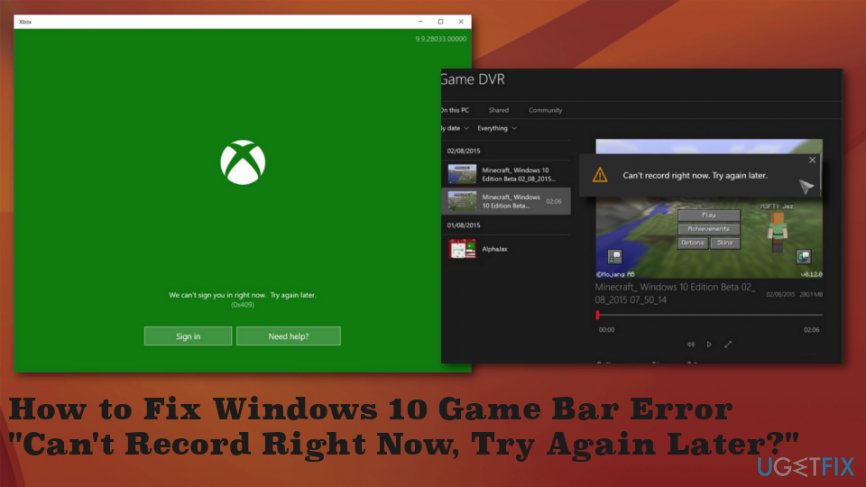
How to Fix Windows 10 Game Bar Error "Can't Record Right Now, Try Again Later"
If you haven’t been optimizing your PC for ages, it might be clogged with duplicate files, damaged registry entries, potentially unwanted software, and other content, which, in addition to decreasing PC’s performance, may trigger software and service malfunctions.
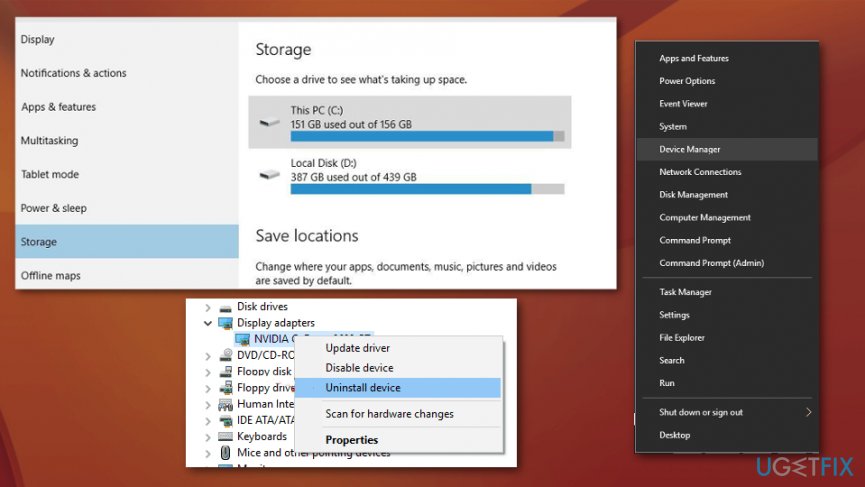
Therefore, we would recommend scanning the system with [d1] or an alternative optimization tool. You can also benefit from updating your graphics drivers and reinstalling them via device manager. You can also delete temporary files from storage. If these quick solutions are not helpful, rely on the methods listed below.
Change the recording shortcut
- Press Windows Key + S and enter Xbox. Choose the app.
- When the app starts click the Settings icon.
- Go to Game DVR tab.
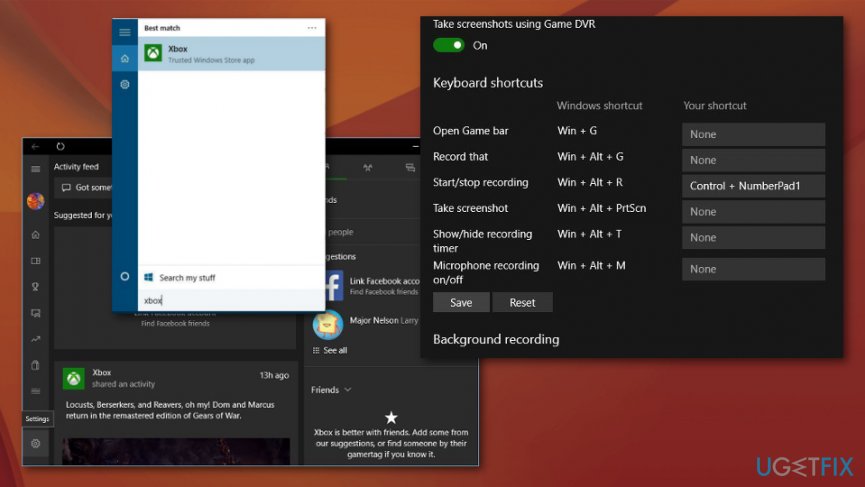
How to fix windows 10 game bar error cant record right now try again later xbox - Set the shortcut to Start/stop recording. Use any combination.
- Click Save and close the Xbox app.
- Use the shortcut to start/stop recording.
Reset the Windows Store Cache
- For that, press Windows key + R, type WSReset.exe, and press OK.
Change recording shortcut
- Press Windows key + S, type Xbox, and click on it. When Xbox launches.
- Select Settings -> Game DVR tab. Now you should set your own shortcut for to Start/Stop recording (e.g. Ctrl + P or any other combination that comes to your mind).
- Then click Save, close the Xbox settings and try the new shortcut.
Reinstall Xbox
- Press Windows key + X, type PowerShell, right-click on it, and select Run as Administrator.
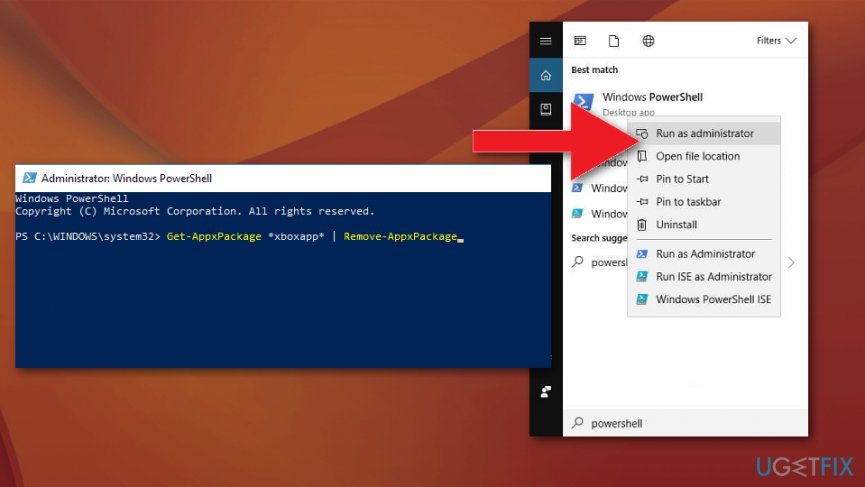
How to fix windows 10 game bar error cant record right now try again later powershell - Copy the Get-AppxPackage *xboxapp* | Remove-AppxPackage command and paste it in the PowerShell window. Then reboot your PC and download Xbox app from the Windows store.
Upgrade Minecraft
- Upgrade to the latest version. It has been noticed that the "Can't Record Right Now, Try Again Later" error is Minecraft specific. However, some people noticed that upgrading Minecraft to the latest version helped to solve the problem.
Bottom line
To fix the 'Can't Record Right Now, Try Again Later' error, consider optimizing your PC, updating or reinstalling graphics drivers, and deleting temporary files. If these solutions do not resolve the issue, try changing the recording shortcut or using an optimization tool.
Frequently asked questions
Try restarting your PC and ensure that the Game Bar is enabled in the settings under Gaming. If the issue persists, check for Windows updates and reinstall the Game Bar app from the Microsoft Store.
Go to Device Manager, expand the Display adapters section, and right-click on your graphics driver to select 'Update driver'. Make sure you have the latest drivers installed, as outdated ones can lead to Game Bar issues.
Yes, ensure that the background recording feature is turned on in the Game Bar settings under Windows 10's Gaming options. Additionally, verify that the game you are trying to record is supported by the Game Bar.




Report an issue
What's wrong with this guide? We review every report and update or remove content.
Report received — thank you. We'll review and fix it.
You need a free account to submit a report.
Be the first to comment