How to fix
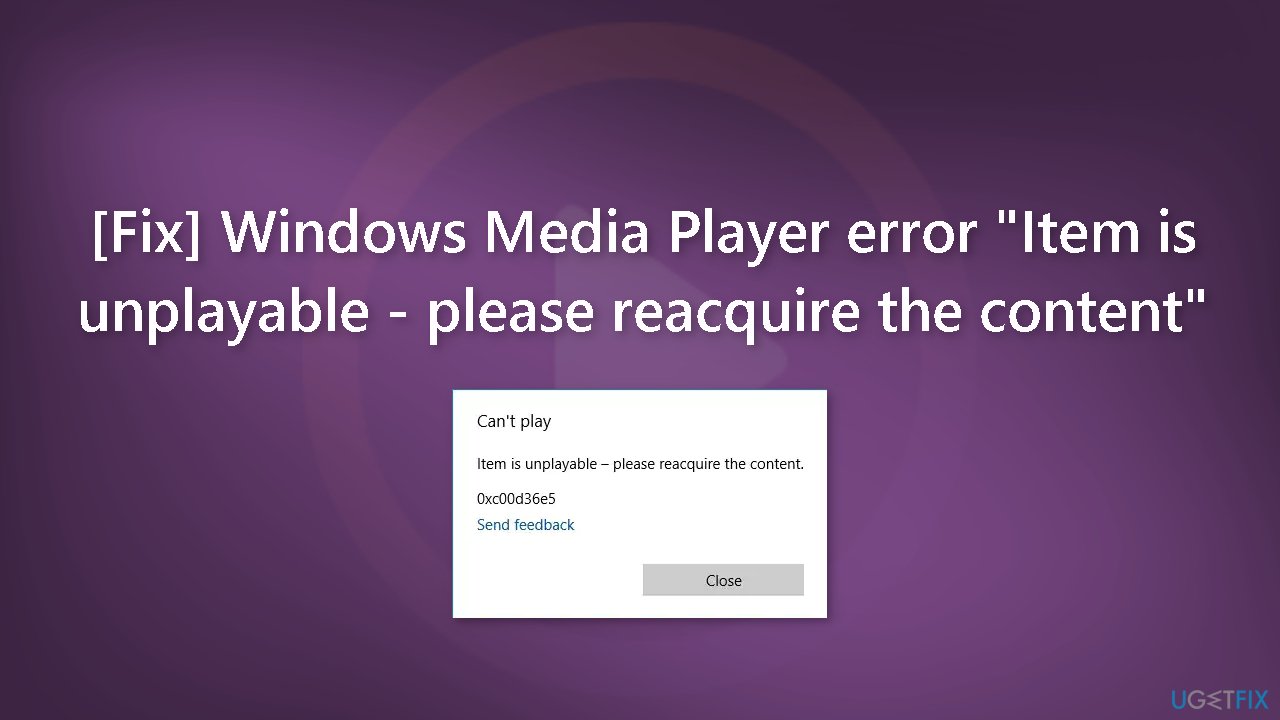
Windows Media Player error “Item is unplayable – please reacquire the content”
on Windows
Resolve the "Item is unplayable" error in Windows Media Player on Windows 10 and 11 effortlessly. Expert-tested solutions for quick fixes!

![[Fix] Windows Media Player error “Item is unplayable – please reacquire the content”](https://ugetfix.com/wp-content/uploads/articles/askit/fix-windows-media-player-error-item-is-unplayable-please-reacquire-the-content_en-768x432.jpg)
What causes [Fix] Windows Media Player error “Item is unplayable – please reacquire the content”?
- Media file is corrupted or damaged
- Problem with the file's digital rights management (DRM)
- Third-party plugins or extensions interfering with the application
- Issues with the USB drive being used
- Outdated version of Windows Media Player or Windows operating system
Repairs Windows system files, removes malware, and restores a clean OS state — without reinstalling.
Hello. When I try to play a video file using the Windows Media Player, I receive the message "Item is unplayable - please reacquire the content" with the 0xC00D36E5 error. How do I fix this?
Windows Media Player is a well-known media player application from Microsoft. It comes with various versions of the Windows operating system and supports a wide range of media formats such as audio, video, and images. One of the many advantages of using Windows Media Player is the ability to organize and manage media files, create playlists, and burn CDs and DVDs.
The "Item is unplayable - please reacquire the content" message in Windows Media Player with the error code 0xC00D36E5 usually appears when the media file you're attempting to play is corrupted or damaged in some way. It could also be due to a problem with the file's digital rights management (DRM). This error message is frequently frustrating for users because it prevents them from playing media files.
Users may face a variety of consequences as a result of the error. It may limit their ability to work on projects that require the use of specific media files or prevent them from accessing their preferred media content. This error message can be resolved by redownloading or purchasing the media file, checking for updates to Windows Media Player or the Windows operating system, and disabling any third-party plugins or extensions that may be interfering with the application.
In this guide, you will find 6 steps that should help you fix Windows Media Player error "Item is unplayable - please reacquire the content". Keep in mind that the manual troubleshooting process may be lengthy. To avoid it, you can use an automatic maintenance tool like [d1]. It can fix most system errors, BSODs,[ref en-1] corrupted files, registry[ref en-2] issues, or clear cookies and cache.[ref en-3] Otherwise, follow the step-by-step instructions below.
Solution 1. Replace the USB Stick
If you receive the 0xC00D36E5 error while playing a file from your USB drive in Windows Media Player, it is recommended that you try switching to a different USB stick or memory stick to resolve the issue. Try playing the same file from a different USB stick to see if the error persists.
Solution 2. Check the File Format
To address the 0xC00D36E5 error on your media player, you should verify if the file format is compatible with your player. If not, consider converting the file to a format that is supported. For example, if your file is in MP4 format and your player doesn't recognize it, convert it to AVI and try again.
Solution 3. Install Missing Codecs
Codecs are pieces of software that enable the playback of media files. During the file creation process, custom codecs are frequently used. If you want to play such a file, you must have the corresponding codec installed on your computer. While locating the exact codec can be difficult, you can either install it if you have access to it or conduct an online search based on the file extension to find the necessary codecs.
Solution 4. Update the Media Player
- Run the Windows Media Player application
- Press Alt + H on your keyboard
- Click on the Check for updates section
- If an update is available, the application will automatically download and install it
Solution 5. Reset the Media Player
- Click on the Settings app from the search results to open it
- Press on the Apps option
- Scroll down and find the Windows Media Player app from the list of installed apps
- Click on the app to open its Settings
- Click on the Advanced options button
- Scroll down and click on the Reset button
- A confirmation dialog box will appear. Click on the Reset button again to confirm.
- The Media Player app will now be reset to its default settings.
Note: Resetting the Media Player app will erase all its settings and preferences. It will also remove any customizations or changes made to the app.
Solution 6. Reinstall the Media Player
- Left-click on the Windows button and search for Control Panel
- Under the Programs section, click on Uninstall a program
- Click on Turn Windows features on or off in the left-side panel
- Expand the Media Features folder
- Uncheck the Windows Media Player option, and then click on OK
- The system will now begin to uninstall Windows Media Player
- Restart your computer and return to the same Turn Windows features on or off setting
- Select the Windows Media Player option this time and click on OK
- Restart your computer again
- Verify whether the issue is resolved
Bottom line
The error can be resolved by redownloading or purchasing the media file, checking for updates to Windows Media Player or the Windows operating system, and disabling any third-party plugins or extensions. If none of these solutions work, consider using an automatic maintenance tool to fix system errors.
Frequently asked questions
Try updating your media library by rescanning your files or checking for any missing codecs that might be required to play the content.
Ensure that the file format is supported and consider reinstalling Windows Media Player if the issue persists.
Yes, check the 'Streaming' options under 'Options' to ensure they are configured correctly and that your network settings allow media playback.




Report an issue
What's wrong with this guide? We review every report and update or remove content.
Report received — thank you. We'll review and fix it.
You need a free account to submit a report.
Be the first to comment