How to fix
“Microsoft PowerPoint failed to load hlink.dll” error
on Windows
Resolve the "Microsoft PowerPoint failed to load hlink.dll" error on Windows 10 and 11 quickly and efficiently. Expert-tested solutions await!


What causes How to fix “Microsoft PowerPoint failed to load hlink.dll” error?
- hlink.dll file is missing
- hlink.dll file is corrupted
- System file corruption
- Issues with the Office installation
- Improper registration of the hlink.dll file
Repairs Windows system files, removes malware, and restores a clean OS state — without reinstalling.
Hello. When I try to open PowerPoint on my Windows PC I receive the "Microsoft PowerPoint failed to load hlink.dll" error message. Why am I seeing it?
Microsoft PowerPoint is a presentation software program. It is part of the Microsoft Office software suite and is used to create visual presentations for both business and personal use. Users can use PowerPoint to create slideshows that include text, images, videos, and other multimedia elements.
The "Microsoft PowerPoint failed to load hlink.dll" error is an issue that can occur when trying to open PowerPoint on a Windows computer. This error message indicates that the hlink.dll file, which is a dynamic link library file used by PowerPoint, is either missing or corrupted.
DLL files[ref en-1] are a type of file that contains code, data, and resources that can be used concurrently by multiple programs. DLL files are an important part of the Windows operating system because they help individual programs use less memory and disk space.
This problem can be resolved by repairing the Office installation, reinstalling PowerPoint, or manually registering the hlink.dll file. However, depending on the exact cause of the error, these solutions may differ and should be implemented with caution to avoid causing further problems with the system.
In this guide, you will find 6 steps that should help you fix "Microsoft PowerPoint failed to load hlink.dll" error in Windows. However, the manual troubleshooting process may be lengthy. You can try using a maintenance tool like [d1] that can fix most system errors, BSODs,[ref en-2] corrupted files, and registry[ref en-3] issues. Otherwise, follow the step-by-step instructions below.

Solution 1. Fix Corrupted System Files
Use Command Prompt commands to repair system file corruption:
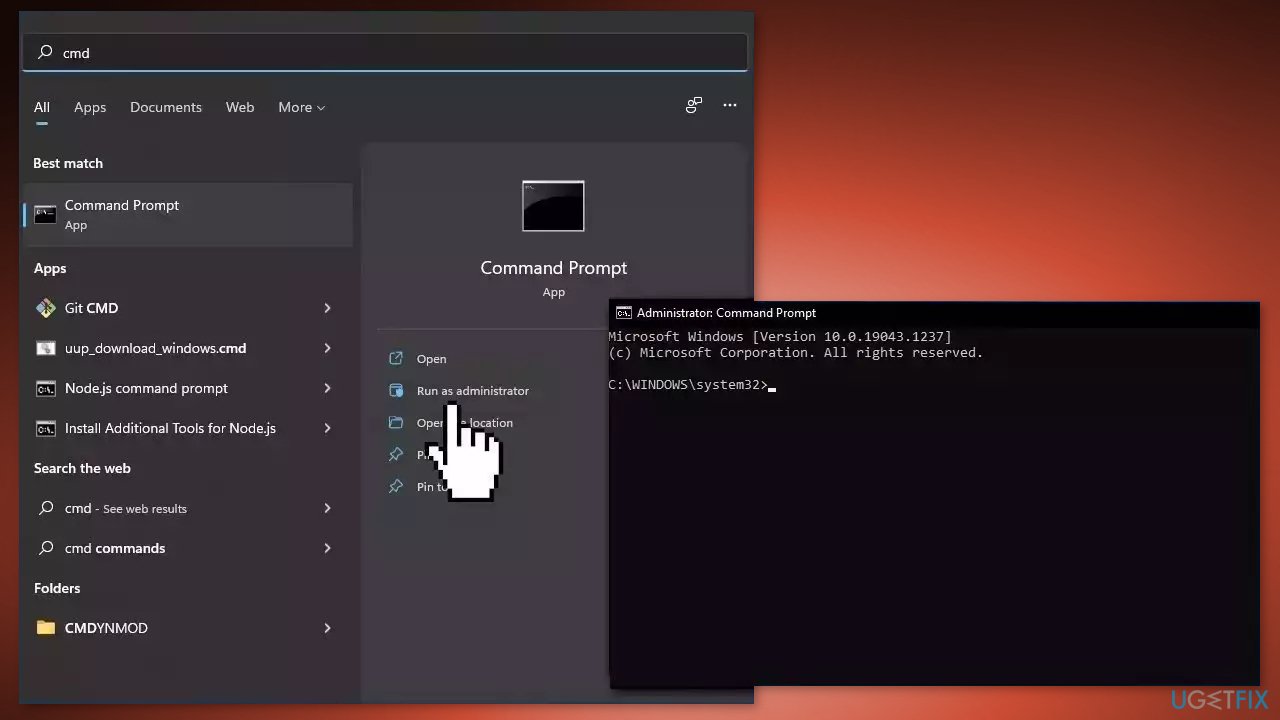
- Open Command Prompt as administrator
- Use the following command and press Enter:
sfc /scannow
- Reboot your system
- If SFC returned an error, then use the following command lines, pressing Enter after each:
DISM /Online /Cleanup-Image /CheckHealth
DISM /Online /Cleanup-Image /ScanHealth
DISM /Online /Cleanup-Image /RestoreHealth
Solution 2. Re-register the DLL File
- Click on the Windows key and type Command Prompt in the search box
- Right-click on the result and select Run as Administrator from the context menu
- If a User Account Control dialog box appears, click Yes to allow the Command Prompt to make changes to your computer.
- Type regsvr32 Hlink.dll in the Command Prompt and press Enter
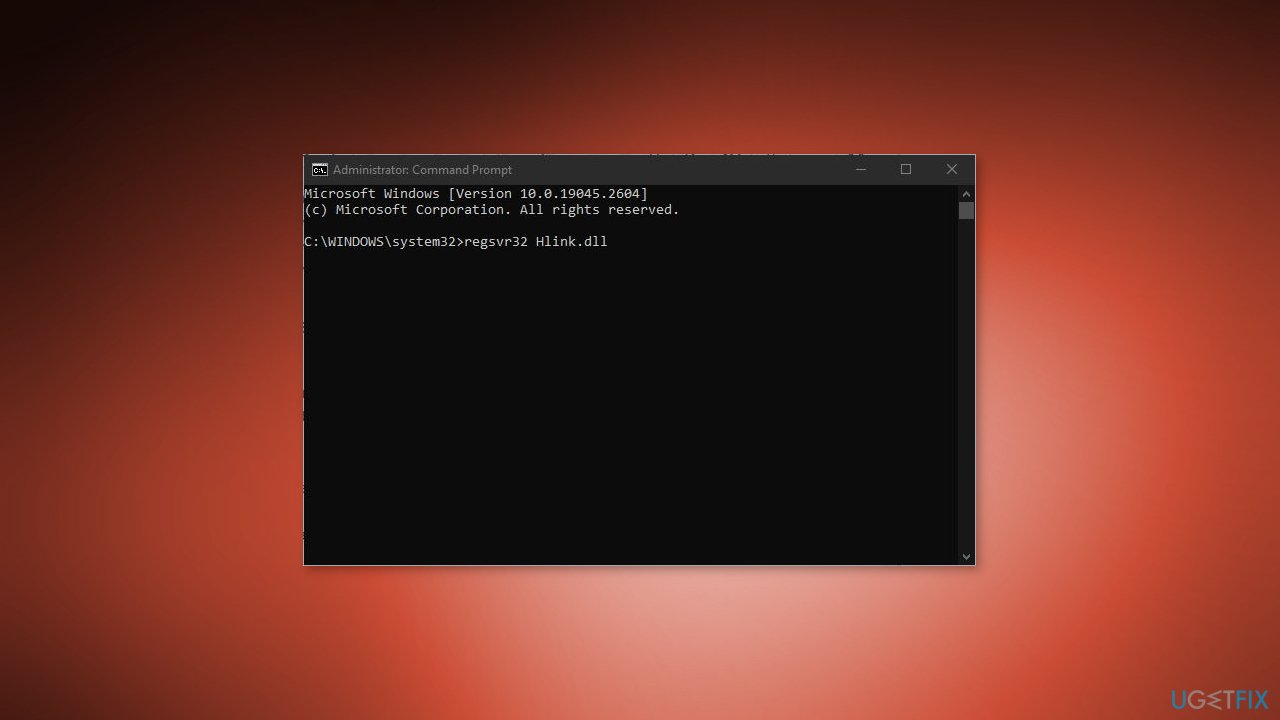
- Wait for a message to appear that says DllRegisterServer in Hlink.dll succeeded
- Restart your PC
- Check if the Hlink.dll file has been registered properly
Solution 3. Launch PowerPoint in Clean Boot
- Click on the Start button and type System Configuration in the search box
- Click on the result, and if a User Account Control dialog box appears, click Yes to allow the System Configuration to make changes to your computer
- Navigate to the General tab and check the Selective Startup option
- Check the Load System Services option
- Navigate to the Services tab in the System Configuration window
- Check the Hide all Microsoft services option
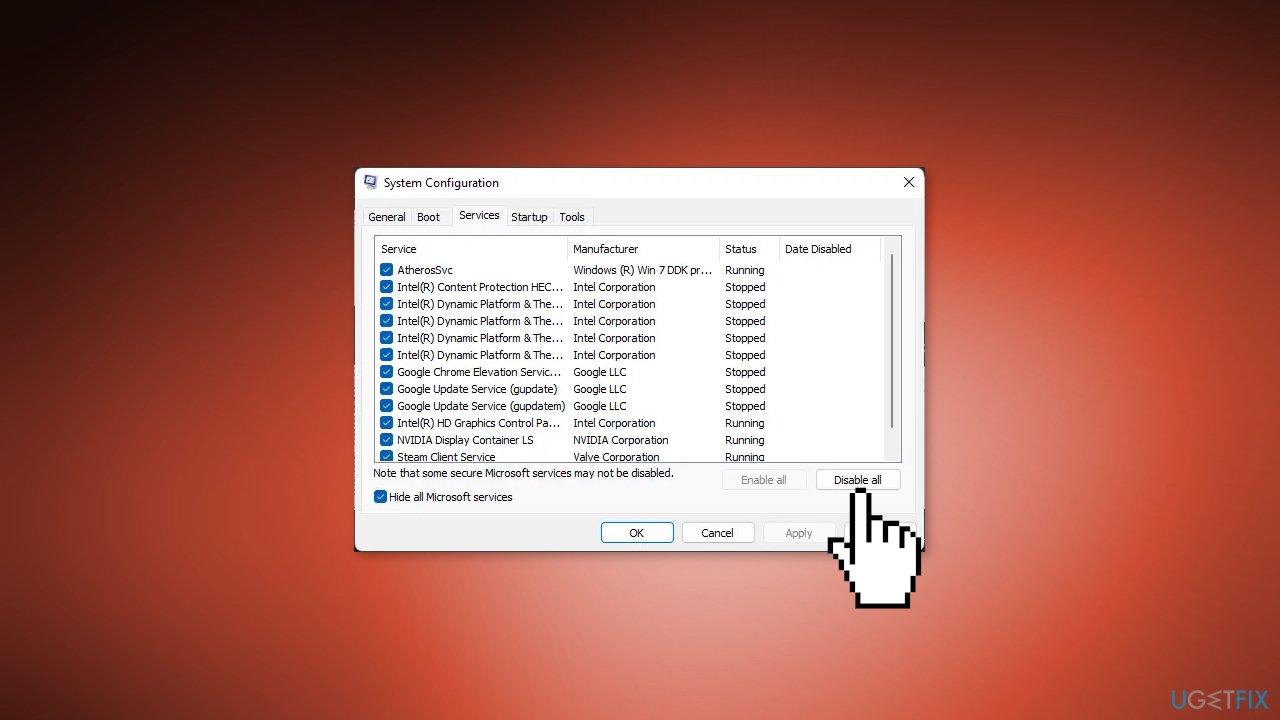
- Click on Disable all at the bottom right corner
- Click Apply and OK to save the changes
- Restart your PC
- Check if the error still appears in the clean boot state
- If the error doesn't appear in the clean boot state, manually enable one process after another to see which process is causing the error.
- Once you've identified the culprit, disable or uninstall the software that's causing the error
Solution 4. Repair Office
- Press the Windows key + I to open the Settings app
- Click on Apps in the Settings window
- Click on Apps & Features in the menu
- Scroll down the list of apps and click on the Office product you want to repair
- Click on Modify button
- Select Online Repair option
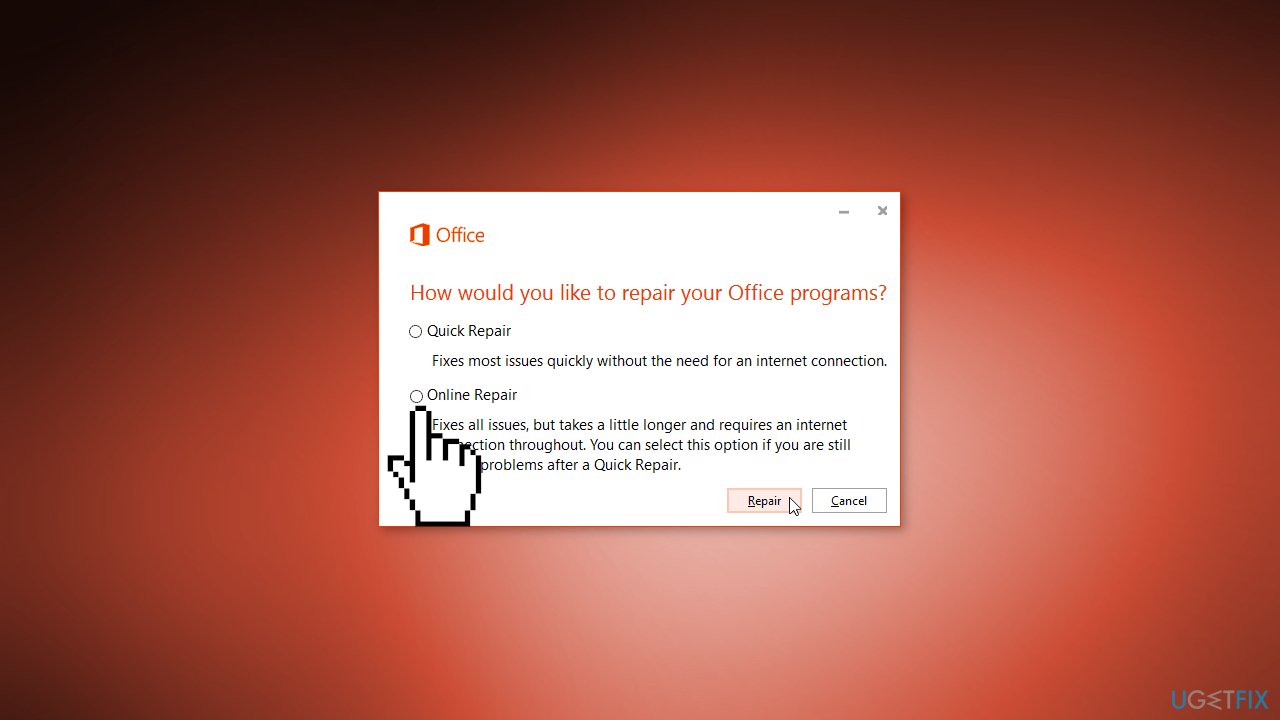
- Follow the instructions that appear on-screen to complete the online repair process
Solution 5. Use System Restore
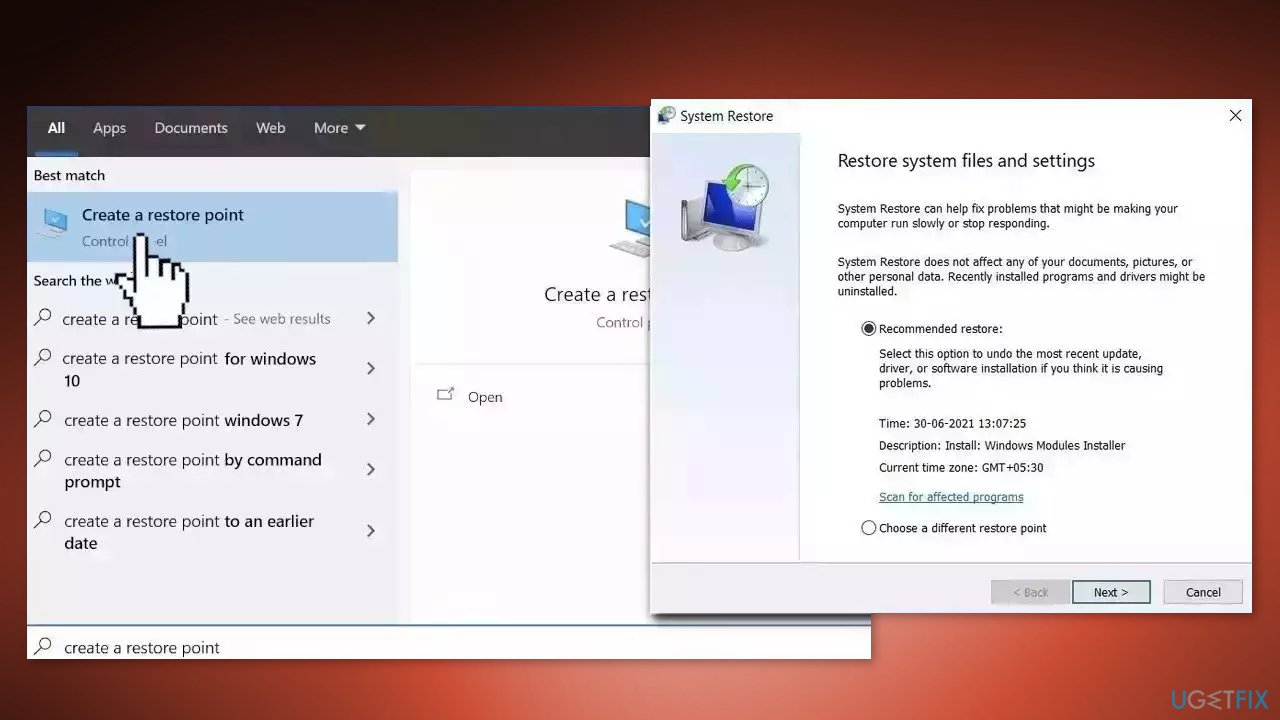
System Restore is a feature in Microsoft Windows that allows users to revert their computer's state to a previous point in time. This can be helpful if you have made changes to your system that are causing problems.
- Go to the Start menu, type restore, and click on Create a restore point
- Click System Restore, then follow the prompts until you can select a restore point
- Select the one you want (ideally before the issue started occurring) and go ahead with the process
Solution 6. Repair Install Windows
- Visit the official Microsoft website to download Windows 11 or Windows 10 Installation Media
- Run the Media Creation Tool and select Create Installation Media for another PC
- Select your USB drive
- Let the Process complete of writing the Installation files to the USB drive
- Click Finish
- On the PC you wish to upgrade, Press Windows + E to open the File Explorer
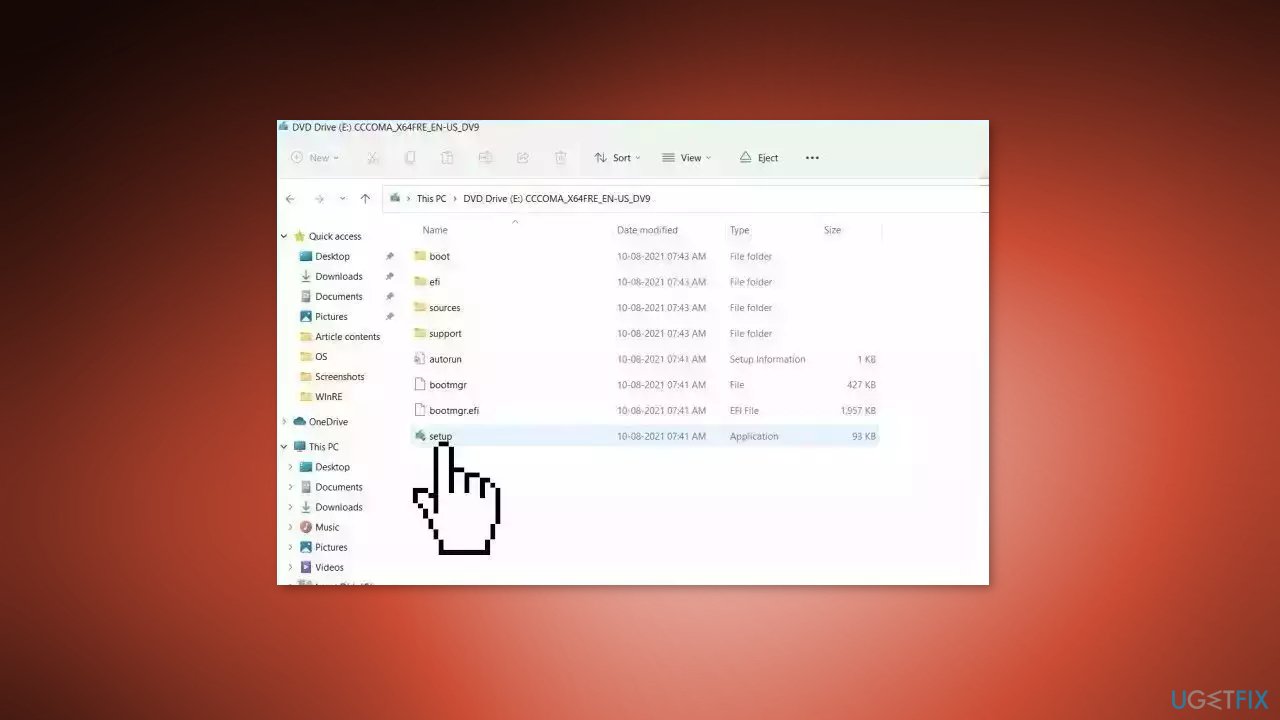
- Open the Removable drive and click Setup.exe
- Accept the license terms on the next screen
- Confirm the Upgrade options – Files, apps and Settings are kept
- Click Install, and the upgrade should start
Bottom line
The error "Microsoft PowerPoint failed to load hlink.dll" can be resolved by repairing the Office installation, reinstalling PowerPoint, or manually registering the hlink.dll file. If these solutions do not work, consider using a maintenance tool to address system errors.
Frequently asked questions
This error typically occurs due to a corrupted or missing hlink.dll file, often resulting from incomplete installation or system file corruption in Windows 10.
You can repair the hlink.dll issue by running the System File Checker tool, which scans and restores missing or corrupted system files in Windows 11.
No, downloading hlink.dll from untrusted sources can introduce malware; it's safer to use Windows built-in tools or reinstall Microsoft Office to resolve the issue.




Report an issue
What's wrong with this guide? We review every report and update or remove content.
Report received — thank you. We'll review and fix it.
You need a free account to submit a report.
Be the first to comment