How to fix
“Save As” window keeps popping up in Office apps
on Windows
Resolve the "Save As" window issue in Office apps on Windows 10 and 11 effortlessly. Expert-tested solutions ensure your apps run smoothly. Fixed in min…

![[Fix] “Save As” window keeps popping up in Office apps](https://ugetfix.com/wp-content/uploads/articles/askit/fix-save-as-window-keeps-popping-up-in-office-apps_en-768x432.jpg)
What causes [Fix] “Save As” window keeps popping up in Office apps?
- Corrupted Office application
- Conflicting add-ins or extensions
- Temporary files causing issues
- Incorrect default file save location
- Outdated Office version
Repairs Windows system files, removes malware, and restores a clean OS state — without reinstalling.
Hello. When I try to use Excel, the "Save As" window on the left keeps popping up repeatedly on its own. This is getting really frustrating. Is there any way to fix this?
Microsoft Office and Microsoft 365 are Microsoft productivity software suites. Word, Excel, PowerPoint, and Outlook are examples of applications that are widely used in both personal and professional settings. These programs include features for creating, editing, and sharing documents, spreadsheets, presentations, and emails, among others. Cloud-based services such as OneDrive and Microsoft Teams are also part of Microsoft 365.
The "Save As" window is a feature in Microsoft Office and Microsoft 365 applications, such as Word or Excel, that allows users to save their files to a specific location with a unique name. This window may pop up unexpectedly, which can be frustrating for users and interrupt their workflow. The issue of the "Save As" window popping up repeatedly can significantly impact user productivity and result in frustration, leading to a loss of time and productivity.
This problem can be resolved by repairing or reinstalling the Office application, disabling add-ins or extensions, or clearing the Office application's temporary files. Users may also attempt to update or revert to an earlier version of Office, as well as change the default file save location. However, depending on the specific Office application and version, as well as the user's operating system and hardware, the best solution may differ.
In this guide, you will find 6 steps that should help you get rid of the "Save As" window in Office or Microsoft 365 apps. Keep in mind that the manual troubleshooting process may be lengthy. Instead, you can use a maintenance tool like [d1] that can fix most system errors, BSODs,[ref en-1] corrupted files, registry[ref en-2] issues, or clear cookies and cache.[ref en-3] Otherwise, follow the step-by-step instructions below.
Solution 1. Open the app in Safe Mode
- Press the Windows key + R to open the Run box
- A small window titled Run will appear on the screen
- Type any of the following commands based on which program you want to open in safe mode:
winword /safe (to open Microsoft Word in safe mode)
powerpnt /safe (to open Microsoft PowerPoint in safe mode)
excel /safe (to open Microsoft Excel in safe mode)
outlook /safe (to open Microsoft Outlook in safe mode)
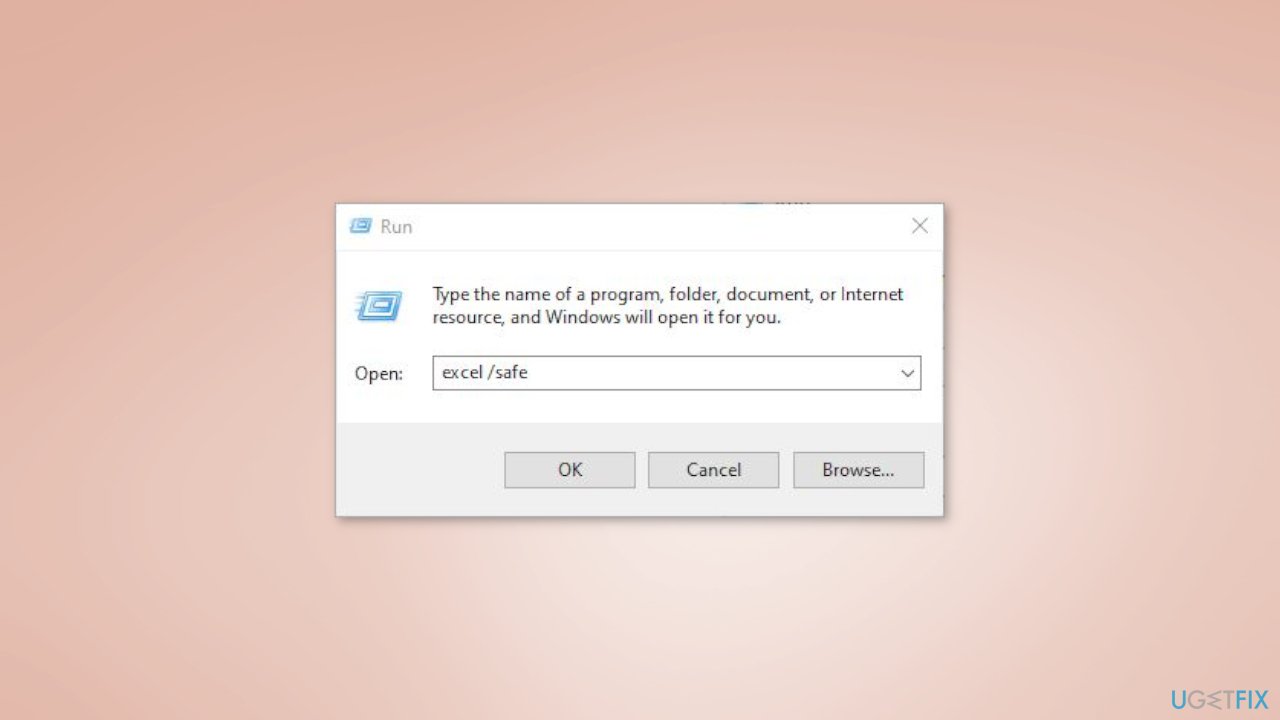
- After typing the appropriate command, click on the OK button
- The program you selected will launch in safe mode
Solution 2. Disable Add-ins
- Open the problematic application
- Navigate to the Options menu
- Click on the Add-ins tab
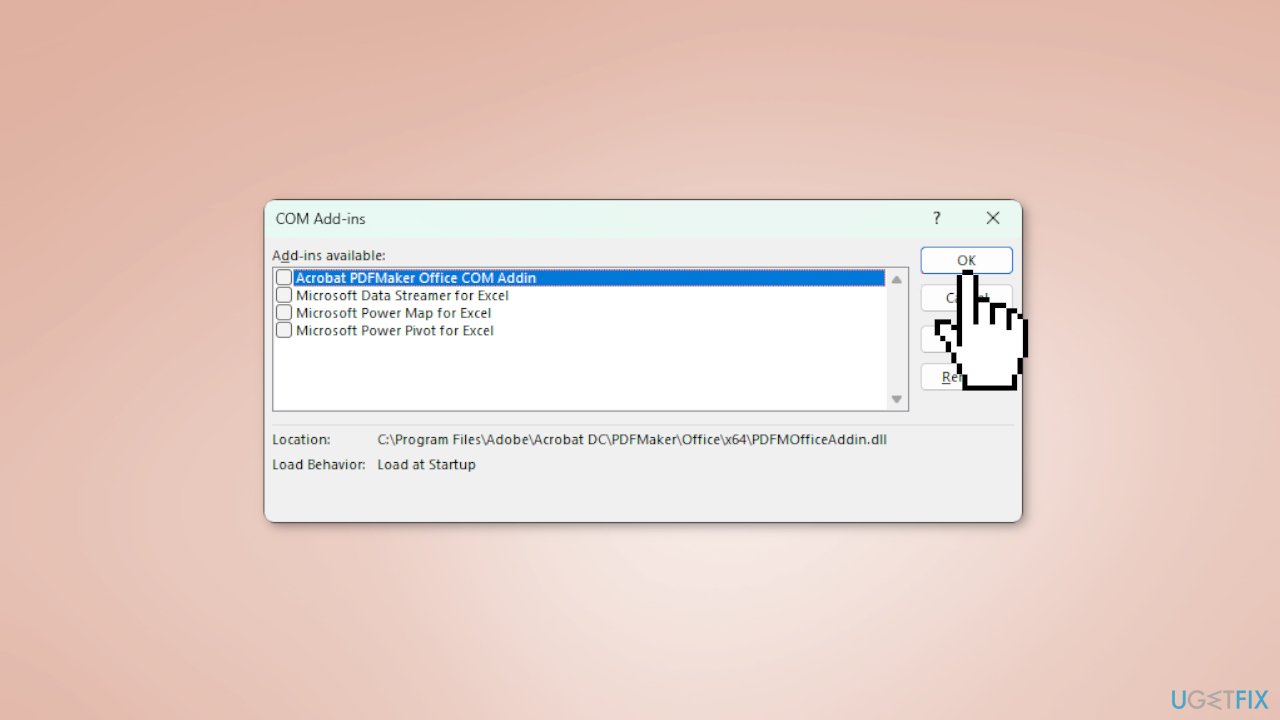
- Next to the Manage field, select COM Add-ins from the dropdown list
- Click on the Go button
- Uncheck all the add-ins listed in the COM Add-ins dialog box
- Click on OK to confirm and exit the dialog box
- Close the problematic app
- Reopen the app to see if the issue has been resolved
Solution 3. Update Office Apps
- Open the relevant Office app (e.g. Word, PowerPoint, Outlook, Excel)
- Click on the Account button located in the menu bar
- Look for the Update options button and click on it
- Select the Update now option from the dropdown menu
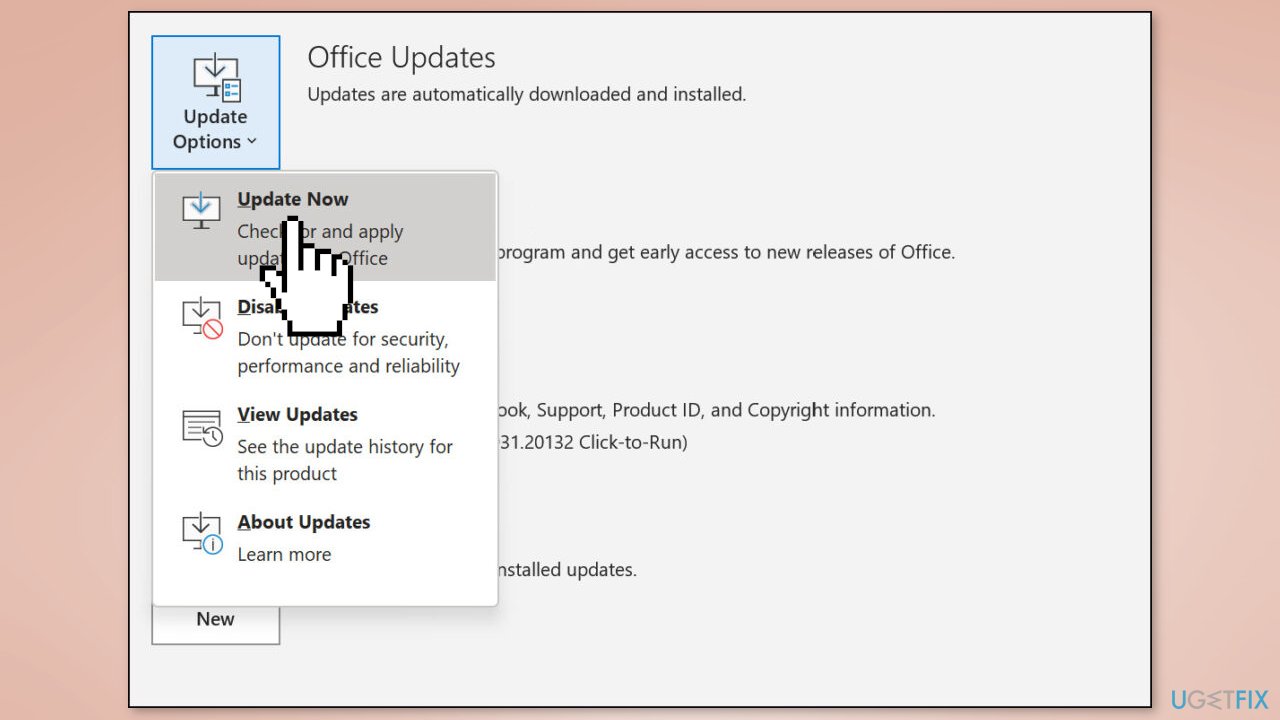
- Wait for the update process to finish
- If the option Receive updates for other Microsoft products is enabled, the Office app will be updated automatically through Windows update
- Once the update process is complete, the Office app will restart to apply the updates
Solution 4. Repair Office
- Press the Windows key + I to open Windows Settings
- Click on the Apps option
- Look for the Installed apps tab and click on it
- Scroll down or use the search bar to find the Microsoft Office app
- Click on the three horizontal dots located next to the app name
- Choose the Modify option from the dropdown menu
- In the new window, select the preferred repair option
- Click on the Repair button to initiate the repair process
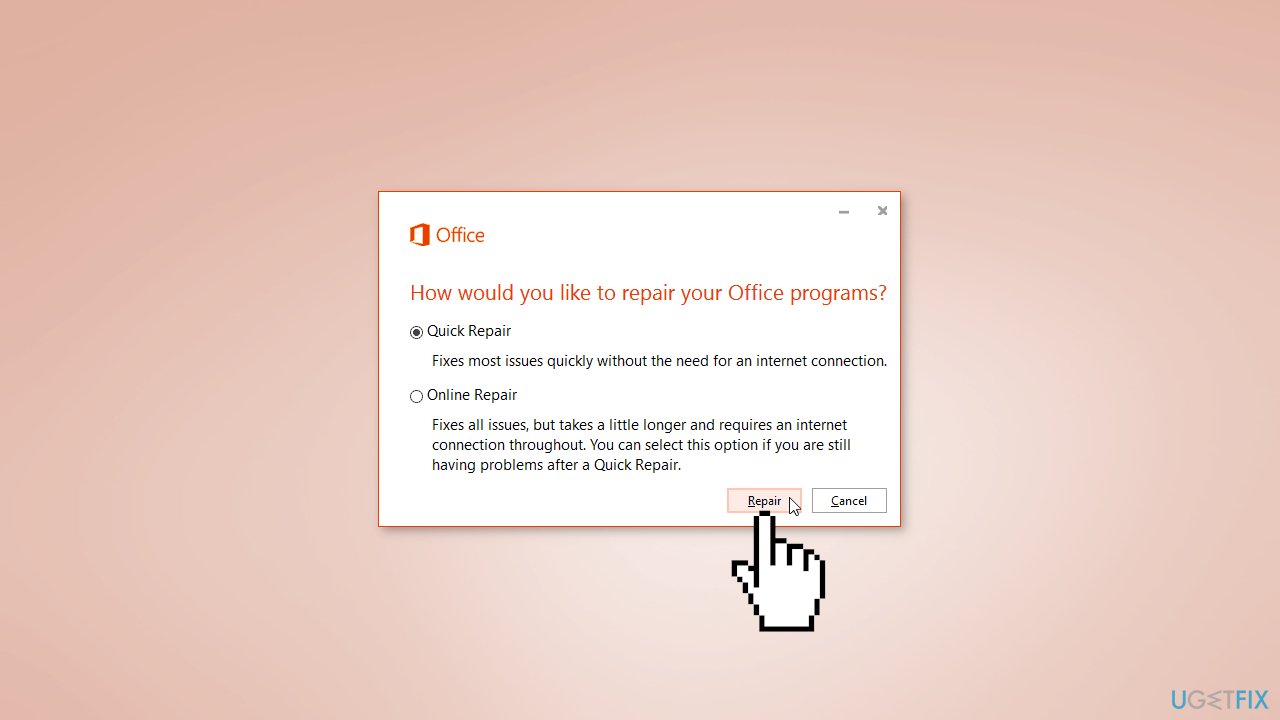
- Wait for the repair process to complete
- Once the repair process is complete, close the settings window
Solution 5. Reinstall Office
- Open Windows Settings and click on the Apps option
- Look for the Installed apps tab and click on it
- Find the Microsoft Office app and click on the three vertical dots located next to it
- Choose the Uninstall option from the dropdown menu
- Follow the on-screen instructions to complete the uninstallation process
- Restart your computer to ensure all remnants of the old installation are removed
- Open a web browser and go to the Microsoft account website
- Sign in to your Microsoft account
- Navigate to your subscription page
- Look for the Microsoft Office or Microsoft 365 subscription and click on Manage
- Click on Install Office and download the installer file
- Once the installer file is downloaded, run it to begin the installation process
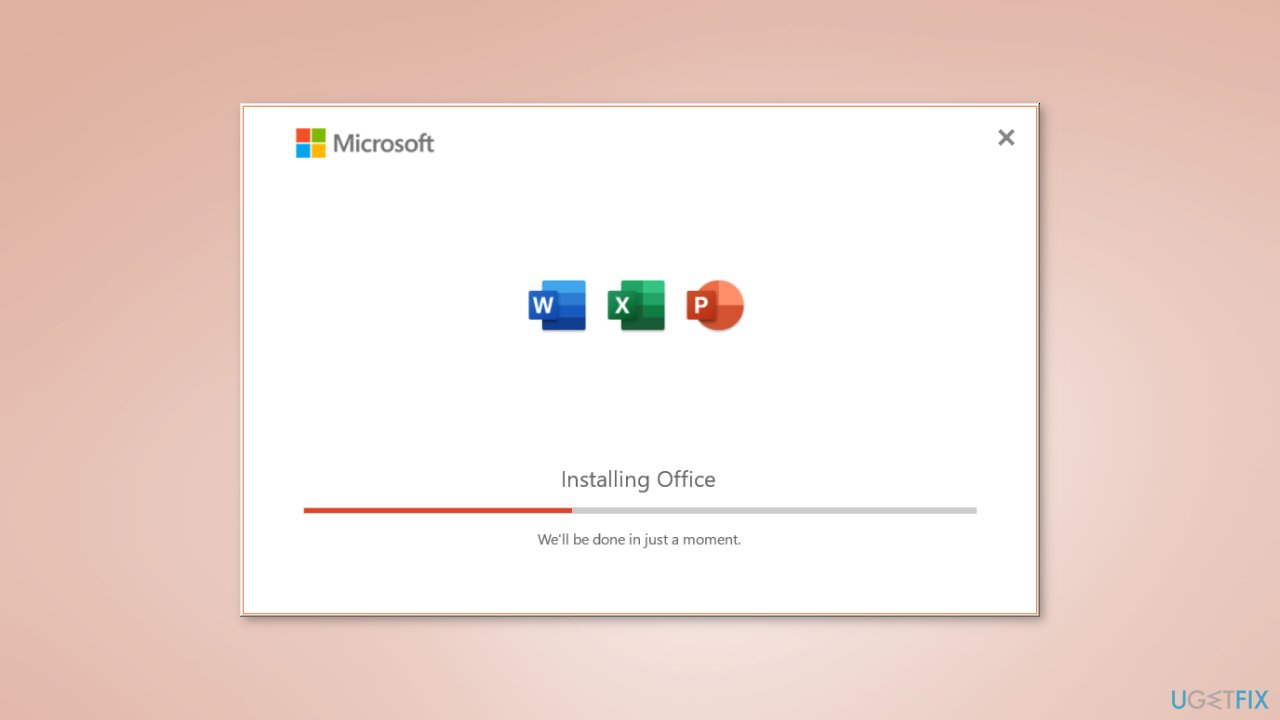
- Follow the on-screen instructions to install Microsoft Office on your computer
Solution 6. Try Clean Boot
- Open the Search menu, type in system configuration, and press Enter
- Under the Services tab, tick the Hide all Microsoft services box
- Click on Disable all button
- Head over to the Startup tab and click on Open Task Manager
- Select a third-party program and click on Disable at the top
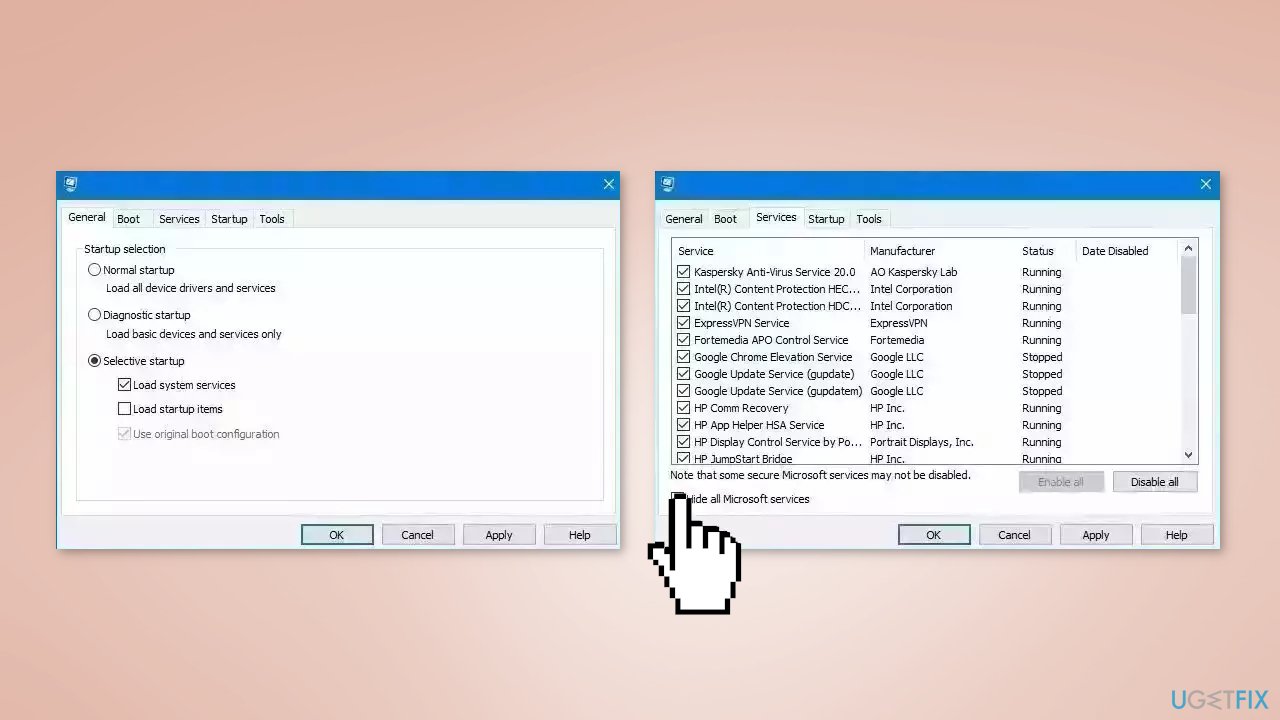
- Repeat this step to disable all third-party apps and programs
- Restart your PC to enter the clean boot state and see if the issue persists
- If the issue disappeared in the clean boot state, then you can be certain that a third-party app is causing it
- Go through all recently installed apps or programs and remove them one by one
Bottom line
The issue of the 'Save As' window popping up can be resolved by repairing or reinstalling the Office application, disabling add-ins, or clearing temporary files. Users may also consider updating or reverting to an earlier version of Office. If none of these solutions work, using a maintenance tool may help fix underlying system errors.
Frequently asked questions
This issue may be caused by a corrupted Office installation or conflicts with add-ins. Try disabling add-ins or repairing your Office installation to resolve the problem.
You can check your auto-recovery settings and ensure that no documents are being automatically saved in an alternate location. Adjusting your settings might help eliminate the unwanted pop-up.
This behavior can occur due to misconfigured printer settings; ensure your default printer is set correctly and update your printer drivers if necessary.




Report an issue
What's wrong with this guide? We review every report and update or remove content.
Report received — thank you. We'll review and fix it.
You need a free account to submit a report.
Be the first to comment