How to fix
“D3D11-compatible GPU is required” error
on Windows
Resolve the "D3D11-compatible GPU is required" error in Windows 10 or 11 and enjoy seamless gaming again. Expert-tested solutions await you!


What causes How to fix “D3D11-compatible GPU is required” error in Windows when launching games?
- Graphics card not powerful enough
- Outdated graphics drivers
- Incompatible graphics drivers
- Computer does not meet minimum system requirements
Repairs Windows system files, removes malware, and restores a clean OS state — without reinstalling.
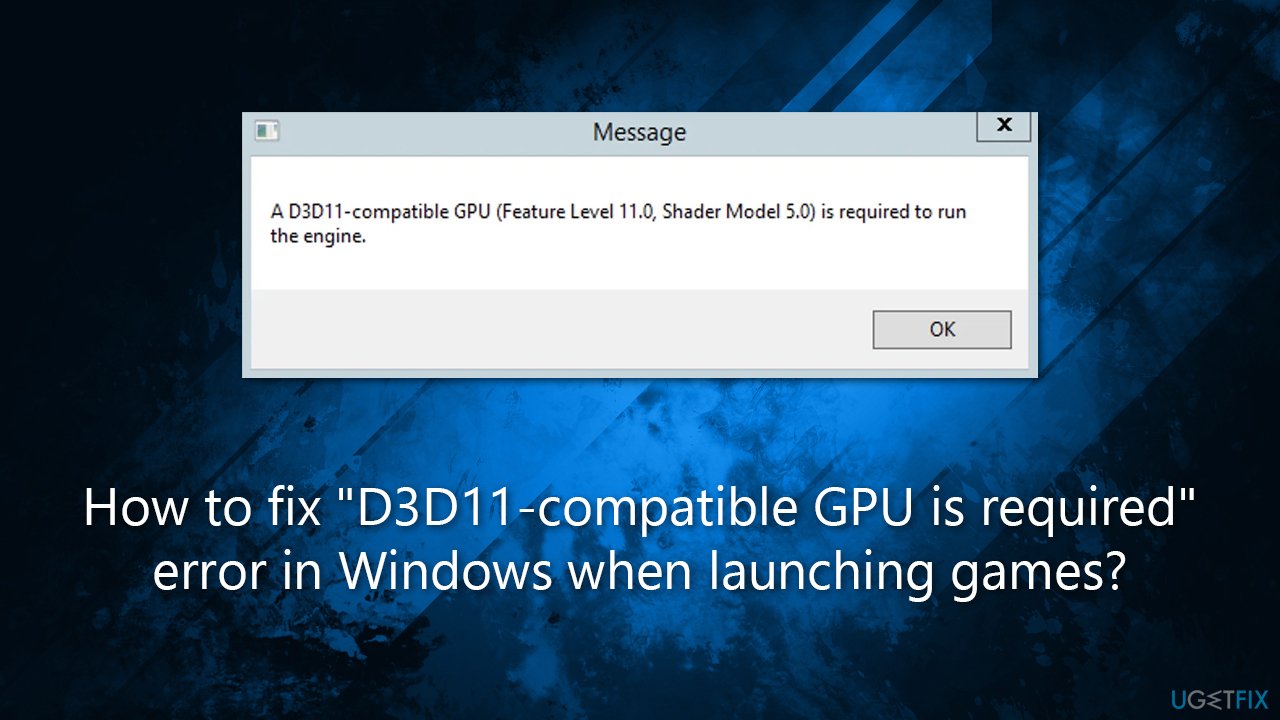
Hi, I have a problem with a game. Everything worked fine till around two days ago when I tried to continue playing Marvel's Midnight Suns and received an error "A D3D11-compatible GPU (Feature Level 11.0, Shader Model 5.0) is required to run the engine."
The "D3D11-compatible GPU (Feature Level 11.0, Shader Model 5.0) is required to run the engine" error message is typically encountered by PC gamers when attempting to launch certain video games. It indicates that the game engine used by the game requires a graphics card that is compatible with Direct3D 11, which is a software component of Microsoft DirectX used for rendering 3D graphics.
To be specific, the error message indicates that the graphics card installed in the computer does not support the required hardware features of Direct3D 11, which include Feature Level 11.0 and Shader Model 5.0. Feature Level 11.0 refers to the set of hardware capabilities that a graphics card must have to be compatible with Direct3D 11, while Shader Model 5.0 refers to the specific version of the shading language used by Direct3D 11.
Players can encounter the "D3D11-compatible GPU is required" error whenever they are ternion to launch the game. In most cases, this occurs when they are doing so for the first time, although for others, the error showed up randomly, despite them being able to play the said game with no problems whatsoever. The affected games include Fortnite, Valorant, Marvel's Midnight Suns, and many others.
This error can occur for a few reasons. First, it may be because the graphics card in the computer is not powerful enough to meet the requirements of the game engine. Second, it may be due to outdated or incompatible graphics drivers that are preventing the graphics card from working properly. Finally, it may also be because the computer does not meet the game's minimum system requirements, including having a compatible graphics card.
To resolve the error, users may need to upgrade their graphics card or update their graphics drivers to ensure compatibility with Direct3D 11. They may also need to ensure that their computer meets the minimum system requirements for the game in question.
Protip: if you are having a lot of issues with your Windows PC, we recommend trying the [d1] repair tool, which can quickly and easily replace damaged system files with brand new ones, resolving issues such as BSODs, DLL corruption, registry errors, and more.
1. Check the game requirements
While people who play games tend to purchase pricey hardware, not everyone is so lucky. Plenty of users run older configurations for one reason or another, and that's when running the most modern games might become a problem.
If you are running lower computer specs and received the "D3D11-compatible GPU is required" error while trying to launch the game, you should definitely check the minimum system requirements for it. You can usually find this information on the official website of the game, on Steam (or other gaming platforms), or on specially dedicated websites.
2. Check if your GPU supports Direct3D
Even if your system supports the minimum requirements, your graphics card might lack some support options - Direct3D, to be more precise. To check this, follow these steps:
- Open Windows search, type in dxdiag, and press Enter.
- Select the Display tab in the DirectX Diagnostic Tool window.
- Take a look at the Drivers section - Direct3D should be listed there.
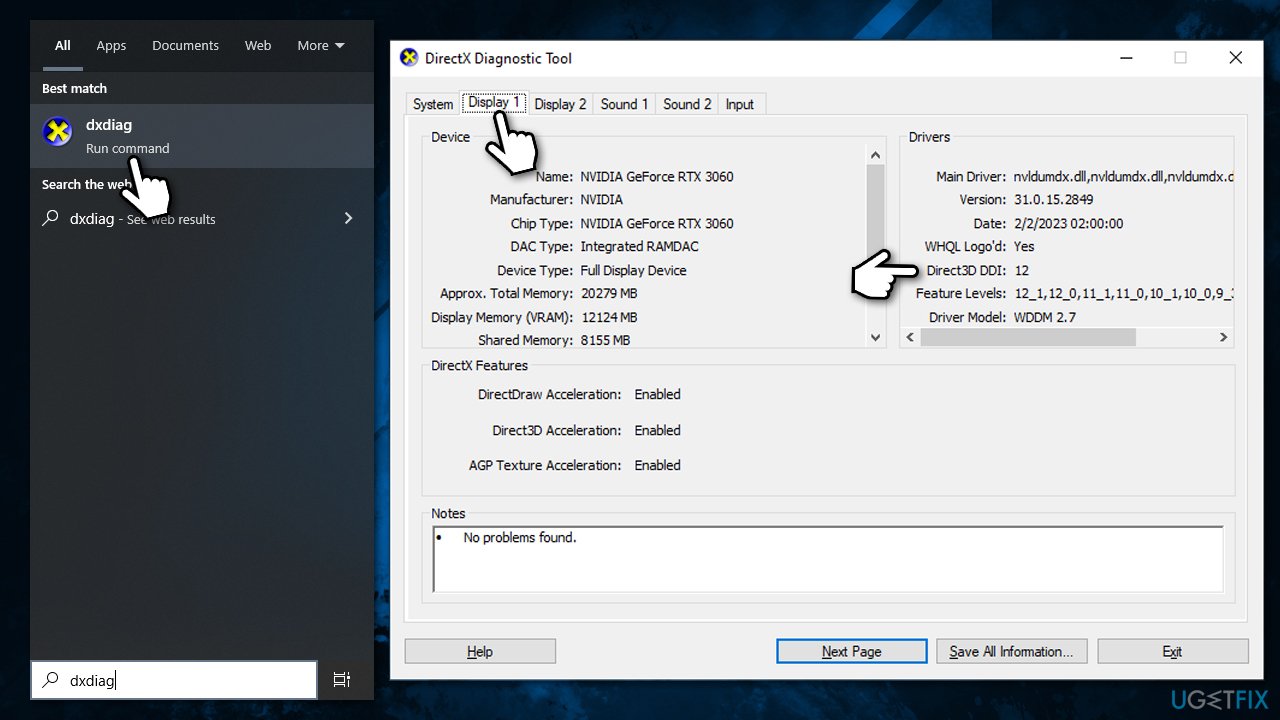
If not, it might be that it is simply not installed. DirectX has been implemented into Windows update delivery for quite a while now, so if you haven't updated your system, try doing that:
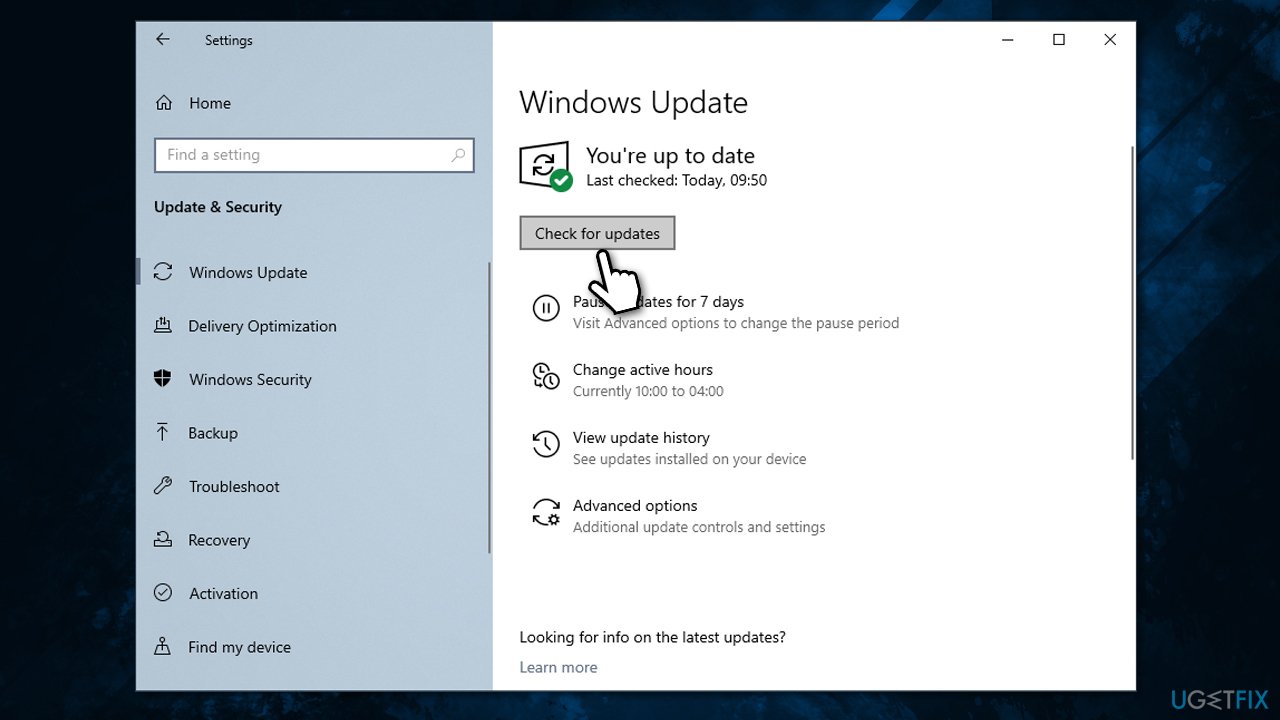
- Type Updates in Windows search and hit Enter.
- Click Check for updates.
- Make sure all the optional available updates are installed (very important!).
- Once done, restart your PC and try playing the game again.
- You can also try downloading and installing legacy DirectX SDK components, although this is only applicable to some older games and won't work on newer ones.
If it still doesn't launch and DirectX doesn't show up in the DirectX Diagnostic Tool window, you need to upgrade your GPU.
3. Try launching with D3D11 enabled
Steam
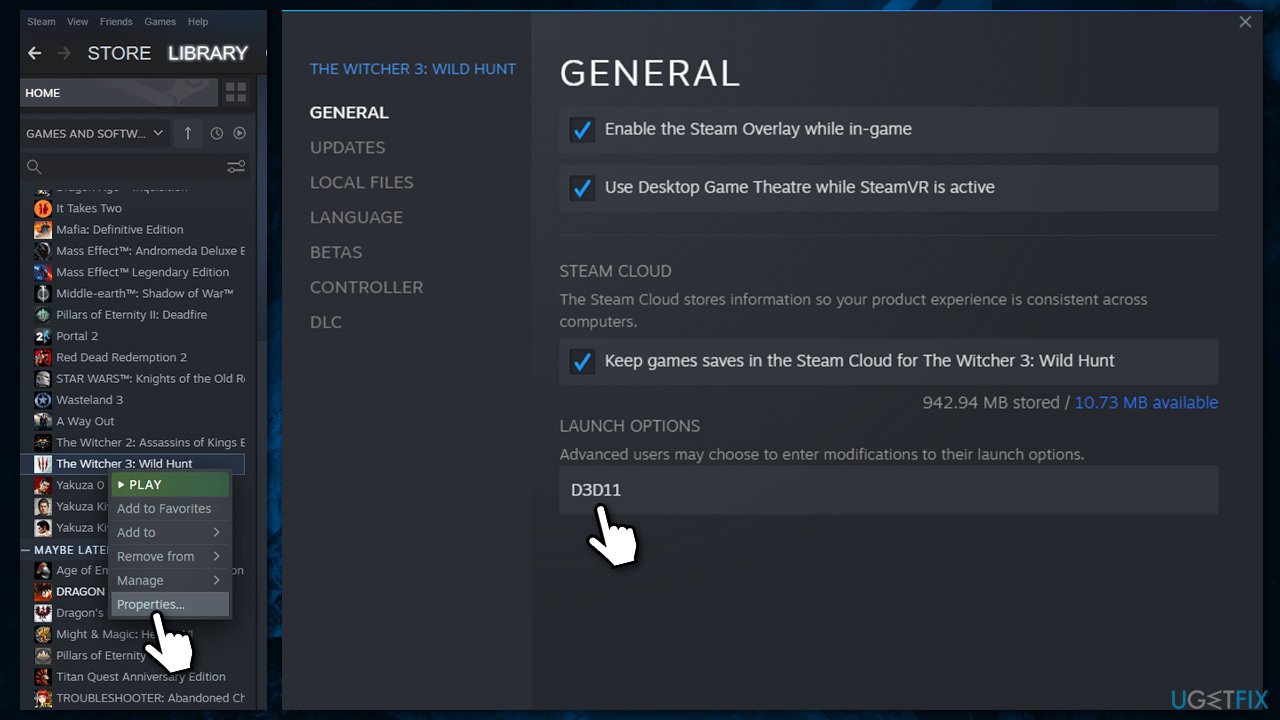
- Open Steam and right-click the game that's not launching.
- Select Properties...
- On the right side of the window, you should see the Launch options section.
- Here, type in D3D11.
- Try launching the game again.
Epic Games
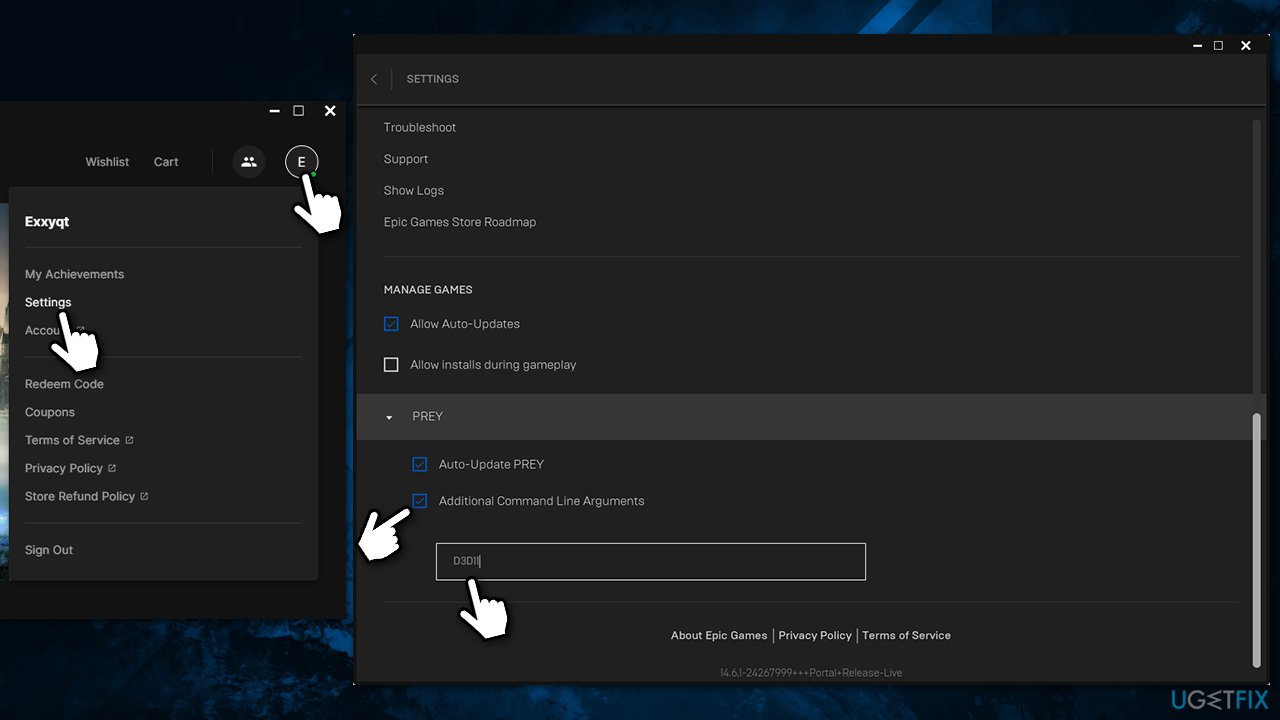
- Open the Epic Games app.
- In the top-right corner, click on your profile picture and select Settings.
- Scroll down to find the game in question and click it.
- Click Additional Command Line Arguments.
- Enter D3D11 into the field.
4. Reinstall GPU drivers
There might be an issue with a driver, so we recommend reinstalling it - here's how:
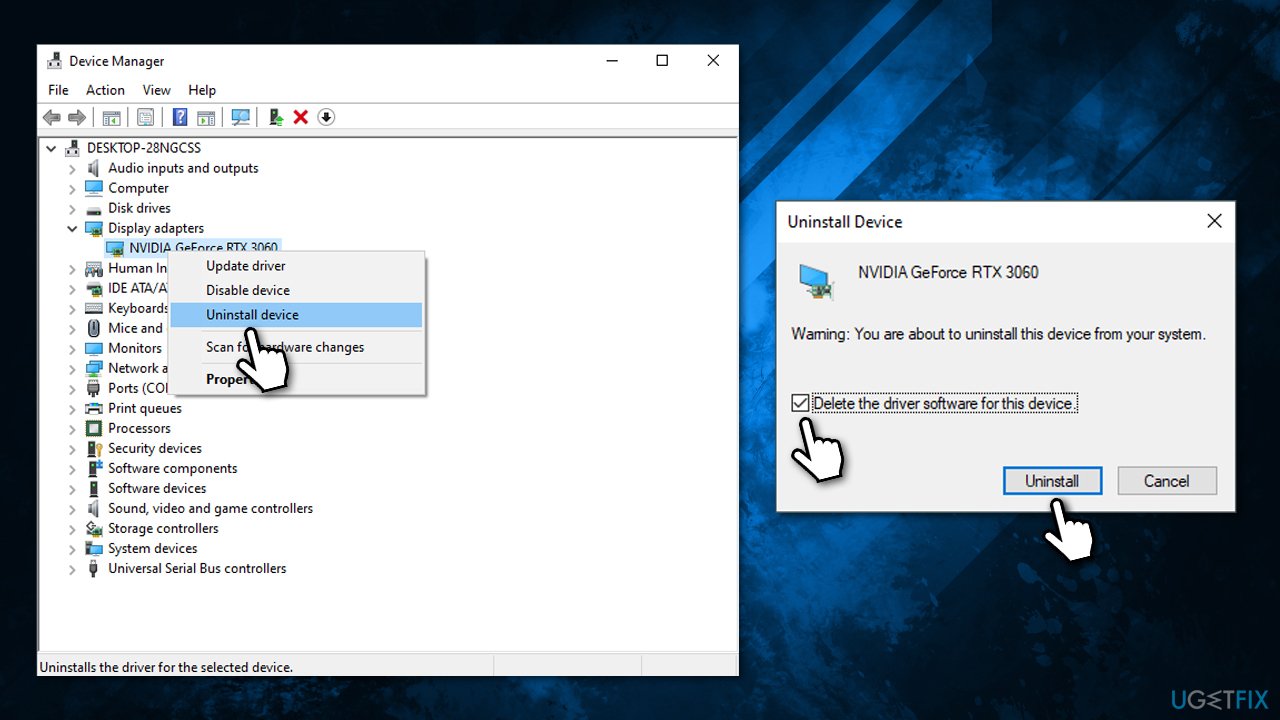
- Right-click on Start and pick Device Manager.
- Here, expand the Display Adapters section.
- Right-click on your GPU and select Uninstall device.
- When prompted, select Delete driver software for this device checkmark.
- Restart your PC.
Once your drivers are uninstalled, you have several ways to install them. If you want the quickest solution, we recommend using an automatic driver updater [rev id="DriverFix"]. Alternatively, you can download the driver for your hardware from the manufacturer's website.
5. Increase the size of the Paging File
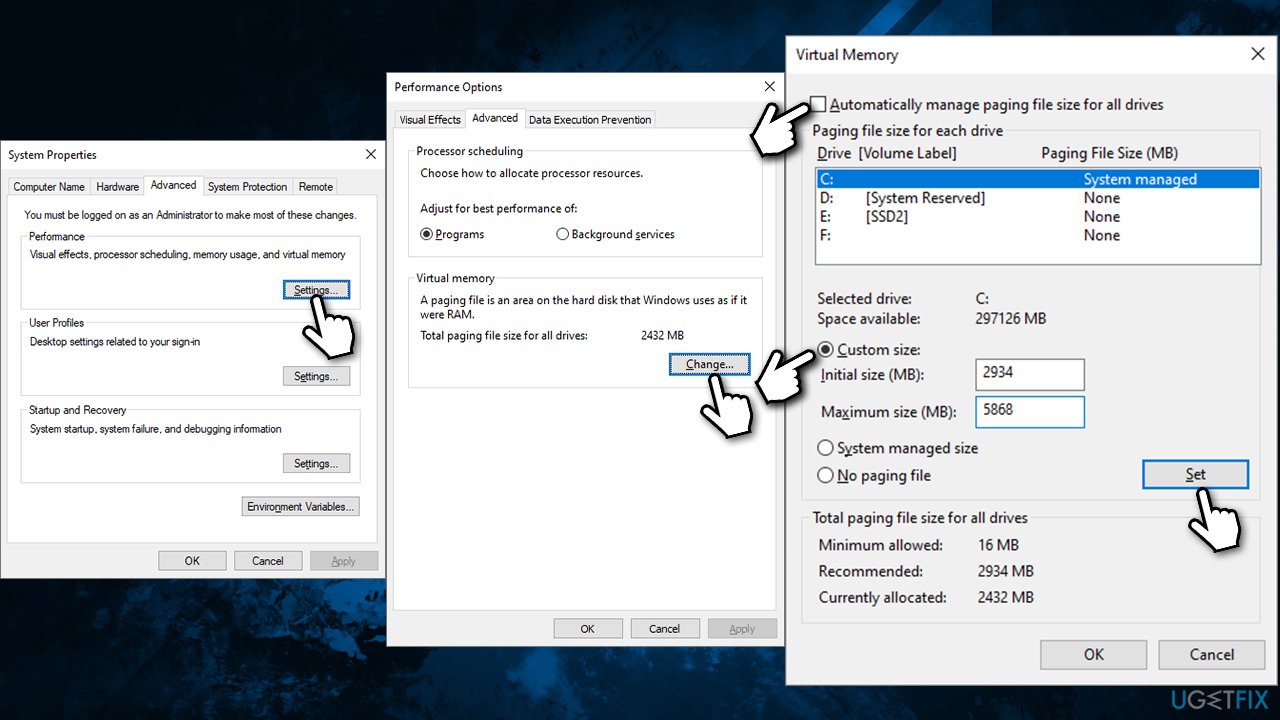
- In Windows search, type in Advanced system settings and press Enter.
- Under the Performance section, click Settings.
- Go to the Advanced tab.
- Under Virtual Memory, select Change.
- Untick the Automatically manage paging size for all drives option (make sure your main drive is selected - C: is the default).
- Select Custom size.
- At the bottom, check the Recommended memory size and type it into the Initial size (MB) field.
- In the Maximum size (MB) field, enter twice a bigger number than that in the Initial size section.
- Click Set and OK.
Bottom line
To resolve the 'D3D11-compatible GPU is required' error, users may need to upgrade their graphics card or update their graphics drivers. Additionally, they should ensure their computer meets the game's minimum system requirements. If none of these solutions work, further troubleshooting may be necessary.
Frequently asked questions
This error indicates that your graphics card does not support Direct3D 11, which is necessary for running certain games on Windows 10 or Windows 11.
You can check your GPU compatibility by opening the DirectX Diagnostic Tool (dxdiag) and looking under the Display tab to see if it lists Direct3D 11 support.
If your GPU is not compatible, consider upgrading to a newer graphics card that supports Direct3D 11, or you may need to run games that require lower graphics capabilities.




Report an issue
What's wrong with this guide? We review every report and update or remove content.
Report received — thank you. We'll review and fix it.
You need a free account to submit a report.
Be the first to comment