How to fix
“Internet Connection Error” in Outriders
on Windows
Resolve the "Internet Connection Error" in Outriders on Windows 10 or 11 effortlessly. Expert-tested solutions ensure quick fixes with zero traces left.

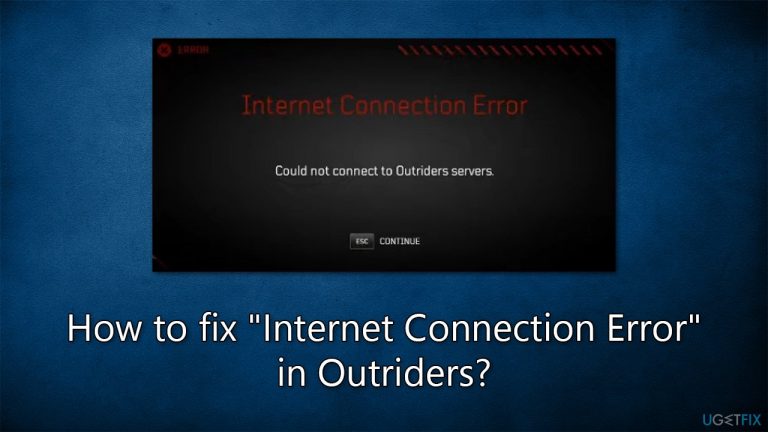
What causes How to fix “Internet Connection Error” in Outriders?
- Unstable servers from Square Enix
- Issues when trying to play with friends
- Problems when attempting to join a party
- Error occurring during game launch
- Persistent connection issues over time
Repairs Windows system files, removes malware, and restores a clean OS state — without reinstalling.
Hi, I was about to launch Outriders when I suddenly got the "Internet Connection Error - Could not connect to Outriders servers." I am not sure how to fix this error, so any tips would be appreciated. I am running Windows 10 22H2.
Outriders is a third-person shooter that combines action, cooperative gameplay, and role-playing elements. It is an online-only game published by Square Enix and was made available on April 1, 2021, for various platforms, including Microsoft Windows, PlayStation 4, PlayStation 5, Xbox One, Xbox Series X/S, and Stadia.
Despite its mixed reception due to launch technical issues or poor execution of the story, the game remains relatively popular, and there are plenty of players who log into it every day. Unfortunately, this became impossible for some users due to the "Internet Connection Error - Could not connect to Outriders servers" in Outriders. It is not surprising that they are annoyed with this because it prevents them from playing the game entirely.
In most cases, the "Internet Connection Error" occurs whenever players attempt to play with a friend or when they try to join a party. This is not always the case, as some people reported that the error occurred even when they attempted to launch the game, preventing them from accessing it.
"Internet Connection Error" in Outriders is mostly caused by Square Enix's unstable servers, so waiting some time might help to solve the issue. However, some people reported that the problem persists throughout days or weeks or might occasionally show up at regular intervals.
Luckily, there are several troubleshooting steps you could do in order to fix the "Internet Connection Error" in Outriders, and we provide them below. We recommend running a PC repair tool [d1] before proceeding in order to exclude any underlying issues that could be affecting your Windows.
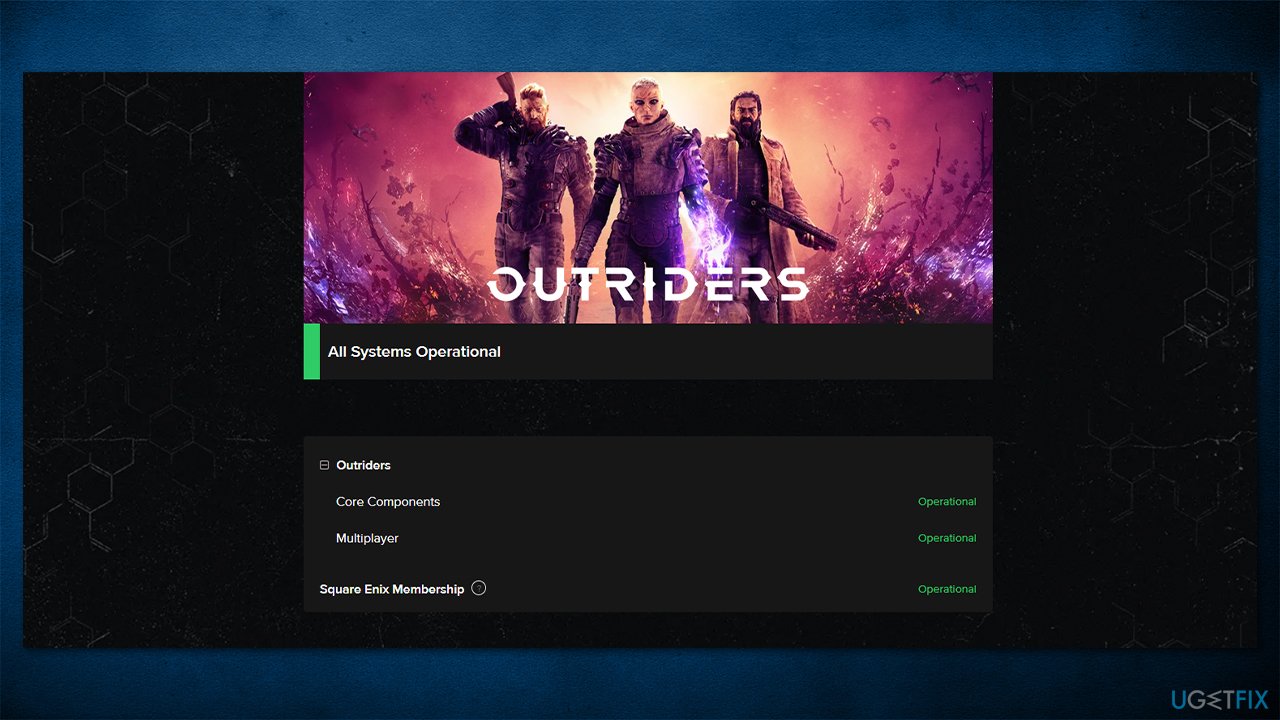
Fix 1. Check the server status
If you can't log into the game, the first troubleshooting step should be checking the server status of Outriders. To do so, you can visit the official status page, or you can also follow the official Outriders Twitter account, where the news about server issues is announced practically immediately. If you notice that servers are offline, nothing can be done about it from your side, unfortunately, and you'll have to wait until Square Enix fixes the issue.
Fix 2. Troubleshoot your internet connection
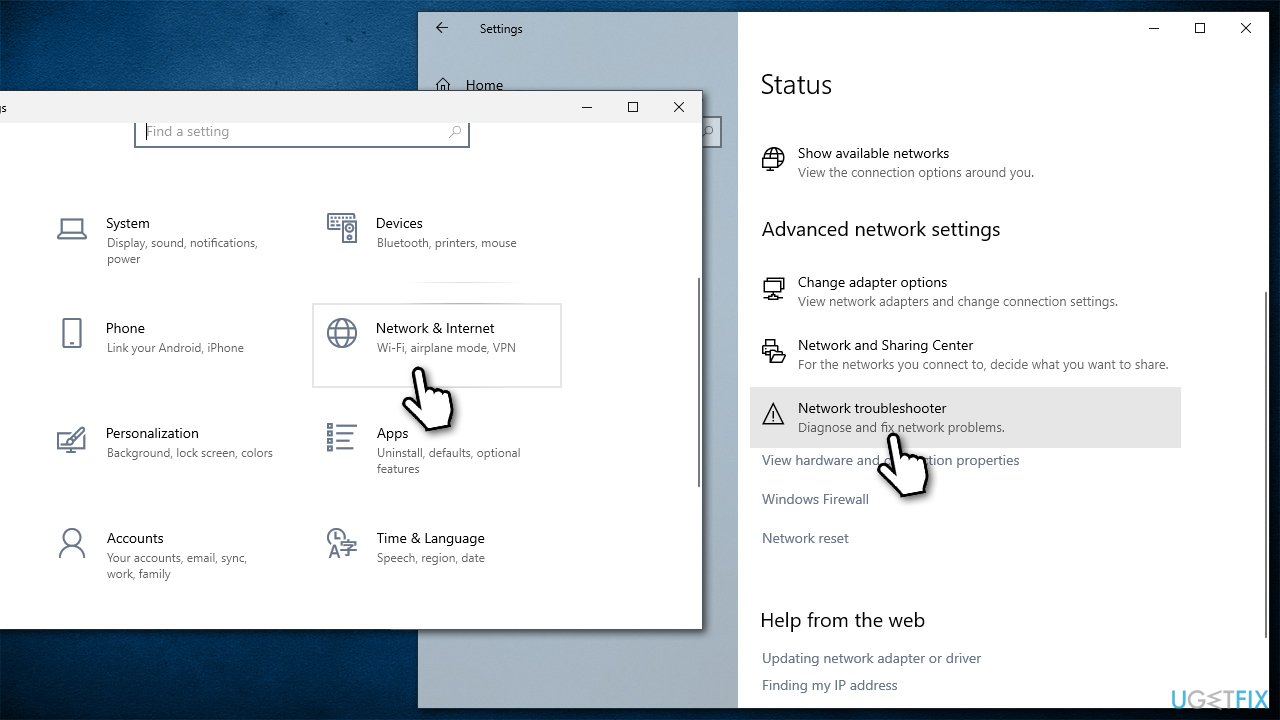
On the other side of the spectrum, your internet connection could also cause the "Internet Connection Error" in Outriders. Thus, we recommend running troubleshooter:
- Right-click on Start button and select Settings.
- Go to Network & Internet section.
- Here, locate the Advanced network settings section.
- Click the Network troubleshooter to run it.
- Wait for the results to show up and apply the suggested fixes.
- If no problems were found, proceed with the next step.
Fix 3. Try a VPN
In some cases, users might be locked out of the game because of the ISP they are using. Some ISPs can be considered unreliable and affect the connection speed drastically. In such a situation, we recommend trying a VPN client such as [rev id="Private Internet Access"], which can change your IP with just a click of a button.
Fix 4. Connect your Steam account to your Square Enix account
Square Enix is notorious for how their infrastructure works - players have issues with accounts or even payments for the game because the whole system is quite confusing. It turns out that the "Internet Connection Error" in Outriders can be caused due to SE account not being linked with the Steam account.
- Open your browser and navigate to the official Square Enix account page.
- If you already have an SE account, log in with your credentials.
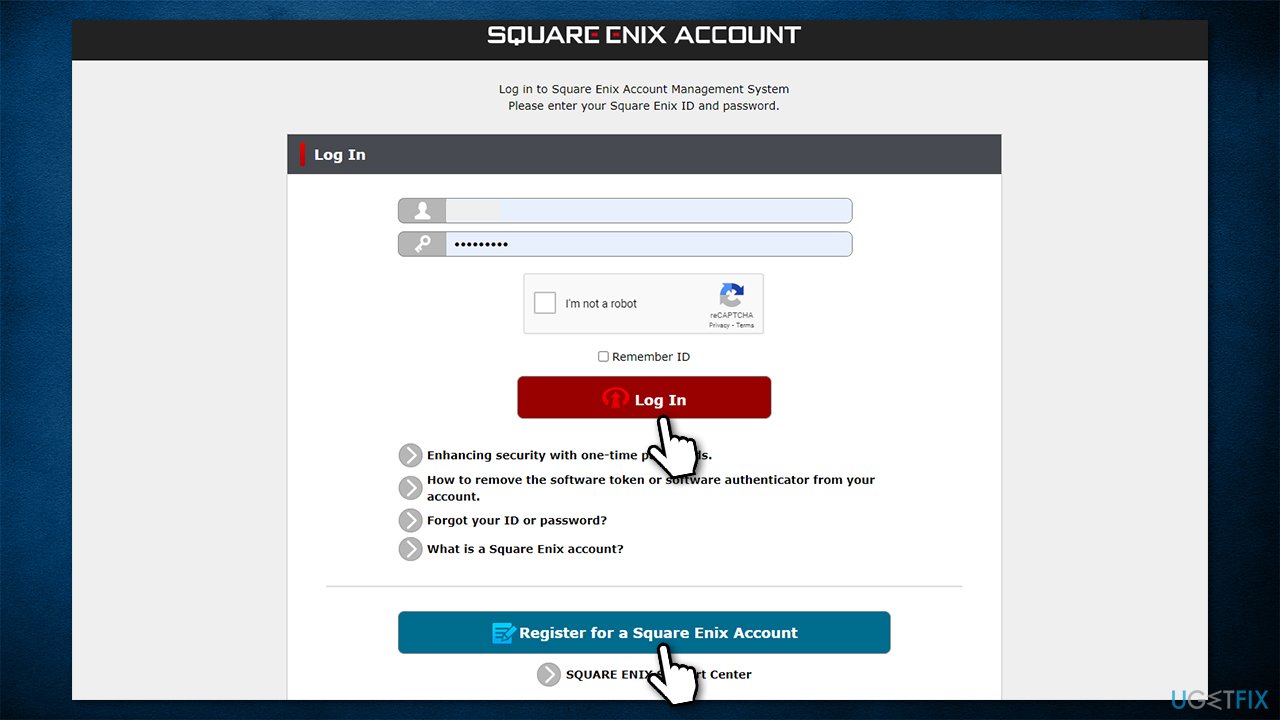
- If you don't have an account, click Register for a Square Enix Account.
- Select your region, choose a password, etc., and then click Next.
- Check your email and verify your account by entering a confirmation code.
- Once the account is created, log into it.
- Next, navigate to the SE Membership page.
- Here, enter your credentials and click Log in.
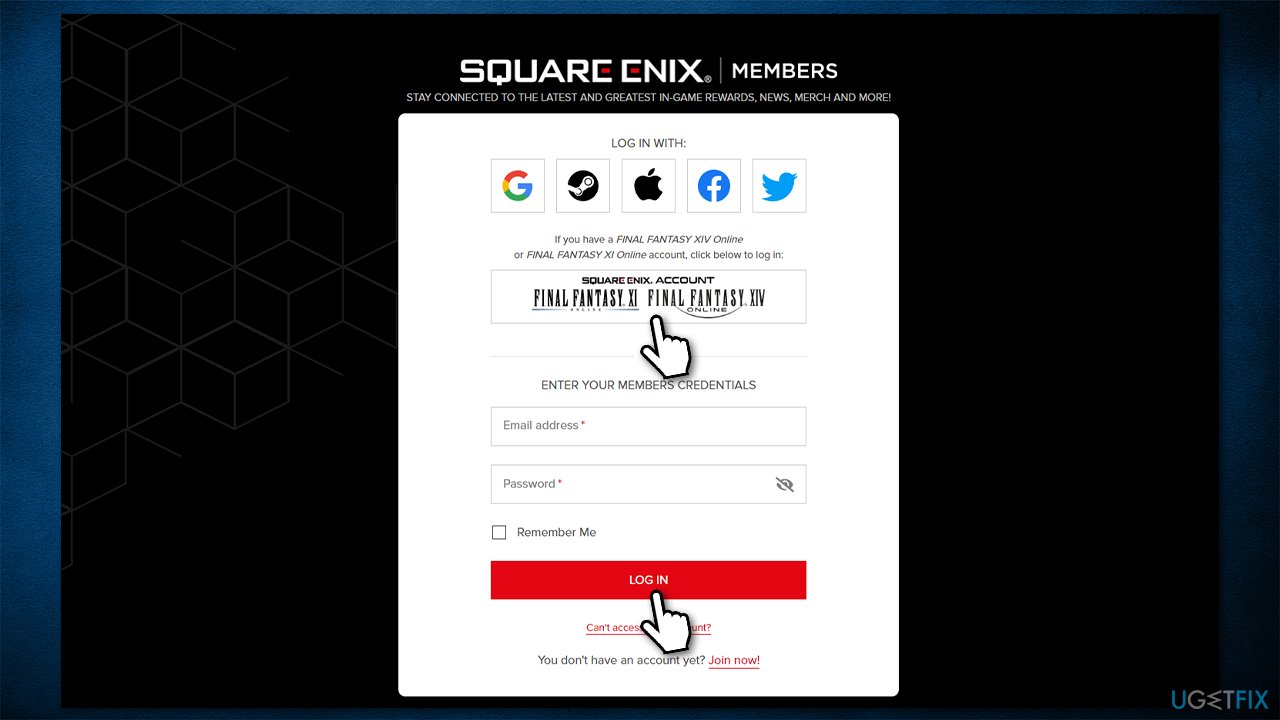
- Enter more needed information and click Save.
- Once logged in, click on your icon at the top-right of the page.
- Click Linked accounts.
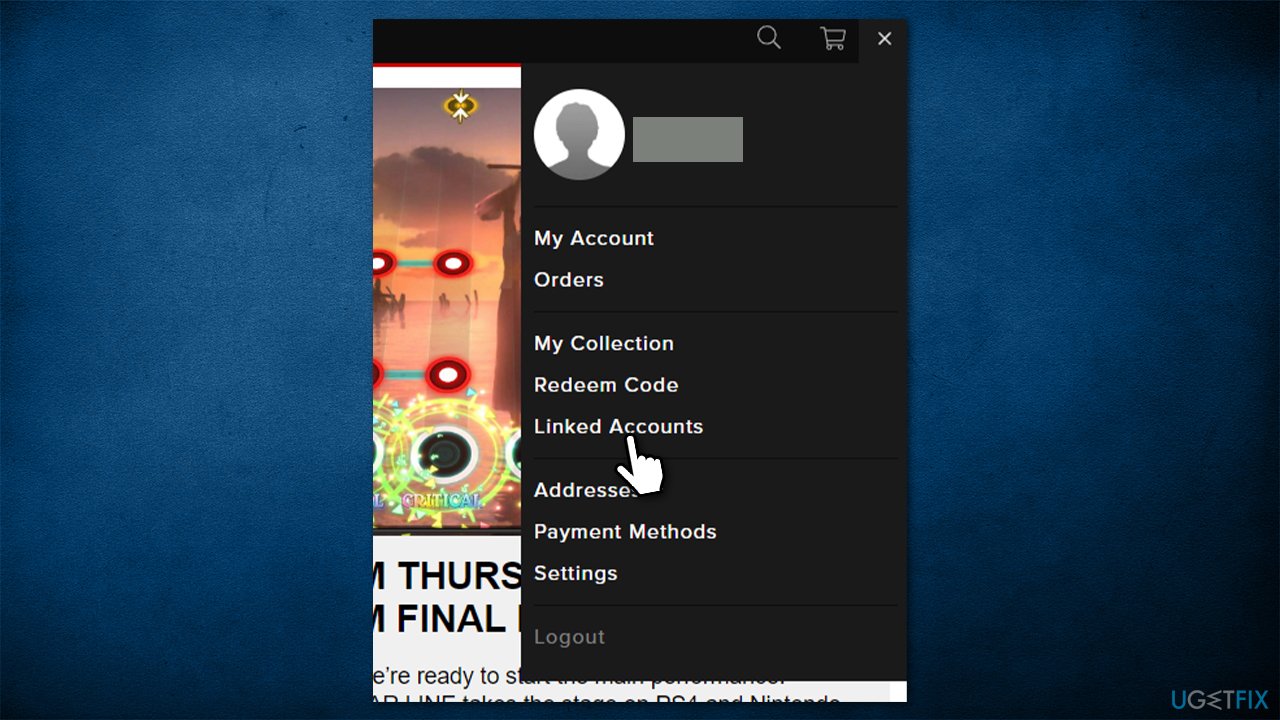
- Click the Seam option, then enter your Steam account credentials.
- Your SE and Steam accounts should be linked now.
Bottom line
To fix the 'Internet Connection Error' in Outriders, you should first check the server status and consider running a PC repair tool to identify any underlying issues. If these steps do not resolve the problem, waiting for server stability or trying again later may be necessary.
Frequently asked questions
Ensure that your internet connection is stable and functioning properly by testing it with other applications or websites. Additionally, check if the Outriders servers are online by visiting the official status page.
You can reset your network settings by going to Settings > Network & Internet > Status, and then selecting 'Network reset' at the bottom of the page. This will remove all network adapters and set your network configuration back to default.
Yes, ensure that Outriders is allowed through the Windows Firewall by going to Control Panel > System and Security > Windows Defender Firewall > Allow an app or feature through Windows Defender Firewall, and making sure Outriders is checked for both private and public networks.




Report an issue
What's wrong with this guide? We review every report and update or remove content.
Report received — thank you. We'll review and fix it.
You need a free account to submit a report.
Be the first to comment