How to fix
File Explorer not refreshing automatically
on Windows
Resolve File Explorer not refreshing issues in Windows 10 and 11 effortlessly. Get expert-tested solutions for a smoother experience, fixed in minutes!


What causes How to fix File Explorer not refreshing automatically in Windows?
- File Explorer does not automatically refresh
- Changes made to files and folders are not immediately reflected
- File Explorer history may be corrupted
- Quick Access may be causing issues
- File Explorer cache may need resetting
Repairs Windows system files, removes malware, and restores a clean OS state — without reinstalling.
Hello. When I try to create a new folder in File Explorer I cannot see it. I think that it stopped refreshing automatically. What should I do?
File Explorer is a built-in file management tool in Windows that allows users to navigate and manage files and folders stored on their computer's hard drive or external storage devices. Users can use it to browse files, copy, move, and delete them, create new folders, and manage file properties.
One common problem that users may encounter when using File Explorer is that it does not automatically refresh. As a result, when users add, delete, or modify files and folders, the changes may not be immediately reflected in File Explorer. To see the updated information, users may need to manually refresh the window by pressing the F5 key or clicking on the refresh icon.
The issue of File Explorer not refreshing automatically can have a number of implications for users. It may cause confusion and frustration for users who are unable to see the updated information, resulting in file management errors. Users may, for example, delete a file that they thought was already deleted, or they may copy or move the incorrect file or folder to a different location.
There are several possible solutions to the problem of File Explorer not automatically refreshing. Manually refreshing the window by pressing the F5 key or clicking on the refresh icon is one option. Another option is to enable the "Automatically expand to current folder" option in the Folder Options menu, which allows File Explorer to automatically refresh the view when a new folder is opened. Clearing the File Explorer history, disabling Quick Access, and resetting the File Explorer cache may also help to solve this issue.
In this guide, you will find 6 steps that should help you fix File Explorer not refreshing automatically in Windows. If you want to try an automatic solution, you can try a repair tool like [d1]. It can fix most system errors, BSODs,[ref en-1] corrupted files, registry[ref en-2] issues, or clear cookies and cache.[ref en-3] Otherwise, follow the step-by-step instructions below.
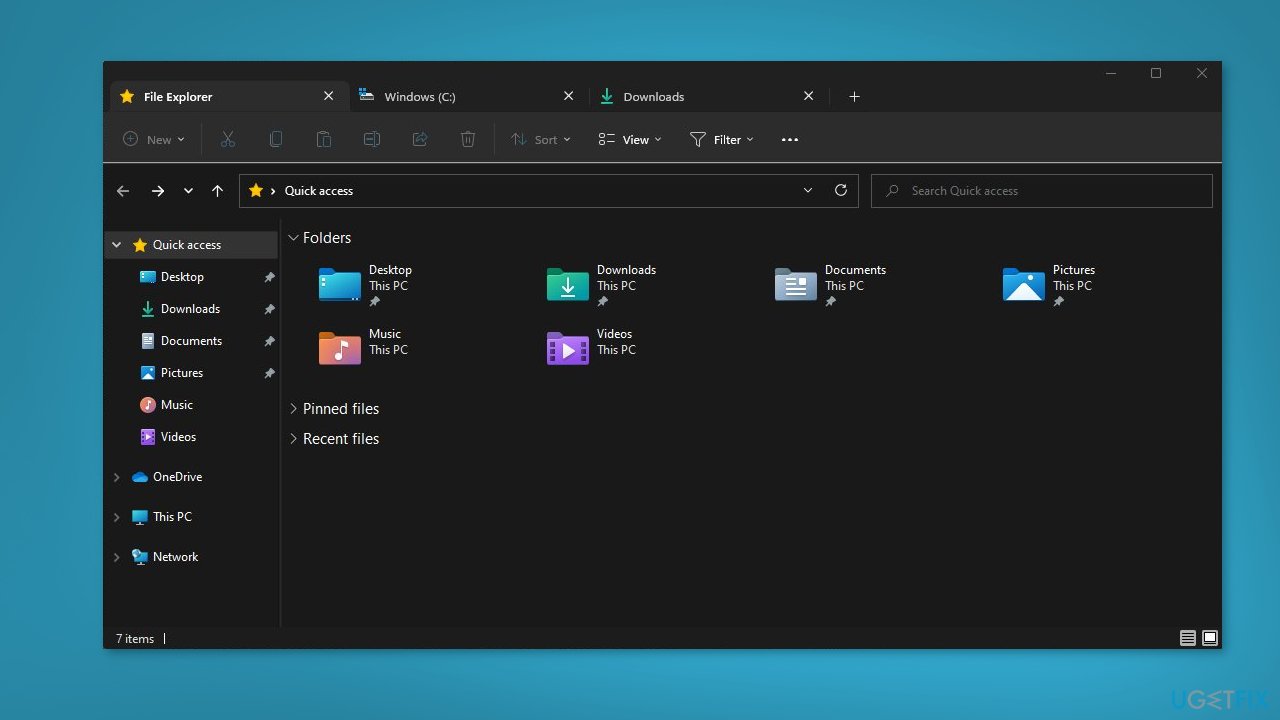
Solution 1. Restart your PC
Restarting your PC can fix any startup issues that may cause Windows auto refresh problems or other issues affecting your computer.
- Click on Start
- Select Power from the drop-down menu
- Click on Restart to restart your PC
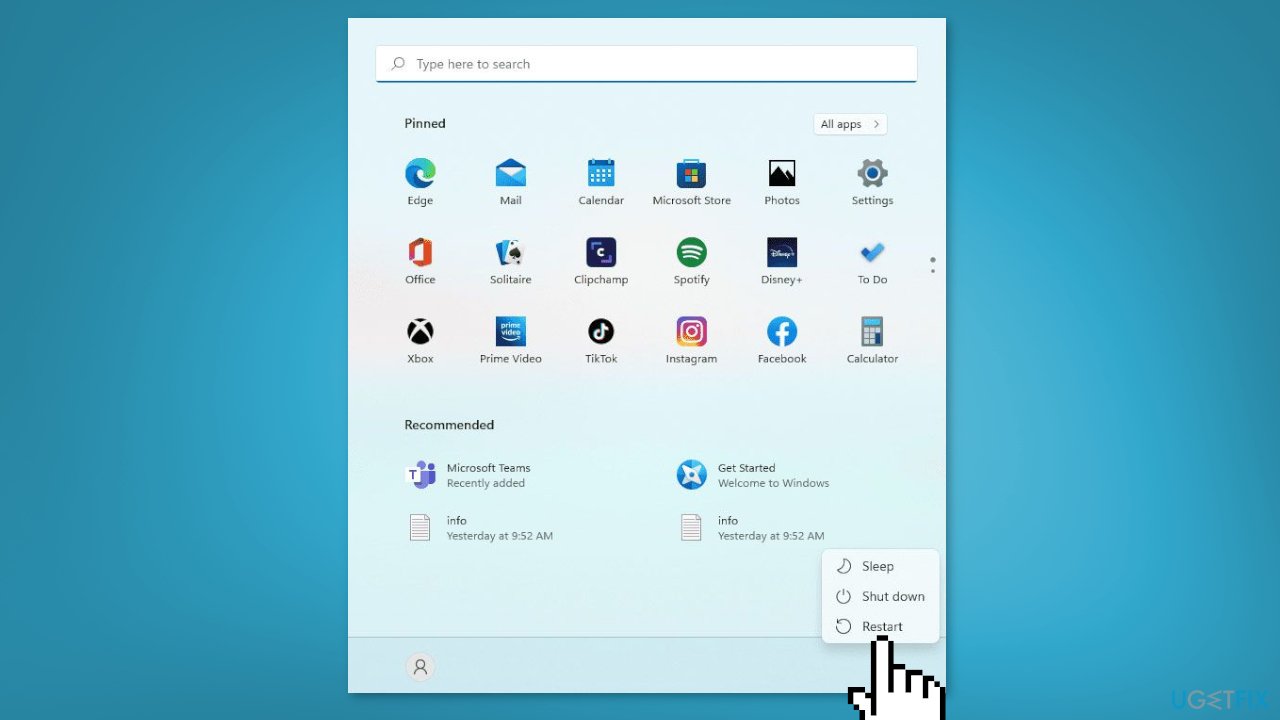
Solution 2. Install Windows Updates
- Press the Windows key + R to open the Run box
- Type ms-settings:windowsupdate in the text box and press Enter
- Click the Check for updates button
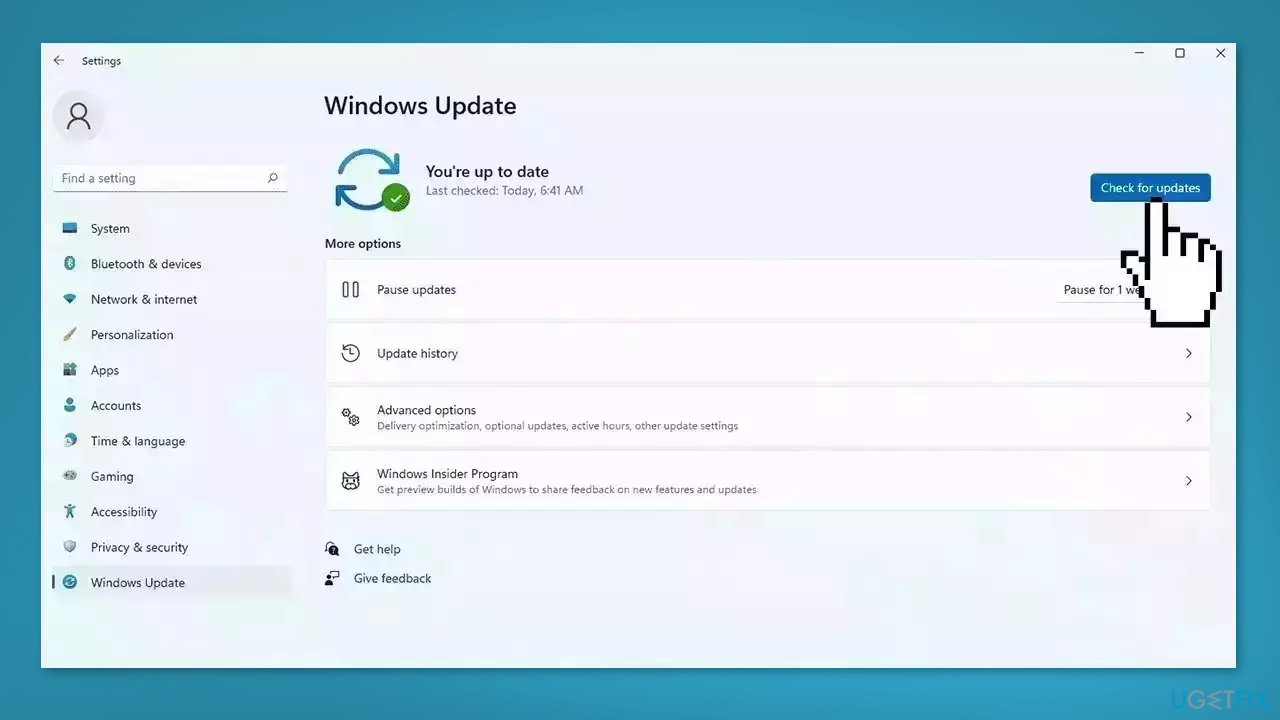
- If a new update is available, click the Download & Install all button.
- Restart your computer after the process is finished and check to see if the problem is fixed
Solution 3. Update Drivers
Outdated drivers could be the cause of this issue. In this case, you can fix it automatically by using [rev id="DriverFix"], which will scan your PC for missing and out-of-date device drivers. Or you can update them manually:
- Open Settings
- Click on Update & Security
- Click on Windows Update
- Click the Check for updates button
- Click the View optional updates option
- Click the Driver updates tab
- Select the driver you want to update
- Click the Download and install button
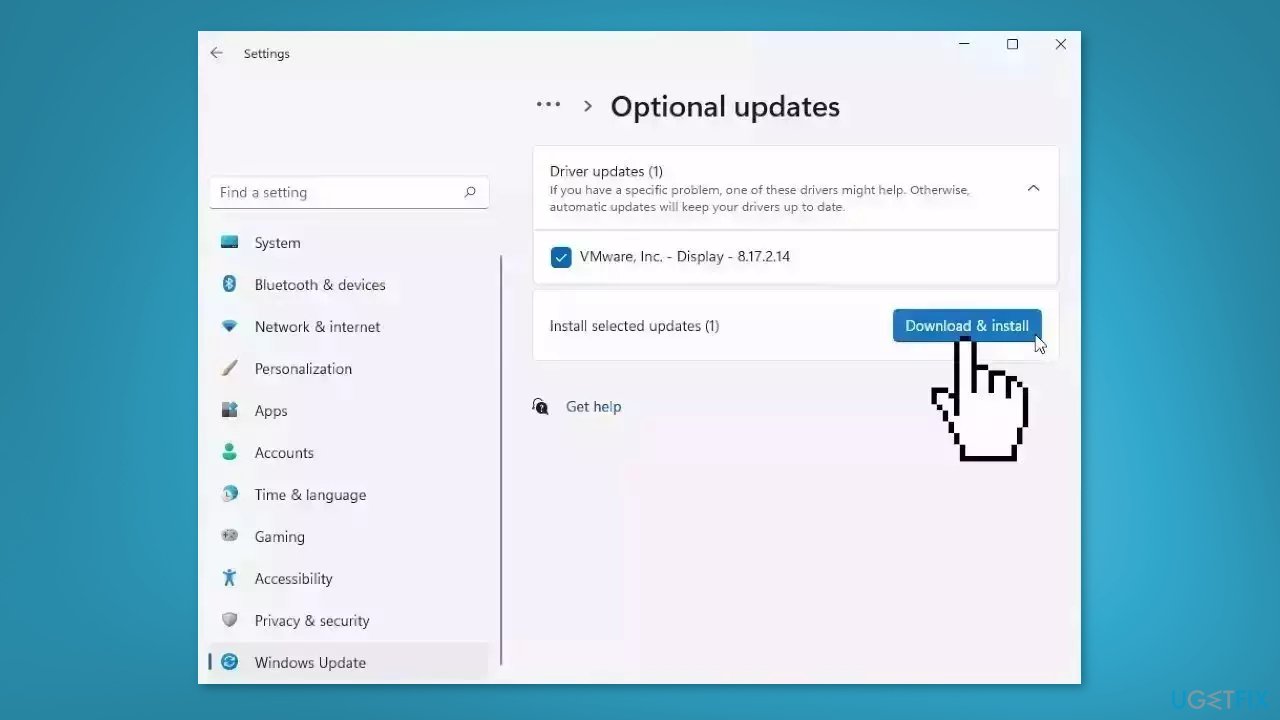
If the View optional updates link is not available after checking for updates, then Windows Update does not have any new drivers or any updates for other products at that particular time.
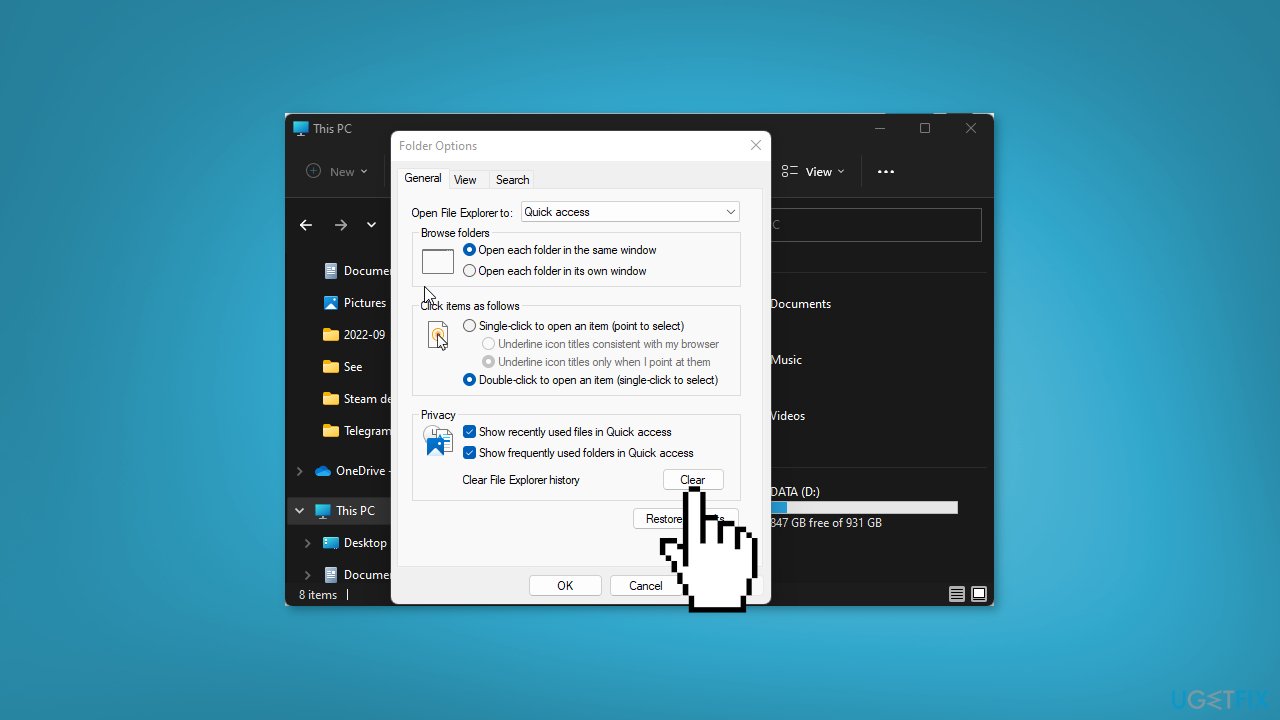
Solution 4. Clear File Explorer History
- Open File Explorer and click on the three horizontal dots
- From the list, click on Options
- Go to the General tab and click on Privacy
- Tap on Clear
- Press OK to confirm the action
Solution 5. Run netsh and winsock reset
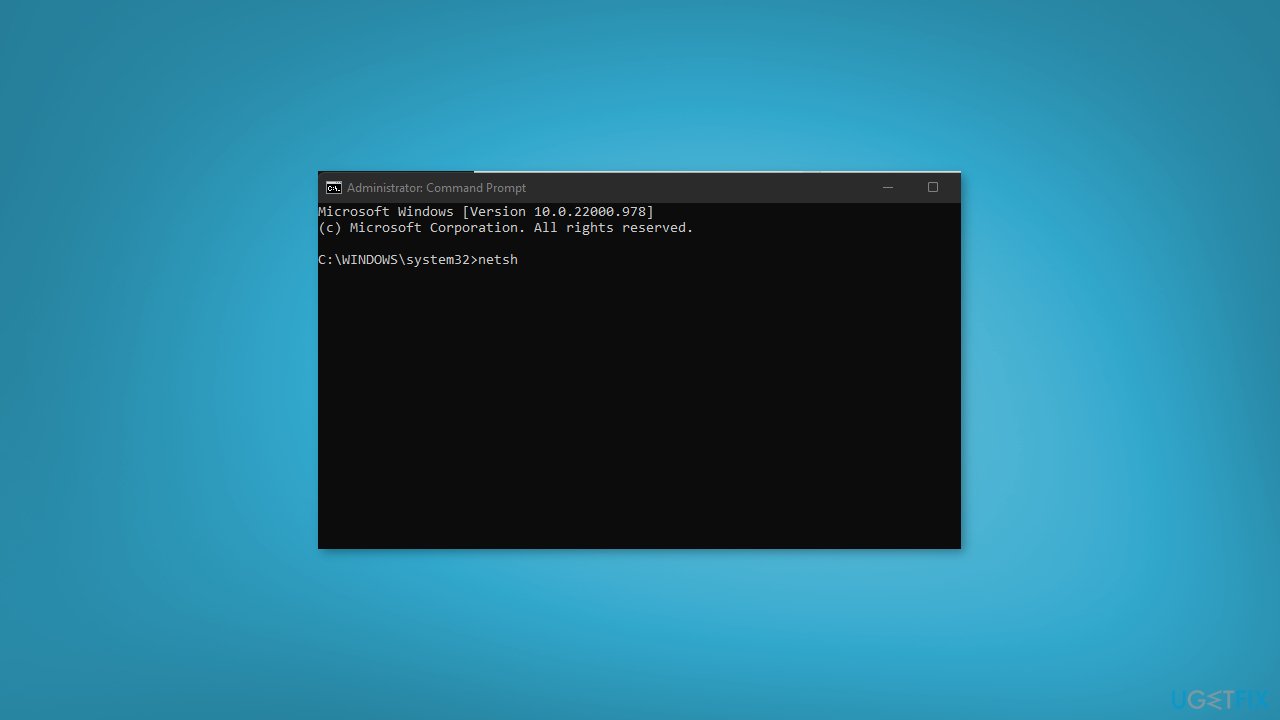
- Click on Start and input cmd in the search bar
- Right-click on Command Prompt
- Select Run as administrator
- Type the following commands and press Enter after each one:
netsh
winsock
reset
Solution 6. Create a new User Profile
- Press the Windows key + X to open the Quick menu
- Select File Explorer from the list
- Click on the View tab
- Click on Options in the top-right corner of the screen
- Click the View option
- Select Show hidden files, folders, and drives
- Uncheck the box for the Hide protected operating system files option
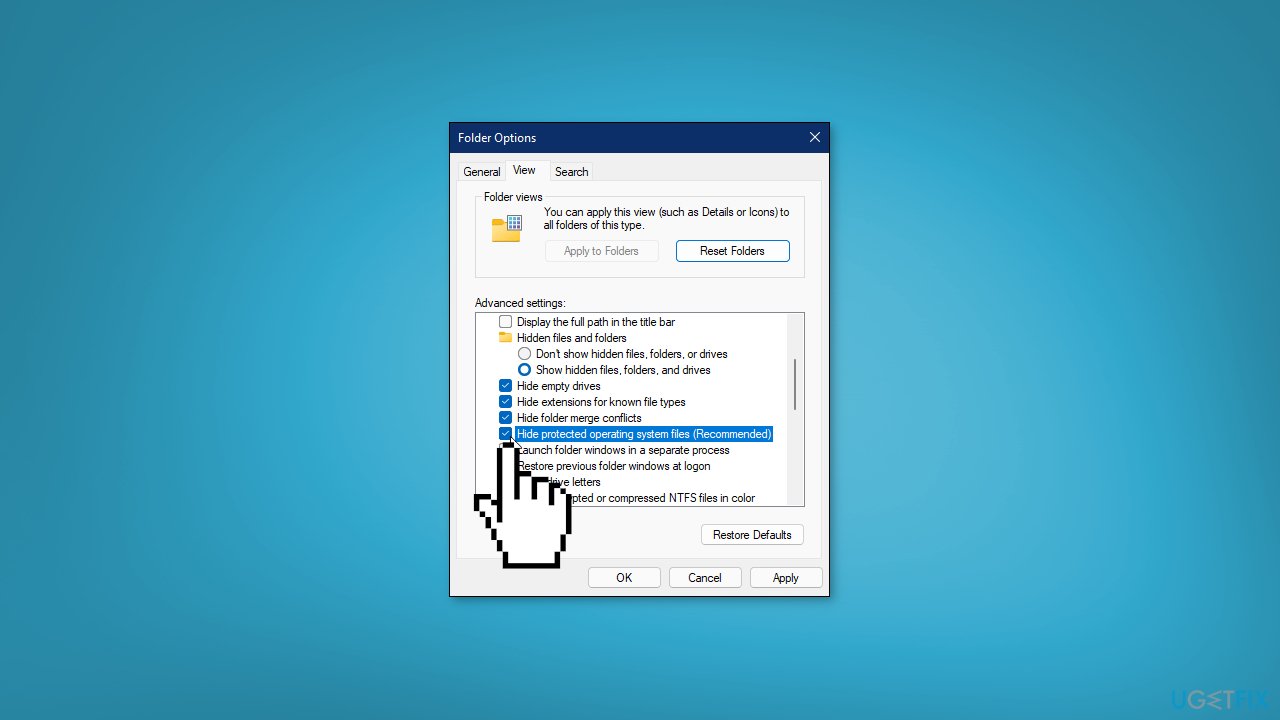
- Click Yes to confirm the action
- Click OK
- Navigate to the following folder: C: UsersOld_Username folder
- Click on the Old_Username profile
- Select all the files and folders in the Old_Username folder (except Ntuser.dat, Ntuser.dat.log, and Ntuser.ini).
- Press Ctrl + C to copy the selected folders
- Navigate to this folder: C: UsersNew_Username
- Click on New_Username
- Press Ctrl + V to paste the files that you copied
- Restart your PC
- Log in with your default profile
Bottom line
To fix File Explorer not refreshing automatically, you can manually refresh the window using the F5 key or the refresh icon. Additionally, enabling the 'Automatically expand to current folder' option, clearing File Explorer history, disabling Quick Access, and resetting the File Explorer cache may help. If none of these solutions work, consider using a repair tool to address potential system errors.
Frequently asked questions
File Explorer in Windows 10 may not refresh automatically due to issues with the system cache or corrupted settings. Try restarting the File Explorer process or resetting its settings to resolve the issue.
To enable automatic refresh in File Explorer on Windows 11, you can adjust the Folder Options settings or clear the thumbnail cache. This often resolves refresh issues.
If File Explorer still fails to refresh automatically after basic troubleshooting, consider running the System File Checker or updating Windows to fix potential system file corruption.




Report an issue
What's wrong with this guide? We review every report and update or remove content.
Report received — thank you. We'll review and fix it.
You need a free account to submit a report.
Be the first to comment