How to fix
“Looks like you’re stranded” Xbox app error
on Windows
Resolve the "Looks like you’re stranded" Xbox app error on Windows 10 and 11 quickly. Get back to gaming with our expert-tested solutions!

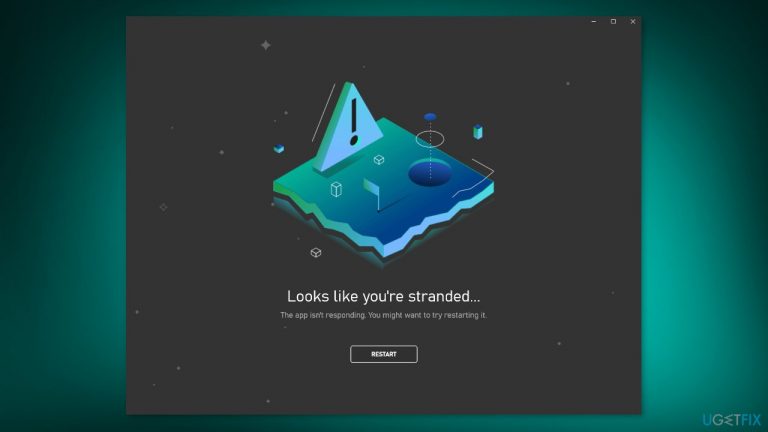
What causes How to fix “Looks like you’re stranded” Xbox app error?
- Unable to connect to the internet
- Xbox servers undergoing maintenance
- Corrupted app data
- Issues with user account authentication
- Network configuration problems
Repairs Windows system files, removes malware, and restores a clean OS state — without reinstalling.
Hello. I tried to use the Xbox app on my Windows PC but I saw the "Looks like you’re stranded" message on my screen. I tried to relaunch the app multiple times with no luck. Any tips to fix this would be appreciated.
The Xbox app is a Windows, Android, and iOS companion app for Xbox console players. Users can use the app to access their Xbox Live account, buy games and other content from the Xbox Store, and chat with friends on Xbox Live. The app can also be used to stream games from an Xbox console to a mobile device or a PC.
When attempting to use the Xbox app's search function, users may encounter the "Looks like you're stranded" error. According to the error message, the app is unable to connect to the internet or communicate with the Xbox servers. Users who are attempting to use the app's features may become frustrated as a result.
Users may be unable to access certain features of the app or connect to Xbox Live if the "Looks like you're stranded" error occurs. This can keep them from buying games or interacting with their friends. Furthermore, users who are unable to access the app's search function may struggle to find the content they seek.
There are several possible solutions to this issue, including checking internet connectivity, ensuring that the Xbox servers are not undergoing maintenance, signing out and back into the app, resetting the app, or contacting Xbox support for further assistance.
In this guide, you will find 6 steps that should help you fix "Looks like you’re stranded" Xbox app error. However, if you think this may be related to underlying system issues, you can use a repair tool like [d1]. It can fix most system errors, BSODs,[ref en-1] corrupted files, registry[ref en-2] issues, or clear cookies and cache.[ref en-3] Otherwise, follow the step-by-step instructions below.
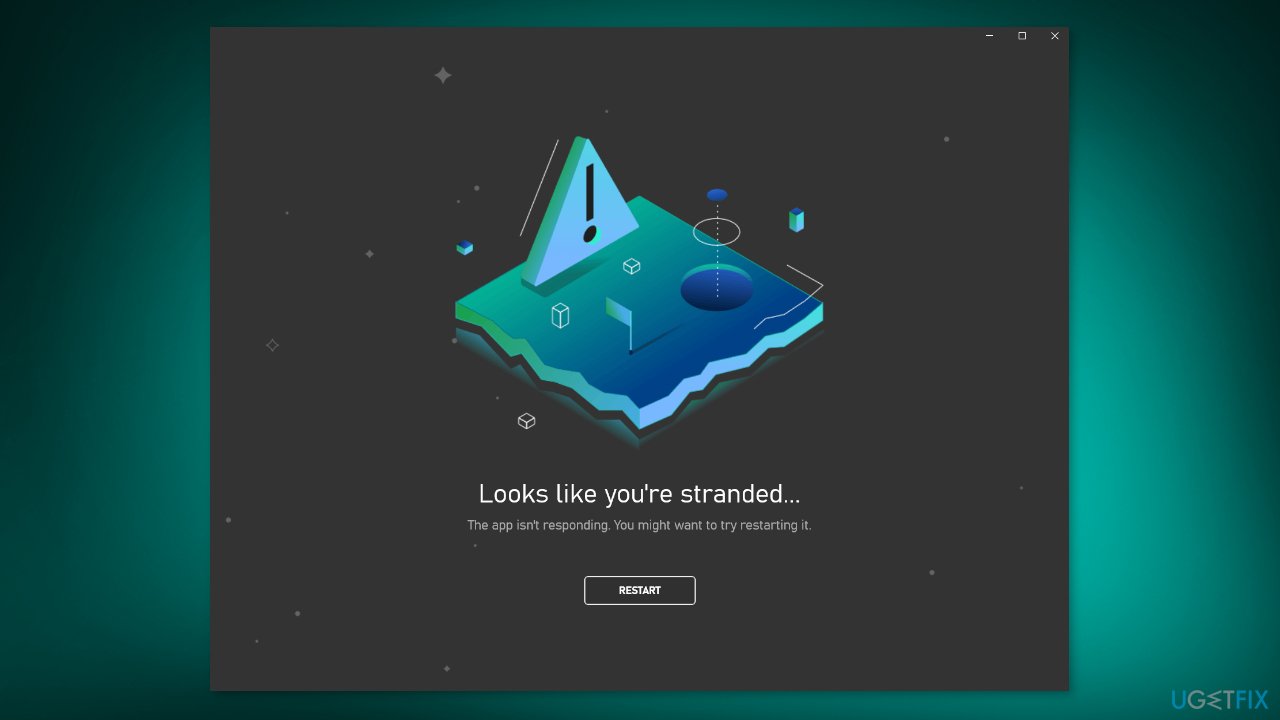
Solution 1. Sign Out and Sign In
If you come across the "Looks like you’re stranded" error while attempting to search on the Xbox app, it's worth checking whether you're currently signed into the app. It's possible that you were logged out without realizing it. Even if you're still signed in, it's worth trying to sign out of the Xbox app and then signing back in to see if the error persists.
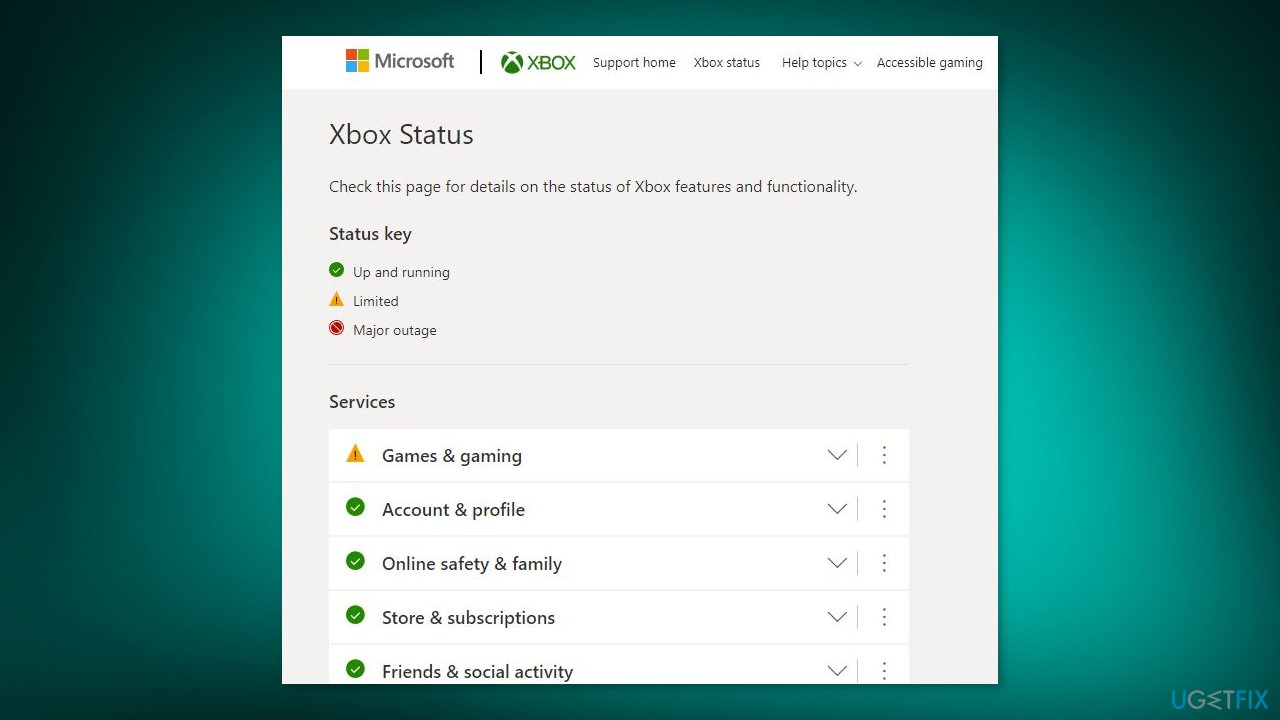
Solution 2. Check Xbox Network Status
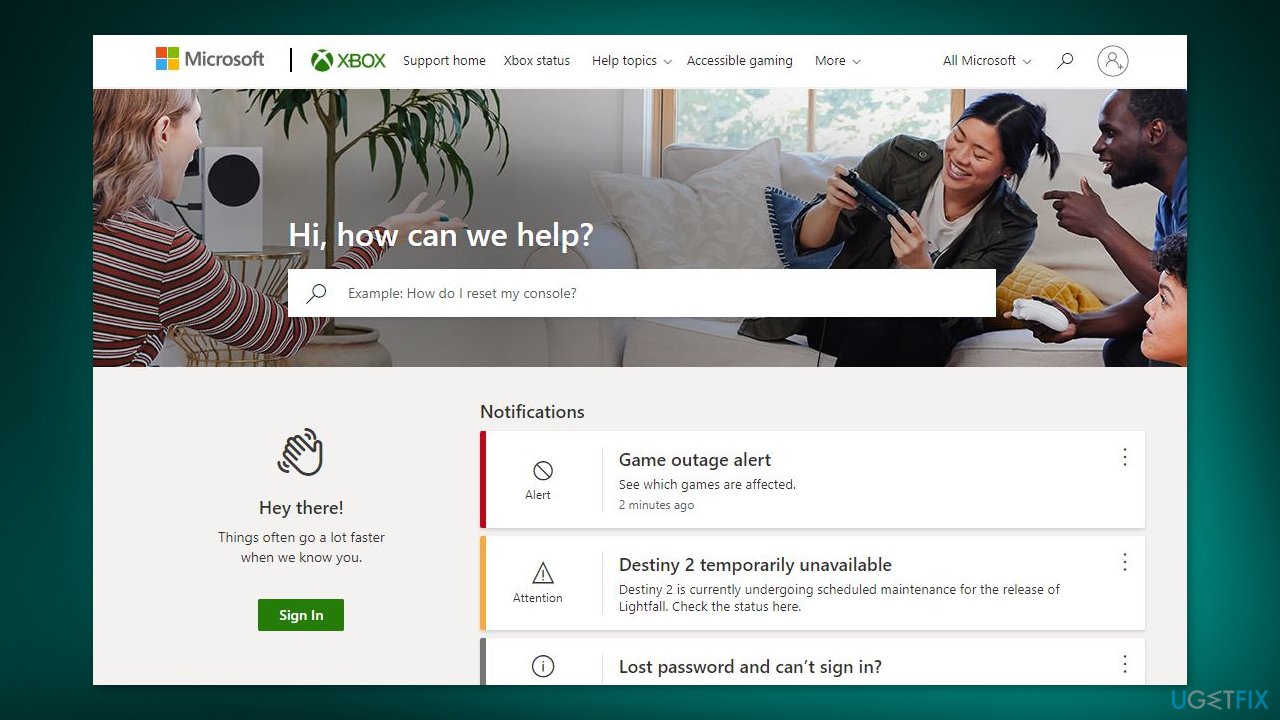
It's important to verify that Xbox servers are operational and not undergoing maintenance. You can confirm Xbox status updates by visiting the official Xbox Status page. Look for any yellow icons next to the listed services. If you see one, you can expand the menu to learn more about the cause. If there is downtime or maintenance ongoing, it should be a temporary issue and will likely be resolved shortly.
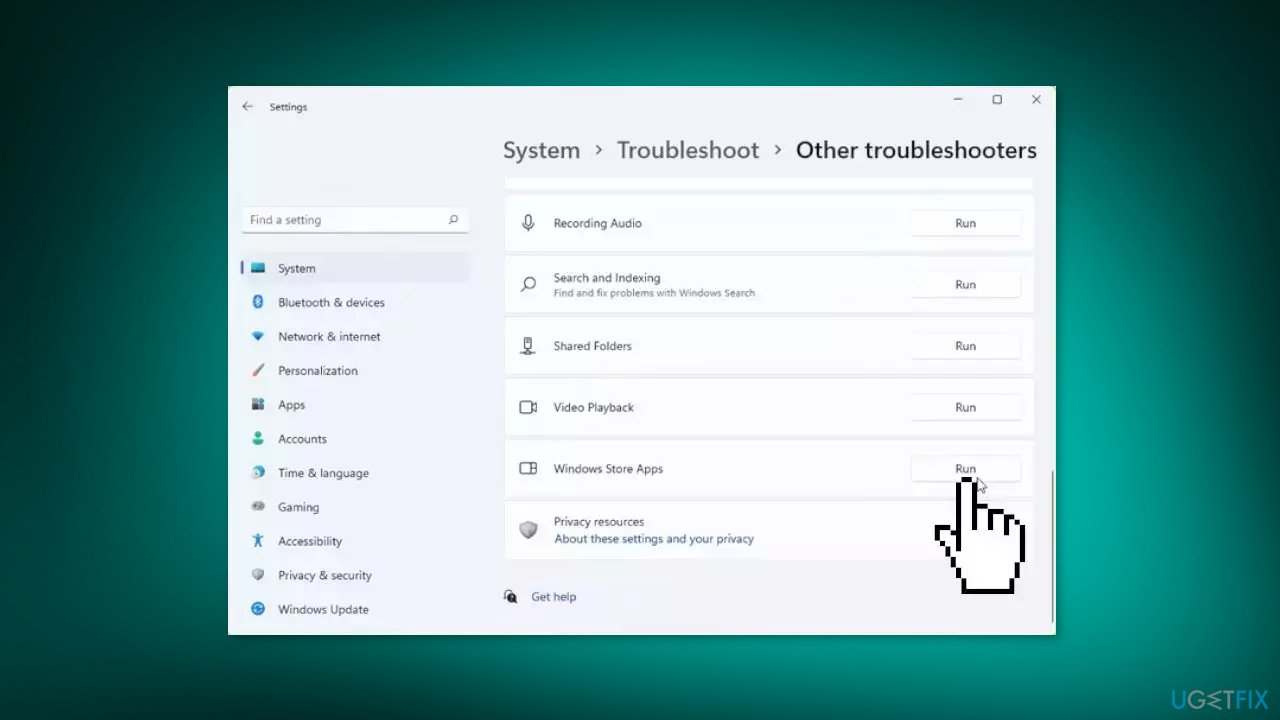
Solution 3. Run the Windows Store Apps Troubleshooter
- Press the Windows key + I to open Windows Settings
- Select the System section and scroll down until you see Troubleshoot and click on it
- Click on Other troubleshooters to see more troubleshooters available on your computer
- Scroll down at the bottom until you see Windows Store Apps
- Click on Run to start the troubleshooting process
- Wait until the process is complete
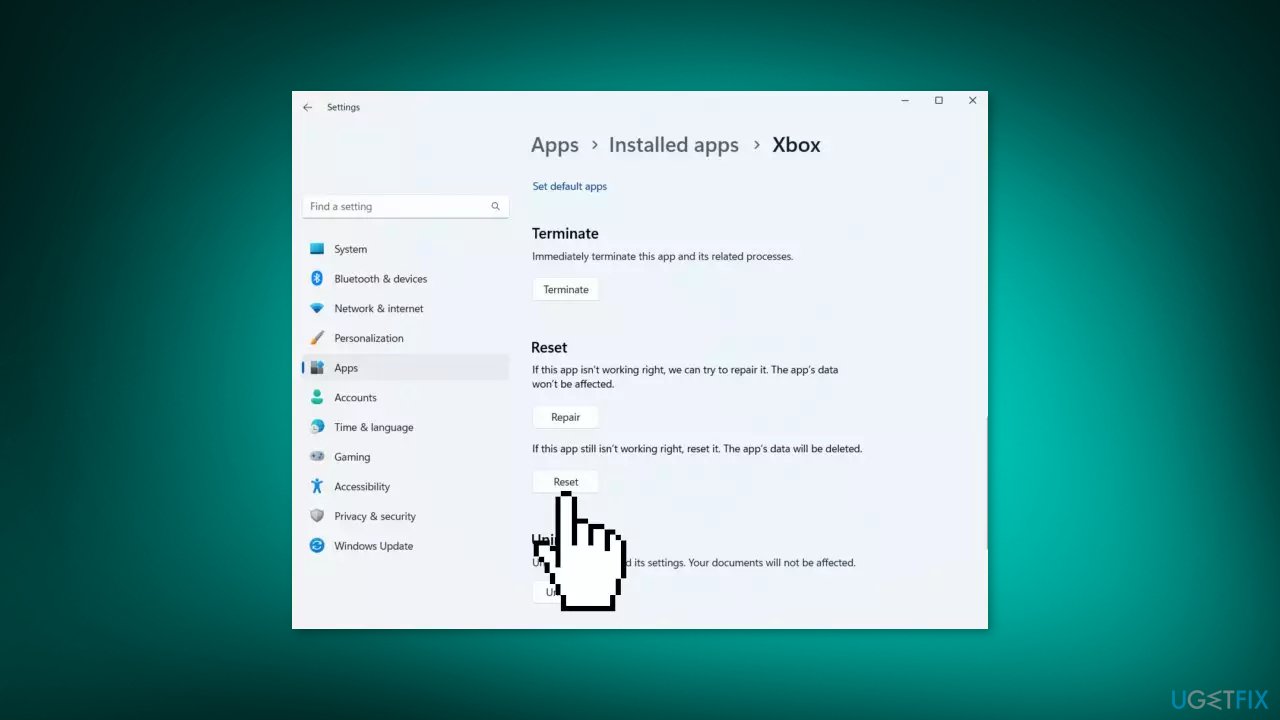
Solution 4. Reset the Xbox App
- Press the Windows key + I to launch Settings.
- Click on Apps and select Apps & Features.
- Look for the Xbox app from the list of apps.
- Click on the three dots icon next to the Xbox app.
- Choose Advanced options from the menu.
- Scroll down to the bottom of the options and select Reset.
Solution 5. Change DNS
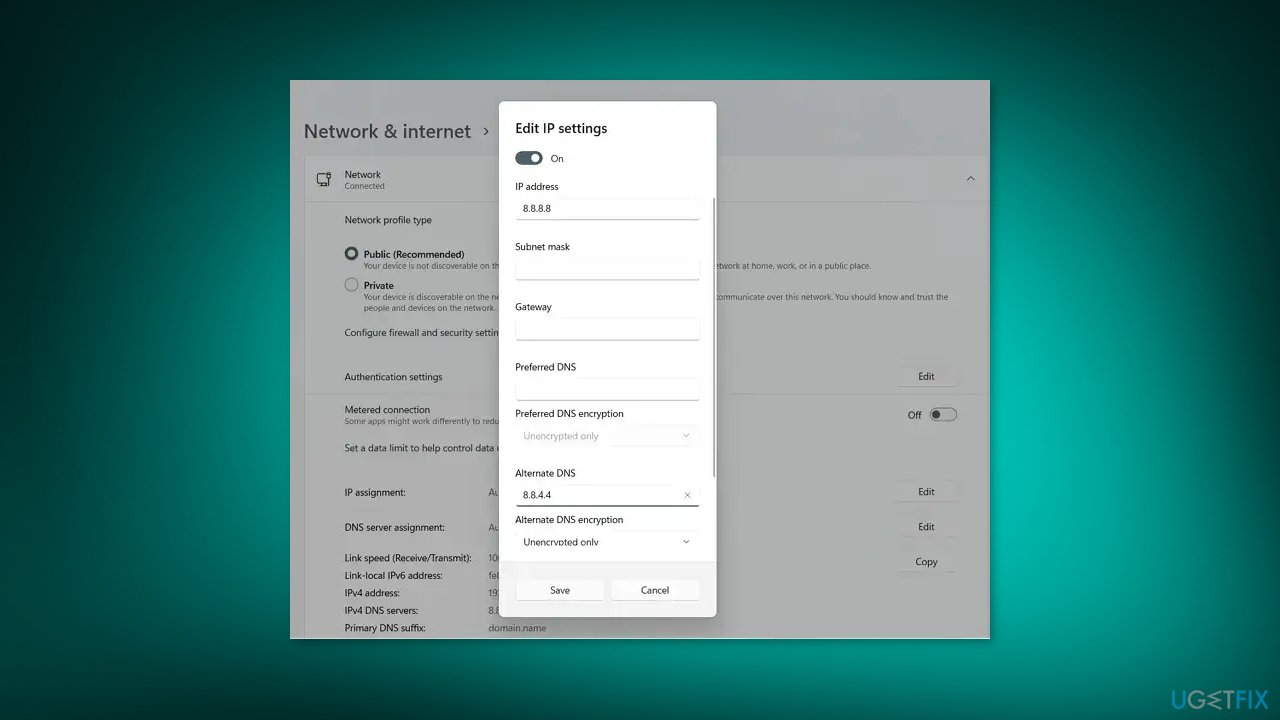
- Press the Windows key + I to launch Settings.
- Go to Network & Internet and select Ethernet.
- Click on the Edit button next to the DNS server assignment.
- Use the dropdown menu to switch to Manual.
- Toggle on IPv4.
- Set your preferred DNS to 8.8.8.8 and alternate DNS encryption to 8.8.4.4.
Solution 6. Contact Support
If none of the above solutions work, it may be time to contact Xbox support for further assistance. You can get in touch with them through the Xbox support page or by addressing your issue to @XboxSupport on Twitter.
The "Looks like you're stranded" error is a common issue caused by internet connectivity problems. If you've tried all the solutions provided above and still haven't found a solution, you may want to consider reinstalling the Xbox app.
Bottom line
To fix the 'Looks like you’re stranded' error, you can try signing out and back into the app, checking your internet connectivity, or resetting the app. If these solutions do not work, consider using a repair tool for underlying system issues or contacting Xbox support for further assistance.
Frequently asked questions
This error typically indicates a connectivity issue or a problem with the Xbox app itself, preventing it from accessing online services. It can occur due to network settings, app corruption, or server outages.
To fix this error, try resetting the Xbox app by going to Settings > Apps > Apps & features, selecting the Xbox app, and clicking on 'Advanced options' to reset it. Additionally, ensure your Windows 11 is updated and your internet connection is stable.
Yes, reinstalling the Xbox app can help resolve the error by ensuring you have the latest version and all components are correctly installed. Uninstall the app from Settings > Apps, then download it again from the Microsoft Store.




Report an issue
What's wrong with this guide? We review every report and update or remove content.
Report received — thank you. We'll review and fix it.
You need a free account to submit a report.
Be the first to comment