How to fix
Mouse freezes while playing games
on Windows
Resolve mouse freeze issues while gaming on Windows 10 and Windows 11 with our expert-tested solutions for smooth gameplay. Fixed in minutes!

What causes How to fix mouse freezes while playing games on Windows?
- Corrupt drivers
- Hardware issues
- Damaged system files
- Game-specific bugs
- Background applications interfering
Repairs Windows system files, removes malware, and restores a clean OS state — without reinstalling.
Hi. Whenever I boot up a game and start playing, the mouse starts freezing, which greatly disrupts my gaming experience. The game itself works fine, and the keyboard as well - it's the mouse that's the problem. Also, when I alt-tab, mouse works perfectly fine again. Any ideas on what's going on and how to deal with it?
A mouse is a pointing device used to control the cursor on a Windows computer's graphical user interface (GUI). It typically consists of a small, palm-sized device that is moved along a flat surface and has one or more buttons that can be clicked to select items on the screen or activate commands.
When you move the mouse, the cursor on the screen moves correspondingly. You can use the mouse to click on icons, buttons, and menus to launch programs, open files, and perform various tasks. In other words, a mouse is an irreplaceable input device today.
Unfortunately, users sometimes encounter issues when using these devices - they might lag, right-click might not work, and suffer from various other problems. Mouse freezing when playing games is yet another problem Windows users have to deal with, and it has been around for years now.
According to many gamers' reporters, their mouse starts freezing whenever they are in-game. In most cases, the problem is universal and affects all games, although some reported that it is an isolated issue when playing certain games. Likewise, the mouse seems to work fine when users tab out of the game and use it on a desktop.
There are a few reasons that could cause the mouse freezes when playing games on Windows, including corrupt drivers, hardware issues, damaged system files, and more. We address all and more in the guide below, so make sure you follow it until you find the solution that works for you.
Before proceeding, we recommend checking your system with a powerful PC repair tool [d1], which can find and replace corrupted system files in just a few minutes for you.
Fix 1. General checks
We first recommend checking out some (not so obvious) solutions that might not be done right away but just be the thing that would solve the issue for you.
- Restart your computer.
- If you are using a wireless mouse, make sure your battery did not run out.
- Clean your mouse.
- Try using a different USB slot (for example, use a 2.0 instead 3.0 port, and vice versa).
- Check your system with powerful anti-malware to ensure it's not infected.
- Install all available Windows updates.
Fix 2. Run the troubleshooter
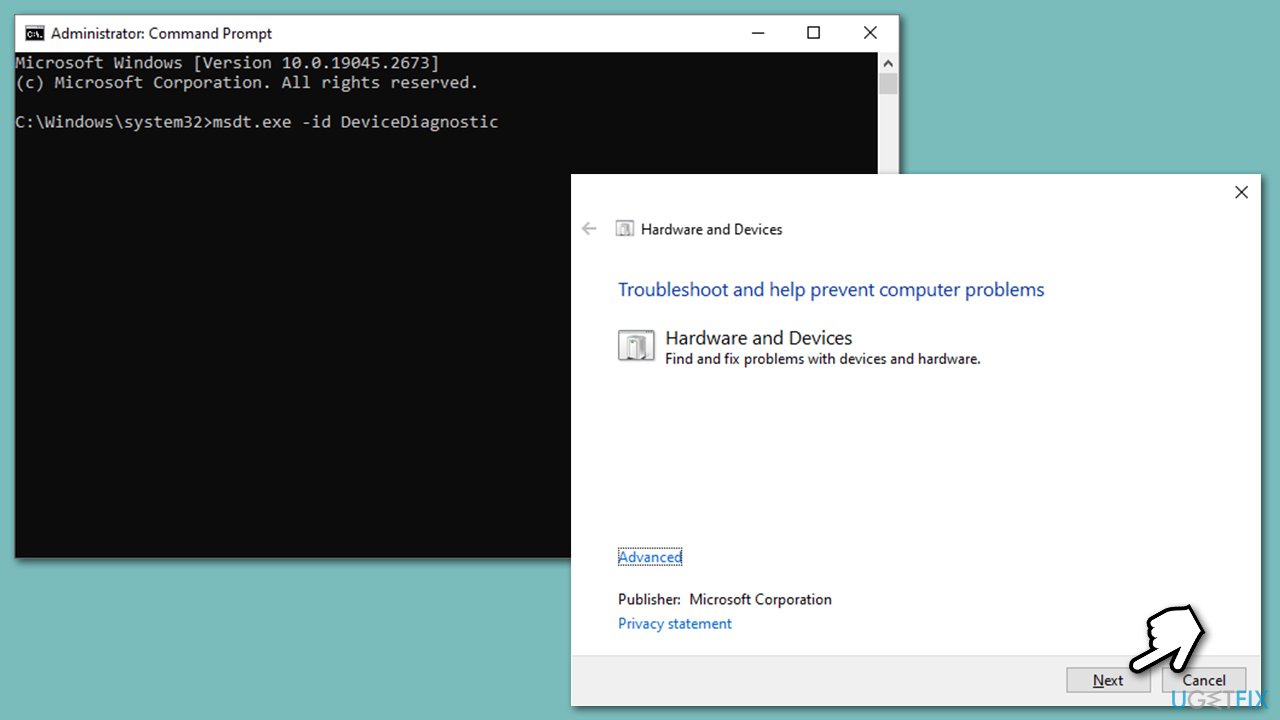
- Type cmd in Windows search.
- Right-click on the Command Prompt result and pick Run as administrator.
- Copy and paste the following command, pressing Enter after:
msdt.exe -id DeviceDiagnostic - Follow on-screen instructions to run the troubleshooter and apply the suggested fixes.
- Restart your system.
Fix 3. Disable power saving
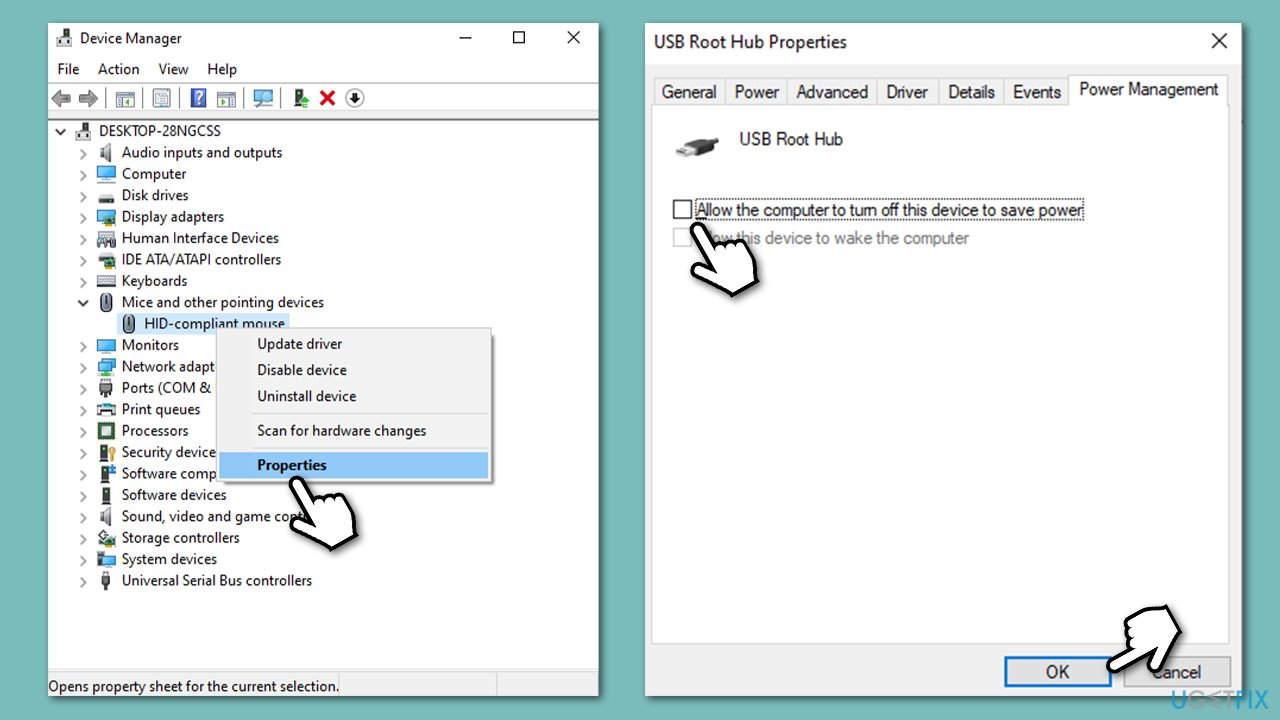
- Right-click Start and pick Device Manager.
- Expand the Mice and other pointing devices section.
- Right-click on your mouse and pick Properties.
- Untick the Allow the computer to turn off this device to save power option.
- Click OK.
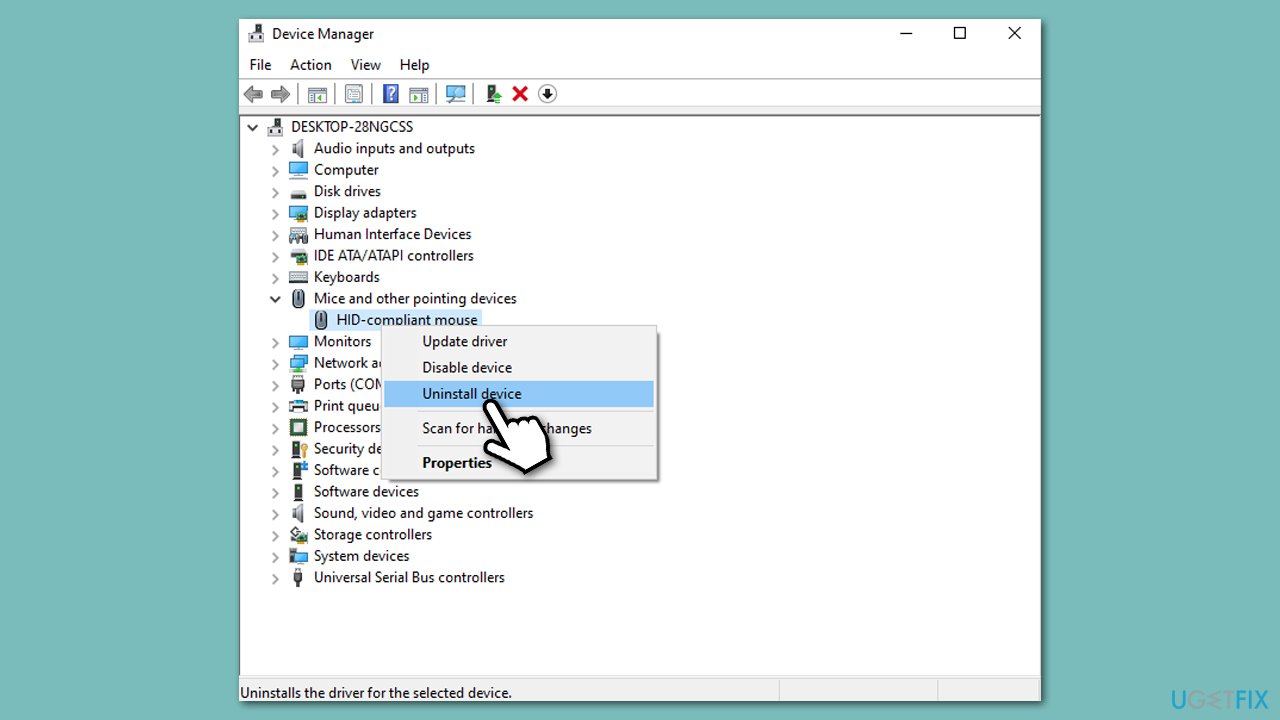
Fix 4. Reinstall drivers
- Right-click on Start and pick Device Manager.
- Expand the Mice and other pointing devices section.
- Right-click on your mouse and select Uninstall Device.
- Restart your computer.
- Windows will install a basic mouse driver automatically after a reboot.
Fix 5. Check for corrupted system files
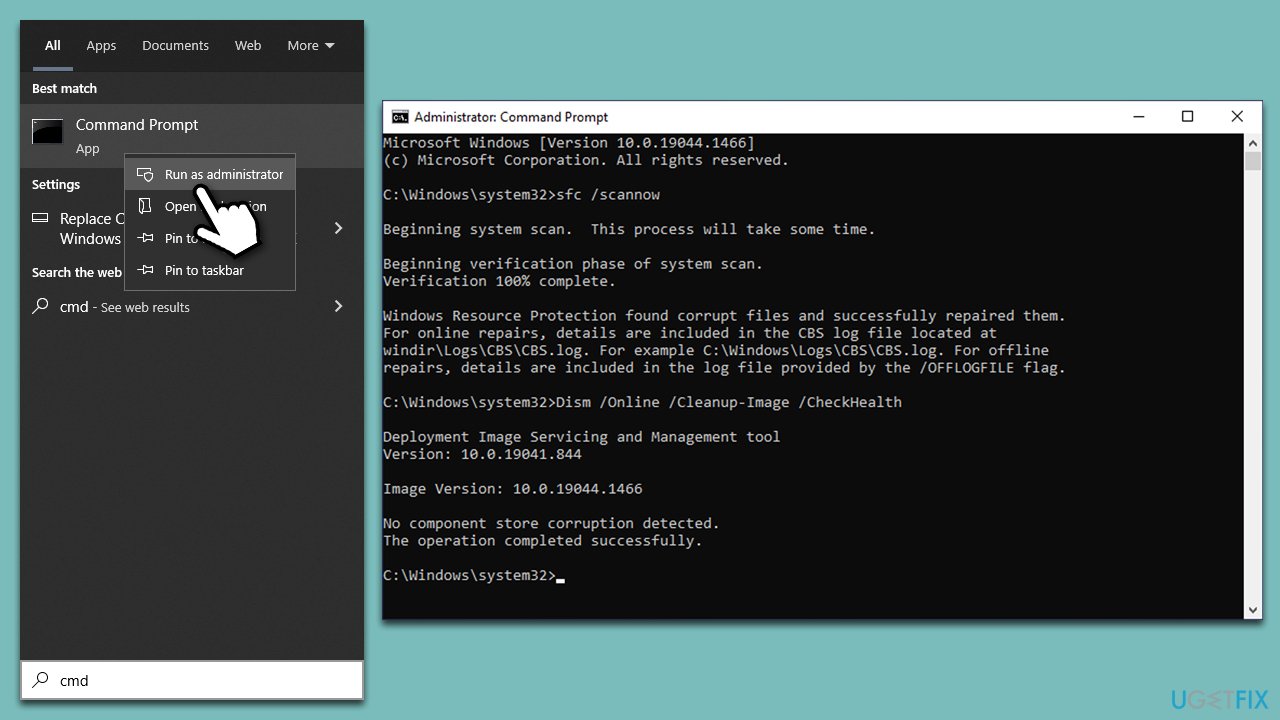
- Open Command Prompt as administrator, as explained previously.
- Use the following command and press Enter:
sfc /scannow - Once the scan is complete, you should also run the following commands to repair Windows image files (don't forget to press Enter after each):
DISM /Online /Cleanup-Image /CheckHealth
DISM /Online /Cleanup-Image /ScanHealth
DISM /Online /Cleanup-Image /RestoreHealth - Restart your computer.
Fix 6. Try Clean boot
Clean boot can help you resolve software conflicts easier.
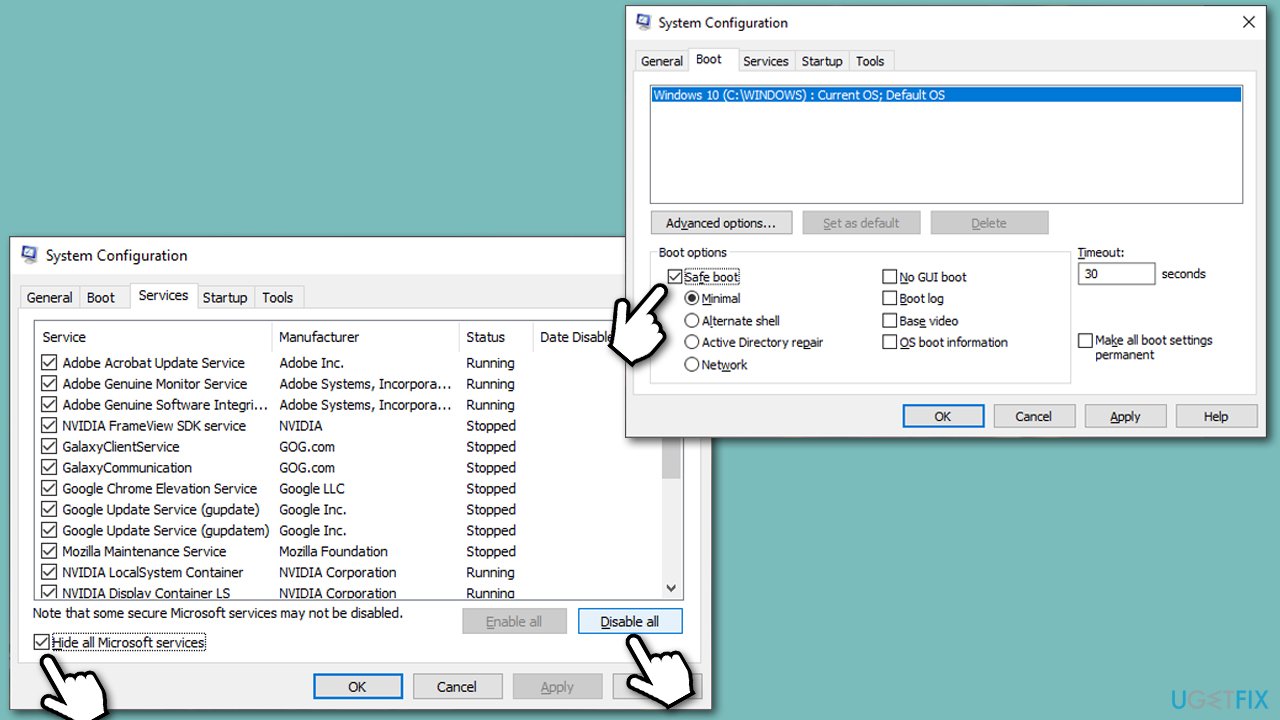
- Press Win + R, type msconfig, then press Enter.
- Select the Services tab and tick the Hide all Microsoft services checkbox.
- Pick Disable all.
- Go to the Startup tab and click Open Task Manager.
- Here, right-click on each of the non-Windows entries and select Disable.
- Close down the Task Manager.
- Go to the Boot tab and tick the Safe boot option
- Restart your device.
If your issue does not occur in a clean boot environment, you must find the conflicting app. To do so, disable half of the programs at the time, and repeat the process until you find the culprit.
Fix 7. Perform in-place upgrade
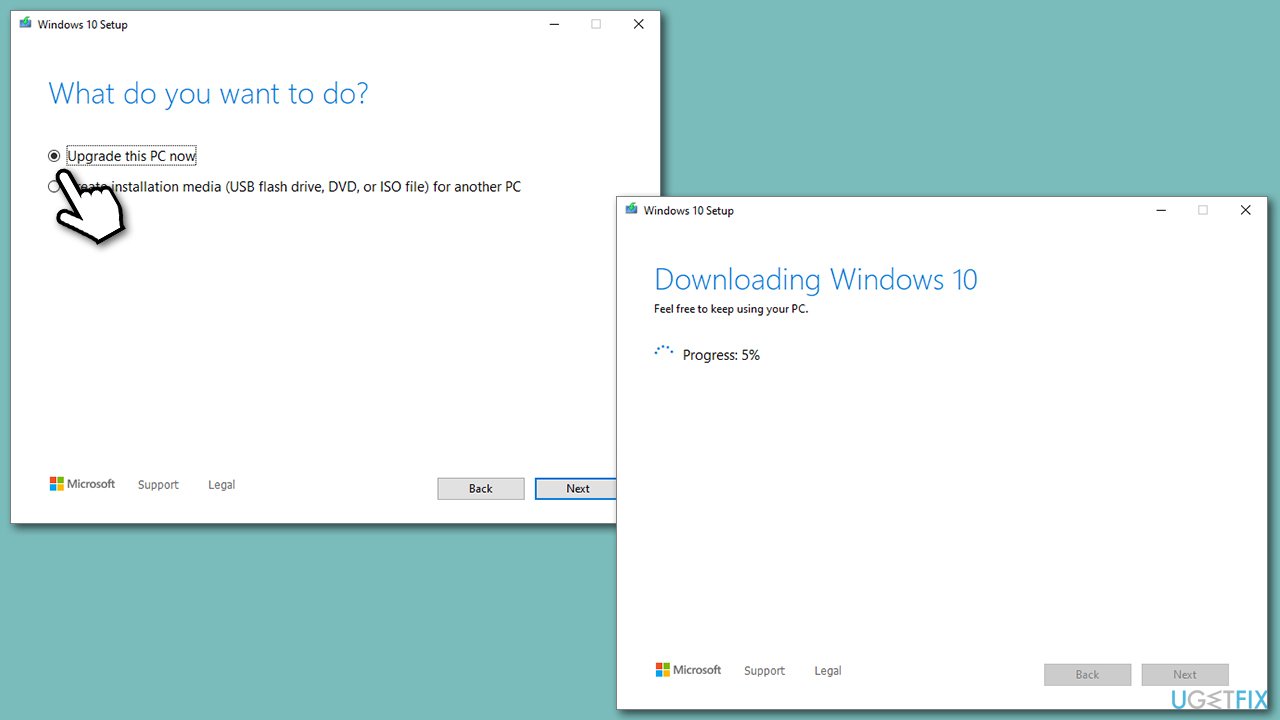
- Visit the official Microsoft website and download Windows 10 installation media. [Windows 11 version]
- Double-click the installer and select Yes when UAC shows up.
- Agree to the terms and click Next.
- Select Upgrade this PC now and click Next.
- Wait till Windows downloads all the necessary files.
- Restart your device when finished.
Bottom line
To fix mouse freezes while playing games on Windows, you can check for corrupt drivers, address hardware issues, and repair damaged system files. Additionally, ensure that no background applications are interfering with your gaming experience. If none of these solutions work, consider using a powerful PC repair tool to diagnose and resolve the issue.
Frequently asked questions
Try updating your graphics card drivers and ensure that your game settings are optimized for performance. Additionally, check for background applications that may be consuming resources.
Yes, you can adjust the pointer speed and enhance pointer precision in the mouse settings to improve performance during gameplay.
Yes, you can test your mouse on another computer or try a different mouse on your Windows system to determine if the issue is hardware-related.




Report an issue
What's wrong with this guide? We review every report and update or remove content.
Report received — thank you. We'll review and fix it.
You need a free account to submit a report.
Be the first to comment