How to fix
“Device has either stopped responding or has been disconnected” error
on Windows
Resolve the "Device has either stopped responding or has been disconnected" error in Windows 10 or 11 quickly and efficiently. Expert-tested solutions a…


What causes How to fix “Device has either stopped responding or has been disconnected” error in Windows?
- Faulty cable
- Improperly inserted device
- Issue with the port
- Outdated drivers
- Incompatible software update
- Hardware failure
Repairs Windows system files, removes malware, and restores a clean OS state — without reinstalling.
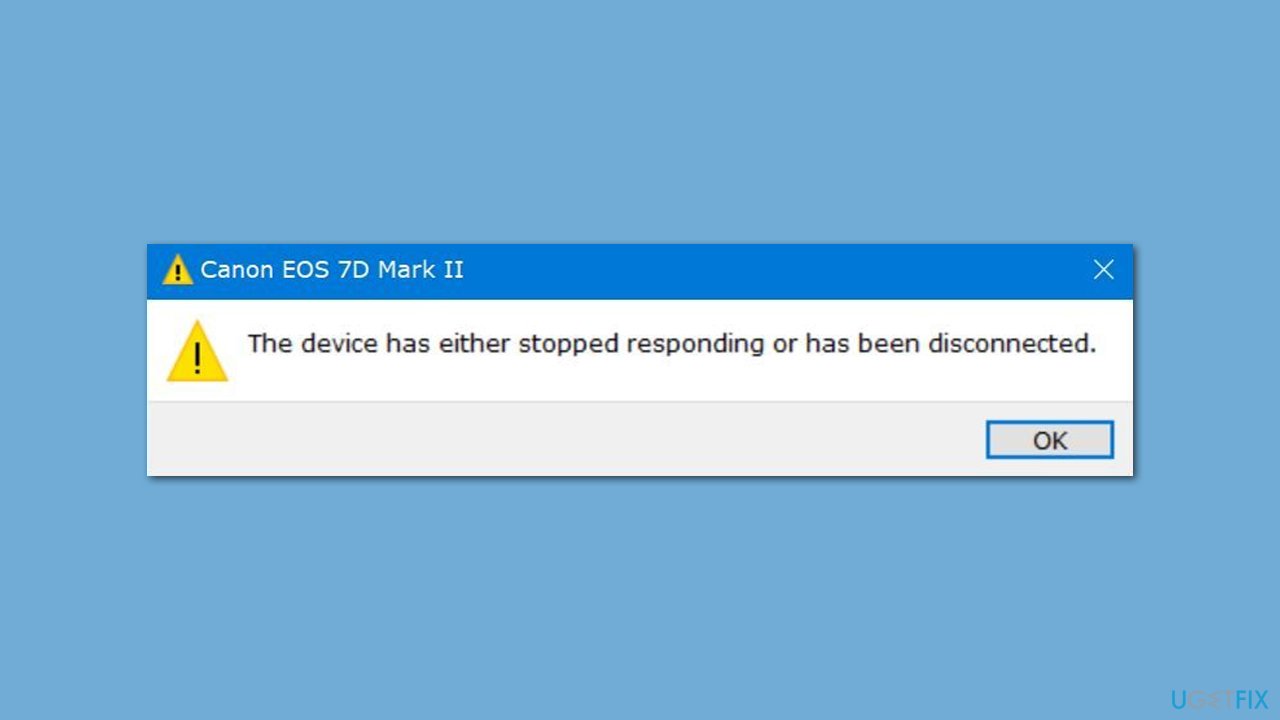
Hi, I have been recently receiving random pop-ups on my Windows 10 laptop, and they say, "Device has either stopped responding or has been disconnected," even though I am not exactly doing anything out of the ordinary. Sometimes I get flooded with these messages. Please help.
"Device has either stopped responding or has been disconnected" is a typical error message that Windows users might face while attempting to use an external peripheral device like a printer, scanner, or external hard drive. This error message often appears when the computer is unable to communicate with the device due to a connection issue or a malfunction.
In most cases, the "Device has either stopped responding or has been disconnected" error shows up whenever users attempt to copy files from another device. However, there are many other different circumstances when this can occur, for example, some people say it pops up whenever they disconnect or connect smartphones, cameras, or other devices to Windows.
Additionally, many users reported that the error shows up completely randomly without them doing anything in particular. While, in this case, it is not a major usability issue, it can be particularly annoying and disturb normal computer operating sessions due to error message frequency.
The "Device has either stopped responding or has been disconnected" problem might arise due to a faulty cable, an improperly inserted device, or an issue with the port. Moreover, if the device has encountered a problem, it could result from outdated drivers, an incompatible software update, or a hardware failure.
Below we provide several solutions for those who keep encountering the "Device has either stopped responding or has been disconnected" error under varying circumstances. We also recommend running a scan with a potent PC repair tool [d1], which can conduct many of the troubleshooting and then fix issues automatically.
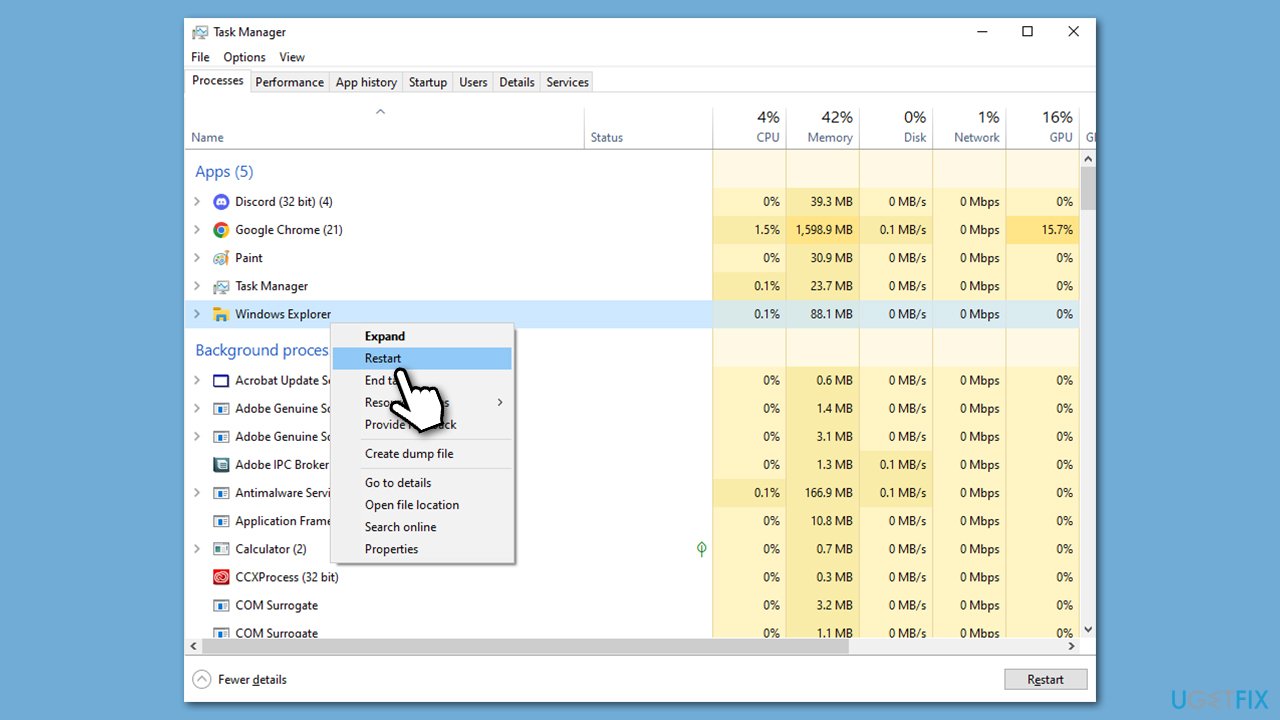
Fix 1. Restart Windows Explorer
- Press Ctrl + Shift + Esc to open Task Manager.
- Click More details if needed.
- Look for Windows Explorer.
- Right-click and select Restart.
- Several UI elements will disappear for a few moments - they will reappear after that.
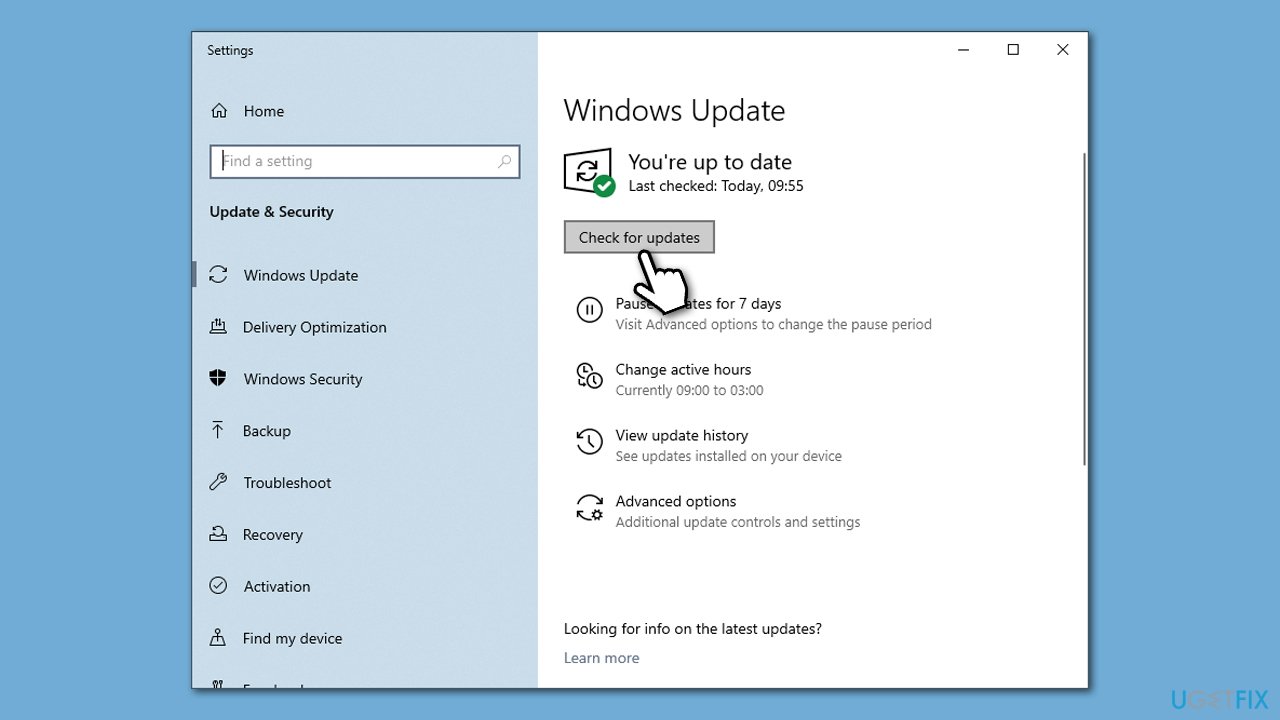
Fix 2. Apply all Windows updates
General bugs in Windows could cause a variety of errors. Make sure all Windows updates, including optional ones, are installed.
- Type Updates in Windows search and press Enter.
- Here, click Check for updates, and Windows will check if there are new updates available.
- If optional packages are offered, install them too.
- Once done, restart your device and see if your problem is resolved.
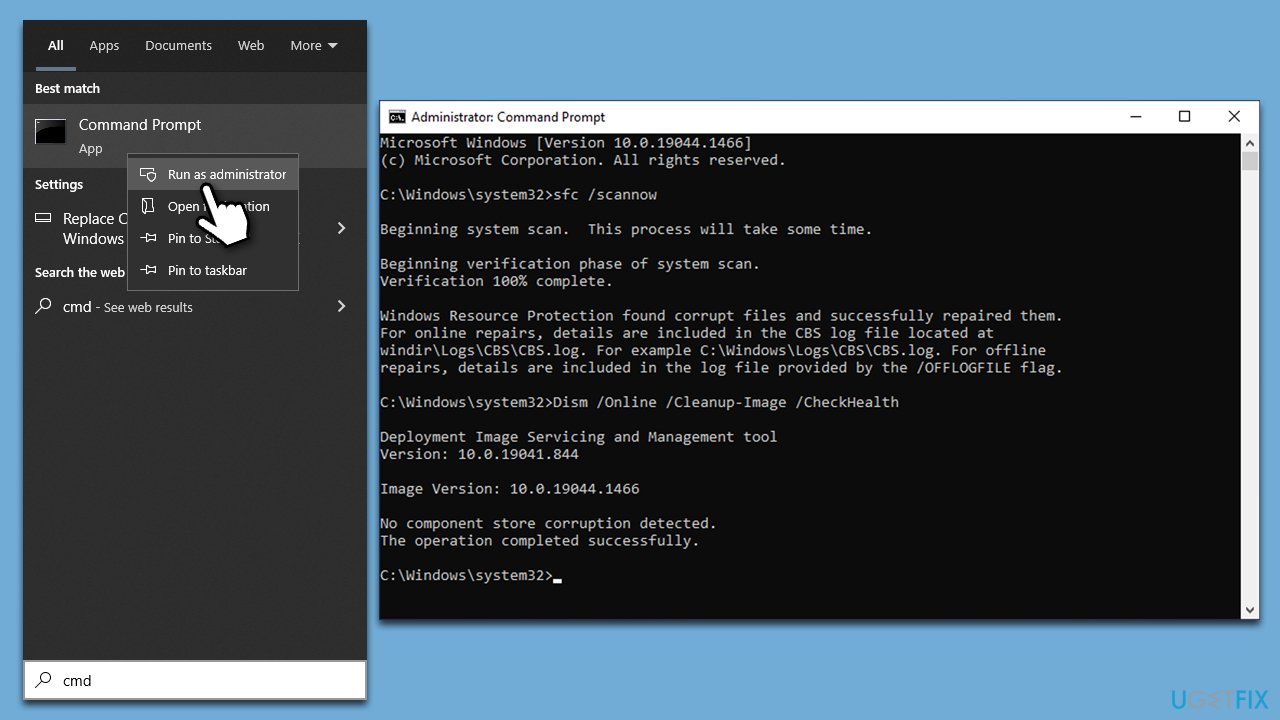
Fix 3. Run SFC and DISM
Corrupted system files can often result in system malfunctions, so we recommend addressing this by running commands via elevated Command Prompt as follows:
- Type cmd in Windows search.
- Right-click on the Command Prompt result and select Run as administrator.
- User Account Control (UAC) window will ask whether you want to allow changes to your computer - click Yes.
- Next, copy and paste the following commands, pressing Enter after each:
sfc /scannow
How to fix windows error 0x800701e1 run sfc scan
DISM /Online /Cleanup-Image /CheckHealth
DISM /Online /Cleanup-Image /ScanHealth
DISM /Online /Cleanup-Image /RestoreHealth - Restart your computer once done.
Fix 4. Run Hardware and Devices troubleshooter
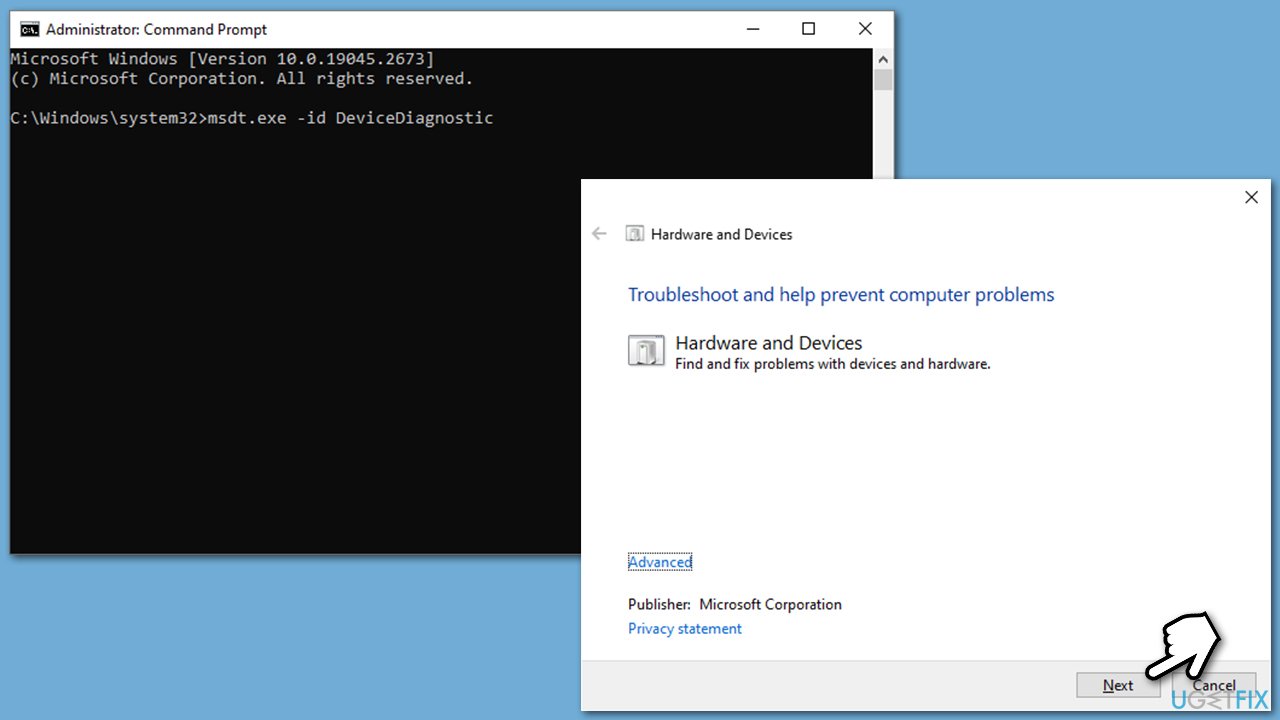
- Open Command Prompt as administrator, as explained in the previous step.
- Copy and paste the following command, pressing Enter after:
msdt.exe -id DeviceDiagnostic - Follow on-screen instructions to run the troubleshooter and apply the suggested fixes.
- Restart your device.
Fix 5. Reinstall USB controller
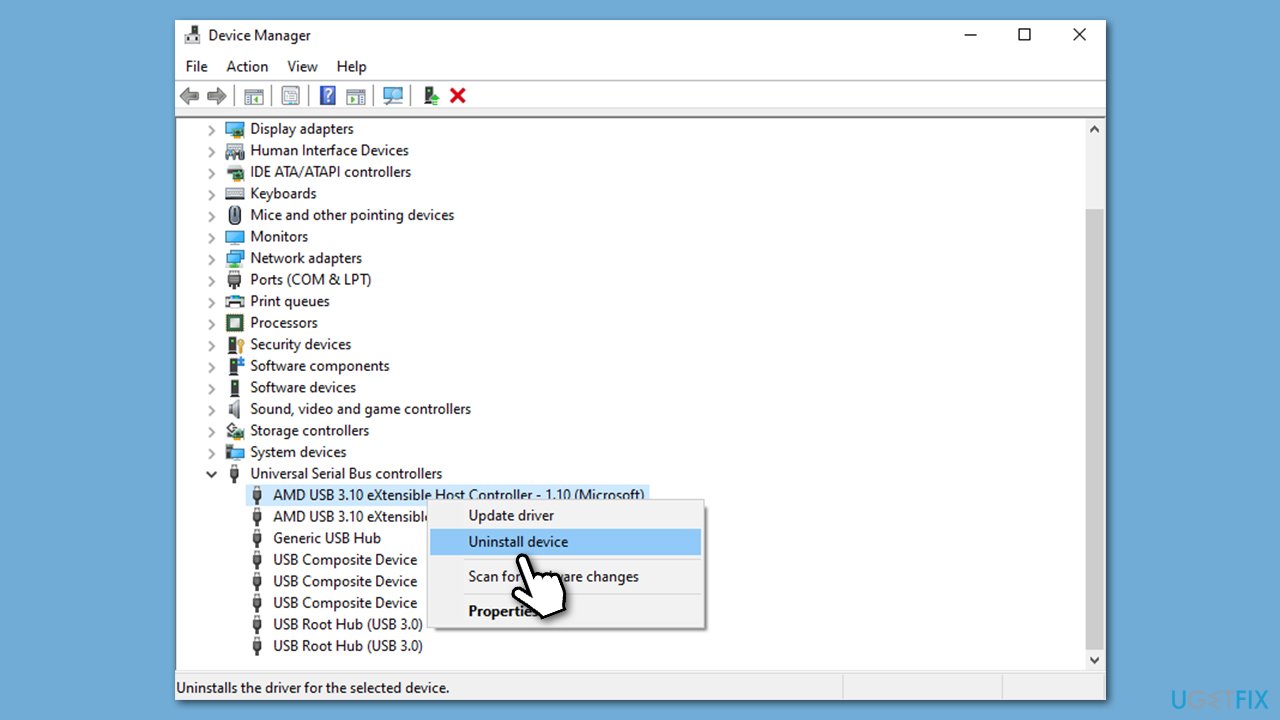
- Type Device Manager in Windows search and hit Enter.
- In the new window, expand the Universal Serial Bus Controllers section.
- Right-click on the device causing you trouble and select Uninstall device.
- Follow the on-screen instructions and restart your system.
- You will be prompted to reinstall the USB controller after the reboot.
Note: if the drivers are not being installed automatically, open Device Manager once again and click the Scan for hardware changes button at the top.
Fix 6. Re-add the device
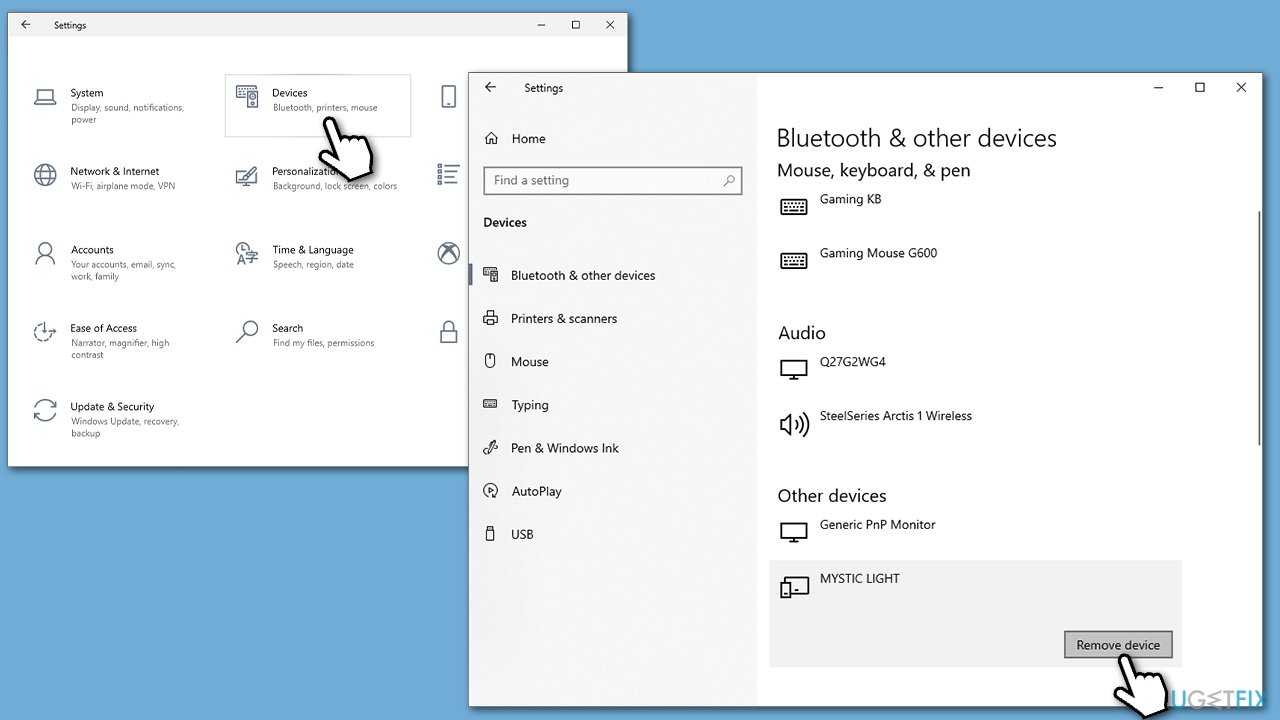
- Click Start and select Settings.
- Select the Devices and make sure you are in the Bluetooth & other devices section.
- Find the device that's causing the error, and click Remove device.
- Unplug your device from the PC.
- Then add the device once again.
Bottom line
To fix the 'Device has either stopped responding or has been disconnected' error, you can try restarting Windows Explorer, checking connections, or updating drivers. If these solutions do not resolve the issue, consider running a scan with a potent PC repair tool to troubleshoot and fix problems automatically.
Frequently asked questions
Try unplugging the device and plugging it back in, then check if the error persists. If it does, updating the device drivers through Device Manager may help resolve the issue.
You can run the Hardware and Devices troubleshooter by searching for it in the Settings app, which may help identify and fix the underlying issue. Additionally, ensure that all Windows updates are installed as they may contain important fixes.
Yes, you can connect the USB device to a different computer to see if it works there; if it doesn't, the device may be faulty. If it works on another computer, consider checking the USB ports and drivers on your Windows 10 or Windows 11 system.




Report an issue
What's wrong with this guide? We review every report and update or remove content.
Report received — thank you. We'll review and fix it.
You need a free account to submit a report.
Be the first to comment