How to fix
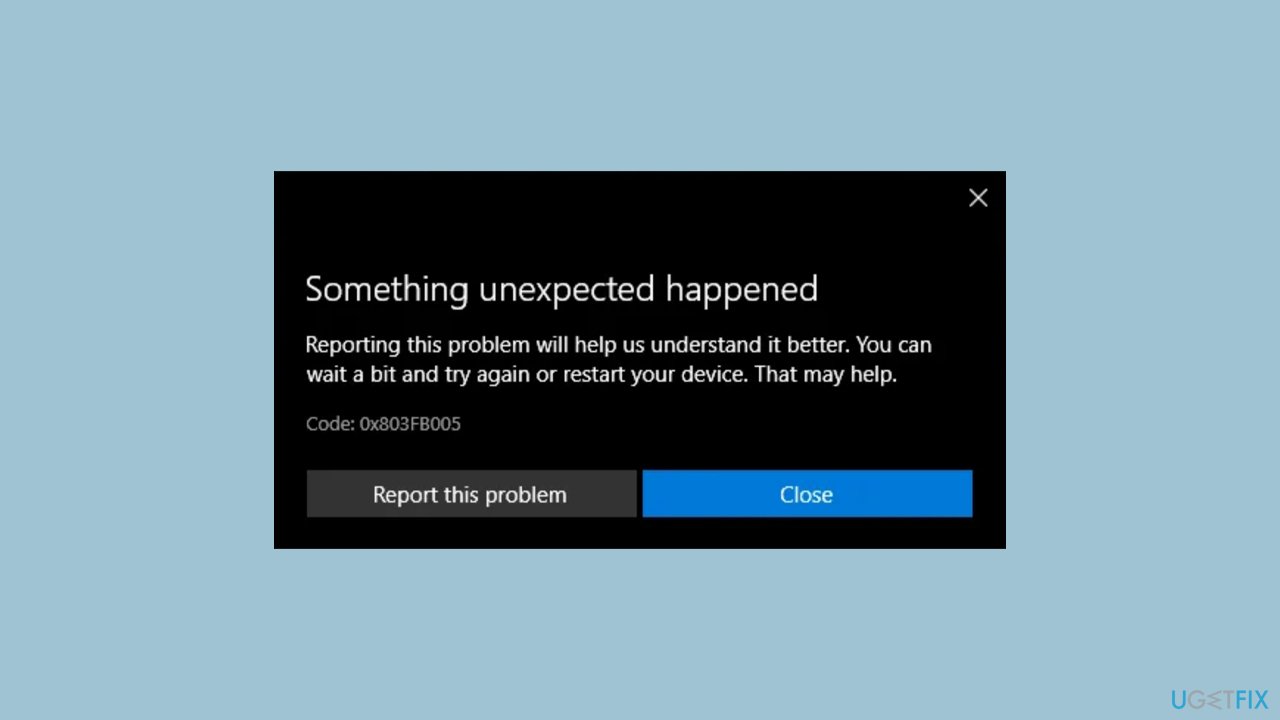
Microsoft Store error 0x803FB005
on Windows
Resolve Microsoft Store error 0x803FB005 on Windows 10 and 11 with our expert-tested solutions. Get back to downloading apps in minutes!


What causes How to fix Microsoft Store error 0x803FB005?
- Glitched Windows Store
- File corruption
- Overprotective third-party antivirus
- Pending Windows updates
- Malware-caused issues
Repairs Windows system files, removes malware, and restores a clean OS state — without reinstalling.
Hello, I can't install any apps from Microsoft Store due to the 0x803FB005 error. The message said to wait a bit - so I did, but I still got the same problem several days later. I am using Windows 10 version 22H2 if that helps.
Microsoft Store error 0x803FB005 is a common issue that Windows users may encounter when trying to download certain apps, especially games. In some cases, this error can also prevent users from updating and downloading apps altogether. Reports suggest that this problem is not exclusive to a certain Windows version and has been around for several years, with no universal fix for it.
Several factors can cause error 0x803FB005. For instance, a glitched Windows Store can malfunction and lead to this error code. If this is the case, resetting the Windows Store either from the terminal or the GUI should resolve the problem. Additionally, file corruption can also cause this issue, and a set of special commands via an elevated Command Prompt should be able to take care of the issue.
Another possible cause of the 0x803FB005 error is an overprotective third-party antivirus suite. Some affected users have reported that disabling real-time protection before initiating the app download or uninstalling the security app altogether has helped resolve the issue. It's worth noting that Microsoft released a patch addressing the error at the beginning of 2019. So, installing every pending update and bringing your OS version up to date can automatically resolve it to some.
If you would rather try to perform some of these troubleshooting steps automatically, we recommend running sophisticated repair software [d1], which can replace damaged system files, fix malware-caused issues post-infection, clean the system from junk and trackers, etc.
1. Install all Windows updates
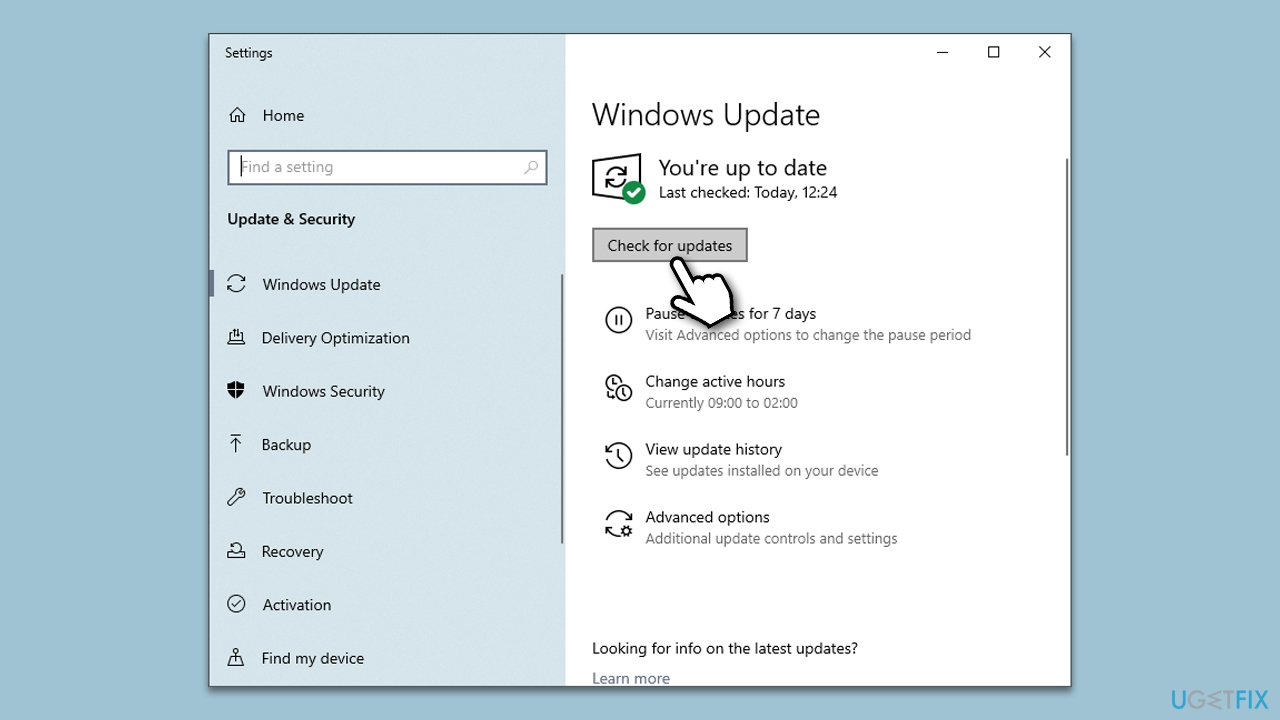
First, please make sure that your system is updated to the latest version. As we mentioned earlier, a patch from back in 2019 fixes the 0x803FB005 error for some users.
- Type Updates in Windows search and press Enter.
- In this window, click Check for updates.
- If optional updates are available, install them too.
- When everything is installed, restart your system.
2. Reset the Microsoft Store cache
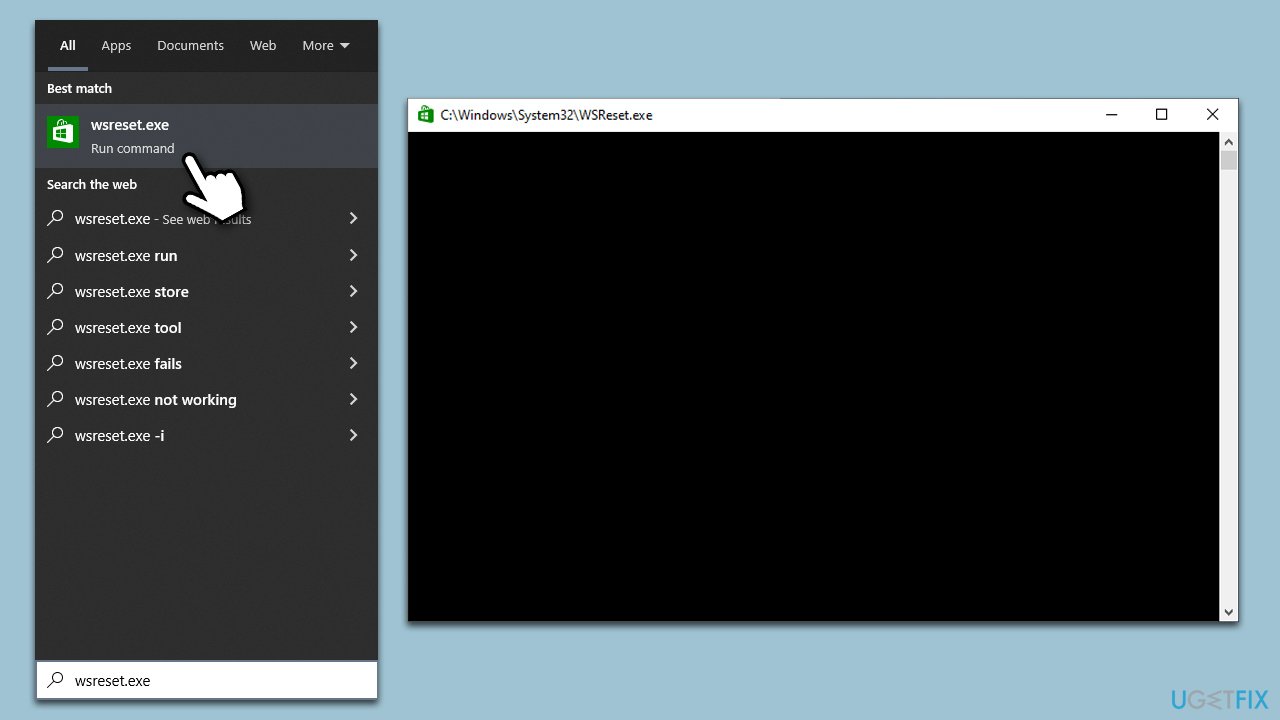
- In Windows search, type wsreset.exe and press Enter.
- Wait till a black window shows up – do not close it.
- Once it's gone, Microsoft Store should restart
- Try using the Store again.
3. Check for corrupted system files
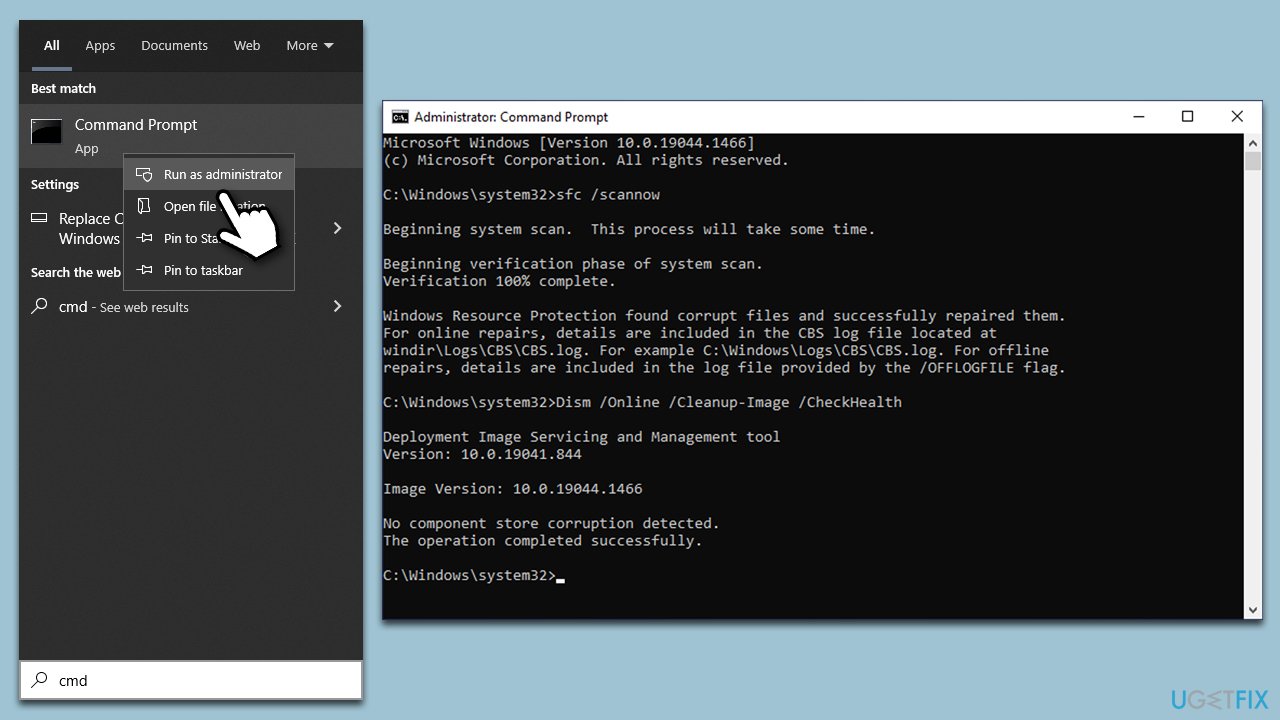
- Type cmd in Windows search
- Right-click on Command Prompt search result and select Run as administrator
- When the User Account Control window shows up, click Yes
- Copy and paste the following command, and press Enter:
sfc /scannow - Next, copy and paste these commands, waiting until each of them is finished and then proceeding with the next one:
dism /online /cleanup-image /scanhealth
dism /online /cleanup-image /checkhealth
dism /online /cleanup-image /restorehealth - Restart your computer when done.
4. Reset or repair the app
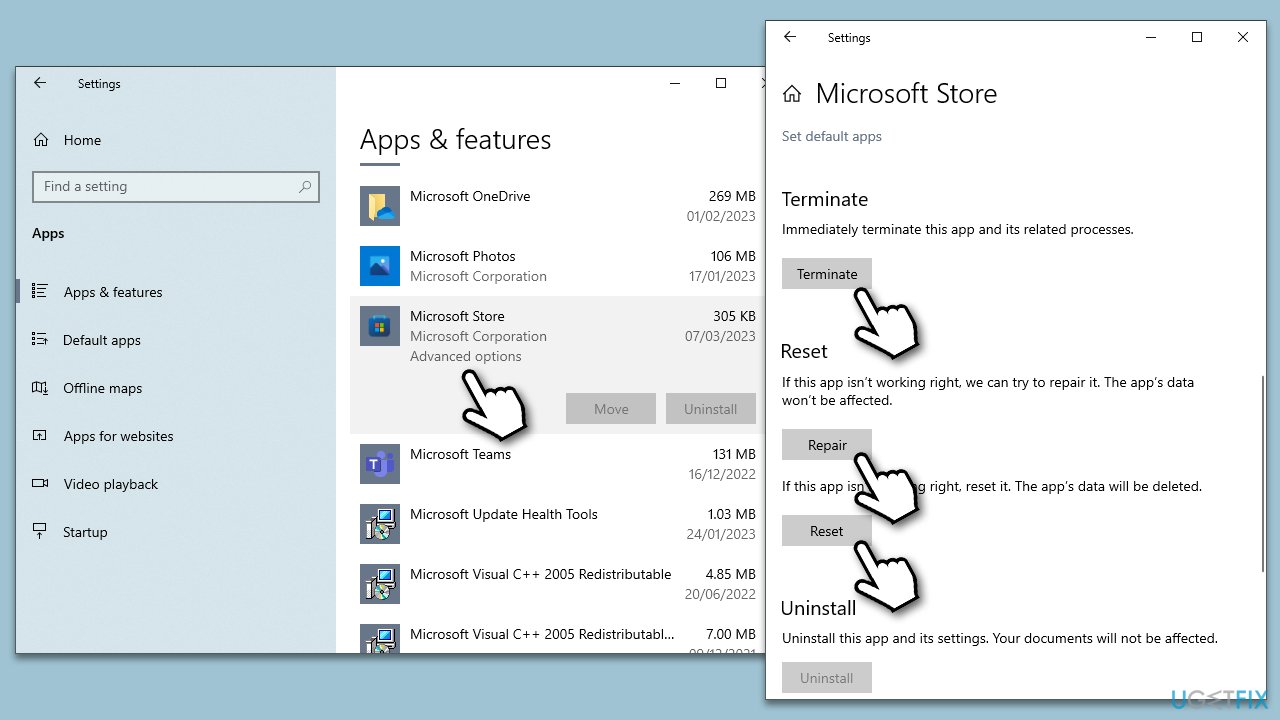
- Right-click on Start and pick Apps & Features.
- Scroll down to locate Microsoft Store and click Advanced options.
- Click Terminate and Repair.
- If that does not help, try the Reset option instead.
5. Run the troubleshooter
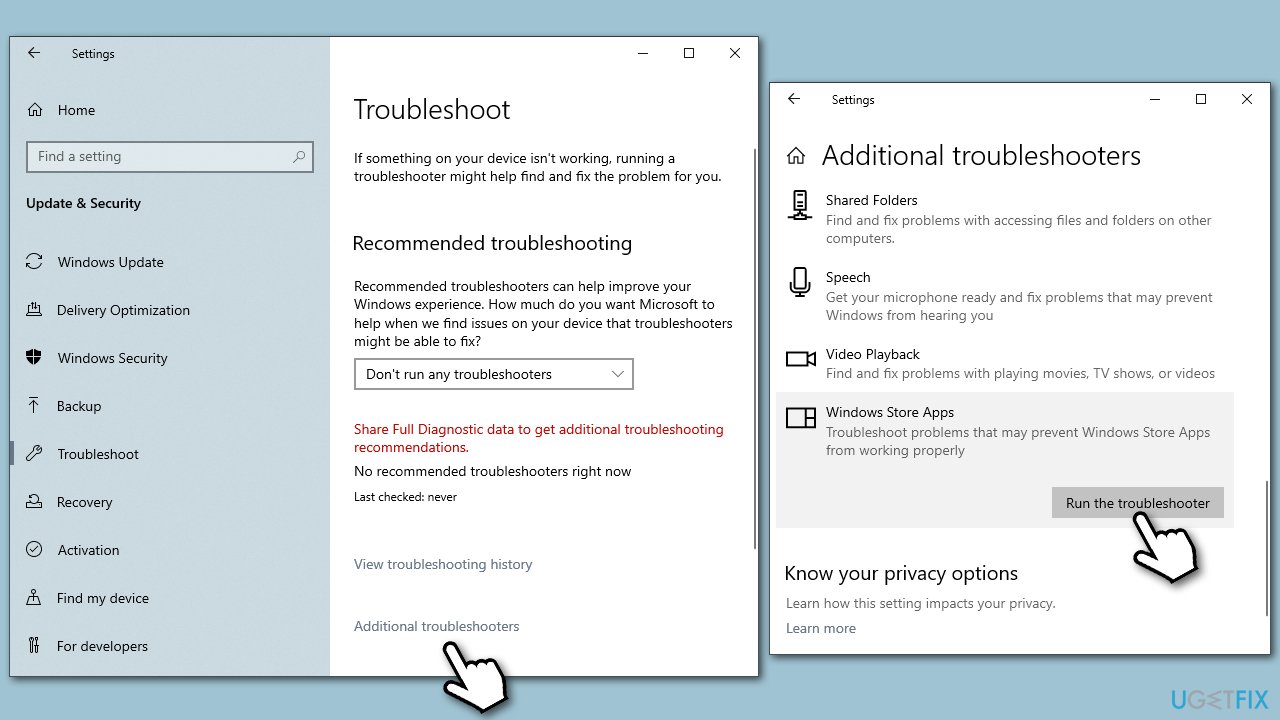
- Type Troubleshoot in Windows search and press Enter.
- On the right side, click Additional troubleshooters/Other troubleshooters.
- Scroll down to find the Windows Store Apps entry.
- Select it and click Run the troubleshooter/Run.
- Wait till the scan finishes and apply the suggested fixes, then reboot your system.
6. Reinstall Microsoft Store
To Reinstall the Store itself, you will have to enter particular commands via elevated PowerShell.
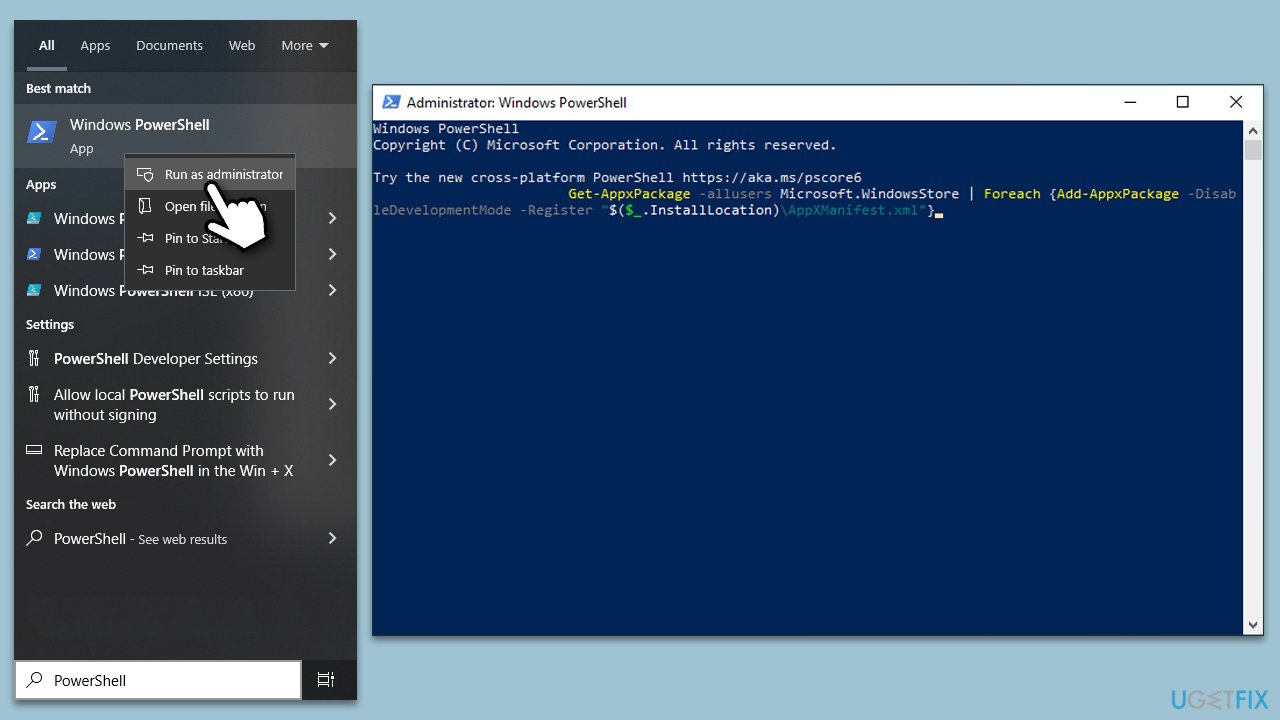
- Type PowerShell in Windows search.
- Right-click on the result and pick Run as administrator.
- UAC will ask you whether you want to allow changes - click Yes.
- In the new window, copy and paste the following command, pressing Enter after:
Get-AppXPackage -allusers | Foreach {Add-AppxPackage -DisableDevelopmentMode -Register "$($_.InstallLocation)\AppXManifest.xml"} - Close down PowerShell and restart your PC.
- Re-open Microsoft Store and install all the available updates.
7. Reset Windows
Resetting Windows is not a difficult process, and you can keep your personal files and apps intact. However, you should uninstall your third-party security software and disconnect any unnecessary peripherals before you proceed with this solution, so there's no interference.
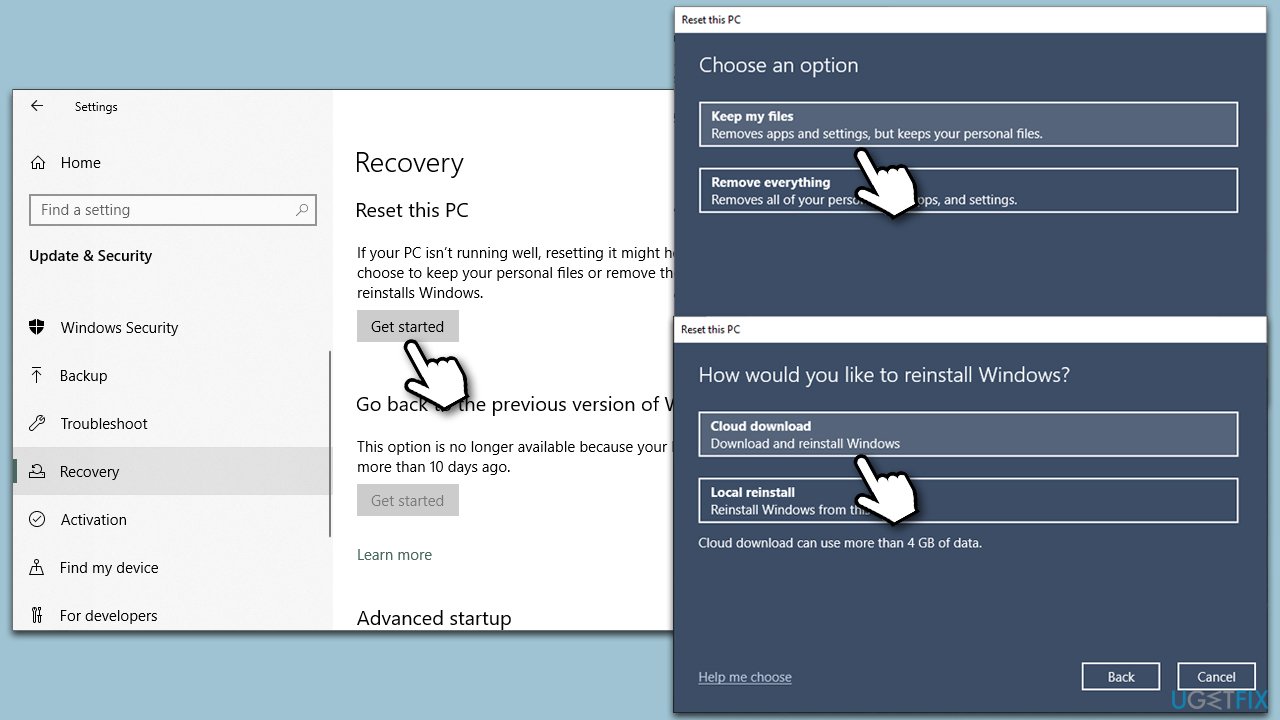
- Right-click on Start and pick Settings.
- Go to the Update & Security section and select Recovery.
- Under Reset this PC, click on Get Started.
- Select Keep my files and Cloud download.
- Click Next in the following prompt.
- Click Reset.
Similar errors:
Bottom line
To fix Microsoft Store error 0x803FB005, you can try installing all pending Windows updates, resetting the Windows Store, or running special commands in an elevated Command Prompt. Additionally, consider disabling or uninstalling any third-party antivirus software. If none of these solutions work, using sophisticated repair software may help resolve the issue.




Report an issue
What's wrong with this guide? We review every report and update or remove content.
Report received — thank you. We'll review and fix it.
You need a free account to submit a report.
Be the first to comment