How to fix
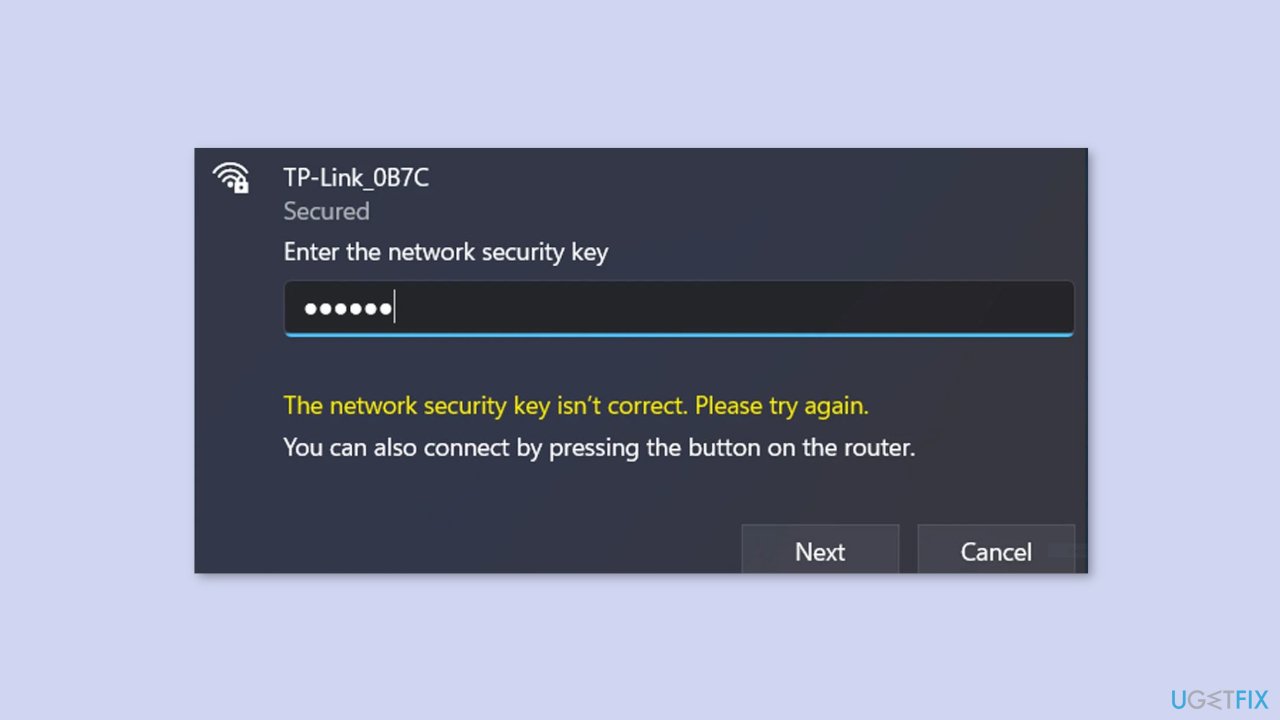
“The network security key isn’t correct” error
on Windows
Resolve "The network security key isn’t correct" error in Windows 11 effortlessly. Follow expert-tested solutions for seamless connectivity and no hassle.


What causes How to fix “The network security key isn’t correct” error in Windows 11?
- Incorrect security key entered
- Outdated network adapter driver
- Defective network adapter driver
- Operating system malfunction
- Router issues
Repairs Windows system files, removes malware, and restores a clean OS state — without reinstalling.
Hello. I tried to connect to my Wi-Fi in Windows 11 like I always do but I received the "The network security key isn’t correct" error message. How could this be? Any tips would be appreciated.
When a user tries to connect to a WiFi network with an incorrect security key, the "network security key isn't correct" error in Windows 11 most often occurs. The security key, also known as the WiFi password, is a one-of-a-kind code required to connect to a secure wireless network.
However, the error message could appear as a result of an operating system malfunction. This error may have an impact on users by preventing them from connecting to the internet and, as a result, from accessing online services or browsing the web. It can also lead to frustration and time wasted while attempting to resolve the problem.
Updating network adapter drivers, disabling and re-enabling the network device, resetting the router, scanning for malware or virus infections, and changing the WiFi network's security key are all possible solutions to this error. It is important to note that the solution may differ depending on the cause of the error.
In this guide, you will find 5 steps that should help you fix "The network security key isn’t correct" error in Windows 11. You may also use a repair tool like [d1] that can fix most system errors, BSODs,[ref en-1] corrupted files, registry[ref en-2] issues, or clear cookies and cache.[ref en-3] Otherwise, follow the step-by-step instructions below.
Method 1. Update or Reinstall the Network Driver
An outdated or defective network adapter driver is one of the most common reasons for this error message. If this is the case, updating your network drivers can resolve the issue:
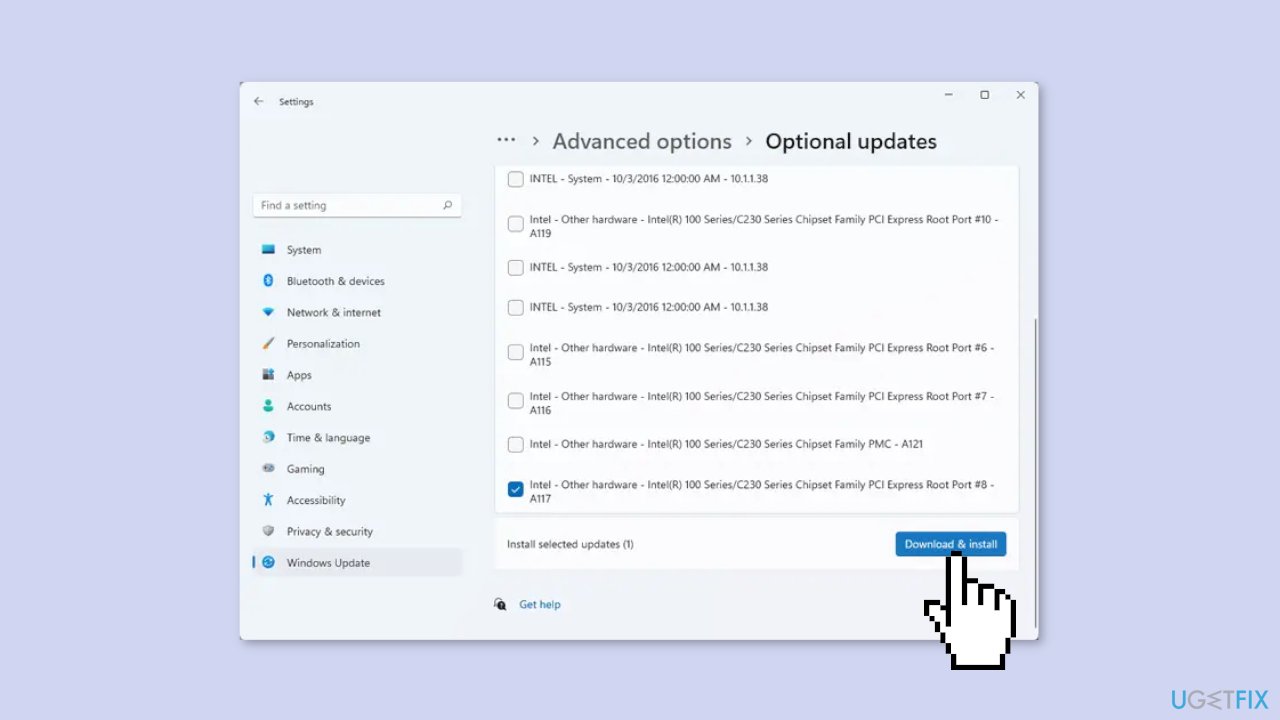
- Press the Windows key + I simultaneously to open the Settings app.
- Click on the Windows Update tab.
- Click on the Advanced options button.
- Click on the Optional Updates option.
- Check if there are any device driver updates available.
- If there are, you will be able to see them in this section.
- Find the network driver updates and click on the download and install button.
If updating the driver doesn't fix the error, it's possible that the network driver installation is corrupted. To address this issue, you can try uninstalling and reinstalling the network driver through Device Manager:
- Press the Windows key + X simultaneously to open the Quick Link menu.
- Select the Device Manager option.
- Locate the Network adapters category and click on the arrow to expand it.
- Right-click on your active network device.
- Select the Uninstall device option from the context menu.
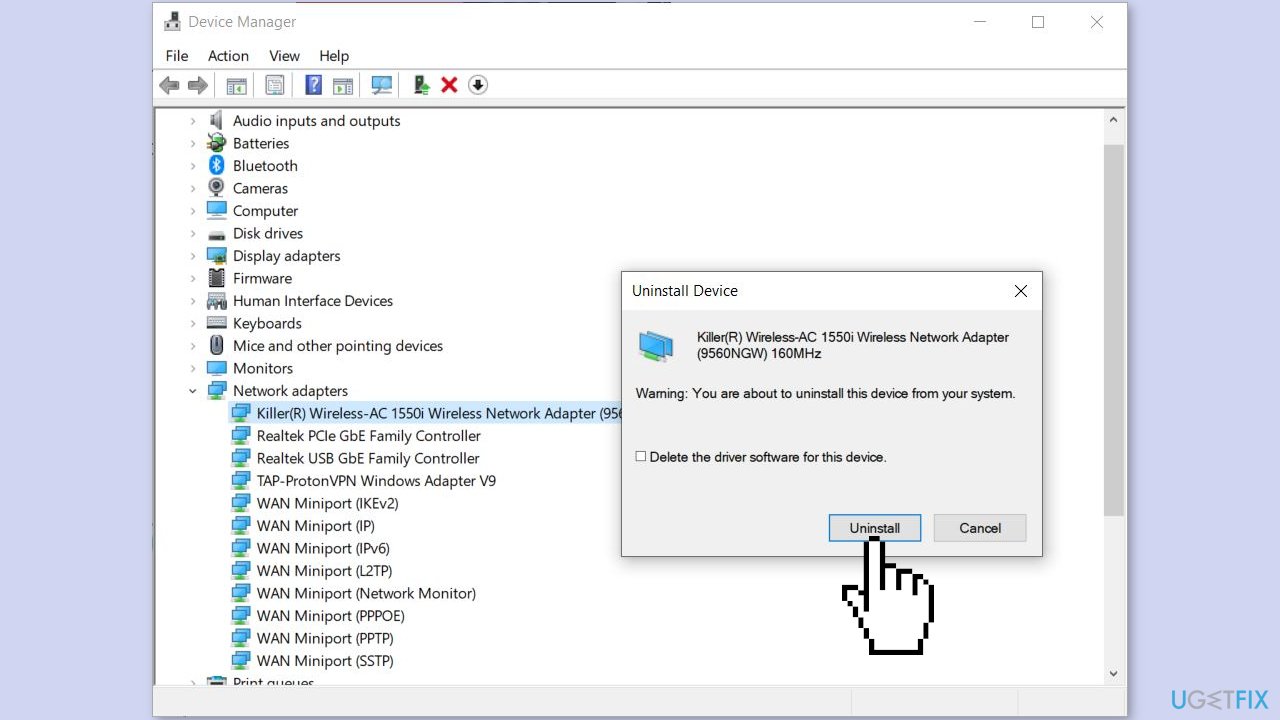
- Follow the prompted instructions to complete the process.
- Click on the Scan for hardware changes button.
- Allow the system to reinstall the missing drivers.
- Reboot your computer.
- Check if the error has been fixed.
Method 2. Generate a New Password
- Open a web browser.
- Enter one of the following IP addresses to access the router settings page: 192.168.0.1 or 192.168.1.1

- Sign in with your username and password to access the router's main settings.
- Navigate to the Wireless Security section.
- Enter a new password in the respective field.
- Press the Save button to save changes.
- Try entering the newly generated password as the security key for your WiFi.
- Check if the "The network security key isn’t correct" error is resolved.
Method 3. Re-enable Network Device
Disabling and then re-enabling your network device can help resolve the error if it's caused by a glitch with your networking device.
- Press the Windows key + I simultaneously to open the Settings app.
- Click on the Network & internet tab.
- Click on the Advanced network settings option.
- Click on More network adapter options.
- Right-click on your WiFi connection.
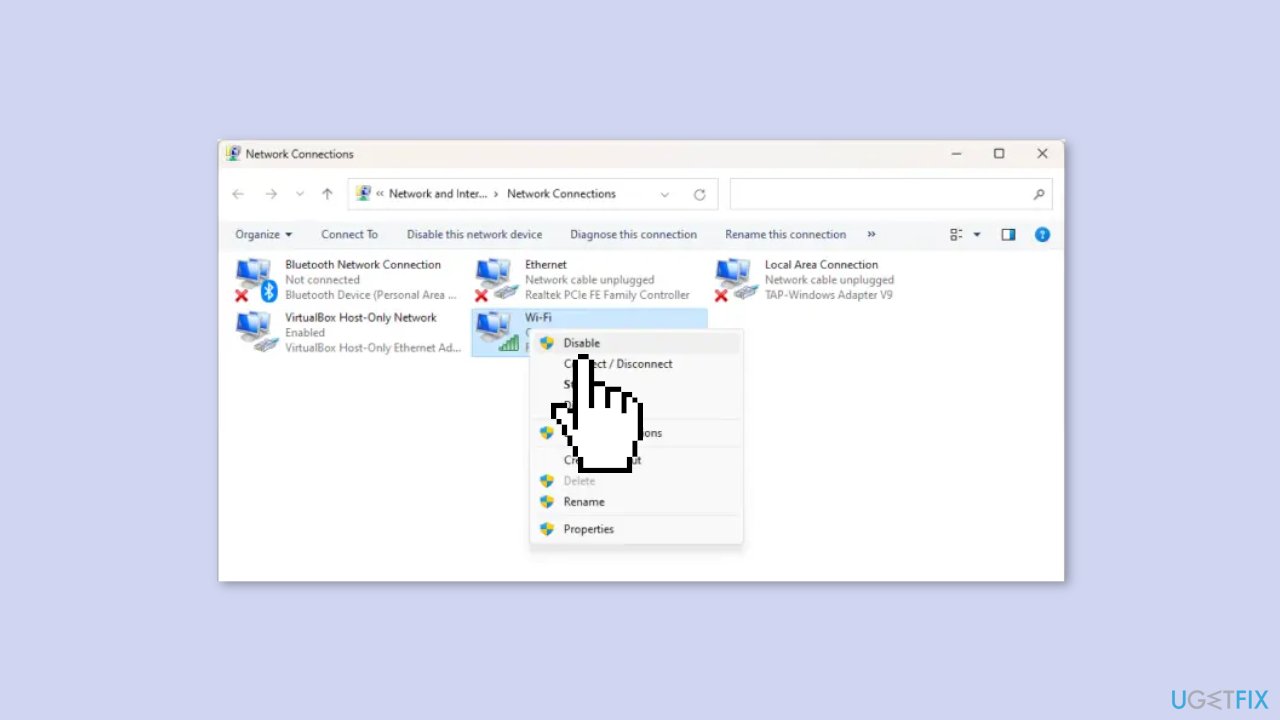
- Select the Disable option from the context menu.
- Wait for some time.
- Right-click on your network connection again.
- Choose the Enable option from the context menu.
Method 4. Connect to the Network Manually
- Open the Search using the Windows key + S
- Type Control Panel and press Enter
- Click on Network and Sharing Center
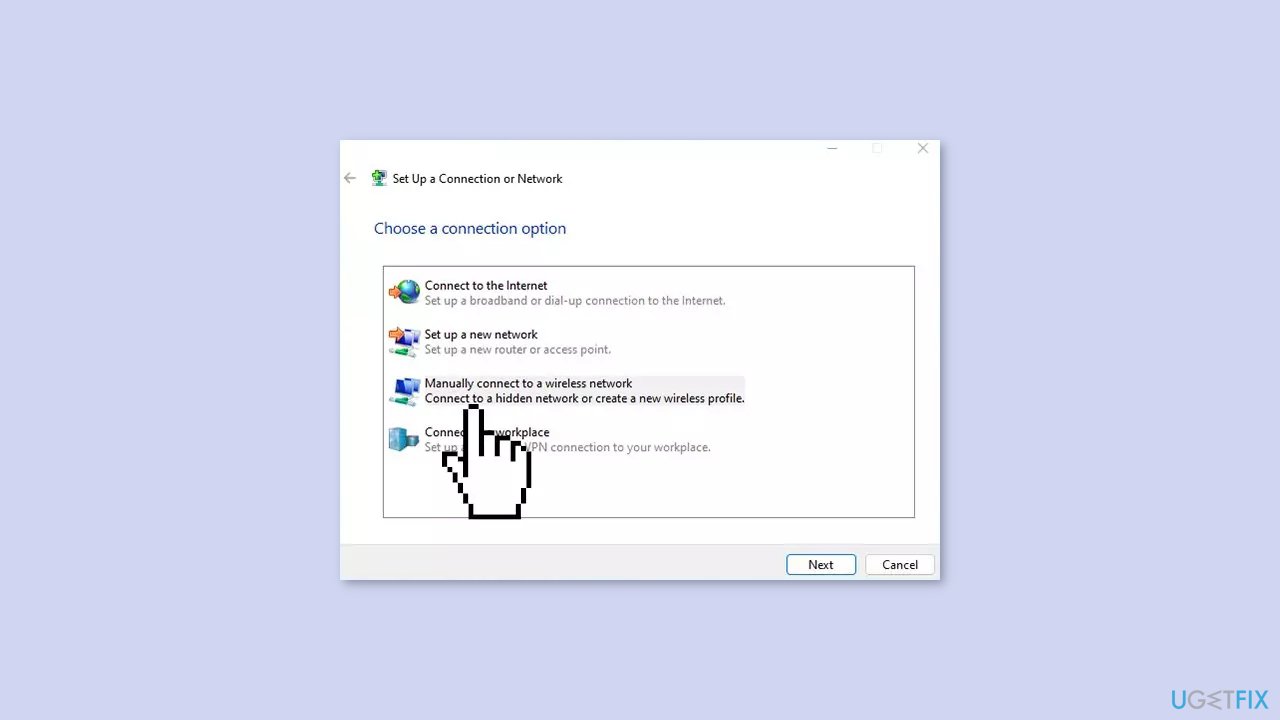
- Inside the Network and Sharing Center window, click on Set up a new connection or network
- Click on Manually connect to a wireless network and press the Next button
- Enter the correct network name and click on the Next button
- Set the Security type as WPA2-Personal and the Encryption type as AES protocol
- Enter the appropriate Security Key
- Click the Next button and select Use the existing network
Method 5. Reset the Network
- Right-click on the Start button and go to Settings
- Click on Network & internet in the navigation bar on the left
- Choose Advanced network settings
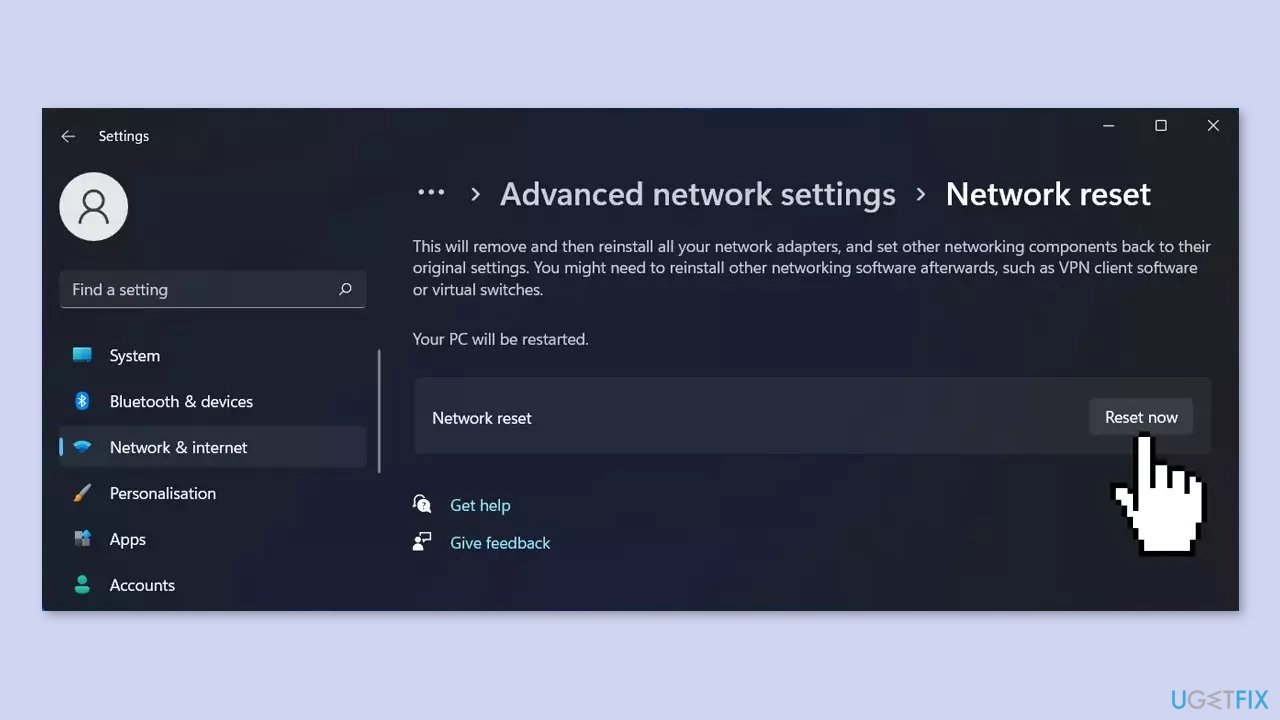
- Under More settings, click on Network reset
- Click on Reset now
- Your PC will reboot
Bottom line
To fix the 'The network security key isn’t correct' error in Windows 11, you can update or reinstall the network driver, disable and re-enable the network device, reset the router, scan for malware, or change the WiFi network's security key. If these solutions do not work, consider using a repair tool to address potential system errors.
Frequently asked questions
First, ensure that you are entering the correct Wi-Fi password. If the issue persists, try forgetting the network and reconnecting to it by re-entering the password.
Yes, outdated or incompatible network drivers can trigger this error. Updating your network drivers through Device Manager can help resolve the issue.
You can view your saved Wi-Fi password by going to Network & Internet settings, selecting Status, then Network and Sharing Center, and finally clicking on your Wi-Fi network to see the password under 'Wireless Properties'.




Report an issue
What's wrong with this guide? We review every report and update or remove content.
Report received — thank you. We'll review and fix it.
You need a free account to submit a report.
Be the first to comment