How to fix
Windows update error 0x80888002
on Windows
Resolve Windows update error 0x80888002 quickly with our expert-tested fixes. Get your updates running smoothly in no time! Updated 2025.


What causes How to fix Windows update error 0x80888002?
- Incompatible hardware with Windows 11
- Windows Update service being disabled
- Conflicts with other software or hardware
- Outdated or corrupt system files
- Malware or other security threats
Repairs Windows system files, removes malware, and restores a clean OS state — without reinstalling.
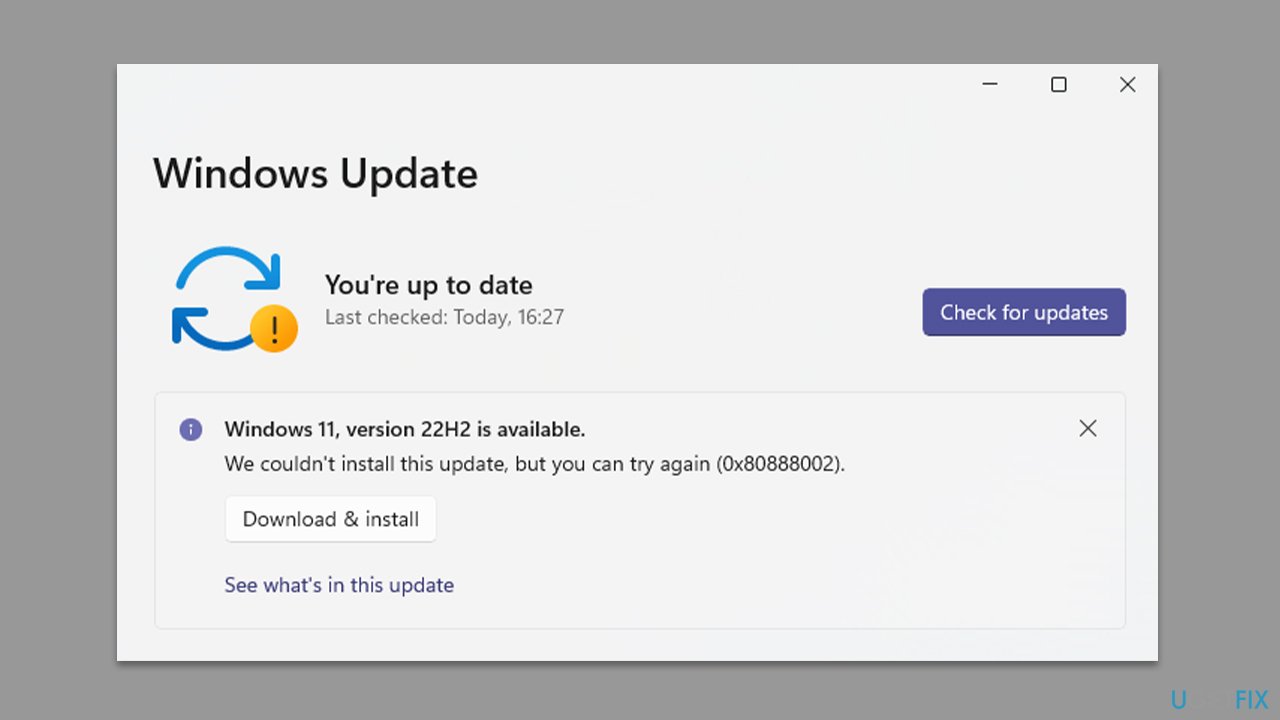
Hi, I keep getting the 0x80888002 Windows update error, no matter how many times I try. This has happened since I tried to upgrade to Windows 11 version 22H2. Please advise.
Windows update error 0x80888002 is an issue that users might face when trying to install Windows 11 on hardware that is incompatible with the latest operating system. In the past, users could bypass the checks using various methods, but with the release of the Windows 11 v22509 update, the error code is thrown when attempting to install it on unsupported devices.
Aside from hardware compatibility issues, users may also encounter the 0x80888002 error due to problems within the system, such as the Windows Update service being disabled. Troubleshooting this issue can be divided into two parts.
The first part involves using commands via an elevated Command Prompt to bypass the installation requirements and successfully upgrade to Windows 11. This method can be useful for users who want to upgrade their existing hardware but cannot meet the compatibility requirements.
The second method involves troubleshooting the issue with compatible hardware. In some cases, the error may be caused by conflicts with other software or hardware, outdated or corrupt system files, or even malware or other security threats that have compromised the system.
It's worth noting that Windows updates are important for fixing bugs, improving the user experience, patching security vulnerabilities, and more. However, errors can be quite persistent, and users may not be able to update their Windows for a prolonged period. Windows update errors such as 0x80888002 can be caused by various factors, and the solution can vary from one computer to another.
Overall, it's essential to keep your Windows system up-to-date by regularly checking for and installing updates. When faced with errors such as 0x80888002, taking the time to troubleshoot the issue can help resolve the problem and ensure that your system is secure and up-to-date with the latest features and improvements.
Fix 1. Skip TPM check
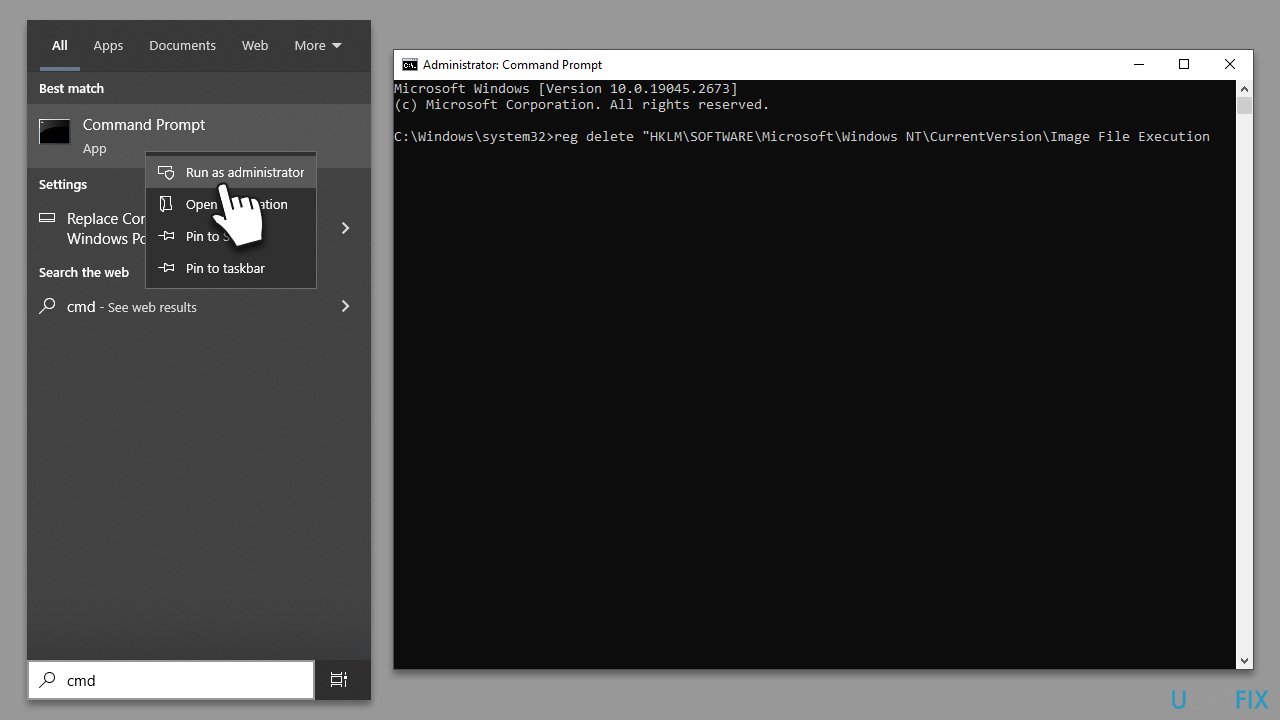
Using an elevated Command Prompt, you can skip the TPM check, which prevents users from upgrading to Windows 11. Here's how to do this:
- Type cmd in Windows search.
- Right-click on the Command Prompt result and select Run as administrator.
- User Account Control will ask you whether you want to allow changes - click Yes.
- In the new window, copy and paste the following command and press Enter:
reg delete "HKLM\SOFTWARE\Microsoft\Windows NT\CurrentVersion\Image File Execution Options\vdsldr.exe" /f - If this command gives an error, try the following one instead:
wmic /namespace:"\\root\subscription" path __EventFilter where Name="Skip TPM Check on Dynamic Update" delete - Close down Command Prompt and try upgrading again.
Fix 2. Run the troubleshooter
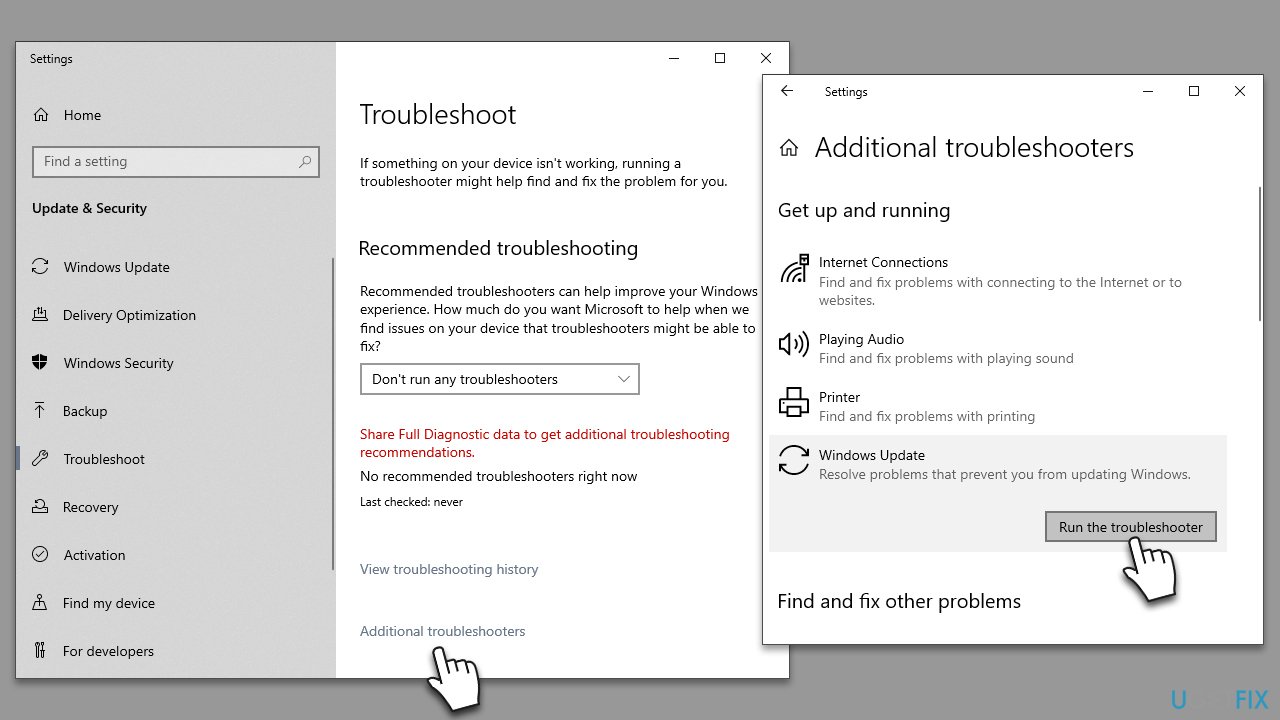
Troubleshooters can be useful for some users, this includes the Windows update issues:
- Type Troubleshoot in Windows search and hit Enter.
- Click Additional troubleshooters on the right.
- Scroll down to find Windows update and select it.
- Click Run the troubleshooter.
- Apply the offered changes and restart your device.
Fix 3. Run SFC and DISM
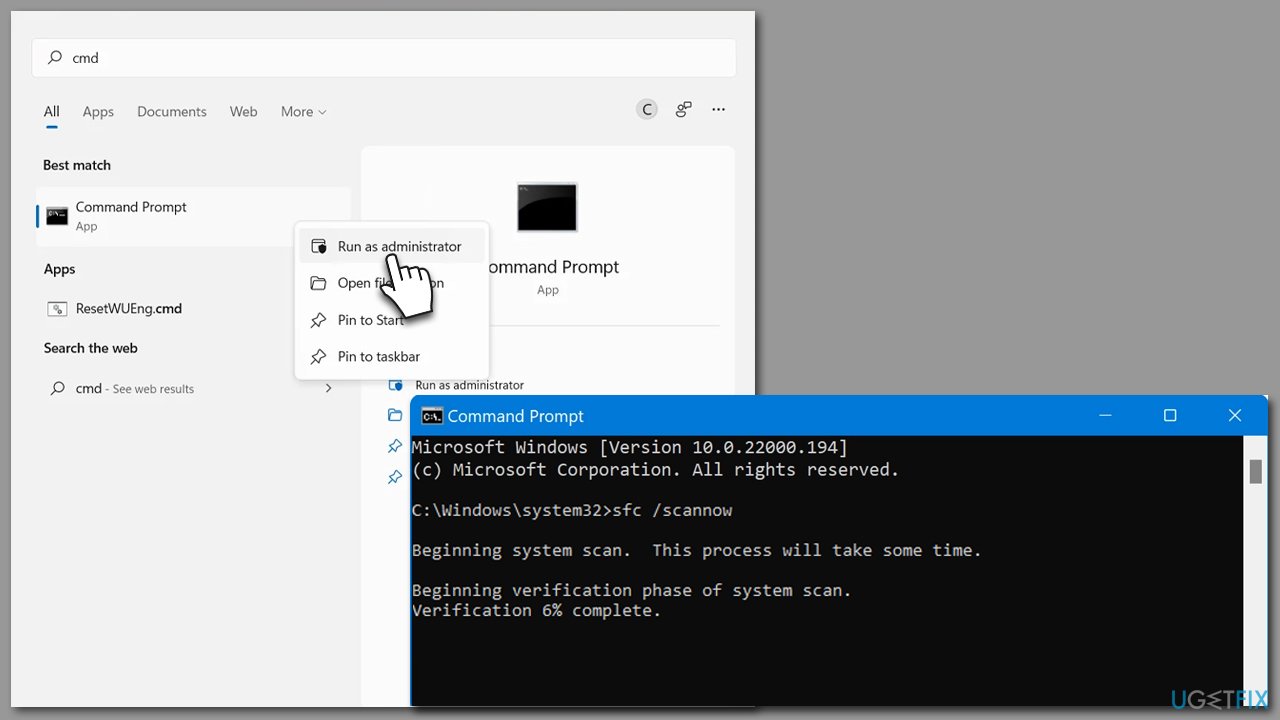
- Open Command Prompt as administrator, as explained before.
- Paste the following command into the new window:
sfc /scannow - Press Enter and wait till the scan is finished.
- Once done, run this set of commands, pressing Enter after each:
DISM /Online /Cleanup-Image /CheckHealth
DISM /Online /Cleanup-Image /ScanHealth
DISM /Online /Cleanup-Image /RestoreHealth - Restart your system.
Fix 4. Check your disk for errors
- Once again, open Command Prompt as administrator.
- In the new window, type in the following command and press Enter after:
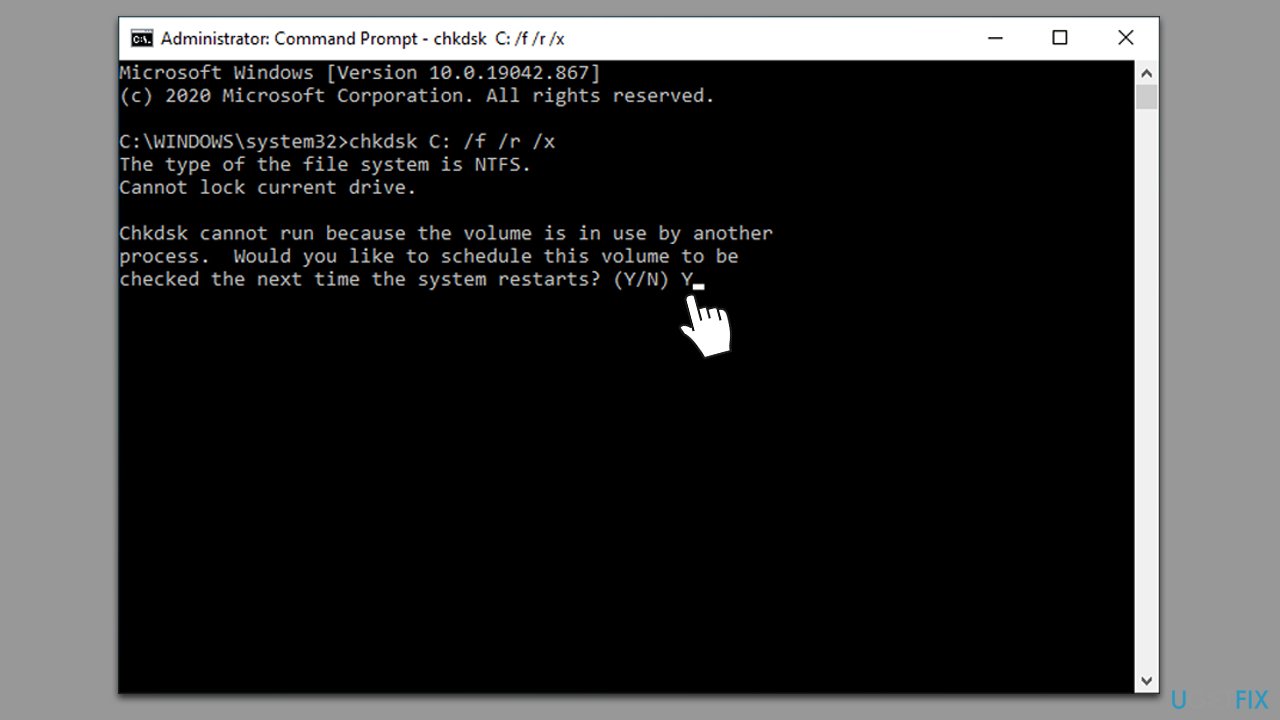
chkdsk c: /f
(Note: use chkdsk c: /f /r /x command if you use SSD as your primary partition). - If you receive an error, type in Y, close down Command Prompt, and restart your computer.
- After a restart, Windows will begin to scan your disk. After your system boots back up, you can find the results in the Event Viewer.
Fix 5. Reset Windows Update Components
- Open Command Prompt as administrator.
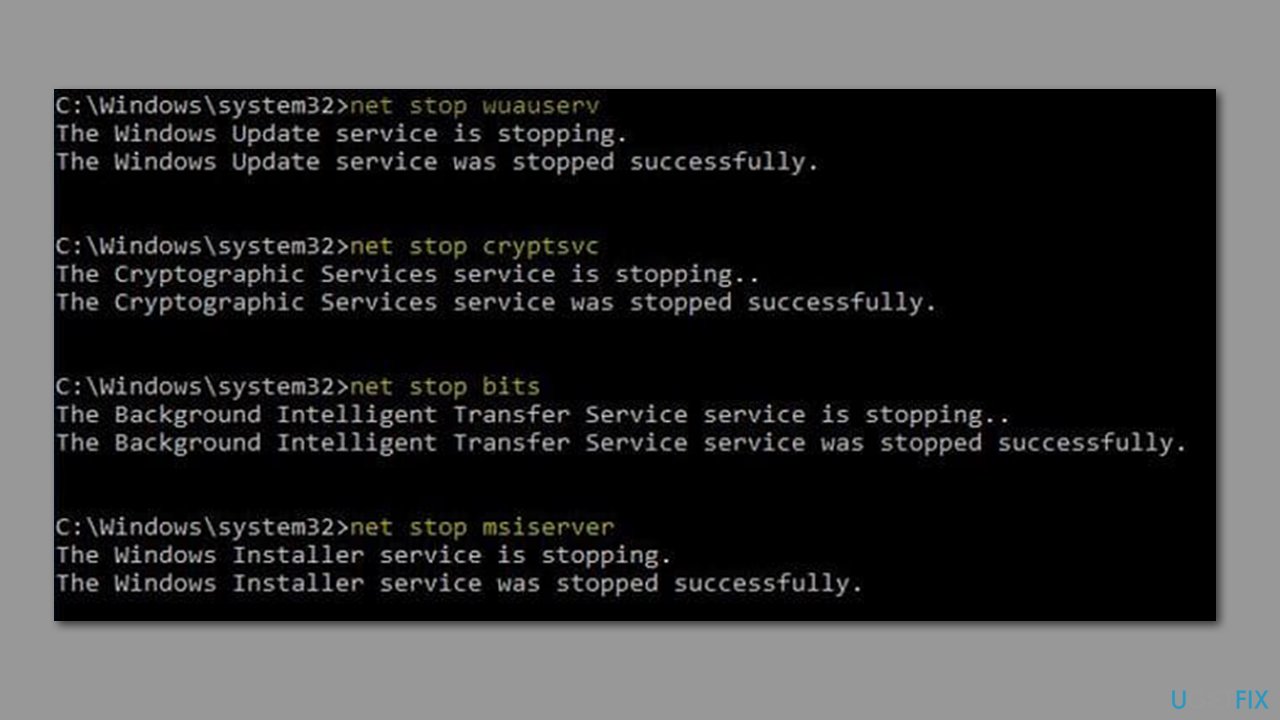
- Type each of these command lines, pressing Enter every time (wait till the command is fully executed):
net stop bits
net stop wuauserv
net stop appidsvc
net stop cryptsvc
Del "%ALLUSERSPROFILE%\Application Data\Microsoft\Network\Downloader\*.*"
rmdir %systemroot%\SoftwareDistribution /S /Q
rmdir %systemroot%\system32\catroot2 /S /Q
regsvr32.exe /s atl.dll
regsvr32.exe /s urlmon.dll
regsvr32.exe /s mshtml.dll
netsh winsock reset
netsh winsock reset proxy
net start bits
net start wuauserv
net start appidsvc
net start cryptsvc - Restart your device and attempt to download the update once more.
Fix 6. Employ Media Creation Tool
Media Creation Tool can bypass issues when performing updates or upgrades for some users. Before proceeding, make sure you have disabled or uninstalled your third-party security software and disconnected all non-mandatory devices, leaving only the mouse and keyboard.
- Visit the official Microsoft website and download Windows 10 installation media (Windows 11 version).
- Double-click the installer, select Yes when UAC shows up, and agree to the terms.
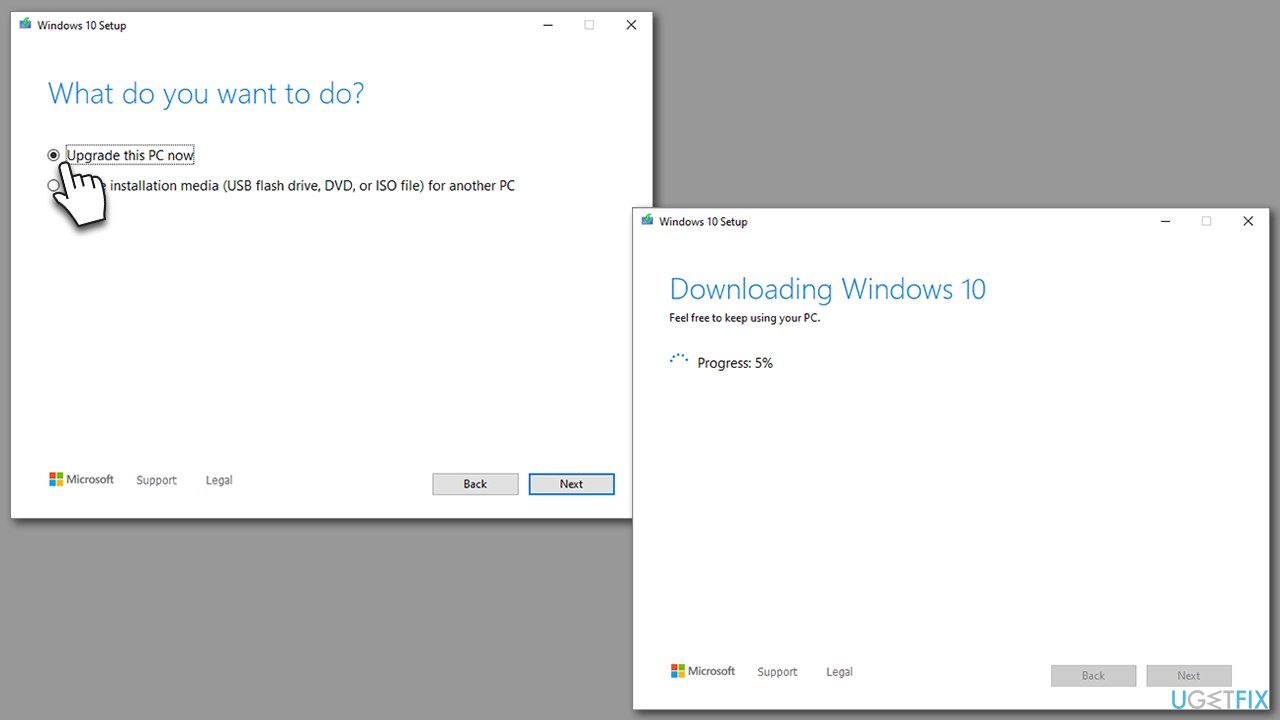
- Select Upgrade this PC now and click Next.
- Windows will start downloading the needed files.
- Agree to terms once again and click Next.
- Before installing, make sure that you are happy with your choices (you can click Change what to keep option if not).
- Click Install to begin the upgrade process.
Bottom line
To fix the Windows update error 0x80888002, you can try skipping the TPM check using an elevated Command Prompt or troubleshoot the issue with compatible hardware. If these methods do not resolve the error, consider checking for software conflicts or scanning for malware.
Frequently asked questions
The error 0x80888002 typically indicates a problem with the Windows Update service, preventing updates from being installed on Windows 10 or Windows 11.
To resolve the 0x80888002 error on Windows 10, you can try running the Windows Update Troubleshooter and resetting the Windows Update components.
Yes, you can open Command Prompt as an administrator and run commands like 'sfc /scannow' and 'DISM /Online /Cleanup-Image /RestoreHealth' to fix the 0x80888002 error in Windows 11.




Report an issue
What's wrong with this guide? We review every report and update or remove content.
Report received — thank you. We'll review and fix it.
You need a free account to submit a report.
Be the first to comment