How to fix
Error code 0x800704b3
on Windows
Resolve error code 0x800704b3 on Windows 10 and 11 effortlessly. Follow our expert-tested solutions for a quick fix and get back on track!


What causes How to fix error code 0x800704b3 in Windows?
- Network connection failure
- Incorrectly typed network path
- Network provider not available
- Improperly installed or configured network adapter
- Issues with network services such as DHCP or DNS
Repairs Windows system files, removes malware, and restores a clean OS state — without reinstalling.
Hello. When I try to open Discord I receive the 0x800704b3 error code. How can I fix this?
Error code 0x800704b3 is a common network-related error code in Windows that indicates a network connection failure. Users may be unable to connect to the internet or access network resources such as printers or shared files if this error occurs. This error can have a variety of consequences for users, including:
- Access to critical resources: If an error prevents a user from accessing shared files or printers on the network, it can have a significant impact on their ability to perform their job or complete tasks efficiently.
- Communication breakdown: If the error prevents a user from connecting to the internet or accessing their email, it can cause a breakdown in communication, resulting in missed deadlines or missed opportunities.
- Reduced productivity: If the error persists, it can cause frustration and cause users to take longer to complete their tasks, resulting in decreased productivity.
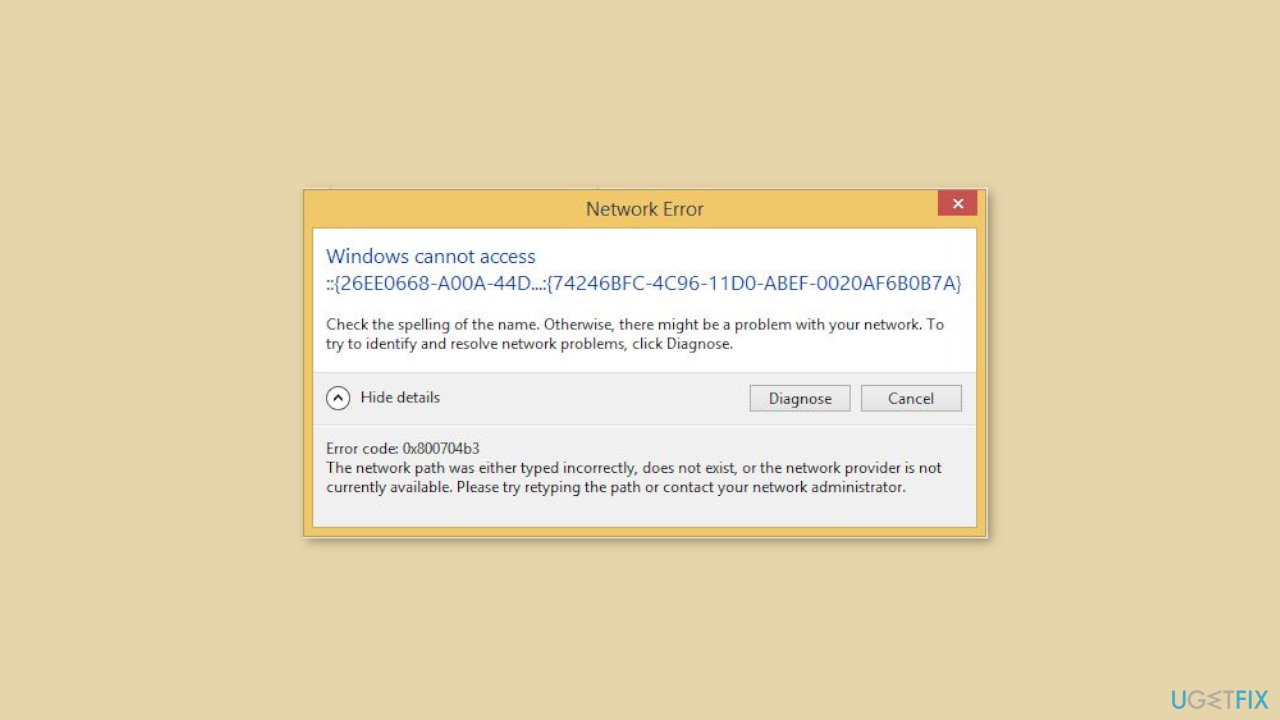
The full error message reads as follows:
Windows cannot access <networkpath>
Check the spelling of the name. Otherwise, there might be a problem with your network. To try to identify and resolve network problems, click Diagnose.Error code: 0x800704b3
The network path was either typed incorrectly, does not exist, or the network provider is not currently available.Please try retyping the path or contact your network administrator.
There are a few possible solutions that users can try to resolve this issue, including:
- Checking the network adapter: This involves verifying that the network adapter is properly installed and configured. If it is not, the user may need to reinstall the adapter or update its drivers.[ref en-1]
- Resuming network services: Restarting network services such as DHCP, DNS, and others can assist in resolving network connectivity issues.
- Temporarily disabling the firewall: If the error persists, the user may need to temporarily disable the firewall to determine if it is the source of the problem. If so, the user can re-enable it and configure it to allow network access.
In this guide, you will find 8 steps that should help you fix error code 0x800704b3 in Windows. Keep in mind that the manual troubleshooting process can be lengthy. You can try using a maintenance tool like [d1] that can fix most system errors, BSODs,[ref en-2] corrupted files, and registry[ref en-3] issues. Otherwise, follow the step-by-step instructions below.
Solution 1. Run the Network Adapter Troubleshooter
- Open the Settings app on your device.
- Select the System option from the available settings.
- Choose the Troubleshoot option from the list of available options.
- Click on the Other troubleshooters.
- Scroll down until you find the Network Adapter option.
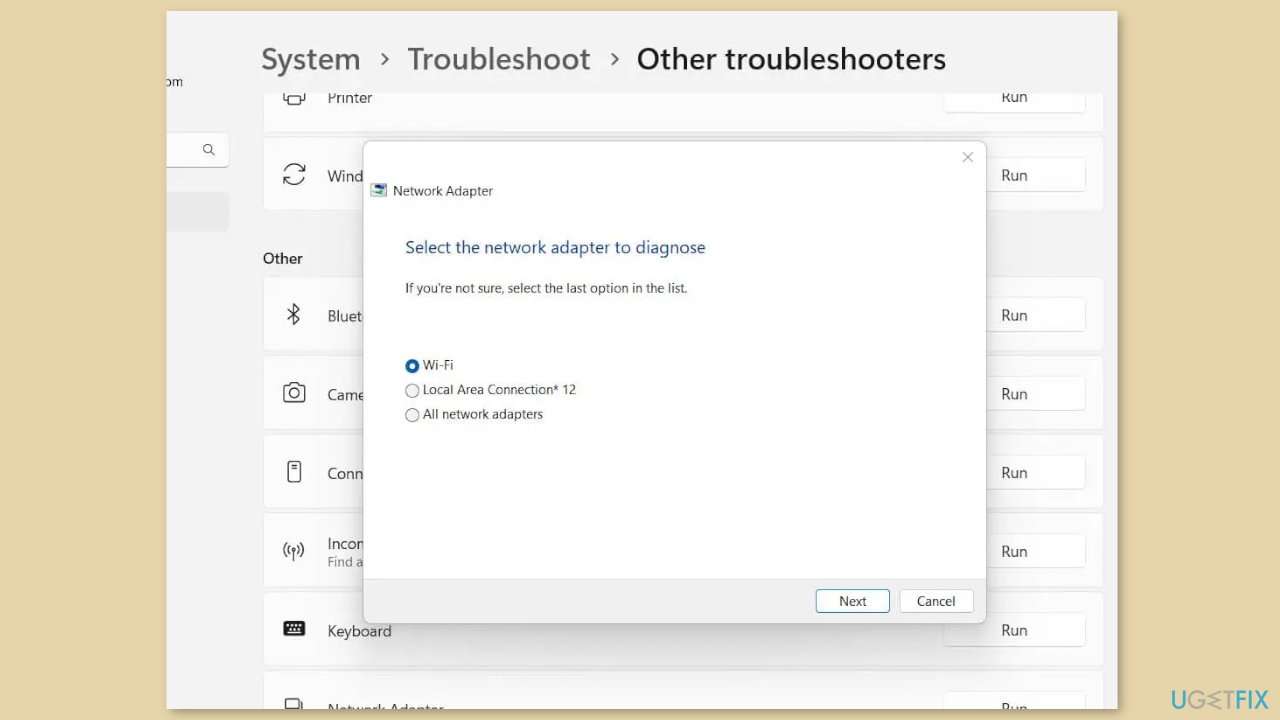
- Click on the Run button next to the Network Adapter option.
- Wait while the troubleshooter diagnoses and fixes any network connection issues.
- Once the troubleshooter has finished, review the results and follow any recommended actions to resolve any remaining issues.
Solution 2. Fix Corrupted System Files
Use Command Prompt commands to repair system file corruption:
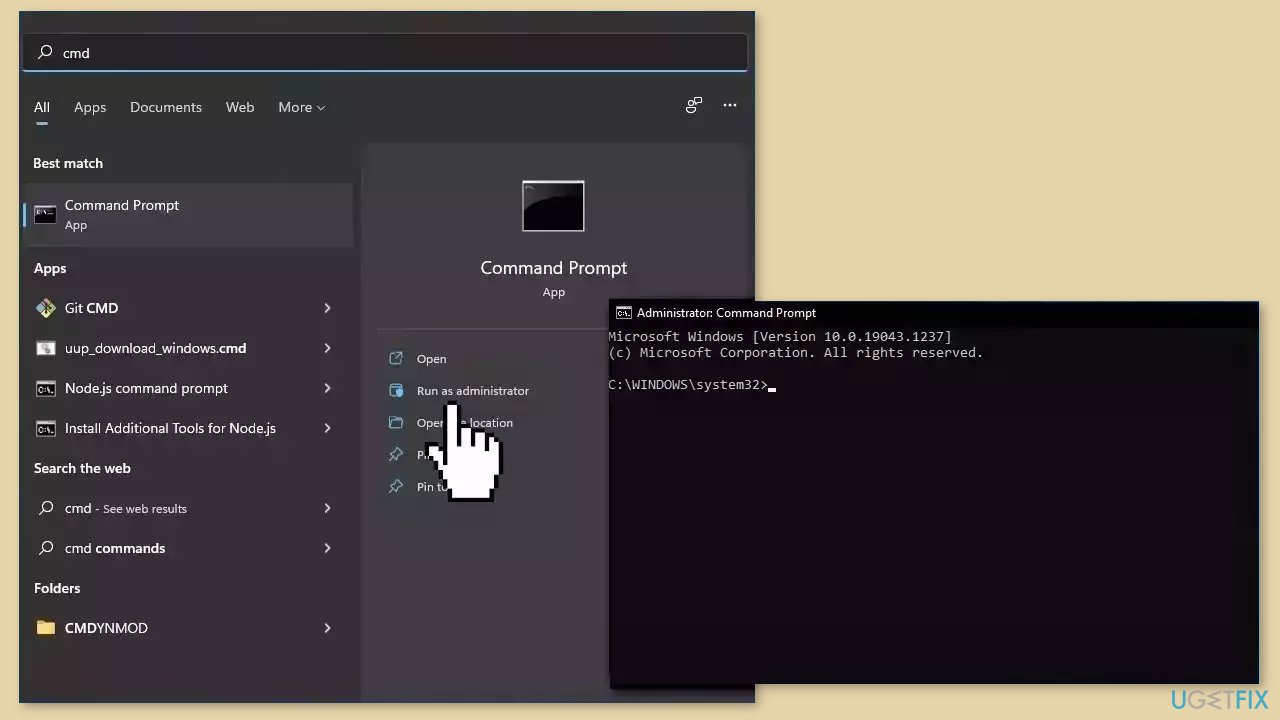
- Open Command Prompt as administrator
- Use the following command and press Enter:
sfc /scannow
- Reboot your system
- If SFC returned an error, then use the following command lines, pressing Enter after each:
DISM /Online /Cleanup-Image /CheckHealth
DISM /Online /Cleanup-Image /ScanHealth
DISM /Online /Cleanup-Image /RestoreHealth
Solution 3. Disable SMB 1.0 Protocol
- Click on the Start button on your device.
- In the search bar, type Windows Features and press enter.
- From the search results, select the Turn Windows features on or off option.
- In the subsequent window, look for the SMB 1.0/CIFS File Sharing Support option.
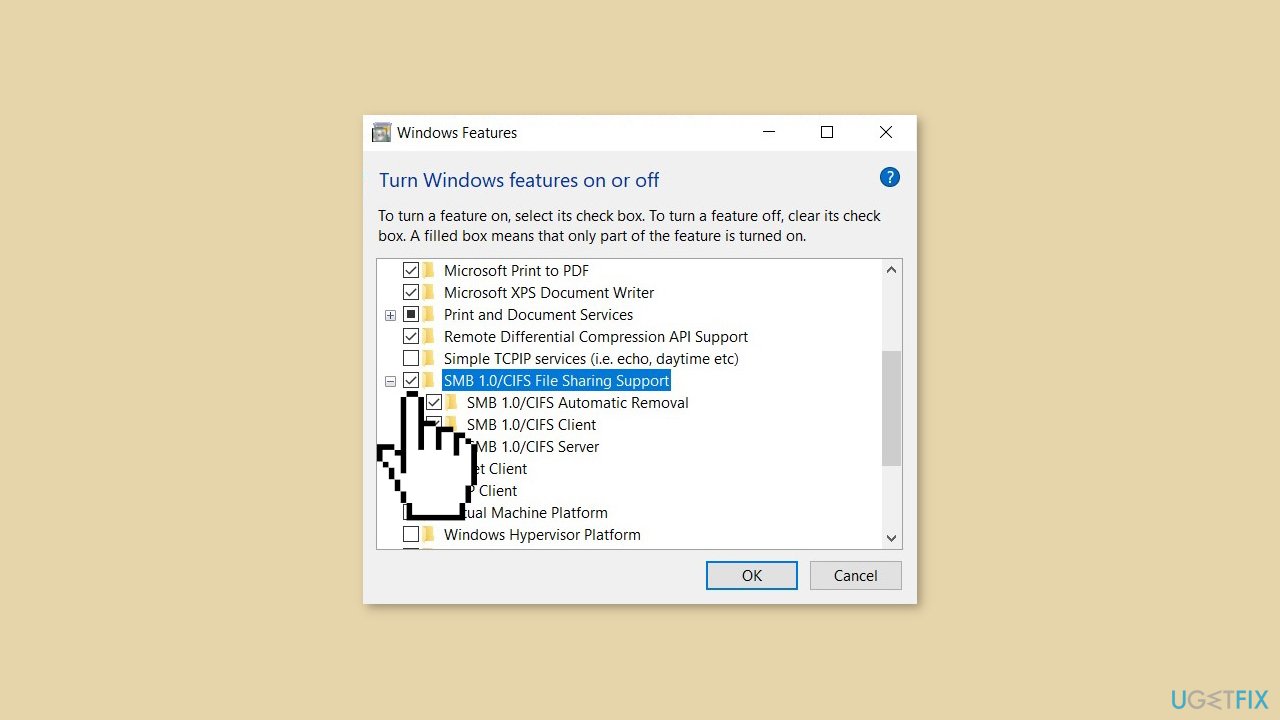
- Uncheck the checkbox next to it.
- Click OK to save the changes.
- Restart your PC to apply the changes.
Solution 4. Create a New User Account
- Open the Command Prompt on your device as an administrator.
- Type the following command and press Enter:
net user 'account name' /add
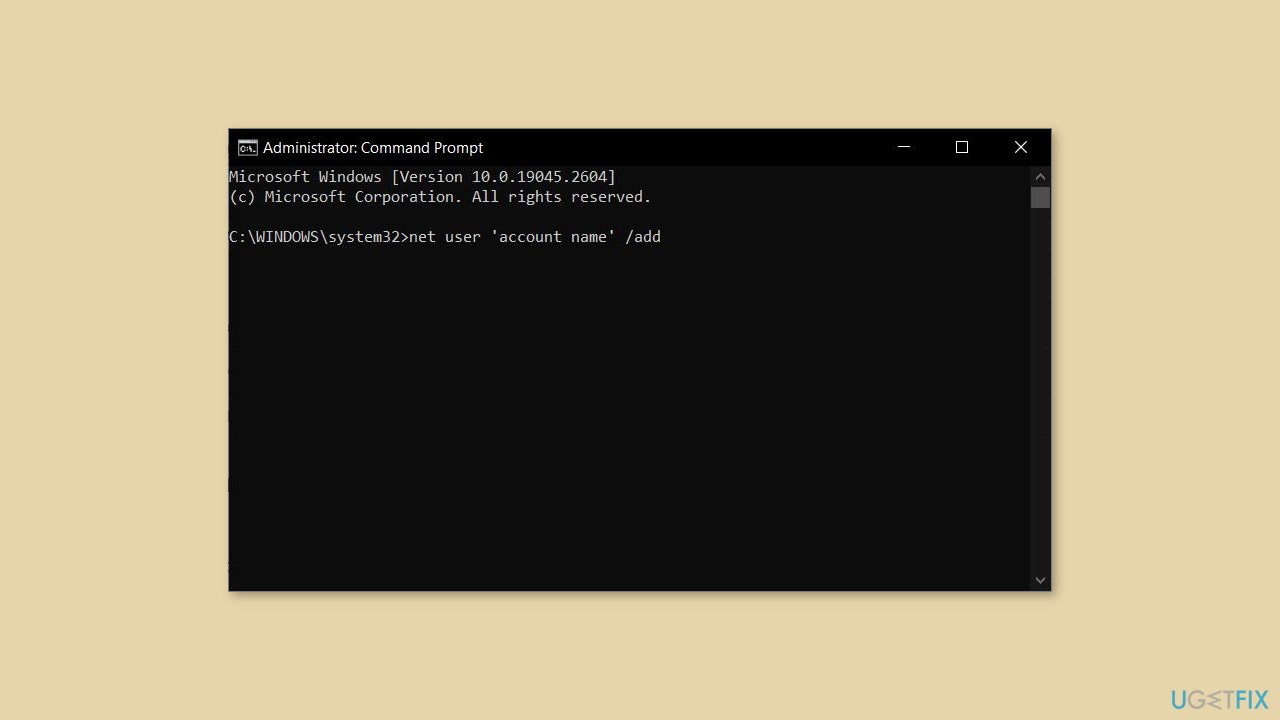
- Replace the account name with the name you prefer for the new account.
- Next, type the following command and press Enter:
net localgroup administrators 'account name' /add
- Again replace the account name with the name you chose for the new account.
- Wait for the commands to execute and create the new account.
- Log out of your current account and log in to the new account
Solution 5. Enable Network Services
- Press the Windows key to open the Start menu.
- Type cmd in the search bar.
- Right-click on Command Prompt and select Run as administrator from the context menu.
- Click Yes if prompted by User Account Control.
- In the Command Prompt window, type the following commands one by one and press Enter after each one:
net start dhcp
net start dnscache
net start netprofm
net start nlasvc
net start rpcss
net start lanmanserver
net start lmhosts
net start lanmanworkstation
net start fdrespub
net start upnphost
net start dot3svc
net start wlansvc
net start eventsystem
net start browser
net start wzcsvc
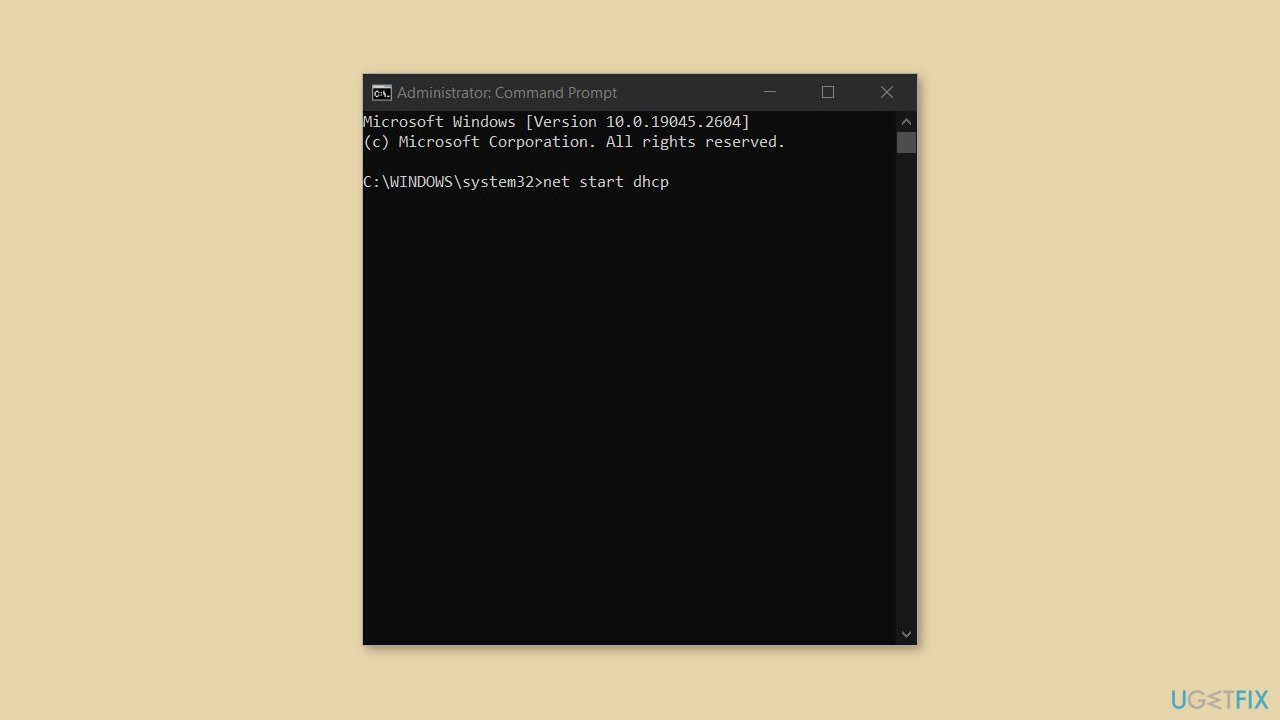
- Close the Command Prompt window.
Solution 6. Try Clean Boot
- Open the Search menu, type in system configuration, and press Enter
- Under the Services tab, tick the Hide all Microsoft services box
- Click on Disable all button
- Head over to the Startup tab and click on Open Task Manager
- Select a third-party program and click on Disable at the top
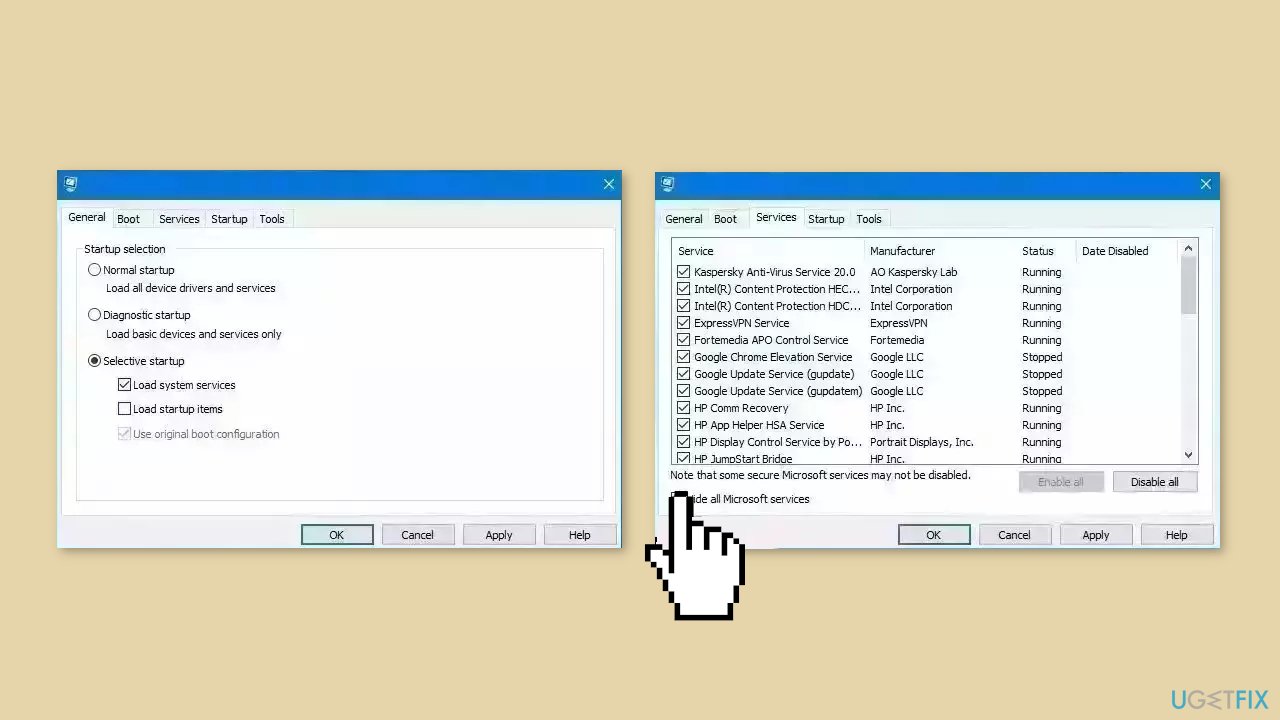
- Repeat this step to disable all third-party apps and programs
- Restart your PC to enter the clean boot state and see if the issue persists
- If the issue disappeared in the clean boot state, then you can be certain that a third-party app is causing it
- Go through all recently installed apps or programs and remove them one by one
Solution 7. Use System Restore
System Restore is a feature in Microsoft Windows that allows users to revert their computer's state to a previous point in time. This can be helpful if you have made changes to your system that are causing problems.
- Press the Windows key + R on your keyboard to open the Run box.
- Type SystemPropertiesProtection and press Enter.
- Go to the System Protection tab.
- You will see the System Restore… button. Click it to run System Restore.
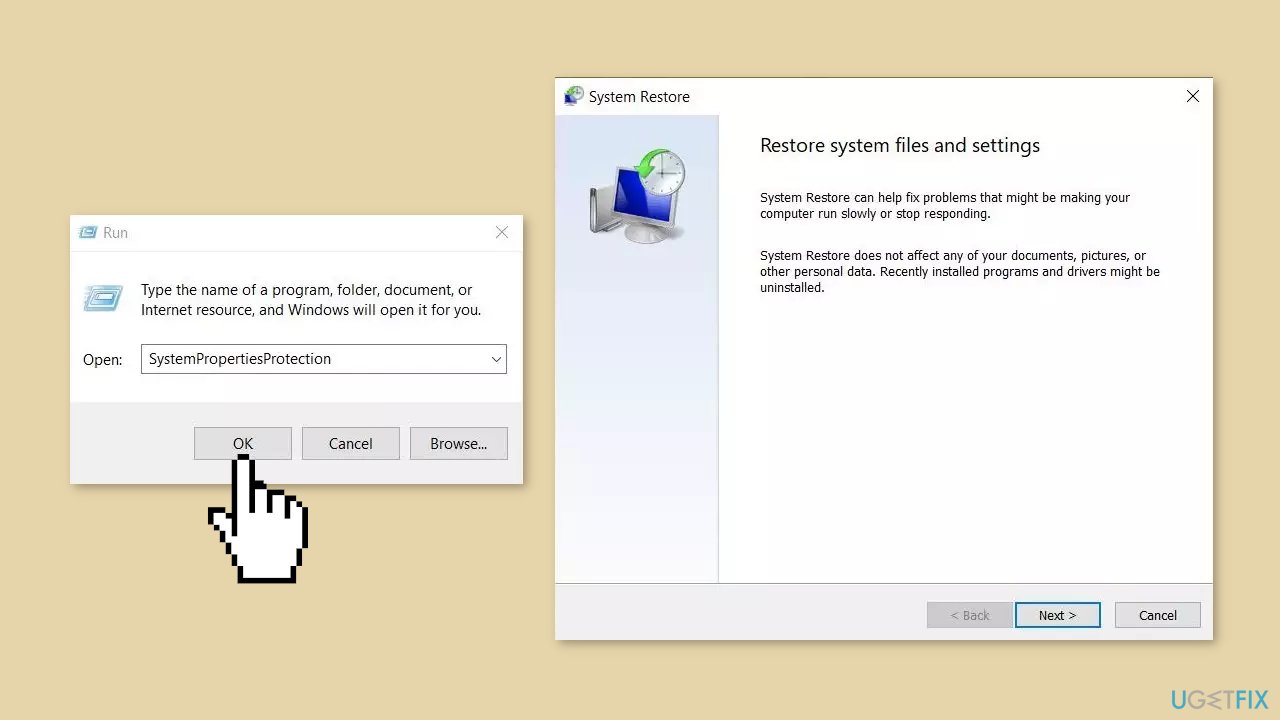
- Follow the prompts until you can select a restore point.
- Select the one you want (ideally before the issue started occurring) and go ahead with the process.
Solution 8. Repair Install Windows
- Visit the official Microsoft website to download Windows 11 or Windows 10 Installation Media
- Run the Media Creation Tool and select Create Installation Media for another PC
- Select your USB drive
- Let the Process complete of writing the Installation files to the USB drive
- Click Finish
- On the PC you wish to upgrade, Press Windows + E to open the File Explorer
- Open the Removable drive and click Setup.exe
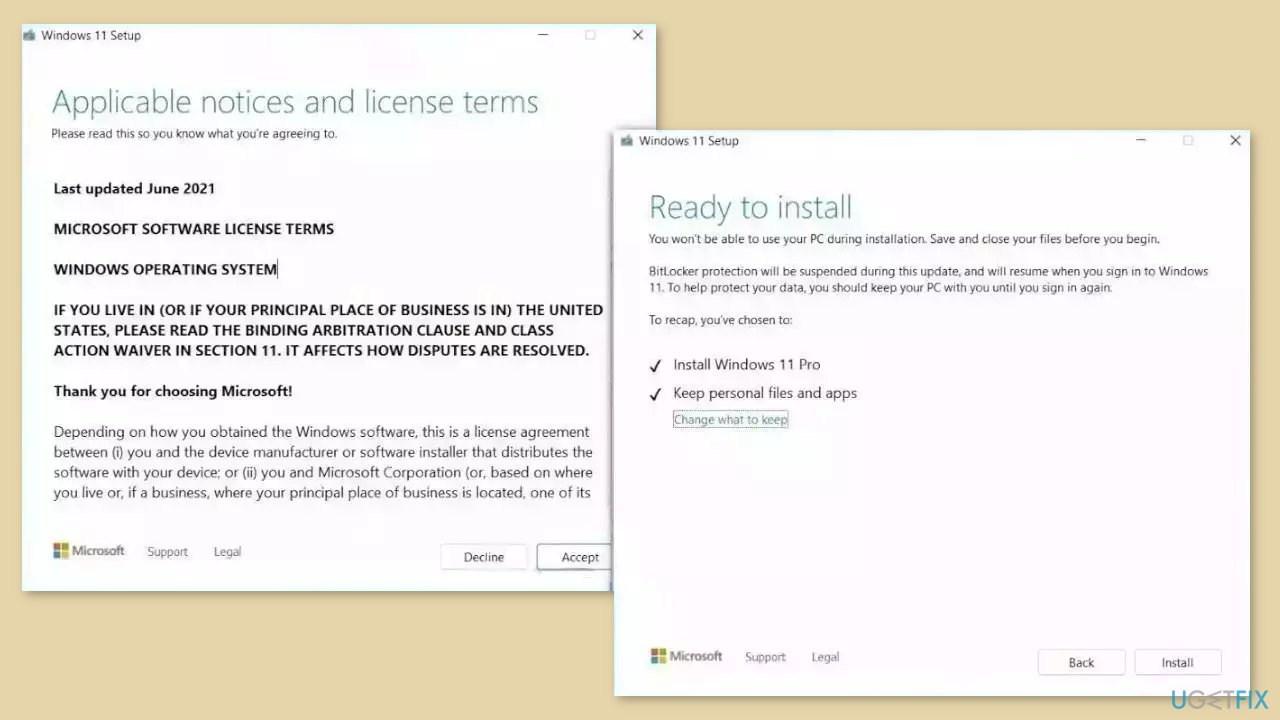
- Accept the license terms on the next screen
- Confirm the Upgrade options – Files, apps and Settings are kept
- Click Install, and the upgrade should start
Bottom line
To fix error code 0x800704b3, users can check the network adapter, resume network services, and temporarily disable the firewall to identify the source of the problem. If these solutions do not resolve the issue, further troubleshooting may be necessary.
Frequently asked questions
Error code 0x800704b3 typically indicates a network-related issue, often due to problems with the network adapter or its drivers.
To fix this error, try updating your network adapter drivers through Device Manager and ensure your network settings are correctly configured.
Yes, you can run the Network Troubleshooter by going to Settings > Network & Internet > Status, then selecting 'Network troubleshooter' to identify and fix common issues.




Report an issue
What's wrong with this guide? We review every report and update or remove content.
Report received — thank you. We'll review and fix it.
You need a free account to submit a report.
Be the first to comment