How to fix
Blurry or pixelated text in Chrome
on Windows
Say goodbye to blurry or pixelated text in Chrome on Windows 10 or 11. Quick tips and expert-tested solutions await to enhance your browsing experience!

What causes How to fix blurry or pixelated text in Chrome?
- Blurry text due to incorrect font settings
- Pixelated text from outdated graphics drivers
- Cache issues causing display problems
- Extensions or plugins affecting text clarity
Repairs Windows system files, removes malware, and restores a clean OS state — without reinstalling.
Hi, most of the font in my Chrome browser (that's the only one I use) has become blurry. It's very annoying because if the text is small enough, I can't even see it properly without zooming in ten times. Please advise.
Google Chrome is one of the most popular web browsers used globally. According to recent statistics, over 70% of internet users worldwide use Chrome to access the internet. Its popularity can be attributed to its many features, such as its speed, security, and user-friendly interface.
Despite its many benefits, however, Chrome is not without its issues. Users often experience problems with the browser, such as slow loading times, crashes, or problems with plugins. One of the most common issues that Chrome users encounter is text that appears blurry or pixelated, which can be a rather frustrating experience when using the browser.
This can be especially noticeable on high-resolution displays or when users zoom in on a page. The problem can make reading text difficult and can cause eye strain or headaches. Users reported that the problem existed from the start in the vast majority of cases, pixelated or blurry text in Google Chrome occurred unexpectedly.
Fortunately, there are several ways to address this issue. One possible solution is to adjust Chrome's font settings. Users can try changing the font size or selecting a different font to see if this improves the text's clarity. Additionally, updating graphics drivers or clearing the browser's cache may help resolve the issue.
It is also worth noting that some extensions or plugins can cause text to appear pixelated or blurry. Disabling or uninstalling these extensions may help resolve the problem.
Below we provide a step-by-step guide that should help you fix blurry or pixelated text in Google Chrome. To verify that there are no issues with your computer itself, you could check it with a powerful PC repair tool [d1], which can find and replace damaged or corrupted system files automatically.
Fix 1. Change the browser font
In some cases, your browser font might be set to something that looks blurry or pixelated, so changing it might help you resolve the problem.
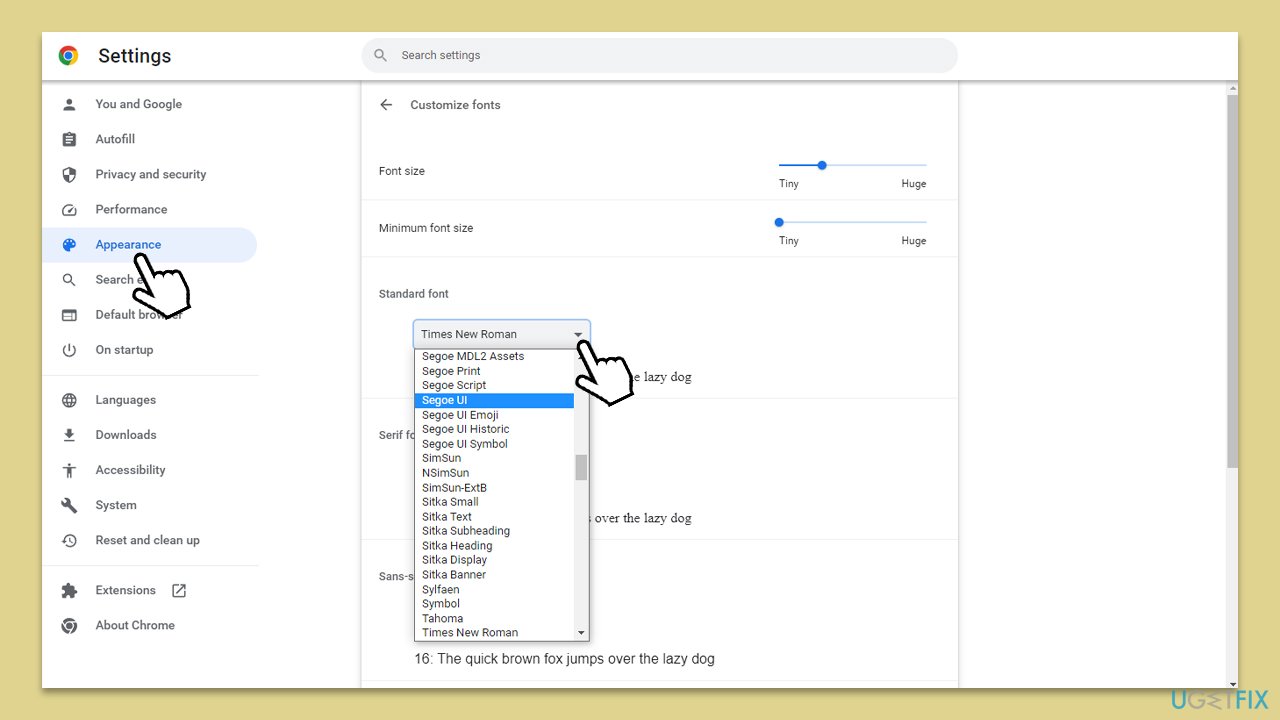
- Open Chrome, click on three vertical dots at the top-right corner, and select Settings.
- Select Appearance on the left.
- Click Customize fonts.
- Here, you will see various sections for font selection, such as Standard font.
- Change these settings and select fonts that do not look blurry and pixelated.
Fix 2. Update your GPU drivers
There are several ways you could update your GPU drivers. You can start with the Windows update feature:
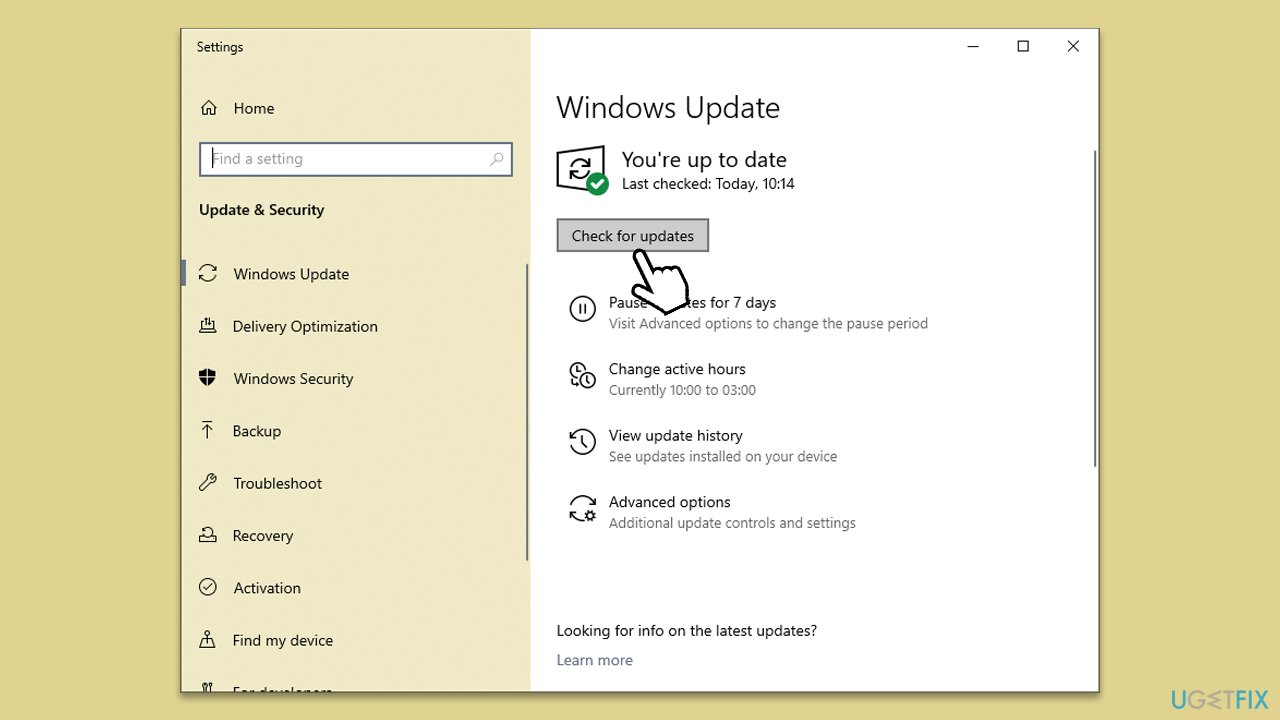
- Type Updates in Windows search and press Enter.
- Click Check for updates in the new window.
- If optional updates are available - install them too.
- Wait till all the necessary files are installed and restart your PC.
Note that Windows might often fail to find the latest version of drivers for your particular hardware, thus we recommend either using an automatic driver updater [rev id="DriverFix"] or installing the updates from your device manufacturer's website.
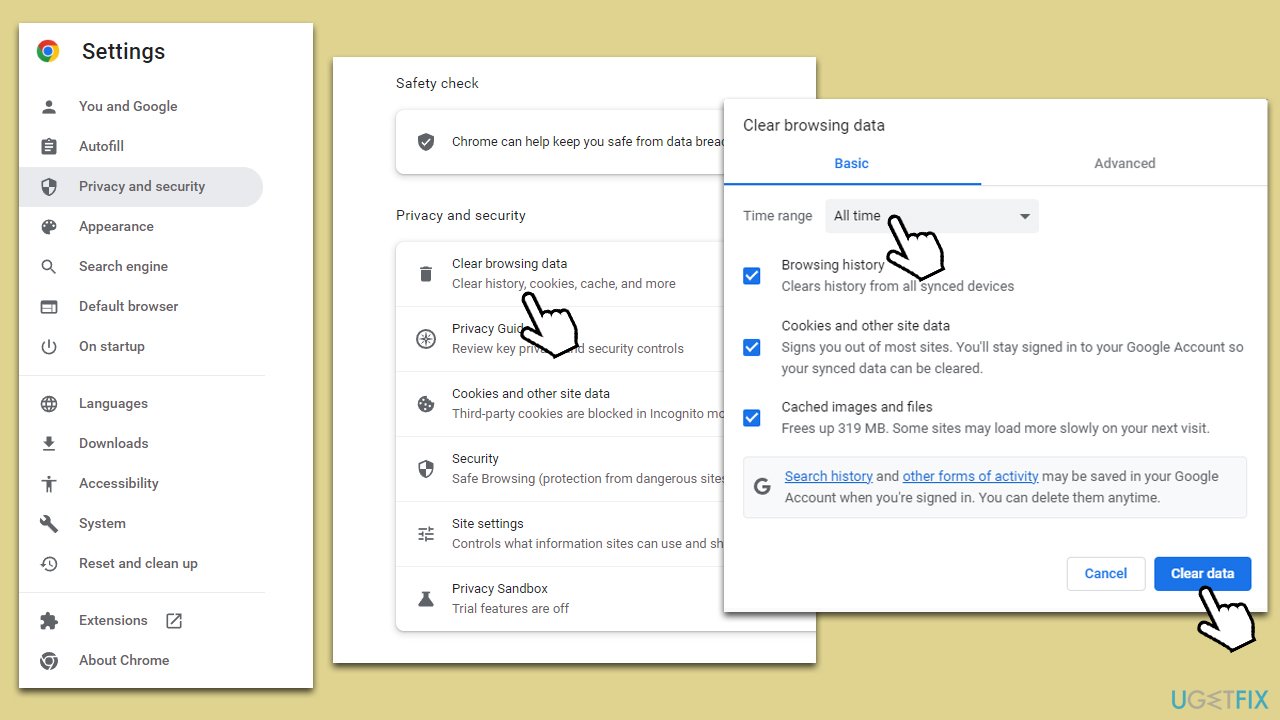
Fix 3. Clear browser caches
- Click on Menu and pick Settings.
- Under Privacy and security, select Clear browsing data.
- Under Time range, make sure to select All time.
- Select Browsing history, Cookies and other site data, as well as Cached images and files.
- Click Clear data.
Fix 4. Try ClearType
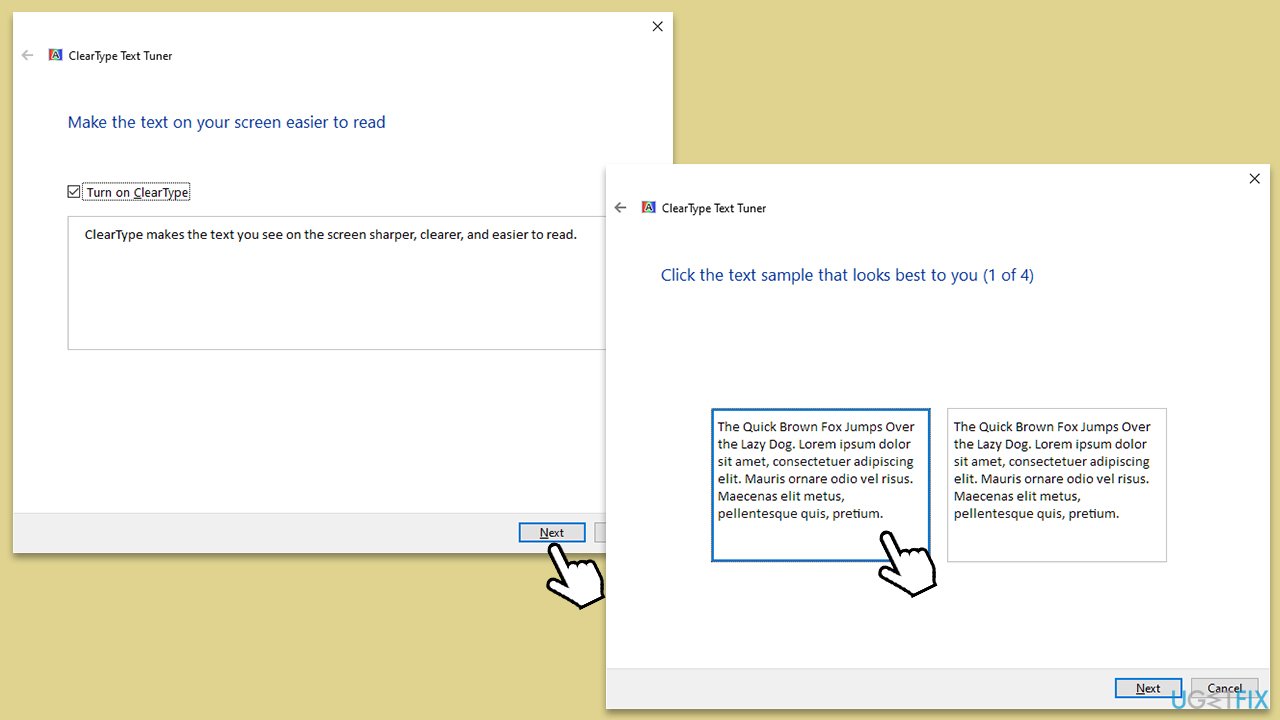
The built-in Windows feature known as ClearType allows you to set up and adjust the font to your liking.
- Type ClearType in Windows search and press Enter.
- In the new window, click Next.
- If you have several monitors, you can choose whether you want to adjust the text to all of them or just one.
- Now select the samples that look better for you and finish the configuration process.
Fix 5. Enable hardware acceleration
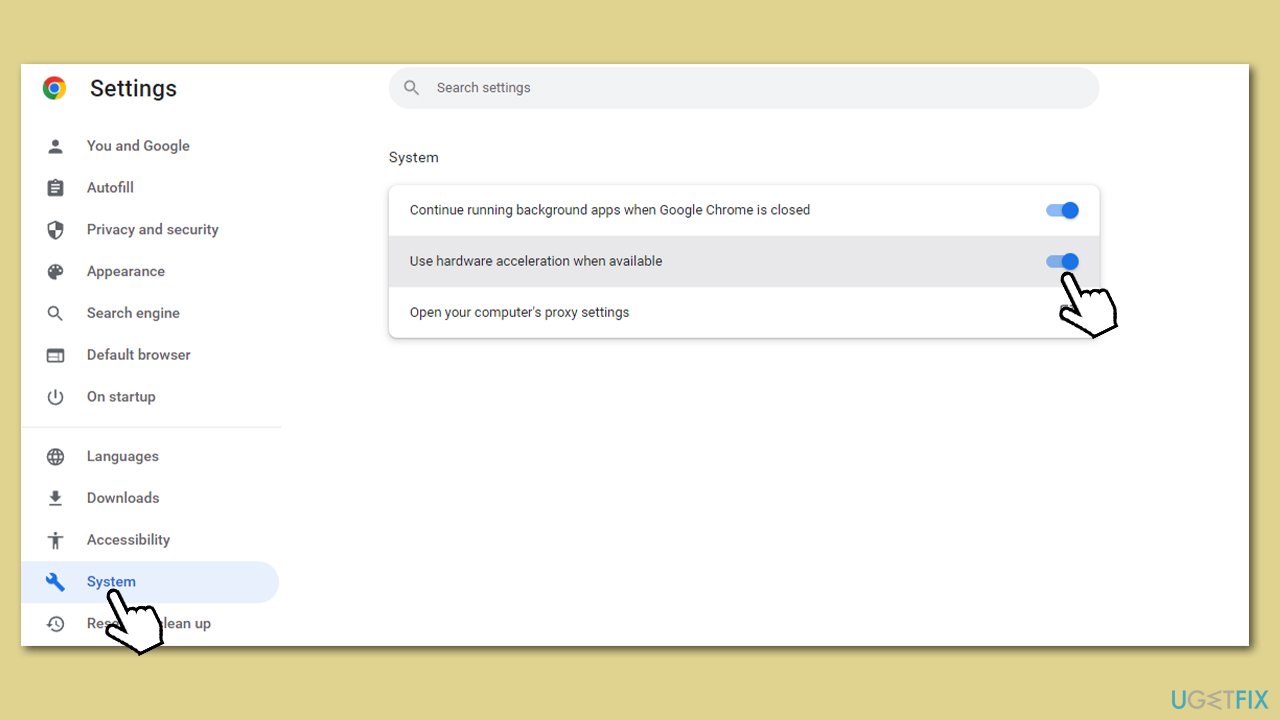
Hardware acceleration option allows Chrome to use your graphics card for graphics-intensive tasks, which can relieve stress and produce better results in the long run, possibly fixing the blurry or pixelated text issue.
- On Chrome, go to Menu and pick Settings.
- On the left side, select System.
- Enable the Use hardware acceleration when available option on the right.
Fix 6. Enable smooth edges
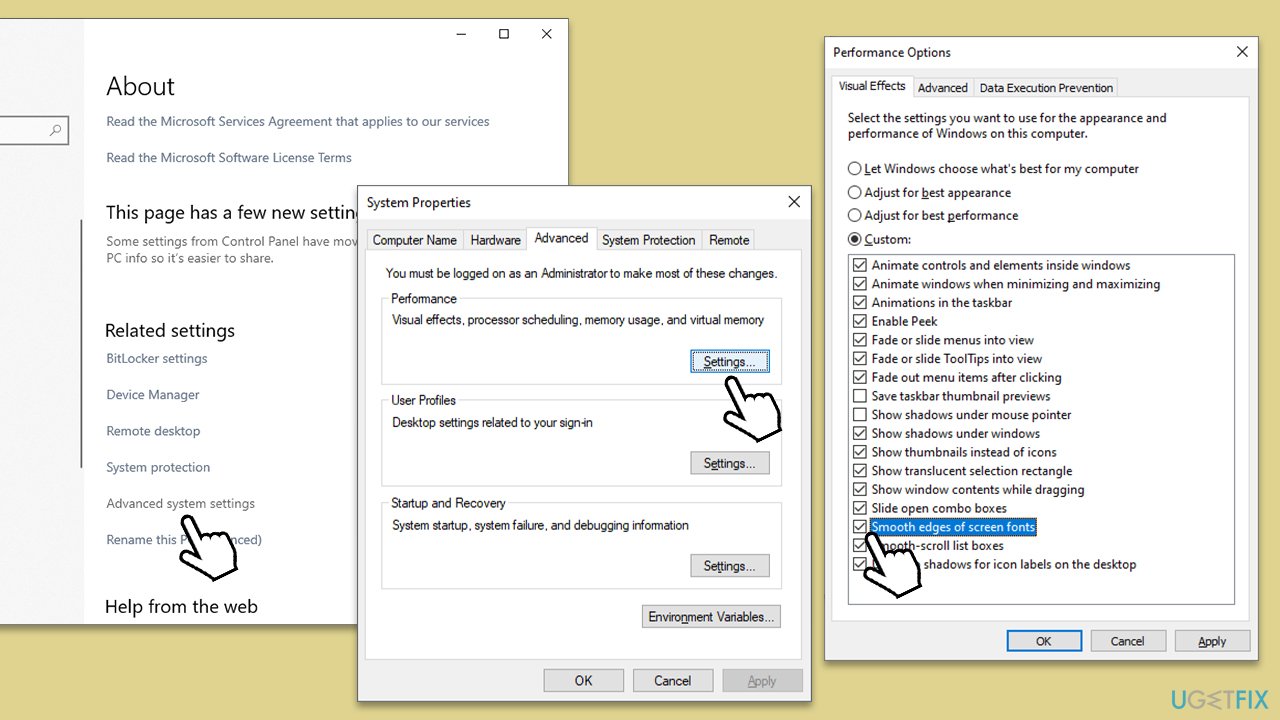
- Right-click on Start and pick System (or go to Settings > System from the Start menu).
- Scroll down to the Related settings section.
- Click Advanced system settings.
- Under Performance, select Settings.
- Marke the Smooth edge of screen fonts option.
- Click Apply and OK.
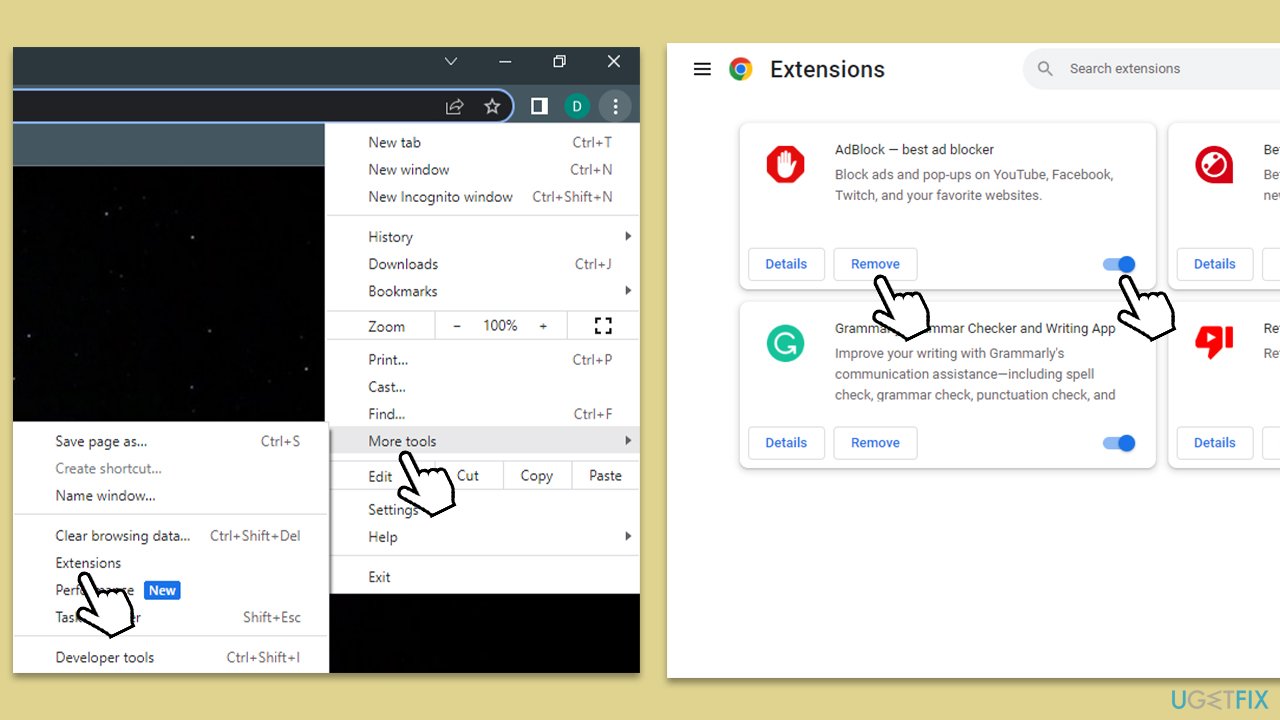
Fix 7. Uninstall extensions
Some browser extensions can cause Chrome to show blurry or pixelated text, so we recommend uninstalling (all) extensions to see if the problem is gone.
- Click on Chrome Menu and select More tools > Extensions.
- Look through your extensions and decide which ones might be causing text issues.
- If you aren't sure, simply remove them all by clicking the Remove button.
- Alternatively, you can disable each of the extensions by pressing the toggle button at the bottom-right of the extension window.
Bottom line
To fix blurry or pixelated text in Chrome, you can adjust the browser's font settings, update your graphics drivers, or clear the browser's cache. Additionally, disabling or uninstalling problematic extensions may help. If none of these solutions work, consider checking your computer with a powerful PC repair tool.
Frequently asked questions
Blurry text in Chrome can be caused by hardware acceleration issues or incorrect display settings. Adjusting these settings may help improve text clarity.
You can adjust the font rendering settings by going to Chrome's settings, searching for 'hardware acceleration', and toggling it off or on. Additionally, changing the ClearType settings in Windows can enhance text clarity.
If the issue persists, try updating your graphics drivers or resetting Chrome to its default settings, which can resolve conflicts affecting text display.




Report an issue
What's wrong with this guide? We review every report and update or remove content.
Report received — thank you. We'll review and fix it.
You need a free account to submit a report.
Be the first to comment