How to fix
Magic Mouse not working
on Windows
Resolve your Magic Mouse issues on Windows 10 and 11 effortlessly with expert-tested solutions. Get it fixed in minutes and enjoy seamless connectivity!

What causes How to fix Magic Mouse not working in Windows?
- Driver conflicts
- Outdated drivers
- Battery depletion
- Bluetooth connectivity issues
- Corrupted settings
Repairs Windows system files, removes malware, and restores a clean OS state — without reinstalling.
Hello. I use the Magic Mouse with my Windows PC and it suddenly stopped working. What do I do?
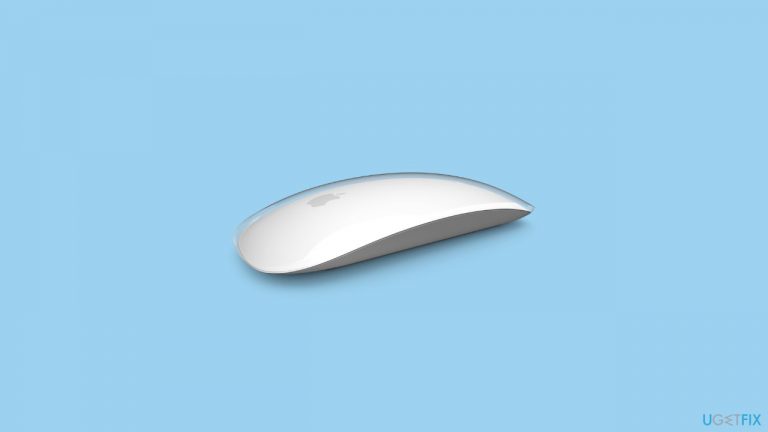
The Magic Mouse is an Apple Inc. wireless computer mouse with a multi-touch surface for scrolling. It is primarily intended for use with Mac computers, but it is also compatible with Windows computers.
When a Magic Mouse stops working with a Windows computer, it can be inconvenient for users who rely on it on a daily basis. The problem could be caused by a number of factors, such as driver conflicts, outdated drivers, battery depletion, Bluetooth connectivity issues, or corrupted settings.
To resolve the issue, try ensuring the Magic Mouse is within Bluetooth range of the computer, recharging the battery, removing and reinstalling the device, updating drivers[ref en-1] via Bootcamp or Apple Support, restarting the computer, or resetting the Bluetooth settings. To resolve the issue, users may need to try a combination of these solutions.
Because the Magic Mouse is a popular choice for many users who prefer the sleek design and touch-sensitive functionality, it's critical to address any issues that may arise to ensure that the device can be used without interruption. This guide will walk you through 6 steps to resolve Magic Mouse not working in Windows.
If you think this is related to underlying OS problems, you can use a repair tool like [d1] that can fix most system errors, BSODs,[ref en-2] corrupted files, registry[ref en-3] issues, or clear cookies and cache automatically. Otherwise, follow the step-by-step instructions below.
Method 1. Restart PC and Magic Mouse
A simple restart can frequently solve multiple problems on your computer. As a result, if you haven't already, it's a good idea to restart your computer.
You should also turn off and then turn on your Magic Mouse. Locate the small switch at the bottom of your Mouse to do so. Turn it off and then back on again. After both devices have restarted, connect your Mouse to the PC and see if it works.
Method 2. Check Range
Check if your Magic Mouse is within your PC's Bluetooth range before attempting complex solutions.
- Open Windows Settings and navigate to the Bluetooth & devices section.
- Click on Add Device.
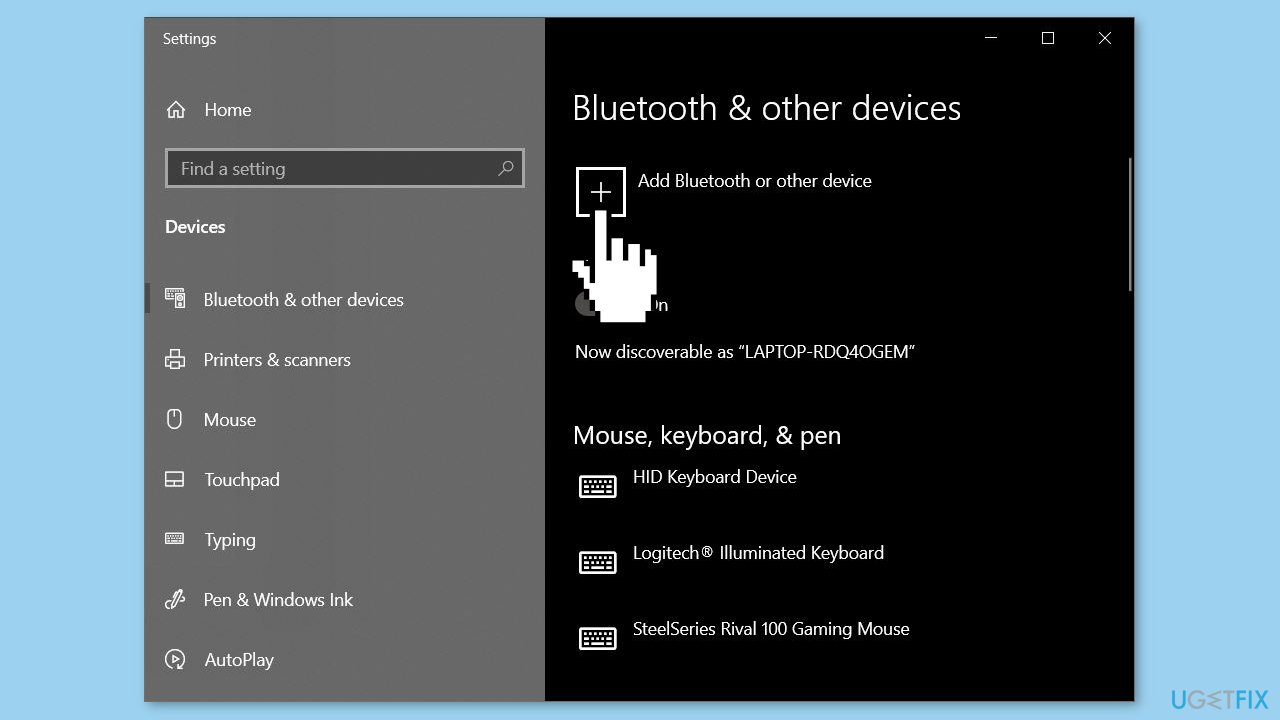
- Select the first option.
- Check if Windows can detect your mouse.
Method 3. Check Batteries
It's possible that your Magic Mouse's battery has died. In this case, try charging the battery for 30 minutes and then connecting it to your PC or another device to see if it works. If it works with other devices but not with your PC, move on to the next step.
Method 4. Re-pair the Magic Mouse
- Press the Windows key + I to launch Settings.
- Go to Bluetooth & devices and select Devices.
- Click on the three dots icon next to the Magic Mouse.
- Select Remove device.
- Once removed, reboot your computer.
Method 5. Install from Bootcamp Setup
This technique is solely applicable to Windows laptop users, and it is required to install the driver via Bootcamp.
- Visit the Apple Support page.
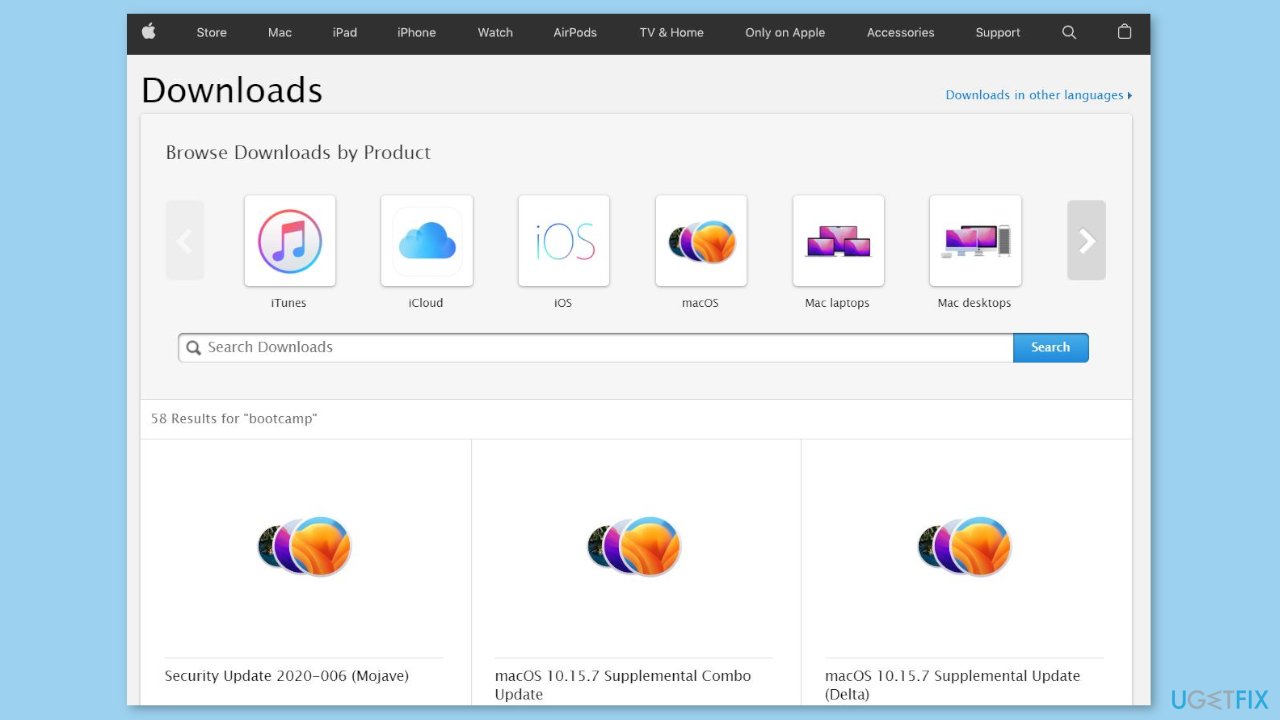
- Choose the latest driver version and click on Download. Once the zip file is downloaded, unzip it.
- Navigate to the following path: BootCamp > Drivers > Apple > AppleWirelessMouse64.exe.
- Run the WirelessMouse64.exe installer and follow all the on-screen prompts.
- After completion, connect your Magic Mouse to your Windows computer, which should resolve the issue.
Method 6. Windows on Macbook
If you are using Windows on a Mac with an Intel processor and encounter the issue, you can update the driver via the Bootcamp Assistant, which is accessible on the system tray.
- Open the Bootcamp Assistant.
- Click on Action, then select Download Windows Support Software.
- Once the download completes, the software will apply the update and restart the PC.
Bottom line
To fix the Magic Mouse not working in Windows, try restarting both the PC and the Magic Mouse, checking the Bluetooth range, and ensuring the battery is charged. If the problem persists, consider removing and reinstalling the device or updating the drivers. If none of these solutions work, you may need to use a repair tool for underlying OS issues.
Frequently asked questions
Ensure that Bluetooth is enabled on your Windows device and check if the Magic Mouse is charged. If it's still not connecting, try removing the device from Bluetooth settings and pairing it again.
Try resetting the Bluetooth connection by turning Bluetooth off and then back on in Windows 10 or Windows 11. If that doesn't work, consider updating your Bluetooth drivers through Device Manager.
Check the mouse settings in the Control Panel or Settings app on Windows 10 or Windows 11 to ensure scrolling features are enabled. Additionally, reinstalling the mouse drivers may resolve any conflicts.




Report an issue
What's wrong with this guide? We review every report and update or remove content.
Report received — thank you. We'll review and fix it.
You need a free account to submit a report.
Be the first to comment