How to fix
DirectX error “Setup could not download the file”
on Windows
Resolve the "Setup could not download the file" DirectX error in Windows 10 and 11 quickly with expert-tested solutions and zero traces left.

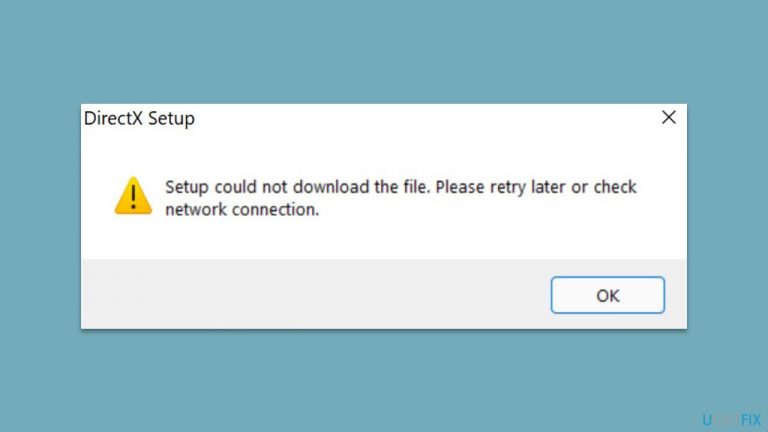
What causes How to fix DirectX error “Setup could not download the file” in Windows?
- Corrupted Visual C++ Redistributable files
- Outdated .NET Framework runtime files
- Issues with DirectX installation
- Network connection problems
- Inability to download required files from the internet
Repairs Windows system files, removes malware, and restores a clean OS state — without reinstalling.
Hi, I accidentally downgraded my DirectX, and now, whenever I attempt to upgrade it, I receive an error "Setup could not download the file." I tried to reboot my PC and wait for a while, and I still received this error. Any tips on this, please?
DirectX is an integral part of Windows operating system that enables applications and games to utilize the computer's hardware, specifically the graphics card and audio processing unit, to provide better performance and enhanced user experience. DirectX is a collection of APIs that developers can use to create games and other multimedia applications.
Unfortunately, some users have reported experiencing issues with the DirectX installation, including the error message "Setup could not download the file. Please retry later or check network connection." This error message typically occurs when the DirectX installer is unable to download the required files from the internet.
To fix the "Setup could not download the file" error, users can try updating the Visual C++ Redistributable and .NET Framework runtime files. These files are essential for running DirectX and may have become corrupted or outdated, leading to the error message. Updating these files should fix the problem.
If updating the runtime files does not work, another solution is to use the Offline DirectX installer. The Offline installer comes with all the required files and does not rely on an internet connection, eliminating the possibility of the error occurring due to download issues.
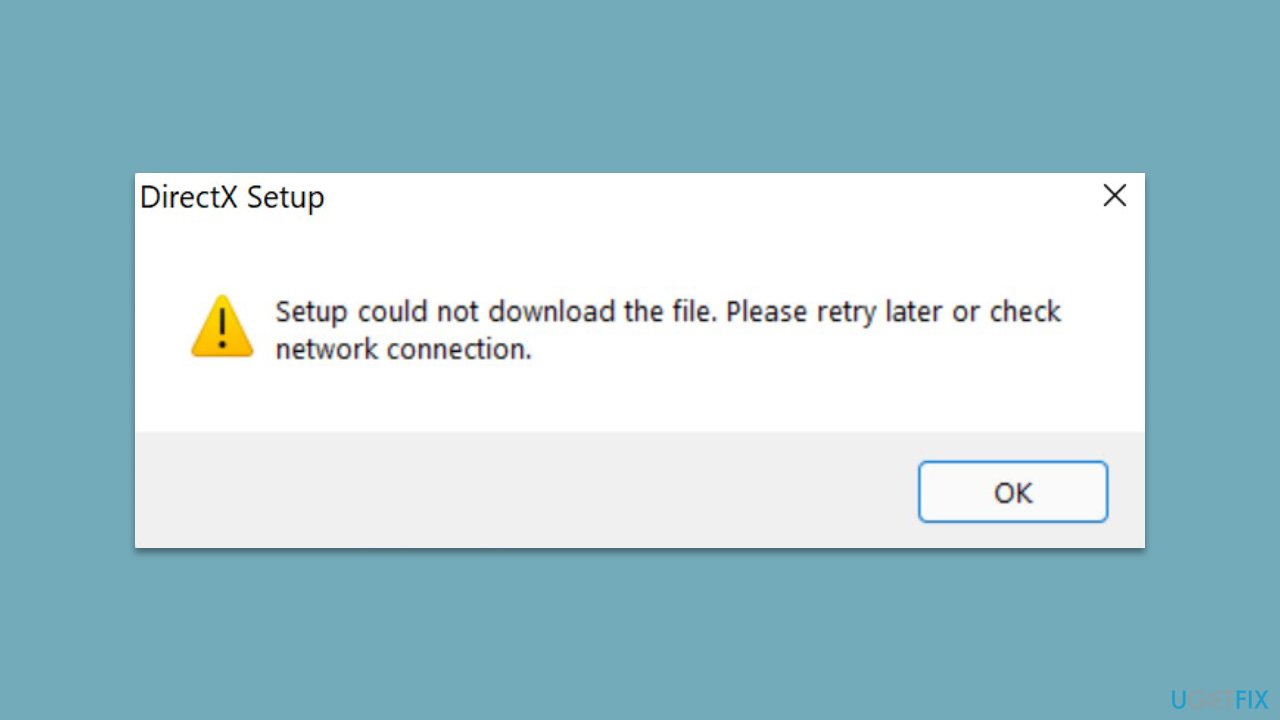
The DirectX setup could not download the file error can be frustrating for users trying to install or update DirectX. Fortunately, there are solutions available that can fix the issue. Updating the runtime files or using the Offline DirectX installer should resolve the issue and allow you to enjoy your favorite multimedia applications and games without any hiccups.
Before proceeding with the manual solutions below, we recommend employing [d1] automatic repair software that can quickly and easily find system file corruption and fix any other underlying Windows issues automatically. In many cases, it helps users to avoid manual troubleshooting when having problems with Windows entirely.
Fix 1. Install the latest Windows updates
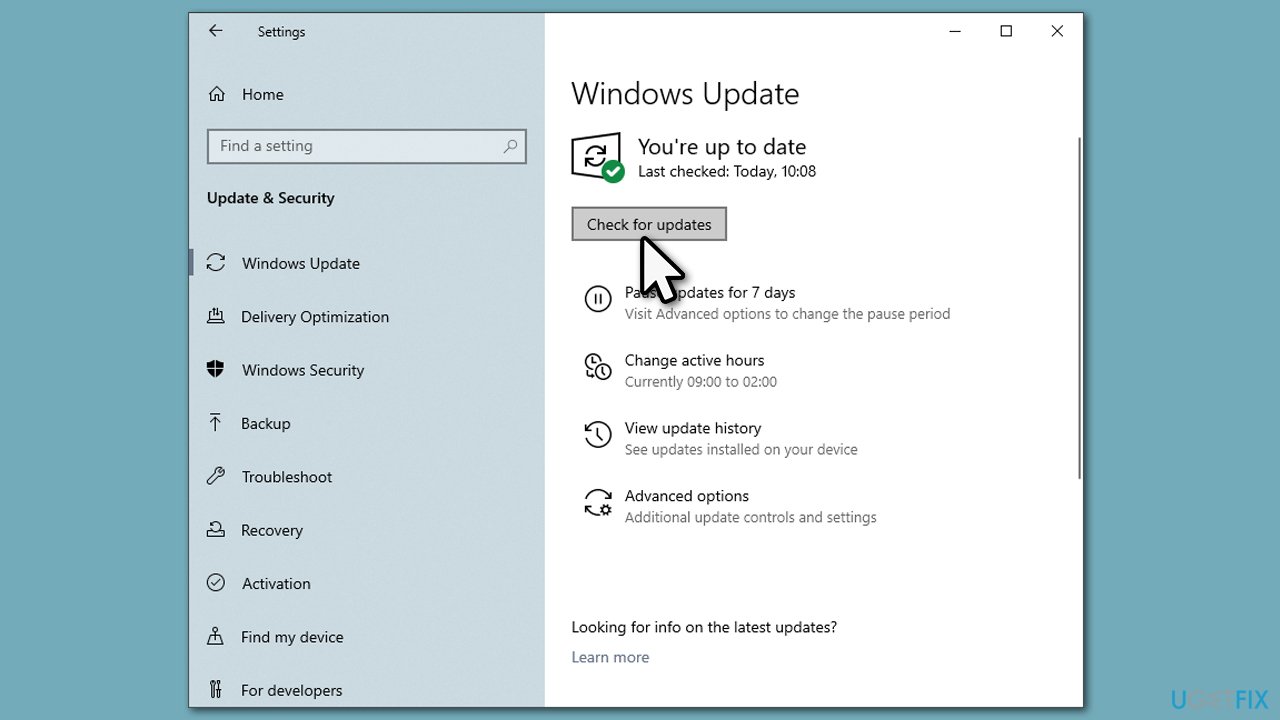
DirectX updates often come via the Windows update feature, so make sure you install all the available updates:
- Type Update in Windows search and hit Enter.
- Click Check for updates and wait till they are installed.
- If optional updates are available, install them as well.
- Once done, restart your device.
Fix 2. Disable Firewall
Sometimes, a Firewall might prevent users from installing certain programs, causing the "Setup could not download the file" error. It is important to note that you should disable any third-party security software, firewall, or VPN if you are using any of these, which can also help you solve the issue.
- Type in Control Panel in Windows search and press Enter.
- Go to System and Security > Windows Defender Firewall.
- Press Turn Windows Firewall On or Off option.
- If required, enter your administrator password and press OK.
- Then set Windows Firewall off of both private and public network.
- Click OK to save the changes and close everything.
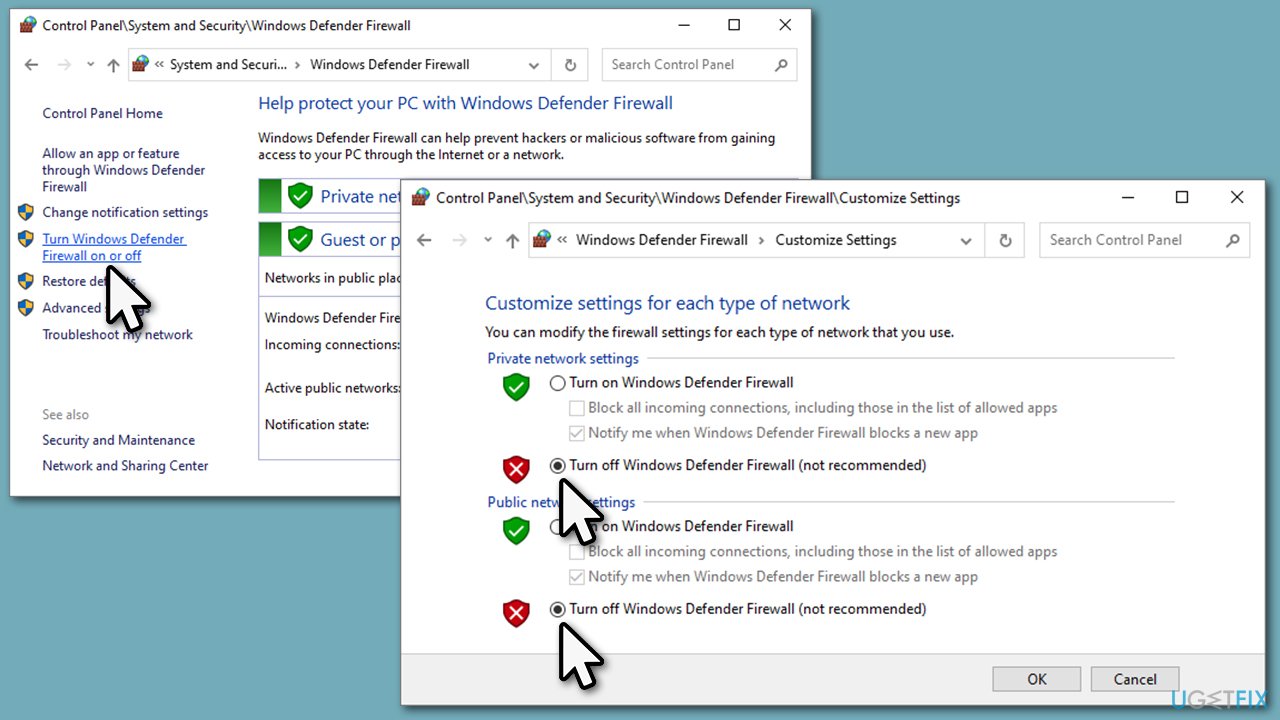
Note: don't forget to re-enable the Firewall later.
Fix 3. Run network and internet troubleshooters
The problem may lie in the internet connection. To comprehensively check your internet and network connections, use the following steps:
- Type Troubleshoot in Windows search and press Enter.
- Select Additional troubleshooters/Other troubleshooters.
- Find Windows Store Apps from the list and select Run the troubleshooter/Run.
- Wait till the process is finished and apply the offered fixes.
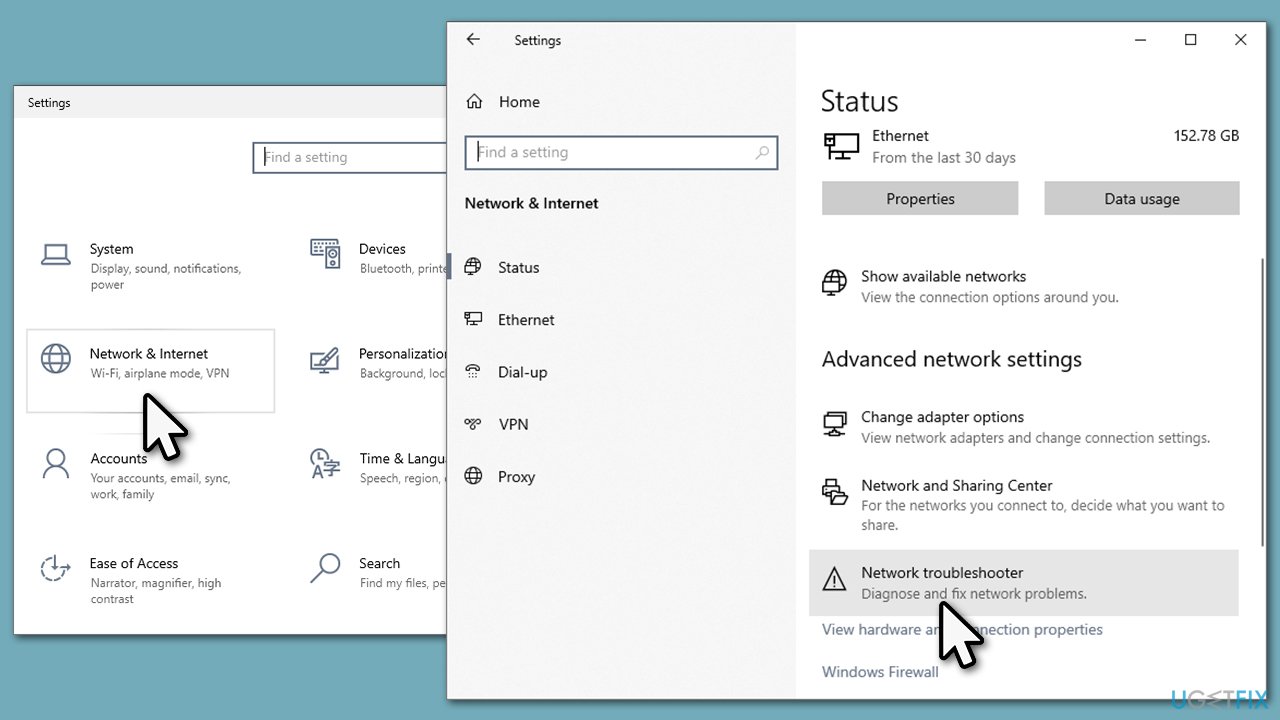
To run a network troubleshooter, follow these steps:
- Right-click on Start and select Settings.
- Pick the Network & Internet section.
- On the right side, select the Advanced network settings section.
- Click Network troubleshooter and wait.
Fix 4. Install the missing Visual C++ components
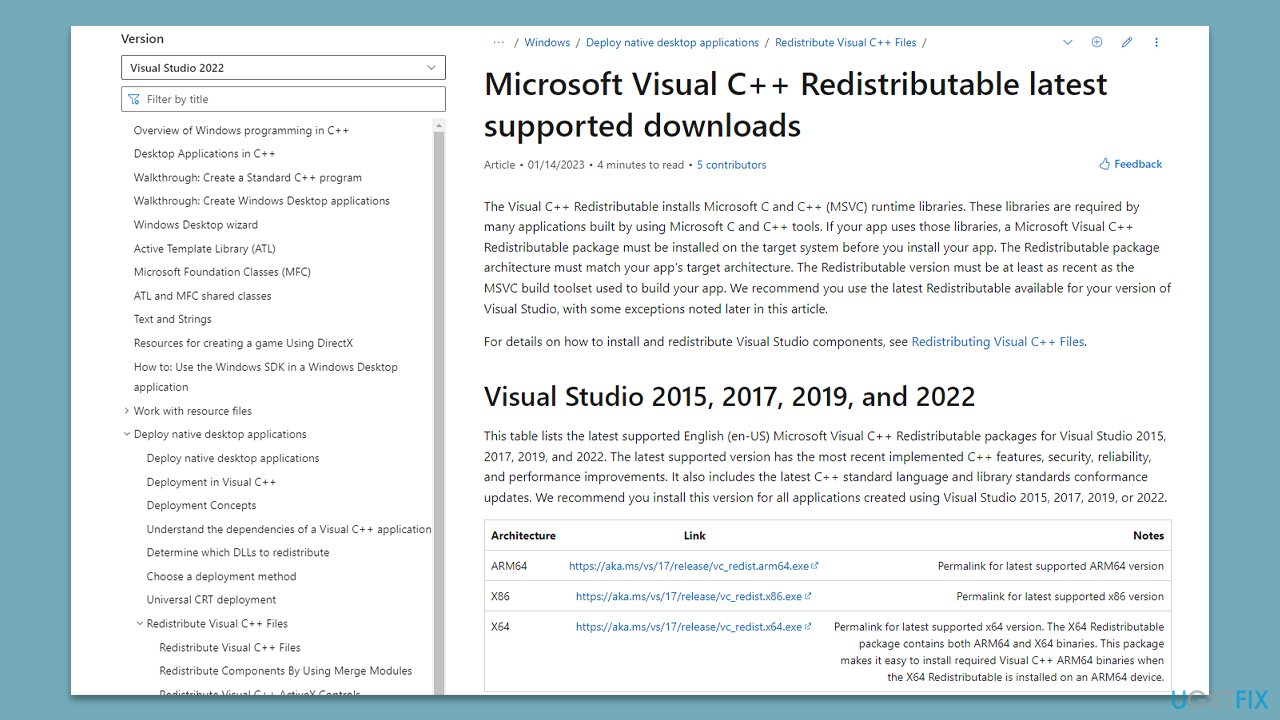
If you are missing some of the Visual C++ components, you should install them.
- Open Control Panel and go to Programs > Uninstall a program.
- Here, scroll down and check the list of the installed Visual C++ versions.
- Open your browser and navigate to the official Microsoft Visual C++ download page.
- Download and install all the missing versions (including the x84 and x64 versions) of Visual Studio.
- Once done, restart your system and see if the error persists.
Fix 5. Repair NET Framework
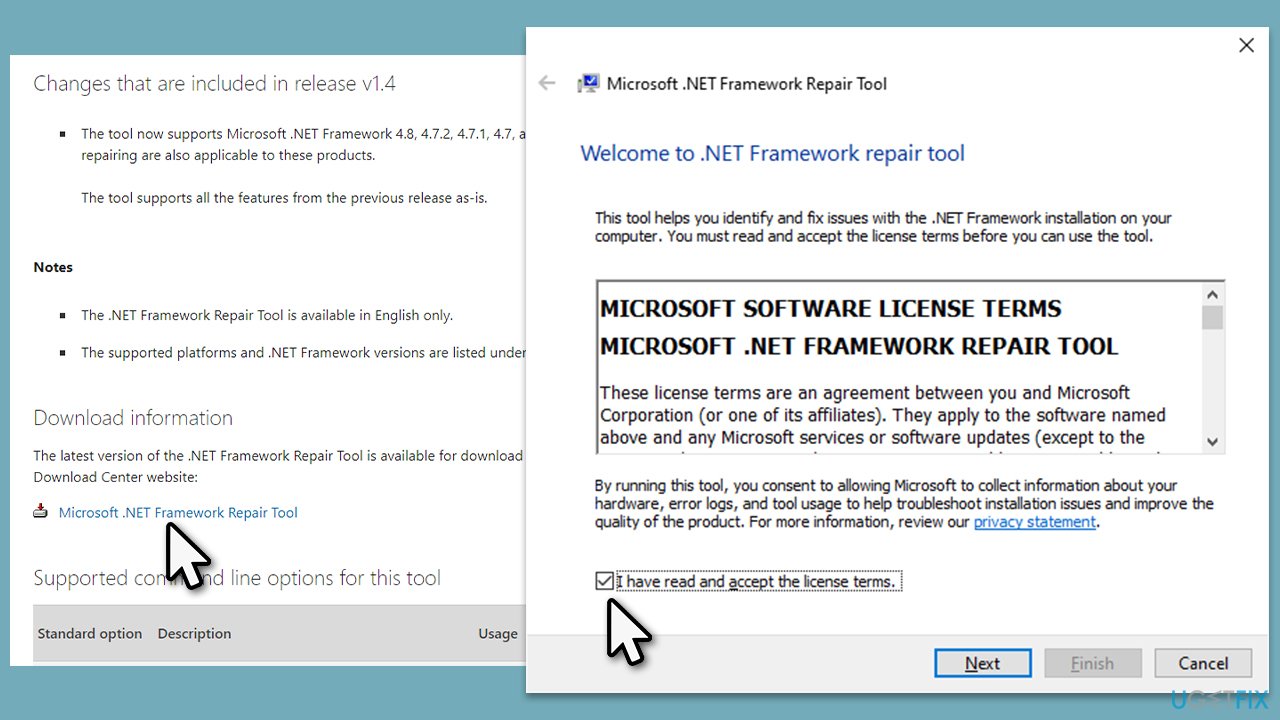
The Microsoft .NET Framework Repair Tool identifies common problems that can impact the installation or update of the Microsoft .NET Framework. The tool attempts to address these issues by applying known solutions or repairing damaged installations of the compatible .NET Framework versions. It features a user-friendly, wizard-driven interface and can also be utilized via the command line along with advanced options.
- Open your browser and navigate to the official Microsoft website.
- Download Microsoft .NET Framework Repair Tool from the link provided and launch the installer.
- When the UAC window shows up, click Yes.
- Mark the I have read and accept the license terms and then click Next.
- Follow on-screen instructions to finalize the process.
Bottom line
To fix the DirectX error 'Setup could not download the file,' users can update the Visual C++ Redistributable and .NET Framework runtime files. If these updates do not resolve the issue, using the Offline DirectX installer is recommended. If none of these solutions work, consider using automatic repair software to address underlying Windows issues.
Frequently asked questions
Ensure that your internet connection is stable and try running the DirectX setup as an administrator. If the issue persists, consider temporarily disabling your antivirus software or firewall during the installation.
Yes, updating Windows 11 can resolve compatibility issues that may cause the DirectX error, so check for any pending updates in the Settings app. Additionally, make sure your graphics drivers are up to date.
Yes, you can manually download the DirectX End-User Runtime Web Installer from the Microsoft website, which may help bypass the error. After downloading, run the installer to repair or update DirectX on your Windows system.




Report an issue
What's wrong with this guide? We review every report and update or remove content.
Report received — thank you. We'll review and fix it.
You need a free account to submit a report.
Be the first to comment