How to fix
Windows 10 Creators Update Install Errors
on Windows
Resolve Windows 10 Creators Update install errors quickly and easily with our expert-tested solutions. Get your system running flawlessly again. Fixed i…

What causes How to Fix Windows 10 Creators Update Install Errors?
- Creators Update is missing in Windows Update
- Installation fails at some point after download
- Download of Creators Update fails
- Device remains on the Anniversary Update after reboot
- Installation fails with error code 0xc1900107
Repairs Windows system files, removes malware, and restores a clean OS state — without reinstalling.
Hello, everyone. I have an issue with Windows 10 Creators Update. I’ve been trying to upgrade the system for many times, but I can only download the Creators Update. Its installation always fails at 60% or more. What could be the culprit?
On April 11th, 2017, Microsoft started rolling out its Creators Update (a.k.a. Redstone 2 and V1703)[ref en-1] via the Windows Update. Just like the Anniversary Update, the Redstone 2 will be prepared for Windows 10 users in phases. When the device becomes eligible for the update rollout, the user will be asked to initiate necessary changes in the privacy settings.
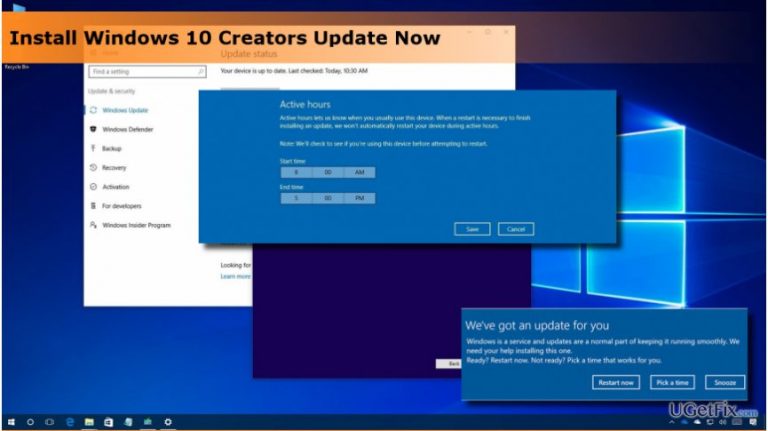
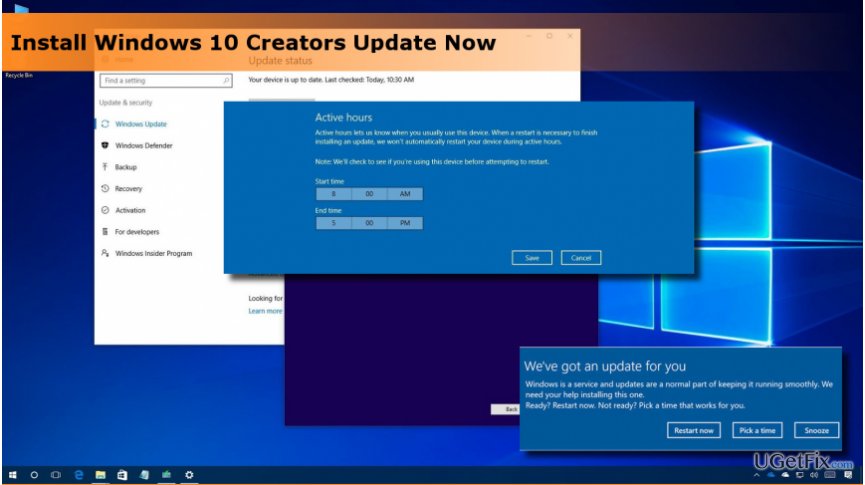
Besides, you will be able to the convenient time from the update, snooze the pending updates[ref en-2] or expand the active hours. In addition to automatic Creators Update rollout, the most impatient people can install it manually using Windows Update Assistant or Media Creation Tool.
Unfortunately, but just like any other Windows 10 update, the installation of Creators Update often fails. The following issues have been reported by Windows 10 users:
- Creators Update is missing in Windows Update.
- The update is downloaded successfully, but the installation fails at some point.
- The Creators Update download fails.
- Even if the update is successfully installed, after rebooting the system the device is still on the Anniversary Update.
- The installation of Creators Update fails with an error code 0xc1900107.
If you are facing any of the above-mentioned Creators Update installation errors, you should try the fixes given below. However, if you go through all the steps, complete everything exactly as shown in the detailed guide but nothing works, you can try downloading and installing software such as [rev id="Reimage] and launching an automatical system checkup during which the product might be capable of identifying the cause of your problem.
How to Fix Windows 10 Creators Update Install Errors?
Fix 1. Get rid of Windows 10 Creators Update Install Error by resetting Windows Store cache
Below we have provided several steps that are required for fixing Windows 10 Creators Update Install Errors on your Windows machine. Read throughout the entire instructions and carry out each step carefully to reach the best results possible:
- First of all, navigate to the official Microsoft website and download Windows Update troubleshooter.
- Use Disk Cleanup utility. Press Windows key and type Disk Cleanup. Run the tool and delete temporary files/cache.
- Delete the temporary Windows folder. Open C: drive and find WINDOWS.~BT folder. When in File Explorer, press on the View tab and make sure to check the Hidden items box. Otherwise, the temporary folder may not be shown to you. Delete the WINDOWS.~BT folder and reboot the system.
- Rename the SoftwareDistribution folder. Navigate to C:\\Windows folder and locate the SoftwareDistribution folder in it. Change its name to SoftwareDistribution.old.
- Reset Windows Store cache and restart Windows Update components. If you don’t know how to do that, please refer to this post.
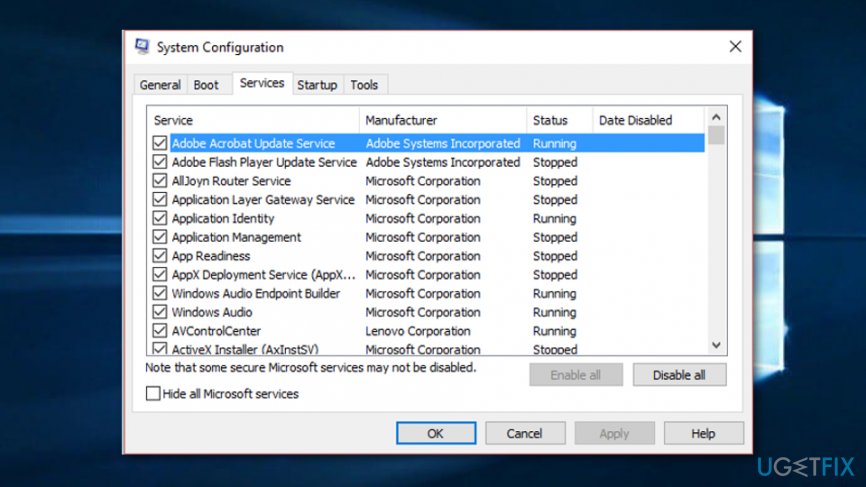
- Before trying to update the system, perform a clean boot. For this purpose, press Windows key, type msconfig, and press Enter. Open Services tab, check Hide all Microsoft services and click Disable all. Then reboot the system and try to install the update.
Launch system configuration - If you can’t upgrade using Windows Updates only, we would highly recommend using Windows Upgrade Assistant or Media Creation Tool.
- If none of the steps helped you, you could perform a clean install of Windows 10 with the in-built Creators Update. NOTE: before doing so, don’t forget to backup personal information because clean install will erase everything.
Hopefully, you have eventually installed Windows 10 Creators Update and now enjoy the new features, which, as Microsoft[ref en-3] says, allow people to set their imagination free. However, if you, sadly, did not find success in this method, we have provided another one that you will find down below.
Fix 2. Run the Services Manager to fix Windows 10 Creators Update Install Errors
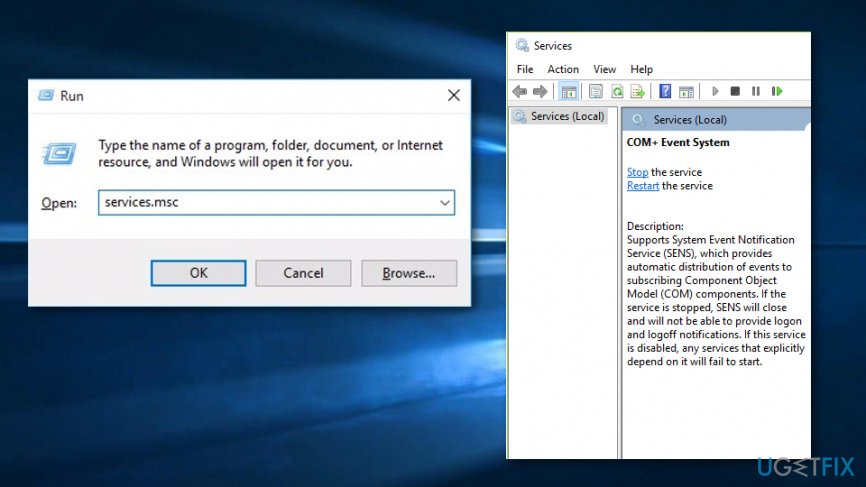
- Press the Windows key together with the R button and hold them until a small white run box appears.
- Afterward, enter services.msc in the text line and hit the Enter key on your keyboard.
- Continue with the Services Manager and find the Windows Update service.
Launch services manager - Then, right-click on the service and select the Stop function.
- Restart your computer system and wait for it to boot up again.
- After that, go to Windows Start and locate the Settings option.
- Continue with Update & Security --> Windows Update --> Check for updates.
- Detect the required update (for example, 1703) and opt for its installation process that should be performed without a struggle now.
Fix 3. Disable your antivirus protection for a while
- Find your antivirus program's icon and right-click it.
- Choose the Disable feature.
- Afterward, choose the time duration for the disabling period (a small amount of time is preferred, e.g. 15 minutes).
Also, you can disable your Firewall by doing it like this:
- Go to Windows Search and access your Control Panel.
- Continue with System and Security --> Windows Firewall.
- Choose the "Turn Windows Firewall on or off" function and continue with Turn off Windows Firewall.
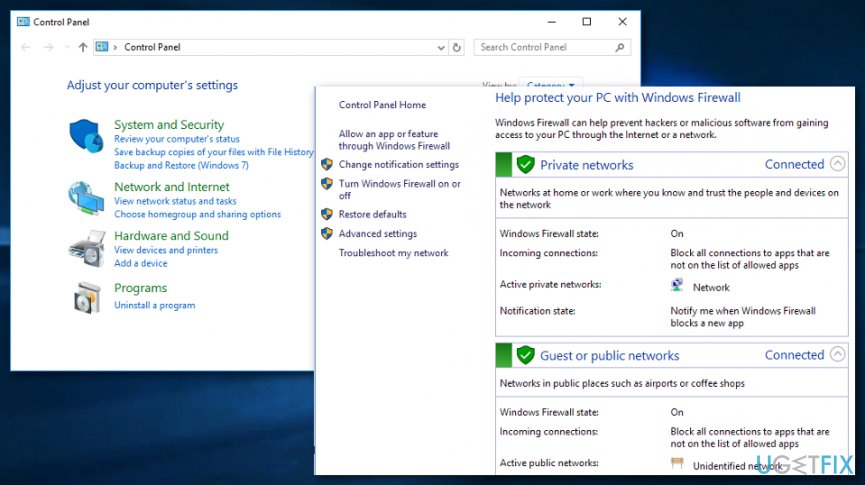
Turn off windows firewall - Reboot your PC.
Fix 4. Run a system scan/DISM checkup in search for corrupted files/disk errors
There might be some corrupted files or disk damage that might be preventing you to fix Windows 10 Creators Update Install Errors on your Windows computer system. Check if this is the cause of your issue by carrying out the following instructing steps:
- Go to Windows search and type "cmd".
- Launch the Command Prompt program with administrative privileges.
- Continuously, enter this command after the blinking cursor: sfc /scannow.
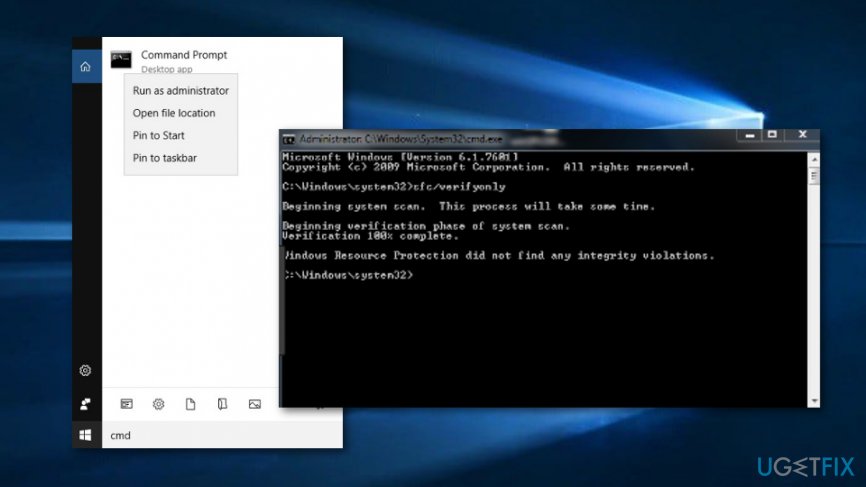
Run an sfc scan - Wait for the command to execute and finish.
- Reboot.
For running a disk checkup process, complete the following guidelines:
- Launch Command Prompt with administrative privileges again.
- Type different commands after the blinking cursor and hit the Enter key after writing each one: Dism /Online /Cleanup-Image /CheckHealth, Dism /Online /Cleanup-Image /ScanHealth, Dism /Online /Cleanup-Image /RestoreHealth.
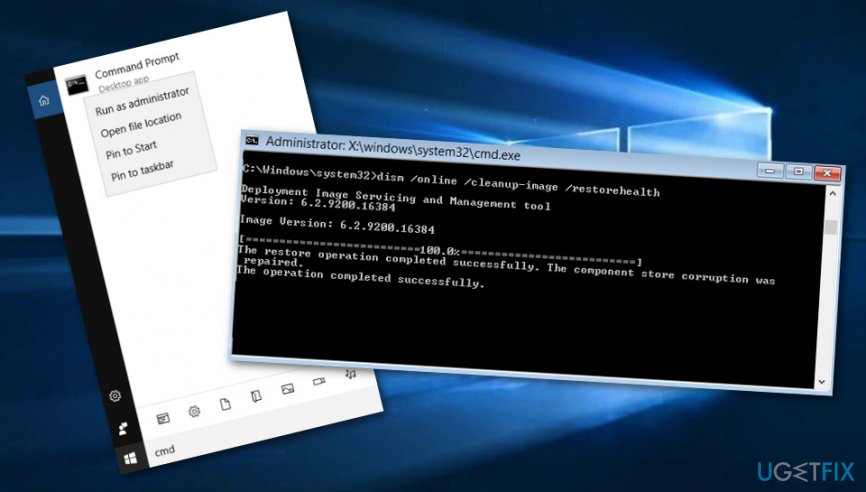
Run a dism scan - Wait for the process to succeed and restart your Windows computer system.
Bottom line
To fix Windows 10 Creators Update install errors, you can try resetting the Windows Store cache and following the detailed instructions provided in the guide. If these steps do not resolve the issue, consider downloading and installing software like Reimage to perform an automatic system checkup.
Frequently asked questions
Common causes include insufficient disk space, incompatible drivers, or corrupted system files. Ensuring your system meets the update requirements can help mitigate these issues.
Error code 0x80070020 typically indicates that a file is being used by another process; try disabling any antivirus software temporarily and then attempt the installation again.
Yes, if you experience issues after the update, you can roll back to a previous version of Windows 10 within 10 days of installation through the Recovery settings.




Report an issue
What's wrong with this guide? We review every report and update or remove content.
Report received — thank you. We'll review and fix it.
You need a free account to submit a report.
Be the first to comment