How to fix
Client Server Runtime (csrss.exe) high GPU
on Windows
Solve high GPU usage from csrss.exe in Windows 10/11 easily and boost your system's performance. Expert-tested solutions for quick fixes!

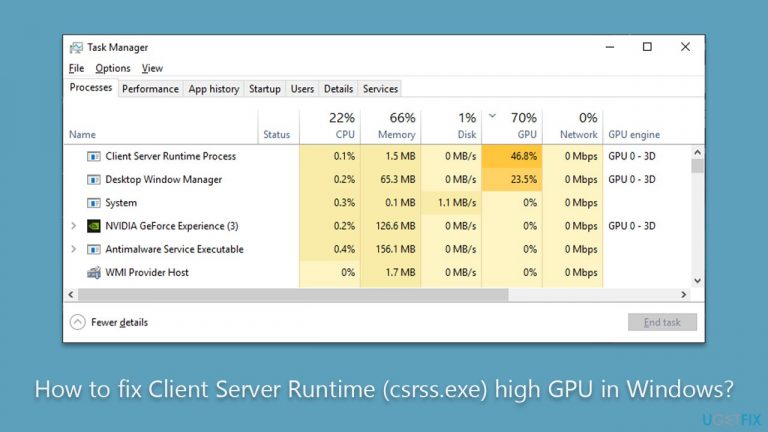
What causes How to fix Client Server Runtime (csrss.exe) high GPU in Windows?
- Enabled hardware-accelerated plan
- Corrupted system files
- GPU driver issues
- High GPU usage by Desktop Window Manager (dwm.exe)
- Random spikes during system boot or intensive tasks
Repairs Windows system files, removes malware, and restores a clean OS state — without reinstalling.
Hi, I have had a real problem for a few months now - Client Server Runtime Process (csrss.exe) is taking up to 50% of GPU randomly. It makes my PC performance quite a bit worse. I run GTX1050 GPU on a Windows 10 PC. Please advise.
Windows processes are software programs that run in the background of a Windows operating system, performing various tasks and operations required for the system to function properly. They manage system resources, handle input/output operations, and provide essential functionality for programs and applications.
Client Server Runtime Process (csrss.exe) is one of the important Windows systems processes that manage graphical elements of the operating system, such as creating and managing windows, controlling the console, and implementing features such as shutdown and logoff. It is a core process that runs in the background and is vital for the smooth functioning of Windows.
However, some users have reported that Client Server Runtime (csrss.exe) causes high GPU. This problem can cause their laptop fans to ramp up, stuttering on videos, mouse movement, and overall performance issues. Many people who experience this issue also said it occurs in conjunction with Desktop Window Manager (dwm.exe) using high GPU as well.
The spikes can happen randomly at any time, including when the user is booting up the system or working on intensive tasks, e.g., gaming or even viewing high-resolution videos. Unfortunately, there is no specific pattern or correlation to this issue, making it difficult to pinpoint the root cause.
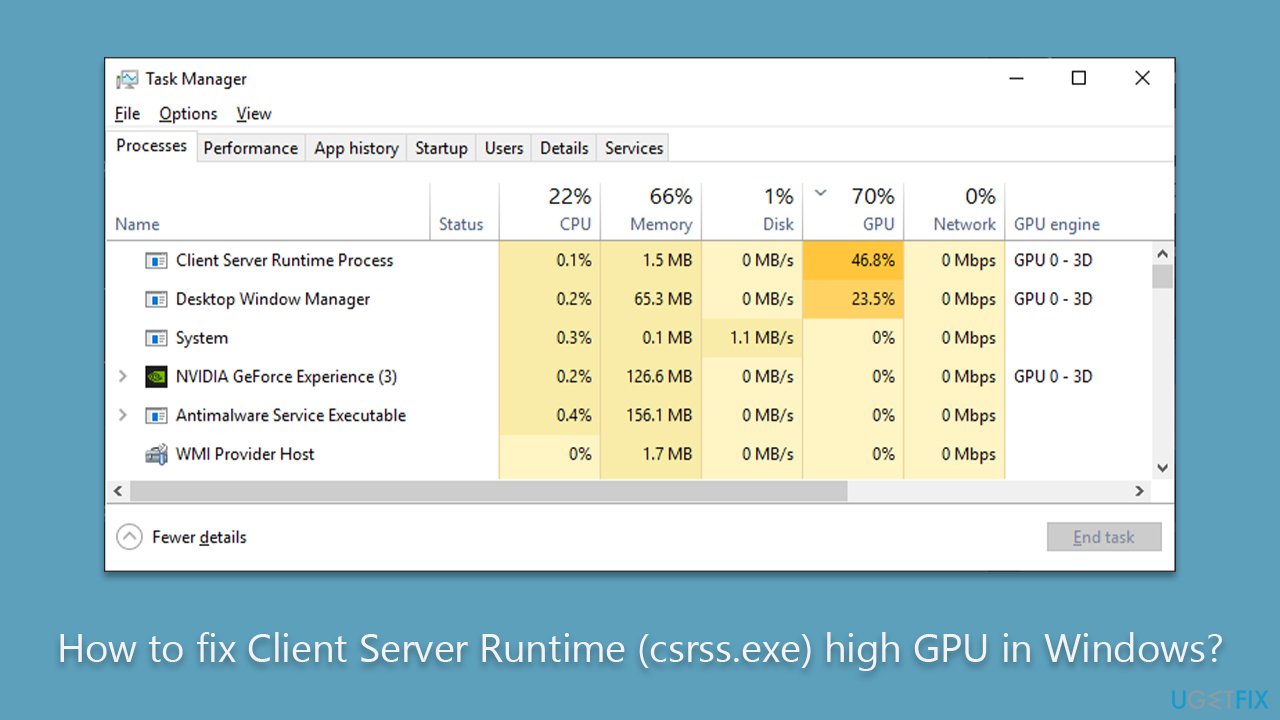
Among the reasons for the issue are enabled hardware-accelerated plan, corrupted system files, GPU driver issues, and more. Several troubleshooting steps can be performed in order to fix the high GPU usage of Client Server Runtime (csrss.exe), and we provide them all below, although we do recommend running a potent PC repair software [d1], which can quickly and easily solve various PC problems automatically for you.
Here are a few tips before you begin:
- Scan your system for malware infections.
- If you are using a third-party security app, update it.
- Temporarily disable third-party anti-malware and see if that resolves the problem.
Fix 1. Update GPU drivers
Your first task is to update your GPU drivers, and there are several ways you could do it. First, you should make sure that all Windows updates are installed:
- Type Update in Windows search and hit Enter.
- Click Check for updates and wait till they are installed.
- If optional updates are available, install them as well because that's where driver updates are located.
- When done, restart your system.
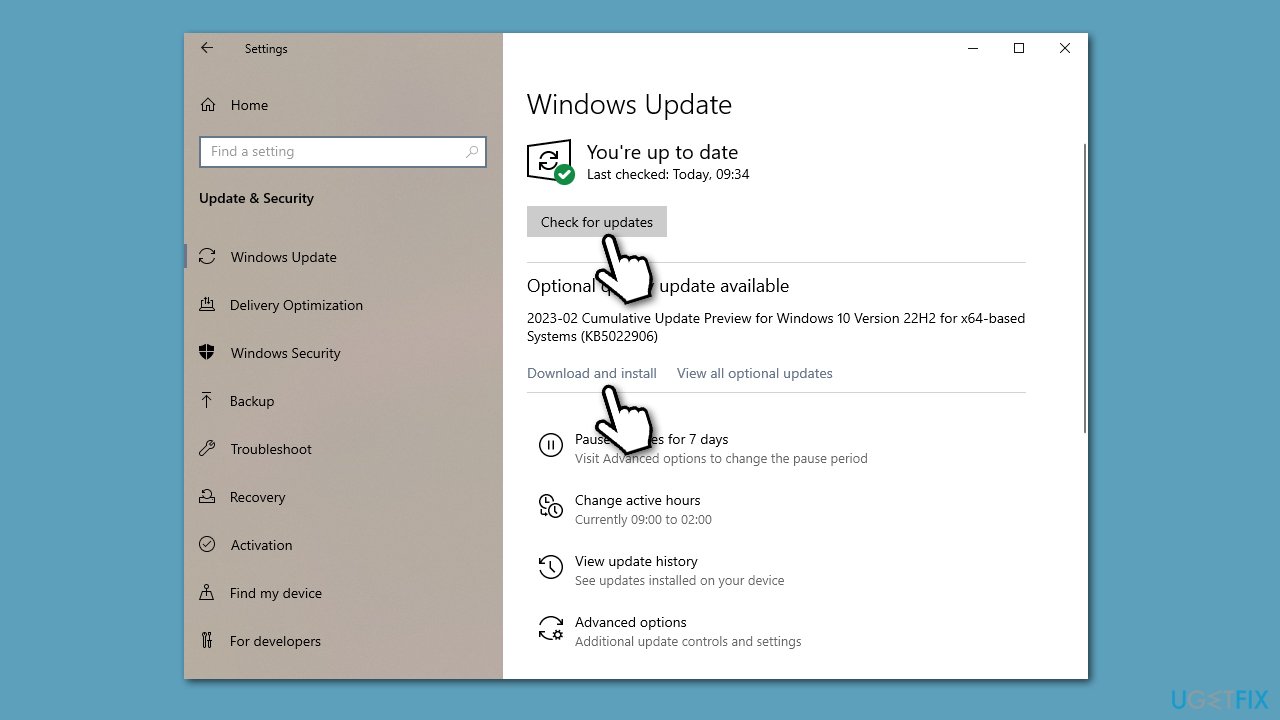
Windows update is not the best when it comes to GPU updates, however. So we recommend either visiting your GPU manufacturer's website (such as Nvidia) and downloading drivers from there or using an automatic driver updater such as [rev id="DriverFix"].
Fix 2. Reinstall GPU drivers
If updating drivers didn't help, you could try reinstalling them instead - follow these steps:
- Right-click on Start and pick Device Manager.
- Here, expand the Display Adapters section.
- Right-click on your GPU and select Uninstall device.
- When prompted, select Delete driver software for this device checkmark.
- Restart your device.
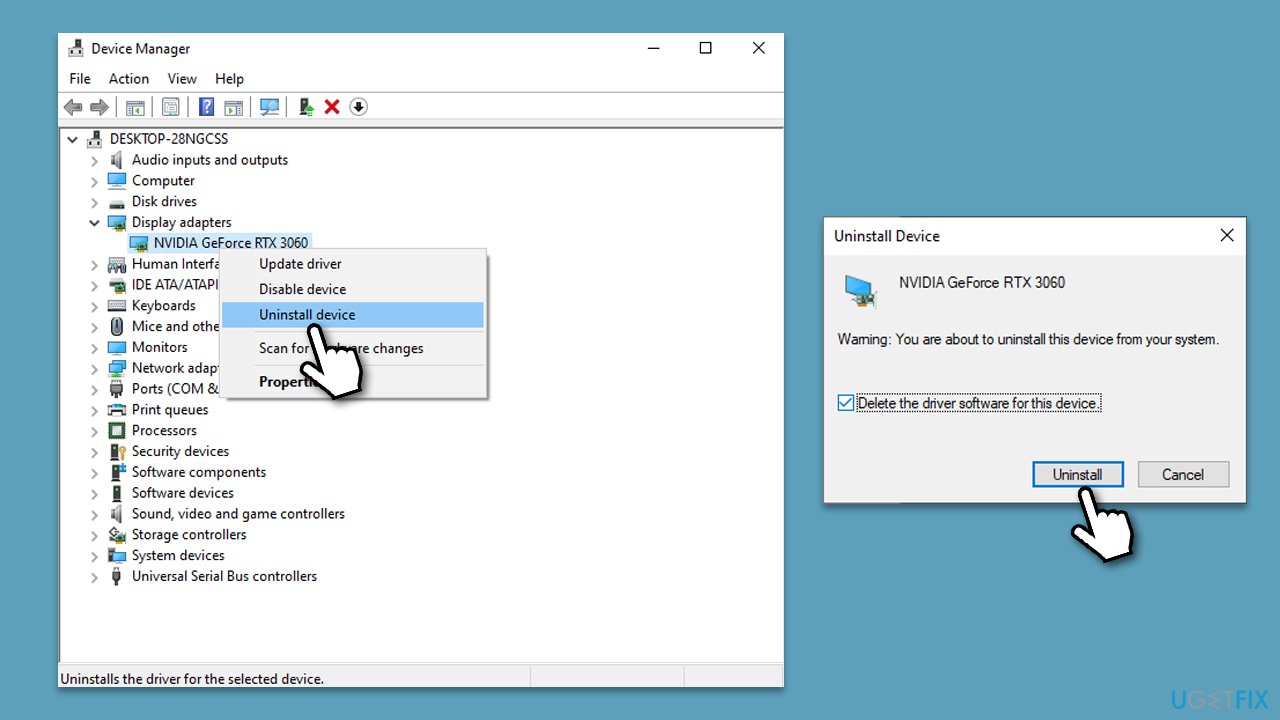
Once done, use one of the methods listed above to install the latest version of drivers.
Fix 3. Check for corrupted system files
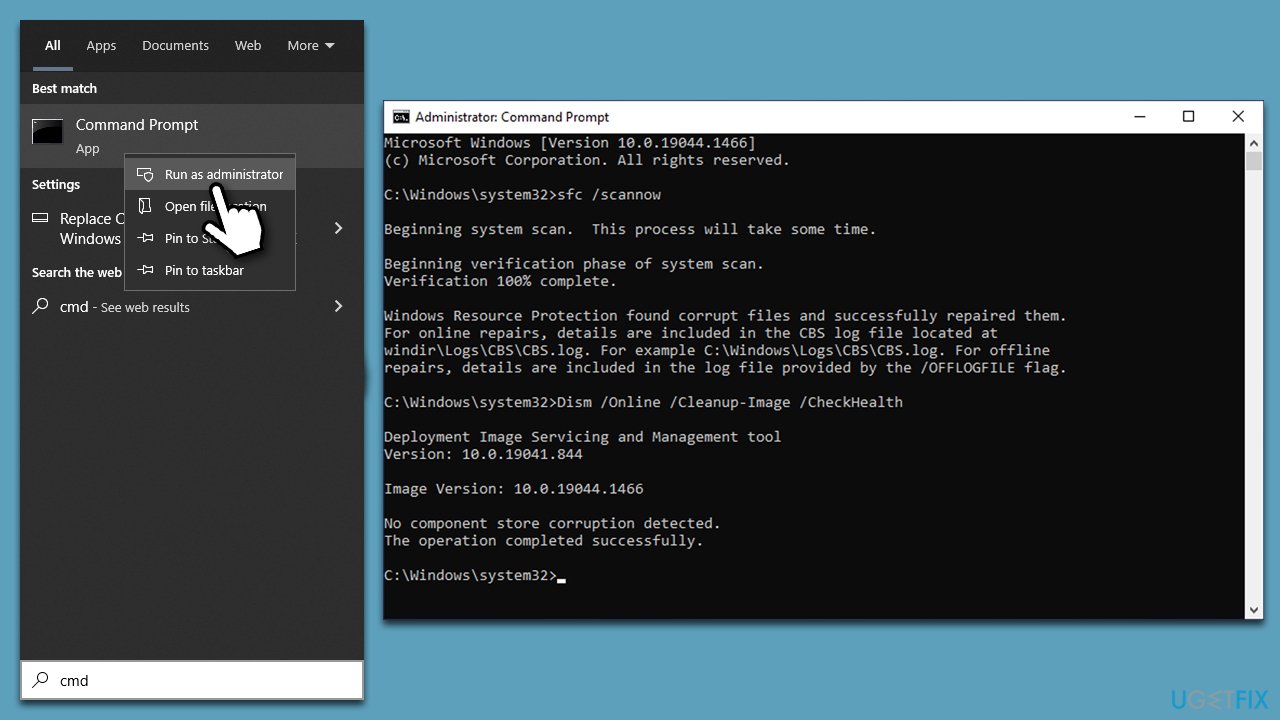
- Type cmd in Windows search.
- Right-click on the Command Prompt result and select Run as administrator.
- User Account Control (UAC) will ask if you want to make changes - click Yes.
- Now copy and paste the following commands, pressing Enter every time:
sfc /scannow
DISM /Online /Cleanup-Image /CheckHealth
DISM /Online /Cleanup-Image /ScanHealth
DISM /Online /Cleanup-Image /RestoreHealth - Close down the Command Prompt and reboot your PC.
Fix 4. Disable hardware scheduling
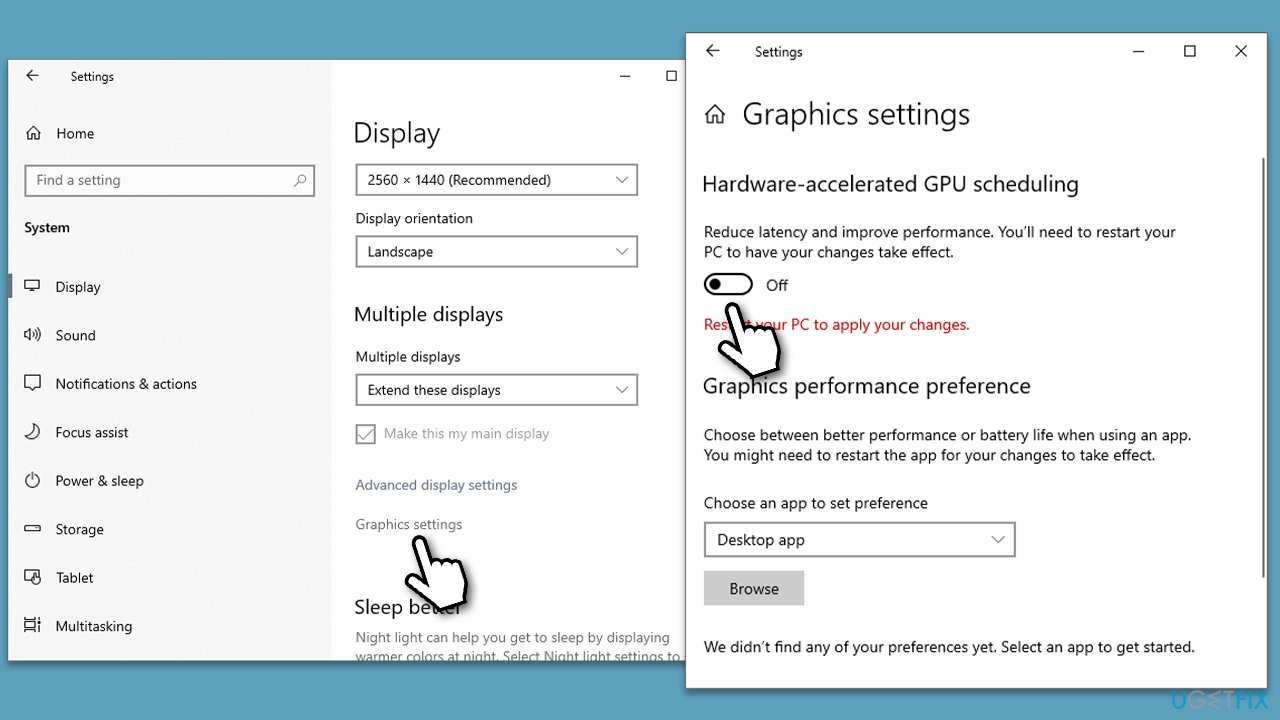
Hardware scheduling is a Windows feature that's designed to boost frames-per-second (FPS) in games. If you have it enabled, it might cause problems with certain processes using too much GPU. Disable it as follows:
- Click Start and pick Settings.
- Go to System section and select Display.
- Under various settings in this section, find Graphics settings and click it.
- Here, disable Hardware-accelerated GPU scheduling by toggling the switch.
- You will be prompted to restart your PC.
Fix 5. Disable Telemetry
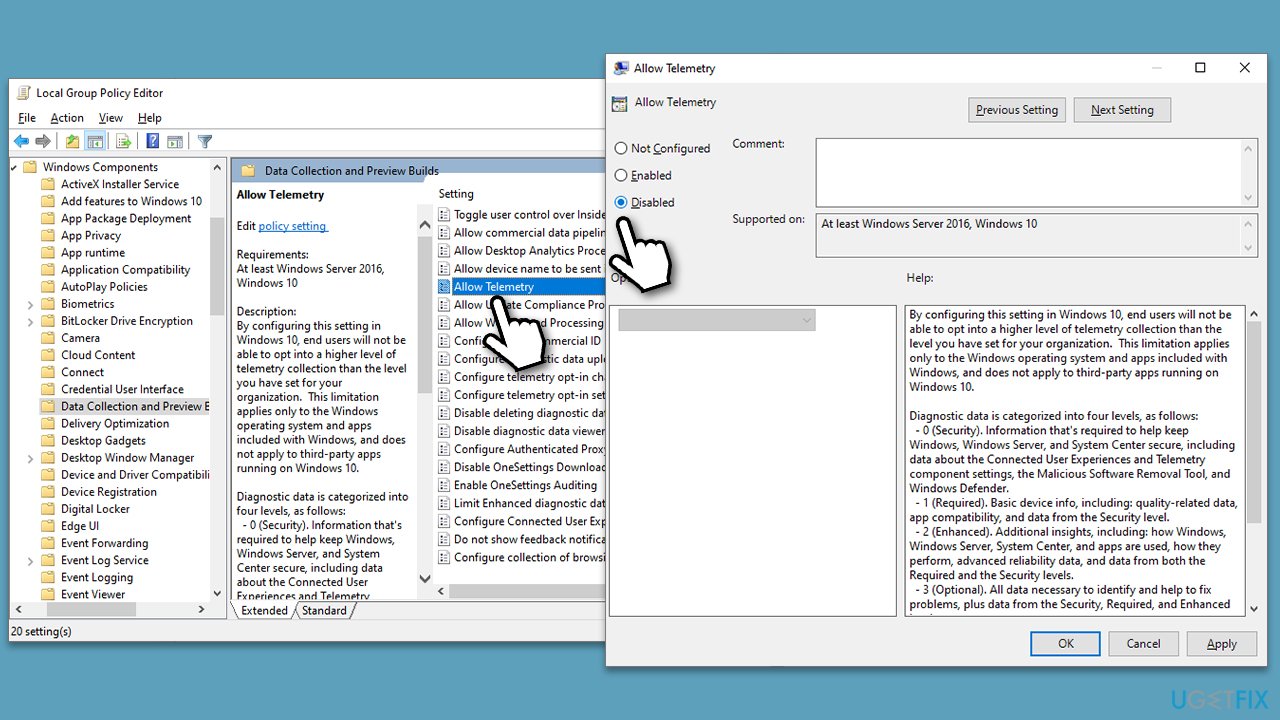
- Type Group Policy in Windows search and press Enter.
- In the new window, navigate to the following location:
Computer Configuration > Administrative Templates > Windows Components > Data Collection and Preview Builds. - In the right pane, locate Allow Telemetry and double-click it.
- Select Disabled.
- Click Apply and OK, then restart your PC.
Fix 6. Disable Xbox Game Bar
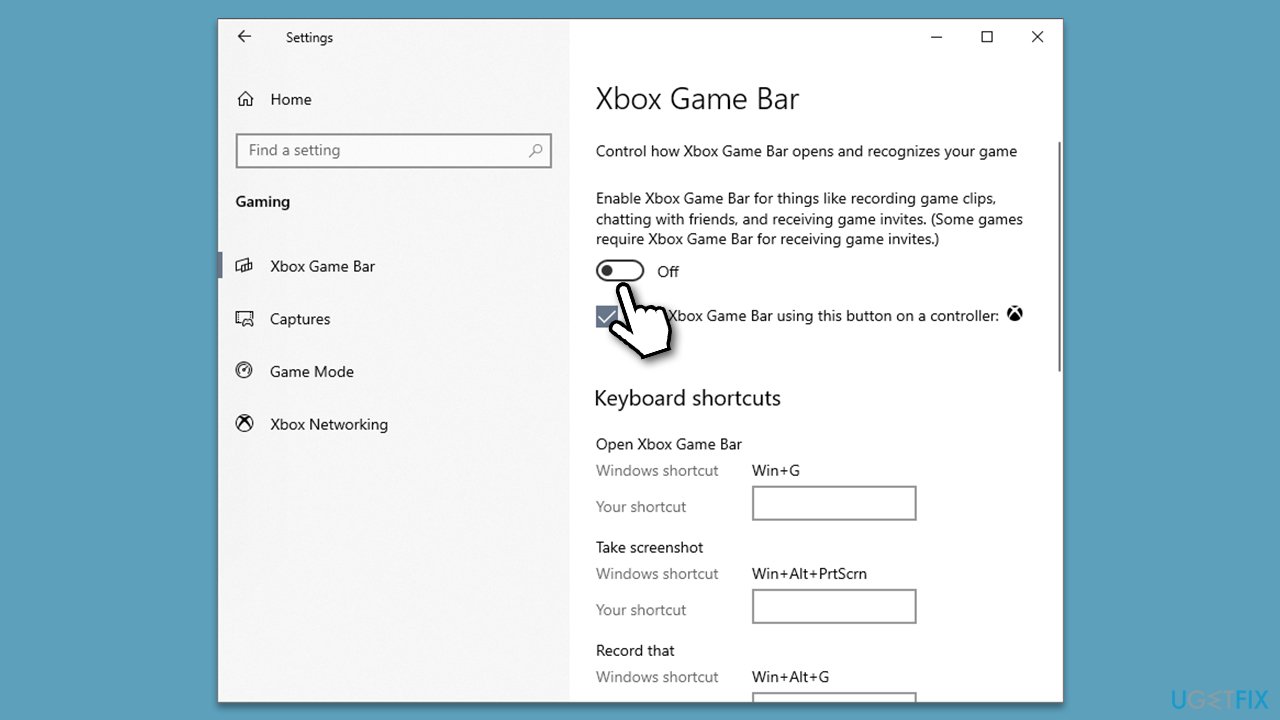
While a useful feature, it might sometimes cause resource spikes. Try disabling Game Bar and see if that worked:
- Click start and select Settings.
- Go to the Gaming section.
- Toggle the switch to the off position.
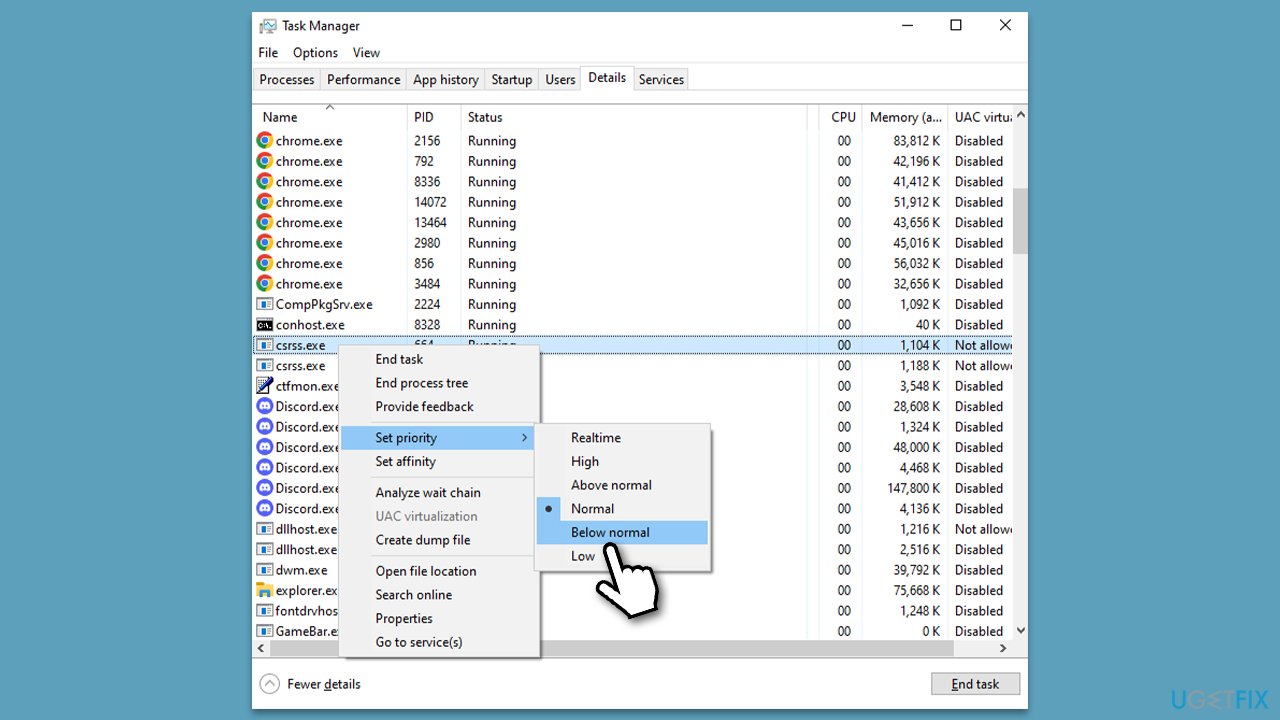
Fix 7. Set csrss.exe priority
- Press Ctrl + Shift + Esc to open Task Manager.
- Click More details if required.
- Go to the Details tab.
- Locate the csrss.exe process.
- Right-click on it and select Normal (if that does not help, try using Below normal or Low).
Fix 8. Change performance settings
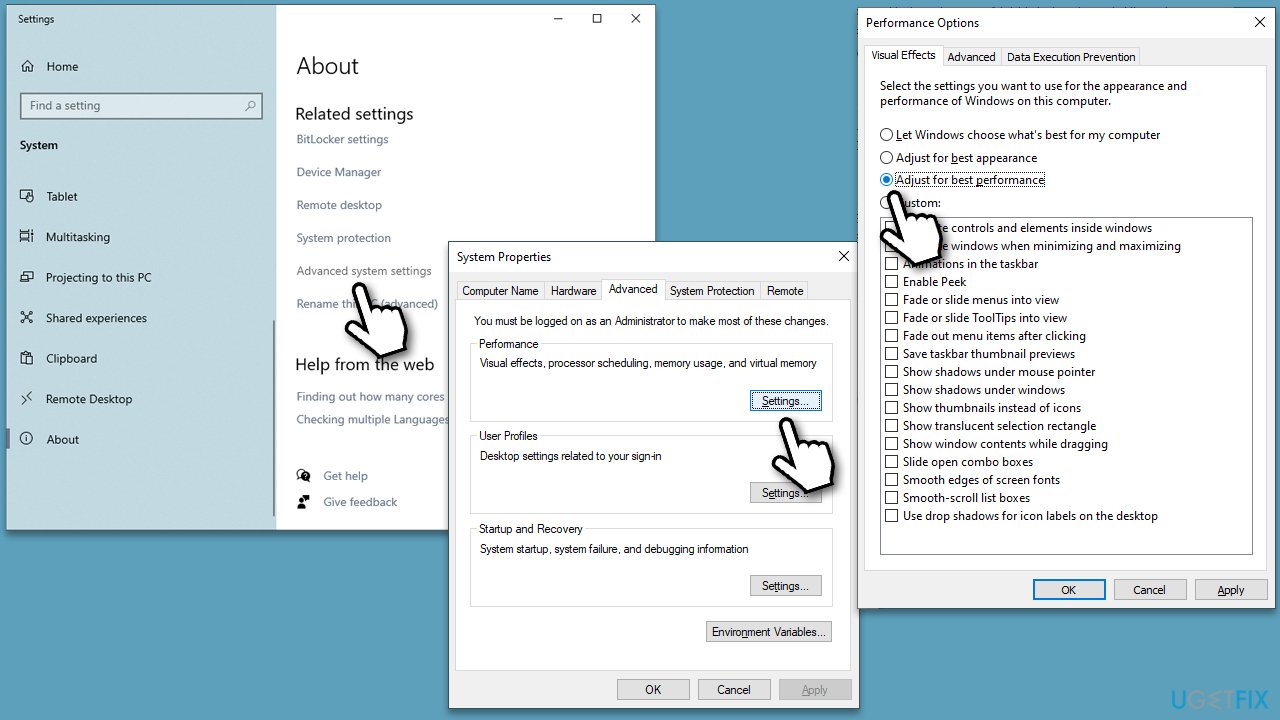
- Right-click on Start and pick System.
- In the right pane, scroll down and click Advanced system settings.
- In the Advanced tab, under Performance, click Settings.
- In the Visual Effects tab, select the Adjust for best performance option.
- Click Apply and OK.
Fix 9. Try Clean boot
- Type msconfig in Windows search and hit Enter.
- Go to the Services tab and tick the Hide all Microsoft services checkbox.
- Select Disable all.
- Go to the Startup tab and click Open Task Manager.
- Here, right-click on each of the non-Windows entries and select Disable.
- Close down the Task Manager.
- Go to the Boot tab and tick the Safe boot option.
- Restart your device.
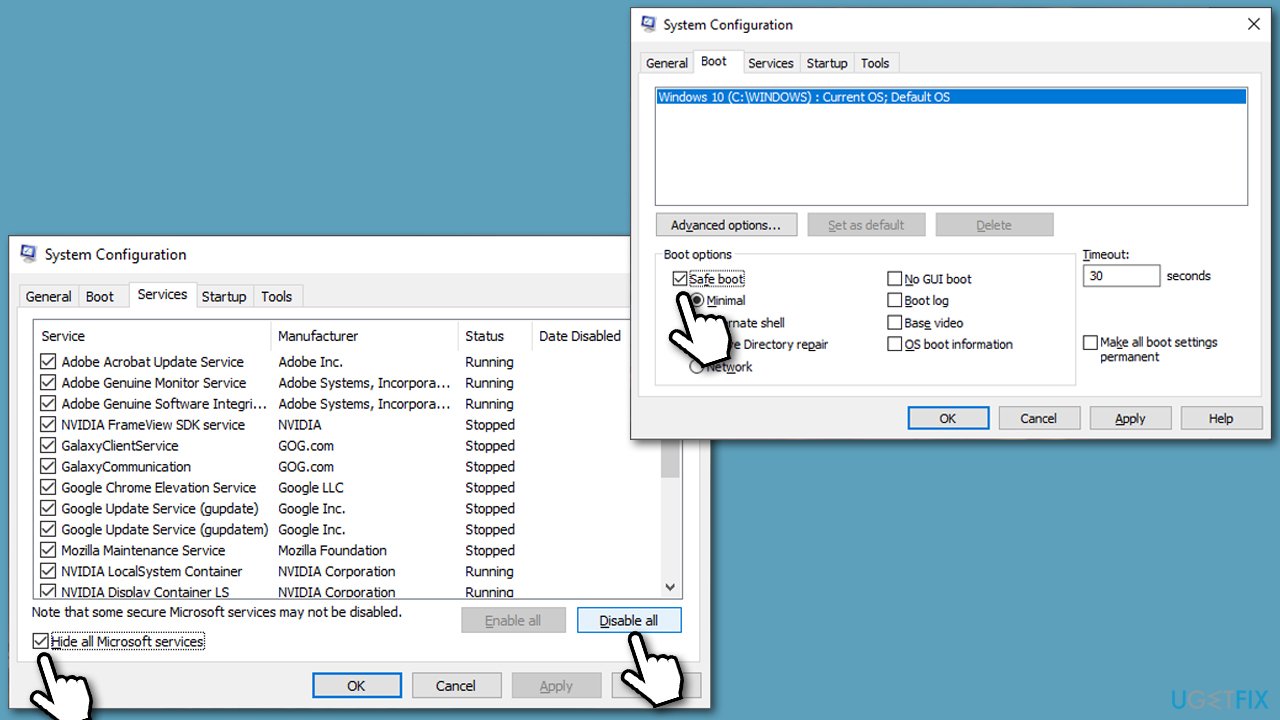
Once in Clean Boot mode, check if the problem persists. If not, it means that the Client Server Runtime (csrss.exe) high GPU is caused by software conflict or buggy software. To resolve this, enable half of the programs, reboot again, and see if the problem persists. If not, mark half of the programs again and repeat the process. Then, uninstall the app causing the issue.
Bottom line
To address the high GPU usage of Client Server Runtime (csrss.exe), you can scan your system for malware, update your security software, and consider using a potent PC repair software. If these steps do not resolve the issue, further investigation into system settings and configurations may be necessary.
Frequently asked questions
High GPU usage by csrss.exe in Windows 10 can be caused by malware infections or background applications that are utilizing system resources excessively. Running a full malware scan and checking active applications can help identify the issue.
To reduce csrss.exe's GPU usage on Windows 11, try updating your graphics drivers and ensuring that your system is free from any malware. Additionally, disabling unnecessary startup programs can also help manage resource usage.
No, csrss.exe is a critical system process in both Windows 10 and Windows 11, and removing it can lead to system instability or crashes. Instead of removing it, focus on troubleshooting the underlying issues causing high GPU usage.




Report an issue
What's wrong with this guide? We review every report and update or remove content.
Report received — thank you. We'll review and fix it.
You need a free account to submit a report.
Be the first to comment