How to fix
STATUS_ACCESS_VIOLATION error in Microsoft Edge
on Windows
Resolve the STATUS_ACCESS_VIOLATION error in Microsoft Edge on Windows 10 or 11 effortlessly. Get expert-tested solutions for a smooth browsing experience!


What causes How to fix STATUS_ACCESS_VIOLATION error in Microsoft Edge?
- Memory access violation
- Corrupted browser cache
- Interfering extensions or experimental features
- Outdated browser version
- Corrupted installation
Repairs Windows system files, removes malware, and restores a clean OS state — without reinstalling.
Hello. I tried to use the Microsoft Edge browser but I cannot access the page because I get the STATUS_ACCESS_VIOLATION error. What should I do?
Microsoft Edge is a web browser created by Microsoft that was released in 2015. It is intended to be quick, safe, and compatible with all websites. One advantage of using Microsoft Edge is its compatibility with other Microsoft products such as Cortana and OneDrive. Microsoft Edge has a number of features as well, including a reading mode, web notes, and an integrated PDF reader.
The STATUS_ACCESS_VIOLATION error is a common problem encountered by Microsoft Edge users when loading webpages or when a webpage crashes unexpectedly. This error is caused by a memory access violation, which occurs when a program attempts to access a memory location that it is not authorized to access.
The error can have a significant impact on users by preventing them from accessing critical websites and interfering with their online activities. When attempting to access web content, users may experience frustration and inconvenience.
This issue has several possible solutions. Clearing the browser's cache and cookies can help to resolve issues caused by corrupted data. Another option is to disable any extensions or experimental features that may be interfering with the functionality of the browser. Additionally, updating the browser to the most recent version or reinstalling the browser may help to resolve the problem. However, depending on the root cause of the error, the specific solution may differ.
In this guide, you will find 7 steps that should help you fix STATUS_ACCESS_VIOLATION error in Microsoft Edge, However, you can also use a repair tool like [d1] that can fix most system errors, BSODs,[ref en-1] corrupted files, registry[ref en-2] issues or clear cookies and cache[ref en-3] automatically.
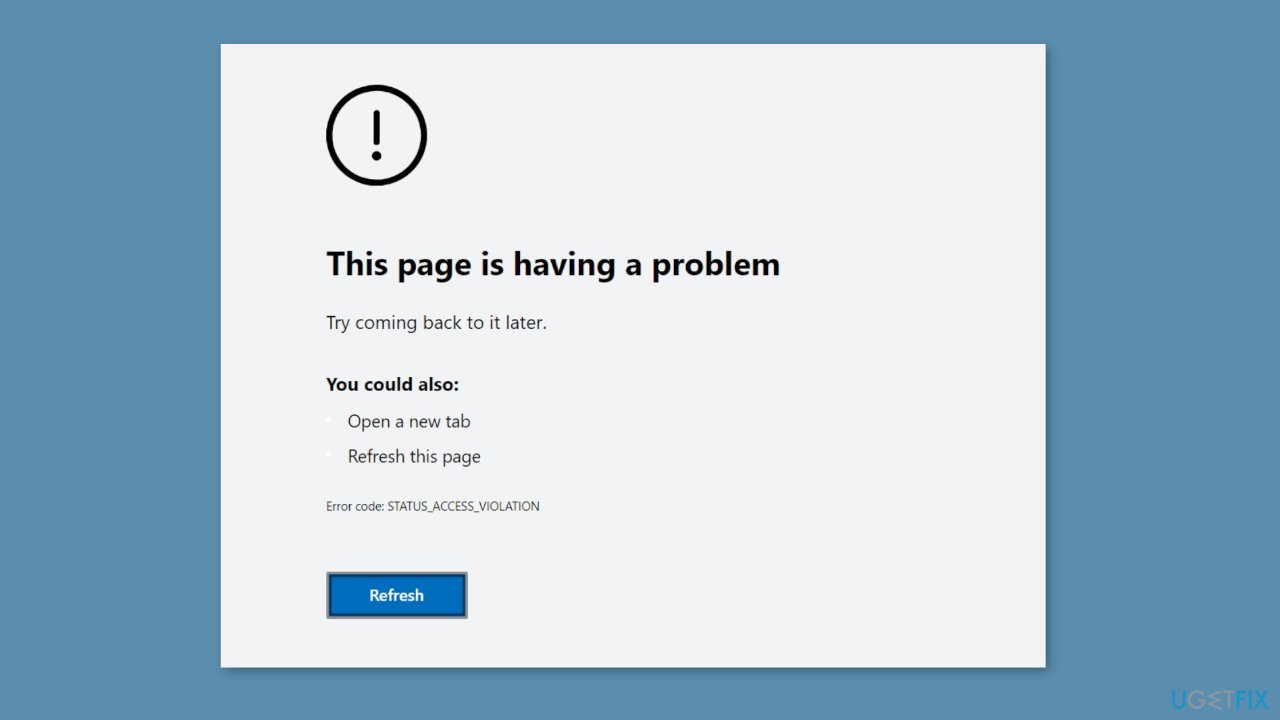
Method 1. Refresh the Site
If you get an error, it could be due to a temporary glitch that goes away after you restart your tab, especially if it happens for the first time. To see if this fixes the problem, try refreshing the page several times. If refreshing the page does not work, close and restart the browser. If refreshing both the webpage and the browser does not resolve the error, try the solutions listed below.
Method 2. Update Microsoft Edge
- Open Edge.
- Click on the three horizontal dots in the top-right corner of the browser.
- Select Settings from the dropdown menu.
- In the left sidebar, click on About Microsoft Edge.
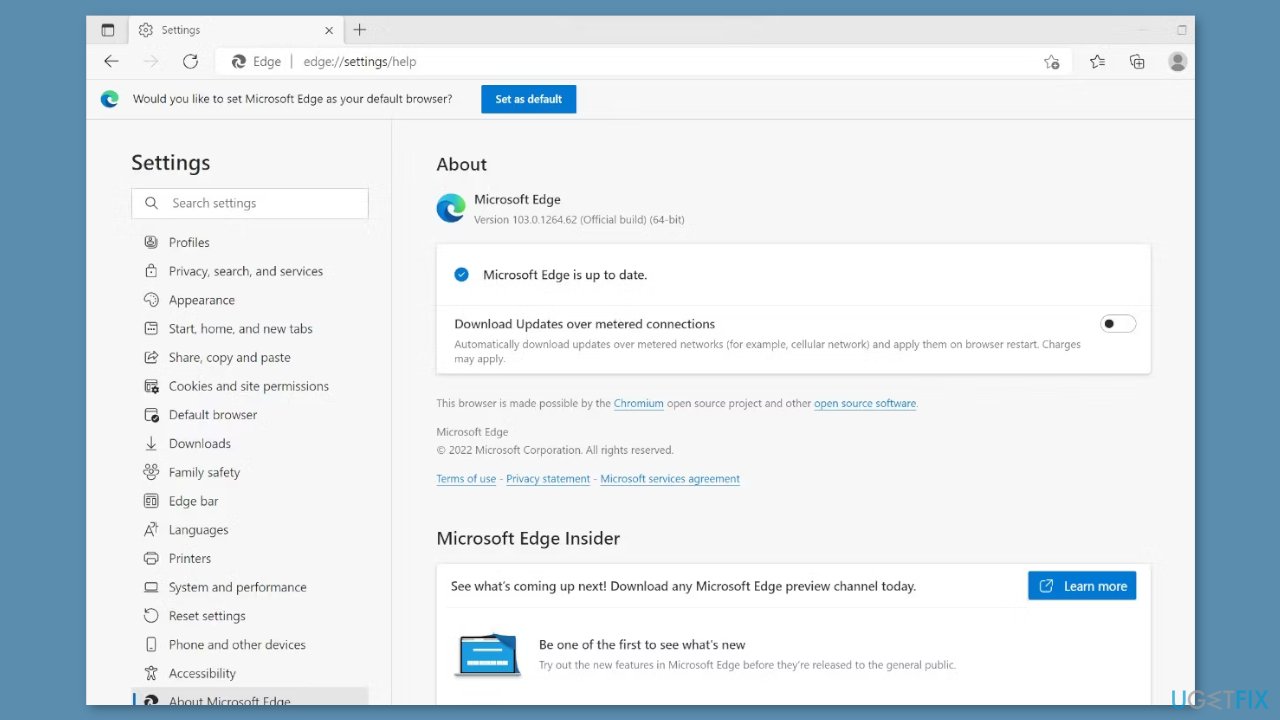
- If your browser needs to be updated, you will see an automatic update running on the right.
- Once the update process is complete, give your browser a fresh start to let the changes take effect.
- If you see the message Microsoft Edge is up to date, your browser has already been updated.
Method 3. Try Another Site
There are times when an error is caused by a problem with a specific webpage rather than a browser-related issue. This can happen if a website uses anti-blocking JavaScript scripts, which require you to disable ad blocker extensions if you're using them. As a result, it is critical to rule this possibility out.
Open a different webpage, preferably from another website, to accomplish this. If the problem persists with a specific webpage or website, disable your ad blocker extension because it directly interferes with the code of the webpage.
Method 4. Rename the Executable
Windows:
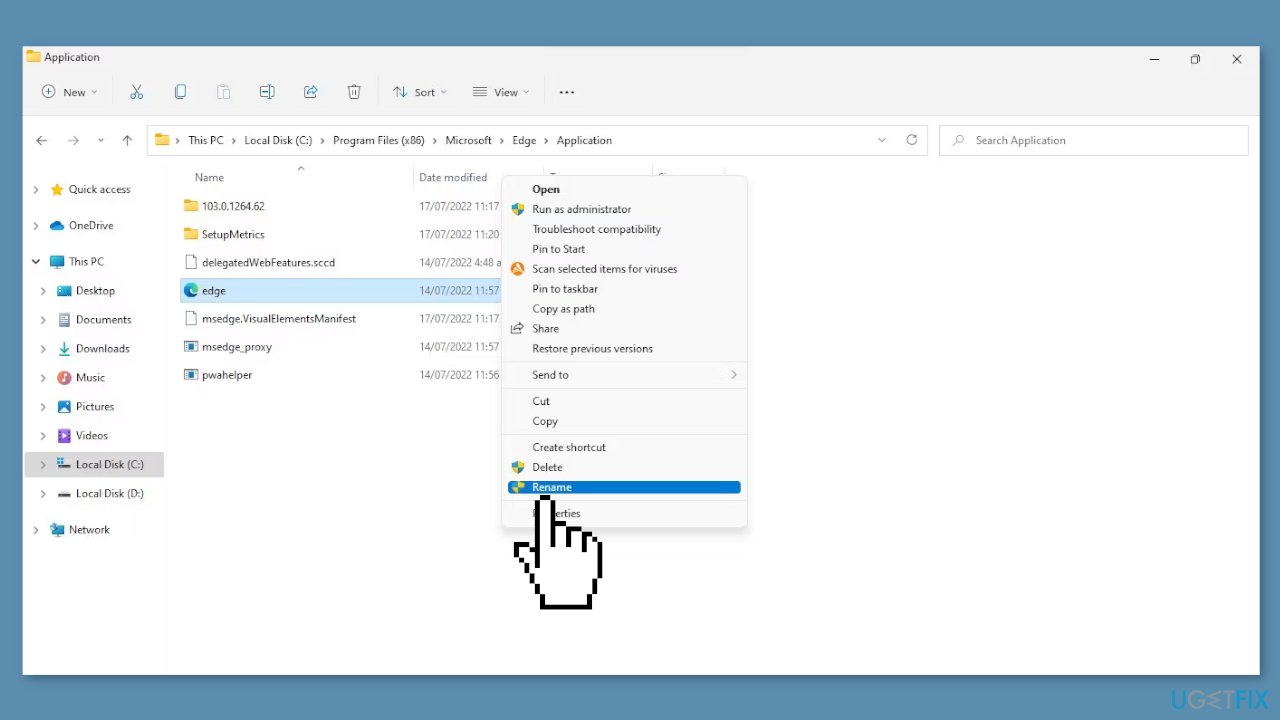
- Go to the following directory: C:/Program Files (x86)/Microsoft/Edge/Application
- Locate the Microsoft Edge executable.
- Right-click on the executable and select Rename from the context menu.
- Rename the executable to something else, such as edge.
- Restart your computer.
- Launch the browser.
macOS:
- Go to the following directory: /Applications/Microsoft Edge.app/Contents/MacOS/
- Locate the Microsoft Edge executable.
- Right-click on the executable and select Rename from the context menu.
- Rename the executable to something else, such as Microsoft Edge.old.
- Launch the browser.
Method 5. Disable Experimental Features
Edge users who are knowledgeable in the browser's operation may experiment with various experimental features to improve its capabilities. These features are not included in the browser's default installation, and individuals are free to test them at their own risk. While these experimental features can improve the browser's functionality, they are known to disrupt its performance. As a result, if you encounter an error after enabling an experimental feature, it's time to disable it.
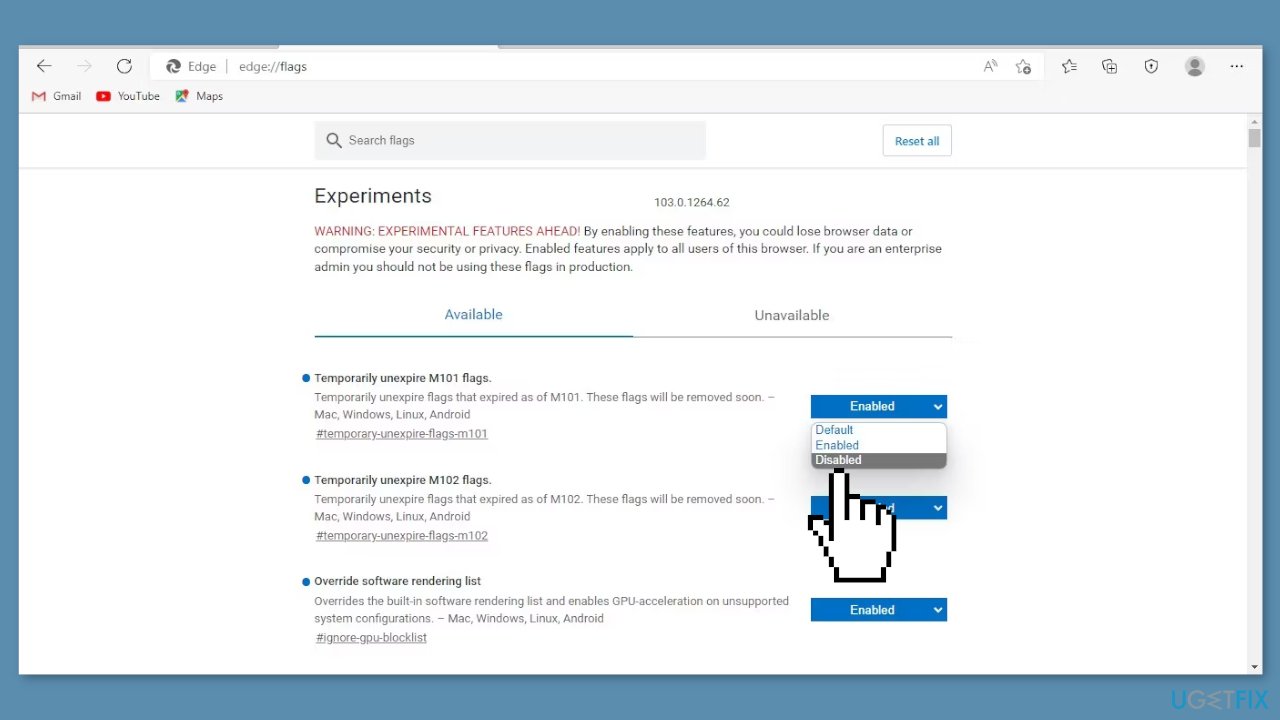
- Paste edge://flags/ into the search bar of the Edge browser.
- Filter out the experimental features that are enabled.
- Next to each experimental feature, select Disable from the dropdown menu.
- Restart your browser after disabling the experimental features to ensure the changes take effect.
Method 6. Disable Extensions
You may have already disabled ad blockers, but it is also critical to disable any other JavaScript extensions that may interfere with the source code of the website. To determine which extension is causing the problem, disable them one by one.
Method 7. Disable Renderer Code Integrity
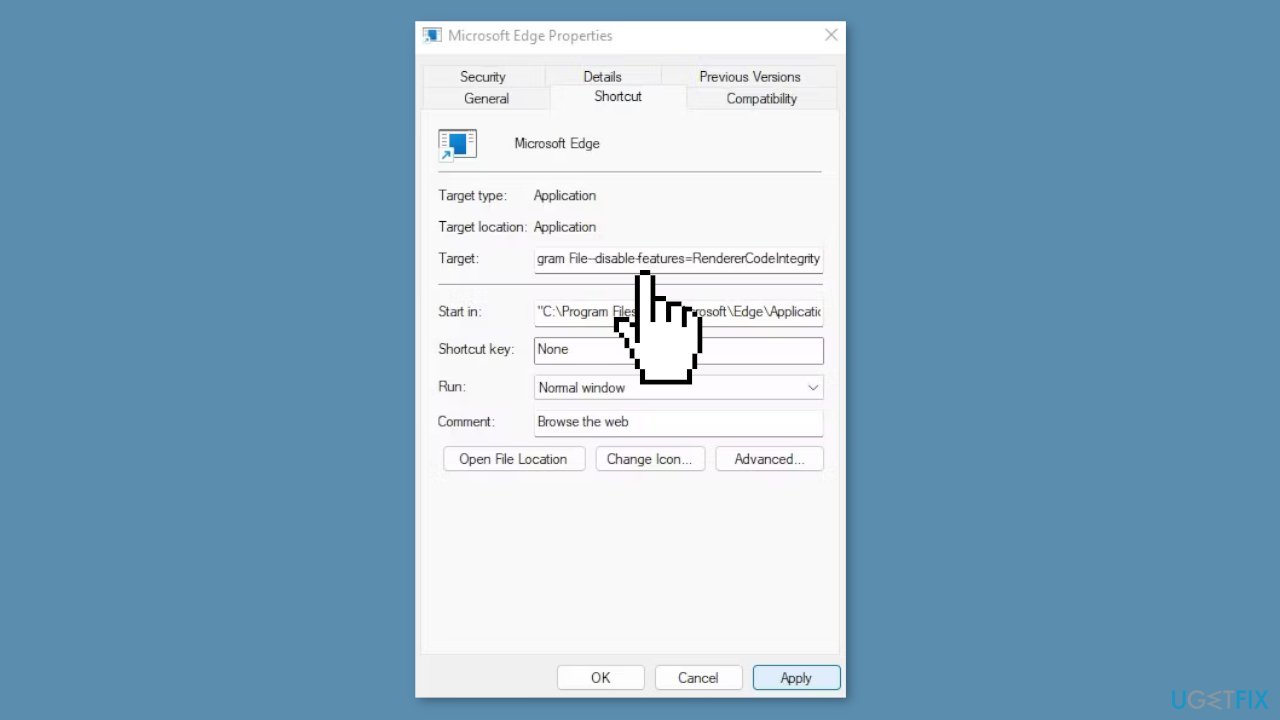
A feature specific to Windows called "renderer code integrity" stops unauthorized code from running during the page rendering process. While this feature can prevent viruses from interfering with page loading processes, it can also prevent certain pages from loading properly.
- Make a shortcut to Edge's executable file on your desktop.
- Right-click on the shortcut and select Properties from the context menu.
- In the Properties window, navigate to the Shortcut tab.
- At the end of the string added in the Target field, add --disable-features=RendererCodeIntegrity.
- Click Apply and then hit OK.
Bottom line
To fix the STATUS_ACCESS_VIOLATION error in Microsoft Edge, you can try refreshing the site, clearing the browser's cache and cookies, disabling extensions, updating the browser, or reinstalling it. If none of these solutions work, consider using a repair tool to address system errors and corrupted files.
Frequently asked questions
This error typically occurs due to corrupted browser data, incompatible extensions, or system conflicts that prevent Edge from functioning properly.
To clear cache and cookies, open Edge, go to Settings > Privacy, search, and services, then under Clear browsing data, choose 'Choose what to clear' and select 'Cached images and files' and 'Cookies and other site data'.
Yes, disabling extensions can help resolve the error; you can do this by navigating to Edge's extensions menu and toggling off any active extensions.




Report an issue
What's wrong with this guide? We review every report and update or remove content.
Report received — thank you. We'll review and fix it.
You need a free account to submit a report.
Be the first to comment