How to fix
Windows update error 0x80070661
on Windows
Resolve Windows update error 0x80070661 quickly and efficiently. Get your system running smoothly again with expert-tested solutions. Fixed in minutes!

What causes How to fix Windows update error 0x80070661?
- Issues with the Windows Update service
- Corrupted system components
- Malware-related damage
- Problems with the installation of WSL updates
Repairs Windows system files, removes malware, and restores a clean OS state — without reinstalling.
I wanted to apply the newest updates for my Linux subsystem for Windows, but it failed with error code 0x80070661. I have been trying to install it several times but to no avail. Please advise, as I have never dealt with this before.
Windows is a widely-used operating system that provides users with a rich set of features and functionalities. One of the features that Windows users can take advantage of is the Windows Subsystem for Linux (WSL). WSL is a compatibility layer that allows users to run Linux applications natively on Windows. This capability can help users utilize Linux applications without switching to a Linux operating system.
However, just like any other software, WSL must be updated regularly to ensure that it runs smoothly without any issues. Unfortunately, some users have encountered error code 0x80070661 when updating their Windows Subsystem for Linux.
The 0x80070661 error occurs when the Windows Update service encounters a problem while attempting to install the WSL update. The exact cause of the error is unclear, but it is believed to be related to issues with the Windows Update service or other system components.
To fix the 0x80070661 error, there are several solutions that users can try. One of the easiest solutions is to run the Windows Update troubleshooter. This tool can detect and fix many common issues with the Windows Update service.
Another solution is to manually download and install the WSL update from the Microsoft Update Catalog. Users can download the appropriate update for their system and then install it manually.
0x80070661 error can be frustrating for users trying to update their Windows Subsystem for Linux. However, with the solutions mentioned above, users can quickly fix the error and continue to use the WSL feature without any issues. It is essential to keep WSL updated to ensure that it continues to work correctly and provide users with a smooth experience.
If you would want to make sure that your system runs as intended and doesn't have some corrupted files or malware-related damage, we recommend running an automatic PC repair tool [d1].
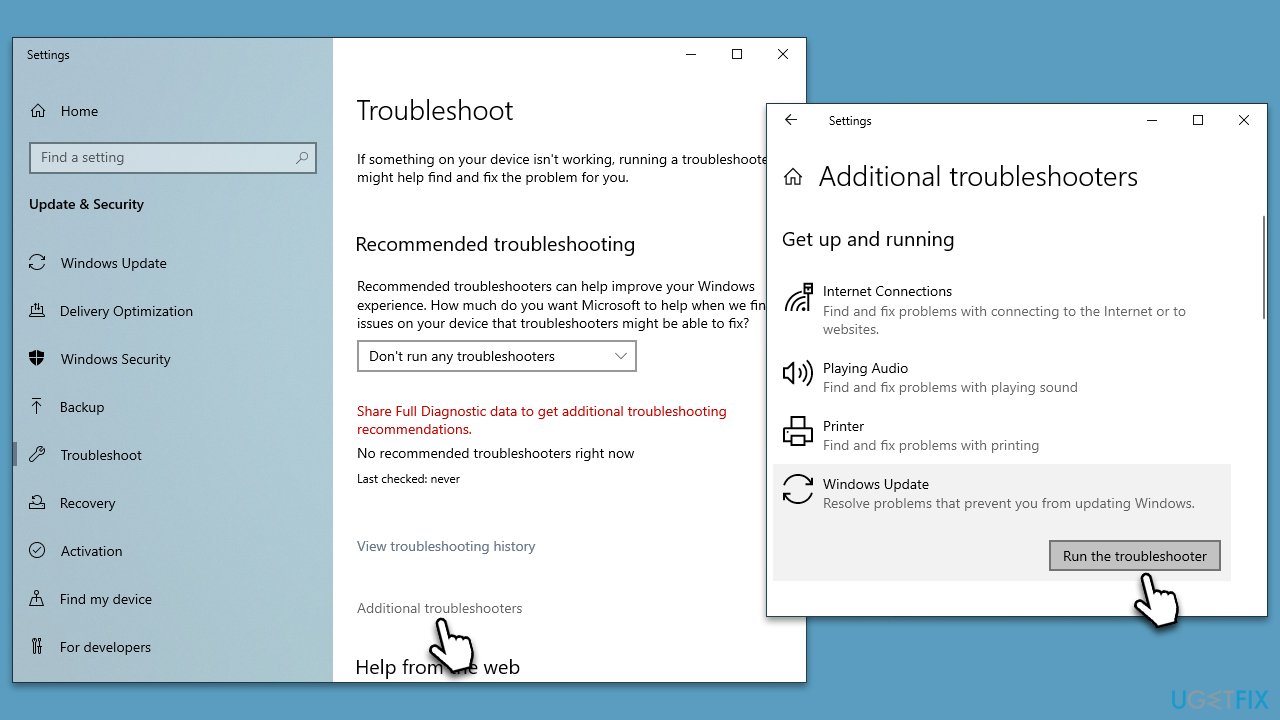
Fix 1. Run the troubleshooter
We recommend starting with the troubleshooter:
- Type Troubleshoot in Windows search and press Enter.
- Select Additional troubleshooters/Other troubleshooters.
- Find Windows Update from the list.
- Click it and select Run the troubleshooter/Run.
- Restart your PC when the update process finishes.
Fix 2. Fix corrupted files
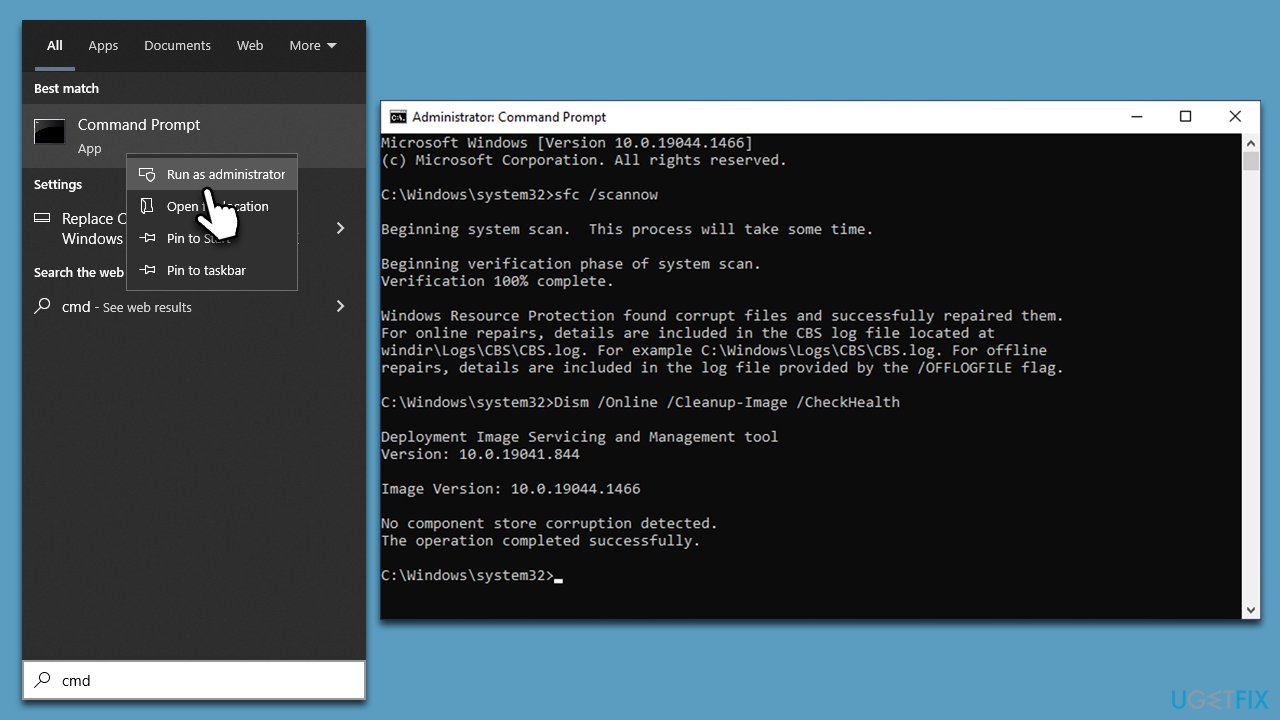
- Type cmd in Windows search
- Right-click on Command Prompt result and select Run as administrator
- When User Account Control shows up, click Yes
- Paste the following command into the new window:
sfc /scannow - Press Enter and wait till the scan is finished
- Once done, run this set of commands, pressing Enter after each:
DISM /Online /Cleanup-Image /CheckHealth
DISM /Online /Cleanup-Image /ScanHealth
DISM /Online /Cleanup-Image /RestoreHealth - Restart your system.
Fix 3. Disable third-party anti-virus
Third-party anti-virus software can sometimes interfere with the Windows Update process, leading to errors like 0x80070661. This is because the security features of the anti-virus program can conflict with the security features of Windows, causing the update process to fail.
To fix this issue, you can temporarily disable their anti-virus software to allow the Windows Update service to download and install updates. You can simply open your security app and look for an option to disable it temporarily. Once the updates have been downloaded and installed, the software can be re-enabled to ensure continued protection of the system.
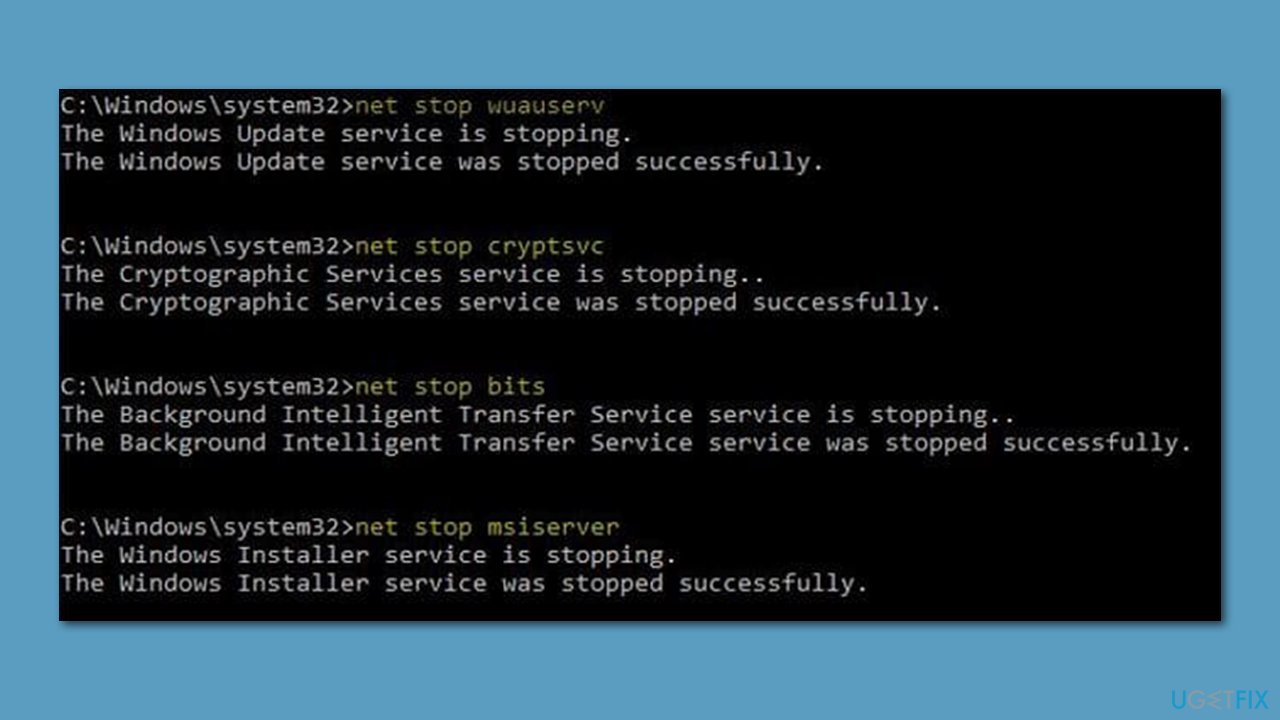
Fix 4. Reset Windows Update components
- Open Command Prompt as administrator, as we explained before.
- In the new window, paste in each of these commands, pressing Enter each time:
net stop bits
net stop wuauserv
net stop appidsvc
net stop cryptsvc
Del “%ALLUSERSPROFILE%\Application Data\Microsoft\Network\Downloader\*.*”
rmdir %systemroot%\SoftwareDistribution /S /Q
rmdir %systemroot%\system32\catroot2 /S /Q
regsvr32.exe /s atl.dll
regsvr32.exe /s urlmon.dll
regsvr32.exe /s mshtml.dll
netsh winsock reset
netsh winsock reset proxy
net start bits
net start wuauserv
net start appidsvc
net start cryptsvc - Restart your system.
Fix 5. Download WSL manually
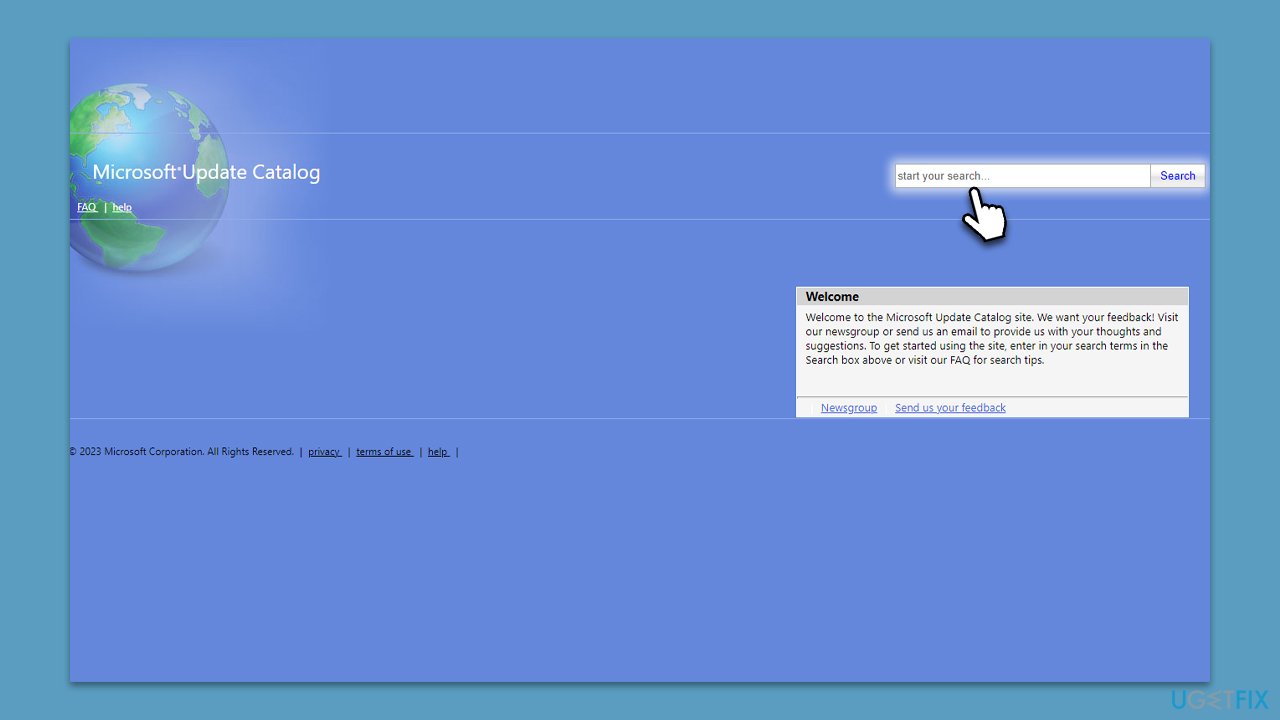
- Open your web browser and navigate to the Microsoft Update Catalog website.
- Look for the latest version of the WSL update available on the website or download the specific version mentioned in the error message.
- Choose the appropriate version for your system’s architecture, either ARM 64 or x64, and download the Cabinet file.
- Extract the Cabinet file and run the installer included in the package.
By following these steps, you should be able to update the WSL and resolve any errors related to the 0x80070661 error code on your Windows 10 or Windows 11 system.
Bottom line
To fix the 0x80070661 error, users can run the Windows Update troubleshooter or manually download and install the WSL update from the Microsoft Update Catalog. Keeping WSL updated is essential for a smooth experience. If these solutions do not work, further investigation into system integrity may be necessary.
Frequently asked questions
The error 0x80070661 typically occurs due to corrupted system files, issues with Windows Update components, or conflicts with third-party software. It's important to identify and resolve these underlying issues to successfully install updates.
You can troubleshoot this error by running the Windows Update Troubleshooter and ensuring that all necessary services are running. Additionally, resetting the Windows Update components can help resolve the issue.
Yes, you can manually fix the error by checking for file corruption using the DISM and SFC commands in Command Prompt, and then attempting to install the updates again. Make sure to run Command Prompt as an administrator for best results.




Report an issue
What's wrong with this guide? We review every report and update or remove content.
Report received — thank you. We'll review and fix it.
You need a free account to submit a report.
Be the first to comment