How to fix
Audio stuttering or not working on Xbox Remote Play
on Windows
Resolve audio stuttering or issues on Xbox Remote Play for Windows 10 and 11 effortlessly. Expert-tested solutions for seamless gaming experience!

What causes How to fix Audio stuttering or not working on Xbox Remote Play?
- Audio stuttering due to poor internet connection
- Audio issues from outdated Xbox app
- Audio settings not properly configured
- Device performance affecting audio playback
- Temporary glitches in the console or app
Repairs Windows system files, removes malware, and restores a clean OS state — without reinstalling.
Hello. I tried to use the Xbox Remote Play app for gaming but the audio is stuttering or stops working completely. What should I do?
Xbox Remote Play is a fantastic feature that allows gamers to play their favorite Xbox games on mobile devices or PCs without having to be physically present in front of their console. The feature offers several benefits, including the ability to play games on multiple devices and the convenience of playing from anywhere, making it a popular choice among gamers.
However, audio stuttering or audio not working can have a negative impact on users' gaming experience. When there are problems with the audio, it can be difficult for gamers to play their games because they rely on audio cues to navigate through their games. Audio stuttering can cause audio delays, distortion, or even complete audio loss, making it difficult for users to continue playing.
Fortunately, there are a number of potential solutions that users can try to resolve the audio stuttering or non-functioning issue when using Xbox Remote Play. Checking the internet connection, updating the Xbox app, or restarting the device are some of the solutions. In some cases, adjusting the audio settings in the Xbox app can help resolve the issue. However, these solutions may not work for all users, and some may require further assistance from Xbox support.
To help users resolve the audio stuttering or not working issue on Xbox Remote Play, we have provided a step-by-step guide below with 5 steps that should help users troubleshoot the issue. Following these instructions carefully can help users restore the audio to their gaming experience and continue to enjoy their favorite Xbox games without any interruptions.
Solution 1. Power Cycle the Console
- Press and hold the Xbox button until your console turns off.
- Unplug the power cable from the wall socket.
- Wait for 5 minutes.
- Plug in the power cable.
- Turn on your console.
Solution 2. Restart your Console using the Smartphone
Many users have found success using Xbox Remote Play to turn their consoles on and off. To do this, your Xbox console's Power Mode must be set to Instant-on.
- Open the Xbox app on your smartphone.
- Tap on the console icon located on the top right side, just before the Notifications icon.
- Select your console from the list of available consoles.
- Tap on the Open remote control option.
- Tap on the three vertical dots located in the upper-right corner of the screen.
- Tap on Turn off console.
- Wait for a few minutes.
- To turn on your console using Remote Play, tap on the Xbox icon on your smartphone.
Solution 3. Change the Name of your Xbox Console
- Open the settings on your Xbox console.
- Go to System > Console info.
- Change the name of your console.
- You will be prompted to restart your console.
- Tap Restart to apply the changes.
Solution 4. Clear Alternate MAC Address
- Open your Xbox console settings.
- Go to Network Settings > Advanced Settings > Alternate MAC Address.
- Select Clear.
- Restart your Xbox console to apply the changes.
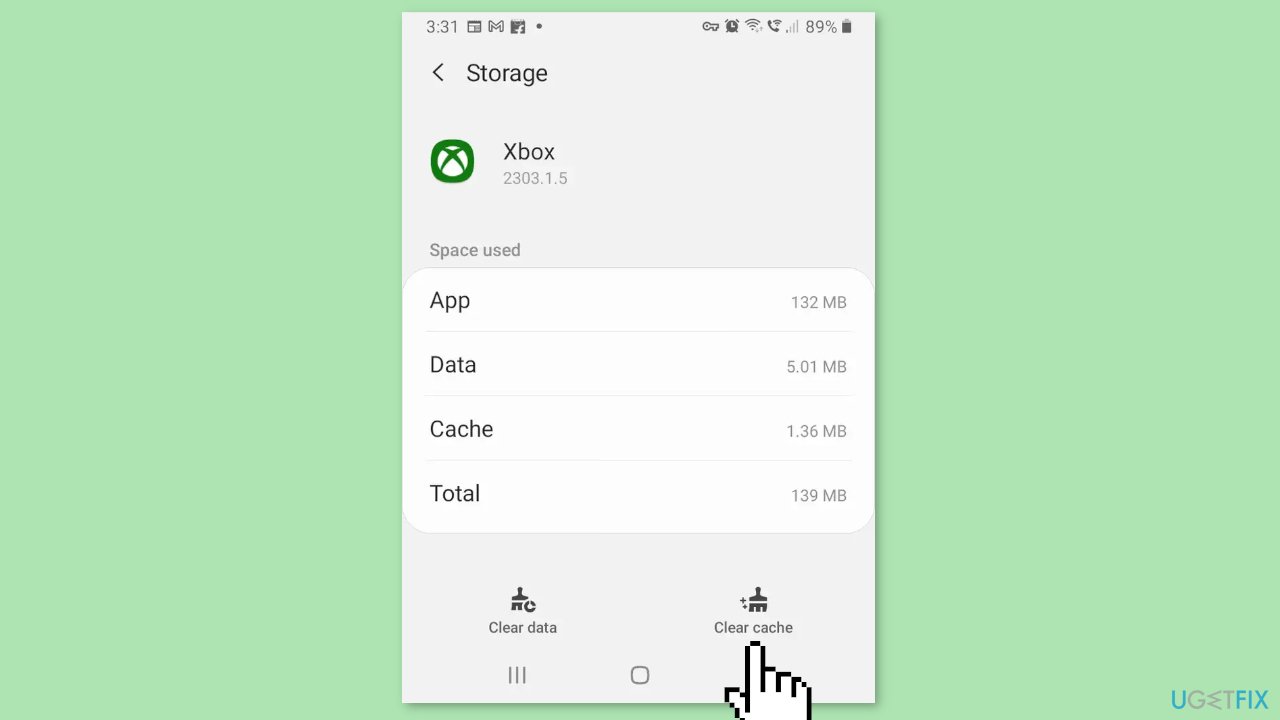
Solution 5. Clear the Xbox app Cache
Several issues can be caused by a corrupted app cache. Therefore, we recommend checking the cache of your Xbox app on your smartphone as this may be a potential cause of the problem.
- Open your Android smartphone settings.
- Go to Apps > Xbox.
- Tap on Storage.
- Tap on Clear cache to remove cached data for the Xbox app.
Bottom line
To fix audio stuttering or not working on Xbox Remote Play, users can try power cycling the console, restarting the console using a smartphone, checking their internet connection, updating the Xbox app, or adjusting audio settings in the app. If these solutions do not resolve the issue, users may need to seek further assistance from Xbox support.
Frequently asked questions
Ensure that your audio drivers are up to date and compatible with Windows 10. You can do this by visiting the Device Manager and checking for updates under 'Sound, video and game controllers.'
Try lowering the streaming quality settings in the Xbox app to reduce bandwidth usage, which can help with audio stuttering. Additionally, close any background applications that may be using audio or network resources.
Yes, you can reset audio settings by going to 'Settings' > 'System' > 'Sound' and clicking on 'Advanced sound options' to reset app volumes and device preferences. This can help resolve conflicts that may cause audio issues.




Report an issue
What's wrong with this guide? We review every report and update or remove content.
Report received — thank you. We'll review and fix it.
You need a free account to submit a report.
Be the first to comment