How to fix
Error code STATUS_BREAKPOINT in Chrome or Edge
on Windows
Resolve the STATUS_BREAKPOINT error in Chrome or Edge on Windows 10 and 11 easily with our expert-tested solutions. Fixed in minutes!


What causes How to fix error code STATUS_BREAKPOINT in Chrome or Edge?
- Outdated operating system
- Outdated browser
- Corrupted caches
- Faulty extensions
- Damaged system files
Repairs Windows system files, removes malware, and restores a clean OS state — without reinstalling.
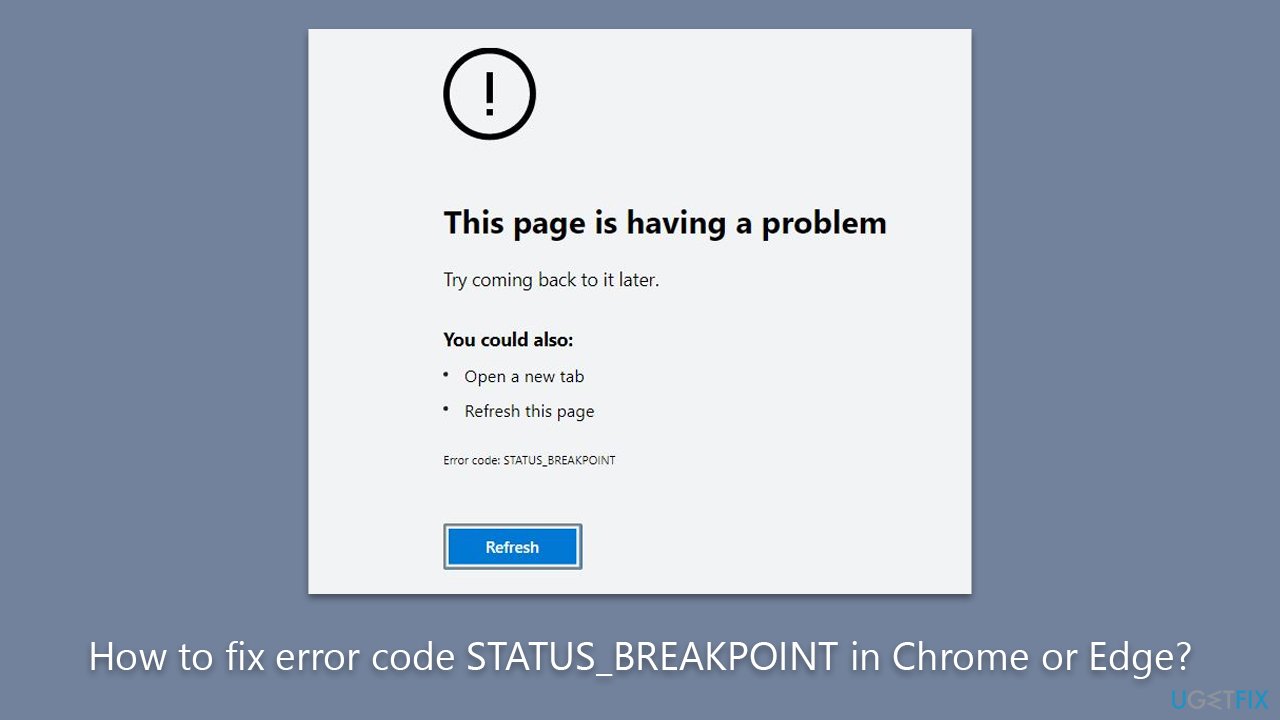
Hi. Whenever I use Microsoft Edge, I get a STATUS_BREAKPOINT error. It sometimes happens several times in a row when I attempt to load a page... Then it can work fine for like half an hour, only to fail to load again with the same error. I first thought it was the browser, so I tried Chrome and it's the same code with the "Aw, snap" message. Any tips?
Browsers are essential tools for accessing the internet and are used by millions of people worldwide. While there are numerous browsers available, users may sometimes encounter errors when using them. One such error is the STATUS_BREAKPOINT error, which can occur in both Google Chrome and Microsoft Edge browsers.
The STATUS_BREAKPOINT error typically occurs when the browser is unable to handle webpage requests or when the website has faulty designs. This error is related to page-loading and can cause frustration for users trying to access websites. Several reasons may cause the STATUS_BREAKPOINT error, including an outdated operating system or browser, corrupted caches, faulty extensions, and damaged system files.
If you're experiencing this error, there are several solutions that you can try to fix the problem. One potential solution is to update your operating system and browser to their latest versions. This can help fix any compatibility issues and ensure that your system is up-to-date with the latest security patches and bug fixes.
Another potential solution is to clear your browser's cache, which can sometimes become corrupted and cause errors. You can also try disabling any faulty browser extensions or resetting your browser settings to their default values.
STATUS_BREAKPOINT error is a frustrating error that can occur when using Google Chrome or Microsoft Edge browsers. However, by following the solutions provided below, you can fix this error and enjoy a seamless browsing experience once again. If you would rather employ an automatic solution, we recommend running a scan with [d1].
Method 1. Clear browser caches
Start with clearing caches, as they might be bugged. This is especially important if you haven't been cleaning your system of junk for a while (or ever).
Google Chrome
- Click on Menu and pick Settings.
- Under Privacy and security, select Clear browsing data.
- Under time range, pick All time.
- Select Browsing history, Cookies and other site data, as well as Cached images and files.
- Click Clear data.
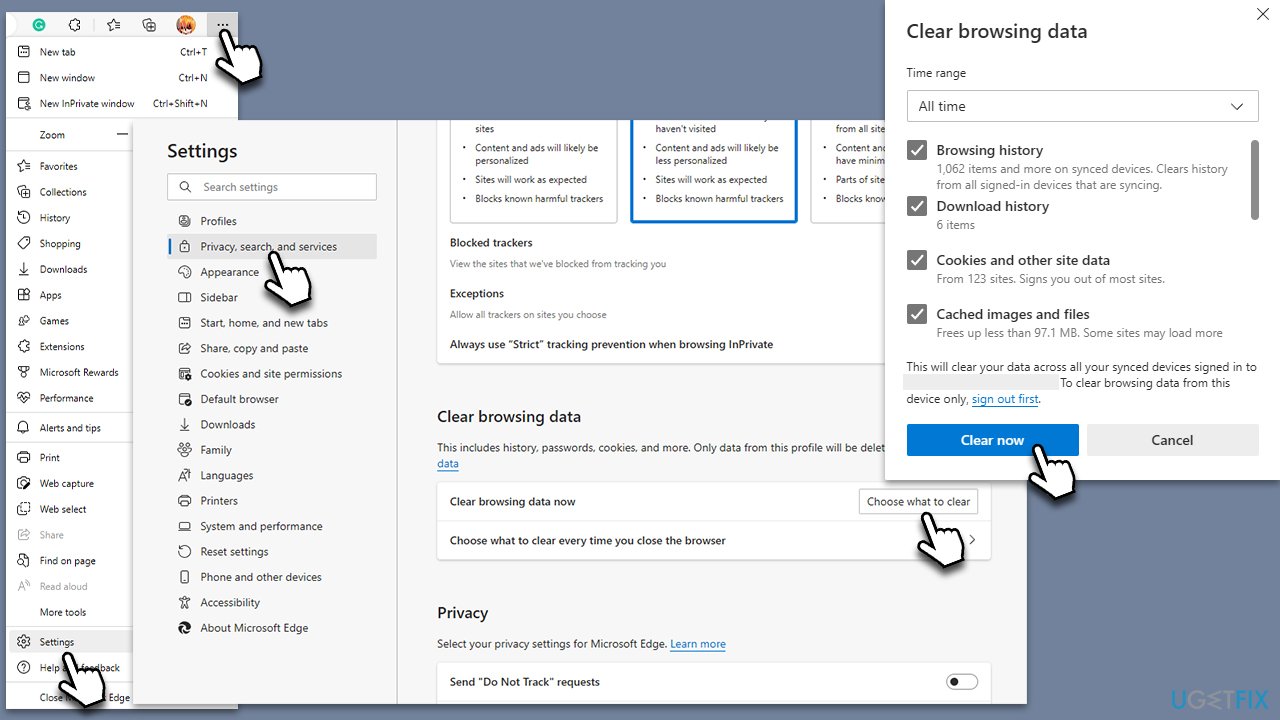
MS Edge
- Open Edge and click on three horizontal dots (Settings and more).
- Pick Settings.
- Click Privacy, search, and services on the left.
- On the right side of the window, scroll down to find the Clear browsing data section.
- Click Choose what to clear.
- Select All time.
- Pick all the sections and click Clear now.
Method 2. Check for corrupted files
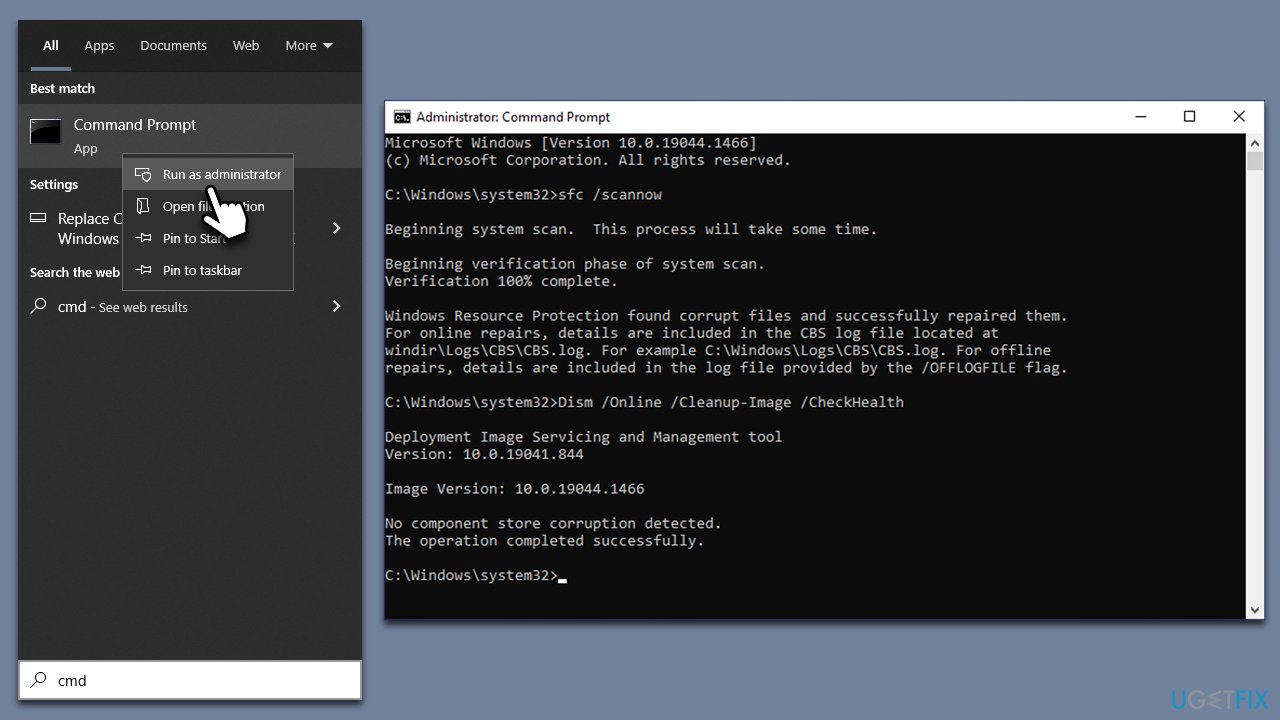
- Type cmd in Windows search.
- Right-click on Command Prompt and select Run as administrator.
- When User Account Control window shows up, click Yes.
- Paste the following command into the new window:
sfc /scannow - Press Enter and wait till the scan is executed.
- Once done, run this set of commands, pressing Enter after each:
DISM /Online /Cleanup-Image /CheckHealth
DISM /Online /Cleanup-Image /ScanHealth
DISM /Online /Cleanup-Image /RestoreHealth - Restart your device.
Method 3. Disable or enable hardware acceleration
You should try enabling hardware acceleration or disabling it if you already have it enabled.
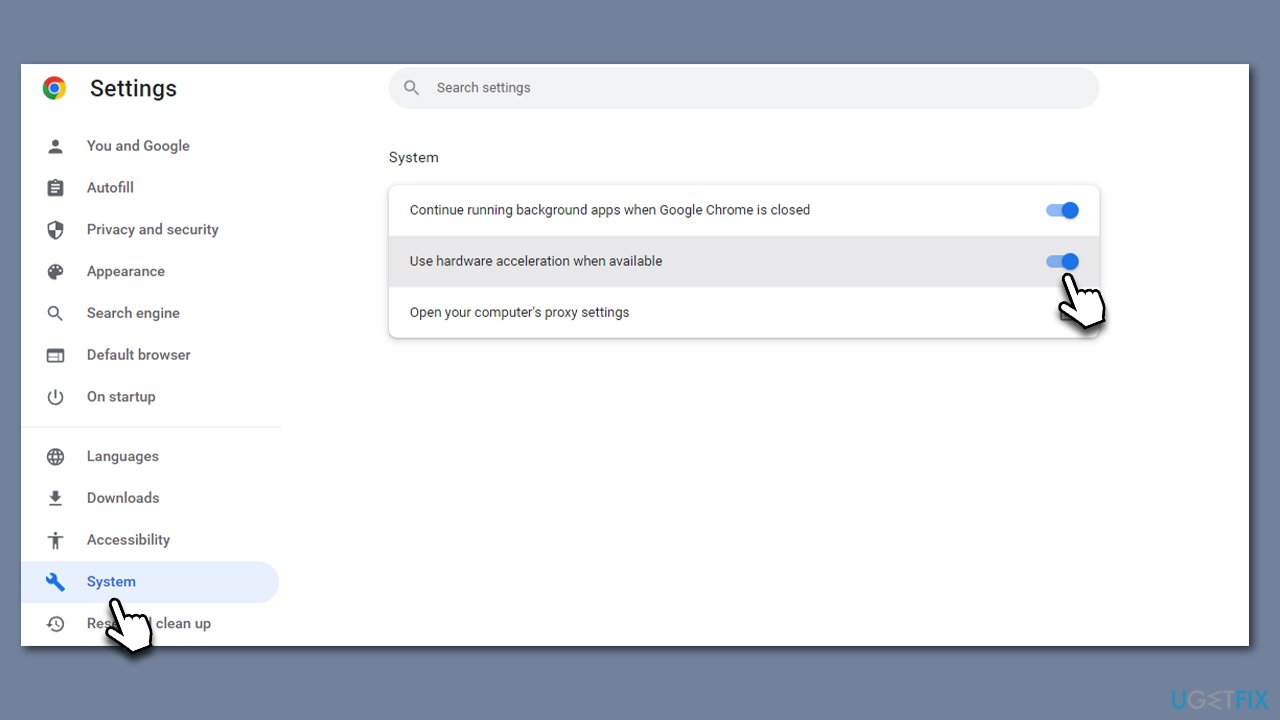
Google Chrome
- On Chrome, go to Menu and pick Settings.
- On the left side, select System.
- Enable the Use hardware acceleration when available option on the right.
MS Edge
- Click three vertical dots and select Settings.
- On the left, select System and performance.
- In the System section on the right, toggle the switch next to Use hardware acceleration when available.
Method 4. Install Windows and browser updates
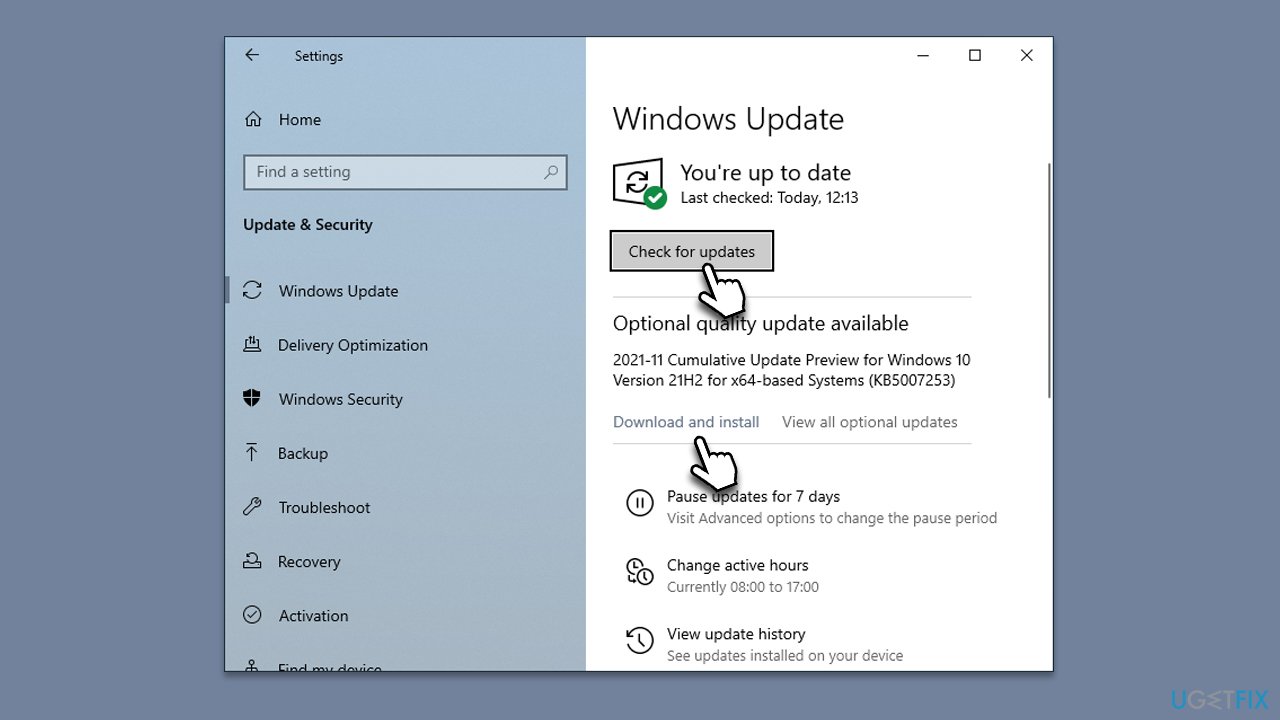
- Type Updates in Windows search and hit Enter.
- Here, click Check for Updates.
- If optional updates are available, install them as well.
- Restart your PC.
Your browsers, both Chrome and Edge, should be updated automatically unless you have not closed them down. Thus, make sure you reopen your browser or simply restart your system.
Method 5. Uninstall or disable extensions
Google Chrome
- Open Settings and go to More tools.
- Select Extensions.
- Here, you will find the list of the installed extensions.
- You can either delete them by pressing Remove or toggling the switch to disable them.
MS Edge
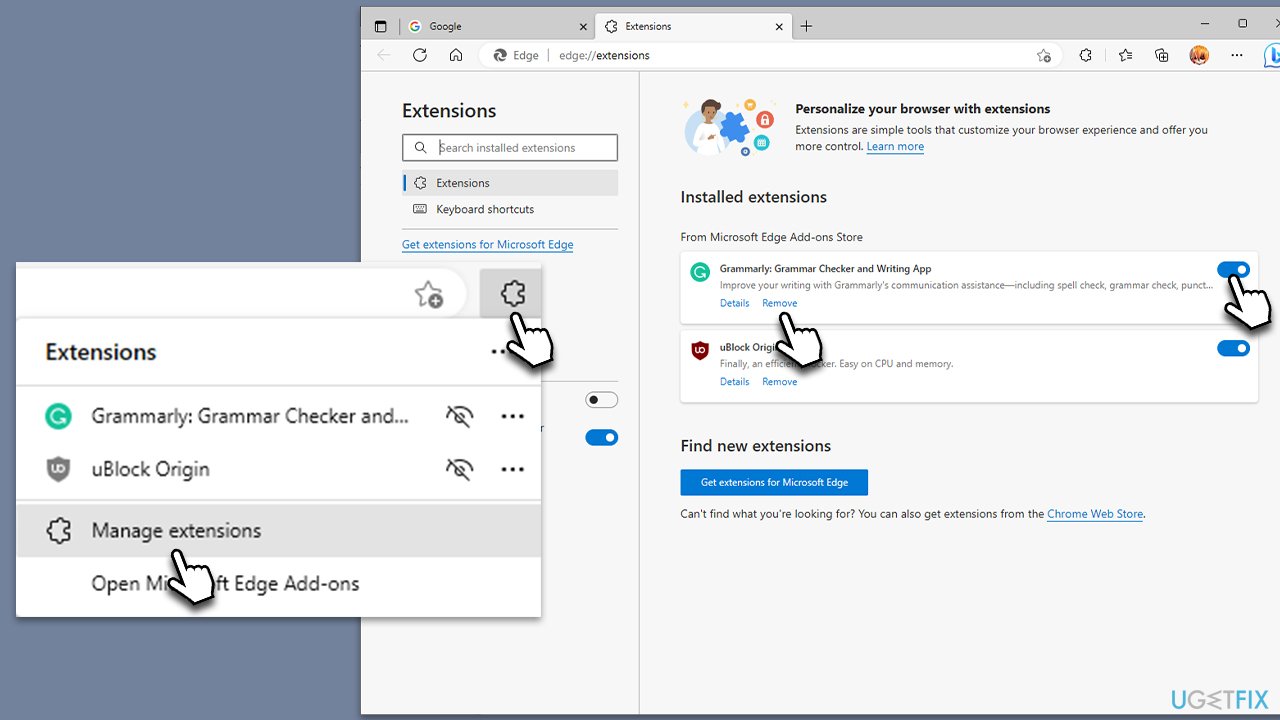
- Click the Extensions button next to the address bar.
- Select Manage extensions.
- Here, you can either Remove the extension or disable it by toggling the switch.
Method 6. Run network troubleshooter
To ensure that your internet connection is stable and not the one causing the STATUS_BREAKPOINT error, run a network troubleshooter:
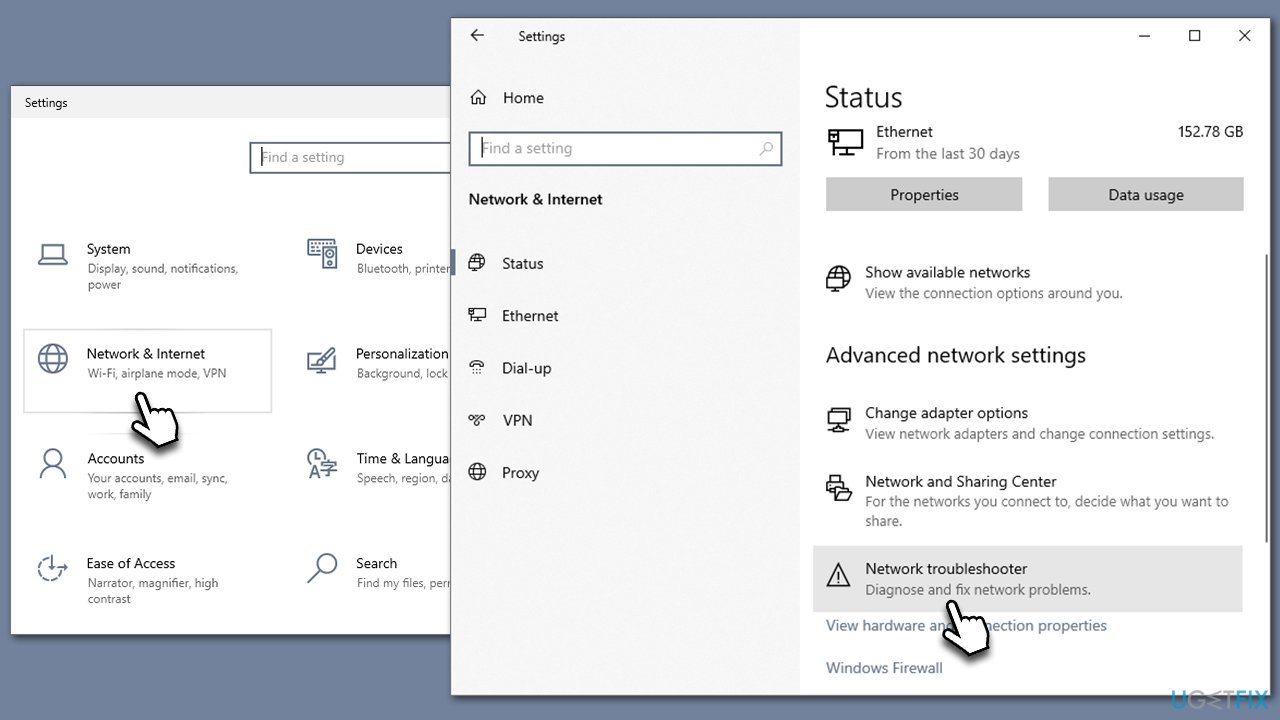
- Right-click on Start button and select Settings.
- Go to Network & Internet section.
- Here, locate the Advanced network settings section.
- Click the Network troubleshooter to run it.
- Wait for the results to show up and apply the suggested fixes.
Method 7. Other solutions
Here are a few other quick tips that may or may not be relevant - some users managed to fix the error by using these:
- Scan your system for malware. You can use either built-in or third-party anti-malware.
- If you are using third-party security software, disable or uninstall it and see if that fixes the problem. If it does, make sure you have your Windows and security apps updated to the latest version. If it doesn't help, contact the developer of your third-party anti-malware.
- Stop overclocking/disable XPM.
Bottom line
To fix the STATUS_BREAKPOINT error, you can update your operating system and browser, clear your browser's cache, disable faulty extensions, or reset your browser settings. If these solutions do not resolve the issue, consider running a scan with an automatic solution.
Frequently asked questions
The STATUS_BREAKPOINT error code typically indicates that the browser has encountered a critical issue that requires it to close. This can happen due to problematic extensions or corrupted browser files.
To troubleshoot the STATUS_BREAKPOINT error in Edge, try clearing the browser cache and disabling any recently added extensions. Additionally, resetting Edge settings to default may help resolve the issue.
Yes, keeping Windows 10 updated can help fix compatibility issues that may cause the STATUS_BREAKPOINT error in Chrome, as updates often include important patches and fixes.




Report an issue
What's wrong with this guide? We review every report and update or remove content.
Report received — thank you. We'll review and fix it.
You need a free account to submit a report.
Be the first to comment