How to fix
Windows Settings app crashing constantly
on Windows
Resolve constant crashes of the Windows Settings app effortlessly with proven solutions. Get back to smooth navigation—expert-tested and updated 2025.

What causes How to fix Windows Settings app crashing constantly?
- Temporary bugs
- Corruption issues
- Outdated Windows operating system
- Conflicting software or services
- Corrupted files
Repairs Windows system files, removes malware, and restores a clean OS state — without reinstalling.
Hello. The Windows settings are crashing after a minute or two when I leave it open. Is there anything I can do to get rid of this issue?
The Windows Settings app is a key component of the Windows operating system that allows users to modify various system settings and preferences. It provides a centralized location for users to configure their system settings, including things like display settings, privacy settings, network settings, and more.
Unfortunately, some users may experience issues with the Settings app crashing constantly, which can be a frustrating and disruptive problem. This issue can impact users in various ways, depending on the specific settings they need to modify or access. For example, if a user needs to change their network settings to connect to a new Wi-Fi network but the Settings app is crashing, they may not be able to do so until the issue is resolved.
There are several possible solutions to this issue, depending on the underlying cause. Some potential solutions include resetting the Settings app, updating the Windows operating system, and performing a clean boot to identify and troubleshoot any conflicting software or services.
In this guide, you will find 7 steps that should help you fix Windows Settings app crashing constantly. However, the manual troubleshooting process can be lengthy. You can use a repair tool like [d1] that can fix most system errors, BSODs,[ref en-1] corrupted files, registry[ref en-2] issues, or clear cookies and cache.[ref en-3] Otherwise, follow the step-by-step instructions below.
Solution 1. Restart the PC
Resetting your computer can be a surprisingly effective solution for temporary bugs or corruption issues that may be causing errors. That's why we suggest beginning your troubleshooting process with a Windows restart. First, terminate all active processes on your system, then restart the computer. Once it reboots, check to see if the Settings app is functioning properly.
Solution 2. Install Windows Updates
- Press the Windows key + R to open the Run box
- Type ms-settings:windowsupdate in the text box and press Enter
- Click the Check for updates button
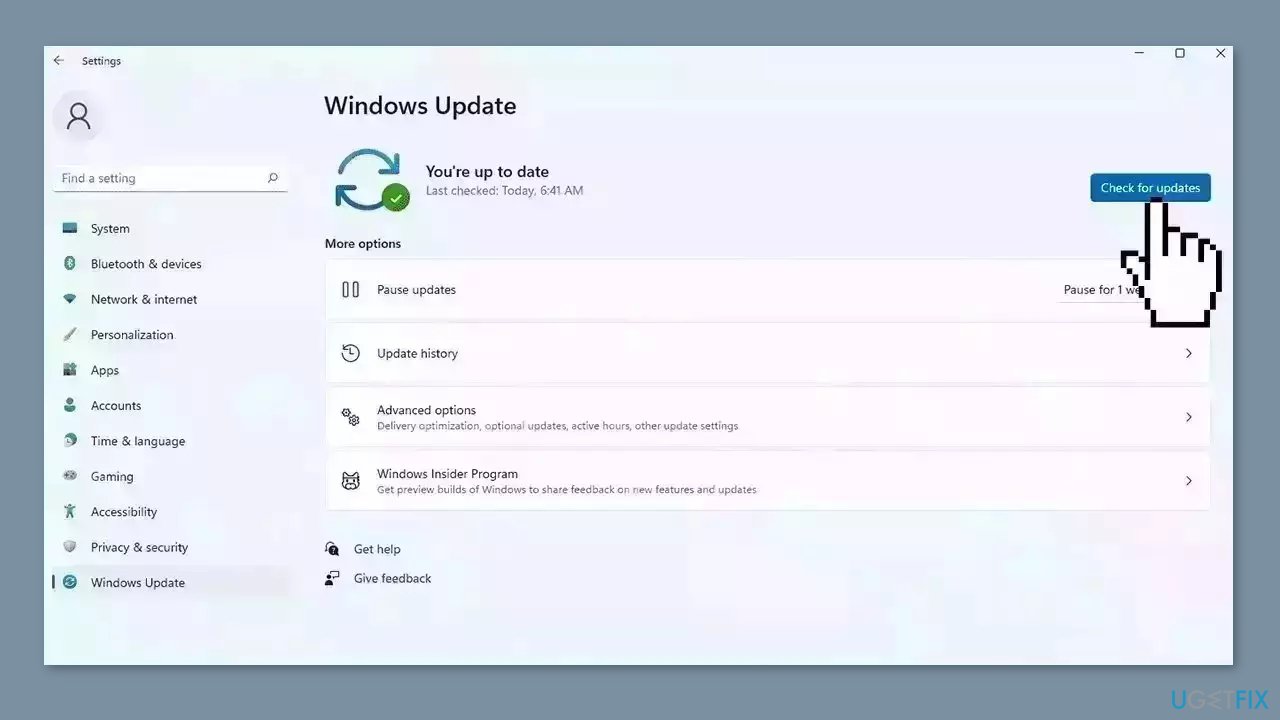
- If a new update is available, click the Download & Install all button.
- Restart your computer after the process is finished and check to see if the problem is fixed
Solution 3. Restart Windows Explorer
- Press Ctrl + Shift + Esc to open Task Manager.
- Select the Processes tab.
- Scroll down and locate Windows Explorer in the list.
- Right-click on Windows Explorer.
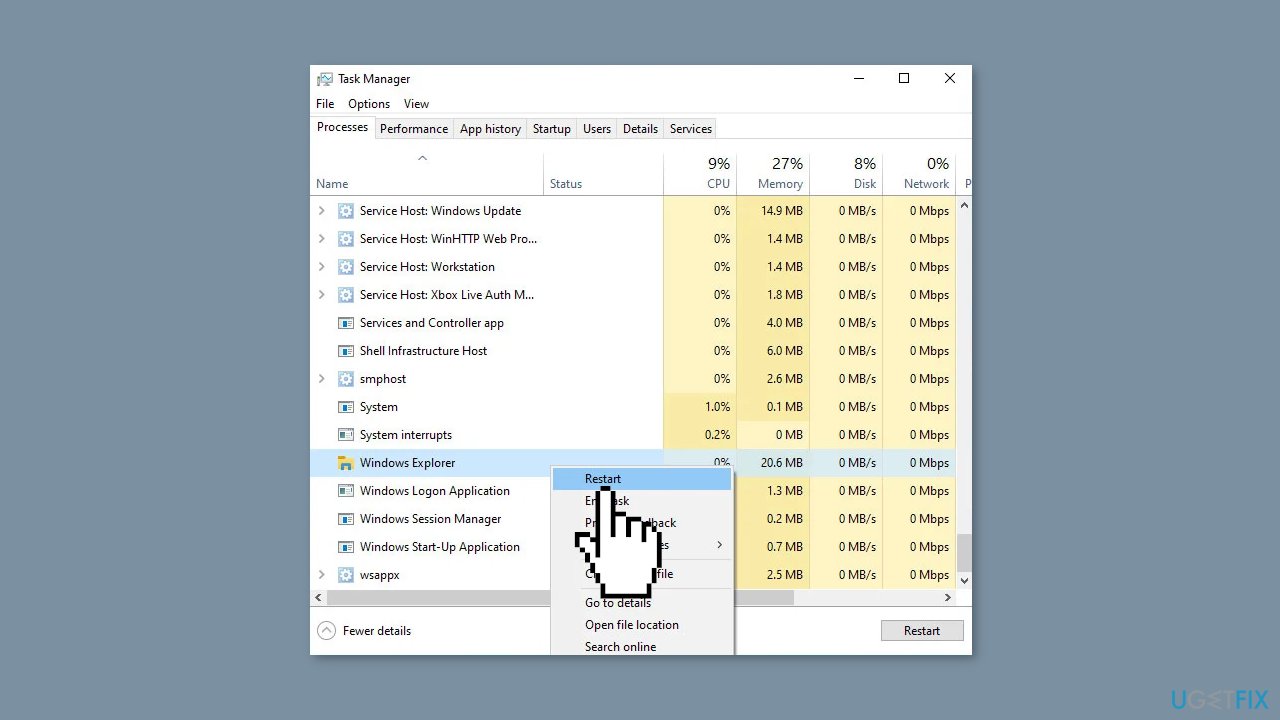
- Select the Restart option from the context menu that appears.
Solution 4. Update Drivers
Outdated drivers could be the cause of this issue. In this case, you can fix it automatically by using [rev id="DriverFix"], which will scan your PC for missing and out-of-date device drivers. Or you can update them manually:
- Open Settings
- Click on Update & Security
- Click on Windows Update
- Click the Check for updates button
- Click the View optional updates option
- Click the Driver updates tab
- Select the driver you want to update
- Click the Download and install button
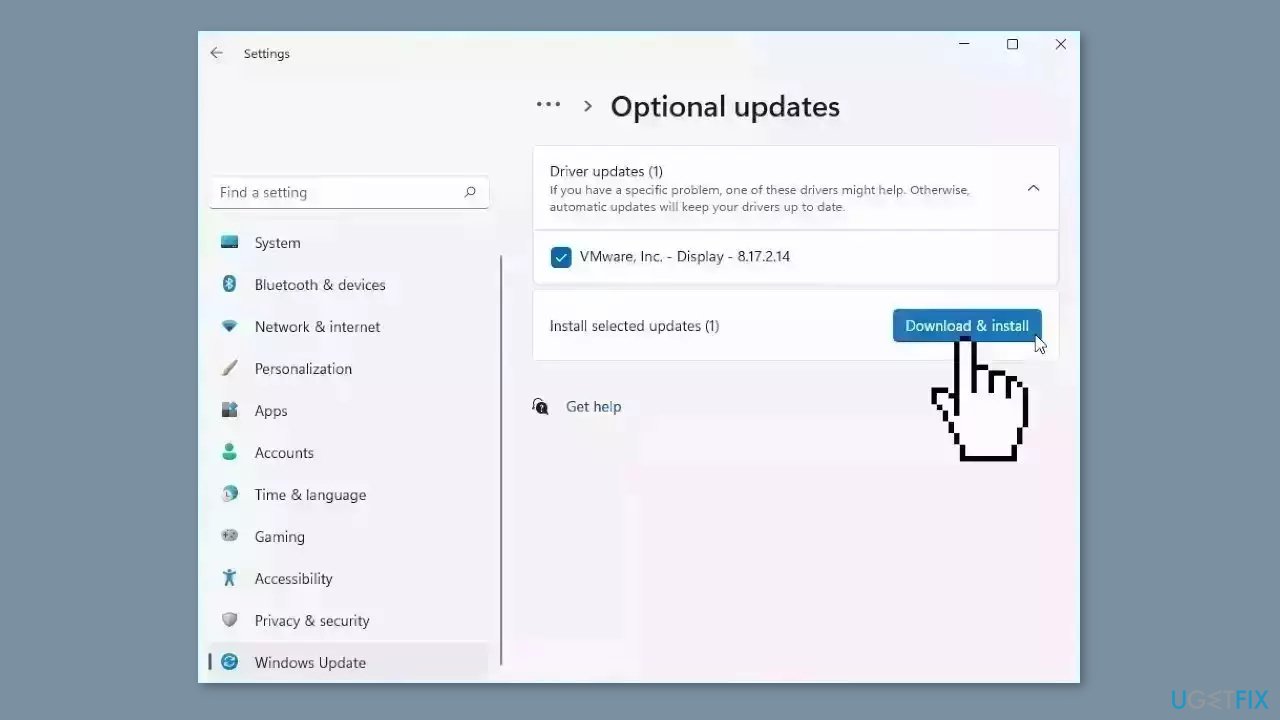
If the View optional updates link is not available after checking for updates, then Windows Update does not have any new drivers or any updates for other products at that particular time.
Solution 5. Repair or Reset Windows Settings App
- Click on the Windows icon located on your taskbar.
- Right-click on the Settings icon.
- From the context menu that appears, select App settings.
- In the following window, navigate to the Reset section.
- You will see two options: Repair and Reset.
- Click on Repair first and wait for the process to complete.
- After the Repair process finishes, check if the problem has been resolved.
- If the issue persists, click on Reset.
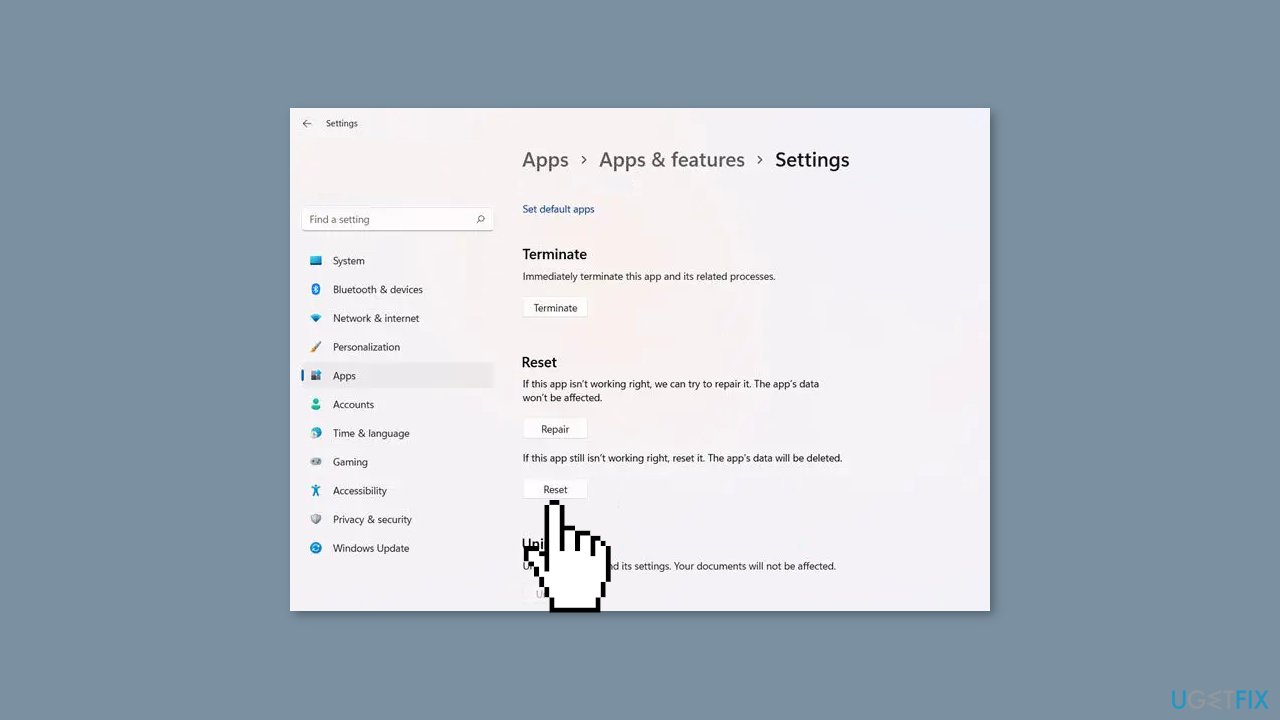
- Follow the on-screen instructions to proceed with the Reset process.
Solution 6. Re-register the Settings App
- Type Powershell in the Windows Search bar.
- Right-click on the Windows PowerShell app in the search results.
- Select the Run as administrator option from the context menu.
- Click Yes when prompted by the User Account Control window.
- Type the following command into the Powershell window:
Get-AppxPackage windows.immersivecontrolpanel | Reset-AppxPackage
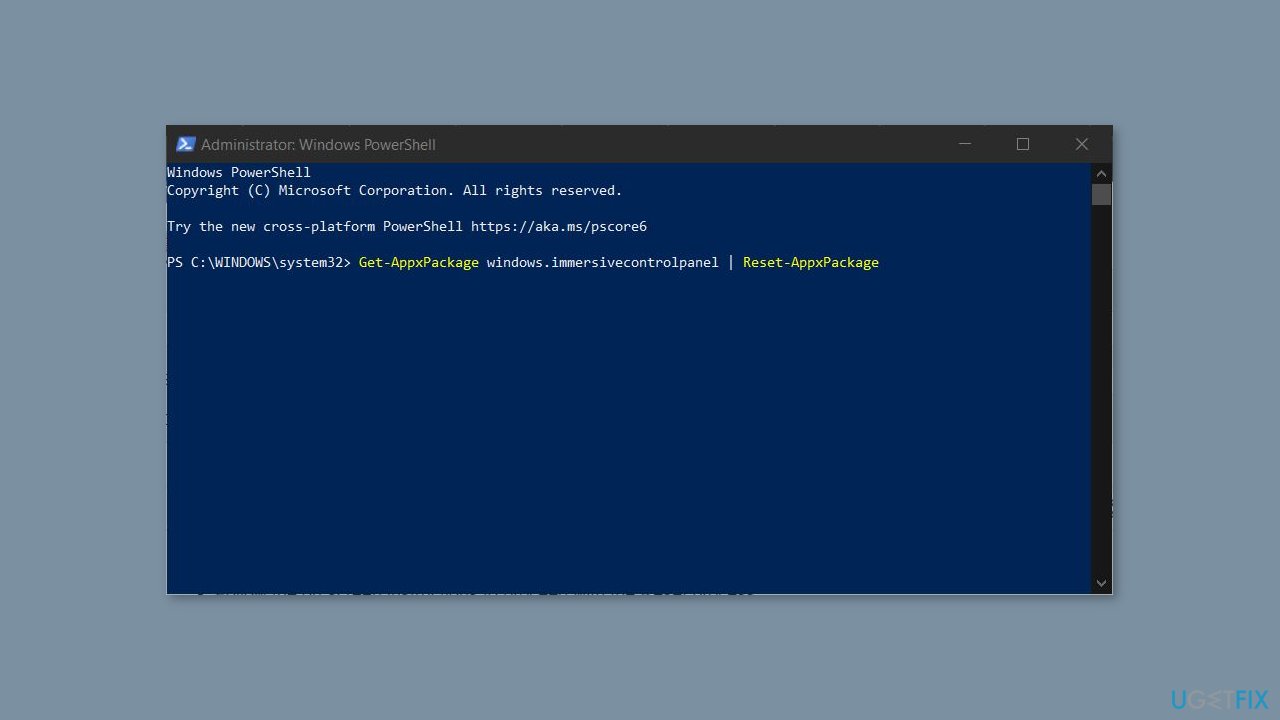
- Press Enter to execute the command.
- Wait for the command to complete, which may take a few minutes.
- Once the command finishes, close the Powershell window.
- Restart your computer to complete the process.
Solution 7. Perform an In-place Upgrade
- Download Windows 10 installation media or Windows 11 installation media from the official website.
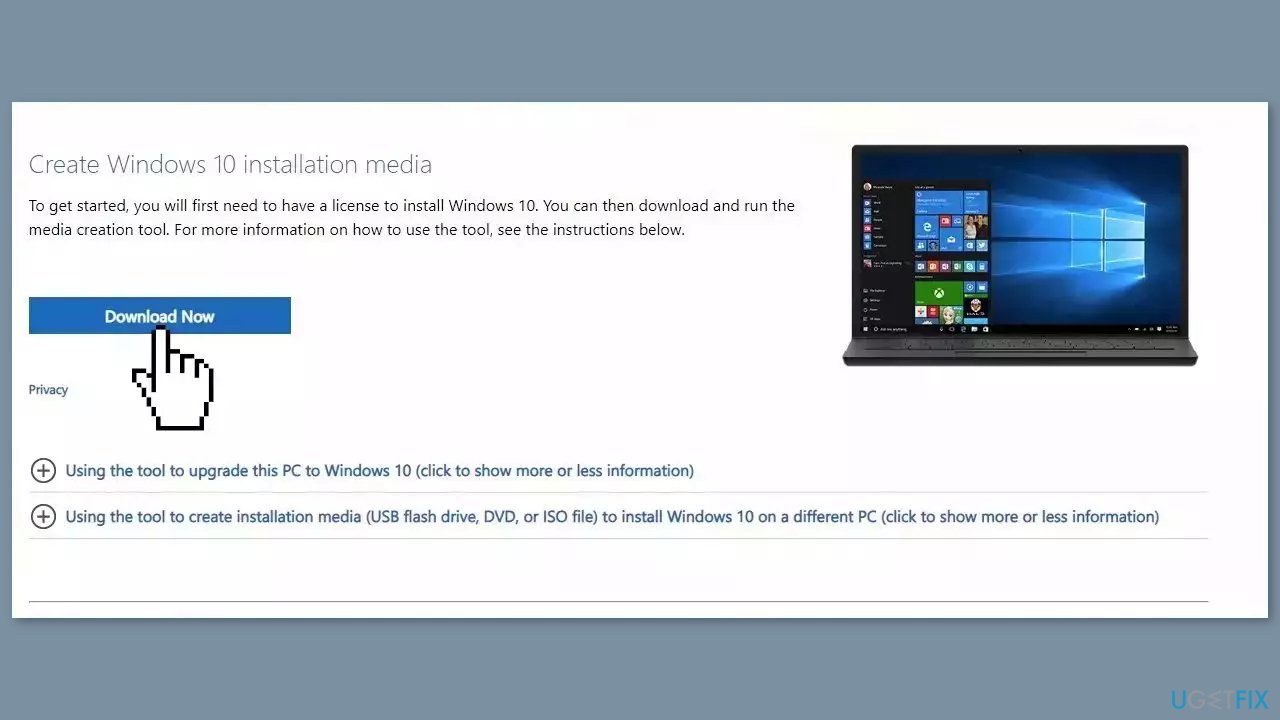
- Open the tool once it installed.
- Agree to license terms.
- Choose Upgrade this PC now.
- Wait for the update to be installed.
Bottom line
To fix the Windows Settings app crashing, you can try restarting your PC, installing Windows updates, or using a repair tool to address system errors. If these solutions do not resolve the issue, consider performing a clean boot to identify any conflicting software.
Frequently asked questions
You can try resetting the Settings app by going to Settings > Apps > Apps & features, finding Settings, and selecting 'Advanced options' to reset it. If that doesn't work, consider running the System File Checker tool to repair any corrupted system files.
In Windows 11, you can repair the Settings app by navigating to Settings > Apps > Installed apps, locating the Settings app, and selecting 'Repair.' Additionally, ensure your system is up to date by checking for Windows updates.
Yes, you can open Command Prompt as an administrator and run the command 'sfc /scannow' to scan for and repair corrupted files that might be causing the Settings app to crash.




Report an issue
What's wrong with this guide? We review every report and update or remove content.
Report received — thank you. We'll review and fix it.
You need a free account to submit a report.
Be the first to comment