How to fix
Windows update error 0x800B0003
on Windows
Resolve Windows update error 0x800B0003 quickly and easily with our expert-tested tips. Get your system running smoothly again, fixed in minutes!


What causes How to fix Windows update error 0x800B0003?
- Corrupted system files
- Bugged update components
- Lack of space on hard drive
- Internet connection issue
Repairs Windows system files, removes malware, and restores a clean OS state — without reinstalling.
Every time I attempt to update Windows, I receive the following message: "There were problems downloading some updates, but we'll try again later. If you keep seeing this, try searching the web or contacting support for help. This error code might help: (0x800b0003)." What does this mean, and how do I fix it?
Microsoft has been delivering Windows updates as a service for many years, and this tradition continues with the newest Windows 11. With these updates, Microsoft provides users with access to the latest features, security patches, and bug fixes.
Windows updates are essential to ensure your device runs efficiently, effectively, and securely. They are designed to improve the user experience, enhance device performance, and protect your device from security vulnerabilities.
Windows updates are usually automated and delivered in the background, so they don't require user intervention. Once an update is available, your device will download and install it automatically, ensuring that you always have the latest version of the operating system. During this process, some users received a 0x800B0003 error, which prevented the implementation of the newest features or bug fixes.
If you're facing the 0x800B0003 Windows update error, the first thing you can try is restarting your system and trying again. However, this solution may not work for most users. The error is usually caused by several factors, such as corrupted system files, bugged update components, lack of space, or even an internet connection issue.
Corrupted system files can cause the Windows update error 0x800B0003. This can occur when some essential system files are damaged, making it impossible for the update process to run correctly. Bugged update components can also be a reason for the error resulting from an incomplete or interrupted update process. Lack of space on your device's hard drive can also prevent the update from completing successfully.
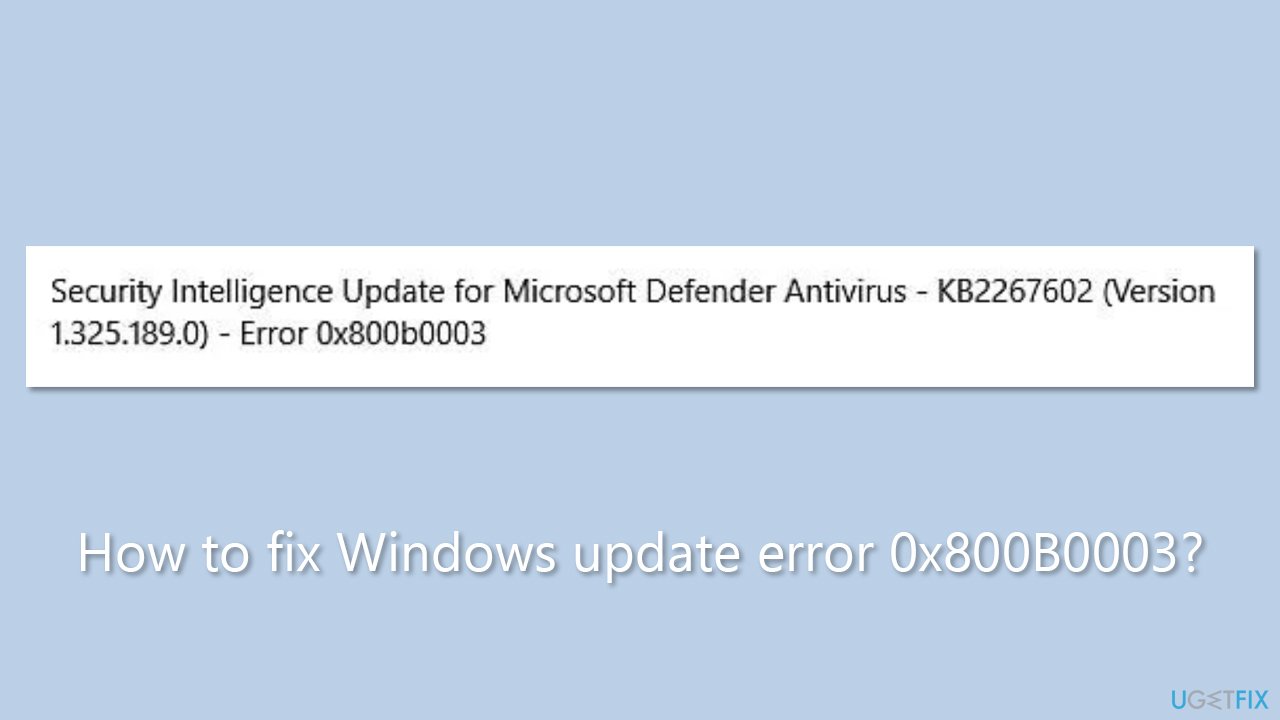
In conclusion, encountering the Windows update error 0x800B0003 can be frustrating, but there are several solutions available. If restarting your device doesn't work, you can try running the Windows Update troubleshooter, clearing the update cache, or manually installing the update. If you would rather opt for automatic repair, we recommend trying [d1].
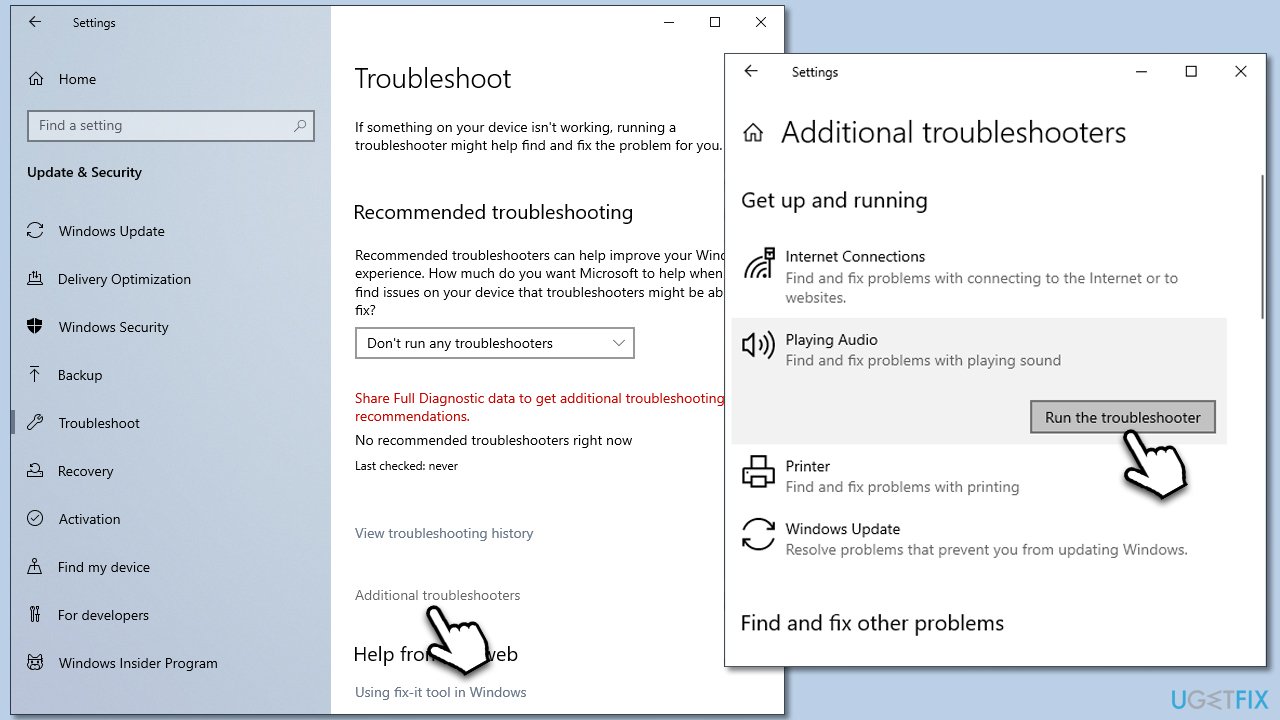
1. Run the troubleshooter
Troubleshooters are built-in tools that can be a great help when facing common Windows issues.
- Type troubleshoot in Windows search and hit Enter.
- Click Additional troubleshooters/Other troubleshooters.
- Find Windows update.
- Click on it, and select Run the troubleshooter/Run.
- Wait for the scan to be completed and apply the suggested fixes.
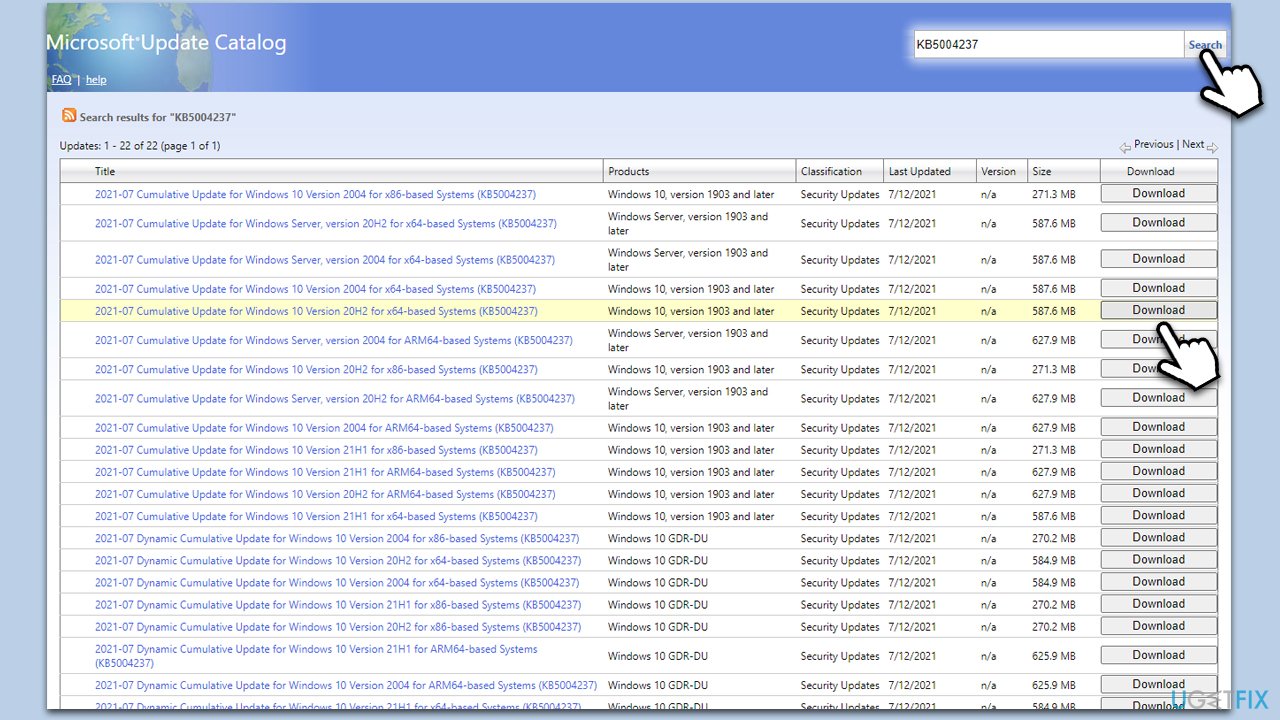
2. Install the update manually
- Type in Updates in Windows search and press Enter.
- Select View update history.
- Find the update that failed with the 0x800B0003 error and copy its KB number.
- Open your browser and go to Microsoft Update Catalog.
- Within the search bar, type in the KB number and clicks Search.
- Find the correct version of the update for your operating system (to check this, right-click on Start and pick System. Under Device specifications and check the System type) and click Download.
- Use on-screen guidelines to finish the installation process and restart your PC.
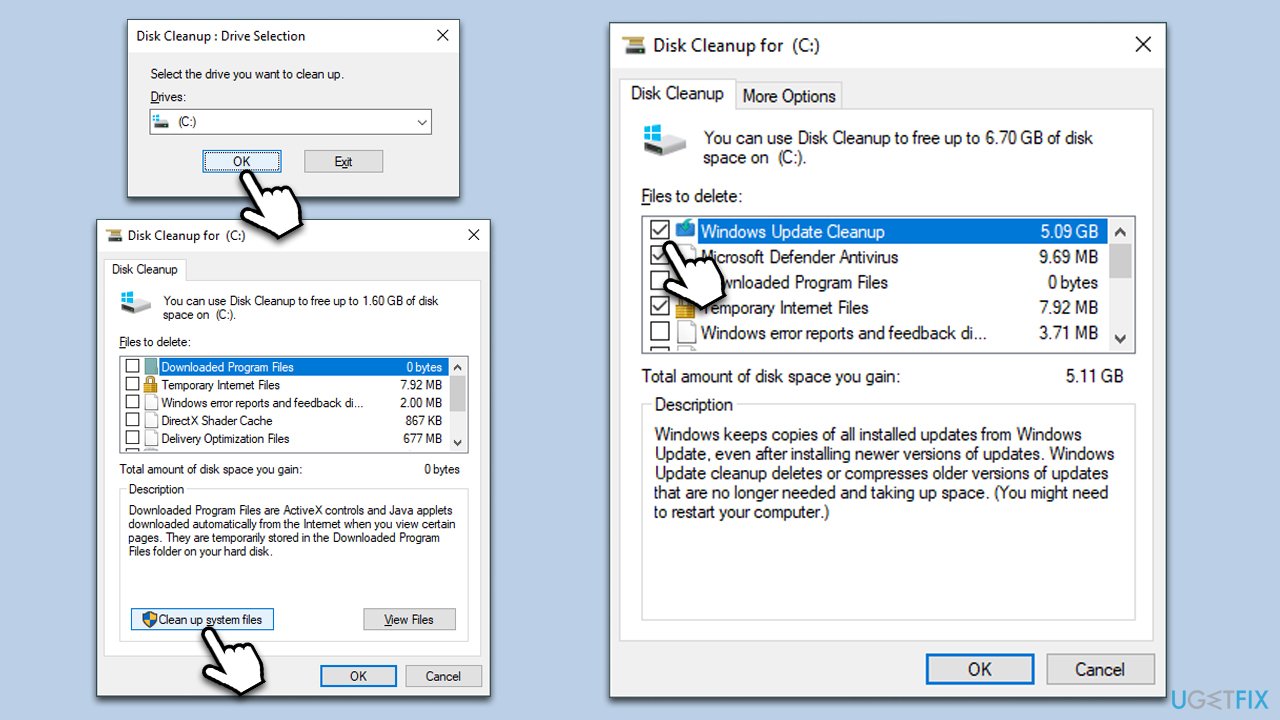
3. Clean your disk
Lack of space can cause Windows update errors, especially when just files haven't been cleared for a while.
- Type Disk Cleanup in Windows search and press Enter.
- If your Windows is installed on drive C, pick it from the list (it should be by default) and press OK.
- Click Clean up System Files.
- Here, mark the areas you want to be deleted, such as Setup log files, Recycle bin, Temporary files, etc.
- Click OK and wait.
4. Run system integrity checks
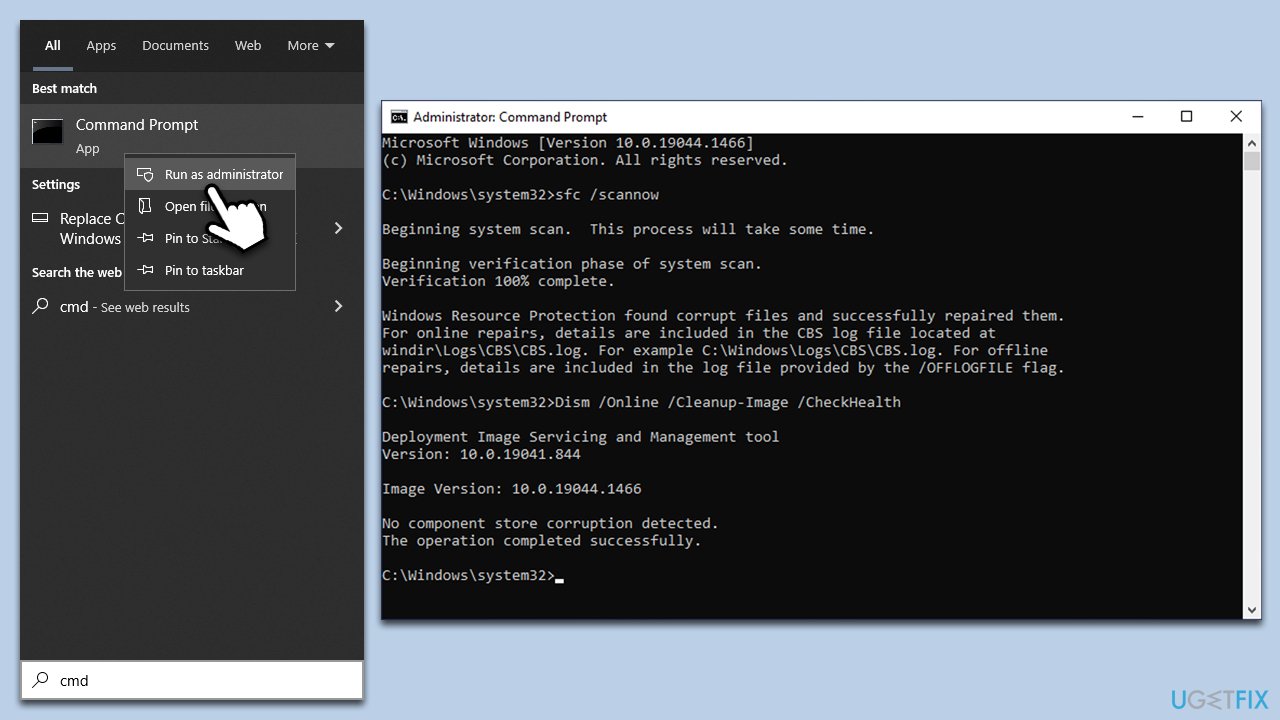
- Type cmd in Windows search.
- Right-click on Command Prompt result and select Run as administrator.
- Paste the following command into the new window:
sfc /scannow - Press Enter and wait till the scan is finished
- Once done, run this set of commands, pressing Enter after each:
DISM /Online /Cleanup-Image /CheckHealth
DISM /Online /Cleanup-Image /ScanHealth
DISM /Online /Cleanup-Image /RestoreHealth - Restart your system.
5. Reset Windows update components
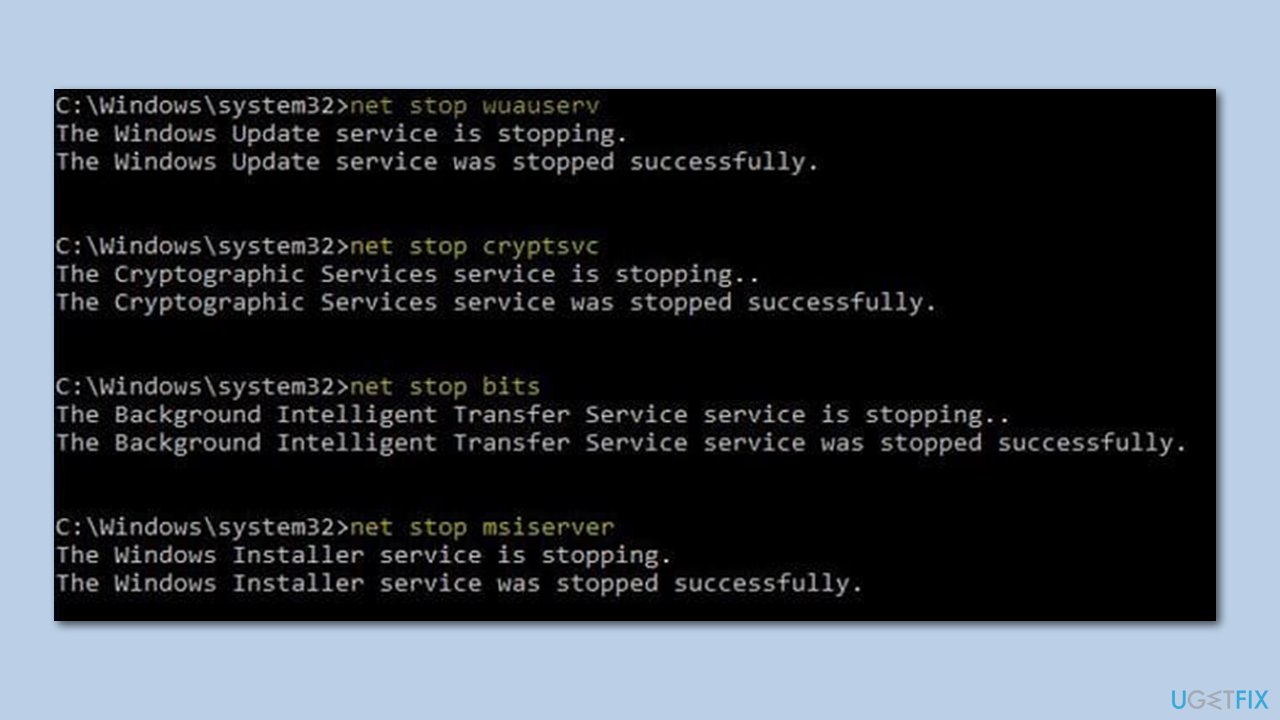
- Open Command Prompt as administrator, as explained in the previous solution.
- Paste in each of these commands, pressing Enter every time:
net stop bits
net stop wuauserv
net stop appidsvc
net stop cryptsvc
Del “%ALLUSERSPROFILE%\Application Data\Microsoft\Network\Downloader\*.*”
rmdir %systemroot%\SoftwareDistribution /S /Q
rmdir %systemroot%\system32\catroot2 /S /Q
regsvr32.exe /s atl.dll
regsvr32.exe /s urlmon.dll
regsvr32.exe /s mshtml.dll
netsh winsock reset
netsh winsock reset proxy
net start bits
net start wuauserv
net start appidsvc
net start cryptsvc - Restart your system.
6. Use Media Creation Tool
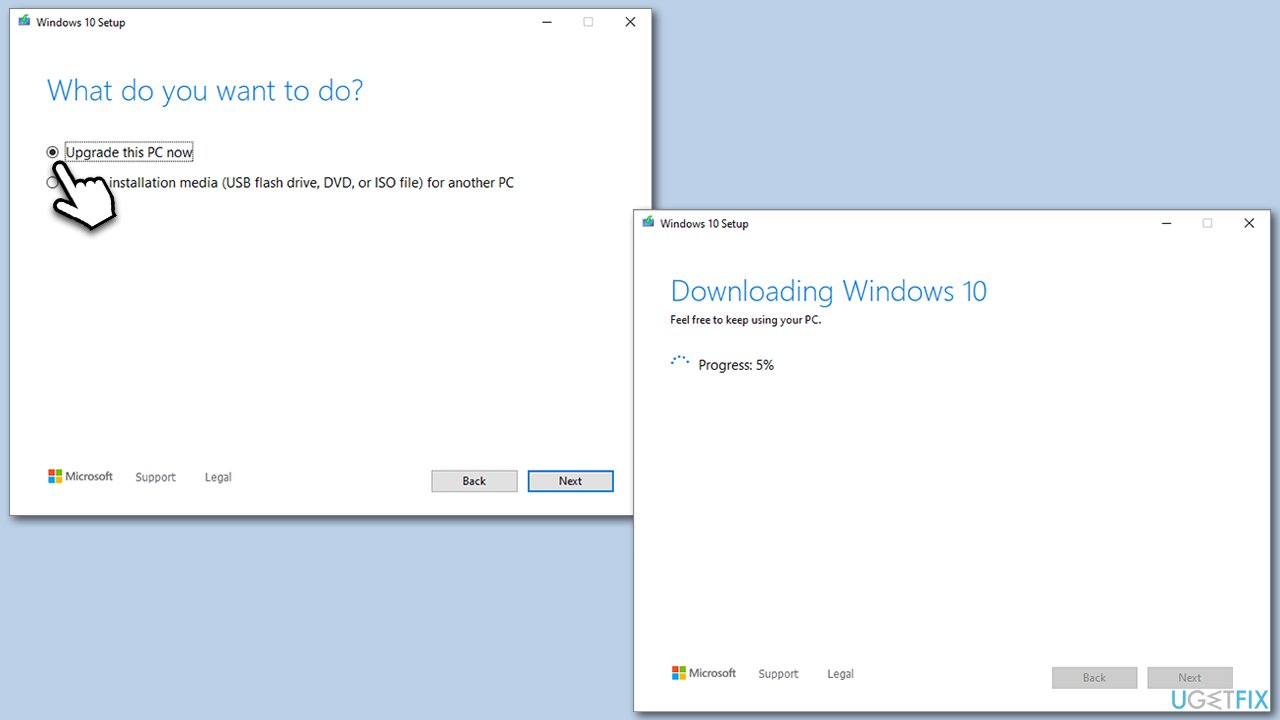
- Visit the official Microsoft website and download Windows 10 installation media (Windows 11 version).
- Double-click the installer and select Yes when UAC shows up.
- Agree to terms.
- Pick Upgrade this PC now and click Next.
- Windows will now download all the necessary files.
- Agree to the terms once again and click Next.
- Before installing, ensure you are happy with your choices (otherwise, you can click the Change what to keep option).
- Finally, click Install to begin the upgrade process.
Bottom line
Encountering the Windows update error 0x800B0003 can be frustrating, but there are several solutions available. You can try running the Windows Update troubleshooter, clearing the update cache, or manually installing the update. If none of these solutions work, consider seeking additional support.
Frequently asked questions
The Windows update error 0x800B0003 typically occurs due to corrupted system files or issues with the Windows Update components. It can also arise from missing or damaged cryptographic files.
To resolve error 0x800B0003, you can run the Windows Update Troubleshooter and check for corrupted system files using the System File Checker (SFC) tool. Additionally, resetting the Windows Update components can also help fix this error.
Yes, you can manually fix error 0x800B0003 in Windows 11 by performing a DISM scan to repair the Windows image and then running the SFC scan to restore any missing files. Ensure your system is connected to the internet during this process.




Report an issue
What's wrong with this guide? We review every report and update or remove content.
Report received — thank you. We'll review and fix it.
You need a free account to submit a report.
Be the first to comment