How to fix
0x88ffc009 error in Microsoft Word
on Windows
Resolve the 0x88ffc009 error in Microsoft Word on Windows 10 and 11 effortlessly. Quick tips and expert-tested solutions await! Fixed in minutes.

What causes How to fix 0x88ffc009 error in Microsoft Word?
- Network connectivity issues
- Server errors
- Problems with Microsoft Office installation
- Add-ins or third-party plugins causing conflicts
Repairs Windows system files, removes malware, and restores a clean OS state — without reinstalling.
Hi, I can't share a word file. Instead, I received error code 0x88ffc009 with the message "The server couldn't complete this action." I am using Windows 10.
Microsoft Office is one of the most popular software suites used by people all over the world. It includes various applications that are useful for both personal and professional purposes, such as creating spreadsheets, presentations, and documents. Among these applications, Microsoft Word is one of the most widely used word processors. It is packed with features that make it easy to create professional-looking documents, from resumes and business reports to academic papers and personal letters.
However, some users have reported encountering an error code 0x88ffc009 whenever they attempt to share a Word file. This error message can be frustrating and confusing for those who encounter it, as it simply says, "The server couldn't complete this action." So, what exactly is error code 0x88ffc009, and why does it happen?
In technical terms, error code 0x88ffc009 is a result of a communication failure between Microsoft Word and the server. This means that the server was unable to complete the requested action, whether it's saving, sharing, or uploading a file. The cause of this error can vary, but it's often related to network connectivity issues, server errors, or problems with the Microsoft Office installation.
0x88ffc009 error can be particularly frustrating for those who use Microsoft Word regularly to share their work with others, as it can hinder their productivity and create delays. However, there are several ways to address this error and get back to sharing files without any issues.
Some potential solutions to this error include checking the network connection, ensuring that the server is running smoothly, and updating or repairing the Microsoft Office installation. Additionally, disabling any add-ins or third-party plugins can also help to resolve the error.
Below you will find a step-by-step guide that should help you fix the 0x88ffc009 error in Microsoft Word. Before proceeding, we recommend employing [d1] to ensure that there are no underlying issues with your Windows.
Fix 1. Run the troubleshooter
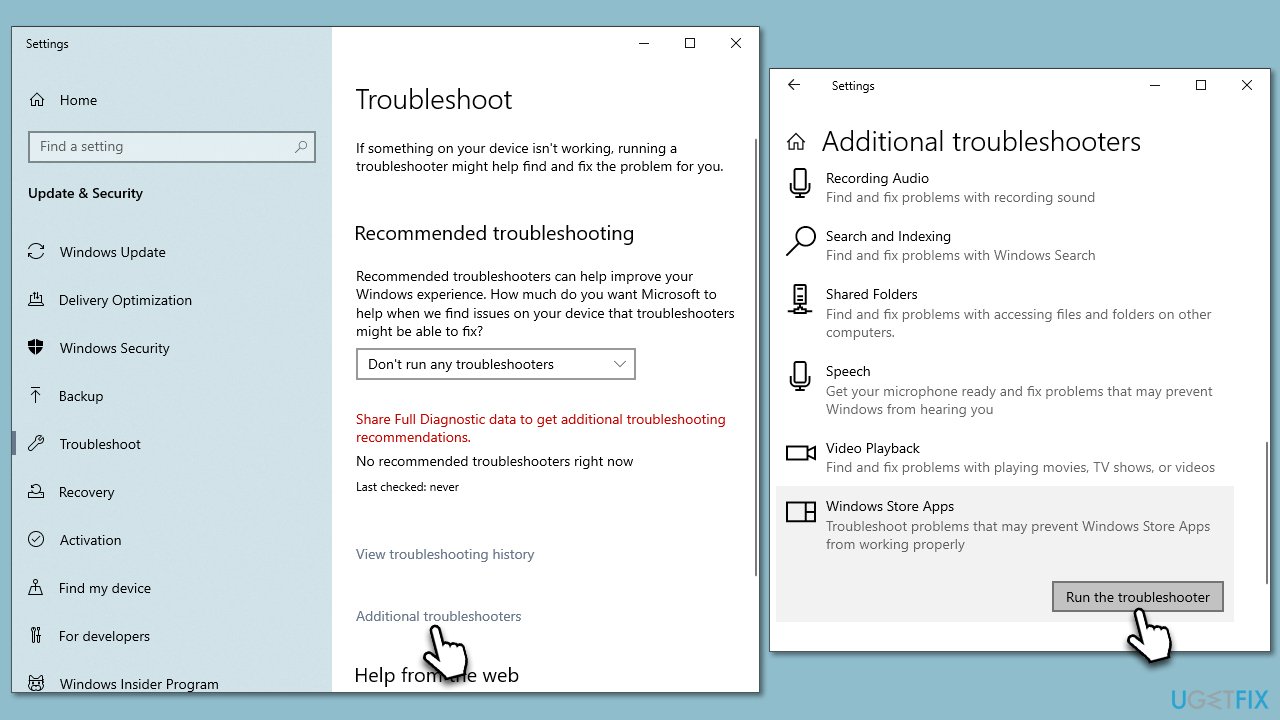
Start with the troubleshooter, as it can point at issues with Windows apps.
- Type Troubleshoot in Windows search and hit Enter.
- Pick Additional troubleshooters/Other troubleshooters.
- Find Windows Store Apps from the list and select Run the troubleshooter/Run.
- Wait till the process is finished and apply the recommended fixes.
Note: you should also run a Network troubleshooter to check your network connection. If problems with connectivity cannot be fixed, check solution no. 5.
Fix 2. Close the document and restart the app
In some cases, the issue lies within simple bugs that can be resolved by closing down the document and restarting the app. Here's what to do:
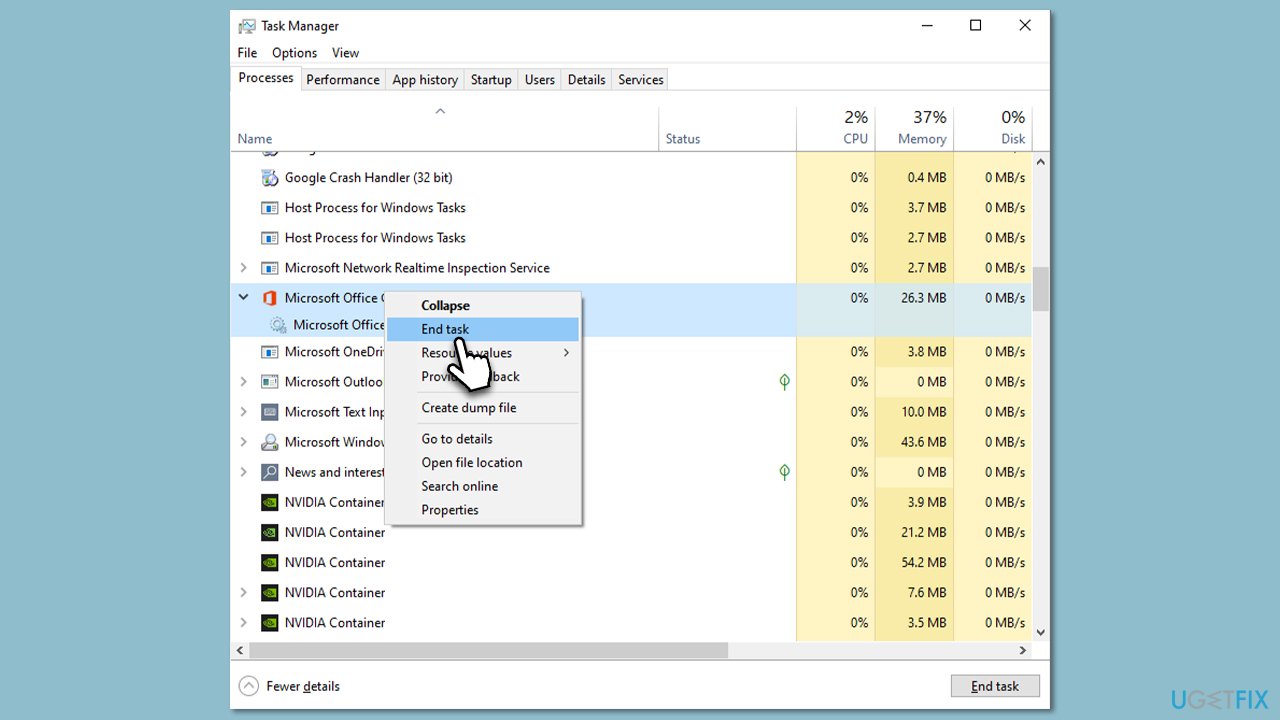
- Save all the documents currently open not to lose any progress.
- Press Ctrl + Shift + Esc to open Task Manager.
- Close down any MS Office-related processes.
- Now reopen the document and try sharing it again.
Fix 3. Update the app
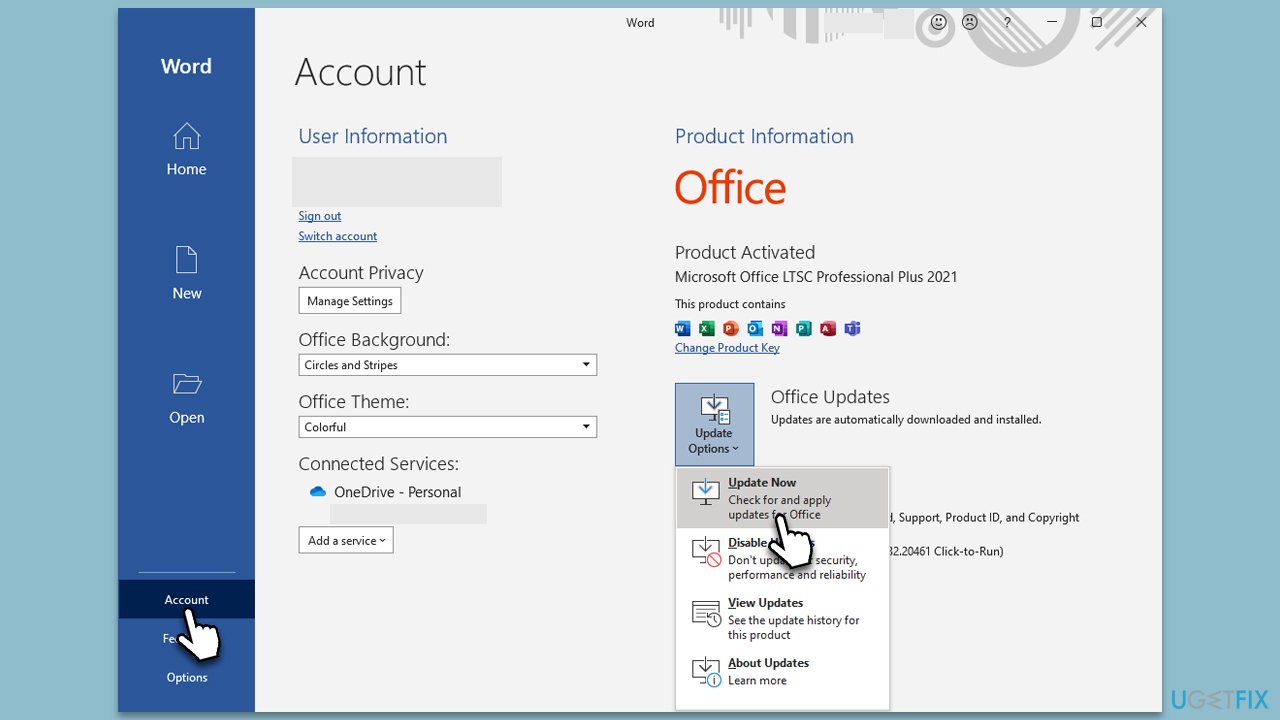
- Open Word application.
- Click on File in the top-left corner.
- Click on Account and then click on Update Options.
- Choose Update Now and install any available updates.
Fix 4. Disable add-ins
- Press Win + R on your keyboard to open the Run dialog.
- Type in word.exe /safe and hit Enter.
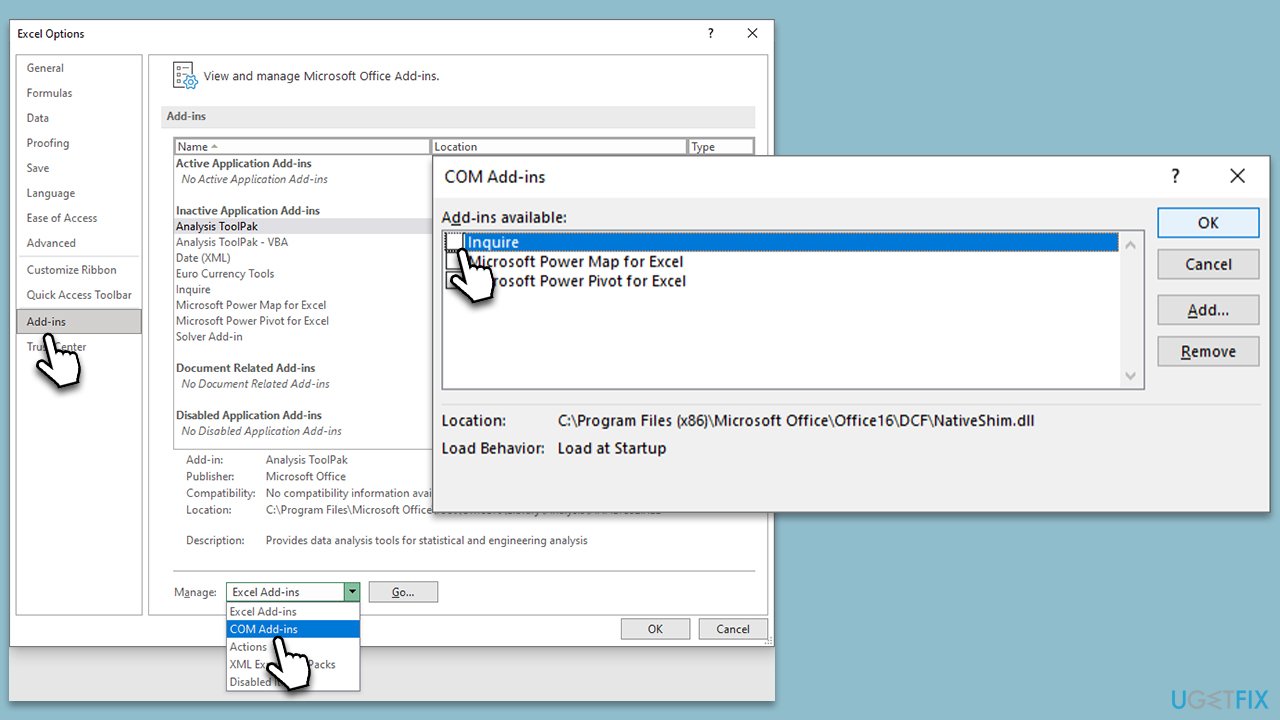
- Click File and select Options.
- Go to the Add-ins section.
- At the bottom, you will see the Manage section with the drop-down menu, select COM Add-ins and click Go.
- Disable all add-ins here by unticking checkmarks and clicking OK.
Fix 5. Reset your internet connection
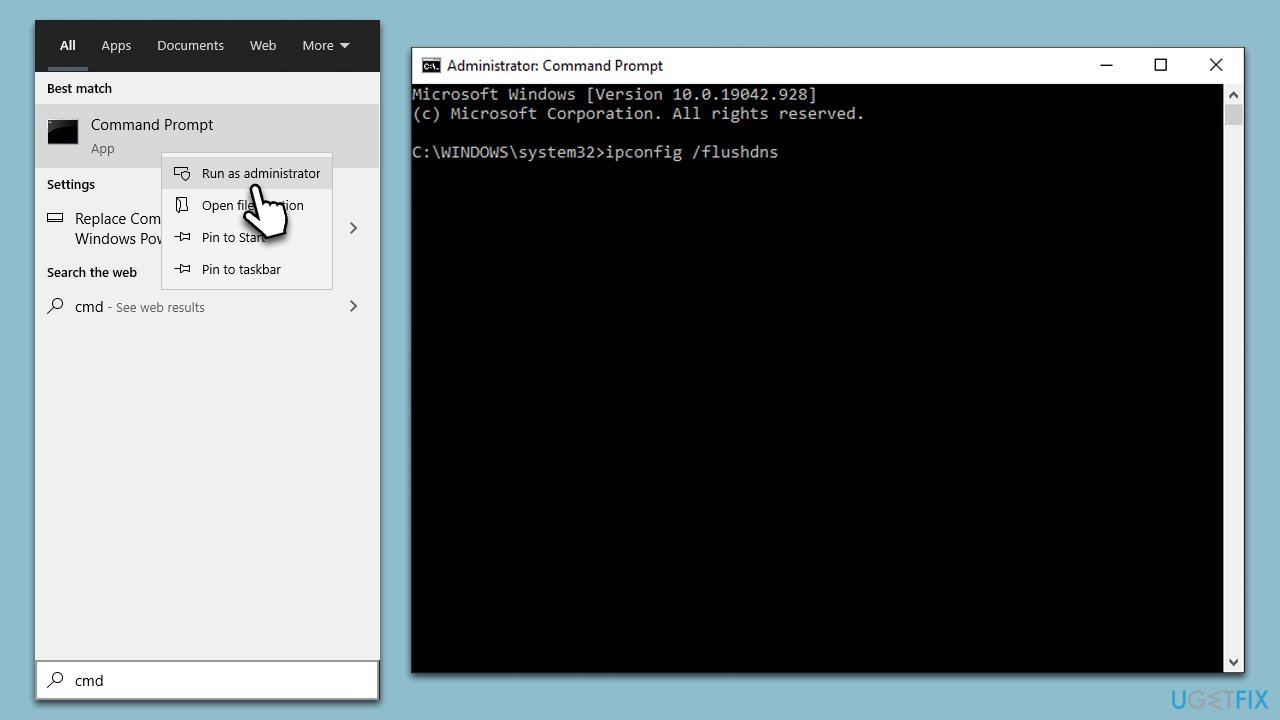
- Type cmd in Windows search.
- Right-click on the Command Prompt result and select Run as administrator.
- Copy and paste each of the following commands, pressing Enter every time:
ipconfig /flushdns
ipconfig /registerdns
ipconfig /release
ipconfig /renew
netsh winsock reset - Restart your PC.
Fix 6. Repair Office apps
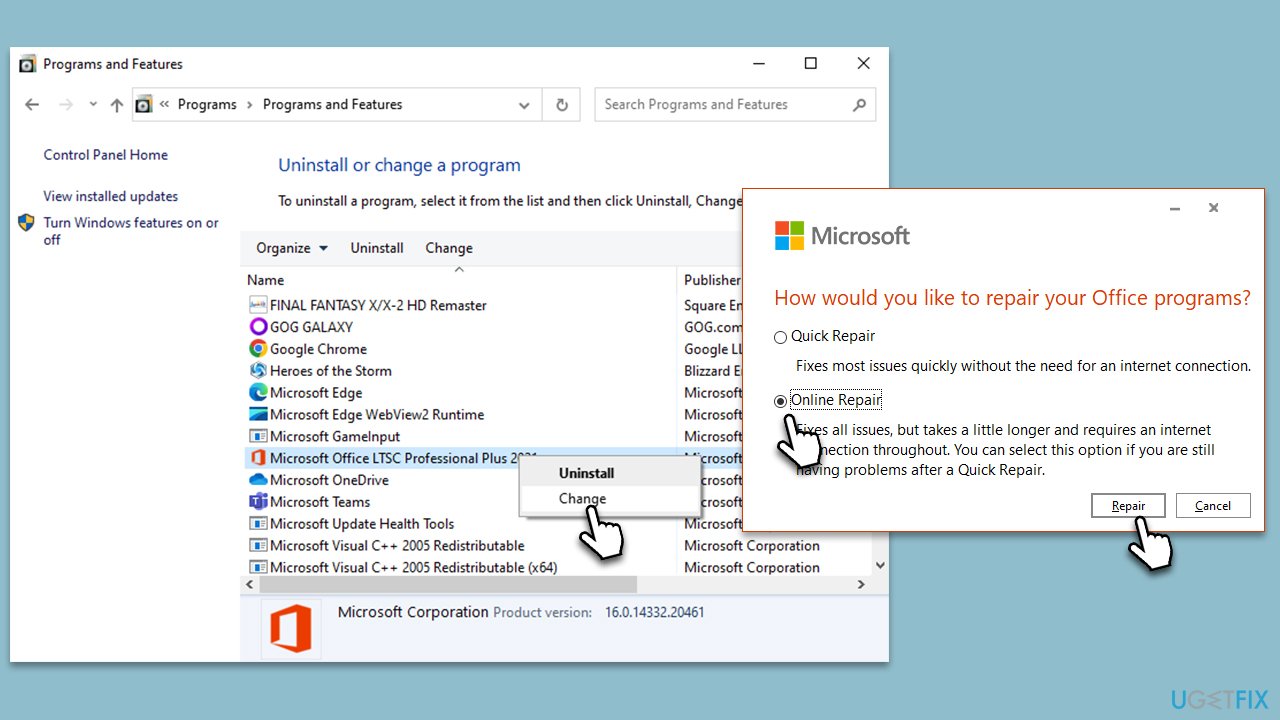
- Type Control Panel in Windows search and press Enter.
- Select Programs > Programs and Features.
- Select Microsoft Office and click on Change.
- Choose the option for Online Repair and click Repair.
- Proceed with on-screen guidelines to finalize the process.
Bottom line
To fix the 0x88ffc009 error in Microsoft Word, you can check your network connection, ensure the server is running smoothly, update or repair your Microsoft Office installation, and disable any add-ins or third-party plugins. If none of these solutions work, consider seeking further technical support.
Frequently asked questions
The 0x88ffc009 error typically indicates a problem with your Office installation or issues with the Microsoft Store. This can prevent Word from functioning properly and requires troubleshooting to resolve.
You can repair Microsoft Office by going to Settings > Apps > Apps & features, selecting Microsoft Office, and clicking on 'Modify' to choose the repair option. This may resolve the error and restore Word functionality.
Yes, ensure that your Windows 10 is fully updated by checking for updates in Settings > Update & Security. Additionally, make sure that Microsoft Office is also updated to the latest version.




Report an issue
What's wrong with this guide? We review every report and update or remove content.
Report received — thank you. We'll review and fix it.
You need a free account to submit a report.
Be the first to comment