How to fix
“Firewall Detected Suspicious Network Connections” Error
on Windows
Resolve the “Firewall Detected Suspicious Network Connections” error on Windows 10 or 11 easily. Expert-tested solutions for a secure experience.

What causes How to Fix “Firewall Detected Suspicious Network Connections” Error?
- Accessed a shady website with third-party ads
- Clicked on concealed links to a malicious website
- System infected with adware
- Web browser blocking feature activated
- Advertisement injected under Google Chrome's settings
Repairs Windows system files, removes malware, and restores a clean OS state — without reinstalling.
For the last couple of days, Chrome keeps showing me an alert “Firewall Detected Suspicious Network Connections.” If I click on the Back to Safety button, I’m redirected to a website with a number of technical support or sometimes browser crashes. What am I supposed to do?
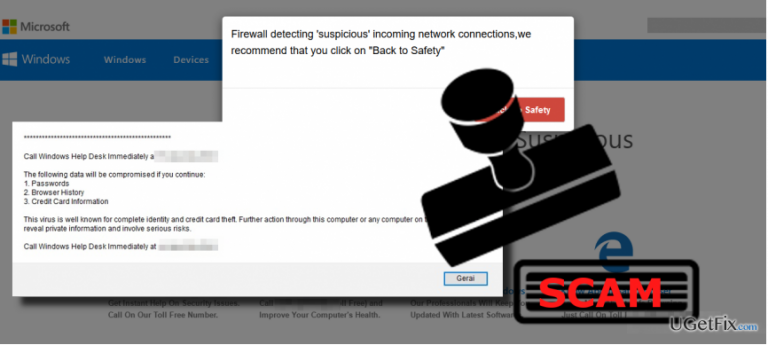
“Firewall Detected Suspicious Network Connections” is a browser-based Tech-Support-Scam, which has been developed by scammers and used as a mean for making easy money. Its task is to trick people into believing that someone is trying to establish the illegal connection with their PCs or that the systems are already infected. Inexperienced PC users may easily fall for believing in these lies because Firewall is exactly a kind of software, which is set to alert people about hackers, viruses, worms or other dangerous programs that are trying to illegally enter a PC over the Internet. However, DO NOT trust the “Firewall Detected Suspicious Network Connections” pop-up because it contains rogue information and your PC is neither infected nor under attack currently, at least not by hackers or malicious viruses. The sole purpose of this rogue tech-support is to make people dial the given number and fraudulently acquire their personal information. If the scammer manages to gain information necessary for remote connection, he/she will immediately establish the connection with the victim’s PC and may further steal personal information or inject serious virus on the system.
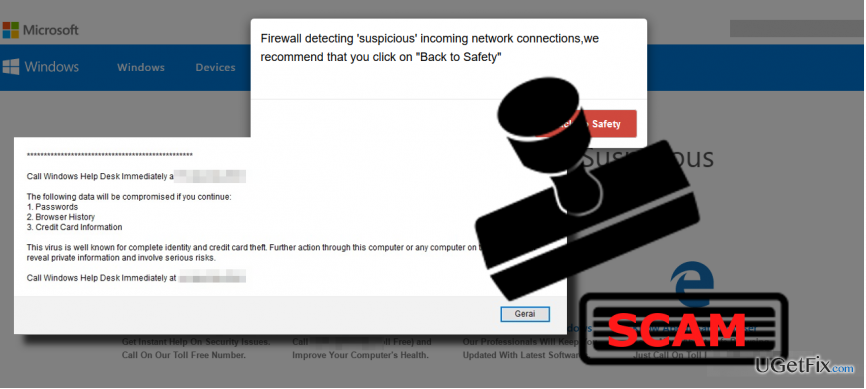
There are two reasons why the rogue “Firewall Detected Suspicious Network Connections” alert occurs. If you have received it for the first time, forced your web browser to close, and the message never reappeared, it means that you’ve accessed a shady website, which contained third-party ads with concealed links to a malicious website. You must have clicked on one purposely or accidentally and, therefore, were redirected to the “Firewall Detected Suspicious Network Connections” scam. If, however, this rogue alert is thrown to you on a daily basis, it means that the system is infected with adware, which activated web browser blocking feature and injected a “Firewall Detected Suspicious Network Connections” advertisement under Google Chome's settings. In this case, we would strongly recommend scanning the system with a professional anti-malware and removing the infection. We would strongly recommend using [d1]. After that, don’t forget to reset your web browser’s settings to default.
Remove “Firewall Detected Suspicious Network Connections” adware automatically:
Although adware-type programs are not malicious, they are tricky enough to make web browser malfunction heavily. The worst thing about ad-supported programs is that they tend to scatter files in diverse locations and if a single file is left unremoved, the adware can be restored. To prevent this from happening, uninstall “Firewall Detected Suspicious Network Connections” malware using an updated anti-malware. We would recommend using [d1]. Download it, double-click the setup file, and then set the tool to fully scan the system.
Fix “Firewall Detected Suspicious Network Connections” error manually:
- The “Firewall Detected Suspicious Network Connections” scam may prevent you from closing the current web browser's tab or the browser itself. In this case, press Ctrl + Shift + ESC, locate your web browser's process on the list, click it, and select End Task.
- Close Task Manager and open Control Panel.
- Select Programs and Features and find the recently installed, unknown or suspicious-looking programs and uninstall them.
- Then click OK to save the changes and close Control Panel.
- Open Google Chrome or another web browser affected by “Firewall Detected Suspicious Network Connections” pop-up and reset it. For that, click More button at the top-right corner and select Settings.
- Reset settings and then click Reset to confirm the changes.
Bottom line
To fix the "Firewall Detected Suspicious Network Connections" error, ensure that you avoid shady websites and remove any adware from your system. If the issue persists, consider resetting your browser settings or using antivirus software to scan for and eliminate any threats.
Frequently asked questions
You can start by checking your firewall settings to ensure that legitimate applications are allowed through. Additionally, running a full system scan with Windows Defender can help identify any potential threats.
To adjust your Windows Firewall settings, go to Control Panel > System and Security > Windows Defender Firewall, and then select 'Allow an app or feature through Windows Defender Firewall' to whitelist trusted programs.
Ignoring this error can pose security risks, as it may indicate that malware is attempting to access the internet. It's important to investigate and resolve the issue to maintain your system's security.




Report an issue
What's wrong with this guide? We review every report and update or remove content.
Report received — thank you. We'll review and fix it.
You need a free account to submit a report.
Be the first to comment