How to fix
ESRV.EXE – Application Error (0xc0000142)
on Windows
Resolve the ESRV.EXE application error (0xc0000142) on Windows 10 quickly and effectively with our expert-tested solutions and clear screenshots.

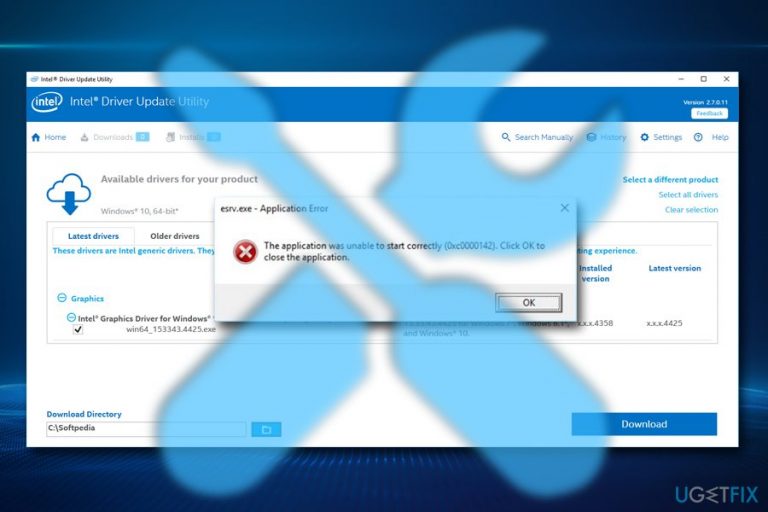
What causes How to Fix ESRV.EXE – Application Error (0xc0000142) on Windows 10?
- Related to Intel Driver Update Utility
- Malware infection
- Issues with the esrv.exe file location
- Potential misuse of the executable file by hackers
- Problems arising from updates of Intel Driver
Repairs Windows system files, removes malware, and restores a clean OS state — without reinstalling.
Hi! I’ve installed Creators Update using Windows Update Assistant a couple of weeks ago. Everything went smooth except several minor bugs that I’ve easily resolved. However, today when I started my PC and logged in, I received an error message saying ESRV.EXE - Application Error. I don’t know what it means, so I simply closed the error message, but it soon reappeared. Could you please help?
ESRV.EXE - Application Error (0xc0000142) has aroused various discussions on IT forums[ref en-1] and blogs. There are hundreds of people whose computers are affected by this bug, and the biggest problem is that there are no official fixed provided yet.
Nevertheless, it seems that ESRV.EXE - Application Error is not that tough as it may appear. The original esrv.exe file belongs to Sony Corporation and works as an integral part of VAIO Care software. However, the current ESRV.EXE error is not related to Sony. The location of the problematic esrv.exe file is C:\\Program Files\\Intel Driver Update Utility\\SUR\\x64, so it seems that the problem is related to Intel Driver[ref en-2] or rather its updates.
Therefore, to fix ESRV.EXE - Application Error (0xc0000142), it’s advisable to uninstall Intel Driver Update Utility or Update Intel(R) Driver Update Utility 2.7.2.
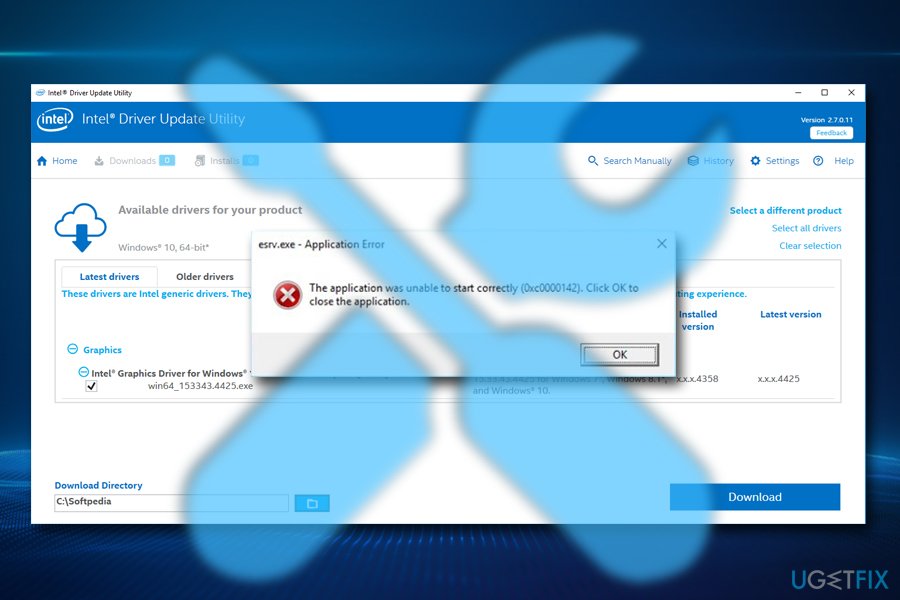
ESRV.EXE - Application Error
The application was unable to start correctly (0xc0000142). Click OK to close the application
Unfortunately, malware[ref en-3] infection can cause multiple error messages on the computer, including 0xc0000142 error. Therefore, if it turns out that the 0xc0000142 error is not related to the Intel Driver and its updates, we would strongly recommend scanning the system with a professional anti-malware software.
Since Esrv.exe is an executable file,[ref en-4] the technical security rating of the Esrv.exe file is 30%, which means that the name of this executable file can be misused by hackers to conceal serious viruses.
Without further delays, you should try using the following methods to fix ESRV.EXE - Application Error (0xc0000142).
Update Intel Driver Update Utility
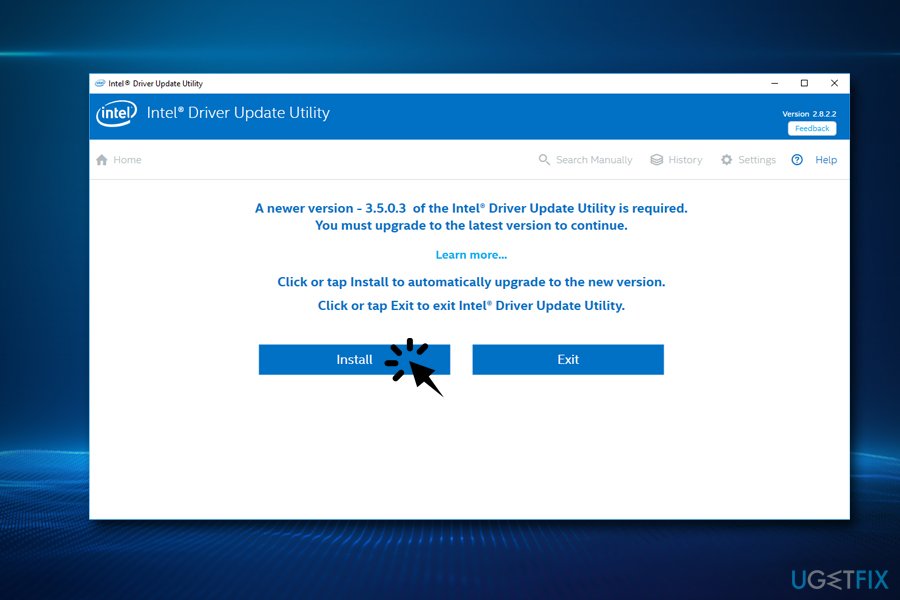
As we have already pointed out, the culprit of this issue may be Intel Driver Update Utility, which is located at C:\\Program Files\\Intel Driver Update Utility\\SUR\\x64. Therefore, to fix Esrv.exe - Application Error (0xc0000142) error we would strongly recommend updating the above-mentioned utility and checking if that helps.
- Press Windows key and type Intel Driver...
- Find Intel Driver Update Utility on the search results and launch it.
- If it hasn’t been upgraded yet, the program should automatically deliver an update to 3.5.0.3 version.
- Click Update button.
- Reboot your PC.
Uninstall Intel Driver Update Utility
- Open Task Manager and terminate the Intel Driver Update Utility process, including Esrv.exe file.
- Right-click on Windows key and select Control Panel.
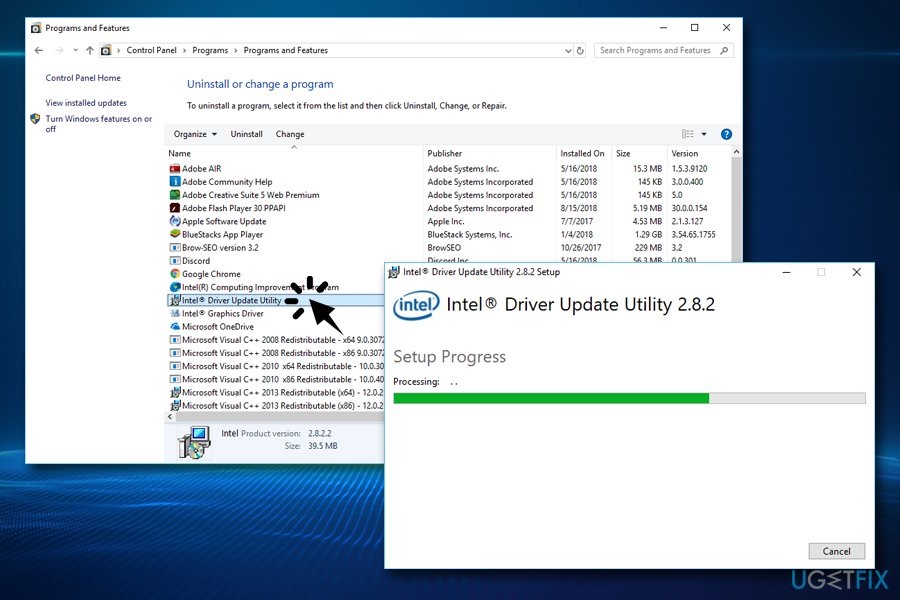
- Open Programs and Features applet and locate Intel Driver Update Utility.
- Click it and select Uninstall.
- Once done, reboot your PC.
NOTE: many people wondered if the Intel Driver Update Utility removal won’t affect system’s performance. The answer is no. Windows 10 has an automatic updates feature, which will keep Intel Drivers up to date.
Check Proxy Settings
- Click Windows key, type cmd, and press Enter.
- Right-click on the search results and select Run as Administrator.
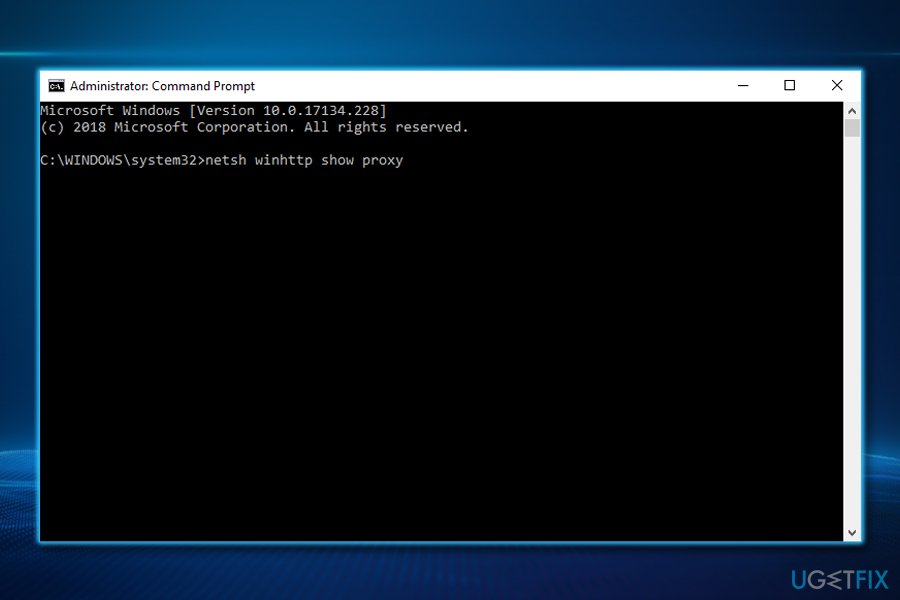
- When the Command Prompt opens, type netsh winhttp show proxy, and press Enter.
- If the Command Prompt did not show any errors, it means that there are no problems related to Proxy.
Remove malicious programs
If Esrv.exe - Application Error (0xc0000142) error showed up unexpectedly, open Task Manager and check how many Esrv.exe processes are running on it. If you have found several processes running, it may be a sign that the system is infected with a malicious virus disguised under Esrv.exe file name. In this case, terminate Esrv.exe processes and perform a full scan with a reputable anti-malware. We would highly recommend using [d1].
Note that many illegal sites are offering Reimage Licence Key generators and cracks. Please refrain yourself from stealing software, as it can result in severe malware infections (cracked software and keygens are often injected with viruses).
Bottom line
To fix the ESRV.EXE - Application Error (0xc0000142), it is advisable to uninstall the Intel Driver Update Utility or update it to version 2.7.2. Additionally, scanning the system with professional anti-malware software is recommended. If these solutions do not resolve the issue, further investigation into the system may be necessary.
Frequently asked questions
The ESRV.EXE application error (0xc0000142) typically indicates that the program failed to initialize properly, often due to corrupted files or compatibility issues with Windows 10.
To fix the ESRV.EXE error, you can try repairing or reinstalling the associated application, running a system file checker, or updating your Windows 10 to the latest version.
Yes, disabling the ESRV.EXE process is generally safe as it is related to Intel's Energy Saving Feature, but it may affect power management features on your system.




Report an issue
What's wrong with this guide? We review every report and update or remove content.
Report received — thank you. We'll review and fix it.
You need a free account to submit a report.
Be the first to comment