How to fix
“Windows can’t communicate with the device or resource (primary DNS server)” error
on Windows
Resolve the "Windows can't communicate with the device or resource (primary DNS server)" error easily on Windows 10 or 11. Expert-tested solutions await!

What causes How to fix “Windows can’t communicate with the device or resource (primary DNS server)” error?
- Misconfigured network adapter
- Faulty router
- Issue with the DNS server
- Need to restart affected devices
- Need to reset TCP/IP stack
- Need to reset DNS client resolver cache
Repairs Windows system files, removes malware, and restores a clean OS state — without reinstalling.
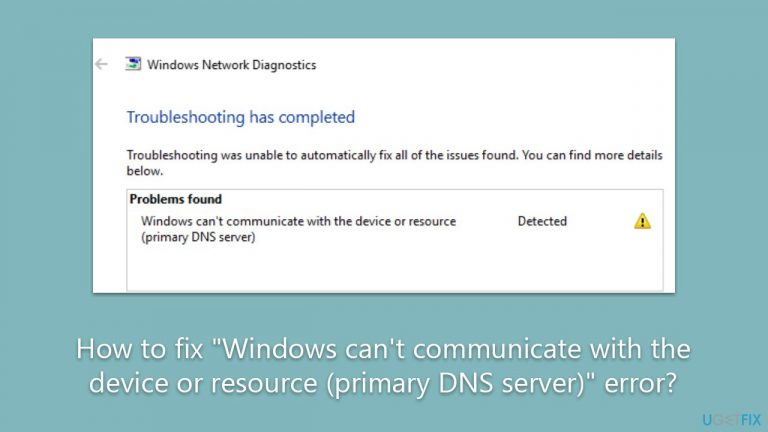
Hi, I have noticed that my internet connection is gone, so I've decided to run Network Troubleshooter. I received the verdict: "Windows can't communicate with the device or resource (Primary DNS Server)," and it didn't provide any solutions on how to fix this. Please help me here.
When it comes to networking issues on Windows, the Network Troubleshooter can be a helpful tool in identifying and fixing problems. The Troubleshooter is a built-in Windows utility that can automatically diagnose and resolve common network issues. It works by analyzing the network connection and identifying the root cause of the problem.
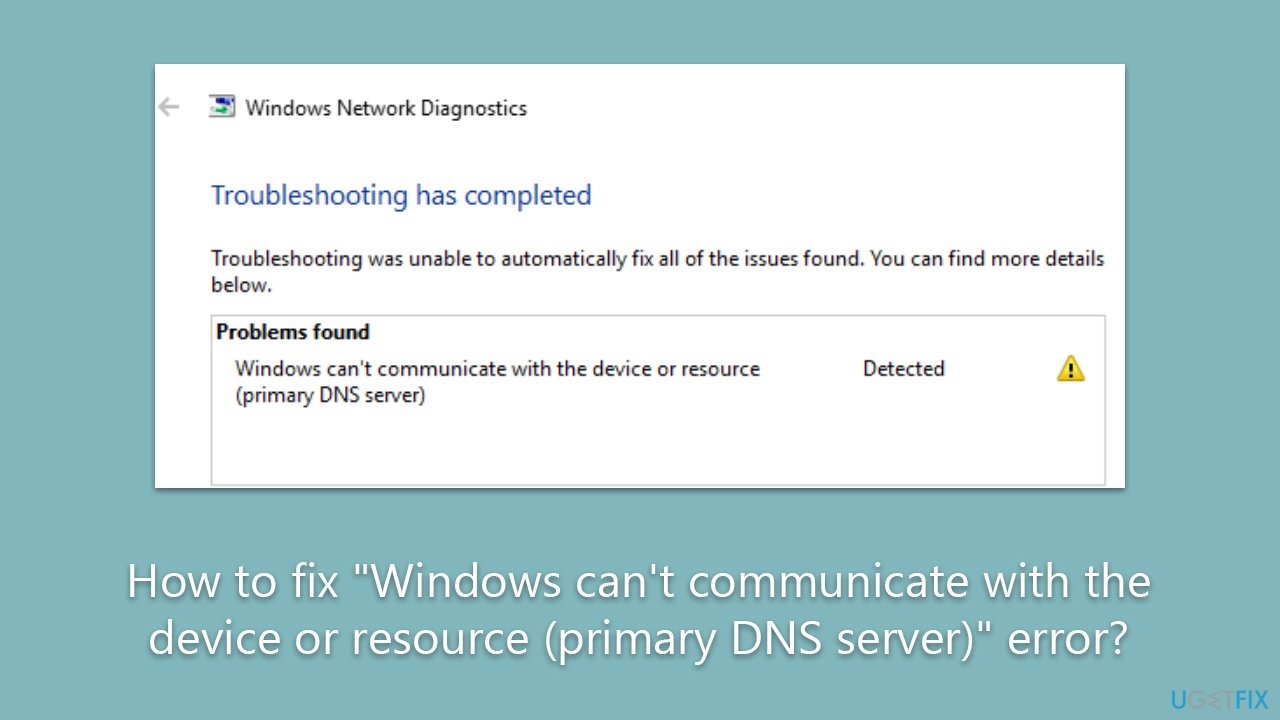
However, some users have reported encountering an error message that the Network Troubleshooter is unable to fix. This message reads, "Windows can't communicate with the device or resource (primary DNS server)." This error can occur for a variety of reasons and can be frustrating for users who are unable to access the internet or other network resources.
DNS, or Domain Name System, is the system that translates domain names (such as www.google.com) into IP addresses that computers can understand. When you enter a web address into your browser, the DNS server is responsible for looking up the IP address associated with that domain name and returning it to your computer.
When Windows encounters the "Windows can't communicate with the device or resource (primary DNS server)" error, it means that it is unable to communicate with the DNS server responsible for translating domain names. This can happen for a number of reasons, such as a misconfigured network adapter, a faulty router, or an issue with the DNS server itself.
In some cases, the error may be resolved by simply restarting the affected devices, such as the router or modem. However, in more complex cases, troubleshooting steps such as resetting the TCP/IP stack or resetting the DNS client resolver cache may be required.
We recommend you check your system with [d1] PC repair software, which could automatically perform fixes to many common Windows issues, including BSODs, DLL errors, cache corruption, and more.
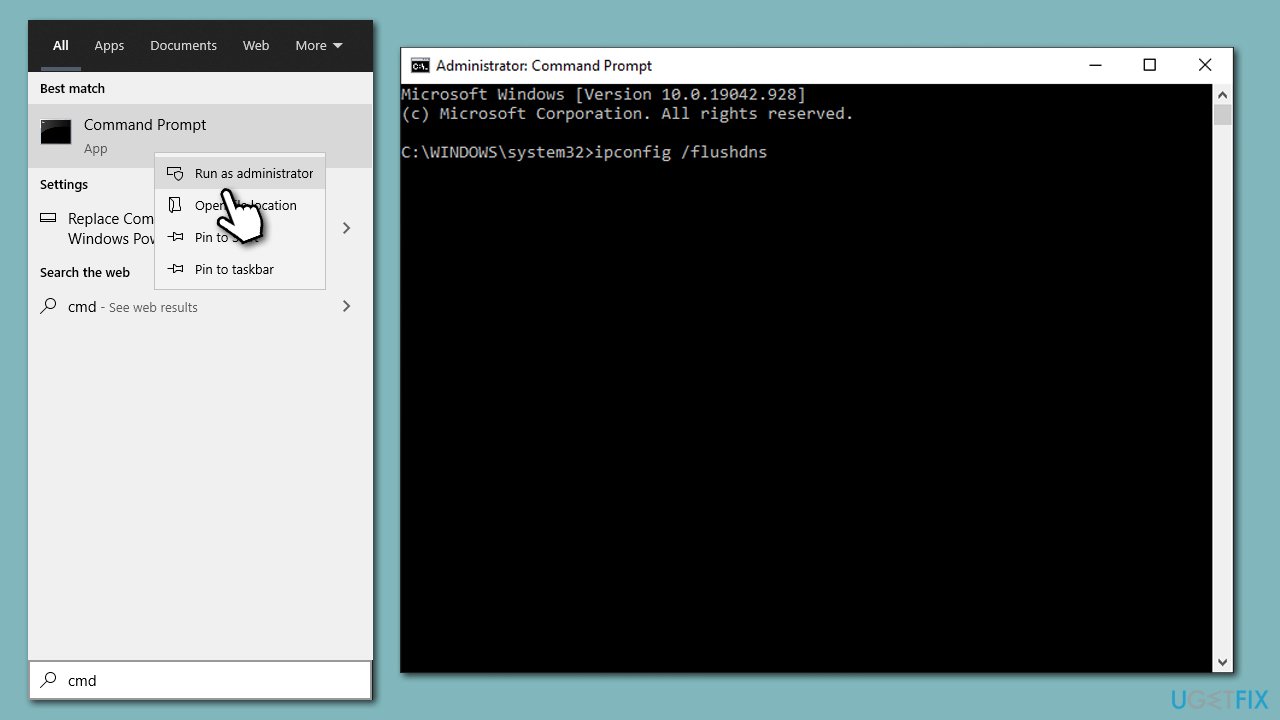
Fix 1. Clear DNS cache and reset Winsock
- Type cmd in Windows search.
- Right-click on Command Prompt and select Run as administrator.
- When the User Account Control window shows up, click Yes.
- In the new window, copy and paste the following commands, pressing Enter each time:
- ipconfig /flushdns
ipconfig /registerdns
ipconfig /release
ipconfig /renew
netsh winsock reset - Restart your system.
Fix 2. Update network drivers
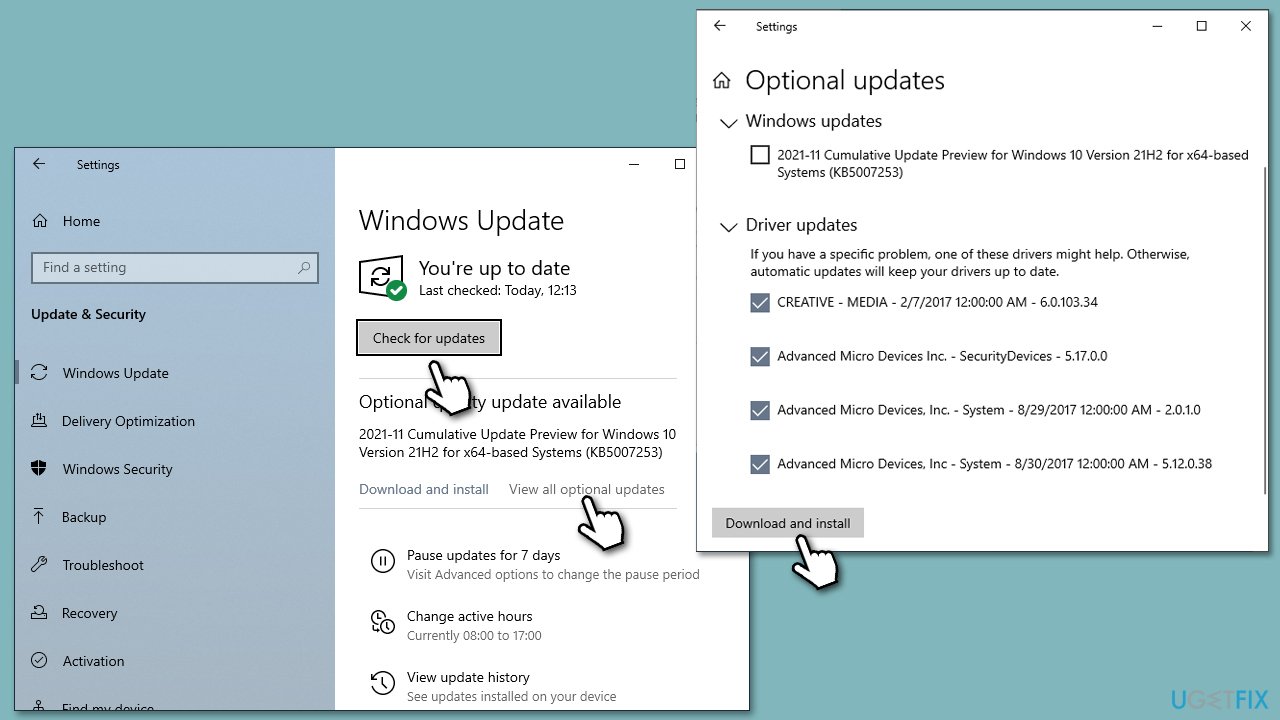
Let's start by updating Windows and installing all optional updates (note: if you don't have internet, you should connect to the ethernet or use a hotspot):
- Type Updates in Windows search and press Enter.
- Here, click Check for updates.
- Wait till Windows downloads and installs all the files.
- It is necessary to install optional updates because that's where driver updates are located.
- Reboot your PC.
Another method to install the latest drivers is by entering your device manufacturer's website (for example, Realtek) and installing the latest driver from there. A quicker option would be employing [rev id="DriverFix"] automatic updater.
Fix 3. Reinstall network drivers.
If updating your drivers didn't work, you should reinstall them instead:
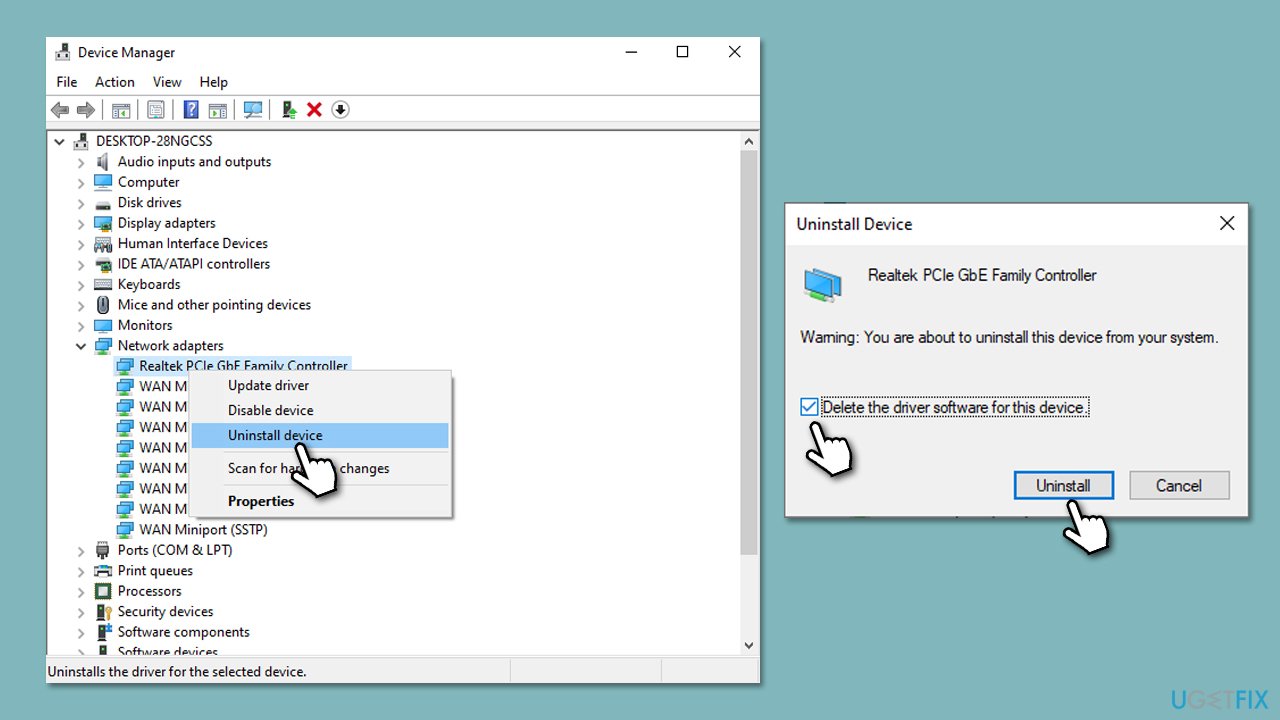
- Right-click on Start and pick Device Manager.
- Expand Network adapters.
- Right-click on the network adapter you are using and select Uninstall device.
- Mark the Delete the driver software for this device option.
- Click Uninstall once again and follow the on-screen instructions.
- Reboot your system, and then use one of the methods described above to install the newest version of the driver.
Fix 4. Reset TCP/IP
TCP/IP is a set of communication protocols that enable devices to connect and communicate with each other over the internet or any other network. Resetting your TCP/IP might help you resolve the issue.
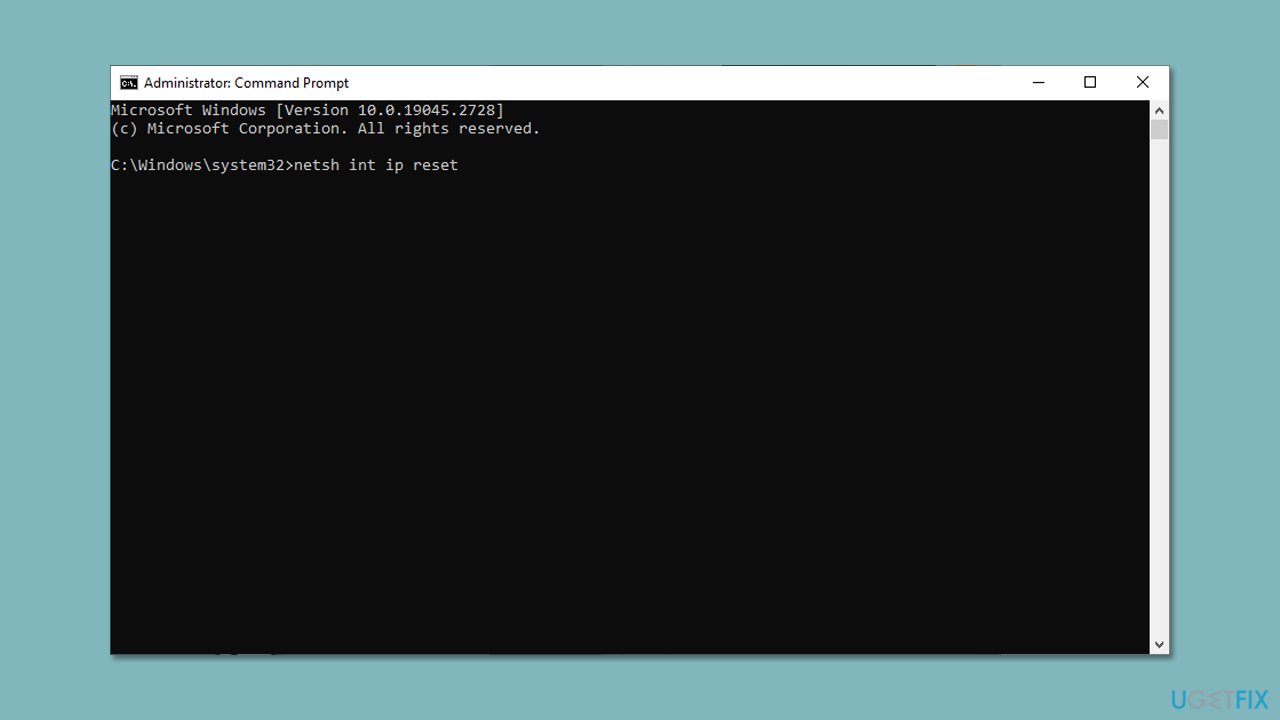
- Open Command Prompt as administrator, as explained before.
- Copy and paste the following command, pressing Enter after:
netsh int ip reset - Close down the Command Prompt and see if the problem persists.
Fix 5. Try a different DNS provider
DNS servers act as a directory for website IP addresses. Changing DNS settings can bypass network issues and improve internet connectivity by allowing devices to connect to a different DNS server that may have a faster response time or fewer connectivity issues.
- Right-click on Start and select Settings.
- Go to Network and Internet section.
- Click on Change adapter options.
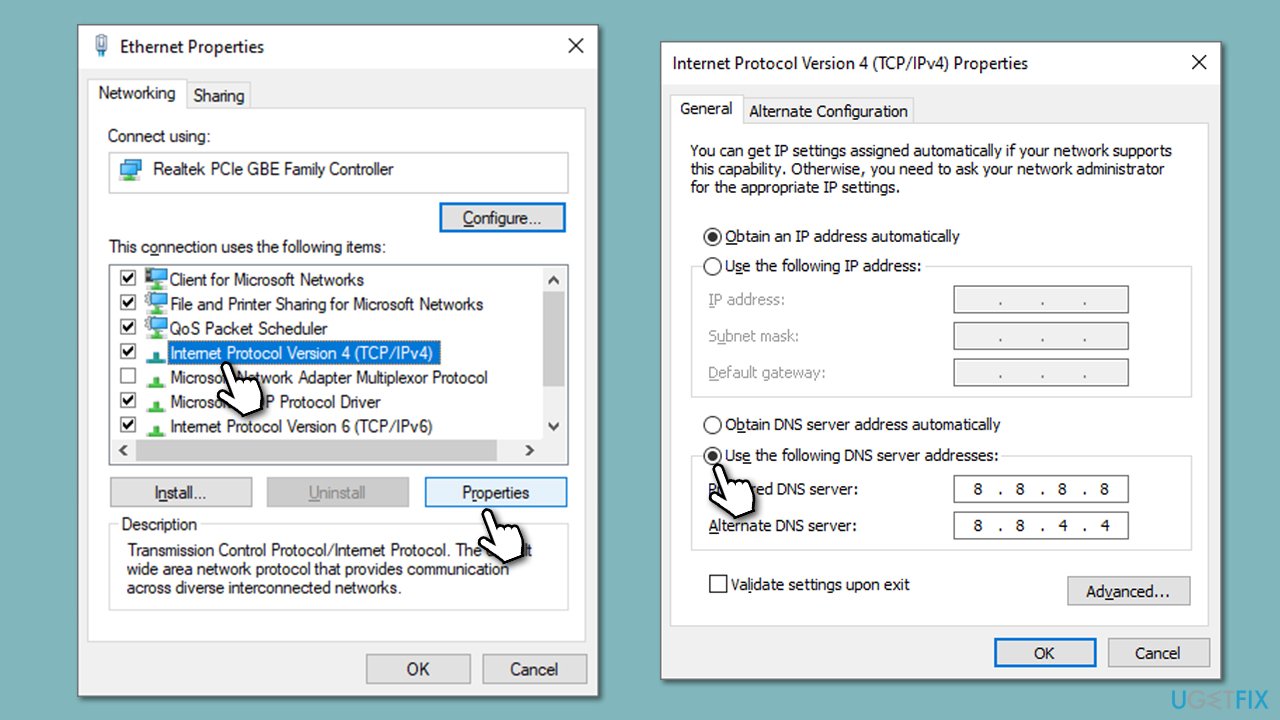
- Right-click on your internet connection and pick Properties.
- Click Internet Protocol Version 4 (TCP/IPv4) once and go to Properties
- Select Use the following DNS server addresses option and set your DNS to Google's:
Preferred DNS server: 8.8.8.8
Alternate DNS server: 8.8.4.4 - Click OK.
Other solutions
There are a few things that you might not have thought of trying, even though they are simple solutions. Here they are:
- If you haven't done so, restart your computer.
- Ensure that your computer is close enough the router/modem or ethernet cable is properly connected.
- If you have two or more network adapters, try switching between them and see which one works (you can do that via the Device Manager).
- Restart your router/modem by pressing the Power button on it.
- Reset your router/modem - this option has a special Reset button that resets it to factory settings.
Bottom line
To fix the 'Windows can't communicate with the device or resource (primary DNS server)' error, you can try restarting your router or modem, resetting the TCP/IP stack, or clearing the DNS client resolver cache. If these steps do not resolve the issue, consider using PC repair software to automatically fix common Windows problems.
Frequently asked questions
First, try resetting your network adapter by running the 'netsh winsock reset' command in Command Prompt. If that doesn't work, consider changing your DNS settings to use Google's DNS servers.
You can fix this by accessing the Network & Internet settings, selecting your network, and manually entering a DNS server like 8.8.8.8. Additionally, flushing the DNS cache with 'ipconfig /flushdns' may help.
Yes, you can use the built-in Network Troubleshooter by right-clicking the network icon in the taskbar and selecting 'Troubleshoot problems.' This tool can help identify and automatically fix common network issues.




Report an issue
What's wrong with this guide? We review every report and update or remove content.
Report received — thank you. We'll review and fix it.
You need a free account to submit a report.
Be the first to comment