How to fix
Windows key not working
on Windows
Resolve your Windows key issues effortlessly with our expert-tested solutions for Windows 10 and 11. Get back to gaming and productivity in minutes!

What causes How to fix Windows key not working?
- Hardware Problems
- Software Glitches
- Malware Infections
- Outdated Keyboard Driver
- Gaming Mode Enabled
Repairs Windows system files, removes malware, and restores a clean OS state — without reinstalling.
Hello. The Windows key on my keyboard in Windows 11 suddenly stopped working. What should I do?
The Windows key on a keyboard is a helpful and versatile tool that allows you to quickly access various functions and features on a Windows computer. It is usually found on the bottom row of keys, between Ctrl and Alt, and bears a small Windows logo. When the Windows key fails to function, users face a frustrating and inconvenient situation.
The Windows key performs several important functions, including launching the Start menu, launching the Search bar, navigating to the Task View to switch between open windows, and launching the Action Center for quick access to settings and notifications. It can also be combined with other keys to perform a variety of useful tasks, such as taking screenshots, opening the Run dialog box, and locking the computer.
When the Windows key does not work properly, it can have a significant impact on a user's productivity and efficiency. For example, being unable to use the Start menu or access the Task View can make it difficult to quickly switch between open windows and applications. It can also make it more difficult to access important settings and features, slowing down tasks and decreasing productivity.
Hardware problems, software glitches, and malware infections are all possible causes of the Windows key not working. Updating the keyboard driver,[ref en-1] disabling gaming mode, scanning for malware, and modifying registry settings are some possible solutions to the problem.
In this guide, you will find 10 steps that should help you fix Windows key not working. You can also try using a system repair tool [d1]. It can fix most system errors, BSODs,[ref en-2] corrupted files, and registry[ref en-3] issues. Otherwise, follow the step-by-step instructions below.
Solution 1. Rule out Hardware Issues
As a precaution, it is advisable to ensure that it is currently functioning properly. Test if the Windows logo key performs its intended functions each time you press it, and verify if the other keys on your keyboard are operating correctly. If you use an external keyboard, confirm if it experiences the same issue with the WinKey when connected to another device. The implication is that the keyboard may require replacement.
Solution 2. Try the Win Lock key
Certain keyboards come with a Win Lock key that can activate or deactivate the Windows logo key. It's possible that you unintentionally pressed the Win Lock key and deactivated your Windows logo key. In such a scenario, you can quickly resolve the problem by pressing the Win Lock key once again.
Solution 3. Fix Corrupted System Files
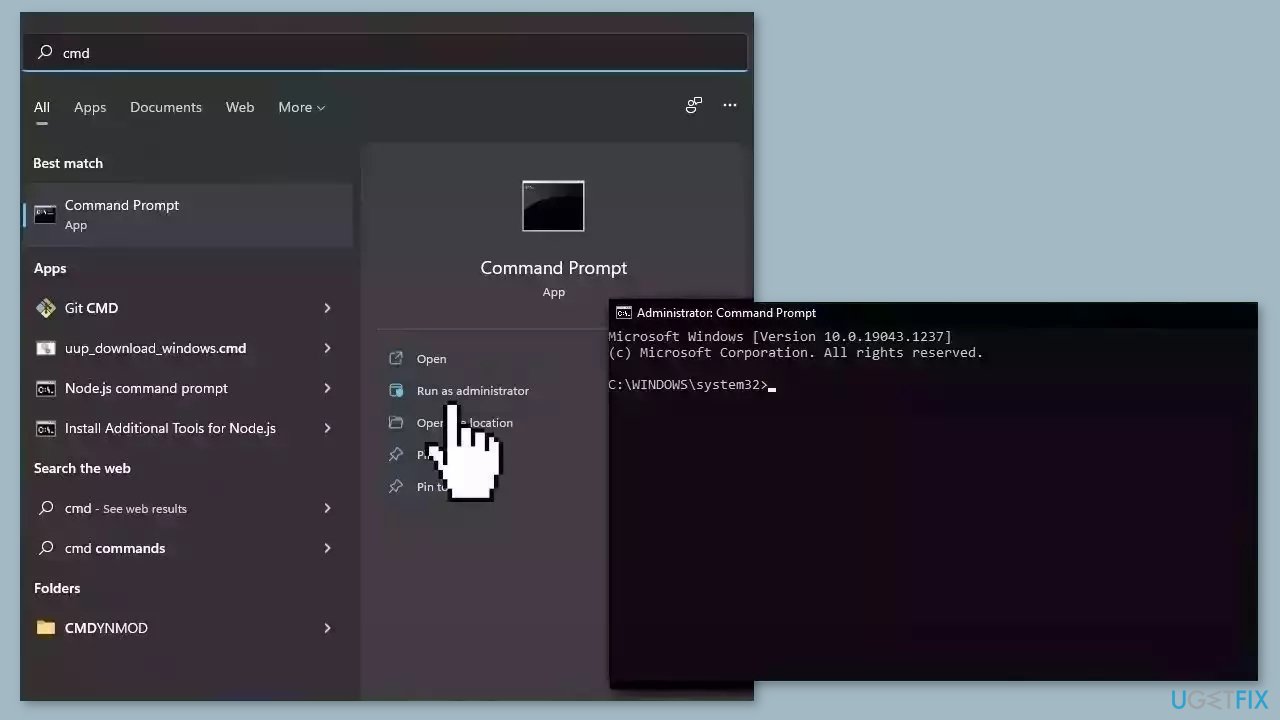
Use Command Prompt commands to repair system file corruption:
- Open Command Prompt as administrator
- Use the following command and press Enter:
sfc /scannow
- Reboot your system
- If SFC returned an error, then use the following command lines, pressing Enter after each:
DISM /Online /Cleanup-Image /CheckHealth
DISM /Online /Cleanup-Image /ScanHealth
DISM /Online /Cleanup-Image /RestoreHealth
Solution 4. Restart Windows Explorer
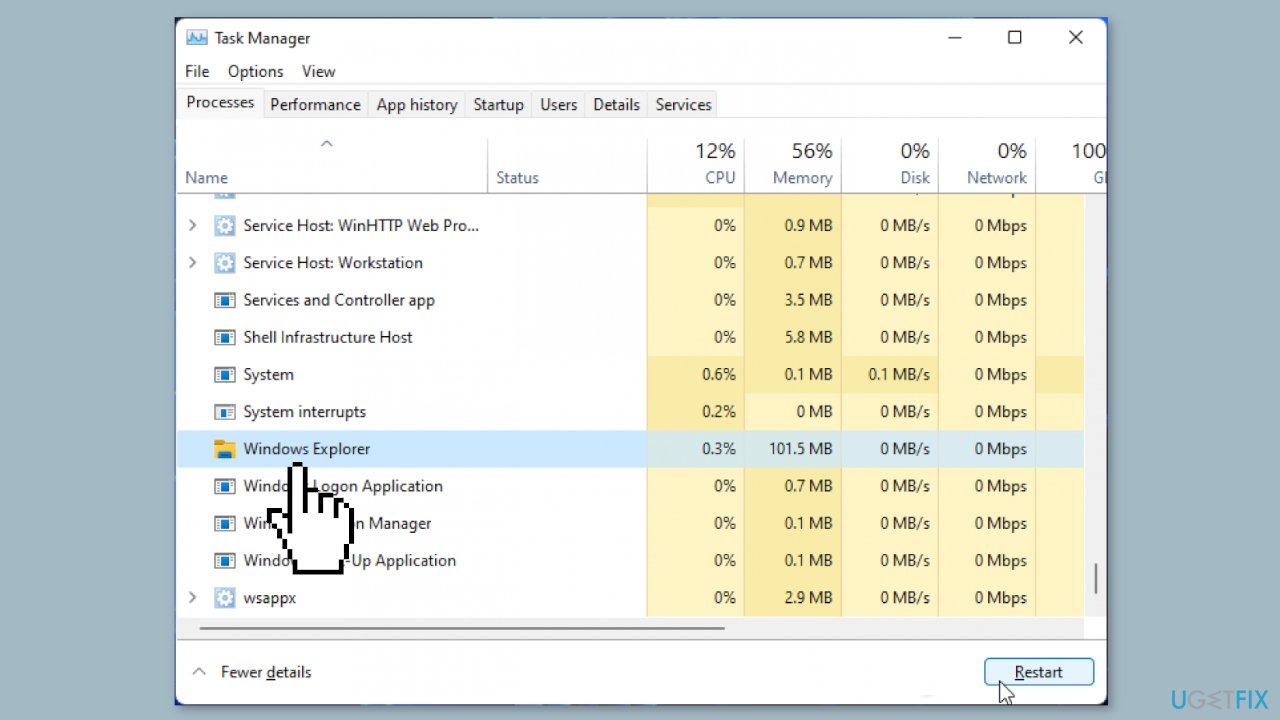
- Open your Task Manager using either the Ctrl + Alt + Delete or the Ctrl + Shift + Esc shortcut.
- Navigate to the Details tab.
- Locate explorer.exe in the list of running processes.
- Right-click on explorer.exe and select End task.
- Your screen will go black, but don't worry.
- Open your Task Manager again.
- Click on File and select Run new task from the drop-down menu.
- The Create new task window will appear.
- Type explorer.exe into the text field.
- Press Enter.
Solution 5. Update Keyboard Drivers
- Right-click on the Start menu icon.
- Select Device Manager from the list of options.
- Navigate to the Keyboard section.
- Right-click on the keyboard device.
- Select Update driver from the context menu.
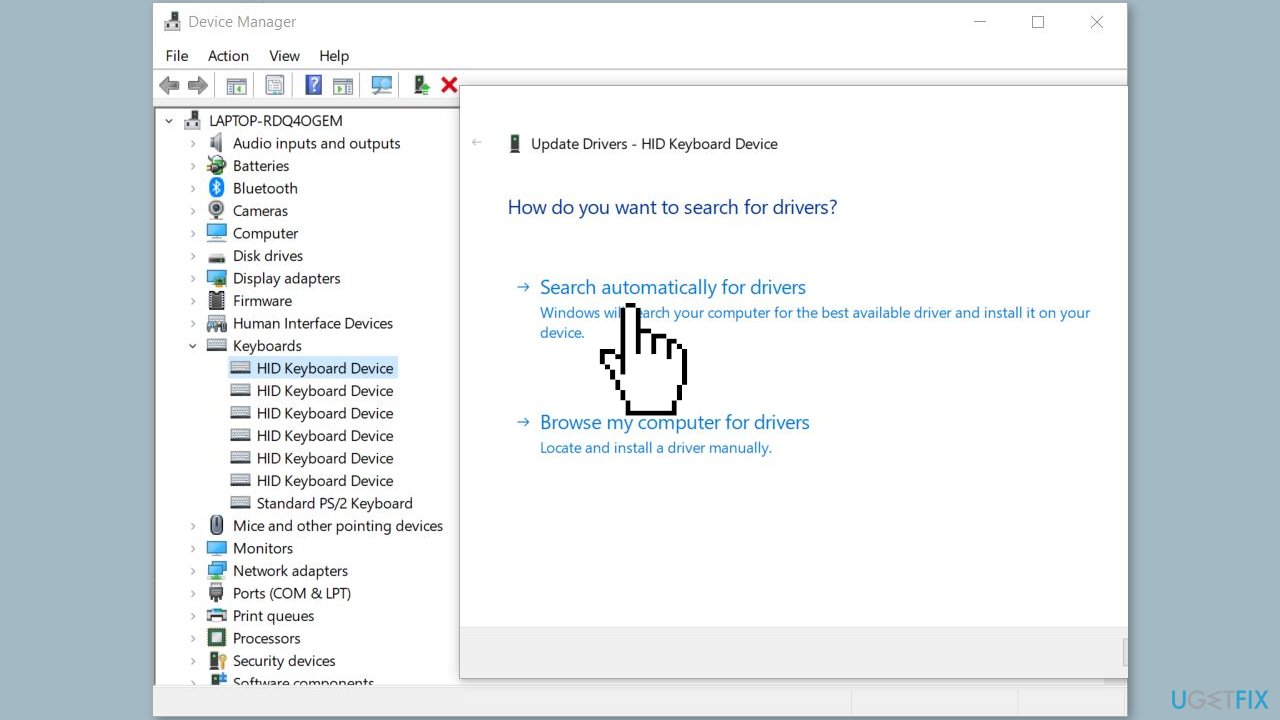
- Let Device Manager search for the required driver online.
- Wait for the process to finish and restart your device.
You can also use a dedicated utility like [rev id="DriverFix"] that can find the best drivers for your machine and install them automatically.
Solution 6. Modify Windows Registry
It's possible that you were mistaken in assuming that your Windows logo key is not functioning correctly when, in reality, the problem is related to your Start menu. You can enable your Start menu using the Registry Editor:
- Right-click on your Windows logo icon on the taskbar.
- Select Run from the drop-down menu.
- Type regedit and hit Enter.
- Go to the following location:
HKEY_CURRENT_USER\Software\Microsoft\Windows\CurrentVersion\Explorer\Advanced
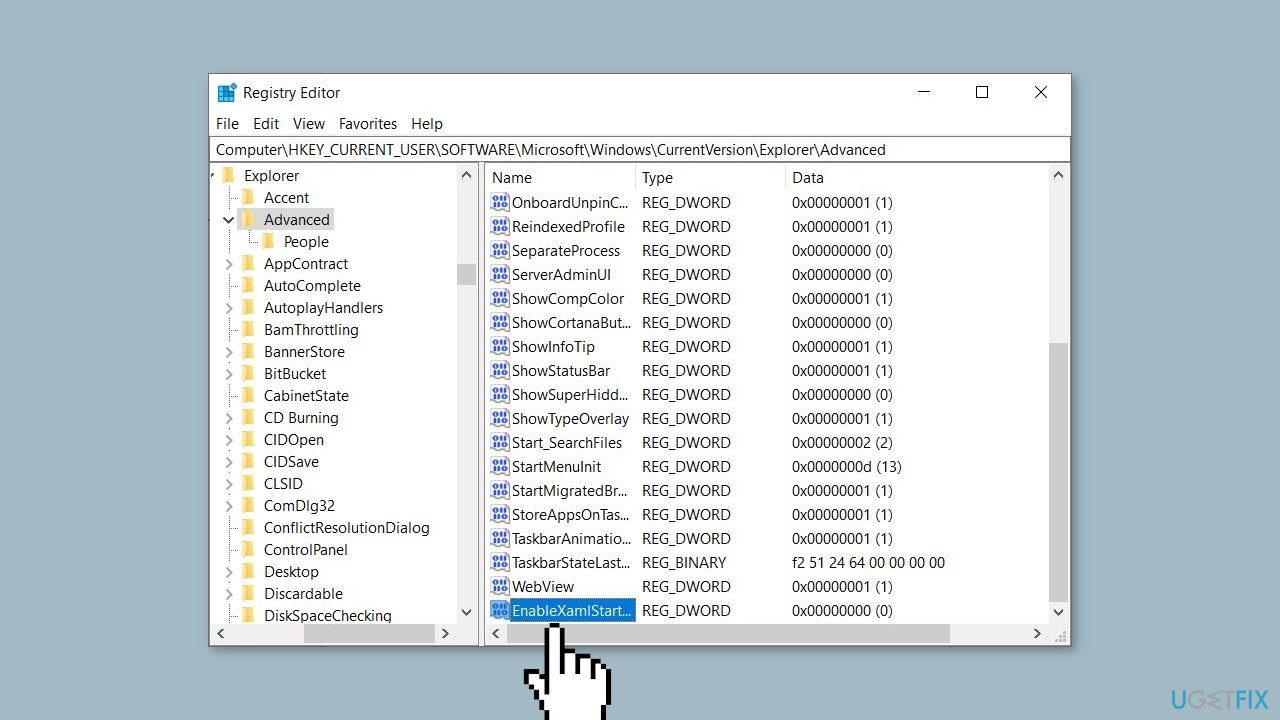
- Go to the right panel and click on it.
- Select New > DWORD (32-bit) value from the context menu.
- Name the new value as EnableXamlStartMenu.
- Close the Registry Editor and restart your device.
Solution 7. Disable Gaming Mode
In case you are using a gaming keyboard, it might be in gaming mode which can cause the Windows key to become unresponsive. To resolve this, look for a key that enables or disables gaming mode. Typically, this key has a drawing of a joystick or a similar symbol on it.
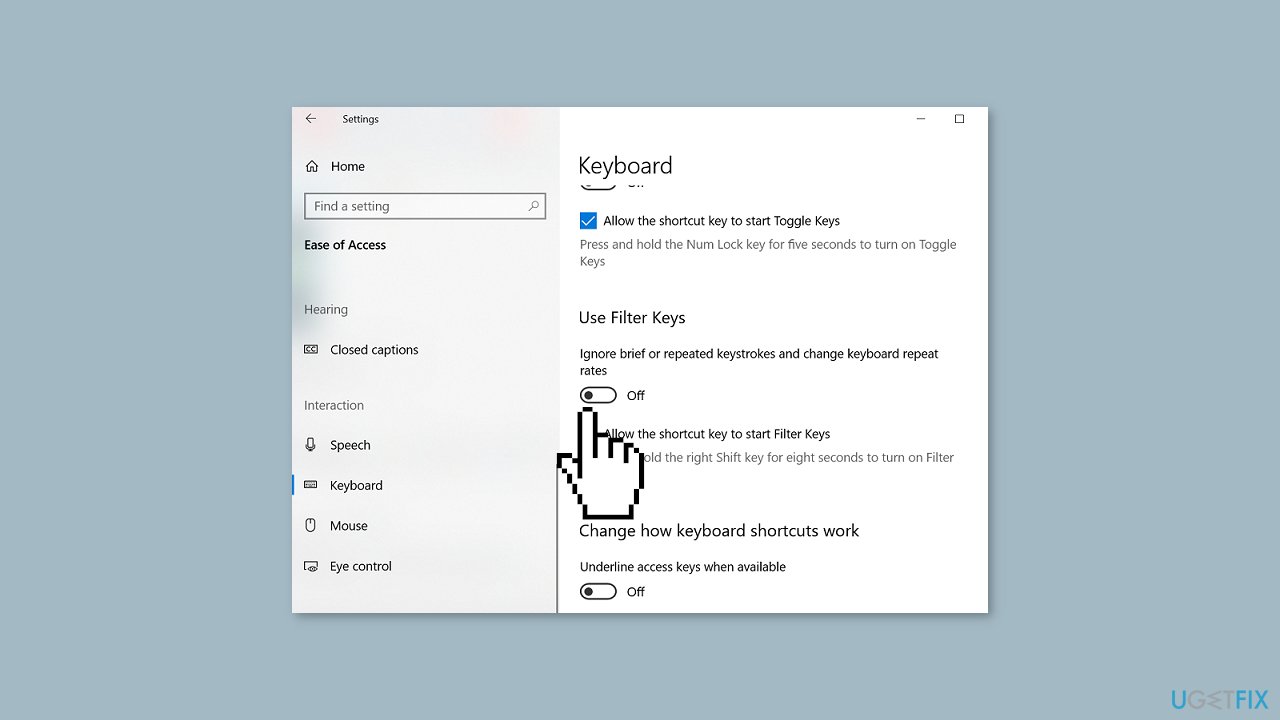
Solution 8. Disable Filter Keys
- Right-click on the Start menu icon.
- Select Settings from the menu.
- Navigate to Ease of Access and click on it.
- Go to the left pane and click on Keyboard.
- Locate the Filter Keys feature.
- Toggle it off.
Solution 9. Enable Windows key via Registry
- Right-click on your Start menu icon and select Run.
- Type regedit to launch Registry Editor.
- Navigate to the following location:
HKEY_LOCAL_MACHINE\SYSTEM\CurrentControlSet\Control\Keyboard Layout
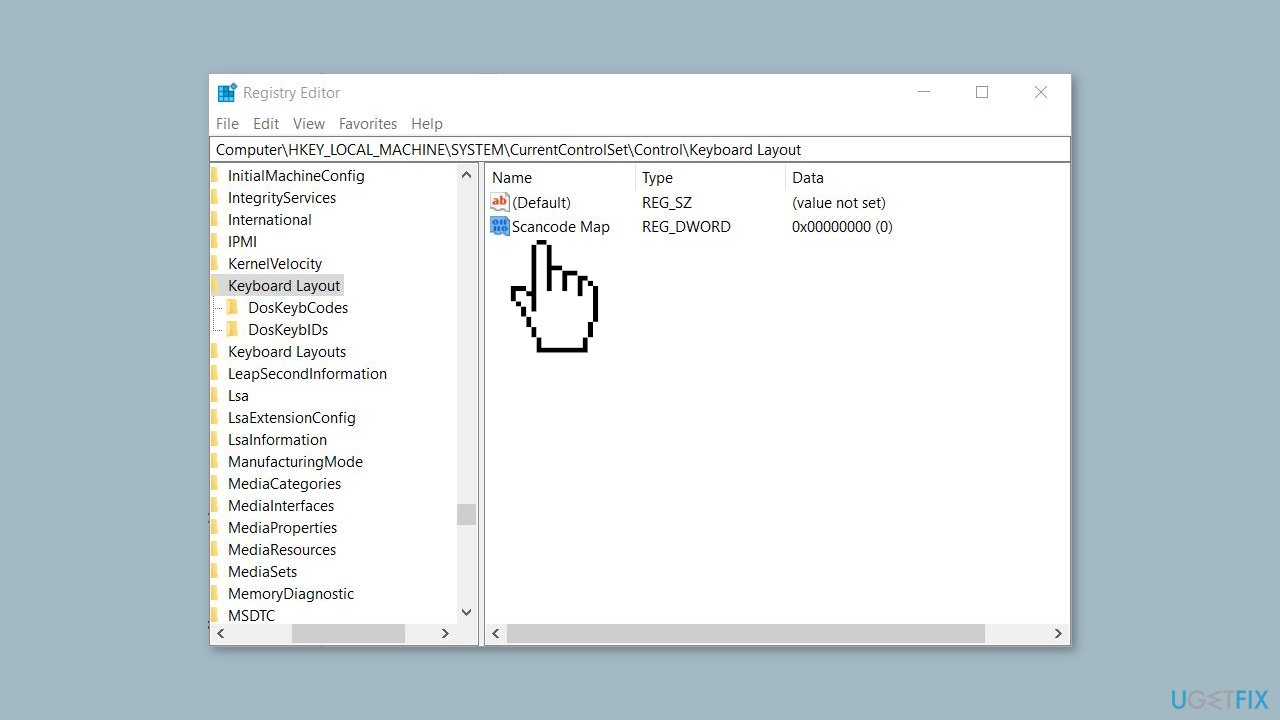
- In the right pane, locate Scancode Map.
- Right-click on Scancode Map and select Delete.
- Exit the Editor.
- Reboot your computer.
Solution 10. Perform a Malware Scan
Regrettably, keyboard problems on Windows computers are often caused by malware. It is likely that this is the case for you, which means it's time to scan your system for any potential threats.
- Click on the Windows Start menu or press the Windows key on your keyboard.
- Type Microsoft Defender in the search bar and click on Microsoft Defender Antivirus to open the application.
- Click on the Virus & threat protection option in the left-hand menu.
- Click on the Quick scan or Full scan option, depending on your preference.
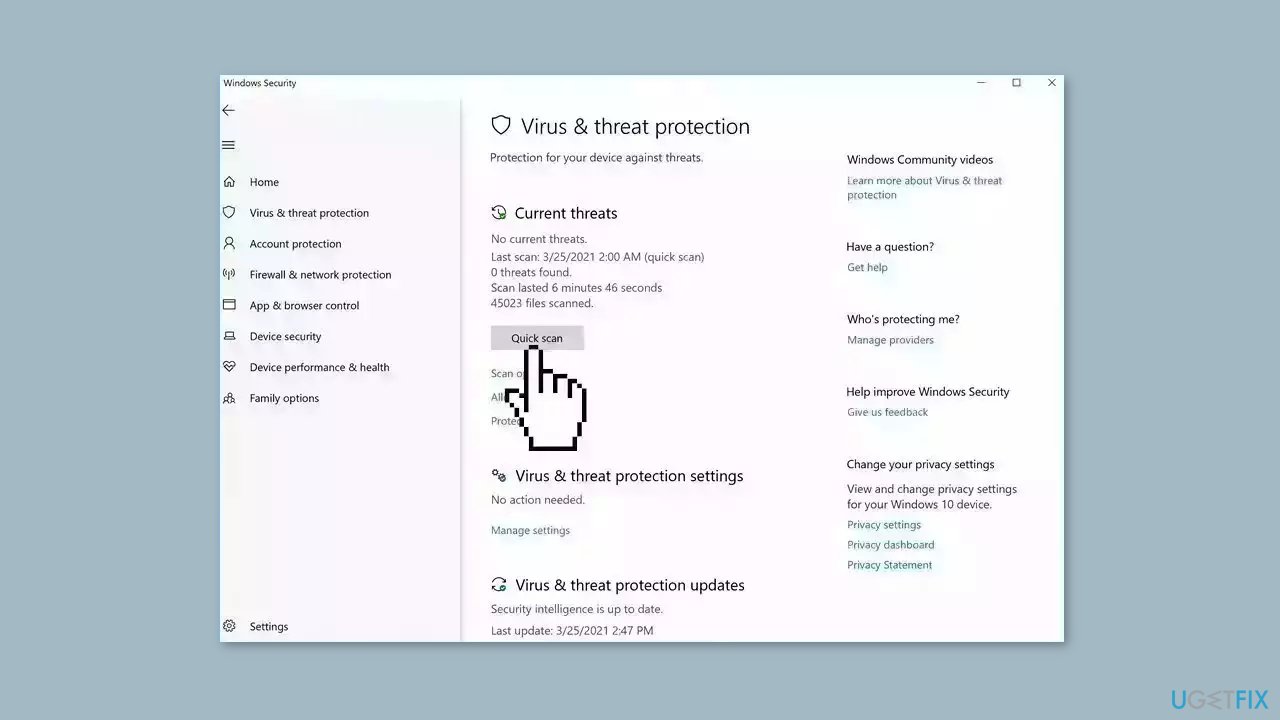
- If you choose Quick scan, Microsoft Defender Antivirus will scan the most vulnerable and commonly infected areas of your computer.
- If you choose Full scan, Microsoft Defender Antivirus will scan your entire computer, including all files, folders, and programs.
- Click on the Scan now button to start the selected scan type and wait for the scan to complete.
- The time it takes will depend on the size of your hard drive and the number of files being scanned.
- Once the scan is complete, you will be informed of any detected threats, and you can choose to quarantine or remove them.
- If no threats are found, Microsoft Defender Antivirus will inform you that your device is secure.
Bottom line
To fix the Windows key not working, you can update the keyboard driver, disable gaming mode, scan for malware, and modify registry settings. If these solutions do not resolve the issue, consider using a system repair tool to fix system errors and corrupted files.
Frequently asked questions
First, check if the Windows key is disabled in the Settings app under Gaming > Game Mode. If it’s enabled, try restarting your computer or running the Keyboard troubleshooter.
Yes, certain third-party applications may override or disable the Windows key. Uninstall any recently installed software to see if that resolves the issue.
You can reset your keyboard settings by going to Settings > Devices > Typing and clicking on 'Advanced keyboard settings' to restore default settings.




Report an issue
What's wrong with this guide? We review every report and update or remove content.
Report received — thank you. We'll review and fix it.
You need a free account to submit a report.
Be the first to comment